Get Started Free



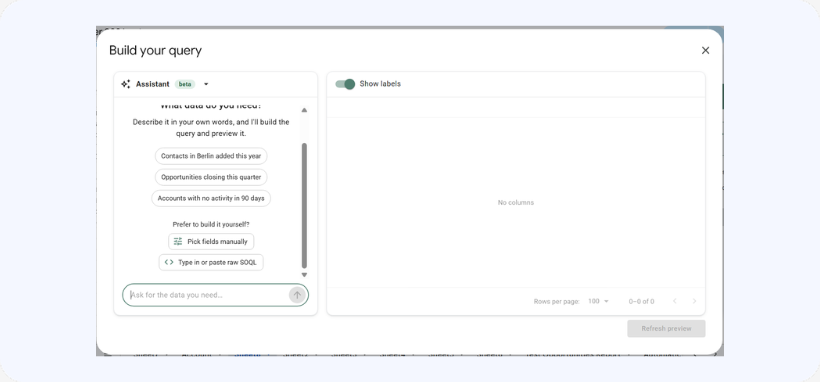
G-Connector for Salesforce includes an AI-powered feature that helps you create SOQL queries using plain language. Instead of writing a query from scratch, you can describe the data you need, and the AI will generate a query for you to review and use.
The feature is available in the SOQL query builder and is marked Beta.
How to generate a SOQL query with AI
-
1
Open the AI tab
In G-Connector, open the sidebar and select Import Data→New from Objects and fields.
Then, click Choose data to import.
The dialog box for the query builder will open.

-
2
Describe the data you need
Enter a description of the Salesforce data you want to retrieve. Be as specific as possible about the records, conditions, and fields you’re looking for.
For example:
Show all open Opportunities in EMEA closing this quarter, including the Account name and Owner.
The AI uses your description to generate a SOQL query.
-
3
Review the generated query
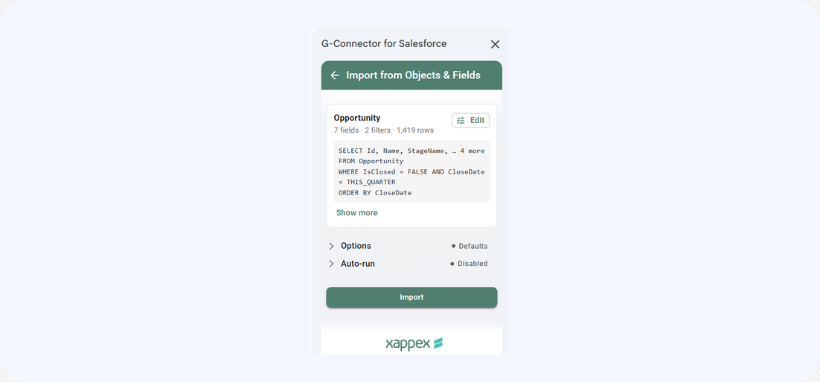
Once the query is generated, you’ll see the preview of the data. Click Apply.
You’ll see the query in the sidebar and you can edit it if needed, run it, or discard it and try a different description.
Keep in mind that AI-generated queries may not always match your requirements exactly. Check the query and its conditions before running it.
-
4
Run the query and retrieve your data
When you’re happy with the query, run it to retrieve the matching Salesforce records.
Your data is imported into your sheet when you initiate the import.
Tips for getting better results
The more detail you provide, the easier it is for the AI to generate a query that matches your needs.
-
Specify the records you’re looking for. For example, open Opportunities, active Accounts, or recently created Cases.
-
Include relevant conditions. Mention date ranges, statuses, regions, or other filters.
-
Name the fields you need. For example, Account name, Opportunity amount, or Owner.
-
Review the query before running it. Make sure the selected fields and conditions match your requirements.
-
Refine your request if needed. If the first query isn’t quite right, adjust your description or edit the generated SOQL directly.
Can I still write SOQL manually?
Yes. AI-powered query generation is an additional option, not a replacement for existing functionality.
You can continue to build queries using Objects & Fields, write SOQL directly, or convert Salesforce reports to SOQL using the existing Report → SOQL option.
Frequently asked questions
Can I edit an AI-generated query?
Yes. The generated query is a starting point. You can edit it before running it.
Can I trust the generated query without reviewing it?
No. AI-generated queries can be inaccurate or may not fully reflect your request. Always review the query before running it.
Does the AI feature modify my Salesforce data?
No. The feature generates SOQL queries to retrieve data; it doesn’t modify Salesforce records.
Are my Salesforce records sent to the AI model?
No. The AI receives your chat messages, the current query, and relevant Salesforce object and field metadata, such as field names, types, and picklist values.
What if I prefer not to use AI?
You can continue using the existing query-building options without AI. If your license administrator has disabled AI Features, the AI tab will display a message indicating that the feature has been disabled.