Get Started Free



Xappex tools now include a Report → SOQL converter built directly into the report import dialog. When you import a Salesforce report, you can expand the new SOQL (beta) section and the connector will automatically generate a SOQL query that reproduces the report’s columns, filters, and sort order. You can review, edit, and import using that query instead of importing through the report itself.
Why use it
Standard report imports run through the Salesforce Analytics API, which is subject to rate limits; including the limit on asynchronous report runs (1,200 report executions per rolling hour, per org). With Salesforce’s Summer ’26 Step-Up Authentication changes, some report exports now route through this API and can be affected by those limits.
A SOQL query bypasses the report layer entirely. It queries the underlying object directly, so it does not consume Analytics API report executions and is not subject to that rate limit. This makes the SOQL route a reliable alternative when you:
-
Are hitting Analytics API rate limits
-
Need to pull the same data repeatedly, such as in scheduled refreshes
-
Have a report that is failing to export because of Step-Up Authentication

The report-to-soql converter is a free functionality
The report-to-soql converter is included in all Xappex free plans, so you can still pull your report data with this method and bypass the Analytics API limits (2,000 row limit for report exports).
How to use it
-
1
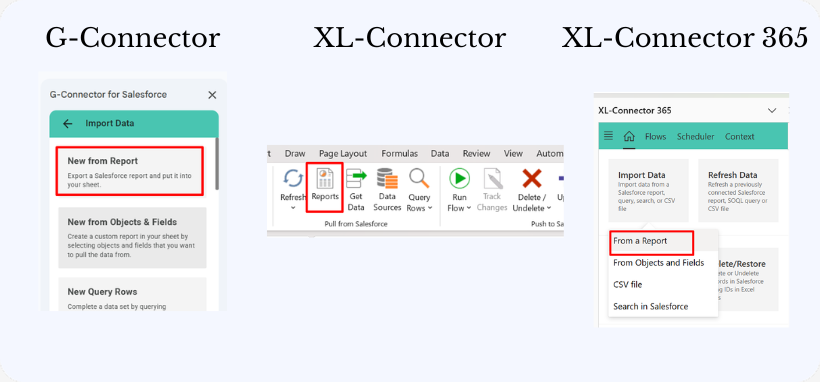
In XL-Connector, XL-Connector 365, or G-Connector, open the Import Report dialog and select your report.
-
2
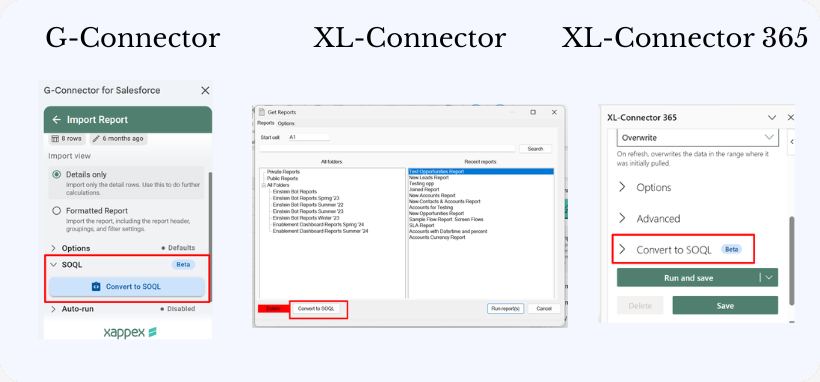
Expand the SOQL (beta) section.

-
3
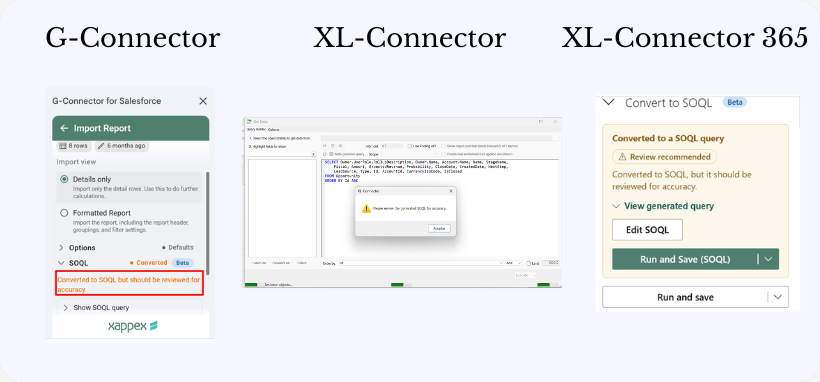
The connector converts the report and displays “Successfully converted to SOQL.”
-
4
Review the generated query:
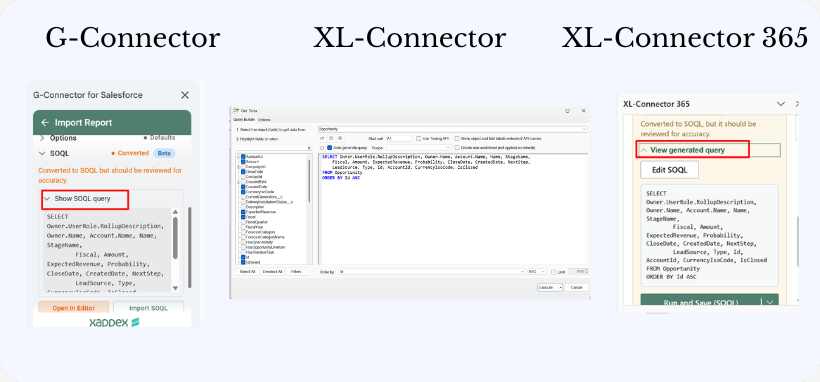
- G-Connector: click Show SOQL query
- XL-Connector: the query appears in the query panel
- XL-Connector 365: click View generated query
-
5
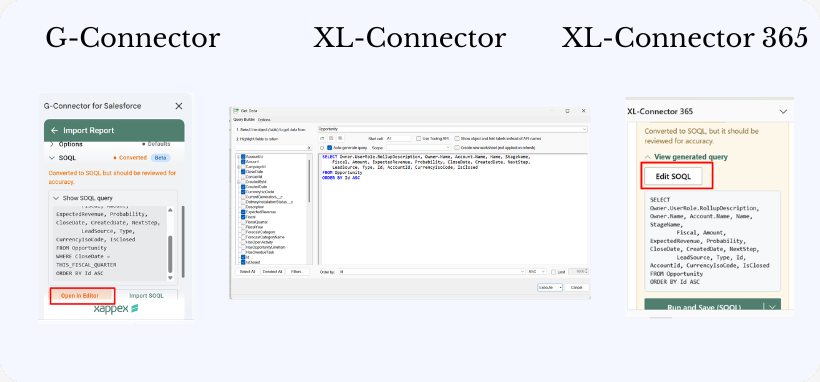
Optionally, click Edit SOQL to adjust the query before importing.
-
6
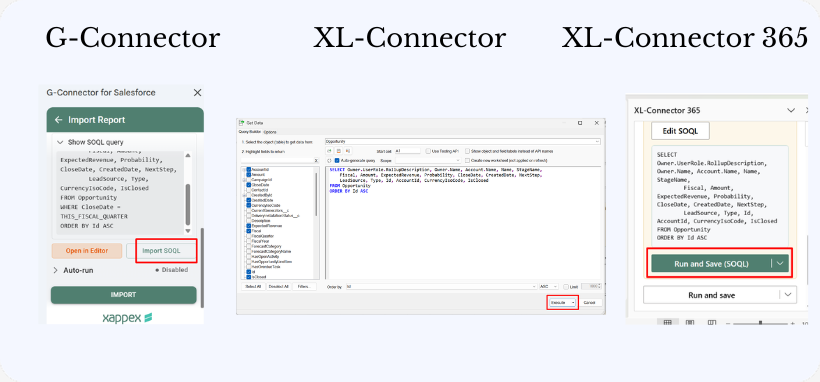
Click the import button for your connector to pull the data using the SOQL query:
- Import SOQL in G-Connector
- Execute in XL-Connector
- Run and Save (SOQL) in XL-Connector 365
Understanding the converted query
The converter maps the report’s structure onto SOQL:
-
Report columns become the SELECT field list
-
The report object becomes the FROM clause
-
Report filters become the WHERE clause, including relative date literals such as LAST_N_DAYS:9
-
Report sort order becomes the ORDER BY clause
Editing before import
Click Edit SOQL to change the query before running it. Because you’re now working with raw SOQL, you can go beyond the original report — for example, add or remove fields, adjust the WHERE clause, change the sort, add a LIMIT, or traverse related objects using relationship fields. The edited query is what runs when you click Import.
Limitations (beta)
The converter is in beta, and SOQL and Salesforce reports are not perfectly equivalent, so some report features don’t translate directly:
-
Groupings, subtotals, and summary rows — SOQL returns flat, row-level data only.
-
Report-level summary and formula columns, bucket columns, and other calculated fields that exist only inside the report.
-
Cross-filters and certain cross-object custom report types.
-
Reports built on complex custom report types may not convert cleanly and can require manual editing.
If a report can’t be fully converted, edit the generated SOQL to fill the gap, or fall back to a standard formatted or tabular report import.