
 Get Started Free



XL-Connector 365 allows you to import data from HubSpot lists directly into Excel, making it easier to analyze and work with your marketing data. This guide explains how to set up and run the import process using the available options.
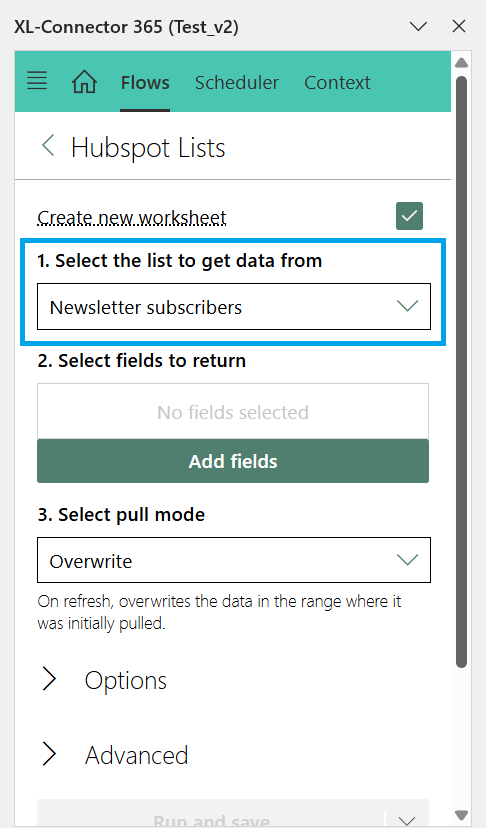
1. Select the List
Navigate to Home and choose From a List from Import Data. In the Select the list to get data from, pick the HubSpot list you want to import.
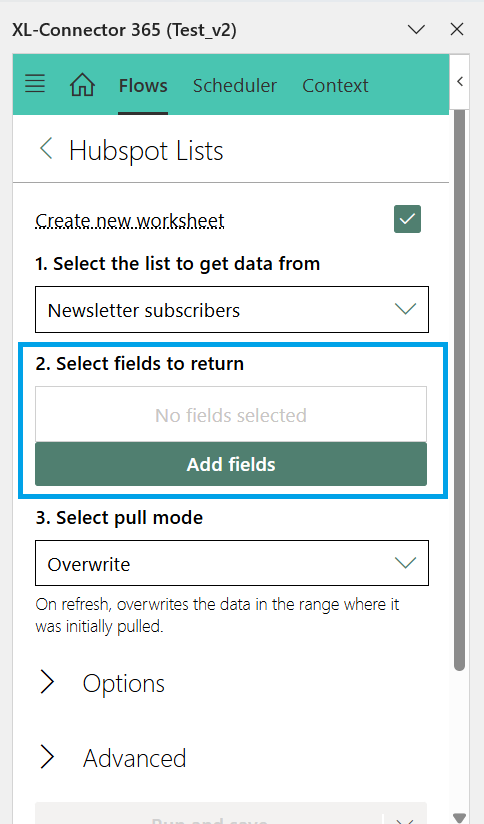
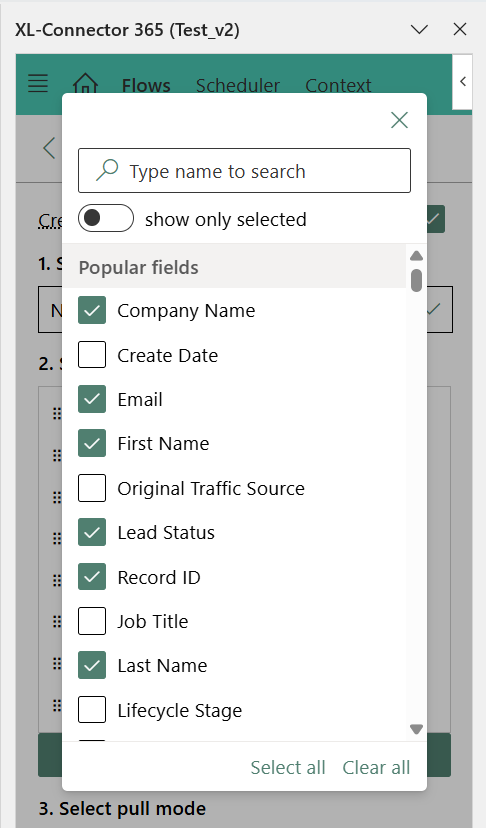
2. Select Fields to Return
Click Add fields to specify which data columns should be included in your import. You can customize the fields based on the information you need for reporting or analysis.
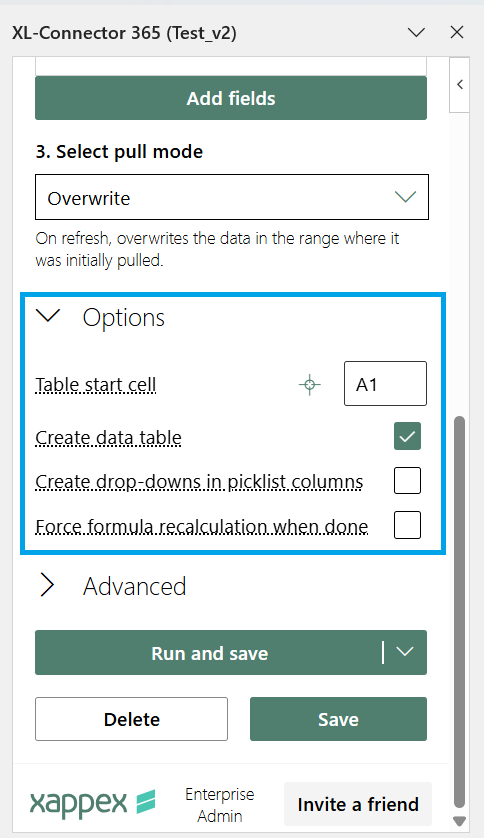
3. Select Pull Mode
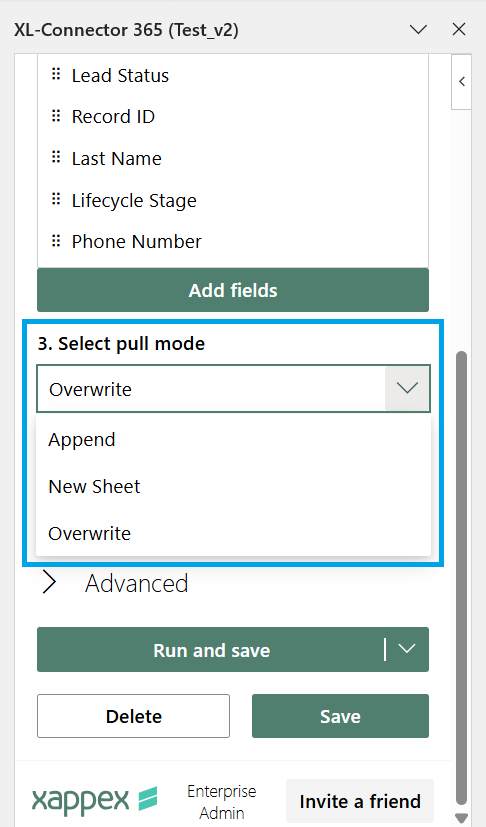
Choose how the data should be updated when refreshed:
- Overwrite: Replaces the data in the range where it was initially pulled.
- Append: Adds new data below the existing data without removing what is already there.
- New Sheet: Pulls data into a new worksheet each time the import runs.
Options Available
- Table Start Cell: Define the cell where the imported data will begin (default is A1).
- Create Data Table: Enable this option to automatically format the imported data as an Excel table, making it easier to filter and sort.
- Create Drop-downs in Picklist Columns: Adds drop-down lists for columns that contain picklist values, allowing quick selection.
- Force Formula Recalculation When Done: Ensures that any formulas in your sheet recalculate after the import completes.
Advanced Settings
Flow Step Name: Assign a custom name to your flow step for better identification.
Reaction on Error: Choose how the system should respond if an error occurs:
- Ask User: Prompts for input when an error is detected.
- Continue: Skips the error and continues the import process.
- Stop: Terminates the import process when an error occurs.
Last Run Timestamp Cell: Specify a cell to record the timestamp of the most recent data import.
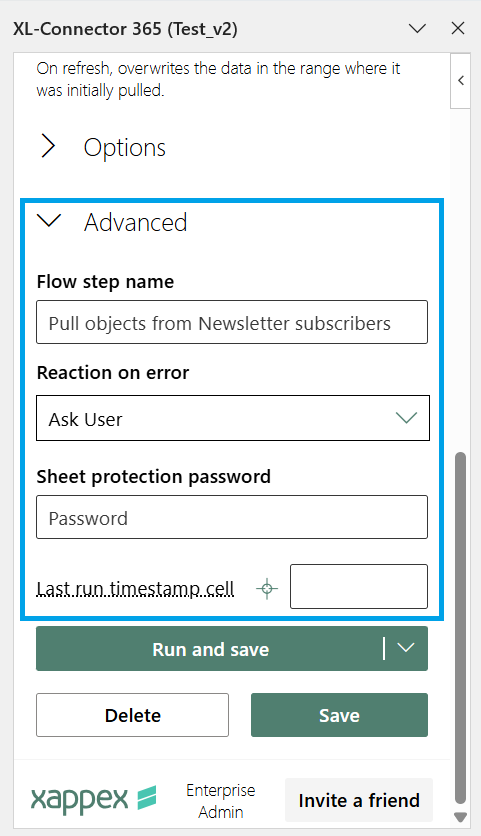
Once all settings are configured, click Run and Save to execute the import. Your HubSpot list data will be pulled into Excel based on the chosen options.

