
 Get Started Free



When working with Salesforce data in Google Sheets, you may notice that record IDs come in two versions: a 15-character, case-sensitive format and an 18-character, case-insensitive format. While reports and the Salesforce UI often display the 15-digit ID, integrations, APIs, and external tools typically require the 18-digit version. With G-Connector, converting between these formats is simple and ensures your data remains consistent.
Why the 18-Digit ID Is Important
The original 15-digit Salesforce ID distinguishes between uppercase and lowercase letters, meaning it is case-sensitive. However, many external platforms — including Google Sheets — are not case-sensitive. This can lead to mismatches or duplicate-looking values when performing lookups or syncing data.
To solve this, Salesforce created the 18-digit ID. It includes an additional three-character suffix (a checksum) that guarantees uniqueness, even in case-insensitive environments. Using the 18-digit format helps prevent errors when matching, updating, or integrating records.
How to Convert IDs in G-Connector
G-Connector makes it easy to work with the correct ID format:
-
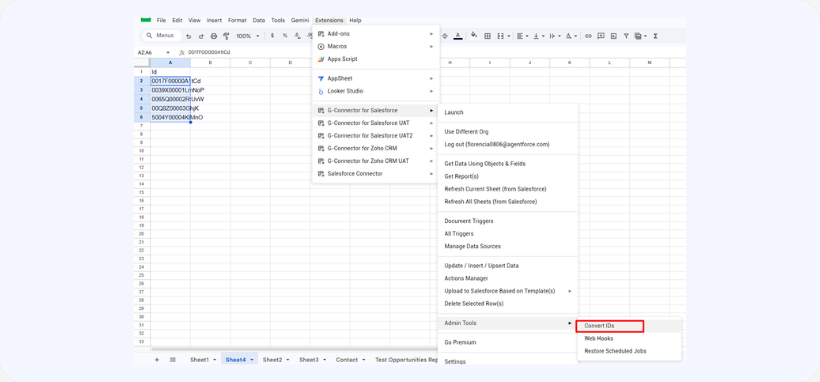
Locate the column in your sheet that contains the 15-digit Salesforce IDs.
-
In G-Connector’s drop-down menu, find ‘Admin Tools’ → Convert IDs to convert IDs into the 18-digit format.

-
G-Connector automatically generates the appropriate three-character suffix, converting each 15-digit ID into its corresponding 18-digit version.
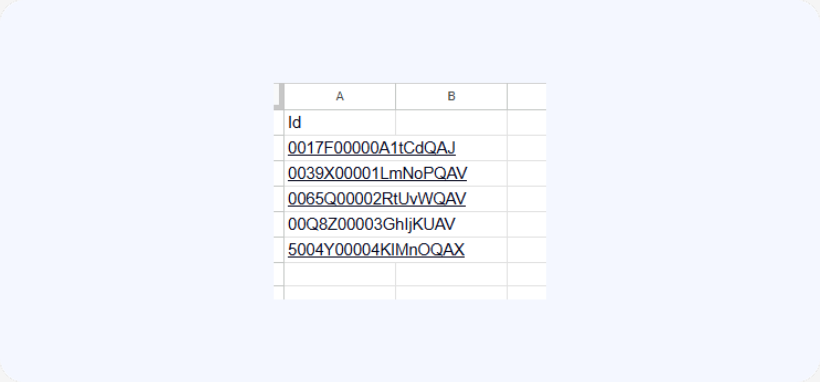
By ensuring you’re using 18-digit IDs in Google Sheets, you improve data accuracy, avoid case-related conflicts, and maintain compatibility with Salesforce integrations and external systems.

