Get Started Free



A common scenario when working with Salesforce data in Google Sheets is to have an ability to lookup certain data column based on one or several data columns that are already present. A common scenario is having a list of contact emails and needing to populate Salesforce Ids for all contacts next to them.
G-Connector allows you to query Salesforce against existing spreadsheet data and bring back additional data that is missing in the sheet.
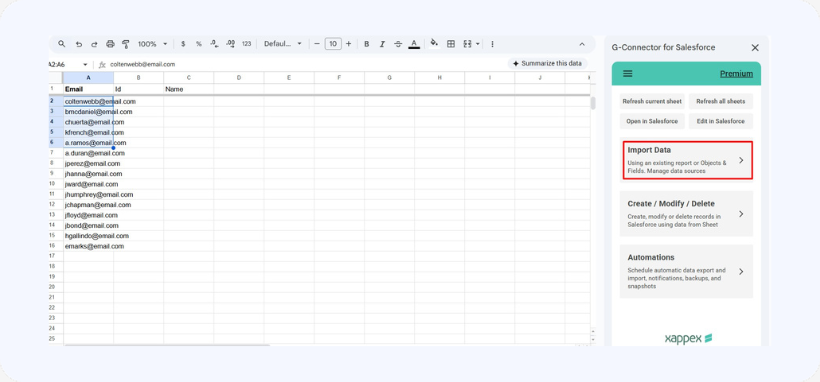
This function will query Salesforce for each row passing existing values as a filter and returning other values from the same record back to the sheet. You’ll need to select the rows you’d like to query and click ‘Import Data’ in the side panel:
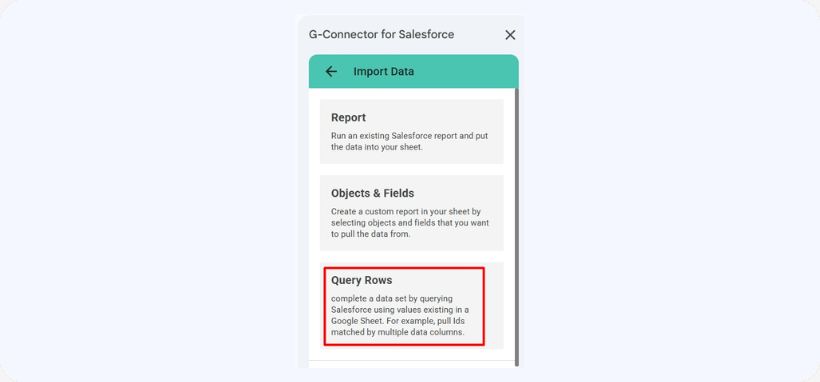
Then, click ‘Query Rows’:
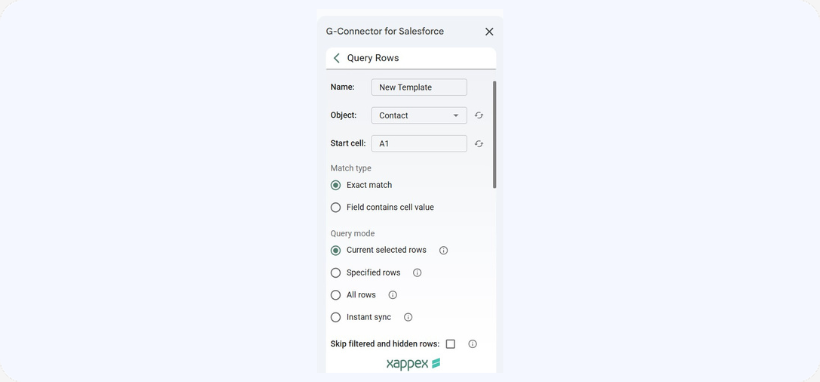
You will be able to select whether you would like to query records with a Exact Match or that contain cell value. Also, you can change the pull mode from ‘Currently Selected Rows’ to ‘All Rows,’ ‘Sepecified Rows,’ or even ‘Instant Sync.’
Finally, you can define what column to look up by and what columns to return values to:
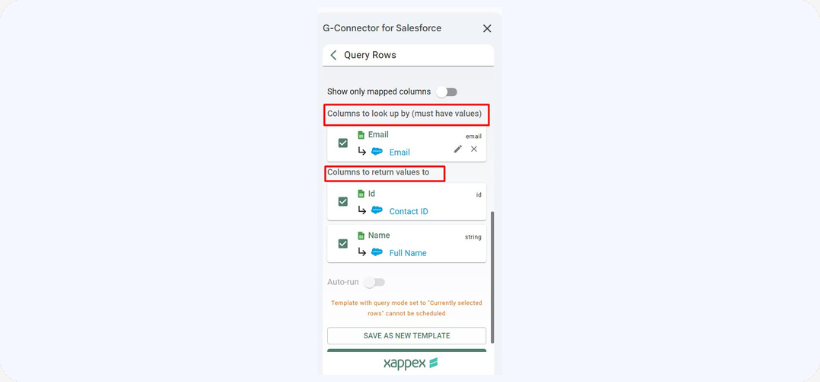
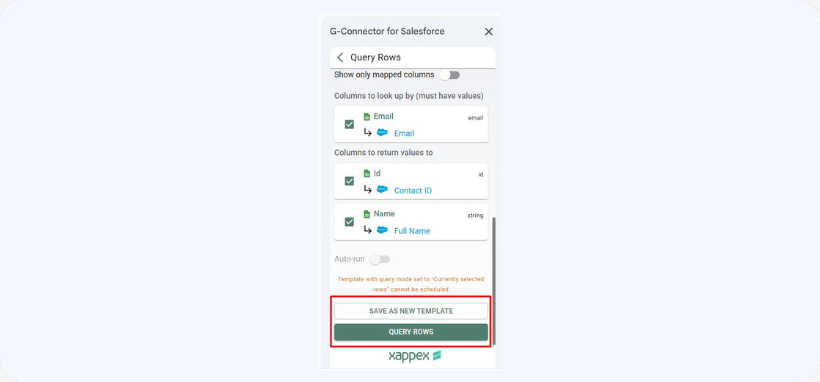
To save this template click ‘Save as New Template.’ To query the rows, click ‘Query Rows’:
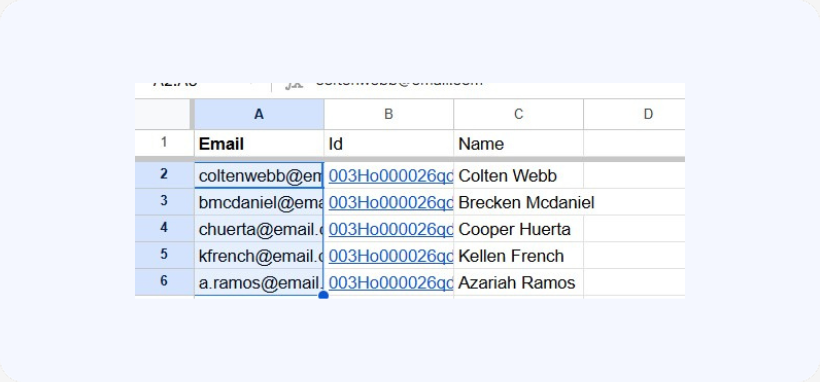
Results will be completed in the defined columns:
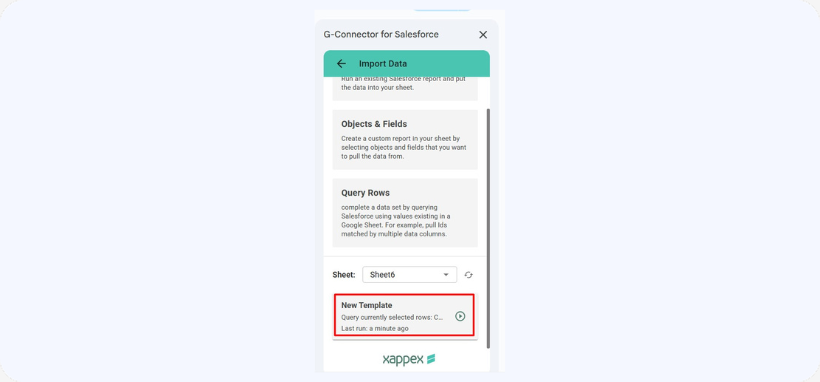
After running the operation, the template will be saved as a card under the Import Data section and it will be possible to run it again from there.