Get Started Free



When you pull data from HubSpot into Excel using XL-Connector 365, a live connection is established between your spreadsheet and your HubSpot account. This connection enables you to refresh your data at any time, ensuring you work with the most updated information from HubSpot.
Refreshing Data in the Active Worksheet
To refresh data for the current worksheet:
-
1
Click on the Refresh button in the XL-Connector 365 ribbon.
-
2
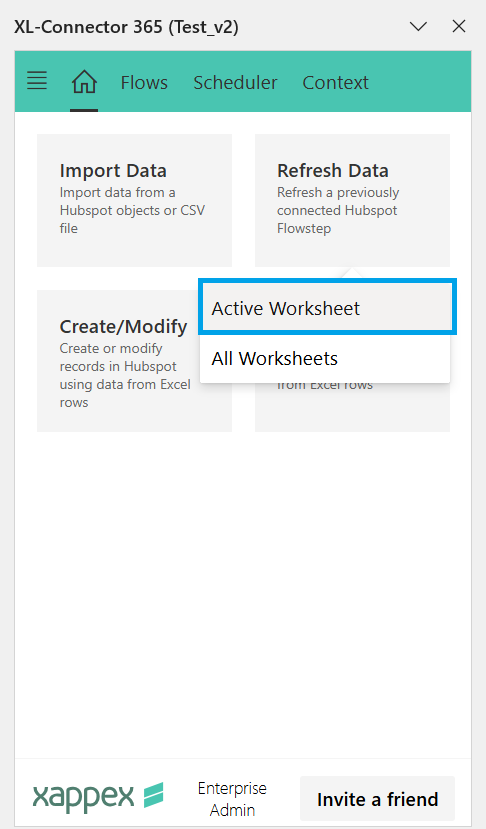
Select Active Worksheet from the dropdown menu.
This re-pulls all data for the objects and fields, or a list that was initially executed and placed in the active worksheet.
Refreshing Data Across All Worksheets
If you have multiple worksheets linked to HubSpot data, you can refresh all of them at once:
- Click on the Refresh button.
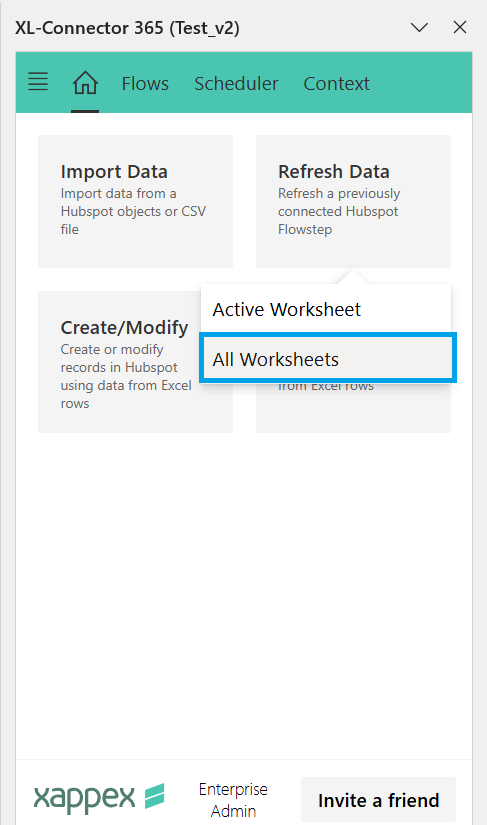
- Choose All Worksheets from the dropdown list.
XL-Connector will then update data for every HubSpot object and field, or a list across your workbook.
Refreshing Protected Sheets
XL-Connector 365 also supports refreshing data in protected sheets.
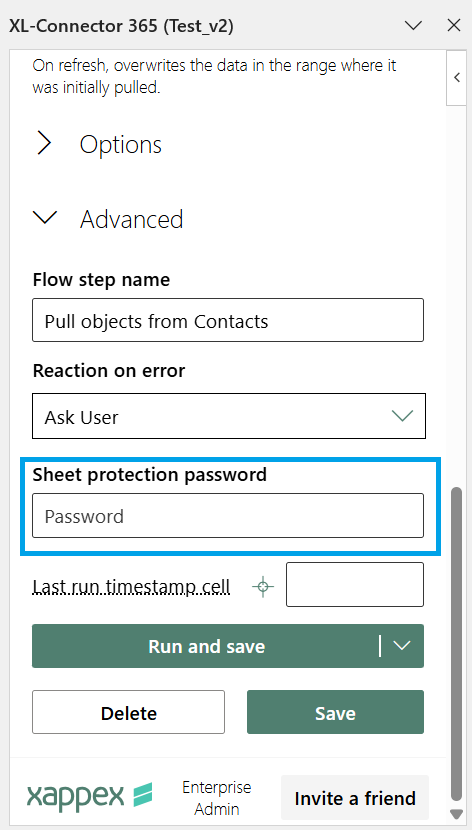
If a worksheet is protected, you can still refresh it by providing the password in the Options section of the app before pulling data. Once the password is set, XL-Connector 365 will automatically use it to refresh data in protected worksheets.