Get Started Free



Scheduling automatic data exports and imports is a great way of visualizing the latest Salesforce data and minimizing time and effort that would otherwise be spent manually updating data. G-Connector features support for complete offline data pulls and pushes to/from any tab in your spreadsheet.
Automatic data pulls are also an amazing way for sharing Salesforce data to users who only need read-only access to the system. With G-Connector, you can automate Salesforce data operations into a Google Sheet, and schedule them to be refreshed offline at your desired interval. That spreadsheet can be later shared with anyone using Google Drive. Users you share your spreadsheet with don’t need access to G-Connector to see the data.
Automatically Pulling Data From Salesforce
Automatic data pulls are an amazing way for you to not have to buy Salesforce licenses for those users who only need read-only access to the system. Now you can pull data from Salesforce.com into a Google Spreadsheet, share that spreadsheet with anyone using Google Drive, and schedule automatic offline refreshes as frequently as once an hour.
To schedule an automatic refresh, select Document Triggers from the G-Connector for Salesforce menu or from Automations in G-Connector’s side panel. The following dialog box will be displayed:
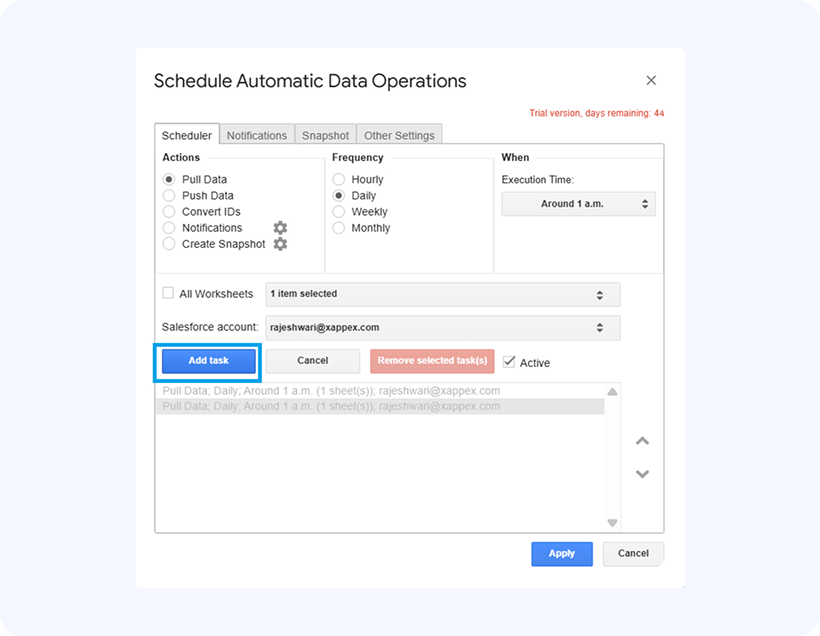
You can schedule data operations to run once, hourly, daily, or weekly (on specific days). Select the frequency, execution time, and worksheet, then click Add Task.
A couple of considerations when using auto-refresh:
- Users you share your spreadsheet with don’t need access to G-Connector to see the data.
- Automatic data pull will only work on the original worksheet that you pulled the Salesforce.com data into. If you create a copy of your worksheet – you will not be able to refresh both from the UI and from the refresh scheduler.
- Automatic data operations will always run as the user who scheduled it. If you share a document and another user with access to G-Connector re-schedules the auto-refresh, the data will be refreshed using the new schedule and as the user who last scheduled it.
Automatically Pushing Data To Salesforce
You can make it possible for the users to enter their data in the spreadsheet, and it will push it back to Salesforce on a schedule and using the settings you specify. The set of settings that are used to push data to Salesforce are called Templates and can be accessed by clicking the Actions Manager item on the G-Connector menu.
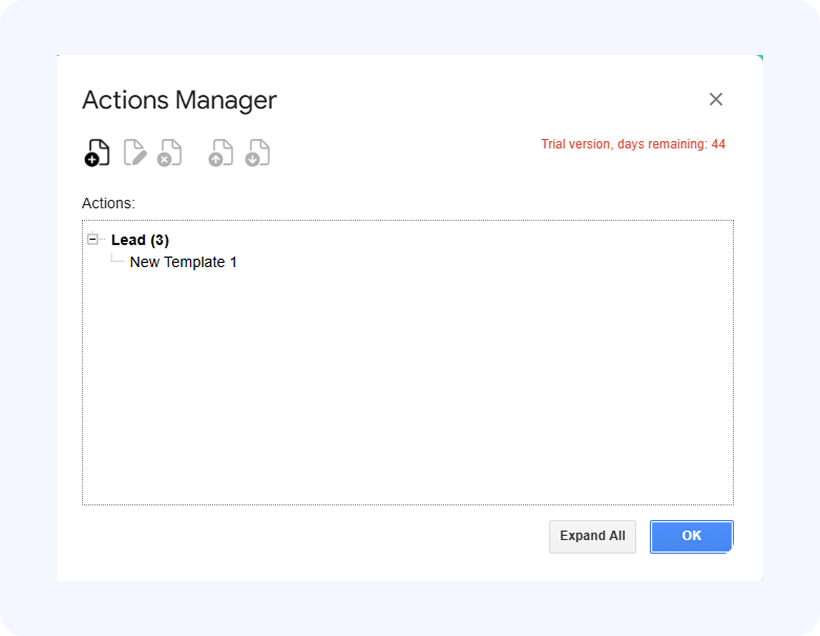
You can change the order of execution of a template by selecting it and pushing the Up or Down button on the right.
Each template represents the collection of settings set up in the Update/Insert/Upsert dialog box. The Mapping tab in that dialog box lets you map your columns to fields in Salesforce, specify the starting cell of the data range to be pushed to Salesforce, specify the mappings name, batch size, and whether empty values should overwrite existing values in Salesforce.
The Auto Data Push options tab in this dialog box lets you set up the automatic push behavior for each template.
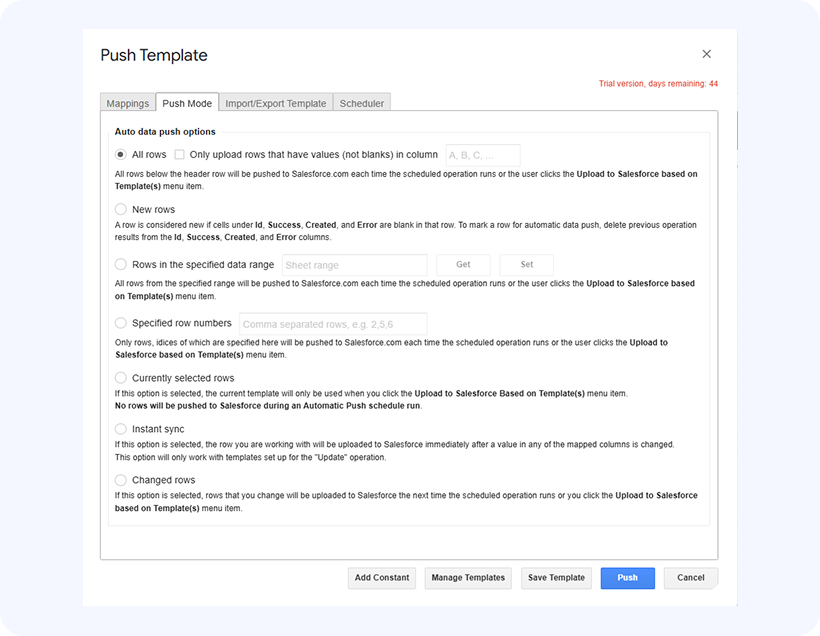
Take into account that ‘Currently selected rows’ won’t work for automatic push.
Push options available in automatic push:
- All rows: All rows below the header row will be pushed to Salesforce.com each time the scheduled operation runs or the user clicks the Upload to Salesforce based on Template(s) menu item.
- New rows: A row is considered new if cells under Id, Success, Created, and Error are blank in that row. To mark a row for automatic data push, delete previous operationresults from the Id, Success, Created, and Error columns.
- Rows in the specified data range Sheet range: All rows from the specified range will be pushed to Salesforce.com each time the scheduled operation runs or the user clicks the Upload to Salesforce based on Template(s) menu item.
- Specified row numbers: Only rows, idices of which are specified here will be pushed to Salesforce.com each time the scheduled operation runs or the user clicks the Upload to Salesforce based on Template(s) menu item.
- Instant sync: If this option is selected, the row you are working with will be uploaded to Salesforce immediately after a value in any of the mapped columns is changed. This option will only work with templates set up for the “Update” operation.
- Changed rows: If this option is selected, rows that you change will be uploaded to Salesforce the next time the scheduled operation runs or you click the Upload to Salesforce based on Template(s) menu item.
Note: Google Apps Script time-driven triggers are designed to fire within a randomized window of the scheduled hour, not at an exact time. This time usually aligns with the time in the hour when the trigger was created.
- Increased Limit: Schedule up to 100 documents per user for automatic import/export (previously limited to 20).
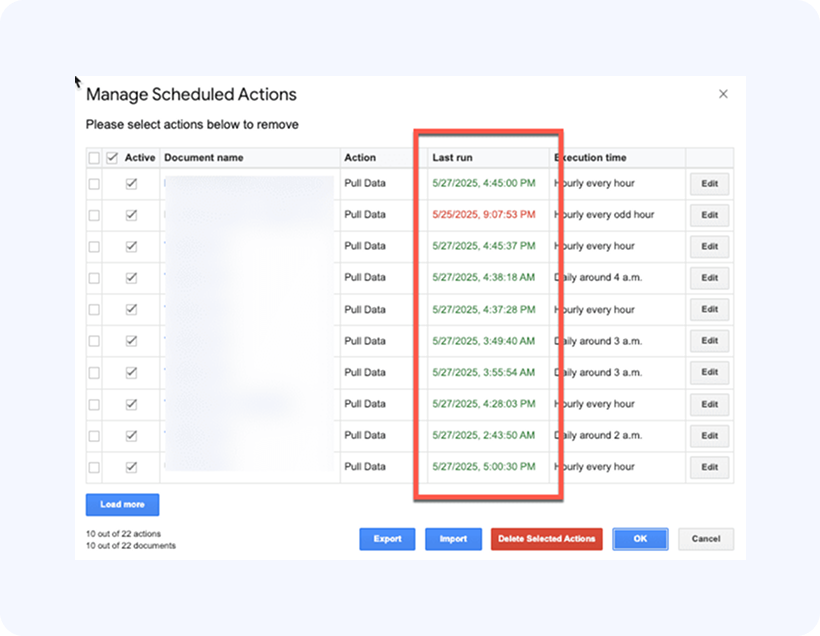
- Execution Timestamp: See the last run time for each schedule to track and verify automation activity. If the timestamp appears in red, it means the operation completed with errors.