Get Started Free



To update records in Hubspot in bulk, you will first need to pull them to your Excel spreadsheet. You can do it using either Objects and Fields or from Lists. You can retrieve your data with any other tool or directly from Hubspot by exporting a report too. The main thing to remember is that you need to have record Ids in order to be able to update the records.
In our example here we’ll use XL-Connector to update the phone numbers of several Contacts. We’ll follow these steps to retrieve the data:
-
1
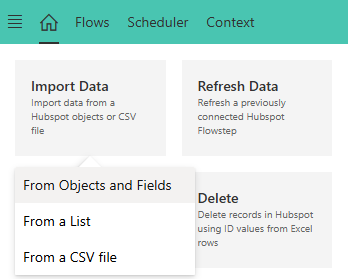
Click on import data
-
2
Select From Objects and Fields

-
3
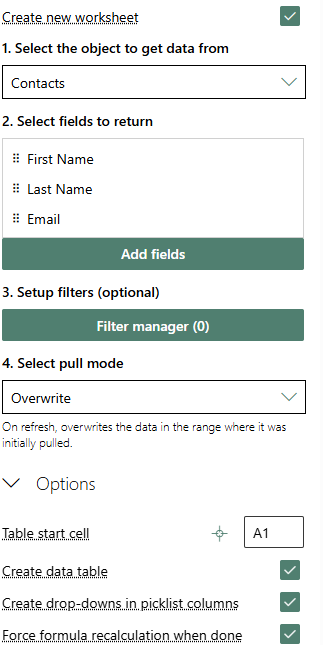
Select Contacts from the dropdown
-
4
Select the fields to return (First Name, Last Name, Email, Phone Number, Company Name and RecordId)
-
5
Select Pull mode from the dropdown and select desired settings in options
-
6
Click Run and Save
We got the following results back from our sample database:
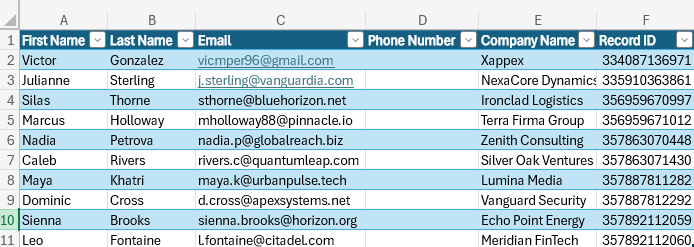
Now we need to add phone numbers to these Contacts as we gather them. We will add the phone numbers and select the records we want to update:
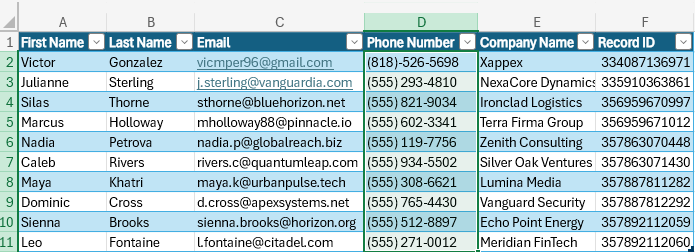
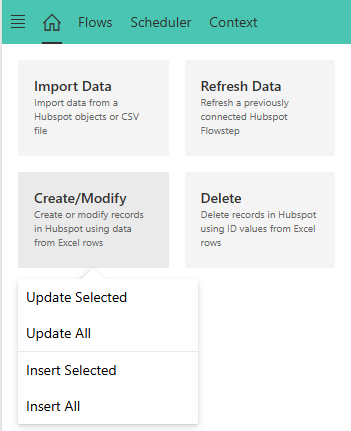
Then click Create/Modify -> Update all/Update Selected in the Home tab of the XL-Connector 365 main window:
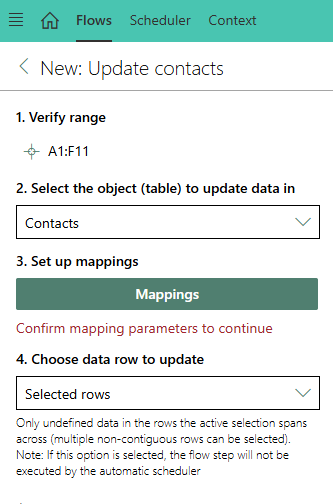
In the Update screen, select Contacts as the object to work with and click on Mappings manager:
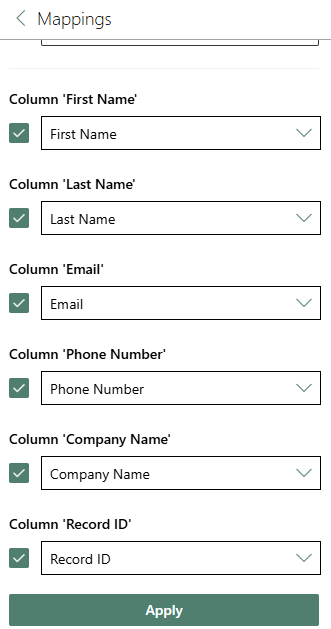
In the Mappings dialog box, make sure you map your columns to the correct fields in Hubspot. The column with record Ids must be mapped to the Id field in order for the Update operation to work. Click on Apply when the mappings are done:
The following setting determines the behavior of the flow step if the operation returns at least one error:
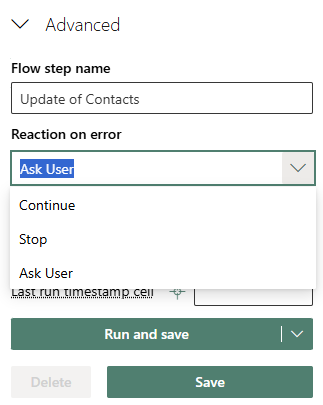
Click on Run and Save to run the Update operation according to the provided settings and save all the settings as a reusable Flow Step. In this case you’ll be able to run the same Update operation again from the same area in your sheet with a single click on the Run Flow Step button.
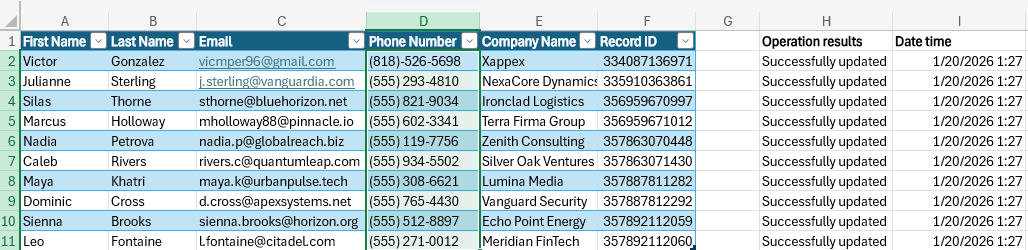
After the operation is completed, all operation results, along with the updated record Ids will be written on the right from your data, one column over: