Get Started Free

Go to Setup → Flows, open the flow’s action menu, and select View Details and Versions. Deactivate the active version before deleting it. You must resolve any paused interviews before deleting the version.
Before You Delete a Flow
-
Check the package state. In Setup → Flows, check the Package State column to determine the flow’s package status. Managed-package restrictions may limit which flow versions you can delete.
-
Check for paused interviews. Finish or delete paused interviews before deleting the associated version. Depending on your org’s configuration, find them in the Automation app’s Monitor tab, the Paused Flow Interviews component on the Home tab, Salesforce Classic’s Paused Flow Interviews related list, or the mobile app’s Paused Flows menu.
-
Check flow dependencies. Look for references in quick actions, buttons, page layouts, Lightning record pages, subflows, Apex, Experience Cloud sites, Omni-Channel routing flows, and Prompt Builder templates that use Prompt Flow. Check agent actions and custom integrations too.
In the Automation app, review the flow’s Usage information for supported dependencies. If it isn’t visible, add the Automation Usage component to the relevant Lightning page. Check other configurations separately because Usage may not show every reference. -
Back up the flow metadata. Retrieve the metadata and save a copy outside Salesforce before deleting the flow.

Tip
An inactive flow version can still prevent you from deleting a custom object or field if that version references it. Creating a new version does not remove the old version or replace its references. If you no longer need an inactive version, delete it after keeping a backup.
Delete a flow in Setup, step by step
Deactivate the flow
-
1
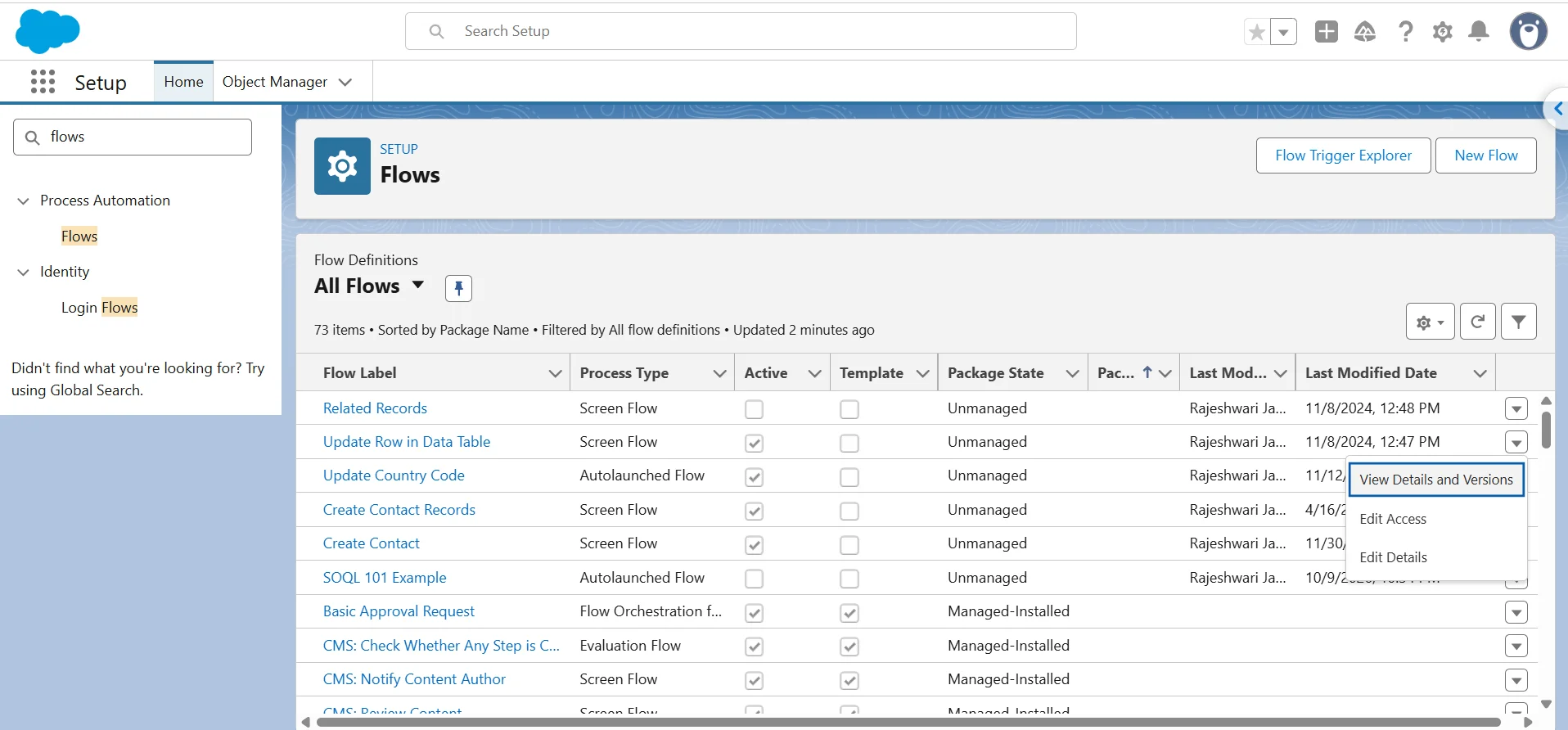
Go to Setup, enter Flows in Quick Find, and select Flows. Locate the flow you want to delete. Check the Active column to see whether it has an active version.
-
2
Open the arrow in the flow’s row and select View Details and Versions.

-
3
Find the active version and click Deactivate.
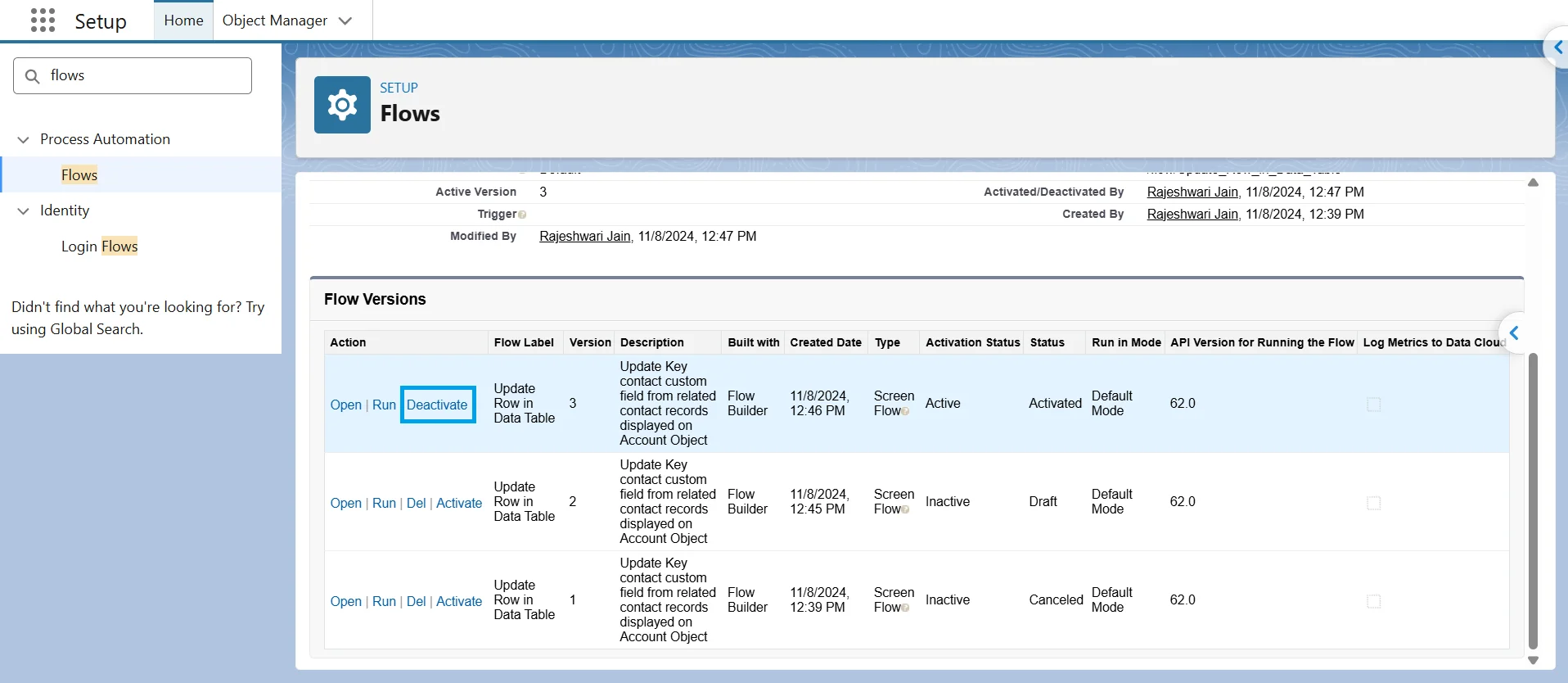
Only one version can be active at a time. Activating another version automatically deactivates the current one. If the flow has never been activated, you can delete it without deactivating a version first.
Delete the flow
You cannot delete a flow while one of its versions is active. Deletion is permanent, so back up the flow first.
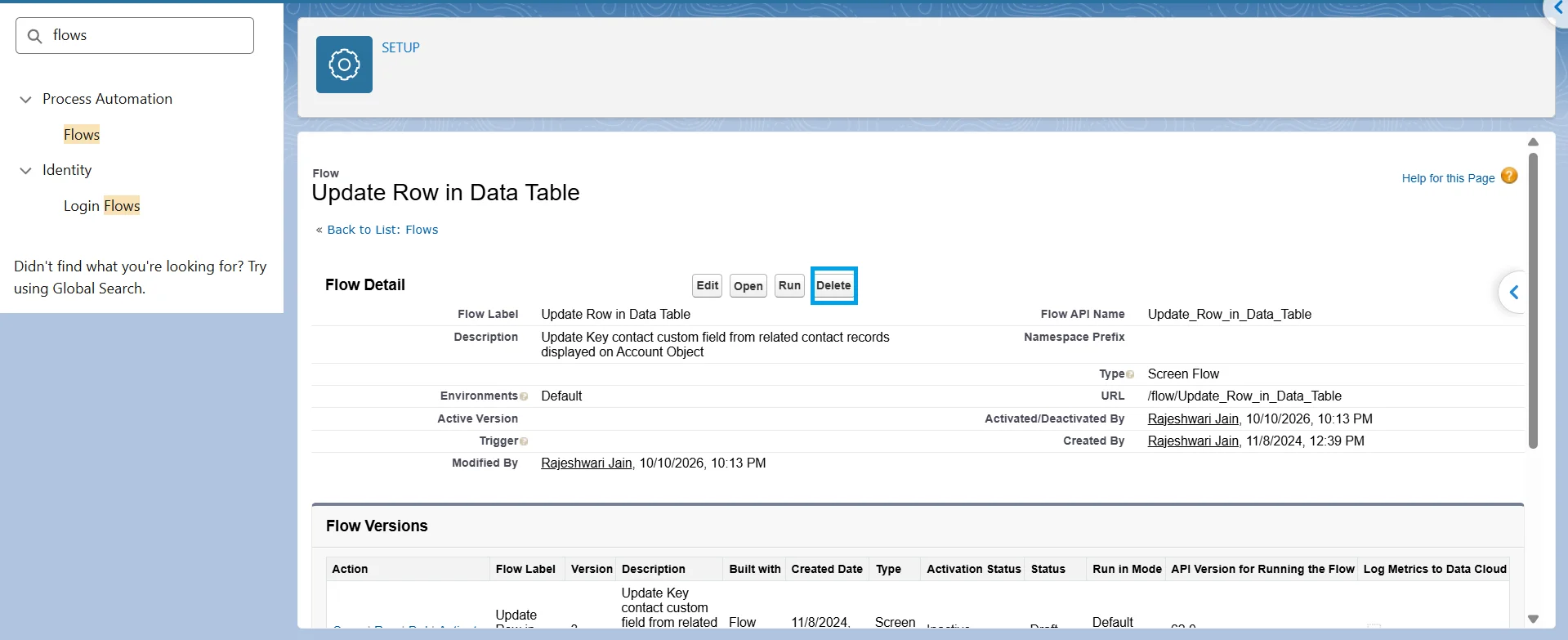
Delete a single flow version
In the versions list, click Del next to an inactive version. You cannot delete an active version, and paused or waiting interviews must also be cleared before you can remove the version.
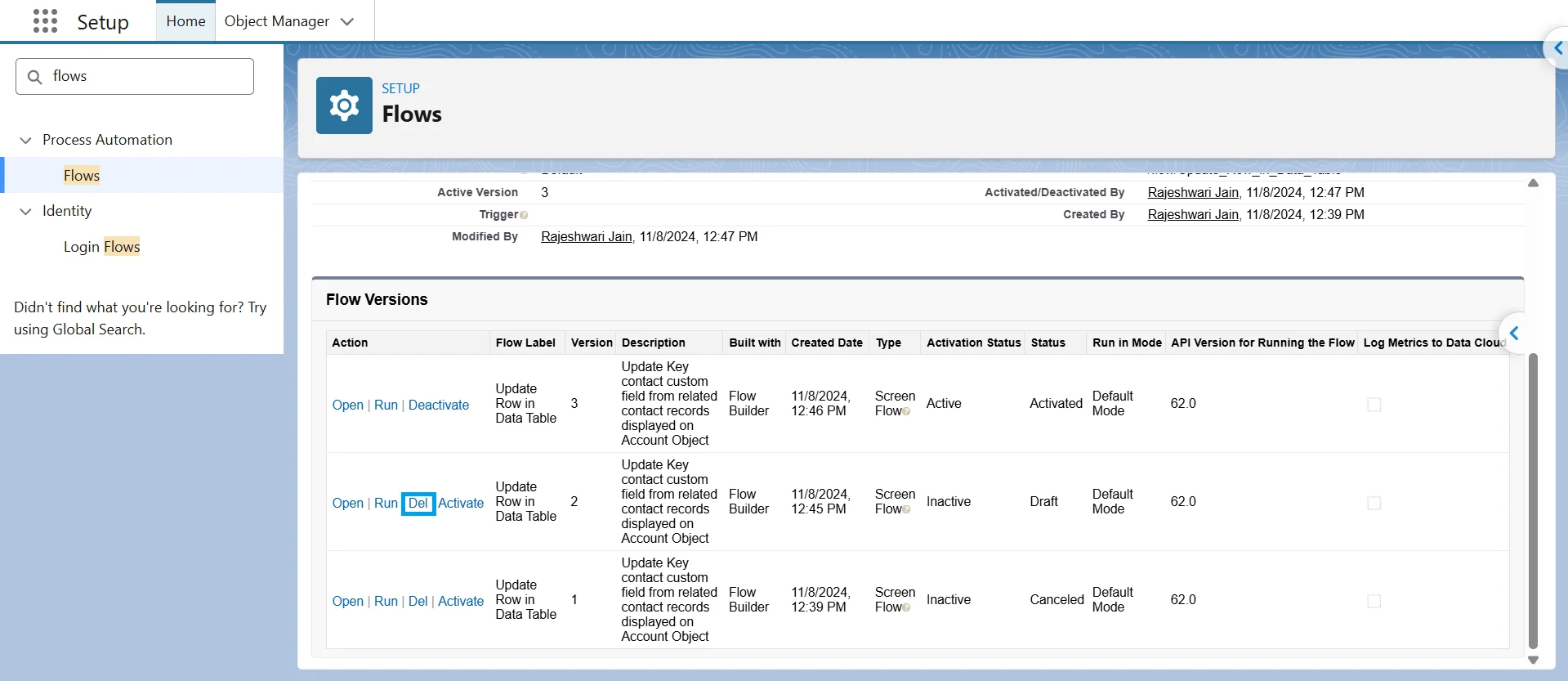
A new version does not replace older versions. Older versions remain until you delete them.
See the bulk deletion section to remove multiple flow versions.
Why You Can't Delete a Flow
Salesforce blocks flow deletion in a few cases. The error usually tells you what is preventing the deletion.
- A version is still active: You cannot delete an active flow version. Deactivate the version on the flow’s Versions page, then try again.
- The flow is used elsewhere: Salesforce may show this message:
“This flow definition is referenced elsewhere in Salesforce. Remove the usage and try again.”
The error window shows Reason and Section. The link in Section takes you to the reference. For example, if a quick action uses the flow, remove the action from the page layout, delete the action, and then delete the flow. If a Lightning record page contains the flow component, open the page from the link, remove the component, save the page, and try again.
A flow can also be referenced by newer Salesforce features. For example if you see Generative AI Function Definition in the Section column the remove the flow from the prompt templates and agent actions.
- Check for paused interviews: Paused flow interviews can prevent you from deleting a flow. Check Setup > Paused and Failed Flow Interviews, the Monitor tab in the Automation app, the Paused Flow Interviews list in Salesforce Classic, or Paused Flows in the Salesforce mobile app.
Users can delete their own paused interviews if they have Run Flows permission or are set as the Flow User. A large number of paused interviews can also cause new flows that try to pause to fail when the platform limit is reached.
- The flow is managed: If the flow comes from a managed package, Salesforce does not provide a Delete action for it. Uninstall the package to remove the flow.
- An old version references a field or class: An inactive flow version can still reference a field or Apex class. Salesforce can prevent you from deleting that component until you remove the flow versions that reference it.
Tip
Do not search for references manually. Follow the link in the deletion error, remove the reference, and try again. If a flow is used by an action that is placed on a page layout, remove the dependencies in reverse order.
How to delete flows and versions in bulk
Bulk cleanup is needed in two cases: when one flow has many old versions or when your org has many unused flows.
Each time you activate a flow, Salesforce creates a new version. A flow can have up to 50 versions. When it reaches that limit, you must delete an old version before you can save another one. Old versions can also prevent you from deleting fields or Apex classes that they reference.
Delete many versions of one flow with Salesforce Inspector Reloaded
Once you hit the 50 versions limit, you can’t save new changes until you delete some. Removing them one by one in Setup is slow, so use Salesforce Inspector Reloaded and the Tooling API instead.
Before you start:
-
Back up the flow metadata (Salesforce CLI, VS Code or Git). Deleted versions can’t be recovered.
-
Test in a sandbox first.
-
You can’t delete the active version, versions with paused or running interviews, or flows from managed packages.
Step 1: Query the versions
Open Salesforce Inspector Reloaded, select Data Export, and turn on the Tooling API toggle.
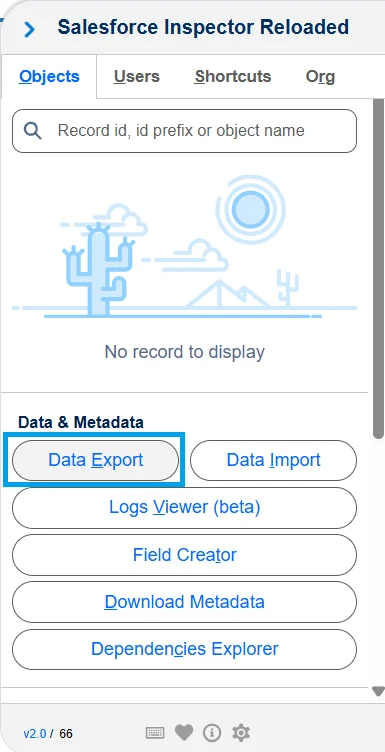
Run the query below, replacing Your_Flow_API_Name with the flow’s exact API name. An exact match keeps other flows with similar names out of the results.
SELECT Id, Definition.DeveloperName, VersionNumber, Status
FROM Flow
WHERE Definition.DeveloperName = 'Your_Flow_API_Name'
AND Status = 'Obsolete'
AND VersionNumber < 40
ORDER BY VersionNumber
The Status = ‘Obsolete’ filter selects only replaced versions. It leaves out the active version and any drafts someone may still need. Change the VersionNumber cutoff to control how much history you keep, then review the results before you continue.
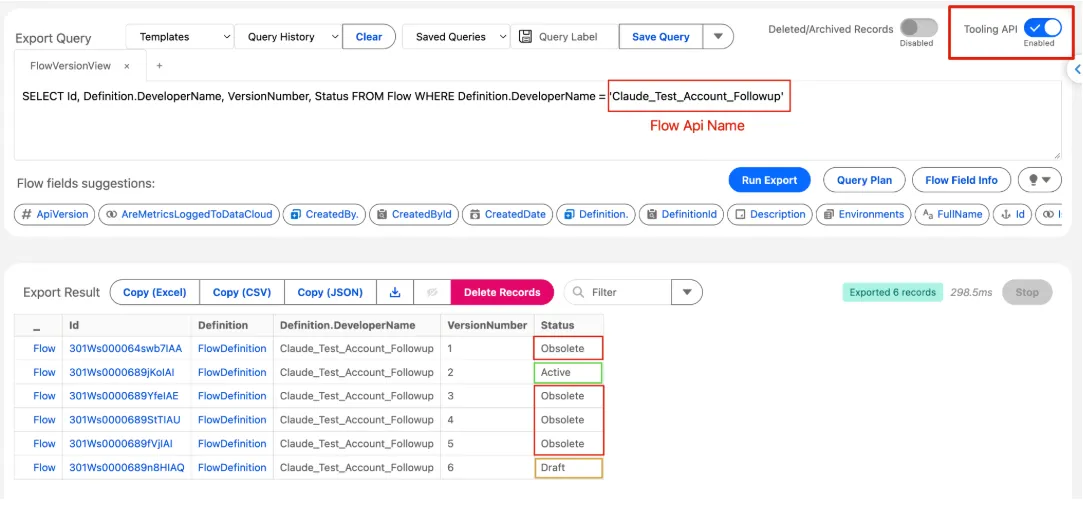
Step 2: Click Delete Records
Select Click Delete Records -> Run Delete
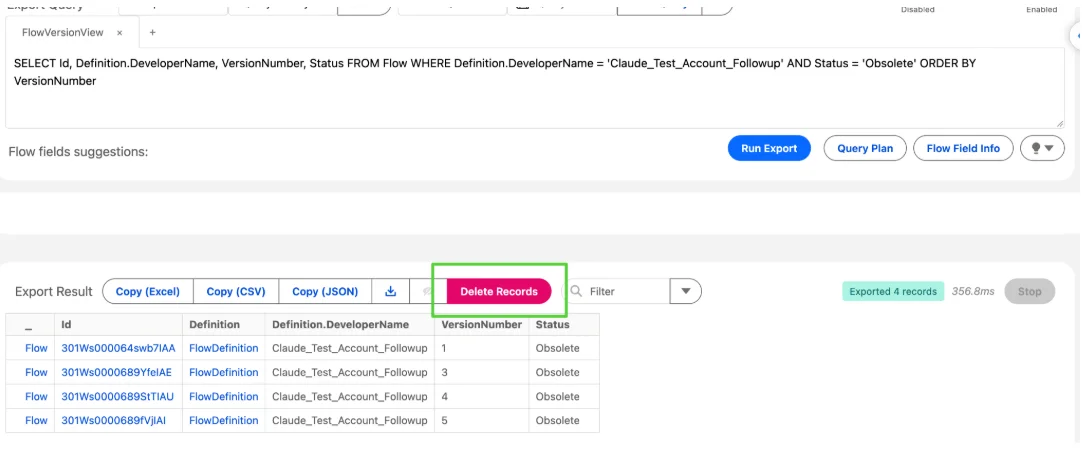
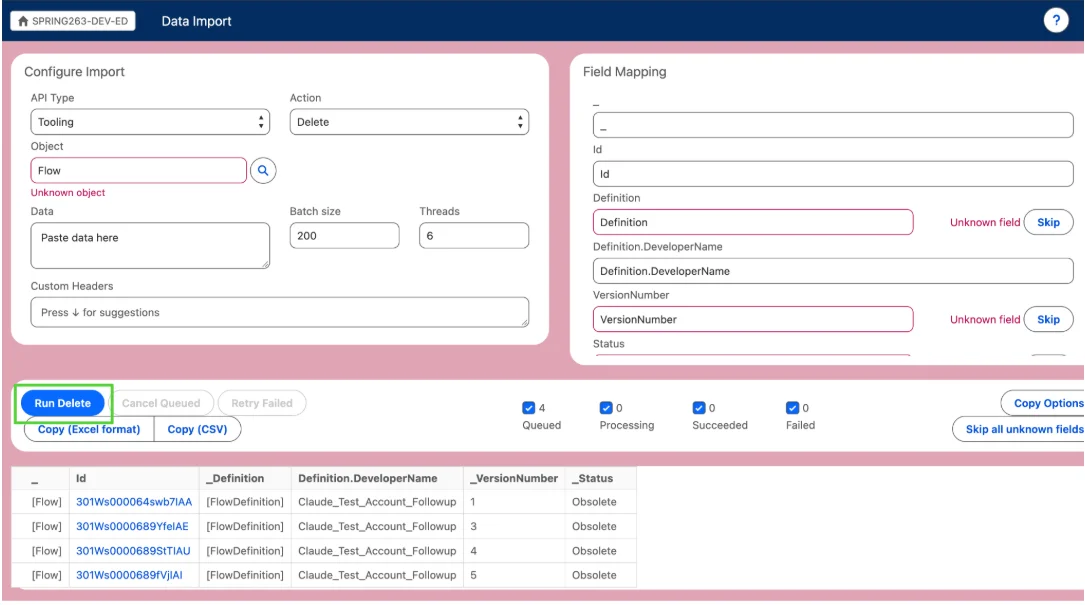
When the operation finishes, review the results for failed rows. Some deletions may fail because a version has unfinished interviews. If many rows fail, reduce the batch size and try again.

Note
You cannot deactivate a flow in a CI/CD deployment simply by deploying Status=Obsolete; practitioners have used a FlowDefinition with version 0 or a dummy active version before deleting the old version through a destructive change.
Delete a flow with Salesforce CLI
Salesforce CLI is useful when you manage metadata in a project, delete flows across environments, or need a repeatable, reviewable process. There are two common cases:
| Goal | What it removes | Deactivate first? | Command |
|---|---|---|---|
| Clean up old versions | Obsolete versions only. The active version and drafts stay. | No | sf data delete record --use-tooling-api |
| Remove the whole flow | Every version: active, obsolete and draft. | Yes | sf project delete source |
Back up the flow first
Retrieve the flow metadata into your local Salesforce project:
sf project retrieve start --metadata Flow:Your_Flow_API_Name --target-org myOrgIt retrieves the active version, or the latest version if none is active. It does not back up every historical version. Keep the retrieved .flow-meta.xml file in version control or another safe place outside Salesforce.
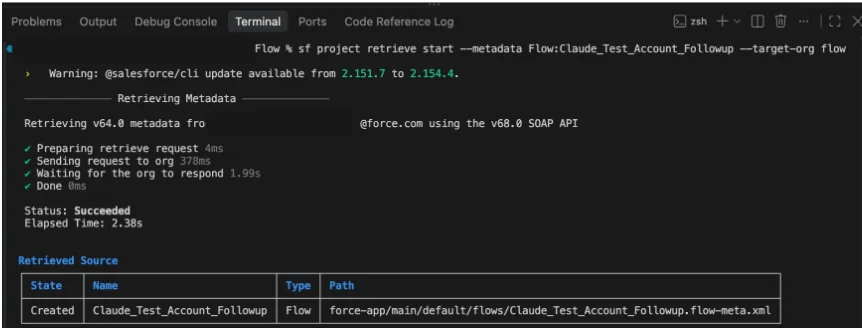
Option 1: Delete only obsolete versions
Each flow version is a Flow record in the Tooling API, so you can delete versions one at a time with sf data. You don’t need to deactivate anything.
List the obsolete versions:
sf data query –use-tooling-api –target-org myOrg –result-format csv –query “SELECT Id, VersionNumber, Status FROM Flow WHERE Definition.DeveloperName = ‘Your_Flow_API_Name’ AND Status = ‘Obsolete’ ORDER BY VersionNumber”
Review the list. To keep recent history, add a cutoff such as AND VersionNumber < 40.

Delete one version:
sf data delete record –use-tooling-api –sobject Flow –record-id 301Ws0000689lEZIAY –target-org flow

Delete all obsolete versions in one go:
sf data query –use-tooling-api –target-org myOrg –result-format csv –query “SELECT Id FROM Flow WHERE Definition.DeveloperName = ‘Your_Flow_API_Name’ AND Status = ‘Obsolete'” 2>/dev/null | tail -n +2 | while read -r id; do sf data delete record –use-tooling-api –sobject Flow –record-id “$id” –target-org myOrg; done
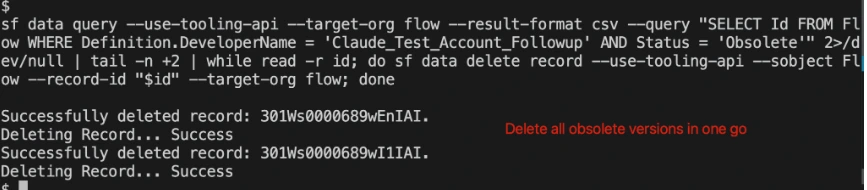
The Status = ‘Obsolete’ filter keeps the active version and drafts out of the delete.
Option 2: Delete the entire flow (active + all versions)
Salesforce won’t delete a flow that still has an active version. Deactivate the flow in Setup → Flows → open the flow → Deactivate, or from the CLI:
sf data query –use-tooling-api –target-org myOrg –query “SELECT Id, ActiveVersionId FROM FlowDefinition WHERE DeveloperName = ‘Your_Flow_API_Name'”
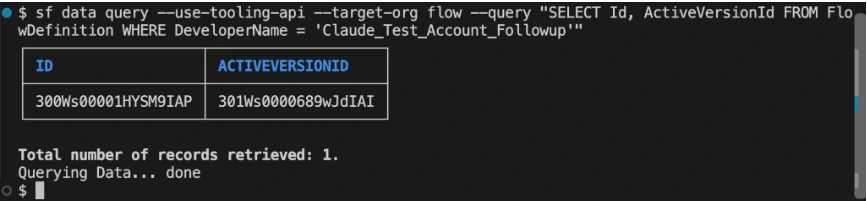
Copy the ActiveVersionId. The –use-tooling-api flag is required because flow definitions are metadata. myOrg is your org alias.
sf api request rest “/services/data/v64.0/tooling/sobjects/FlowDefinition/300XXXXXXXXXXXXXXX” –method PATCH –body ‘{“Metadata”:{“activeVersionNumber”:0}}’ –target-org myOrg
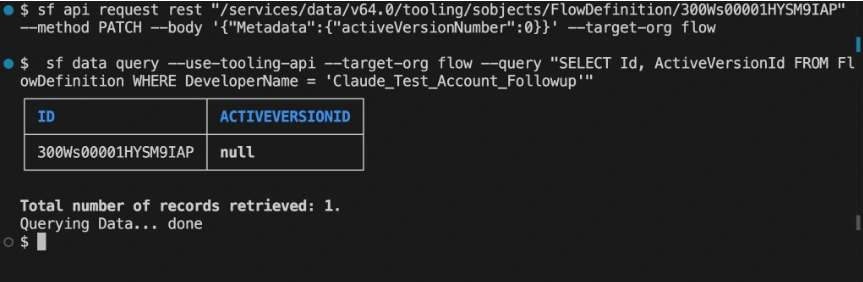
Run the first query again and confirm that ActiveVersionId is now empty.
For an org without source tracking, run:
sf project delete source –metadata Flow:Your_Flow_API_Name –target-org myOrg
If this still fails with insufficient access rights on cross-reference id after you deactivate the flow, delete each remaining version directly through the Tooling API instead. When the last version is deleted, the flow goes with it.

sf data query –use-tooling-api –target-org myOrg –result-format csv –query “SELECT Id FROM Flow WHERE Definition.DeveloperName = ‘Your_Flow_API_Name'” 2>/dev/null | tail -n +2 | while read -r id; do sf data delete record –use-tooling-api –sobject Flow –record-id “$id” –target-org myOrg; done
This command deletes the flow completely, including every version. It queries the Tooling API for the IDs of all versions of the flow whose API name you specify and returns them in CSV format.
Confirm the flow is gone. An empty result means it’s deleted:
sf data query –use-tooling-api –target-org myOrg –query “SELECT Id FROM FlowDefinition WHERE DeveloperName = ‘Your_Flow_API_Name'”
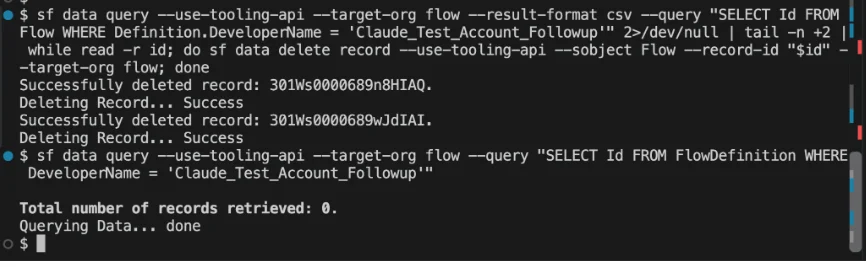
This deletes the flow and all of its versions from the org, and removes the matching source file from your local project. Use the flow’s API name, not its label.
- To validate the deletion without applying it, add –check-only.
- To skip the confirmation prompt in scripts, add –no-prompt.
Note
Salesforce documents sf project delete source for orgs without source tracking. For source-tracked orgs, use sf project deploy start to deploy the deletion: either delete the local .flow-meta.xml and deploy the change, or use a destructive-changes manifest with –post-destructive-changes. Review the changes before deploying, and check sf project delete source –help for the options your CLI version supports.
| Error / symptom | Cause | Fix |
|---|---|---|
| insufficient access rights on cross-reference id | The flow still has an active version | Deactivate it (Option 2, Step 1) and retry |
| Delete fails because of interviews | Paused or waiting flow interviews still exist | Resume or delete them in Setup → Paused and Failed Flow Interviews |
| Dependency or reference errors | Another component uses the flow, such as a parent flow calling it as a subflow, an Action, or a Quick Action | Remove the reference first, then delete |
| Active version won't delete in Option 1 | Salesforce blocks deleting the active version | Use Option 2, or activate a different version first |
Delete many unused flows at once
If you have many unused flows, use the Active column to find inactive ones and check their dependencies before deleting them. If you need to remove inactive flows and processes in bulk, see Manage Flows and Processes in XL-Connector.
Conclusion
Delete a flow by first deactivating its active version, then deleting it. If Salesforce blocks the deletion, read the error message and follow the referenced dependency. Regularly remove unused versions to avoid reaching the 50-version limit.
FAQ
Why is the Delete button greyed out for my flow?
The Delete option can be unavailable when a flow version is active or the flow comes from a managed package. Deactivate the active version, or uninstall the managed package.
Can I delete an active flow?
No. You must deactivate an active flow version before deleting it. Salesforce also allows you to delete a flow that has never been activated.
Can I delete individual flow versions?
Yes. Salesforce supports deleting individual flow versions when the version meets the applicable deletion requirements. For example, a version must be inactive and cannot have paused interviews.
Do I need to wait 12 hours after deactivating a flow?
No. The 12-hour wait was an old restriction that Salesforce removed in Summer ‘15. You can now delete a flow version right after deactivating it, as long as it isn’t active and has no paused or waiting interviews.
Can I recover a deleted flow?
No. Salesforce doesn’t provide a Recycle Bin or a built-in option to restore a deleted flow. To recover it, retrieve the flow metadata from a backup, source control, or another org where the flow still exists, then deploy it again.
Can I delete a flow that has paused interviews?
No. Salesforce prevents deletion while a flow has paused interviews. Finish or delete the paused interviews before deleting the flow or applicable flow version.



Rajeshwari Jain
Content Manager
Rajeshwari Jain is a Technical Support Specialist and Content Writer at Xappex. She applies her practical experience to assist customers and create articles on how Xappex tools work with Salesforce to improve data management and increase efficiency.
She began her IT career in 2022 as a Quality Assurance professional before transitioning into Salesforce administration and technical writing in 2023. With Salesforce Certified Administrator and Associate certifications, Rajeshwari writes blogs on Salesforce flows, admin tools, and updates to expand her skills outside of work.
In her free time, she enjoys reading tech blogs and experimenting with new tools.
Feel free to reach out to Rajeshwari for collaborations or to check out her Salesforce-focused content.