Get Started Free



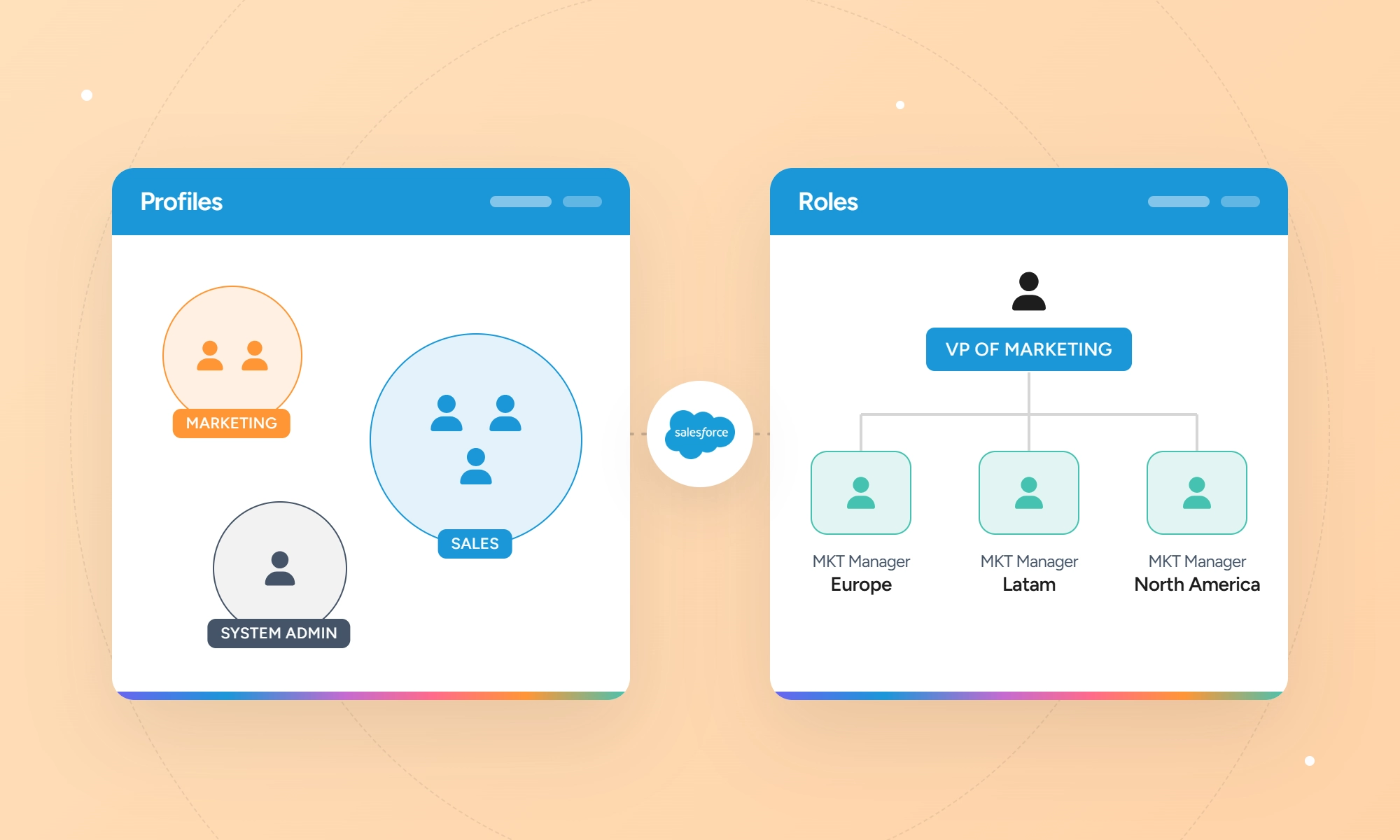
A Salesforce profile defines what a user can do: the objects, fields, apps, and system permissions they can use. A role decides which records a user can see, based on their position in the role hierarchy. Every user is assigned a profile, while a role is optional. Profiles and roles serve different purposes and do not replace one another.
Role vs Profile at a Glance
Profiles define the access and actions available to users, while roles help determine which records they can access.
| Profile | Role | |
|---|---|---|
| Question it answers | What can this user do? | Whose records can this user access? |
| What it controls | Object and field access, apps, tabs, record types, page layouts, and system permissions. | Access to records owned by other users, together with org-wide defaults and sharing rules. |
| Required? | Yes. Every user has one profile. | No. A user can have no role or one role. |
| Where to find it | On the user record and under Setup → Profiles. | On the user record and under Setup → Roles. |
| What it cannot do | Open records the user doesn't own and that aren't shared with them (except through "View All" / "Modify All" permissions). | It does not grant object or field permissions. |
| What it looks like when set wrong | The user may not have access to the required tab, object, field, or New/Edit action. | The tab works, but list views and reports show fewer records than a colleague sees. |
| Example | A sales rep's profile lets them create and edit opportunities. | A manager can access opportunities owned by users below them in the role hierarchy, subject to sharing settings. |
Profiles and roles have different functions. Every user must have a profile, while a role is optional and is used only when the organization’s record-sharing setup includes roles.

Tip
Use access to objects and fields when describing profiles and access to other users’ records when describing roles. This keeps the distinction clear.
How Salesforce Decides What a User Can Access
Think of Salesforce data like a spreadsheet. A user’s profile determines which sheets they can open and which columns they can view or edit. Org-wide defaults, roles, and sharing settings determine which rows they can access. If the profile does not allow access to the sheet, Salesforce does not apply the rules that control access to individual rows.
Salesforce checks access in layers. The main layers are:
Object permissions → Field-level security → Record access
Object permissions decide whether the user can work with the object. Field-level security determines which fields they can see or edit. Record-level settings determine which individual records they can access.
This order helps when troubleshooting access problems. If a user cannot access an object, verify the object permissions first. If the user can access the object but cannot see a specific field, check the field-level security settings.
Step 1. Profile and permission sets: can the user access the object and field?
Start with object and field permissions. A user must have Read access to an object before record-level sharing can give them access to its records. For example, if a user cannot read the Account object, changing Account’s sharing settings will not give them access to Account records. Field access is a separate layer: a user can have Read access to Account but still lack access to specific fields on it, so check field-level security as well.
Both profiles and permission sets grant permissions for objects and fields. Salesforce suggests a permission set-based security model. Use profiles for basic settings and permission sets to grant extra access without creating more profiles. Permission set groups let you group related permission sets by job function. Muted permission sets let you turn off specific permissions within a group.
Tip
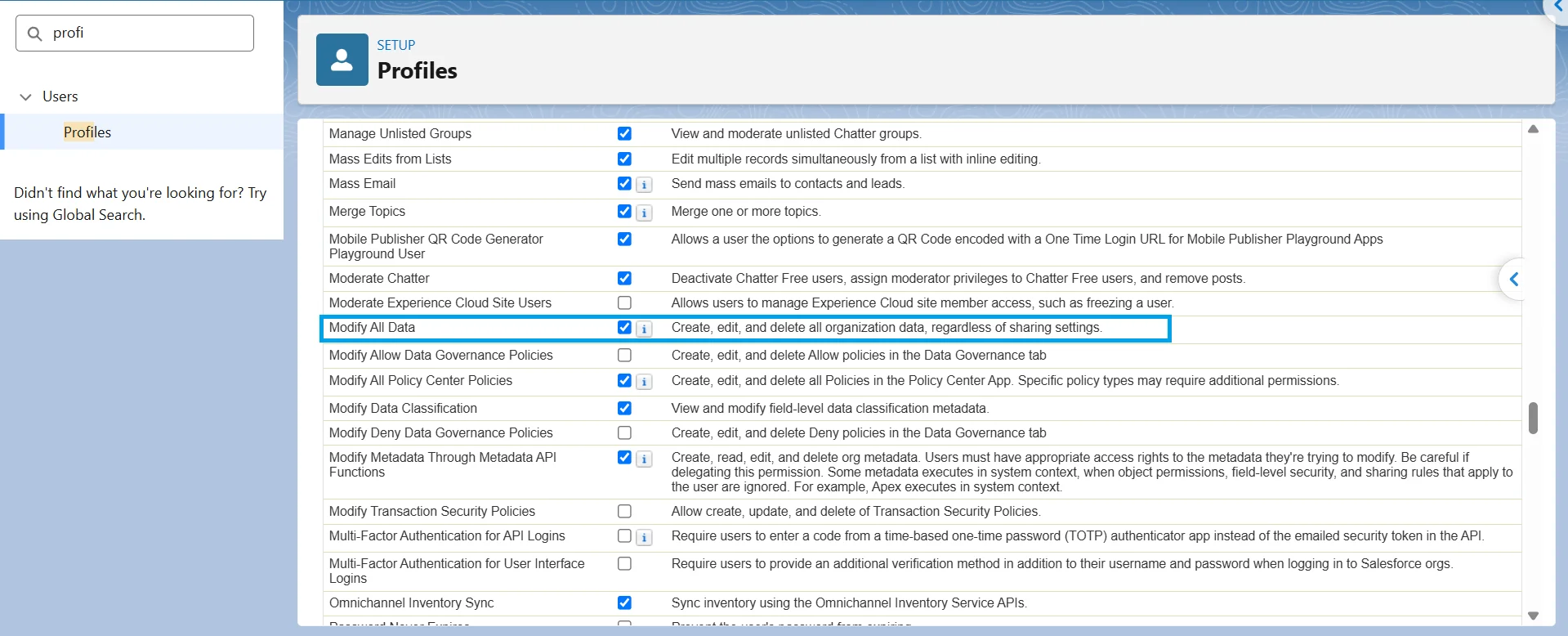
View All Records and Modify All Records object permissions, along with View All Data and Modify All Data user permissions, override sharing rules and settings. They do not override field-level security. If a user can see records they should not access, check these permissions and the user’s sharing access.
Step 2. Org-wide defaults: the baseline for records the user does not own
Organization-wide defaults (OWDs) set the baseline access to records for your internal users. Other features like the role hierarchy and sharing rules can grant additional access. They cannot restrict access below the OWD.
The following are the access levels you can choose from:
- Private: Users can access records through ownership, permissions, the role hierarchy, manual sharing, sharing rules, or other applicable sharing mechanisms. For example, a sales rep can access opportunities they own, plus opportunities shared with them or made accessible through the role hierarchy.
- Public Read Only: All users can view all records for the object but can’t edit them unless they have edit access through another mechanism.
- Public Read/Write: All users can view and edit all records for the object.
- Controlled by Parent: Access to a child record follows the user’s access to its parent record. For example, Contact access can be controlled by the related Account.
Some objects offer additional access levels. For example, Leads and Cases support Public Read/Write/Transfer, while Campaigns support Public Full Access.
Start with the most limited access that meets your needs, then give users more access through sharing. Increasing the default access, for example, from Public Read Only to Public Read/Write, takes effect right away. Reducing it takes effect after Salesforce recalculates sharing access.
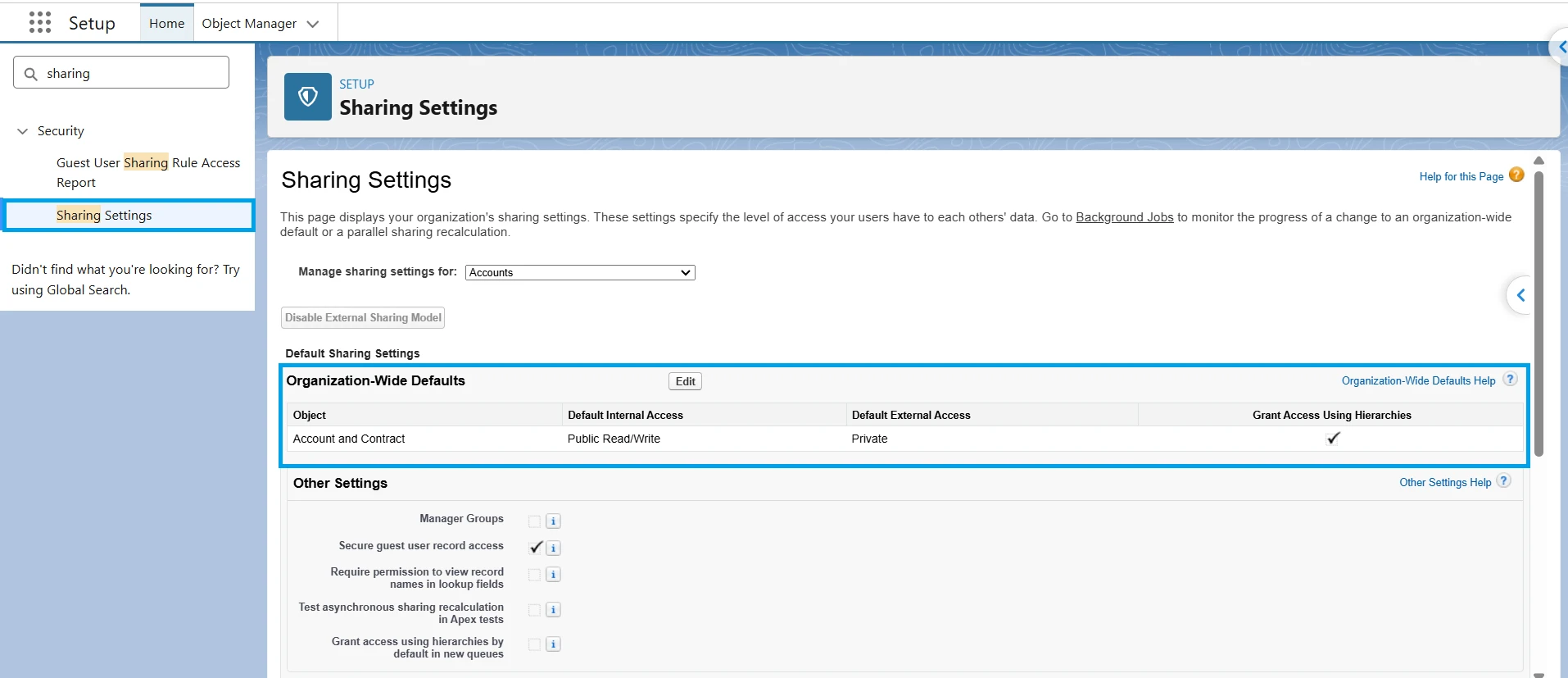
To configure OWDs, go to Setup, enter Sharing Settings in the Quick Find box, and select Sharing Settings. Click Edit in the Organization-Wide Defaults area. You need the Manage Sharing permission.
Step 3. Role hierarchy, sharing rules, and manual sharing: who gets additional access
Once OWDs set the baseline, Salesforce can grant additional record access through these sharing mechanisms:
-
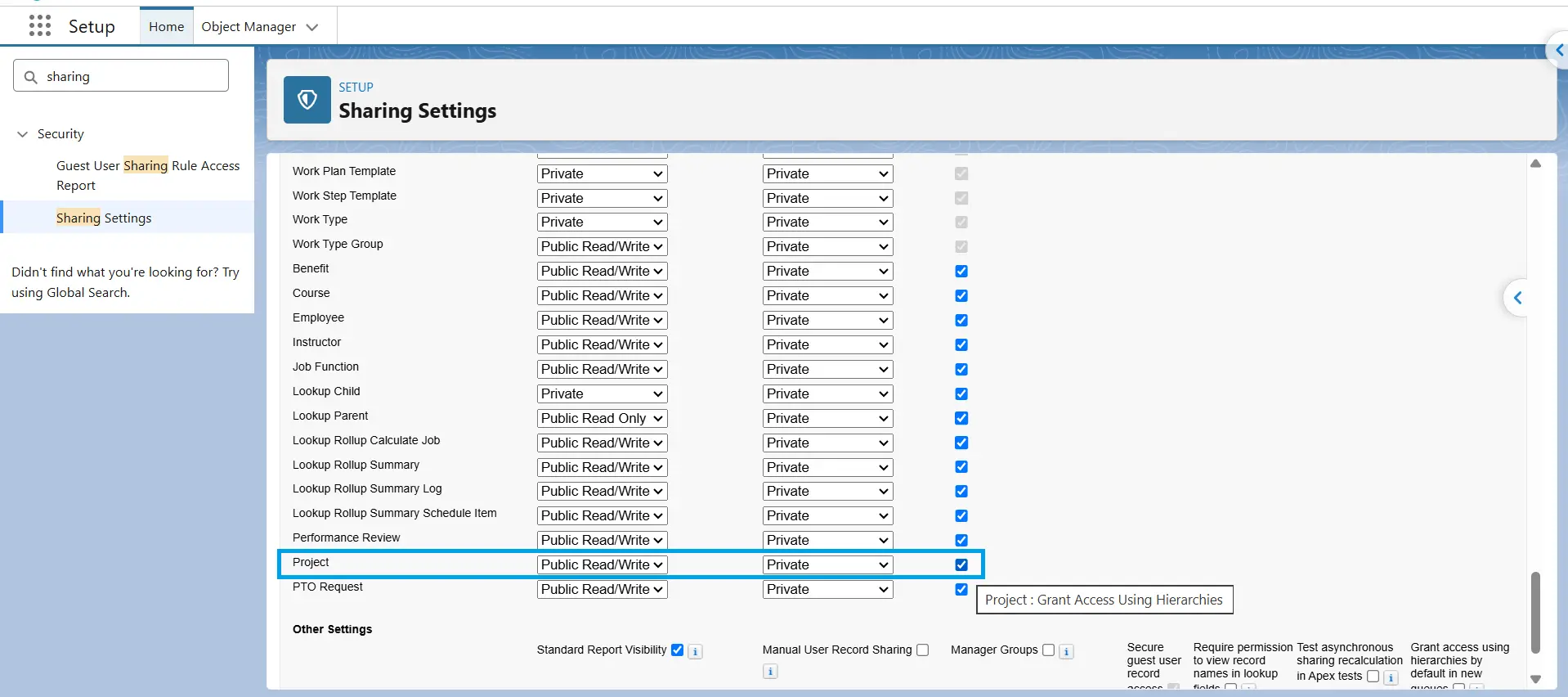
Role hierarchy: Users higher in the hierarchy can access records owned by or shared with users below them. For custom objects, you can disable this automatic access by deselecting Grant Access Using Hierarchies in Sharing Settings. This setting can’t be disabled for standard objects.

-
Sharing rules: Owner-based and criteria-based sharing rules extend record access to groups of users, including public groups and roles. Depending on your configuration, sharing can also use roles and subordinates or territory-based access.
-
Manual sharing: A record owner, a Salesforce admin, or a user above the owner in the role hierarchy can share an individual record with another user or group. By default, manual shares created by the previous owner are removed when record ownership changes. Salesforce also provides an org-level setting to keep manual shares when ownership is transferred.

The exception: View All and Modify All
Some permissions bypass record-level sharing entirely.
- View All Records: Gives access to all records of a specific object, regardless of sharing settings.
- Modify All Records: Gives full access to all records of a specific object, regardless of sharing settings.
- View All Data / Modify All Data: Provide the equivalent sharing bypass across the org rather than for a single object.
What a Profile Controls
A profile defines a user’s default settings and can grant permissions and access settings in Salesforce. Every user has exactly one profile and can have multiple permission sets and permission set groups. Salesforce provides standard profiles, including System Administrator and Standard User. You can clone an existing profile to create a custom profile.
Object and field permissions
Profiles can grant Create, Read, Edit, and Delete access for each object. They can also grant View All Records or Modify All Records, which override record-level sharing and give users access to every record of that object. These permissions don’t override field-level security.
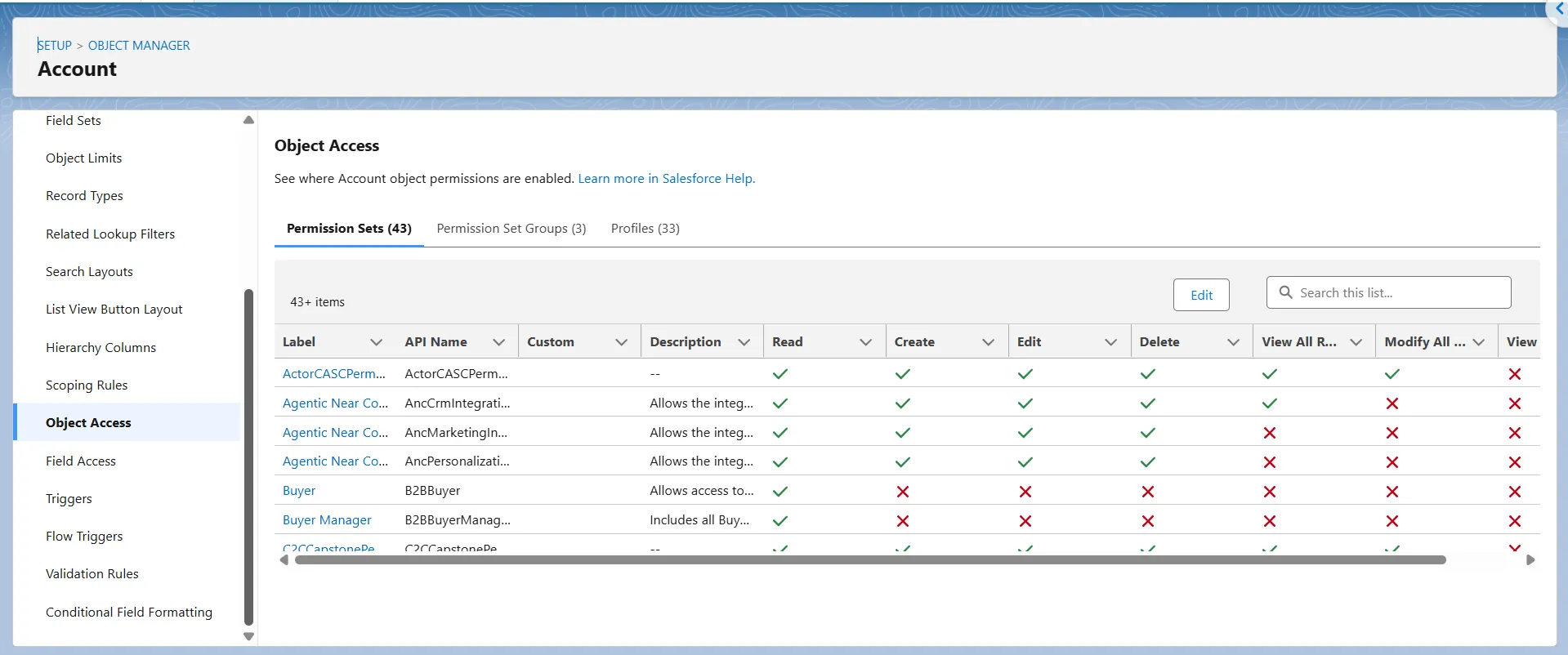
At the field level, field-level security controls whether users can see or edit individual fields. Fields can be visible and editable, visible but read-only, or hidden.
Note
Salesforce recommends using permission sets and permission set groups to manage most user, object, field, and system permissions rather than creating a separate profile for every access combination.
System permissions, apps, tabs, and login restrictions
Profiles control the default app, default record types, page layout assignments, login hours, and login IP ranges. Login hours control when users can log in, and login IP ranges restrict which IP addresses they can log in from. These two login restrictions are configured on profiles, not permission sets.
Profiles can also contain system permissions such as API Enabled, Export Reports, View All Data, and Modify All Data. Use permission sets and permission set groups to manage user, object, and field permissions instead of creating separate profiles for every access combination. Keep profile-only settings such as login hours, login IP ranges, default apps, default record types, and page layout assignments at the profile level.
Limit View All Data and Modify All Data to users who genuinely need organization-wide data access. When users only need broad access to a specific object, View All Records or Modify All Records can be a more targeted alternative.
What still lives on the profile when you use permission sets
Permission sets are now the recommended way to manage most user, object, field, and system permissions, but profiles still handle important default settings and restrictions. These include default apps, default record types, page layout assignments, login hours, login IP ranges, and password policies. Tab settings can be configured through either profiles or permission sets.
For example, a profile can provide baseline object access to a team, while a permission set gives additional access to specific users. If the profile grants Create but not Delete, you can use a permission set to give Delete access only to the users who need it. Permissions granted through profiles and permission sets are additive.
Tip
Salesforce previously announced that permissions on profiles would be retired starting with Spring ’26. It later cancelled that enforcement based on customer feedback and remaining feature gaps. Profiles still support permissions for now, but Salesforce recommends using profiles for baseline settings and permission sets or permission set groups to manage access.
What a Role Controls
A Salesforce role helps control record-level access through the role hierarchy. The hierarchy works with organization-wide defaults (OWDs) to check which records users can access, while sharing rules, teams, manual sharing, and other sharing features can extend access beyond that. Roles don’t control object or field permissions. Profiles and permission sets control what users can do with objects and fields.
The role hierarchy: access goes up, not sideways
The role hierarchy opens up access vertically. Users in higher roles can access records owned by, or shared with, users in roles below them. Access doesn’t automatically flow sideways or downward: users in the same role don’t automatically see each other’s records, and users lower in the hierarchy don’t automatically see records owned by users above them.
For example, a VP of Sales has two regional managers: East Region Manager and West Region Manager. Each manager has several sales reps. Assuming the OWD is Private and hierarchy access applies to the object, the East manager can access records owned by, or shared with, the East reps, but not the West reps’ records. The VP can access records for reps in both regions because both managers sit below the VP.
A role doesn’t need to match your org chart. Think of each role as a level of data access that a group of users needs.
Grant Access Using Hierarchies: Standard vs. Custom Objects
Grant Access Using Hierarchies determines whether users higher in the role hierarchy automatically get access to records owned by, or shared with, users below them.
For standard objects, you can’t disable the Grant Access Using Hierarchies setting, although hierarchy-based access isn’t enabled for every standard object.
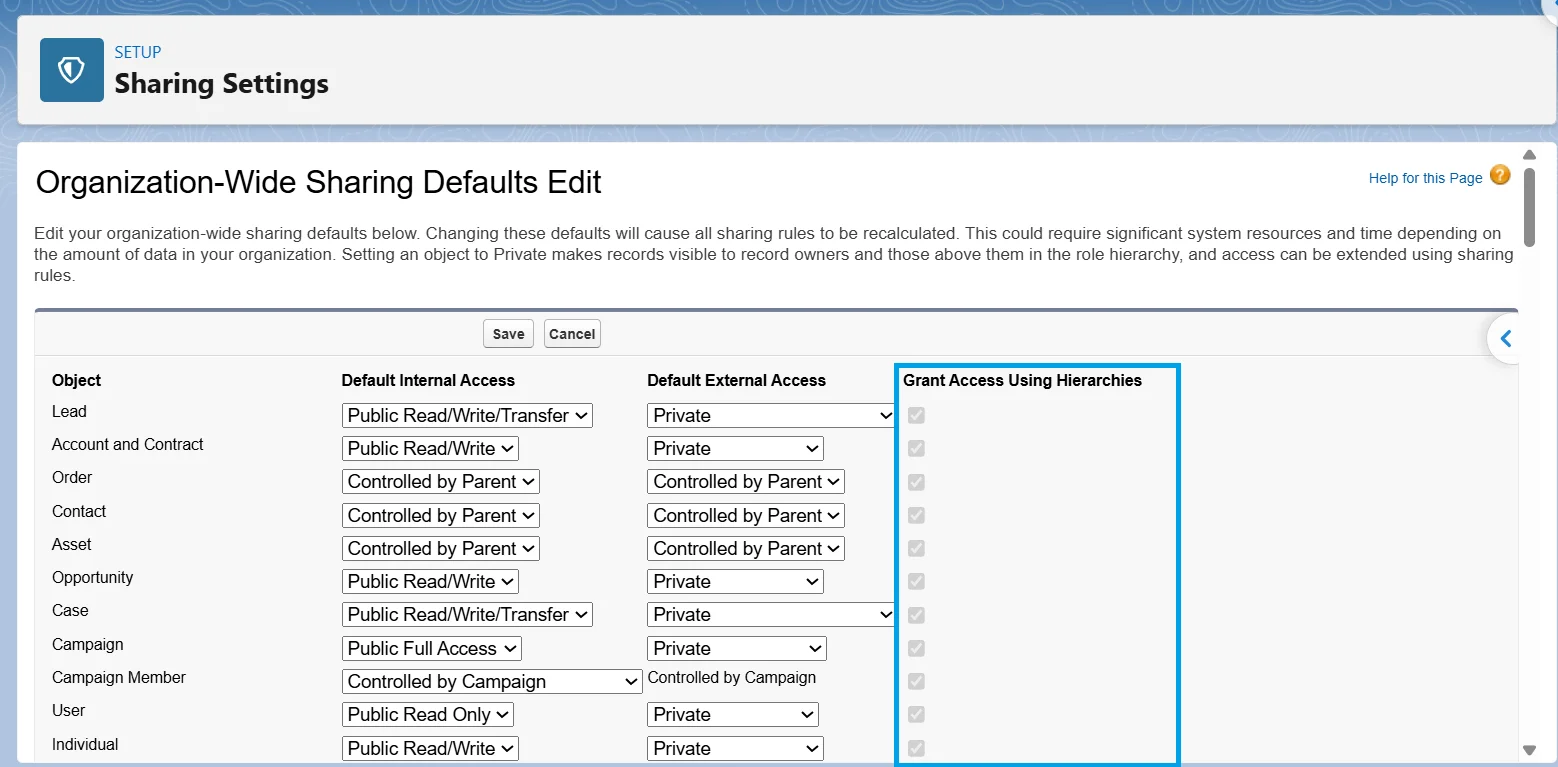
For custom objects, it’s enabled by default and can be disabled in Sharing Settings, except when the object’s OWD is Controlled by Parent. Disabling it stops managers from automatically inheriting their subordinates’ access. Other sharing methods can still grant it.
Access Settings on the Role Itself
The role edit page can include separate access settings for Opportunities, Cases, and Contacts. These settings control the role’s access to records associated with accounts its users own, even when someone else owns those records.
For example, Opportunity Access can allow users in the role to:
- Access only the opportunities they own.
- View all opportunities associated with accounts they own.
- Edit all opportunities associated with accounts they own.
Case and Contact settings work the same way. These settings aren’t available when the related object’s OWD is Public Read/Write, because the role hierarchy can’t restrict access further than the OWD. For example, Opportunity Access doesn’t appear when Opportunities are Public Read/Write.
Where Else Roles Matter
Roles also affect reports. Filters such as My Team’s Opportunities use the role hierarchy to determine which users belong to the current user’s team. A user without a role isn’t part of that hierarchy, so these filters may not give them a team view.
Roles also determine the forecast hierarchy when the org uses role-based forecasting. Forecasts roll up through that hierarchy, and admins can adjust which users and forecast managers it includes.
Tip
Roles have less impact on record access in orgs with broad OWDs. In orgs with private OWDs, they can have a much larger effect on both record access and reporting.
What Happens When a User Has No Role?
A user without a role sits outside the role hierarchy. They can still access records they own and records shared through OWDs, sharing rules, teams, manual sharing, and other sharing mechanisms, but they get no access through the hierarchy.
Salesforce doesn’t require a particular approach for administrators. Some orgs place them at the top of the hierarchy, while others leave them without a role. Administrator access comes from permissions, not roles.
View All Data and Modify All Data, which the System Administrator profile includes, provide access that doesn’t depend on the role hierarchy, so an administrator with them doesn’t need a role to view or modify records. Removing an administrator’s role can still change what role-based reports show, such as My Team’s filters.
Why a User Can't See or Edit a Record
When access breaks, start with the symptom and identify the layer that controls it. Salesforce access depends on object permissions, record-level access, and field-level security. Object-level View All Records and Modify All Records, and system-level View All Data and Modify All Data, can override record-sharing settings.
| Symptom | Layer to check | Where to look |
|---|---|---|
| No tab or New button for an object | Object permissions and tab visibility | Read and Create permissions in the profile or permission set; tab settings |
| Tab works, but list views show fewer records | Record-level access, then list-view filters | Organization-Wide Defaults, the owner's position in the role hierarchy, sharing rules, manual sharing, teams, territories, restriction rules, and the list view's filter scope |
| Can see a record but cannot edit it | Object permission, record access, then other blockers | Edit permission, record-level access, approval locks, validation rules, and field-level security or page-layout restrictions if only specific fields cannot be edited |
| Can edit records but cannot delete someone else's record | Delete permission and record-level delete access | Confirm Delete is enabled on the user's profile or permission set. Then check whether the user owns the record, is above the owner in the role hierarchy, or has Modify All Records on the object. Modify All Data grants Modify All Records across objects |
| Delete permission and record access are correct, but deletion still fails | Relationship restrictions and automation | Check for an Apex before delete trigger or other automation that blocks the delete. For lookup relationships, check the delete behavior on the lookup field. The "Don't allow deletion of the lookup record that's part of a lookup relationship" option blocks deletion of the referenced record, and a required lookup also blocks it, because the value can't be cleared. |
| Can see a record but not a specific field | Field-level security, then page configuration | Field-level security in the profile or permission set; page layout, Lightning record page, Dynamic Forms, and record type |
| Manager cannot see a rep's records | Role hierarchy and object permissions | Role hierarchy; Grant Access Using Hierarchies for applicable custom objects; the manager's object permissions |
| Report or export shows fewer records than a colleague's | Record-level access, then report settings | Organization-Wide Defaults, roles, sharing rules, restriction rules, Show Me, report filters, report type, report and folder access, and field-level security |
| Need to know why a user can or cannot see one record | Record-level access | Open the record's Sharing Hierarchy from the Action Menu to review who has access and why. If Sharing Hierarchy isn't available, add the action to the page layout |
Common Role and Profile Mistakes
Moving someone to a higher role to fix visibility
Moving a user higher in the role hierarchy can give them access to records owned by users below. This may solve a visibility issue but can also show unnecessary records. Keep the role hierarchy aligned with the reporting structure. For cross-team access, use a sharing rule.
Cloning a profile for every small difference
Creating a profile for every permission variation makes access harder to manage and audit. Each user has one profile and can have multiple permission sets. Keep profiles limited to core access requirements, then use permission sets or permission set groups for extra permissions.
Opening org-wide defaults to stop complaints
Changing an object’s organization-wide default to Public Read/Write can stop access complaints but also gives users broad access to its records. Use restrictive defaults with sharing rules when you need to control record visibility. In a small organization where everyone needs access, a broader default may be simpler. Avoid it for sensitive objects.
Asking for a “System Administrator role”
“System Administrator” is a profile, not a role. A role determines record access through the role hierarchy. A profile provides permissions and settings. An organization can have a role named “System Administrator,” but the name itself grants no administrative access. Identify the required permissions and record access, then configure the appropriate profile, permission sets, and role.
Where Permission Sets Fit In
A permission set is a collection of permissions that gives users additional access in Salesforce. Each user has one profile but can have multiple permission sets. Permission sets extend the access provided by the profile.
They do not remove permissions granted by the profile. A muting permission set can mute permissions within a permission set group, but the user keeps the permission if it is also granted by the profile, a permission set assigned outside the group, or another permission set group.
For example, a team profile can let users create Accounts and Opportunities, while a permission set allows only selected users to delete them.
For more details, see the Permission Set page in our glossary
Auditing Roles and Profiles Across Your Org
As your Salesforce org grows, it becomes harder to track access across profiles, permission sets, and roles. Similar profiles may accumulate, while permission sets and permission set groups add access. The role hierarchy also affects record-level access.
Use this checklist:
-
Count your profiles and look for duplicates or similar profiles.
-
Identify users with View All Data, Modify All Data, or API Enabled. Check whether these permissions come from a profile, permission set, or permission set group.
-
Review the role hierarchy to make sure it still provides the intended record access. For custom objects, check Grant Access Using Hierarchies.
-
Check org-wide defaults for objects that contain sensitive data.
-
Review admin and integration users to make sure they have only the access they need.
Review Access in Bulk
Checking object and field access across multiple profiles and permission sets can take time in Setup. XL-Connector lets you download object permissions and field-level security for selected profiles, permission sets, and objects into Excel.
Conclusion
A profile defines what a user can do. A role, together with org-wide defaults and sharing, determines which records the user can see. Permission sets can add more access. A user needs the right combination of these settings. The next time someone says, “I can’t see it,” check the layers in order: permissions, record visibility, and sharing.
FAQ
Can a Salesforce user have no role?
Yes, a Salesforce user can have no role. Salesforce requires every user to have a profile, but assigning a role is optional. A user without a role can still access records based on their permissions and sharing settings. However, the lack of a role can affect record visibility and report results.
Can a Salesforce user have more than one profile or role?
No, a user can have only one profile and one role. You can assign multiple permission sets and permission set groups to the same user. This lets you add specific permissions without changing the user's profile or role.
Does a System Administrator need a role?
No, a System Administrator does not need a role. The System Administrator profile includes broad permissions, including View All Data and Modify All Data, so the user can access records without relying on the role hierarchy. Some organizations still assign administrators a role when they need them included in the hierarchy.
What if the profile allows access but the role does not?
The profile and role control different types of access. A profile or permission set provides object and field permissions, while organization-wide defaults, roles, sharing rules, and other sharing settings control access to records. A role does not override object permissions.
Can a permission set take away access?
Generally, no. Permission sets add permissions rather than remove them. To revoke access, you must remove the permission from its source. Permission set groups can mute selected permissions for users assigned to that group, but muting does not remove the same permission granted through another permission set or profile.
Is Salesforce removing profiles?
No, Salesforce is not removing profiles. It still recommends a permission-set-led model, so use permission sets and permission set groups for new access and keep profiles for baseline settings.

Rajeshwari Jain
Content Manager
Rajeshwari Jain is a Technical Support Specialist and Content Writer at Xappex. She applies her practical experience to assist customers and create articles on how Xappex tools work with Salesforce to improve data management and increase efficiency.
She began her IT career in 2022 as a Quality Assurance professional before transitioning into Salesforce administration and technical writing in 2023. With Salesforce Certified Administrator and Associate certifications, Rajeshwari writes blogs on Salesforce flows, admin tools, and updates to expand her skills outside of work.
In her free time, she enjoys reading tech blogs and experimenting with new tools.
Feel free to reach out to Rajeshwari for collaborations or to check out her Salesforce-focused content.