Get Started Free



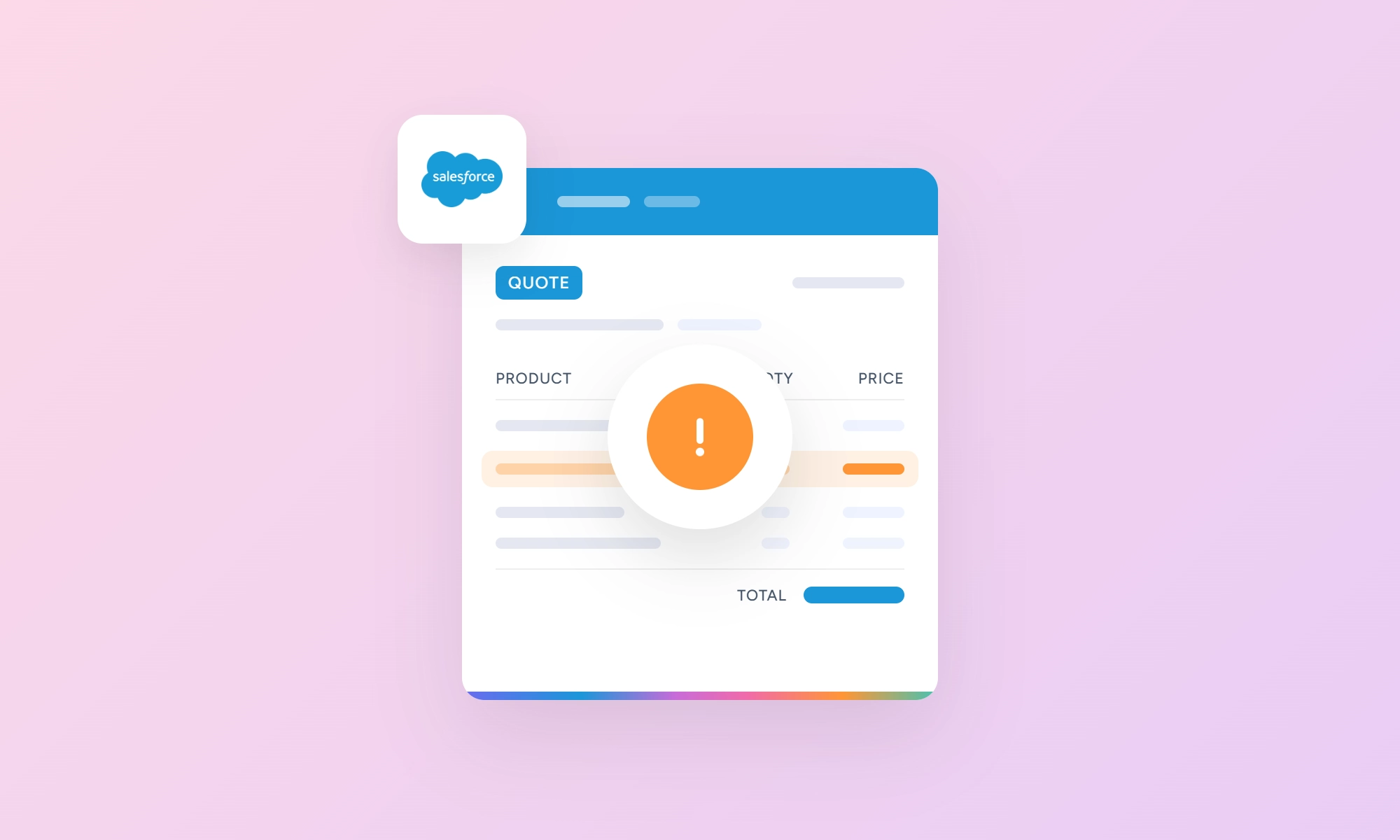
Quoting errors in Salesforce can come from several areas, including incorrect product or Price Book data, automation, CPQ pricing and validation rules, or differences between orgs. The right fix depends on where the error originates. Start by identifying the source of the error, then review the configuration or data causing it.
Standard Salesforce Quotes vs. CPQ Quotes
Salesforce supports several quoting approaches, including the standard Quote object, Salesforce CPQ, and Agentforce Revenue Management. This article focuses on Salesforce CPQ.
The standard Quote object is available as part of Salesforce Sales functionality. Salesforce CPQ is a separate managed package that uses the SBQQ__ namespace. For example, the CPQ Quote object is SBQQ__Quote__c, and CPQ Quote Lines use CPQ-specific objects and fields with the SBQQ__ namespace.
To check whether your org uses Salesforce CPQ, go to Setup → Installed Packages and look for the Salesforce CPQ package with the SBQQ__ namespace. You can also identify CPQ records and fields by their SBQQ__ API names.
This distinction matters when troubleshooting. The quote calculation, pricing rules, performance, renewal, and amendment issues covered in this article apply to Salesforce CPQ, not the standard Salesforce Quote object.
Agentforce Revenue Management, formerly known as Revenue Cloud, Revenue Cloud Advanced, and Revenue Lifecycle Management, is a separate Salesforce product from Salesforce CPQ. It uses a different architecture and data model and supports quoting as part of its broader revenue management capabilities. This article focuses on Salesforce CPQ and does not cover Agentforce Revenue Management.
Salesforce CPQ is currently in an end-of-sale, not end-of-life phase. Existing customers can continue using CPQ and receive support and critical fixes. Salesforce has shifted new product innovation to Agentforce Revenue Management, the successor to Salesforce CPQ.
Data and Setup Errors Behind Quoting Problems
Price Book and Price Book Entry Mismatches
A Quote Line Item must use a Price Book Entry from the same Price Book assigned to the Quote. If the Price Book Entry belongs to a different Price Book, Salesforce can return a FIELD_INTEGRITY_EXCEPTION when you add the line.
This can happen in Flow or other automation. The Quote may have the correct Price Book, while the automation assigns a Price Book Entry from another Price Book. Check both values before creating the Quote Line Item.
The same issue can occur during manual entry. If a product does not appear or Salesforce returns an error when you add it to a Quote, check the Quote’s Price Book and the product’s Price Book Entry.
Open the Price Book Entry record and check its Price Book field. It must match the Price Book assigned to the Quote.
Inactive Products Blocking Quote Creation
An inactive product on an Opportunity can prevent you from creating a Quote. This can happen even if the product was added to the Opportunity manually.
Check the product’s Active field first. Then check the product’s Price Book Entry and make sure it is active in the relevant Price Book.
To fix the issue, reactivate the product and its relevant Price Book Entry. Also check that the Price Book itself is active if the error continues.
Hardcoded Record IDs That Break After Deployment
Hardcoded Salesforce record IDs can cause pricing rules to fail or behave differently after deployment. For example, a Price Rule or Product Rule may compare a field value with a hardcoded record ID.
This can work in a sandbox refreshed from Production because Salesforce copies object IDs when it copies data to the sandbox. However, the sandbox and Production then operate independently, and those IDs aren’t synchronized. Record IDs also aren’t guaranteed to identify the corresponding records in another org.
For example, a Product Rule might compare a product-related field with a specific hardcoded ID. After deployment to another org, that ID may not exist there, causing the rule to miss the intended product.
Avoid hardcoding record IDs when you can use a more stable reference. For products, Product Code can provide an alternative identifier. Depending on the rule design, you can also use lookup-based logic or other fields that identify the intended record without relying on an org-specific ID.
Before deploying pricing rules, review their conditions and related configuration for hardcoded IDs. This helps prevent rules that work in one org but fail to match the intended records in another.
Automation Errors in Flow and Apex
Duplicate Quote Lines From Process Builder or Flow
Duplicate Quote Lines can occur when automation adds lines every time a Quote meets its entry conditions. For example, creating a Quote from an Opportunity can copy Opportunity Products to the Quote. If a Flow or existing Process Builder process then adds the same products when the Quote is saved, it can create duplicate lines.
Checking whether the Quote subtotal is greater than zero does not reliably prevent duplicates. The subtotal can already include existing Quote Lines when the automation runs. If the automation should only add lines to an empty Quote, check whether the Quote already has Quote Lines before creating them.
If the Quote can already have lines but the automation still needs to add specific ones, check whether those lines already exist or use a field to track whether the automation has processed the Quote.
Review the automation’s entry conditions and what happens when a Quote is saved. If the automation should add lines only once, make sure it does not run again after those lines already exist.
Too Many SOQL Queries (Governor Limit)
The System.LimitException: Too many SOQL queries: 101 error means a transaction exceeded Salesforce’s limit of 100 SOQL queries. A common cause is running a query inside a loop. Quote and Quote Line automation can also contribute when multiple Flows, Apex triggers, and other automation run in the same transaction.
For the causes and solutions, see Too Many SOQL Queries 101: How to Fix This Error in Salesforce.
Unhandled Fault Errors in Screen Flows
A Screen Flow that creates a Quote can fail when a validation rule blocks the record. For example, a validation rule might prevent users from entering an expired date. Without a fault path, the flow can stop with a generic error instead of showing the user what went wrong.
Add a Fault Path to the Create Records element and connect it to a Screen. Use {!$Flow.FaultMessage} in a Display Text component to show the error message returned by the failed operation.
If users need to correct the input and try again, you can design the fault path to return them to the input screen and run the Create Records element again. This requires additional flow logic; Retry is not a built-in fault-path action.
This approach applies to flows that create standard Salesforce Quote records with a Create Records element. CPQ uses its own quote-creation processes, so this pattern should not be presented as the CPQ quote-creation mechanism.

Tip
Avoid using exact text from {!$Flow.FaultMessage} as the main condition for identifying an error. Error messages can change when you modify validation rules or other configuration. If the flow needs to distinguish specific errors, use separate, controlled logic or an identifier that your automation manages.
Blocking Deletion of Products From a Sent Quote
Salesforce does not automatically prevent users from deleting Quote Line Items based on the Quote’s status. A user can delete a Quote Line Item even when the Quote is in a status such as Presented, Accepted, or Denied.
To prevent this, create a before-delete record-triggered Flow on Quote Line Item. Check the related Quote’s status. If the status is Presented, Accepted, or Denied, use a Custom Error element to stop the deletion and show a message explaining why it is not allowed.
For exceptions, add an Allow Product Deletions checkbox to the Quote. The Flow can check this field before showing the error.
Limit who can edit the checkbox with Field-Level Security. You can also use a Custom Permission if only specific users should be allowed to bypass the restriction.
It prevents deletion based on the Quote’s status while allowing controlled exceptions when needed.
Want a simple way to track quote changes without building a custom object?
XL-Connector can pull Quote Line Item data into Excel and refresh it on a schedule. You can keep dated snapshots and compare them in Excel to see how quote data changed over time.
CPQ Calculation and Validation Errors
Salesforce CPQ validation rules stop users from saving quote configurations that meet defined error conditions. When a rule is triggered, CPQ shows the error message in the Quote Line Editor (QLE) and prevents the quote from being saved while the error conditions remain true.
Note
A validation message can remain in the QLE even after you fix the issue. Close the message manually or click Save or Calculate to clear it. This is expected CPQ behavior.
Overlapping or Misfiring Pricing Rules
Multiple active Price Rules can affect the same quote line. Unused or duplicate active rules can also cause unexpected pricing when their conditions are met.
When troubleshooting, first check when each Price Rule runs. Salesforce CPQ uses four calculation stages: On Initialization, Before Calculate, On Calculate, and After Calculate. Each Price Rule runs at its configured evaluation event when its conditions are met.
Next, review each rule’s conditions, evaluation event, Evaluation Order, and Price Actions. Pay close attention to rules that depend on values changed by other rules. If one rule needs the result of another, place the rules in appropriate calculation stages instead of relying on both rules running in the same event.
Salesforce notes that Price Conditions and Summary Variables are evaluated before Price Actions run within the same event, so Evaluation Order alone does not make dependent conditions see changes made by another rule.
Preventing Discounts That Create Negative Prices
A discount above 100% can result in a negative price. If you want to prevent discounts above a specific percentage, create a Validation Rule on the Quote Line object.
For example, to prevent an Additional Discount above 100%:
SBQQ__Discount__c > 1Salesforce stores percentage values as decimals in formulas, so 1 represents 100%.
If the rule applies only to a specific product, add a product condition:
AND(
    SBQQ__ProductName__c = "Your Product Name",
    SBQQ__Discount__c > 1
)
If your goal is to prevent the final Net Unit Price from falling below zero or another minimum, validate the calculated price instead. This is important when your pricing setup includes multiple discounts or other price adjustments.
Test the rule with your CPQ pricing configuration before applying it to all products.
Negative and Decimal Quantity Issues
Salesforce CPQ supports negative quote lines and decimal quantities, but you can restrict them based on your business requirements. To prevent negative quantities, create a Product Rule with Type = Validation and an error condition that checks whether the Quote Line Quantity is less than zero. The rule can display an error message and prevent users from saving the quote.
Apply the rule only where negative quantities are not permitted. CPQ can use negative quantities in certain amendment scenarios, and the behavior of quantity reductions depends on the product and amendment configuration.
For decimal quantities, use Quantity Scale to control decimal precision.
Rounding Errors in Quote Line Prices
A repeating decimal can occur when you calculate a unit price by dividing an amount by a quantity that does not divide evenly. For example, $1,000 ÷ 13 = $76.92307692…
On a standard Salesforce Quote Line Item, Subtotal is calculated from Quantity and UnitPrice (Sales Price). If you divide Subtotal by a nonzero Quantity, you can derive the unit price. Rounding that result can, however, create a difference when you multiply it back by the quantity.
For example, rounding $1,000 ÷ 13 to two decimal places gives $76.92. Multiplying $76.92 by 13 gives $999.96 rather than $1,000.
If you need a rounded value for display or another calculation, create a formula field using ROUND(). For example:
IF(Quantity = 0, 0, ROUND(Subtotal / Quantity, 2))
The formula field is read-only and does not change the underlying standard fields.
If you need to store the rounded value, create a custom Currency or Number field and populate it with Flow, Apex, or another automation method.
For integrations, determine whether the receiving system needs the original or rounded value, then map the appropriate field.
Allowing Controlled Exceptions to Validation Product Rules
You can give users a controlled way to bypass specific Salesforce CPQ validation Product Rules. Create a multi-select picklist on the Quote, such as Bypass Rule Selections, and add a value for each validation rule users can bypass.
Create a formula field on the Quote Line that checks the selected Quote values and returns a value indicating whether the line should be excluded from the validation. Create a Summary Variable to aggregate the relevant Quote Line values.
Reference the Summary Variable in the validation Product Rule’s Error Condition. When the user selects the corresponding bypass value on the Quote, the Product Rule can be configured not to trigger for that exception.
For a small number of validation rules, this approach can work well. With many rules, the formula and bypass values can become difficult to maintain.
Treat the bypass field as a permission-sensitive control. Users who can edit Bypass Rule Selections may be able to bypass the corresponding validation logic. Limit field access to admins or appropriate operations users.
Large Quote Threshold Errors
Salesforce CPQ can show the error “Cannot save the quote. Limit your quote lines to as many as {Large Quote Threshold}, or remove all quote lines with consumption schedules. (Save Error)” when saving a quote.
This occurs when a Quote Calculator Plugin (QCP) modifies the Consumption Rate object on a quote whose quote lines exceed the configured Large Quote Threshold. Salesforce documents this configuration as unsupported. The issue does not apply to every quote with consumption schedules.
To resolve the error, reduce the number of quote lines below the configured Large Quote Threshold.
Why CPQ Quotes Load Slowly or Time Out
Performance problems and calculation errors often have the same cause: CPQ rules doing more work than necessary. Rules that process too much data or run more often than needed can increase CPU time, heap usage, and quote calculation time.
Finding the Rule Causing the Slowdown
Start with a baseline. Run the same quote configuration and capture a debug log. Set Apex Profiling to FINEST to capture detailed profiling information, including CPU time and heap usage.
Next, identify rules that could contribute to the slowdown. Deactivate one suspected rule, run the same test again, and compare the new log with the baseline. Focus on CPU Time and Heap Size.
High CPU usage indicates that the transaction is performing substantial processing, but it does not by itself identify which CPQ rule is responsible. High heap usage indicates that the transaction is using substantial memory. Use the log to identify the code or processing contributing to the usage.
For Price Rules, check whether a rule runs during calculation events where it is not needed. A Price Rule can run each time its configured calculation event is triggered when its conditions are met. Restrict rules to the evaluation events required by their logic.
Repeat the test with other suspected rules. Compare each result with the baseline to determine which rule or combination of rules contributes most to the slowdown.
Replacing Multiple Price Rules With a Lookup Table
Multiple Price Rules can make pricing logic harder to manage and increase the amount of processing CPQ performs. This can happen when you create separate rules for combinations such as region and customer tier.
Instead, store the pricing matrix in a custom object. Each record can contain the product, region, customer tier, discount, or other values needed to determine the price.
Then use one Price Rule with a Lookup Query to find the matching record and apply the value.
For example, instead of creating separate rules for North America–Gold, North America–Silver, and Europe–Gold, store these combinations as records in the pricing table. The Price Rule looks up the matching combination and applies the discount.
Make sure the lookup criteria identify the correct record. If the query returns multiple matching records, CPQ can return a “Multiple results returned from the query” error.
Errors From Skipping the Approval Process
A rep can create or edit a quote and set its Status to Approved without submitting it for approval if the field is editable. An approval process does not automatically prevent this.
To enforce the approval path, create a read-only Approved Date field and set it through the approval process. Give reps read-only access to the field, then add two Field Updates to the approval process’s Final Approval Actions: one that sets Approved Date to TODAY() and one that sets Status to Approved. Approval processes support Field Updates, which can update fields independently of field-level security.
Use this validation rule:
AND(
    OR(ISNEW(), ISCHANGED(Status)),
    ISPICKVAL(Status, "Approved")
)
The rule blocks a rep from creating a quote as Approved or changing its Status to Approved. Editing an already-approved quote without changing Status does not trigger the rule. ISNEW() is required because ISCHANGED(Status) returns false when a record is created.
Approval-process field updates are widely reported not to trigger custom validation rules, so the approval process can set Status to Approved even though a normal save that sets it to Approved is blocked.
In this setup, the validation rule blocks direct approval, while Approved Date records the date assigned when the approval process completes.
Errors When Generating Quote Documents
These errors are specific to Salesforce CPQ. Quote Templates and Template Content use CPQ objects and fields with the SBQQ__ namespace.
Broken Templates and Formatting Issues
Formatting, colors, HTML markup, or images can prevent CPQ from generating a quote document.
First, check the color fields on the Quote Template Detail record, such as Border Color, and its template sections. When you move CPQ data with Data Loader and Excel, a hexadecimal value such as 000000 can become 0. Format the color columns as Text before entering or importing the values. If Excel has already changed 000000 to 0, formatting the cell as Text will not restore the missing zeros. Enter the original value again before importing it.
If you cannot identify the faulty section, delete tables, rows, or columns from the Template Content one at a time and preview the document after each change. This helps isolate the problem. Check the affected HTML for unsupported tags or unexpected formatting. Pasted content can also introduce hidden HTML markup.
An unescaped & in an image URL can cause a rendering error. Replace & with & where required.
Images can fail when templates move between environments because image URLs can contain org-specific IDs. Check that image references point to the correct records in the environment where the document is generated. For images stored in Documents, enable Externally Available Image and make sure users can access the document folder.
Missing Price Fields Breaking the PDF
The “Attempt to de-reference a null object” error during document generation can occur when one or more Quote Line price fields that CPQ expects to contain a value are null. Salesforce lists fields such as SBQQ__NetPrice__c, SBQQ__NetTotal__c, and SBQQ__UnitCost__c as examples, not a complete list.
-
1
Query the Quote Lines on the affected quote and check the relevant price fields for null values. Also verify that Quantity and either List Price or Special Price are populated.
-
2
Fix the missing values or the pricing configuration that should populate them.
-
3
Generate the document again. If the error persists, check other Quote Line fields or the quote template for additional configuration issues.
Errors When Migrating or Moving Quotes Between Orgs
Moving Salesforce CPQ quotes between orgs can cause errors when they reference records with different IDs in the target org. Invalid Cross Reference ID is one example. See our Salesforce Invalid Cross Reference ID guide for troubleshooting.
Price Books and Price Book Entries are common migration dependencies. Recreating them in another org gives them new IDs. If a quote or quote line still references a source-org ID, Salesforce cannot find the corresponding record in the target org.
A Quote Line’s SBQQ__PricebookEntryId__c stores the Price Book Entry ID used by CPQ. CPQ uses the quote’s Price Book and Quote Line Product to determine this value. A missing or incorrect Price Book Entry can cause errors or pricing issues.
Before moving quotes, map each source-org Price Book and Price Book Entry to the corresponding records in the target org. Then verify that the quotes and quote lines reference the correct target-org records.
Errors During Quote Renewals and Amendments
Asset and Subscription Conflicts
The error “Cannot read properties of null (reading ‘lineVO’)” occurs when Salesforce CPQ cannot rebuild a bundle structure because child product records contain missing or incorrect relationship data.
When generating a renewal or amendment, check these fields:
- Subscription: SBQQ__RequiredById__c, SBQQ__RootId__c, SBQQ__RequiredByProduct__c
- Asset: SBQQ__RootId__c, SBQQ__RequiredByProduct__c, SBQQ__RequiredByAsset__c, SBQQ__RequiredBySubscription__c
These values should reflect the bundle hierarchy. The appropriate Required By field identifies the parent relationship, while Root ID identifies the top-level bundle. When generating a contract, also check SBQQ__RequiredBy__c on the Quote Line.
Review the product configuration alongside existing Asset and Subscription records. If product settings were changed after related records were created, verify that those records still contain the relationship data required by the current bundle structure.
For migrated or manually created data, verify that the relationship fields above are populated correctly. Salesforce provides field references for Subscription and Asset legacy data uploads.
The lineVO error does not by itself mean that a product is configured incorrectly as both an asset and a subscription. Check the documented bundle relationship fields and the related Asset, Subscription, and Quote Line records before changing the product configuration.
Custom Pricing Logic Breaking Renewal Prices
Salesforce CPQ uses a price waterfall to calculate the final price. The standard sequence is List Price → System Discounts and adjustments, including Special Price → Regular Price → Additional Discounts → Customer Price → Partner Price → Net Price. Distributor discounts are applied between Partner Price and Net Price.
Custom pricing logic can cause problems when it bypasses this sequence. For example, an After Calculate Price Rule that writes a value directly to a pricing field does not automatically recalculate downstream price fields. Any downstream unit price fields affected by the change must also be updated.
Renewals can also lose custom pricing information when the value is stored in a custom field that CPQ does not carry forward automatically. Twin Fields can pass custom field values between related CPQ records during processes such as amendments and renewals. To use them, the fields must have matching API names and the same field type.
This does not mean that Twin Fields add custom pricing logic to the price waterfall. They only carry the required custom field values between records. Your pricing logic must still work with CPQ’s pricing process.
When renewal prices are incorrect, check where the original price comes from, which standard or custom field stores it, and whether the required custom value carries to the renewal. Also review Price Rules, QCP, or Apex that may change the value after it is mapped.
Conclusion
Salesforce CPQ quoting errors often occur at specific points in the quote lifecycle, and many have known causes or documented fixes. Start by identifying when the error occurs and what changed beforehand. Check the related records, fields, rules, automation, or dependencies. Test one change at a time using the same quote scenario to isolate the cause. For problems involving custom logic or integrations, review the configuration and debug logs before making changes.
FAQ
How do I troubleshoot a Salesforce CPQ quote that won't save?
Start with the error message, then check the Quote and Quote Line data, validation rules, Price Rules, and automation. For slow or failed calculations, use debug logs to find the source.
Why is my Salesforce CPQ quote showing the wrong price?
Incorrect prices can come from conflicting Price Rules, custom pricing logic, incorrect Price Book Entries, or missing values during renewals. Check the pricing logic and rules that change the affected fields.
Why does a Salesforce CPQ quote fail after moving it to another org?
Referenced records can have different IDs in the target org. Check the Price Books, Price Book Entries, products, and other related records to make sure the quote points to the correct records.
How can I prevent Salesforce CPQ quoting errors?
Review pricing rules, validation rules, automation, and related records before making changes. Test the same quote after each change to identify what caused the problem.

Rajeshwari Jain
Content Manager
Rajeshwari Jain is a Technical Support Specialist and Content Writer at Xappex. She applies her practical experience to assist customers and create articles on how Xappex tools work with Salesforce to improve data management and increase efficiency.
She began her IT career in 2022 as a Quality Assurance professional before transitioning into Salesforce administration and technical writing in 2023. With Salesforce Certified Administrator and Associate certifications, Rajeshwari writes blogs on Salesforce flows, admin tools, and updates to expand her skills outside of work.
In her free time, she enjoys reading tech blogs and experimenting with new tools.
Feel free to reach out to Rajeshwari for collaborations or to check out her Salesforce-focused content.