Get Started Free



Salesforce is rolling out Step-Up Authentication, introducing changes to how users and integrations are authenticated before performing certain operations.
If you use XL-Connector, XL-Connector 365 or G-Connector, you may have noticed new sign-in prompts, occasional requests to re-authenticate, or unfamiliar errors during scheduled refreshes.
The good news is that nothing is broken. These changes are the result of Salesforce’s updated security model, and we’ve already updated our products to work seamlessly within it.
What is Step-Up Authentication?
Step-Up Authentication is a Salesforce security feature that requires a higher level of identity verification before allowing access to certain data or operations.
Previously, a single authenticated session could often remain valid for long periods. With Step-Up Authentication, Salesforce can now require users or integrations to verify their identity again before accessing sensitive resources.
In practice, Salesforce has become more selective about which long-lived sessions and legacy access methods it accepts. Operations that previously worked using an older authenticated session may now require a fresh login.
While this improves security, it also affects some of the underlying APIs our products rely on. As a result, you may notice a few behavioral changes compared to previous versions.
What's changing for report downloads?
The biggest change affects report imports.
Historically, our products downloaded Salesforce reports using a legacy CSV export endpoint. It was fast, reliable, and allowed a large number of exports without strict execution limits.
With Step-Up Authentication, however, Salesforce no longer considers that legacy endpoint a reliable authentication path for programmatic report exports.
To ensure report imports continue working, our products now retrieve report data through the Salesforce Analytics API instead.
This change keeps report imports fully compatible with Salesforce’s new authentication requirements. However, the Analytics API has different usage limits than the legacy CSV export endpoint, and those limits are responsible for the most common error customers are seeing today.
Understanding the "1,200 reports per hour" error
If you’ve recently encountered the following error during a report import:
ReportEngineStreamError: You can’t run more than 1,200 reports asynchronously every 60 minutes. Try again later.
It’s natural to wonder how your organization could possibly be running 1,200 reports in an hour.
In most cases, it isn’t.
The confusion comes from how Salesforce measures report executions. Three key details explain what’s happening:
-
1
The limit applies to your entire Salesforce org
The quota isn’t tracked per user or per integration.
Every asynchronous report execution across your Salesforce organization counts toward the same rolling 60-minute limit, regardless of who or what initiated it. That includes users, scheduled jobs, third-party integrations, and Xappex products.
-
2
A single report can consume multiple executions
The “1,200 reports” limit doesn’t actually mean 1,200 complete reports.
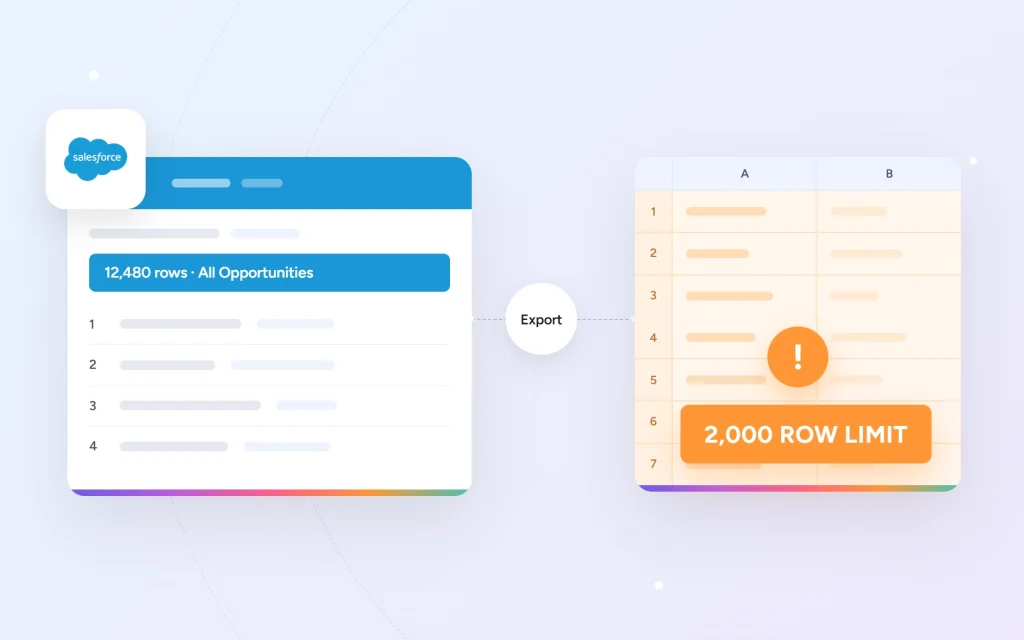
The Analytics API returns report data in batches of up to 2,000 rows, and each batch counts as a separate asynchronous report execution.
For example:
Report size Rows Executions consumed
Small 1,500 1
Medium 10,000 5
Large 50,000 25
Very large 200,000 100
A report containing 200,000 rows consumes 100 executions all by itself.Because of this, a relatively small number of large reports can quickly use a significant portion of your organization’s hourly limit.
-
3
The limit uses a rolling 60-minute window
Salesforce doesn’t reset the counter at the top of each hour.
Instead, it continuously evaluates the previous 60 minutes. Once your organization reaches the limit, Salesforce returns this error to everyone in the org until enough earlier executions fall outside that rolling window.
How to work around the limits
-
1
Keep using reports as you always have. Behind the scenes, we now route report imports through the Analytics API automatically, so in most cases you won’t notice any difference. The main thing to keep an eye on is how much data your entire org pulls in a given hour — the ceiling works out to a little over 3,000,000 records per rolling 60-minute window.
-
2
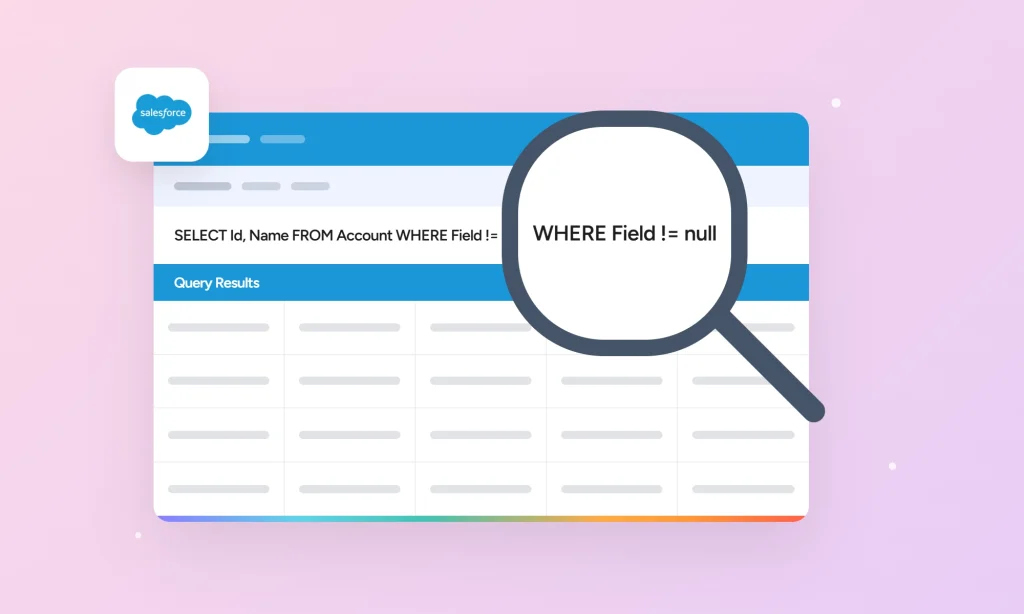
Convert your report to SOQL. Xappex now includes a Report to SOQL converter built right into the Reports import dialog. Open a report, expand the SOQL (beta) section, and the tool generates the equivalent SOQL query for you. From there you can tweak the query and import using it instead of the report. Because SOQL queries skip the report layer entirely, they aren’t subject to the Analytics API rate limit at all .
-
3
Pull data with a SOQL query directly. This option has always been available under Pull Data → From Objects and Fields, and it’s the cleanest long-term solution. Like the converter, it bypasses the report layer completely, so the Analytics API limit never enters the picture. It also unlocks in-cell filters, which let you build dynamic, self-refreshing reports.
Why you're seeing this now
Before Step-Up Authentication, report downloads used Salesforce’s legacy CSV export endpoint, which wasn’t subject to the same Analytics API execution model.
Now that report imports use the Analytics API, every report download is measured according to its API execution cost. As a result, the same reporting workload that previously completed without issue may now exceed Salesforce’s asynchronous execution limit.
In other words, your reporting activity may not have changed—but the way Salesforce counts it has.
How to reduce Analytics API usage
Although these limits are enforced by Salesforce and can’t be disabled, there are several ways to reduce how quickly your organization consumes its quota:
-
Keep reports as small as practical by returning only the rows you actually need.
-
Remove unnecessary columns and apply more specific filters to reduce report size.
-
Stagger scheduled refreshes so multiple large report imports don’t run during the same hour.
-
Coordinate with other teams and integrations, since the limit is shared across your entire Salesforce org.
-
If you reach the limit, wait for the rolling 60-minute window to clear
Learn more
For additional details about how Salesforce’s Step-Up Authentication affects report imports, and for a deeper explanation of the Analytics API limits, see our knowledge base article:
How Salesforce’s Step-Up Authentication for Reports Is Affecting Xappex Products

Florencia Mouriz
Florencia Mouriz is a professional with over two years of experience at Xappex, where she has performed as a Technical Support Agent and Coordinator, and Technical Writer. In this role, Florencia provides support to customers while creating educational content and tutorials that guide users through the implementation of Xappex tools with Salesforce. Her contributions seek to enhance customer understanding and optimize the use of these tools.
Before joining Xappex, Florencia gained valuable experience participating in diverse projects for other companies, where she worked as a Salesforce Administrator and implemented Vlocity solutions. She has an extensive background in Salesforce ecosystems and is determined to deliver impactful results for our company.
Based in Tandil, Bs As, Argentina
To learn more about Florencia’s experience and connect with her, visit her LinkedIn profile