Get Started Free



What Salesforce is changing for Report exports in July 2026
Starting July 1, 2026, Salesforce is enforcing “Step-up authentication” on some report actions. Every time a report is exported or printed, Salesforce will require an additional identity verification step (MFA). The rollout is staggered across production orgs over approximately 30 days, so the exact date it activates for your org isn’t known in advance.
For more details, see Salesforce’s official announcement

Report views are not affected
Although some users initially experienced Step-Up Authentication prompts when viewing reports, Salesforce has updated the feature so that authentication is only required when exporting or printing reports. Viewing reports and accessing the Reports tab are not affected.
How the new Salesforce Step-Up Authentication affects third party tools
This is a platform-level constraint that affects all Salesforce integration tools. Most third-party tools pull reports programmatically in the background, so there’s no way to present a second-factor prompt mid-process. Additionally, CSV exports will no longer be available.
Some Appexchange integrations may not be ready for this rollout, so you may experience some limitations or an interruption of your current reporting workflows.
Keep your report exports running
We at Xappex have been preparing for this, and all of our tools will continue to work with reports after the change goes live. This guarantees you can export reports at no cost to Excel and Google Sheets with the free plan.
After the Salesforce Step-Up Authentication rollout Xappex will transparently fall back to a different data extraction method: Salesforce’s Analytics API.
However, switching the data extraction method does come with some limitations. For such cases, we have developed a workaround that you may find useful. Here’s how you can pull reports with Xappex and all possible alternatives.
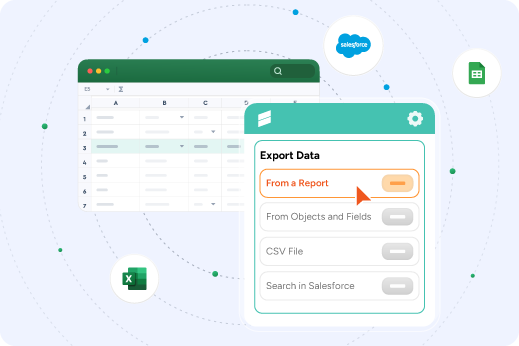
Use the Get Reports function
Tools like XL-Connector, XL-Connector 365 and G-Connector will let you pull your reports to Excel and Google Sheets through a different route, so your existing setup keeps working.
Some limitations to keep in mind:
-
Report exports will be capped at 2,000 rows (only in free plans) due to the limitations on Salesforce’s reporting infrastructure and APIs.
-
Salesforce allows roughly 3 million Analytics API rows per hour per org, shared across all users. If many people pull reports at the same time, that shared limit can run out quickly.
Learn more about Salesforce report export limits
If you want to learn more about Salesforce`s enforced API limitations to report exports and how to bypass them, access this article.
If you hit these limits, don’t panic: Xappex offers a free workaround – read on!
Convert your report to SOQL
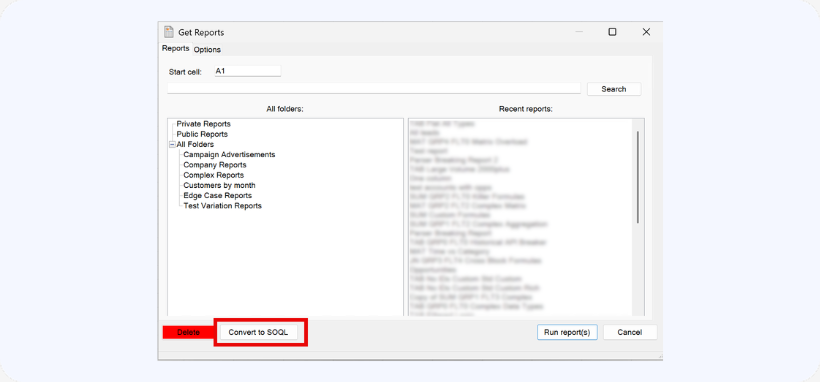
All Xappex tools now include a Report-to-SOQL converter built directly into the Report dialog. This functionality becomes specially handy when you’re working with reports with over 2k rows, or that you have multiple schedules for. It is available on all Xappex plans, including the free plan.
How the Reports to SOQL converter works:
Click Reports, select your report from the list, and click Convert to SOQL.
A new window will open with the Get Data UI and the query already generated. You can then edit that query and import using it instead. Because SOQL queries bypass the report layer entirely, they aren’t subject to the Analytics API rate limit.
Create a SOQL query from scratch
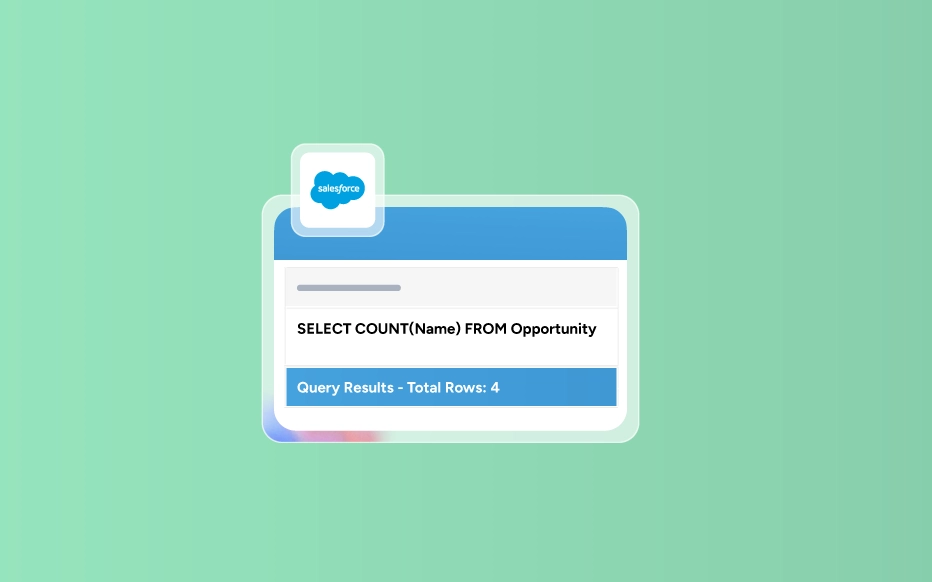
This option has always been available in all Xappex tools, and it’s the cleanest long-term solution because it bypasses the report layer entirely. Using the UI, you can select the fields you want to pull, apply filters, and reference in-cell values to filter data dynamically — all without needing to know SOQL syntax.
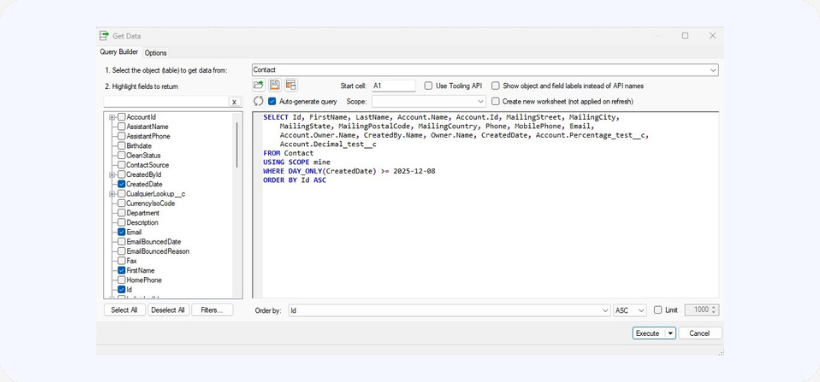
In-cell SOQL formulas are also available to bring a single value directly into any cell.
If you have any questions, reach out to our team at support@xappex.com — we’re here to support you through this transition.
Export Salesforce reports for free with Xappex
Keep report exports running — in Excel and Google Sheets — at no cost.

Alexander Tarasevich