Get Started Free



Salesforce users often seek a way to export List Views into Excel or CSV format for reporting, analysis, or bulk updates. However, Salesforce does not provide a direct “Export” button for List Views.
The short answer is: yes, you can export a List View, but only through specific workarounds.
Export via Reports
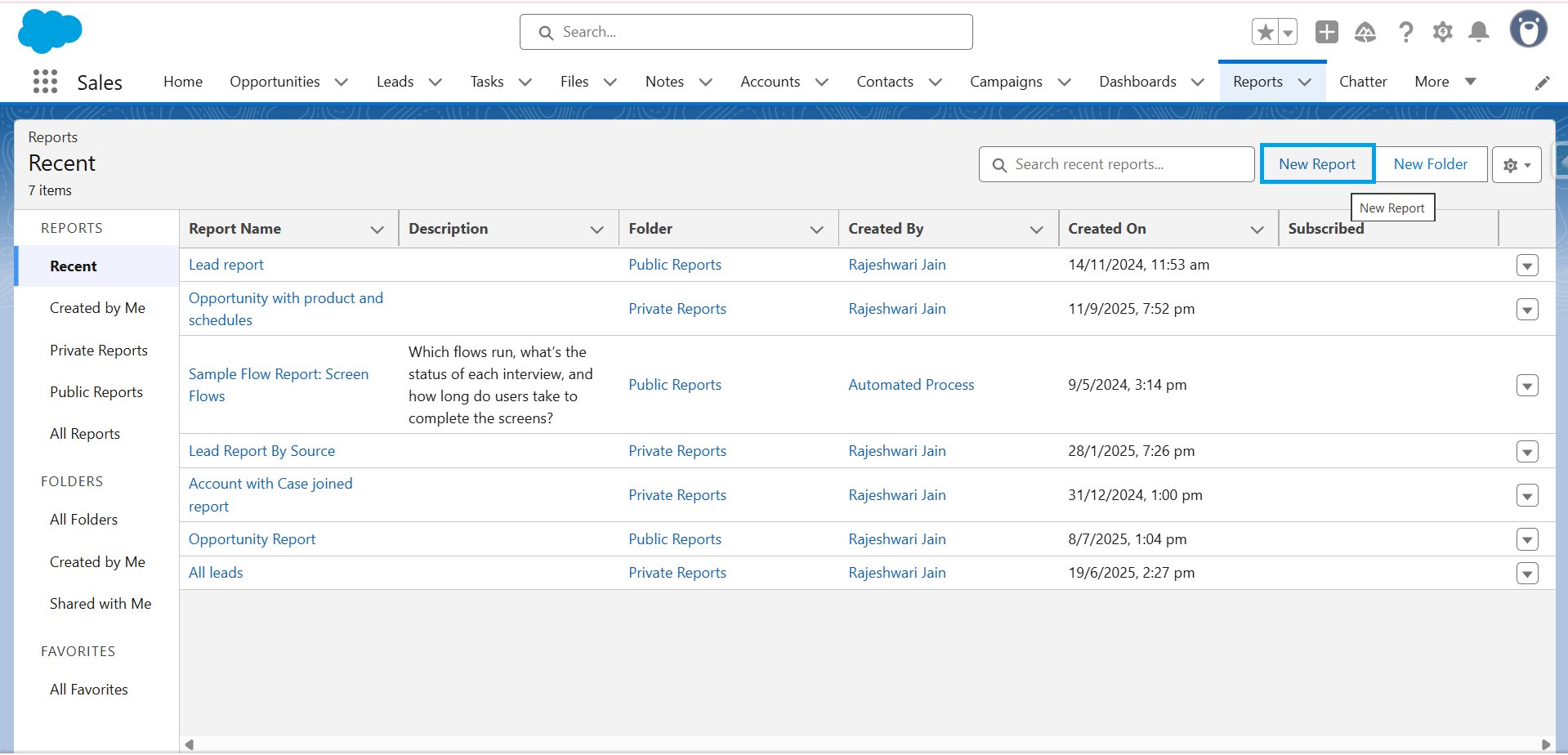
The Report feature is the official and most reliable method to export data that mirrors a List View. Instead of exporting the List View directly, you can create a Report with the same filters and columns. Once generated, Reports can be exported to Excel or CSV.
-
1
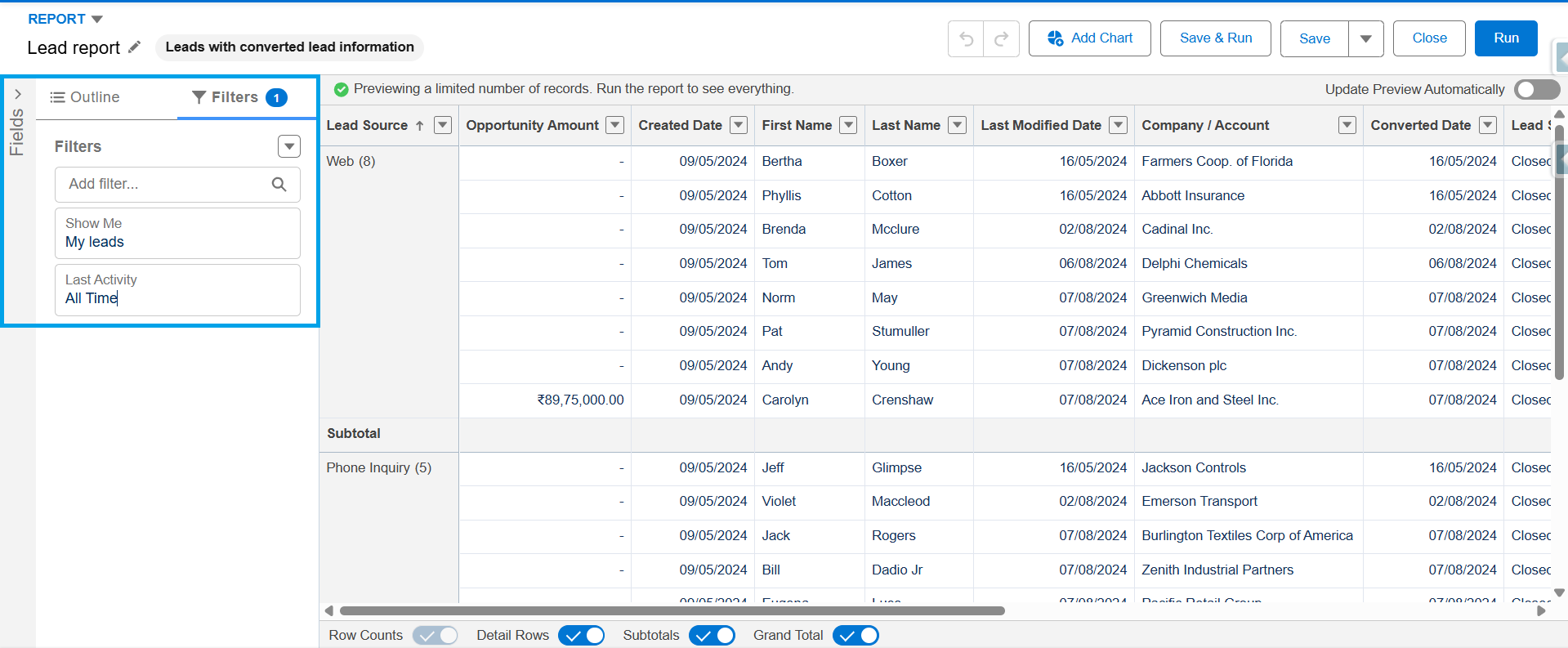
- In Lightning Experience, click Reports -> New Report, choose the relevant object. Apply the same filters as in your List View.

-
2
Apply the same filters as in your List View while creating report.
-
3
- In Salesforce Classic, the interface looks slightly different, but the process and outcome remain the same.
This method is especially effective for recurring exports or when handling large datasets, since Reports support advanced filters and flexible formatting.
Printable View
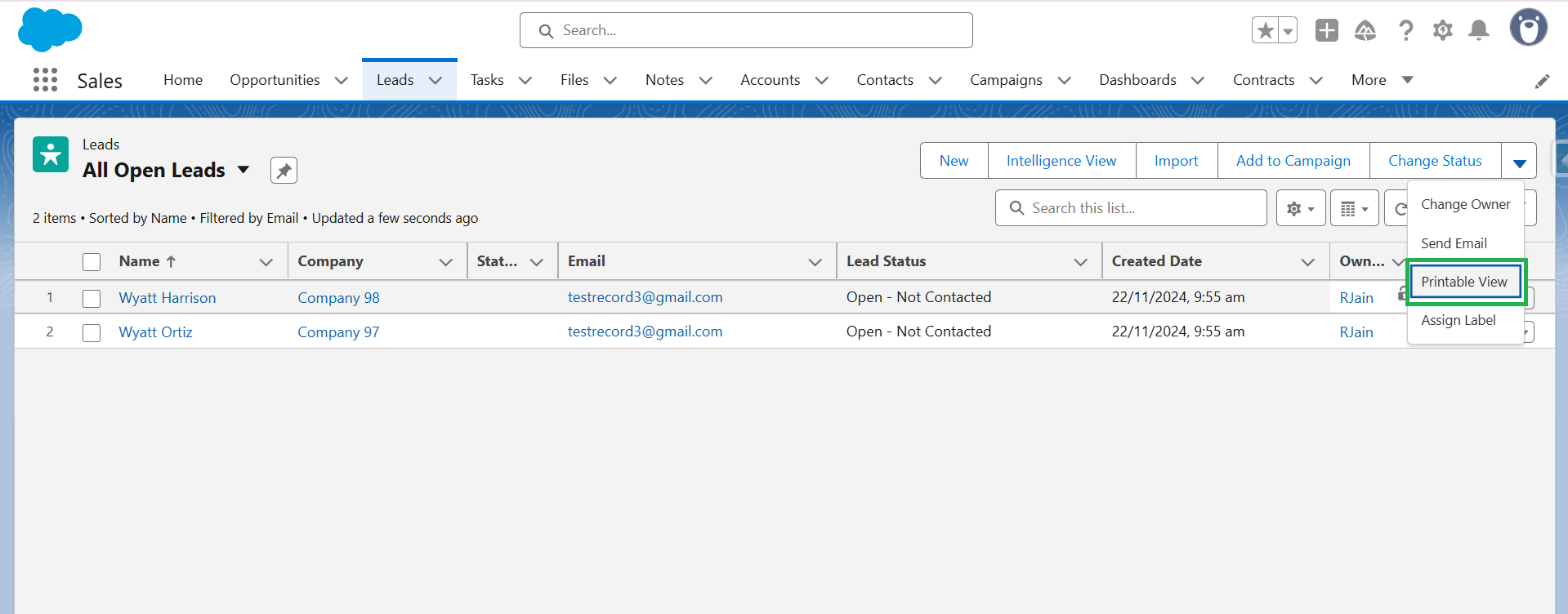
The Printable View option provides a lightweight alternative. When selected, Salesforce displays the List View data in a clean table format, which can then be copied and pasted into Excel.
- In Lightning, access the Printable View from the Dropdown menu within the List View.
- In Classic, the option is available at the top right near the feed.
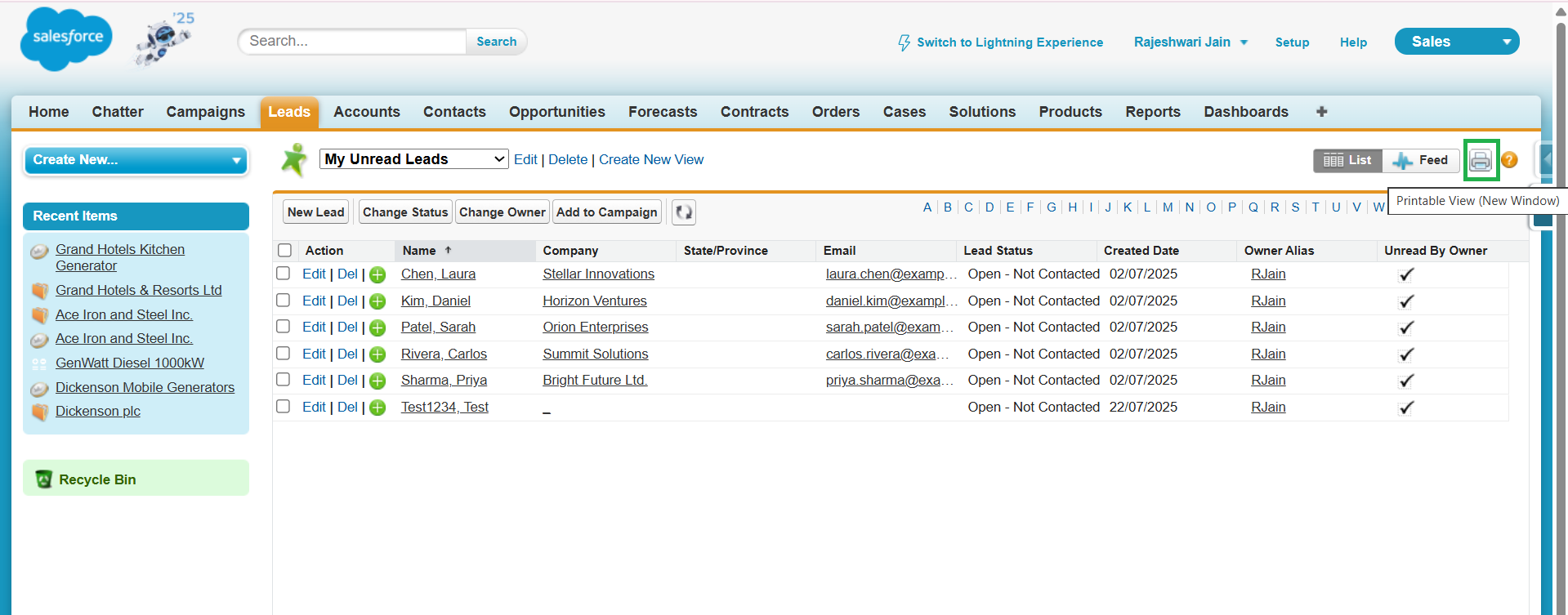
While this method is quick, it is not feasible for large lists because it requires manual copy-paste and does not generate an actual CSV or Excel file.
Can we view multiple Salesforce list view details at once in the standard interface?
The answer is no.
Salesforce shows each list view separately, so to check the object, review the filters, or compare how different views are configured, you must open them one by one. This requires repeated steps and adds extra effort when your org has many list views.
XL-Connector offers a more convenient approach.
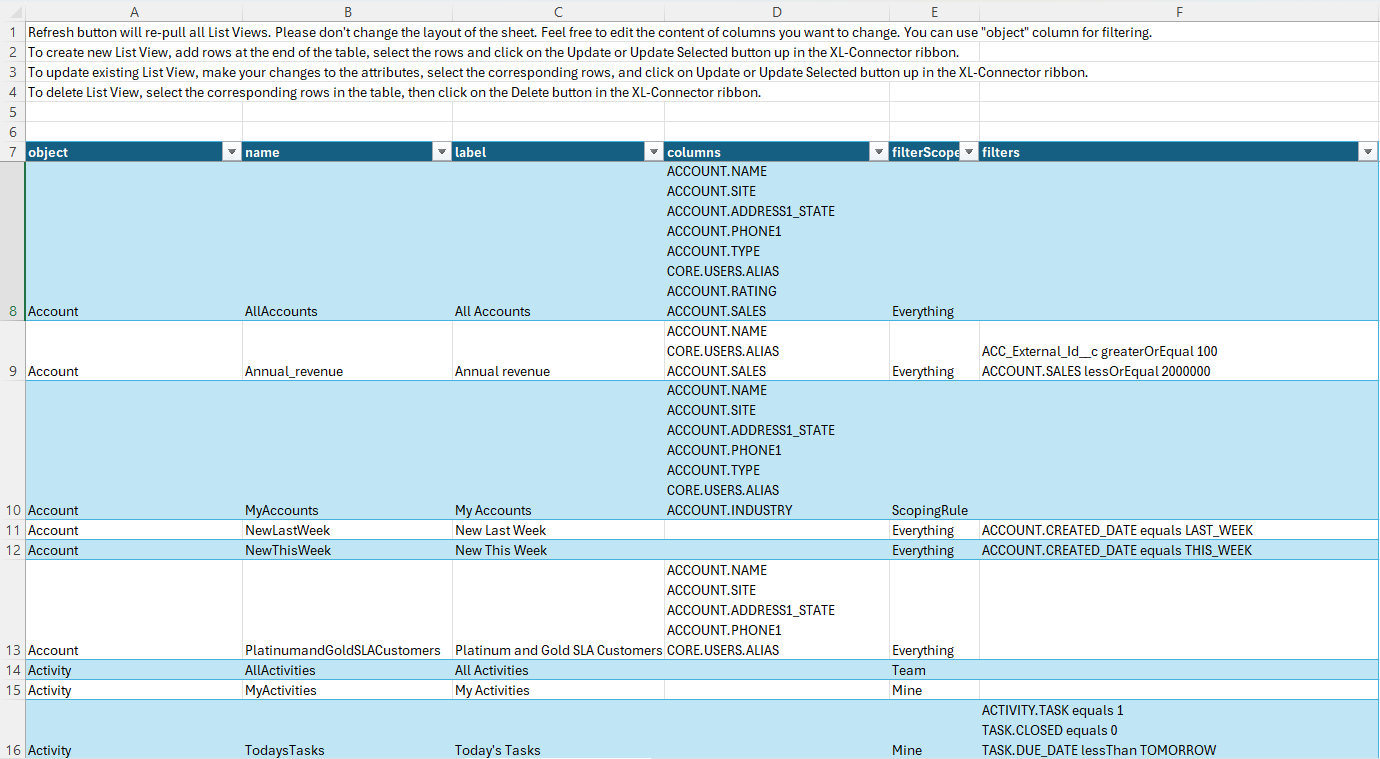
Rather than loading every list view separately, XL-Connector fetches the complete inventory of list views available in your org. It displays each list view name, its columns, and filter details in a single Excel sheet.
This gives admins a clear overview of all list views without switching between multiple Salesforce screens. It helps you review and compare configurations quickly, making your daily work easier and more organized.
Third-Party Tools
In addition to native options, several third-party solutions extend Salesforce’s export and editing capabilities. Chrome extensions and AppExchange apps exist, but one of the most versatile tools is XL-Connector.
- Direct List View Export: XL-Connector allows you to export any Salesforce List View directly into Excel without extra configuration.
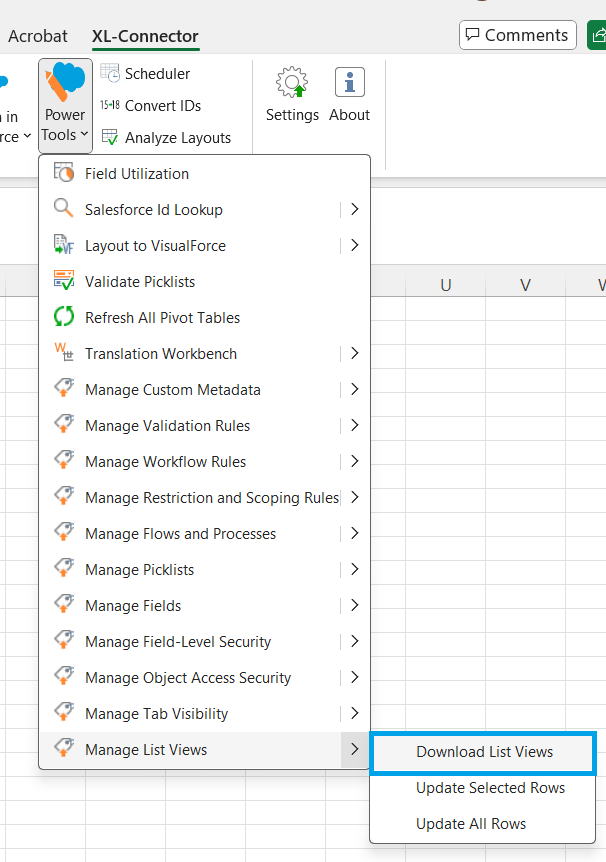
Once you click Download List views, all the list views will appear in your Excel file, along with the object name, columns, and filters.
- Mass Editing and Sync: You can edit multiple records in Excel and sync the changes back to Salesforce in real time.
- List View Management: Admins and business users can create or delete List Views directly through Excel, making it easier to manage data outside the Salesforce interface.
Conclusion
Salesforce doesn’t include a direct Export button for List Views, but there are several ways to export the data, depending on your needs. If you want a quick copy, the Printable View is a good option. For a more organized format, Reports are the best fit.
And if you prefer working in Excel, XL-Connector makes the process easier.
Ultimately, the best approach depends on how frequently you need to export and what you intend to do with the data.

Rajeshwari Jain
Content Manager
Rajeshwari Jain is a Technical Support Specialist and Content Writer at Xappex. She applies her practical experience to assist customers and create articles on how Xappex tools work with Salesforce to improve data management and increase efficiency.
She began her IT career in 2022 as a Quality Assurance professional before transitioning into Salesforce administration and technical writing in 2023. With Salesforce Certified Administrator and Associate certifications, Rajeshwari writes blogs on Salesforce flows, admin tools, and updates to expand her skills outside of work.
In her free time, she enjoys reading tech blogs and experimenting with new tools.
Feel free to reach out to Rajeshwari for collaborations or to check out her Salesforce-focused content.