Get Started Free



OAUTH_APPROVAL_ERROR_GENERIC is a Salesforce OAuth error that blocks the authorization flow before the approval dialog renders. The main reason is the Connected App usage restriction that starts in September 2025. Users who don’t have the “Approve Uninstalled Connected Apps” permission will not be able to authorize uninstalled apps.
Fix it by installing the Connected App via Setup → Connected Apps OAuth Usage, or by granting the permission through a Permission Set.
What OAUTH_APPROVAL_ERROR_GENERIC Means in Salesforce
A Connected App is Salesforce’s way to register an OAuth client. It’s like registering an OAuth app with other identity providers, such as Google or GitHub. When a user tries to authorize one, Salesforce checks the security policies before showing the approval dialog.
If any policy blocks the request, Salesforce stops the flow and returns a generic error instead of a specific reason. That’s why the on-screen message is so unhelpful.
The September 2025 Enforcement
Salesforce introduced the Approve Uninstalled Connected Apps system permission in the Summer ’25 release. Enforcement of the new Connected App usage restrictions began rolling out on August 28, 2025, for new orgs and on September 2, 2025, for existing orgs (please refer: Prepare for Connected app Usage restriction Change).
After enforcement, users on most profiles can no longer authorize a Connected App that isn’t installed in the org. They need either:
- The Approve Uninstalled Connected Apps permission, or
- The broader Use Any API Client permission.
Which permission applies depends on whether API Access Control is enabled in your org:
-
API Access Control disabled (the default for most orgs): Approve Uninstalled Connected Apps is sufficient. Use Any API Client also works but is broader than necessary.
-
API Access Control enabled: Use Any API Client is required. Approve Uninstalled Connected Apps alone will not work in this configuration.
Find Your Fix: A Decision Tree by Use Case
Different OAuth contexts need different fixes. Pick the section.
Fixing the Salesforce CLI / VS Code Authentication Error
Symptoms: sf org login web opens a browser, authentication succeeds, but authorization fails with an error. VS Code’s Authorize an Org command behaves the same way because it uses the Salesforce CLI internally.
Root Cause: The Salesforce CLI authenticates using the default Salesforce CLI Connected App. Salesforce now restricts uninstalled Connected Apps. Since the default CLI Connected App is uninstalled by default, users need specific permissions to authorize it.
Fix:
-
1
Assign one of these permissions to the user:
-
- Approve Uninstalled Connected Apps
- Use Any API Client — only if API Access Control is enabled in the org.
-
-
2
If the problem is in a sandbox refreshed after the restriction rollout, go to Setup → Company Information → Match Production Licenses. This syncs license definitions from production and makes the new permission available in the sandbox.
-
3
Check that API Enabled is ticked on the user’s profile or permission set.
-
4
Clear browser cache and cookies, then run sf org login web.
Earlier workarounds suggested using sf org login device, but that command no longer works for the default Salesforce CLI Connected App because Salesforce blocked OAuth 2.0 Device Flow.
For authentication, switch away from the OAuth 2.0 Device Flow and use one of the following instead:
-
Web Server Flow: authenticates an org through the browser.
-
JWT Bearer Flow: authenticates an org in headless environments such as CI/CD pipelines.
Fixing Authentication Errors in Mobile SDK Apps
Symptoms: A custom mobile app built with Salesforce Mobile SDK 12.x suddenly fails to authenticate users who were previously able to log in successfully.
Root Cause: Salesforce introduced stricter controls for uninstalled connected apps. If the mobile app’s Connected App isn’t installed or authorized, users on custom profiles might not authenticate. They will need the Approve Uninstalled Connected Apps permission to proceed.
This issue is related to Connected App access policies rather than Mobile SDK 12.x specifically.
Fix Steps:
-
1
Go to Setup → App Manager and open your Connected App.
-
2
Review the app’s OAuth Policies.
-
3
Check the Permitted Users setting. For production environments, it’s best to use Admin-approved users, as it gives admins clear control.
-
4
If you select Admin approved users are pre-authorized, assign access through:
-
- Manage Profiles, or
- Manage Permission Sets.
-
-
5
Verify that the Connected App is properly installed in the org. If the app is not installed, only users with the Approve Uninstalled Connected Apps permission will be able to authorize and use it after Salesforce’s connected app restrictions change.
Fixing the Login Error in Data Loader
Symptoms: Data Loader fails to log in. This affects setups using OAuth 2.0 Device Flow.
Root Cause: Salesforce removed OAuth 2.0 Device Flow support in Data Loader on September 2, 2025 (To know more, please check: Data Loader OAuth 2.0 Device Flow Removal)
Fix Steps:
-
Update Data Loader to v64.1.0 or later
Version 64.1.0 removes Device Flow and replaces it with Web Server Flow or Password Authentication. Download the latest version from the Salesforce Data Loader installation page in your org or from the Salesforce Help portal.
-
Re-authenticate
Open Data Loader and authenticate using Web Server Flow (default) or Password Authentication.
- Web Server Flow: Redirects to a browser-based login screen. Use this for interactive sessions.
- Password Authentication: Use this for automated or headless setups where browser login is not possible.
Fixing the Error for Integration Users (API-Only Profile)
Symptoms: An integration user with the Minimum Access — API Only Integrations profile fails to authorize.
Root cause: A complete Integration User setup requires several layered components, and admins frequently miss one or two.
Required configuration checklist:
-
1
Profile: Minimum Access – API Only Integrations (a Salesforce-standard profile);
-
2
Profile-level System Settings: both API Enabled and API Only User checked;
-
3
Permission Set License: Salesforce API Integration, assigned through the user’s Permission Set License Assignments;
-
4
A custom Permission Set with License = None (see the advisory below);
-
5
System Permissions on that Permission Set: at minimum Approve Uninstalled Connected Apps (or Use Any API Client), plus any other permissions your specific integration needs;
-
6
Object Settings on that Permission Set: read access plus appropriate field-level access for the objects the integration touches;
-
7
Permission Set assigned to the integration user.

Tip
The Salesforce API Integration Permission Set License grants the right to assign certain permissions; it does not grant the permissions themselves. You still need a separate Permission Set on top, and that Permission Set must have License: None. Attaching it to the API Integration license will not work. This is the most common gotcha that catches admins setting up API-only integration users.
Fixing the Error After a Sandbox Refresh
Symptoms: The error appears in a sandbox right after a refresh, even though everything worked before. The Approve installed Connected Apps permission may not even appear as a checkbox in System Permissions.
Root cause: A sandbox refresh can leave license definitions out of sync with production. Without a license sync, Salesforce won’t display the new permission as available.
Fix steps:
-
1
Go to Company Setup -> Organization information.
-
2
Click Match Production Licenses.
-
3
Once the match completes, return to the affected profile or Permission Set. The new permission will now be visible.
-
4
Enable it and save.
Connected App Deployment Paths: Quick Reference
Use this guide to decide how to deploy a Connected App in Salesforce. Three paths are available.
Option 1: Install the App at Org Level (Recommended)
The Admin installs the Connected App once for the whole org. Users do not need to approve it themselves; the Admin handles it for everyone.
How to install:
-
1
Go to Setup → Connected Apps OAuth Usage
-
2
Find the app in the list and click Install, then confirm.
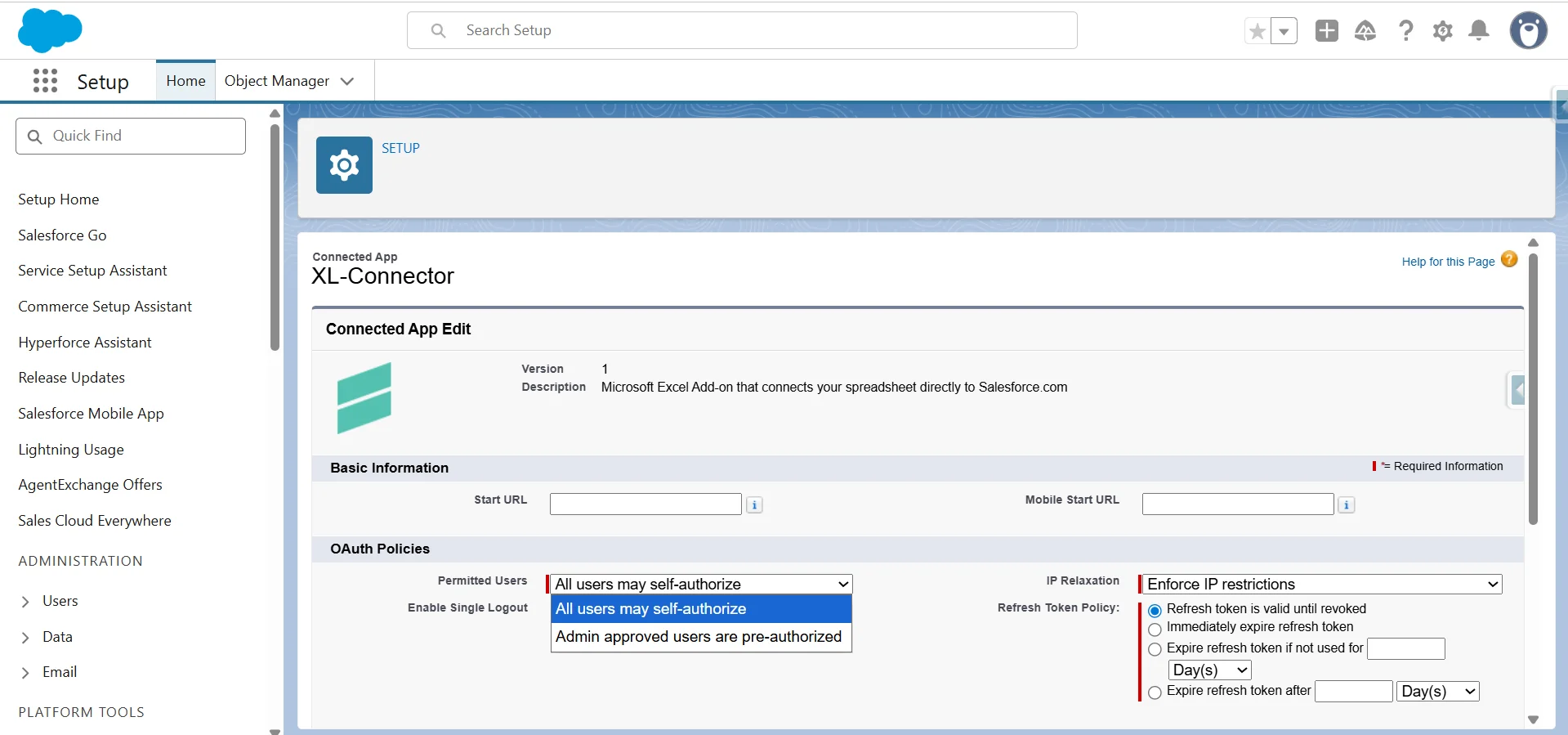
Set the Permitted Users policy after installation:
-
1
Go to Setup → Apps → Connected Apps → Manage Connected Apps
-
2
Click Edit on the app
-
3
Under OAuth Policies, choose your Permitted Users setting
-
4
Click Save.
There are two options:
-
1
All Users May Self-Authorize, which lets any user approve the app on their own.
-
2
Admin-Approved Users Are Pre-Authorized, which limits access to users on specific profiles or permission sets with no extra steps needed. For most companies, the second option is the safer choice.

Option 2: Via a Permission Set
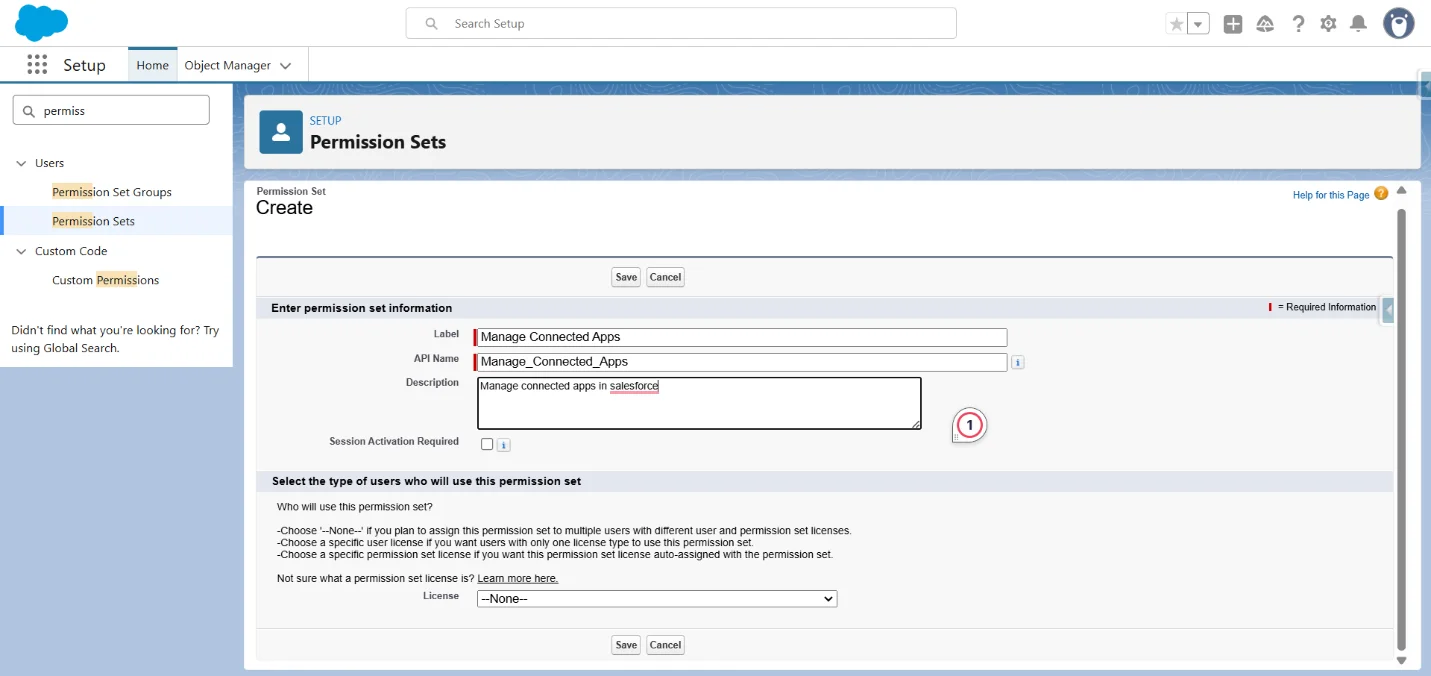
Go to Setup → Permission Sets and create a new Permission Set, or open an existing one.
-
1
Set the User License to None if you want the Permission Set to apply across multiple license types.
-
2
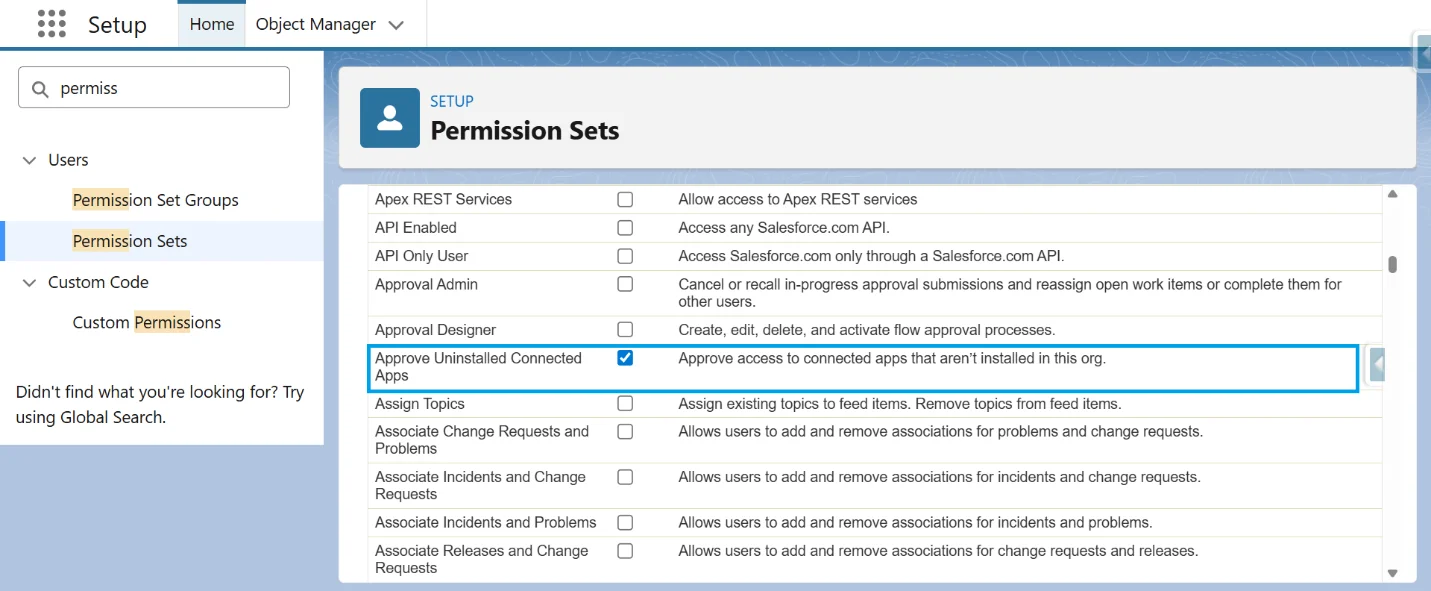
Under System Permissions, enable Approve Uninstalled Connected Apps.
-
3
Save the Permission Set.
-
4
Open Manage Assignments and assign it to the required users.
This approach is easier to audit, manage, and revoke than profile-level changes.
Option 3: At the Profile Level
-
1
Go to Setup → Profiles and open the required profile.
-
2
Under System Permissions, enable the required permission.
-
3
Save the profile changes.
This approach works best in orgs with a limited number of custom profiles.
Conclusion
OAUTH_APPROVAL_ERROR_GENERIC commonly occurs because of Salesforce Connected App access controls and missing permissions for unapproved or unmanaged API clients.
In most cases, assigning the correct permission through a Permission Set and retrying the authentication flow after clearing the browser cache resolves the issue.
FAQs
Why does the error persist after assigning the permission?
Salesforce may retain the previous OAuth session in the browser cache or cookies. Clear the browser cache and cookies, then retry the login flow. You can also test the connection in an incognito or private browsing window.
What is the difference between Approve Uninstalled Connected Apps and Use Any API Client?
Approve Uninstalled Connected Apps lets a user authorize Connected Apps that aren't installed in the org. Use Any API Client is broader and bypasses the new Connected App restrictions entirely. If your org has API Access Control enabled, only Use Any API Client works.
Does this affect the Data Loader?
Yes, in some scenarios. Salesforce deprecated OAuth 2.0 Device Flow support for Data Loader and transitioned users to OAuth Web Server Flow and Password authentication in newer versions of Data Loader.

Rajeshwari Jain
Content Manager
Rajeshwari Jain is a Technical Support Specialist and Content Writer at Xappex. She applies her practical experience to assist customers and create articles on how Xappex tools work with Salesforce to improve data management and increase efficiency.
She began her IT career in 2022 as a Quality Assurance professional before transitioning into Salesforce administration and technical writing in 2023. With Salesforce Certified Administrator and Associate certifications, Rajeshwari writes blogs on Salesforce flows, admin tools, and updates to expand her skills outside of work.
In her free time, she enjoys reading tech blogs and experimenting with new tools.
Feel free to reach out to Rajeshwari for collaborations or to check out her Salesforce-focused content.