Get Started Free



The ORDER BY clause in SOQL sorts query results by one or more fields. Salesforce admins and developers use it to display records in a meaningful order, such as accounts by name, opportunities by close date, or records by creation date. Proper sorting makes query results easier to analyze and present. This guide explains the syntax, common sorting patterns, and key considerations when working with ORDER BY in SOQL.
Why ORDER BY Matters
Without an ORDER BY clause, SOQL doesn’t guarantee any order. Results may appear consistent because the same query often returns rows in the same sequence. However, that behavior is an implementation detail and should not be relied on. The order can change based on execution plans, indexes, query filters, sharing calculations, and other internal optimizations. If the order of your results matters, always include an ORDER BY clause.
Basic Syntax
Use the ORDER BY clause to sort query results by a specific field. The simplest syntax is:
SELECT fields
FROM ObjectName
ORDER BY FieldName
By default, SOQL sorts results in ascending (ASC) order.
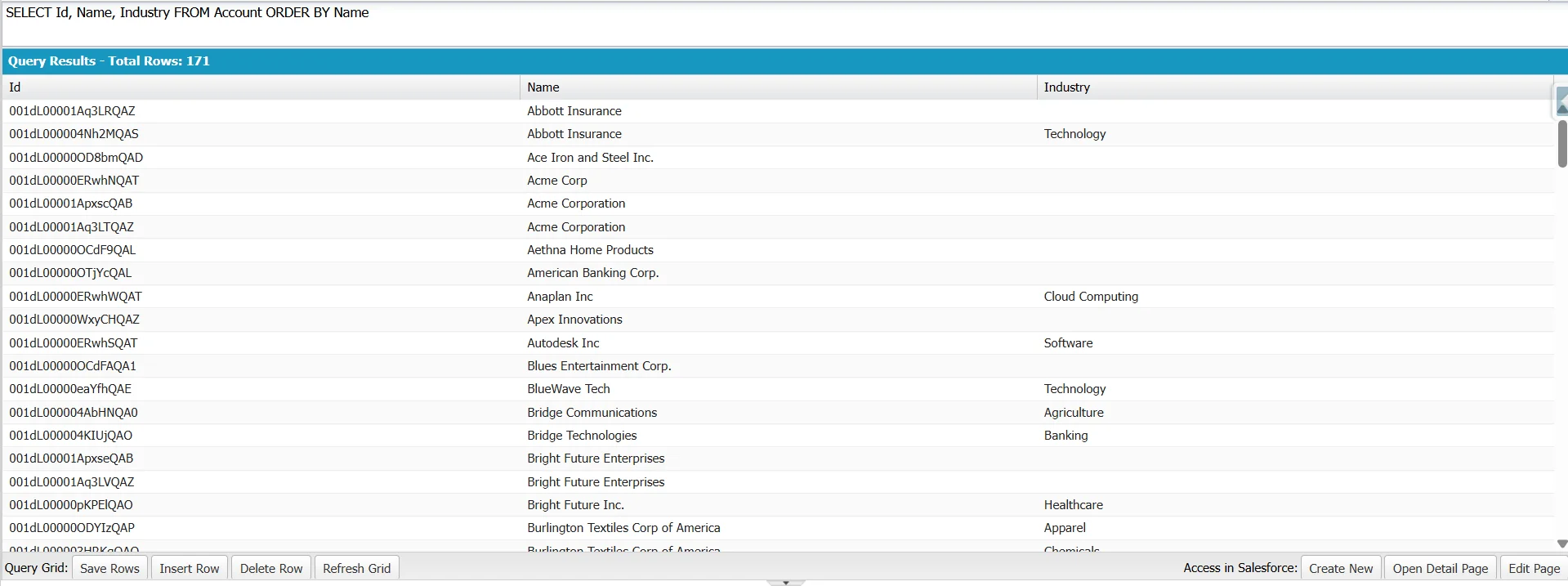
Example: Sort Accounts by Name (Ascending)
SELECT Id, Name, Industry
FROM Account
ORDER BY Name
This query returns accounts sorted alphabetically by name. ASC is the default, so Salesforce sorts results in ascending order even without the keyword.
Note that text sort order depends on the user’s locale. For English locales, Salesforce sorts text values case-insensitively. For non-English locales, Salesforce uses the Default Unicode Collation Element Table (DUCET) to determine sort order. As a result, accented and other Unicode characters may not sort in simple alphabetical (A–Z) order.
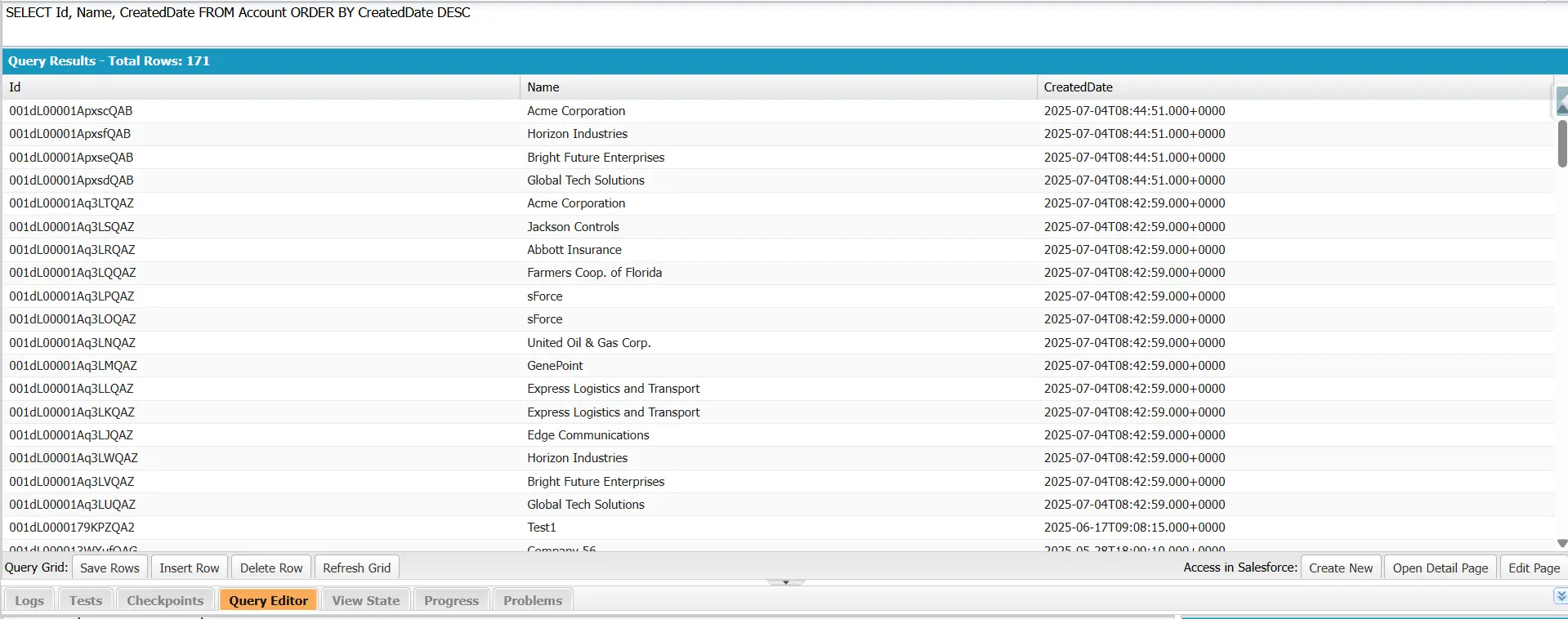
Example: Sort Accounts by Creation Date (Descending)
SELECT Id, Name, CreatedDate
FROM Account
ORDER BY CreatedDate DESC
This query returns the newest accounts first since the DESC keyword sorts records in descending order.

Note
Text fields sort lexicographically. Text fields sort characters by character, not by numeric value. For example, records named Name1, Name2, … Name20 sort as Name1, Name10, Name11, … Name2, Name20 because “1” comes before “2”. For numeric ordering, sort on a Number field or a formula field that returns a Number value. Alternatively, store values with leading zeros (Name01, Name02, … Name20) so the text order matches the numeric order.
ORDER BY Limitations by Data Type
ORDER BY supports most Salesforce field types, with a few exceptions:
-
Not supported: Multi-select picklists, rich text areas, long text areas, encrypted fields (when encryption is enabled), and Salesforce Knowledge data category group reference fields.
-
Currency fields: In multi-currency orgs, Salesforce sorts by the corporate currency value when available.
-
Phone fields: Sorting uses the stored value, including formatting characters such as spaces, hyphens, and parentheses.
-
Picklist fields: Values follow the sort order defined in the picklist, not alphabetical order.
-
Relationship fields: NULLS FIRST and NULLS LAST aren’t supported for relationship fields that can contain NULL values. Records with NULL values appear first.
Query Clause Order
The ORDER BY clause must appear in the correct position within a SOQL query. It comes after WHERE and before LIMIT.
A common clause order is:
SELECT → FROM → WHERE → GROUP BY → HAVING → ORDER BY → LIMITFor example:
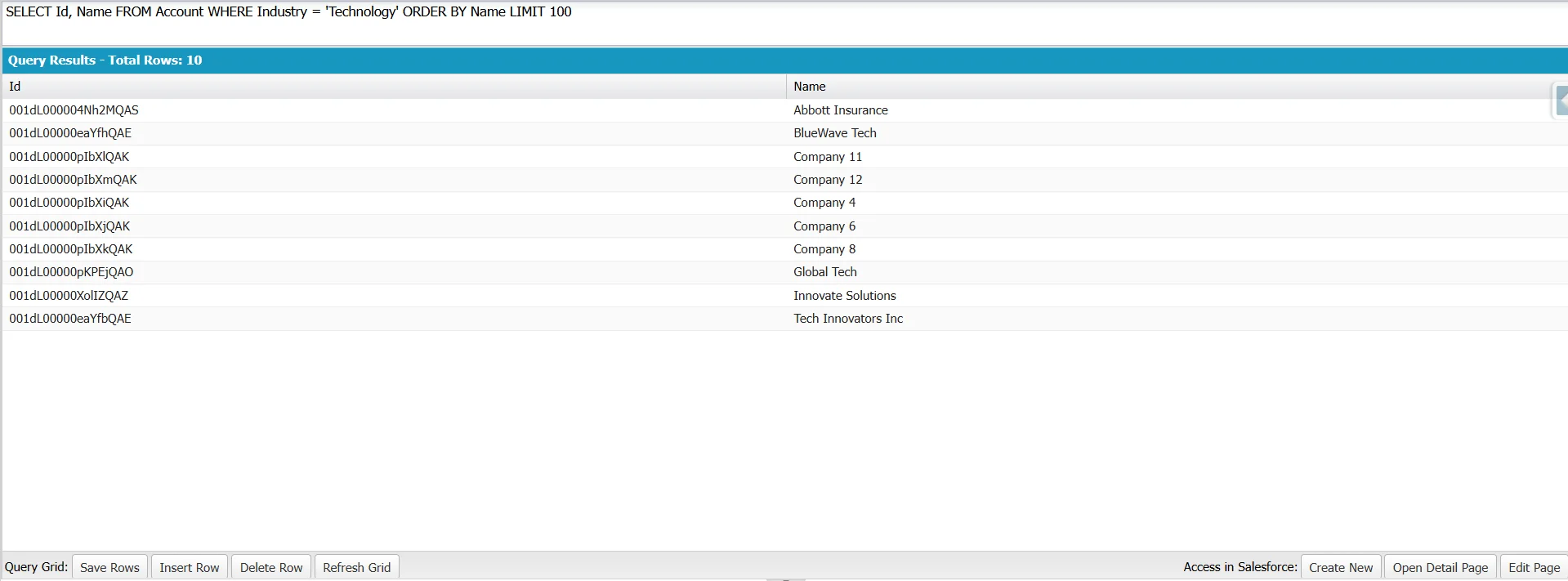
SELECT Id, Name
FROM Account
WHERE Industry = 'Technology'
ORDER BY Name
LIMIT 100
This query returns up to 100 accounts in the Technology industry, sorted alphabetically by Name.
The clause order shown above covers the most commonly used parts of a SOQL query. A complete query can also include clauses such as WITH, OFFSET, and FOR UPDATE, FOR VIEW, or FOR REFERENCE. ORDER BY always appears before LIMIT. OFFSET, if used, comes after LIMIT.
Sorting by Date
Sorting by date fields is a common use of ORDER BY in SOQL. Admins often need to view the newest records first, identify the oldest, or prioritize opportunities by upcoming close dates.
Common date and datetime fields used for sorting include:
- CreatedDate
- LastModifiedDate
- CloseDate
- ActivityDate
Admins usually use DESC to show the most recent records at the top of the results.
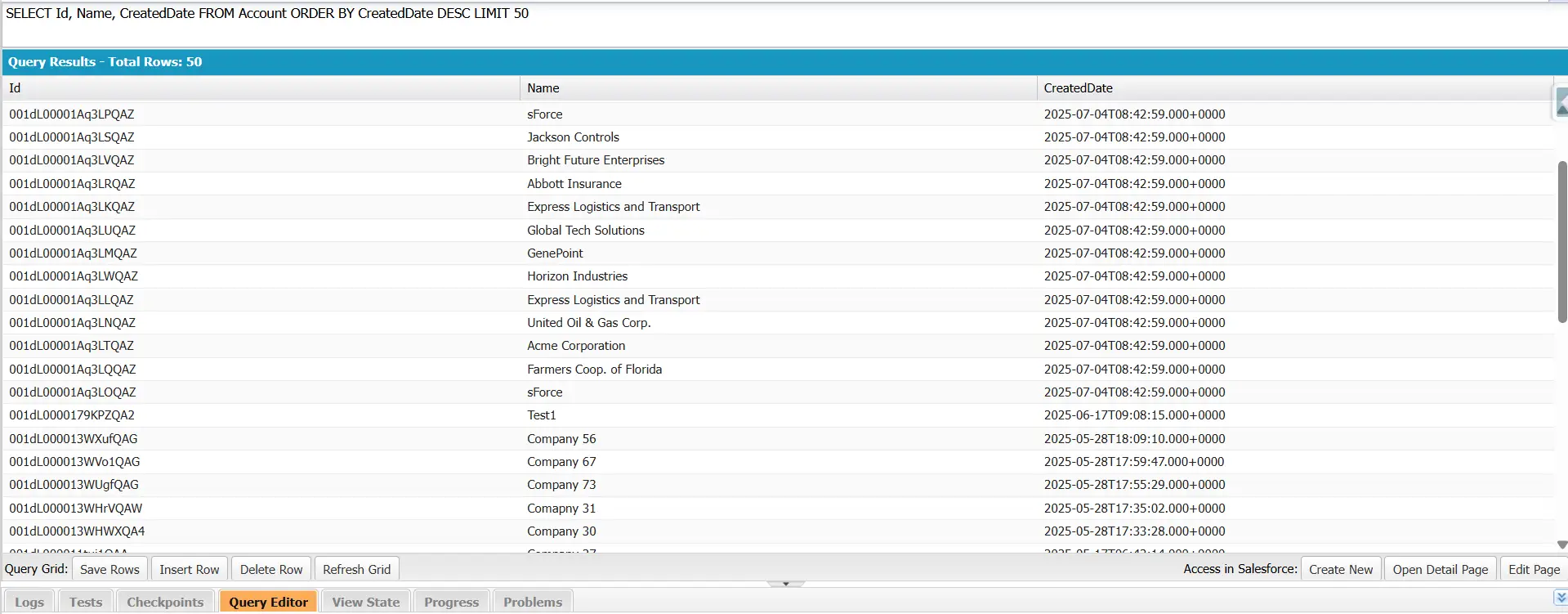
Example: Show the 50 Newest Accounts
SELECT Id, Name, CreatedDate
FROM Account
ORDER BY CreatedDate DESC
LIMIT 50
This query returns the 50 most recently created accounts, with the newest records appearing first.
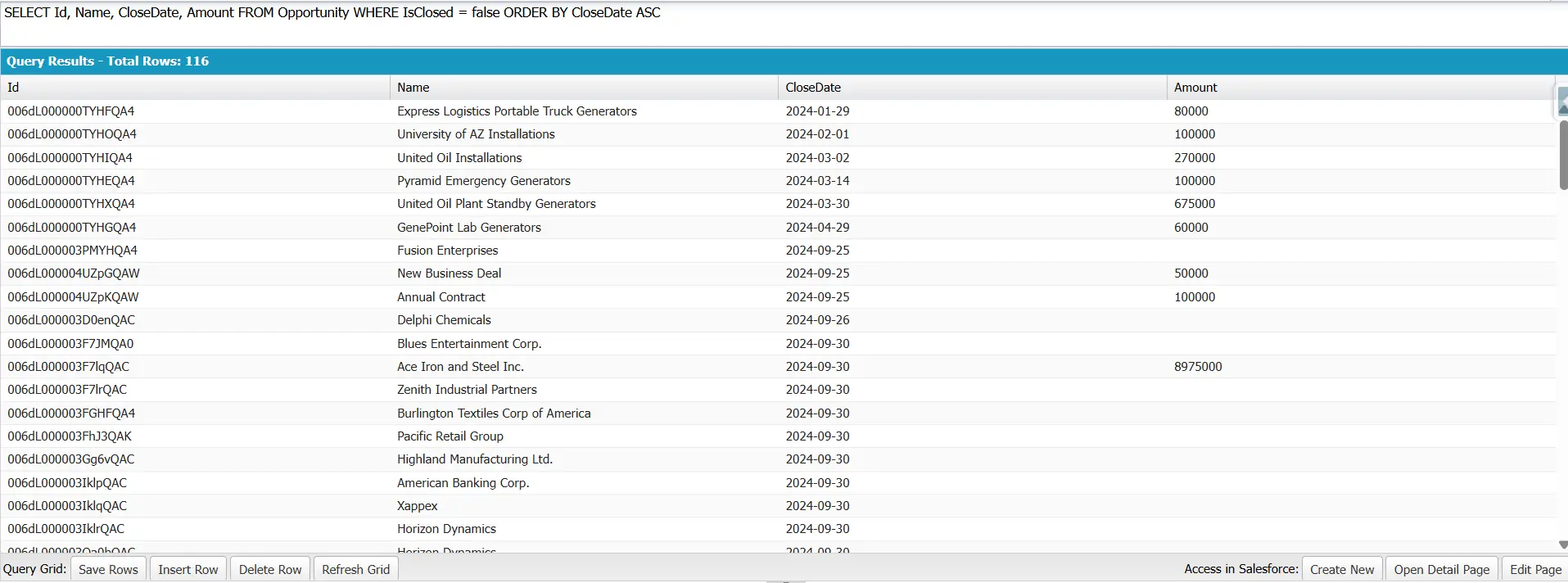
Example: Sort Open Opportunities by Close Date
SELECT Id, Name, CloseDate, Amount
FROM Opportunity
WHERE IsClosed = false
ORDER BY CloseDate ASC
This query returns open opportunities sorted by close date in ascending order, so opportunities with the earliest close dates appear first.
Sorting by Multiple Fields
You can sort SOQL query results by multiple fields by separating field names with commas in the ORDER BY clause.
Salesforce evaluates fields in the ORDER BY clause from left to right. The first field sets the primary sort order. If multiple records share the same value for the first field, Salesforce uses the second field to sort them. You can add more fields to create additional sorting levels.
Each field has its own sort direction. The ASC or DESC keyword applies only to the preceding field. If you do not specify a direction, Salesforce sorts that field in ascending order by default.
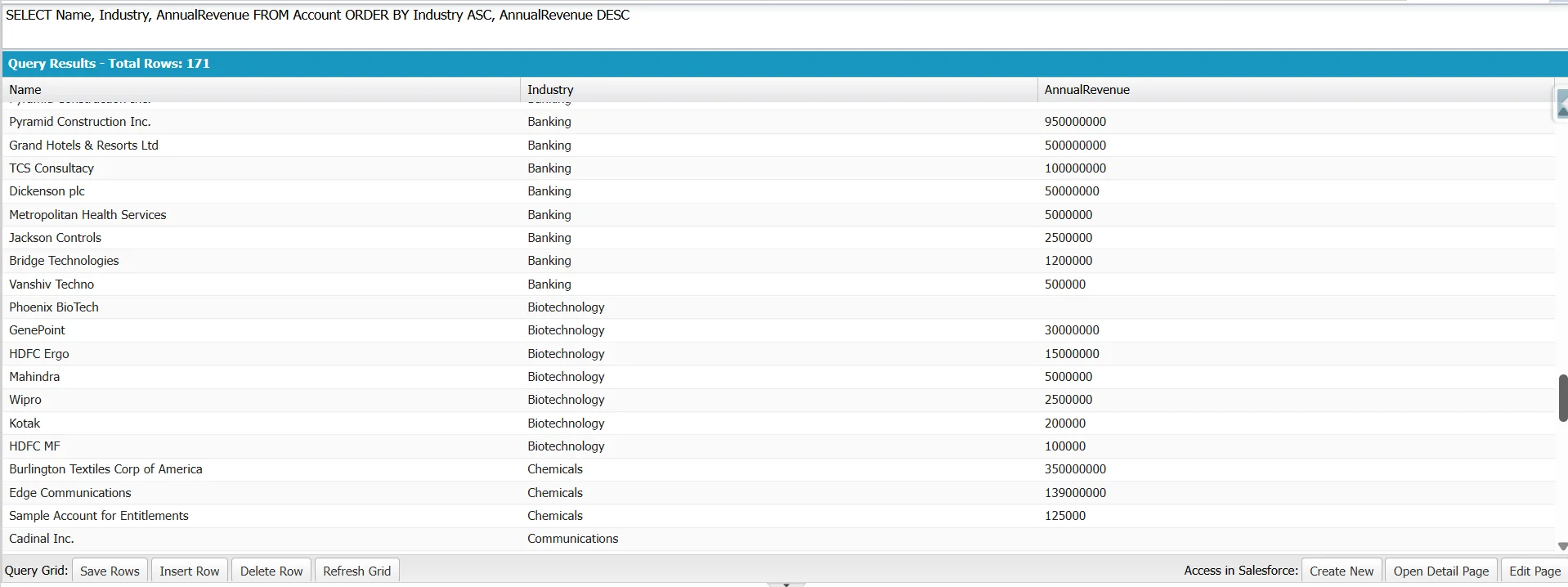
SELECT Name, Industry, AnnualRevenue
FROM Account
ORDER BY Industry ASC, AnnualRevenue DESC
This query sorts accounts alphabetically by industry. Within each industry, it sorts accounts by annual revenue in descending order, placing the highest-revenue accounts first.
Note
In ORDER BY Industry DESC, AnnualRevenue, only Industry is sorted descending. AnnualRevenue is sorted ascending because no direction is specified. To sort both fields descending, use ORDER BY Industry DESC, AnnualRevenue DESC.
When multiple records have identical values for all specified sort fields, SOQL does not guarantee their order. For consistent results, include enough sort fields to uniquely identify each record, such as adding Id as the final sort field.
Handling NULL Values with NULLS FIRST and NULLS LAST
In SOQL, fields with NULL values are sorted first by default, regardless of whether you sort in ascending (ASC) or descending (DESC) order. To adjust this, use the NULLS FIRST or NULLS LAST modifier in the ORDER BY clause.
This behavior differs from that of some SQL databases, such as PostgreSQL and Oracle, which default to sorting NULL values last in ascending order.
Example 1: Place NULL Values Last
The following query sorts contacts by phone number in ascending order and places those without a phone number at the end of the results.
SELECT Name, Phone
FROM Contact
ORDER BY Phone ASC NULLS LAST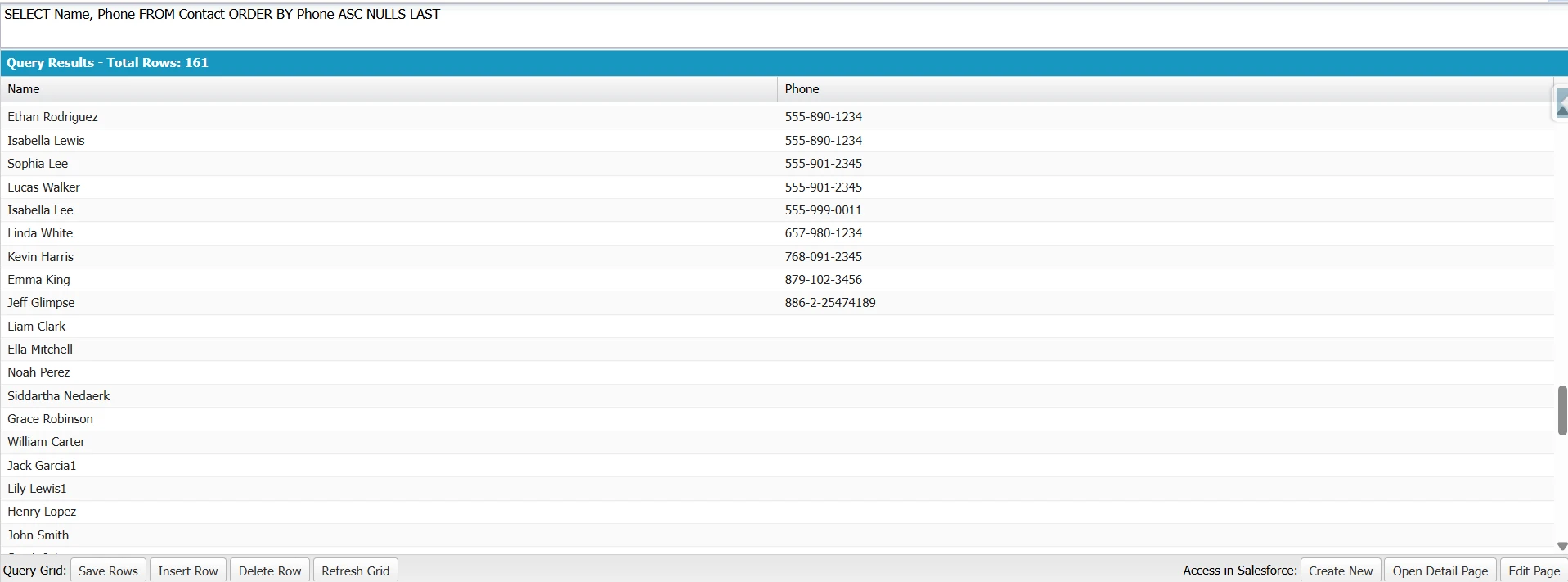
Without the NULLS LAST modifier, contacts with a NULL phone number appear first as SOQL sorts NULL values first by default.
Example 2: Place NULL Values First
The following query displays accounts without an annual revenue value first. The rest are sorted by annual revenue from highest to lowest.
SELECT Name, AnnualRevenue
FROM Account
ORDER BY AnnualRevenue DESC NULLS FIRST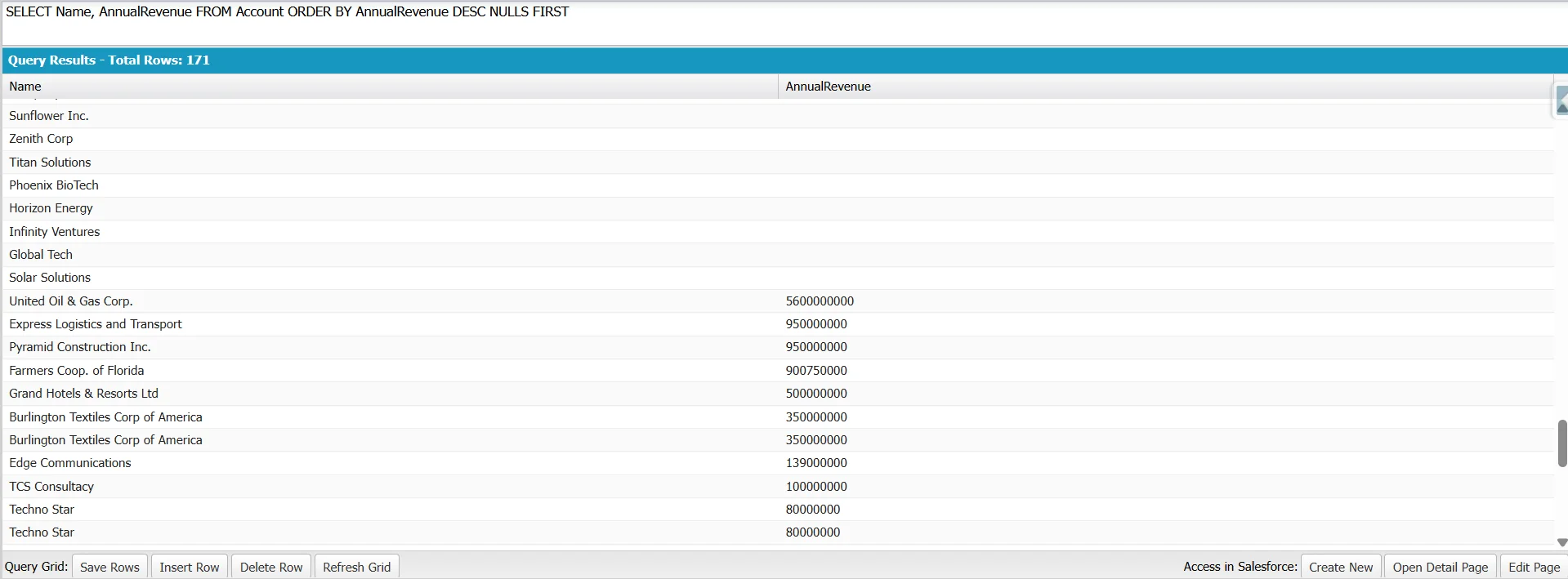
In this example, NULLS FIRST is optional because it is the default in SOQL. Including it makes the sort order explicit and improves readability.
One limitation applies when sorting by a relationship (foreign key) field that can contain NULL values. NULLS FIRST and NULLS LAST are not supported in this case. For example, ORDER BY AccountId NULLS LAST on Contact still returns records with a NULL AccountId before records with a value.
Combining ORDER BY with GROUP BY
You can use ORDER BY with GROUP BY to sort grouped results. The sort can be based on an aggregate function like COUNT(), SUM(), AVG(), MIN(), MAX(), or the grouping field itself.
This is useful when ranking grouped data, like industries with the most accounts or opportunity stages with the highest sales totals.
Example: Sort industries by account count
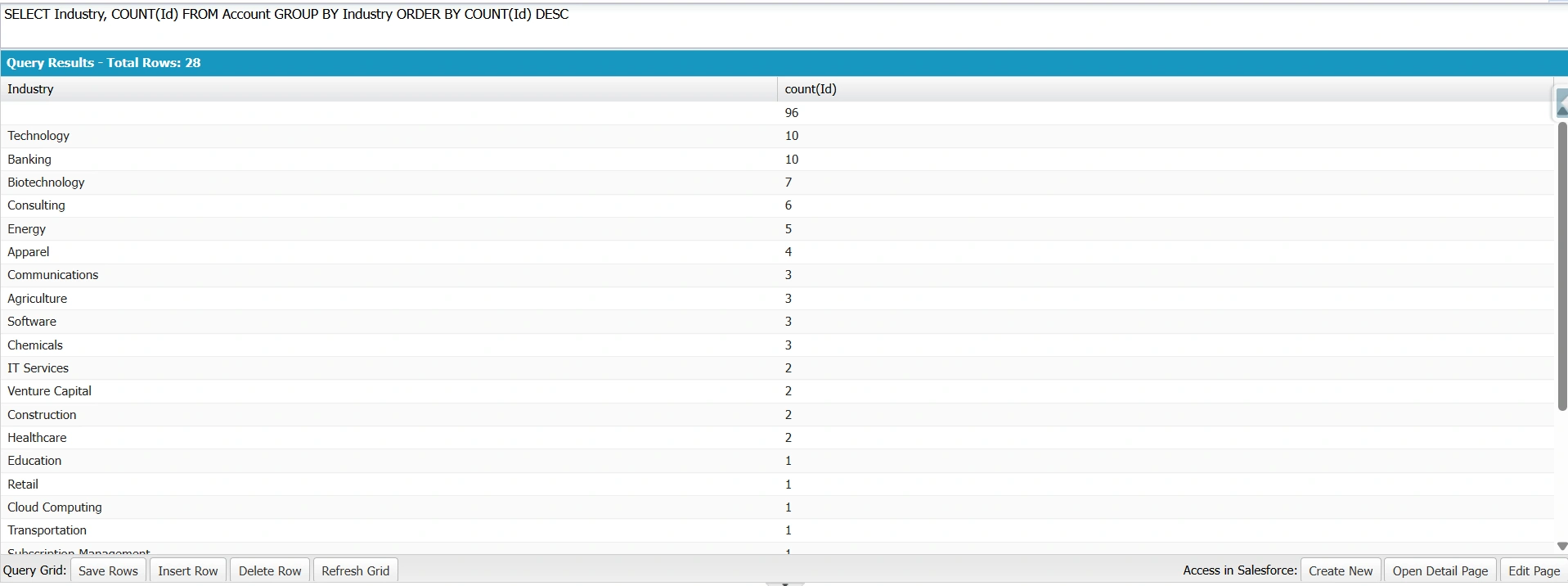
SELECT Industry, COUNT(Id)
FROM Account
GROUP BY Industry
ORDER BY COUNT(Id) DESC
This query counts the number of accounts in each industry and returns the industries with the highest counts first.
Example: Sort opportunity stages by total amount
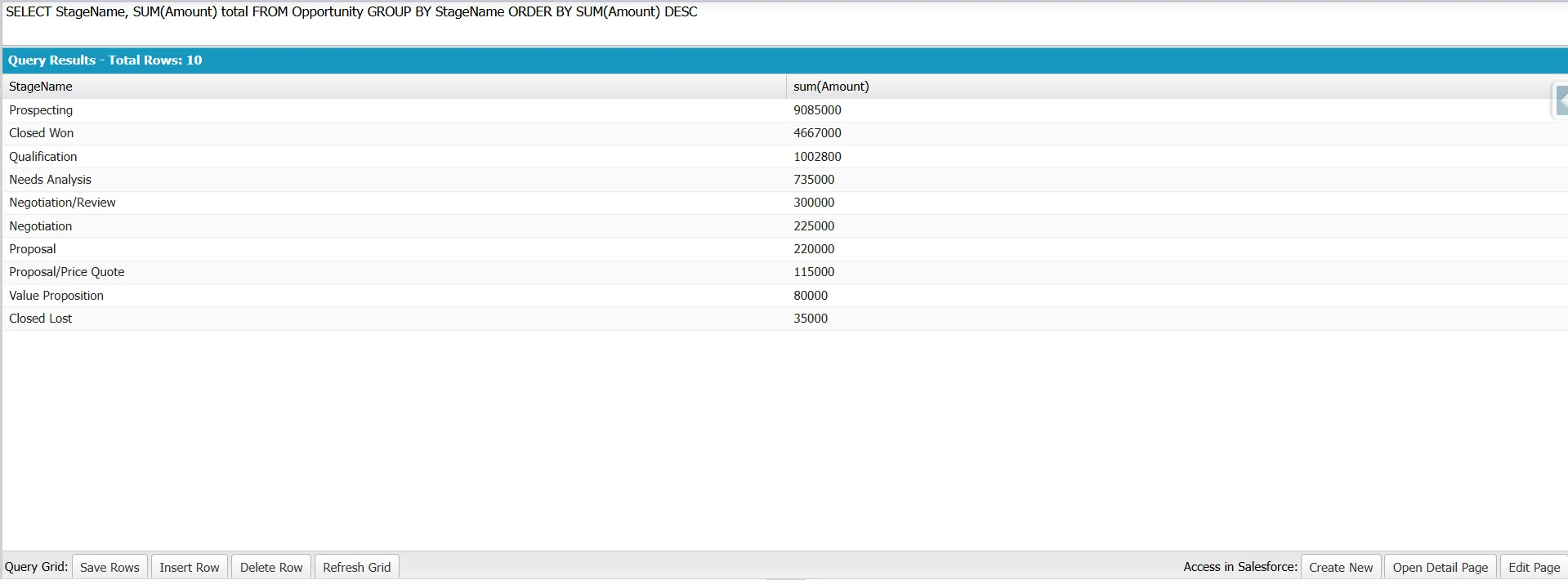
SELECT StageName, SUM(Amount) total
FROM Opportunity
GROUP BY StageName
ORDER BY SUM(Amount) DESC
This query calculates the total opportunity amount for each stage and returns the stages with the highest total first.
Note
In a grouped query, every field in the ORDER BY clause must appear in the GROUP BY clause or be wrapped in an aggregate function. Sorting by an ungrouped, non-aggregated field returns the error Ordered field must be grouped or aggregated. You can sort by an aggregate (such as COUNT(Id) or SUM(Amount)) or by a grouping field.
Performance Notes
-
Sorting on an indexed field is generally more efficient than sorting on a non-indexed field.
-
Salesforce automatically indexes many commonly queried fields, including Id, Name, OwnerId, CreatedDate, SystemModstamp, lookup and master-detail relationship fields (foreign keys), Email on Contact and Lead, and custom fields marked as External ID or Unique.
-
When filtering records by last-modified timestamp, prefer SystemModstamp over LastModifiedDate. SystemModstamp is indexed by default; LastModifiedDate usually is not. This improves query selectivity and performance on large objects.
-
As objects grow, sorting on a non-indexed field can increase query time. Use a selective WHERE clause to reduce the number of records to sort when possible.
-
If your queries frequently filter or sort on a non-indexed field, consider requesting a custom index from Salesforce Support if the field is eligible.
-
Formula fields are calculated at query time rather than stored in the database, so sorting by a formula field is more expensive on large objects. Deterministic formula fields can be custom-indexed through Salesforce Support, but non-deterministic ones cannot.
Running ORDER BY Queries in Excel and Google Sheets
You can run SOQL queries without the Developer Console or Apex. Tools like XL-Connector for Excel and Excel Online, and G-Connector for Google Sheets, let you paste a SOQL query into a spreadsheet and return results.
The ORDER BY clause works the same as in Salesforce, so results are already sorted. This makes it easy to share sorted Salesforce data with users who work in spreadsheets. Learn more about working with SOQL queries in spreadsheets.
Conclusion
The ORDER BY clause controls how SOQL returns records, making query results easier to read and use. Whether sorting by names, dates, or multiple fields, understanding its behavior helps you build accurate and efficient queries. Following the best practices in this guide improves both query performance and the usability of your Salesforce data.
FAQ
Can I sort by a formula field in SOQL?
Yes. Sorting on formula fields can be slower on large datasets because Salesforce calculates formula values at query time. If you often sort by the same formula, consider storing the value in a standard field using Flow or Apex.
How many fields can I include in ORDER BY?
You can include up to 32 fields in the ORDER BY clause. Most queries only need one or two sort fields.
Why is my ORDER BY query timing out?
This usually happens when Salesforce sorts many records on a non-indexed field. Reduce the number of records with a selective WHERE clause or sort on an indexed field when possible.
Does ORDER BY work with GROUP BY?
Yes. You can sort grouped results by aggregate values such as COUNT() or SUM(), or by the fields used in the GROUP BY clause.
Is ORDER BY the same in SOQL and SQL?
The syntax is similar, but SOQL has stricter query optimization requirements. Selectivity, indexing, and platform limits impact performance more than in most SQL databases.

Rajeshwari Jain
Content Manager
Rajeshwari Jain is a Technical Support Specialist and Content Writer at Xappex. She applies her practical experience to assist customers and create articles on how Xappex tools work with Salesforce to improve data management and increase efficiency.
She began her IT career in 2022 as a Quality Assurance professional before transitioning into Salesforce administration and technical writing in 2023. With Salesforce Certified Administrator and Associate certifications, Rajeshwari writes blogs on Salesforce flows, admin tools, and updates to expand her skills outside of work.
In her free time, she enjoys reading tech blogs and experimenting with new tools.
Feel free to reach out to Rajeshwari for collaborations or to check out her Salesforce-focused content.