Get Started Free



The System.LimitException: Too many SOQL queries: 101 error occurs when a Salesforce transaction runs more SOQL queries than the allowed limit. The number 101 refers to the query that exceeded the limit, not an error code. The most common cause is a SOQL query inside a loop. The error can also occur when multiple automations, such as record-triggered Flows, Apex triggers, and invocable actions, run in the same transaction during a bulk data load.
What "Too Many SOQL Queries: 101" Means
Salesforce enforces governor limits to ensure all organizations share platform resources fairly. One of these limits restricts the number of SOQL queries that can run in a single Apex transaction.
A synchronous Apex transaction, such as a record save that fires triggers or Apex run from the Developer Console, can execute up to 100 SOQL queries. Asynchronous Apex transactions, including @future, Queueable Apex, and each execution of Batch Apex, can execute up to 200 SOQL queries. Although Scheduled Apex runs asynchronously, the execute() method of a Schedulable class uses synchronous governor limits, including the 100-query limit. If a scheduled job starts a Batch Apex job, each batch runs as a separate asynchronous transaction with its own 200-query limit.
If a synchronous transaction executes a 101st SOQL query, Salesforce throws:
System.LimitException: Too many SOQL queries: 101In asynchronous Apex, exceeding the 200-query limit throws:
System.LimitException: Too many SOQL queries: 201This limit applies only to the number of SOQL queries. It is separate from the 50,000-row retrieval limit, which throws:
System.LimitException: Too many query rows: 50001These are separate governor limits and require different solutions.
You cannot increase the SOQL query limit. To fix this error, reduce the number of SOQL queries in the transaction by bulkifying your code and moving queries outside loops. System.LimitException cannot be caught in a try-catch block. When the limit is exceeded, Salesforce terminates the transaction and rolls back any uncommitted DML operations.
What Counts as a Query
Most SOQL statements count toward the per-transaction SOQL query limit, including dynamic SOQL executed through methods such as Database.query(), Database.getQueryLocator(), and Database.countQuery().
A SOQL for loop also counts as one SOQL query, regardless of how many records it processes. Salesforce retrieves records in internal batches to reduce heap usage, allowing you to process large result sets without issuing additional SOQL queries.
A parent-child relationship query, such as querying Account records with related Contacts, counts as one SOQL query governor limit. However, each relationship subquery also counts toward Salesforce’s separate aggregate query limit. These are independent governor limits.
Queries against Custom Metadata Types generally do not count toward the SOQL query limit, making them a good choice for storing configuration values that your automation reads frequently. However, queries that include Long Text Area fields in custom metadata do count toward the standard SOQL query limit.
The SOQL Limit Applies to the Entire Transaction
The SOQL query limit applies to the entire Salesforce transaction, not to an individual Flow, Apex trigger, or Apex class. Salesforce counts queries from all automation in the same transaction, including record-triggered Flows, Apex triggers, and invocable Apex.
Certified (security-reviewed) AppExchange managed packages use namespace-specific governor limits. Salesforce also enforces cumulative cross-namespace limits. In synchronous Apex, each certified namespace can execute up to 100 SOQL queries, with a cumulative limit of 1,100 across namespaces. In asynchronous Apex, each namespace can execute up to 200 SOQL queries, with a cumulative limit of 2,200. Uncertified packages use your org’s standard governor limits. CPU time and heap size remain shared across all namespaces.
Example: A record-triggered Flow executes 50 SOQL queries, and an Apex trigger executes 50 more.
When the trigger attempts the next query, Salesforce throws:
System.LimitException: Too many SOQL queries: 101The exception occurs before the 101st query executes and cannot be caught with a try-catch block. Salesforce rolls back the transaction, so all records in that transaction fail. Separate Data Loader batches and Bulk API transactions continue independently.
Even if each automation stays within its own limits, their combined queries can exceed the transaction limit. The most common cause is a SOQL query inside a loop. Also monitor the separate 50,000 queried rows governor limit.
Design Flows and Apex for bulk processing. Data Loader and many API operations process records in batches of up to 200 records. Multiple trigger invocations in the same transaction share the same governor limits. Bulk API processes records in separate transactions, and each transaction has its own governor limits.
The Four Scenarios Where Admins Hit This Error
For Salesforce admins, the most common causes fall into three scenarios. Understanding where the limit is being exceeded makes it easier to identify the source and apply the right fix.
Scenario 1: Flow with Get Records Inside a Loop
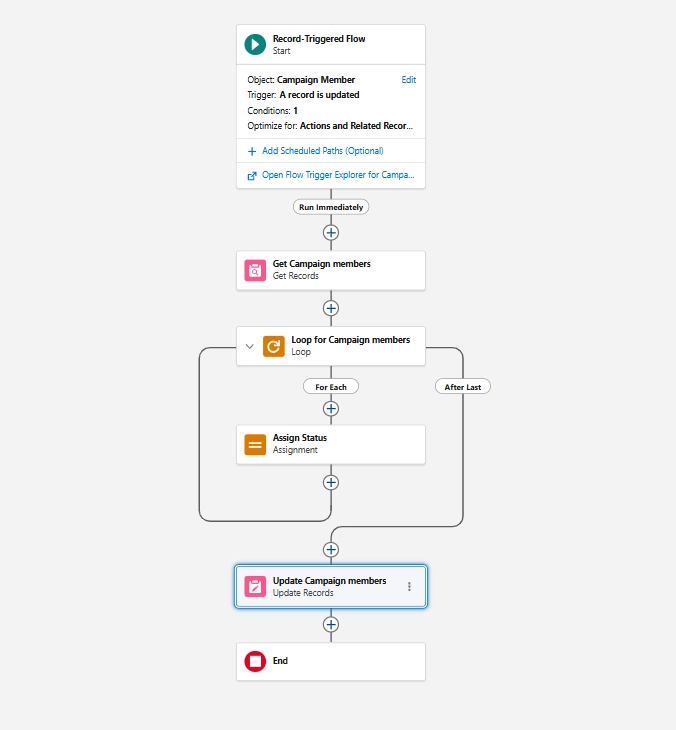
Placing a Get Records element inside a Loop is one of the most common causes of the System.LimitException: Too many SOQL queries: 101 error in Salesforce Flow. Because the element runs once for each record in the loop, every iteration executes a separate SOQL query.
For example, a Flow processes 100 Cases and retrieves the related Account during each iteration to check the Account’s Region. This design consumes 100 SOQL queries. If the transaction executes even one more query from another Flow, Apex trigger, or managed package, it exceeds the synchronous limit of 100 SOQL queries and Salesforce throws the 101 error.
To avoid this issue, retrieve all required Accounts before the loop begins. Collect the Account IDs from the Case records, use a single Get Records element to fetch the related Accounts, and store the results in a collection variable. During the loop, use the data already stored in the collection instead of querying Salesforce again. This approach reduces SOQL usage and supports bulk processing.
Recommended Flow pattern
-
Use one Get Records element before the loop to retrieve all related records.
-
Store the retrieved records in a collection variable.
-
During the loop, reference the appropriate record from the collection instead of executing another query.

Scenario 2: Data Loader Triggering Downstream Automation
Administrators use Data Loader to insert, update, upsert, or delete large volumes of records. Data Loader does not bypass Salesforce automation. Each batch follows the standard save process, so Apex triggers, record-triggered Flows, validation rules, and other automation run as they would during a manual update. Assignment rules are an exception. They run only when you configure an Assignment Rule ID for supported objects, such as Leads and Cases.
Problems occur when automation executes SOQL queries for each record instead of processing records in bulk. By default, Data Loader processes 200 records per batch when using the SOAP API. Salesforce executes each batch as a single transaction with a limit of 100 synchronous SOQL queries. Bulkified automation queries collections instead of querying once per record. In contrast, an Apex trigger that runs a SOQL query inside a for loop or a Flow that places Get Records inside a Loop executes additional queries for every record. When the transaction exceeds 100 queries, Salesforce throws System.LimitException: Too many SOQL queries: 101.
This issue usually appears during large imports because small test loads rarely exceed governor limits.
Custom Apex, record-triggered Flows, legacy Process Builder processes, and unmanaged code share the same governor limits within a transaction. Certified managed packages, such as NPSP, Field Service, Apttus, and BMC Remedyforce, receive separate per-namespace governor limits, but their queries still count toward Salesforce’s cumulative cross-namespace limit of 1,100 synchronous SOQL queries. As a result, governor limit errors can occur even when managed package automation is the primary source of the queries.
Resolution options
-
1
Reduce the Data Loader batch size
The default SOAP API batch size is 200 records. Reduce it to 50 or 25 if your org runs extensive automation. Smaller batches create smaller transactions and reduce the number of queries executed per transaction. The trade-off is more API calls and longer processing time.
-
2
Bypass automation during the data load
If your org includes a trigger or Flow bypass framework, enable it for the data load. Verify which automation the bypass disables because skipped logic, such as field updates, rollups, or outbound integrations, does not run after the import. If managed packages provide bypass settings, configure them separately.
-
3
Use Bulk API mode
Enable Use Bulk API in Data Loader for large data loads. Bulk API processes jobs asynchronously and runs records in separate transactions, each with its own governor limits. However, it does not fix inefficient automation. If Apex or Flow executes SOQL queries for each record instead of processing records in bulk, a transaction can still exceed the SOQL limit and fail with a System.LimitException: Too many SOQL queries: 101 error. If you use Bulk API 2.0, Salesforce manages batching automatically and ignores manual batch size settings.

Best practice
Reduce the batch size or use Bulk API to complete the current data load. Then bulkify the underlying Apex or Flow by moving SOQL queries outside loops and Get Records outside Flow loops. This prevents the same governor limit errors during future imports and bulk updates.
Scenario 3: Managed Package Conflicts
A data load that previously worked now fails midway, or saving a Contact returns:
System.LimitException: npsp:Too many SOQL queries: 101Or:
System.LimitException: Apex CPU time limit exceededThis usually points to a managed package issue when:
- The error includes a namespace prefix you didn’t write, such as npsp:, FSL:, SBQQ:, Apttus:, BMCServiceDesk:, or SVMXC:. (The same namespaces appear as npsp__, FSL__, and so on when they prefix objects and fields, but runtime error messages use the namespace followed by a colon.)
- No recent deployment or automation changes were made.
- Small batches succeed, but larger batches fail.

Warning
Do not confuse this with UNABLE_TO_LOCK_ROW or non-selective query errors, which have different causes.
Why it happens
Managed packages add triggers, flows, and validation rules. A single record update can trigger automation from multiple packages, each running its own queries and logic.
Certified managed packages receive separate per-namespace governor limits. Each certified namespace gets its own limit of SOQL queries.
Across namespaces, the cumulative limit is 11× the per-namespace limit:
| Resource | Per Namespace | Total Across Namespaces |
|---|---|---|
| SOQL queries (sync) | 100 | 1,100 |
| DML statements | 150 | 1,650 |
| SOSL queries | 20 | 220 |
| Callouts | 100 | 1,100 |
This applies only to certified packages. An uncertified package gets no separate budget. Everything it uses counts against your org’s limits alongside your own code.
CPU time and heap size are shared across the transaction. The synchronous CPU limit is 10,000 ms.
A namespace hitting 101 SOQL queries indicates that the package exceeded its own limit. If multiple namespaces stay below their limits but the transaction exceeds 10,000 ms of synchronous CPU time, the overall transaction is too large.
You also cannot control the order in which packaged Apex triggers run.
How to find the cause
-
1
Enable a debug log for the user who triggers the error. For an integration or scheduled job, that is the integration user, not you.
-
2
Keep log levels low except Apex Profiling, which should be set to INFO or higher. Debug logs are limited to 20 MB. When a log exceeds that size, Salesforce removes the middle section, which may include the summary you need.
-
3
Reproduce the issue with a small batch.
-
4
Check the LIMIT_USAGE_FOR_NS section inside CUMULATIVE_LIMIT_USAGE to see resource usage by namespace. Do not count SOQL_EXECUTE_BEGIN lines instead. Managed package code is hidden in subscriber logs. You see an ENTERING_MANAGED_PKG marker and nothing about what ran inside it, so counting query lines undercounts package activity, sometimes to zero, and can send you searching your own code for a problem that isn’t there.
-
5
Interpret the results:
– If the error names a namespace, the breakdown shows how that namespace used its governor budget;– If multiple namespaces stay below their limits but CPU reaches 10,000 ms, the transaction contains too much work.
-
6
If you need to see inside the package, grant the vendor subscriber support access. Their support team can log into your org and access logs that show their package code.
What you can do
-
Don’t request higher per-transaction Apex governor limits. Salesforce cannot raise them. (Some org-level allocations, such as daily API calls, are negotiable. Per-transaction Apex limits are not.)
-
Disable your own automation only when CPU time is the bottleneck. It will not help if a managed package exceeded its own namespace limits.
-
Use vendor-supported bypass mechanisms where available. NPSP lets you deactivate specific trigger handlers or exclude integration users from them. Select User Managed on any packaged Trigger Handler you deactivate, or the next package upgrade will reactivate it.
-
Upgrade to the latest package version. Vendors often fix governor limit issues. Test the upgrade in a sandbox first.
-
Move heavy processing to asynchronous execution, such as Batch Apex or staging objects. Asynchronous Apex also has higher limits, including 200 SOQL queries and 60,000 ms of CPU time per transaction.
-
When opening a case with the package vendor, include the LIMIT_USAGE_FOR_NS output to show which namespace exceeded its limits. Salesforce Support cannot fix a bug in another vendor’s package.
Scenario 4: Using SOQL Queries Inside For Loops in Apex
A query inside a for loop runs once per iteration. A loop that processes 200 records executes 200 SOQL queries. Exceeding the governor limit throws a System.LimitException and rolls back the transaction.
What Not To Do
This example executes a SOQL query during every loop iteration:
List<Account> accounts = [SELECT Id, Name FROM Account LIMIT 150];

System.debug('=== START: accounts = ' + accounts.size());
System.debug('Queries used: ' + Limits.getQueries() + ' of ' + Limits.getLimitQueries());

Integer counter = 0;

for (Account acc : accounts) {
    counter++;

    List<Opportunity> opps = [
        SELECT Id, Amount
        FROM Opportunity
        WHERE AccountId = :acc.Id
        AND StageName = 'Closed Won'
    ];

    Decimal total = 0;
    for (Opportunity opp : opps) {
        if (opp.Amount != null) {
            total += opp.Amount;
        }
    }

    System.debug('Pass ' + counter + ' | ' + acc.Name
        + ' | Opps: ' + opps.size()
        + ' | Total: ' + total
        + ' | Queries used: ' + Limits.getQueries());
}

System.debug('=== END: queries used = ' + Limits.getQueries());
The initial Account query counts as one SOQL query. Each loop iteration executes another query, so the transaction fails during the 100th iteration with:
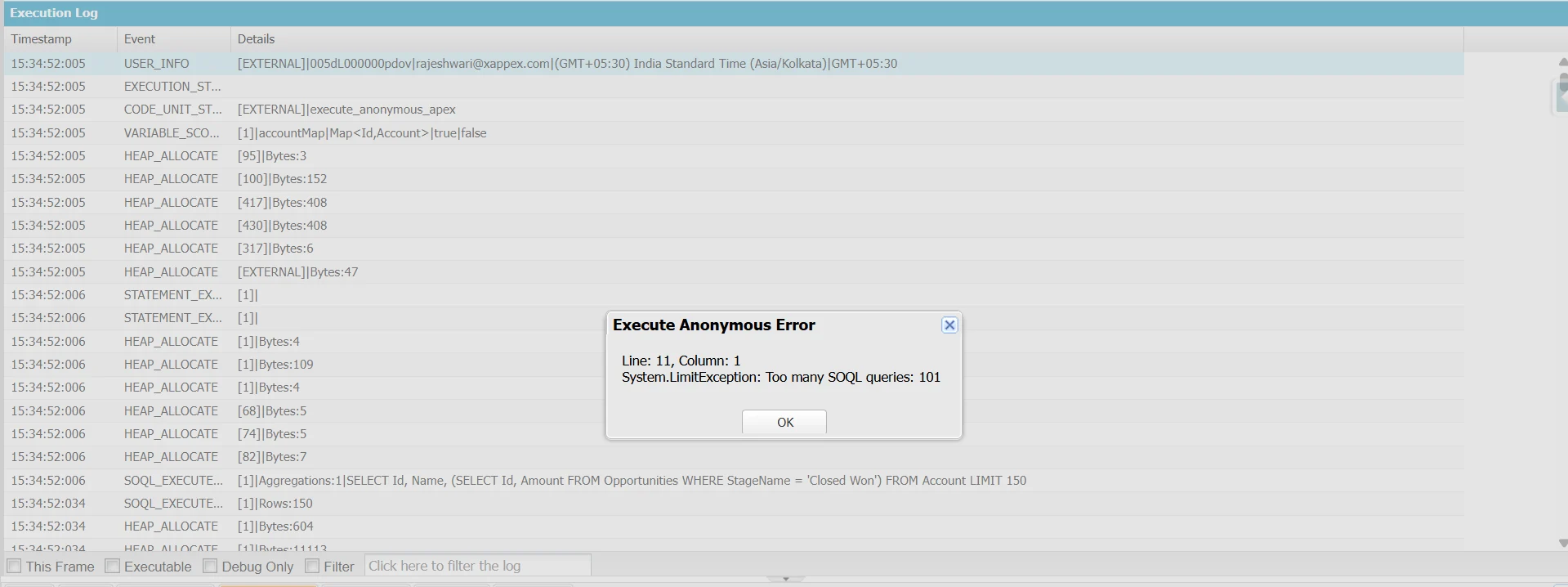
You cannot catch a LimitException with try/catch. The debug statement inside the loop shows the query count for each iteration.
To reproduce the error, your org must contain at least 100 Accounts. If fewer records are returned, the transaction completes successfully.
What To Do Instead
Retrieve the parent and child records with a relationship query, then update the modified records after the loop.
Map<Id, Account> accountMap = new Map<Id, Account>([
    SELECT Id, Name, AnnualRevenue,
           (SELECT Id, Amount FROM Opportunities WHERE StageName = 'Closed Won')
    FROM Account
    LIMIT 150
]);

System.debug('=== START: accounts = ' + accountMap.size());
System.debug('Queries used after the query: ' + Limits.getQueries());

List<Account> accountsToUpdate = new List<Account>();

for (Account acc : accountMap.values()) {

    List<Opportunity> opps = acc.Opportunities;
    Decimal total = 0;

    if (opps != null) {
        for (Opportunity opp : opps) {
            if (opp.Amount != null) {
                total += opp.Amount;
            }
        }
    }

    System.debug(acc.Name
        + ' | Opps: ' + (opps == null ? 0 : opps.size())
        + ' | Total: ' + total
        + ' | Queries used: ' + Limits.getQueries());

    acc.AnnualRevenue = total;
    accountsToUpdate.add(acc);
}

System.debug('Records ready to update: ' + accountsToUpdate.size());
System.debug('DML used before update: ' + Limits.getDmlStatements());

update accountsToUpdate;

System.debug('=== END: queries used = ' + Limits.getQueries()
    + ' | DML used: ' + Limits.getDmlStatements()
    + ' | DML rows: ' + Limits.getDmlRows());
This example uses one SOQL query and one DML statement regardless of how many Accounts it processes.
It updates the AnnualRevenue field, so test it in a sandbox or Developer Edition org before running it in production.
Assigning the child relationship to a local variable improves readability and lets you check whether the collection is empty before iterating over it.
Methods Worth Knowing
| Method | What it returns |
|---|---|
| Limits.getQueries() | SOQL queries used so far |
| Limits.getLimitQueries() | Maximum SOQL queries allowed |
| Limits.getQueryRows() | Query rows retrieved so far |
| Limits.getDmlStatements() | DML statements used so far |
| Limits.getDmlRows() | DML rows processed so far |
Key Points
-
Never place SOQL queries or DML statements inside a for loop.
-
Retrieve the required records before the loop.
-
Collect modified records and perform one DML operation after the loop.
-
Use the Limits methods and System.debug() to monitor governor limit usage.
Separating data retrieval from record processing helps you write bulk-safe Apex and avoid governor limit exceptions.
Test Class Failures with This Error
You may encounter System.LimitException: Too many SOQL queries: 101 when running Apex tests. Test methods follow the same governor limits as synchronous Apex code in production. Certified managed packages have separate per-namespace governor limits, subject to Salesforce’s cross-namespace cumulative limits.
When a test fails with this error, the cause is often the code under test rather than the test itself. A common cause is executing SOQL queries inside loops. The test method can also contribute by querying inside loops or creating test data that triggers additional Flows, triggers, or automation. Use Limits.getQueries(), Limits.getLimitQueries(), or review the CUMULATIVE_LIMIT_USAGE section of the debug log to identify where queries are consumed.
Bulkify the code by querying records once with an IN clause, storing results in collections like Map<Id, SObject>, and using relationship or aggregate queries where appropriate. If recursive trigger execution contributes to the issue, implement a suitable recursion control pattern. Parent-child relationship subqueries are governed separately. Each relationship subquery counts as an additional SOQL query. Salesforce enforces a separate limit on relationship subqueries equal to three times the top-level SOQL query limit.
Call Test.startTest() immediately before the code under test and Test.stopTest() immediately afterward. Each method can be called only once per test method. Test.startTest() provides a fresh set of governor limits for the code executed between the two calls. This separates test setup from test execution. Test.stopTest() executes asynchronous work queued after Test.startTest(). The remainder of the test runs with the governor limits that remained before Test.startTest() was called.
Test.startTest() resets governor limits but does not increase them. If test setup consumes significant governor limits, move shared test data creation to a @TestSetup method. This method runs once per test class in its own execution context. @TestSetup isn’t supported in test classes annotated with @IsTest(SeeAllData=true).
How to Diagnose the Source of the Error
System.LimitException: Too many SOQL queries: 101 means a synchronous transaction attempted a 101st SOQL query, exceeding the limit of 100 queries per transaction. In asynchronous transactions, such as Batch Apex, Queueable Apex, and @future methods, the limit is 200 queries, and exceeding it results in Too many SOQL queries: 201.
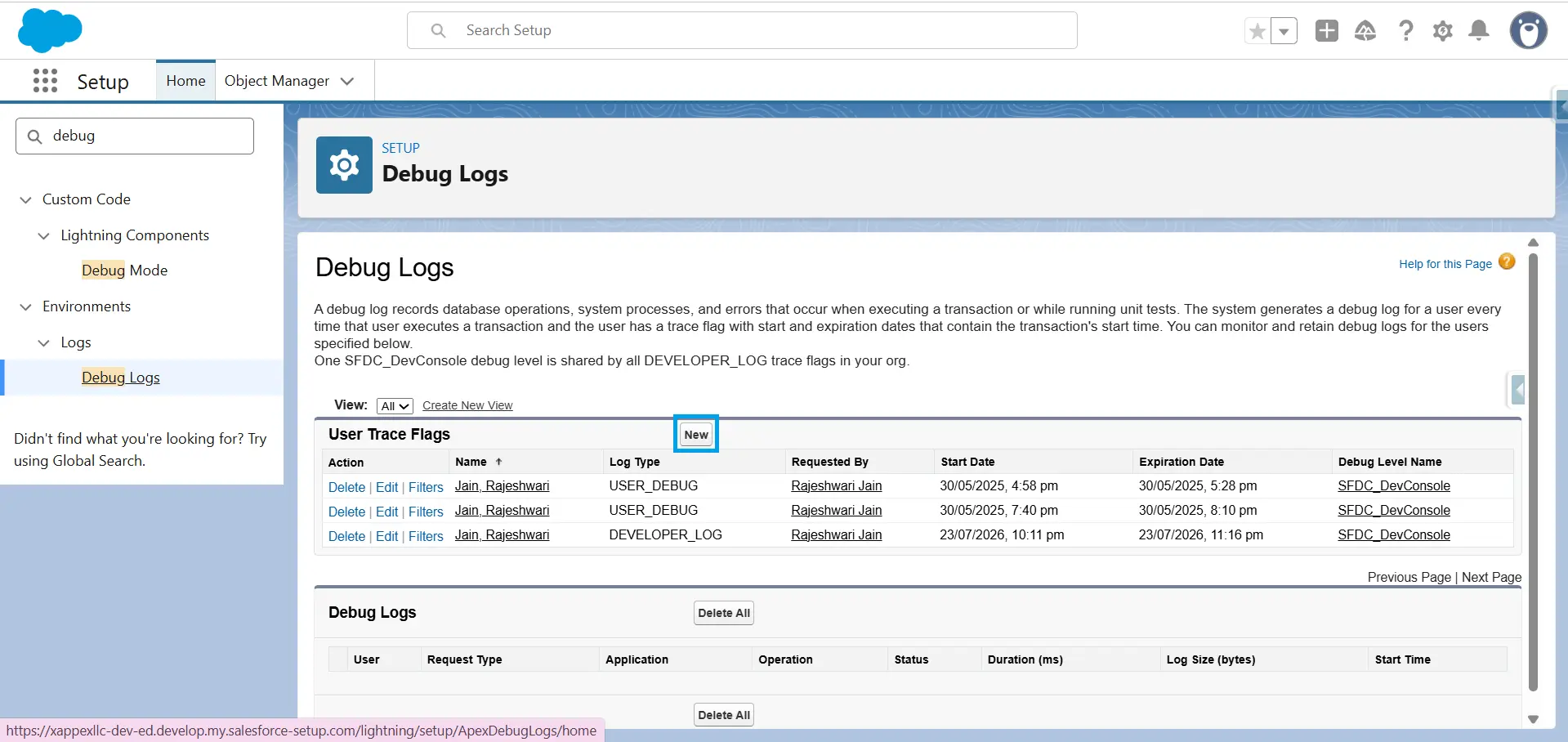
1. Create a trace flag
In Setup, open Debug Logs and create a trace flag for the affected user. Configure the following debug levels to capture the relevant events:
| Category | Level | Typical events captured |
|---|---|---|
| Apex Code | FINEST | CODE_UNIT_STARTED, METHOD_ENTRY |
| Apex Profiling | INFO or higher | CUMULATIVE_LIMIT_USAGE, LIMIT_USAGE_FOR_NS |
| Database | INFO or higher | SOQL_EXECUTE_BEGIN, SOQL_EXECUTE_END |
| Workflow | FINE or FINER | FLOW_START_INTERVIEW_BEGIN, FLOW_ELEMENT_BEGIN |
Trace flags run for a maximum of 24 hours. If no log is generated, verify that the trace flag hasn’t expired.
2. Reproduce the error
Repeat the action while the trace flag is active.
For bulk operations, start with a small batch. Large batches with can exceed the 20 MB debug log size limit, causing Salesforce to truncate the log. Important events may be missing from a truncated log. If your org generates more than 1,000 MB of debug logs within a rolling 15-minute window, Salesforce temporarily disables trace flags until log generation falls below the limit. After identifying the issue, retest with a realistic batch size.
3. Review the debug log
-
CUMULATIVE_LIMIT_USAGE: Shows the total SOQL queries consumed during the transaction.
-
LIMIT_USAGE_FOR_NS: Shows governor limit usage by namespace. Certified managed packages receive separate per-namespace limits, subject to a cumulative cross-namespace limit of 11× the per-namespace value (1,100 SOQL queries).
-
SOQL_EXECUTE_BEGIN: Marks each SOQL query. Count and group repeated queries by source instead of focusing on the query that throws the exception. The 101st query is usually the result of repeated queries executed earlier in the transaction.
-
Execution events: CODE_UNIT_STARTED, METHOD_ENTRY, FLOW_START_INTERVIEW_BEGIN, and FLOW_ELEMENT_BEGIN identify which Apex trigger, Apex class, or Flow executed each query.
When a transaction includes both Apex and Flow, review the log chronologically because each can invoke the other during the same transaction.
You can also open the log in Developer Console → Execution Overview → Limits to review governor limit usage.
4. Identify the source
Determine whether the automation runs once per transaction or once per record. Queries inside loops, per-record queries, and recursive automation are common causes of this exception. Also check whether multiple automations collectively exceed the transaction limit.
In SOQL queries that include parent-child relationship subqueries, each parent-child relationship counts as an additional SOQL query toward the governor limit.
5. Make the automation bulk-safe
-
Apex: Move SOQL queries outside loops. Query records with IN :collectionOfIds, store the results in a Map<Id, SObject>, and reuse them. Prevent unintended recursion by tracking processed record IDs in a static Set<Id>.
-
Flow: Don’t place Get Records inside a Loop. Retrieve records before the loop and process them with collections. Consolidate overlapping record-triggered Flows where doing so simplifies automation and reduces duplicate processing.
Prevention: Bulk-Friendly Patterns for Admins
Know the governor limits
Salesforce allows 100 SOQL queries per synchronous transaction and 200 per asynchronous transaction. The DML statement limit is 150 in both cases. Flow shares these limits with Apex and other automation running in the same transaction.
Keep data elements out of loops
-
Don’t place Get Records, Create Records, Update Records, or Delete Records inside a Loop element.
-
Store records in a collection and perform a single data operation after the loop.
-
Salesforce bulkifies many Flow operations across interviews, so a Get Records element outside a loop typically uses fewer SOQL queries than one inside a loop. The exact number depends on the Flow design.
-
Inside a loop, each Get Records execution uses a SOQL query. Each Create Records, Update Records, or Delete Records execution uses a DML statement. This pattern often leads to “Too many SOQL queries: 101” or the 150 DML statement limit.
Use collection elements when possible
-
Use Collection Filter and Collection Sort to work with records already stored in a collection.
-
These elements don’t consume SOQL or DML limits, but they do use CPU time and heap memory.
Adjust Data Loader batch sizes
-
The SOAP API uses a default and maximum batch size of 200 records.
-
Reduce the batch size to 50 or 25 if governor limits occur.
-
Smaller batches increase API calls and processing time.
Understand Bulk API behavior
-
Bulk API 1.0 supports batches of up to 10,000 records.
-
Salesforce still processes Apex triggers and record-triggered Flows in chunks of up to 200 records.
-
Larger Bulk API batches don’t increase governor limits.
-
Bulk API 2.0 manages record chunking automatically.
Document your automation
Track the Flows, Apex triggers, and managed packages that run on each object. This makes troubleshooting much easier.
Test with 200 records
Automation that works with a few records can fail when processing a full trigger batch. Always test with 200 records, the standard trigger batch size. Note that triggers running inside Batch Apex can receive up to 2,000 records if the batch scope is raised.
Review managed package automation
-
If your org uses NPSP, Field Service, or Salesforce CPQ, understand how their automation interacts with your own before changing shared objects.
-
Certified managed packages receive separate per-namespace SOQL and DML limits, subject to Salesforce’s cumulative cross-namespace limits.
-
Uncertified managed packages and unmanaged code share your org’s standard governor limits.
Watch CPU time
CPU time isn’t namespace-scoped. All synchronous automation in a transaction shares the same 10-second CPU limit, so multiple automations can exceed the limit even if each is efficient on its own.
Use asynchronous processing when appropriate
Asynchronous processes run in separate transactions with their own governor limits. Examples include Asynchronous Paths and Scheduled Paths in Flow, Queueable Apex, Batch Apex, @future methods, and Platform Event subscribers.
Conclusion
The Too many SOQL queries: 101 error usually points to automation that isn’t built for bulk processing. In most cases, you can prevent it by moving SOQL queries outside loops, using collections, and understanding how Flows, Apex, and managed packages work together in a transaction. Review your automation regularly and test with realistic data volumes to catch governor limit issues before they reach production.
FAQ
Why is it called “101” if the limit is 100?
The number in the error refers to the query that exceeded the limit, not the limit itself. Salesforce allows up to 100 SOQL queries in a synchronous Apex transaction, so the 101st query throws Too many SOQL queries: 101. In asynchronous Apex, the limit is 200 queries, so the exception occurs on the 201st query.
Can I increase the SOQL query limit?
No. Salesforce does not allow you to increase per-transaction governor limits such as SOQL queries, DML statements, or CPU time. Instead, optimize your code by moving queries outside loops, using IN clauses, processing records in bulk, preventing unnecessary trigger recursion, and moving long-running work to Batch Apex or Queueable Apex. Each asynchronous execution starts a new transaction with its own limits, but those limits are still fixed.
Why does this error appear in test classes but not production code?
Test methods use the same governor limits as production Apex. Too many SOQL queries: 101 error means the transaction ran more than 100 SOQL queries, usually because the code isn't bulkified or runs unnecessary queries. Tests often get this as we use large record sets to verify the code works. Test.startTest() and Test.stopTest() reset the limit for the code between them, so setup code doesn't count against the test.
Why am I getting this error from managed package code when my trigger is the one that changed?
Your trigger and the managed package run in the same transaction. Certified managed packages have separate limits for many resources, such as SOQL queries and DML statements, but limits like CPU time, heap size, and transaction execution time are shared. The error is thrown where the limit is exceeded, even if your trigger used most of the available resources earlier in the transaction. If the error occurs during a large data load, reduce the Data Loader batch size or temporarily bypass your custom automation, if your org supports it, to identify the source.
Does Salesforce Flow count toward SOQL queries?
Yes. Every Get Records element runs a SOQL query and counts toward the transaction limit. Putting Get Records inside a Loop runs a query for each iteration and can quickly exceed the limit. Create Records uses DML, not SOQL. Update Records and Delete Records may run a SOQL query when they identify records by conditions instead of using a record or record collection variable.
What's the SOQL query limit in asynchronous transactions?
Asynchronous Apex includes @future methods, Queueable Apex, Batch Apex, and Scheduled Apex. These transactions can execute up to 200 SOQL queries. In Batch Apex, start(), each execute() invocation, and finish() run as separate transactions, each with its own governor limits. Asynchronous Apex also increases the heap size limit to 12 MB and the CPU time limit to 60,000 ms. The DML statement limit remains 150.

Rajeshwari Jain
Content Manager
Rajeshwari Jain is a Technical Support Specialist and Content Writer at Xappex. She applies her practical experience to assist customers and create articles on how Xappex tools work with Salesforce to improve data management and increase efficiency.
She began her IT career in 2022 as a Quality Assurance professional before transitioning into Salesforce administration and technical writing in 2023. With Salesforce Certified Administrator and Associate certifications, Rajeshwari writes blogs on Salesforce flows, admin tools, and updates to expand her skills outside of work.
In her free time, she enjoys reading tech blogs and experimenting with new tools.
Feel free to reach out to Rajeshwari for collaborations or to check out her Salesforce-focused content.