Get Started Free



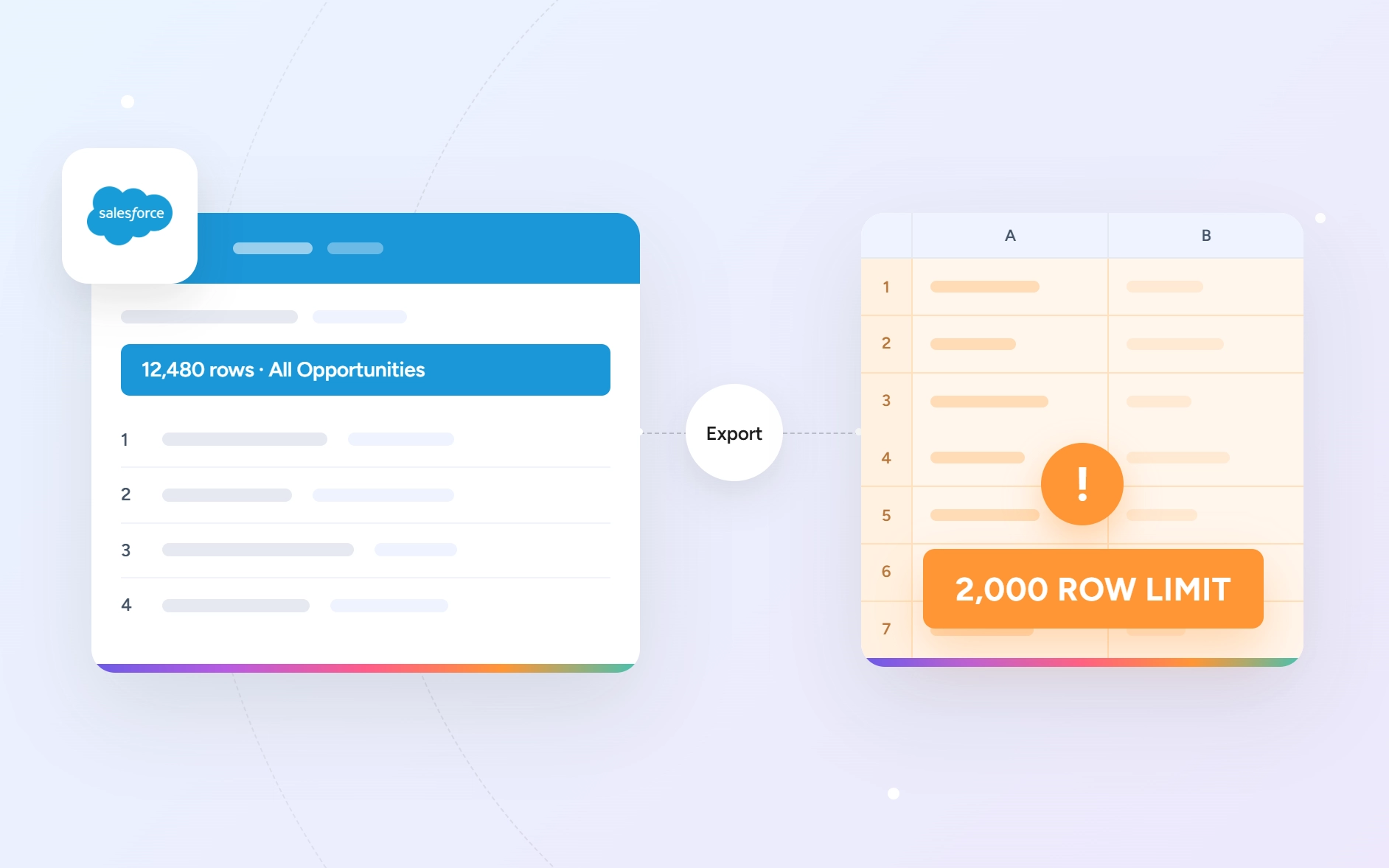
Salesforce now returns a maximum of 2,000 rows per report execution through the Analytics API. To retrieve more records, however, you can use some of the following workarounds: split the report with filters, paginate results using a unique sorted field, export the report as XLSX, or query the records with SOQL, which does not have the report’s 2,000-row limit.
Why Your Report Export Stops at 2,000 Rows
Summer ’26 introduced step-up authentication for certain interactive report actions, including report exports. When a connected app cannot complete the required interactive verification, it must use the Reports/Analytics API to retrieve the report. That matters because the API returns a maximum of 2,000 report rows per run.
As a result, a connected app can stop at exactly 2,000 rows even when the Salesforce report contains more records.
Where the 2,000 row limit comes from
Salesforce lets you reach the same records in two ways: run a report or query the records directly. The 2,000-row limit applies to the report route, not to the underlying Salesforce data.
Running a report
When you run a saved report, Salesforce applies its filters, groupings, formulas, and subtotals and returns the report results. The Analytics API, also called the Reports API, returns a maximum of 2,000 rows for each report run.
To know more: Salesforce Analytics API limits
This limit dates back to the Analytics API launch in Winter ’14. Salesforce did not document the limit when it first shipped, which led to early community questions from developers who received only 2,000 rows from a report run.It has not moved since, not even in Summer ’26, which added an extra authentication step for report exports in the UI but left the API’s row behavior alone.
Querying the records
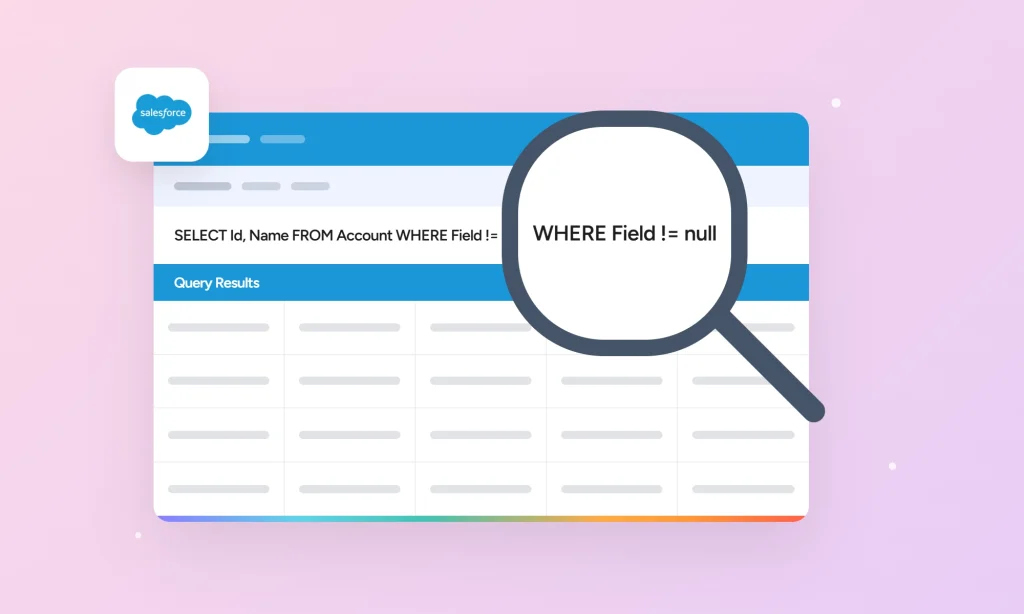
SOQL takes a different route. Instead of running a saved report, you request specific fields from records that match your conditions. For example:
SELECT Id, Name FROM Account WHERE Industry = 'Technology'SOQL does not impose a 2,000-row limit on the total query results. Salesforce returns large result sets in batches, allowing you to retrieve additional records after the first batch.
The records are the same. The difference is how Salesforce retrieves them. A report produces a report result with its filters, groupings, formulas, and summaries. SOQL retrieves the records and fields directly.
The 2,000-row limit belongs to running reports through the Analytics API, not to your Salesforce data.
If you only need the data once
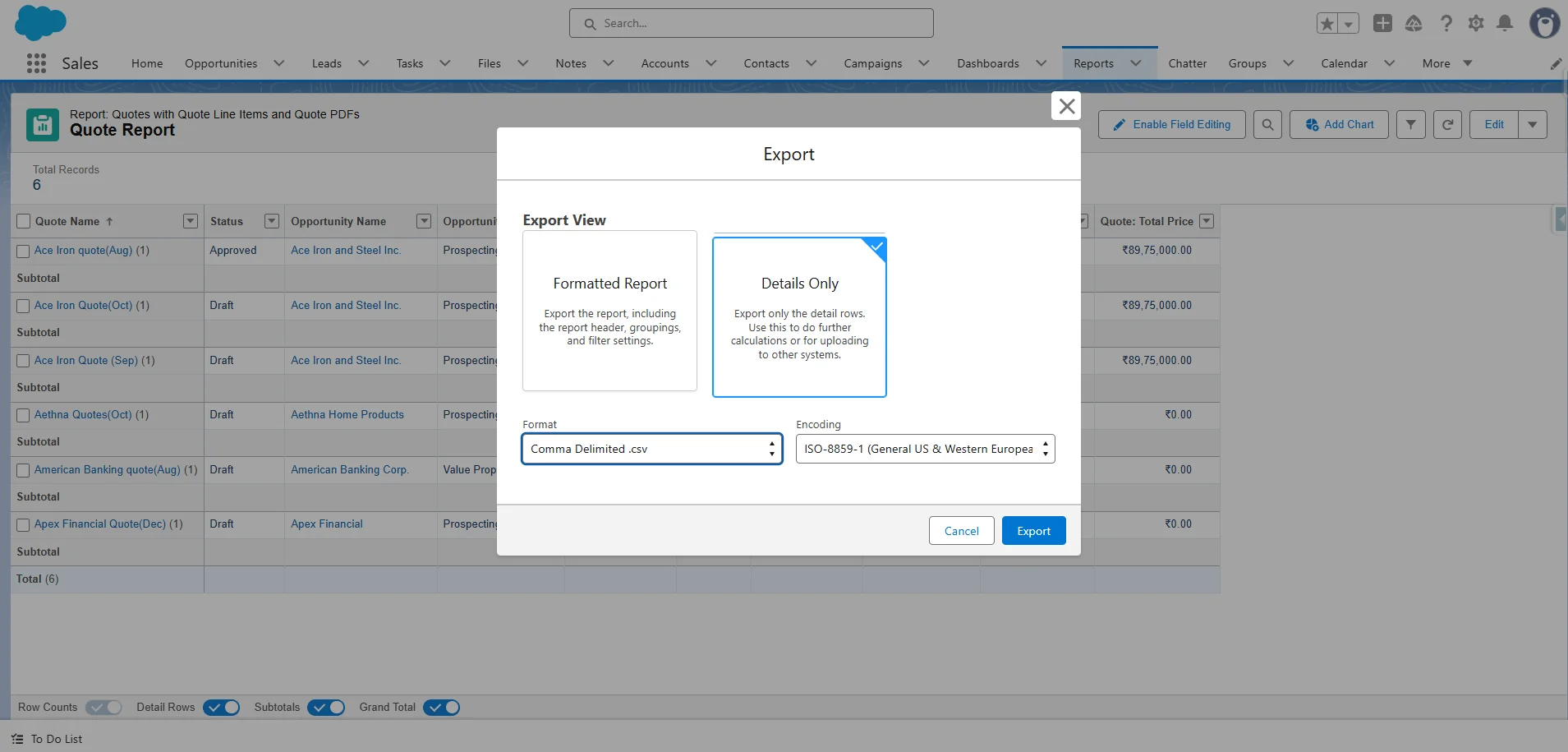
If you need the data only once, use Salesforce’s manual export. Select Details Only in the export dialog, then choose CSV or Excel as the file format. This export does not have the 2,000-row restriction, so it is the fastest option for a one-time data pull.
If you need scheduled or automated exports, continue to the methods below.
How to check if your reports are already cut off at 2,000 rows
-
1
Open the report in Salesforce. Note the total record count.
-
2
Check the spreadsheet. Compare its data-row count with the Salesforce count.
-
3
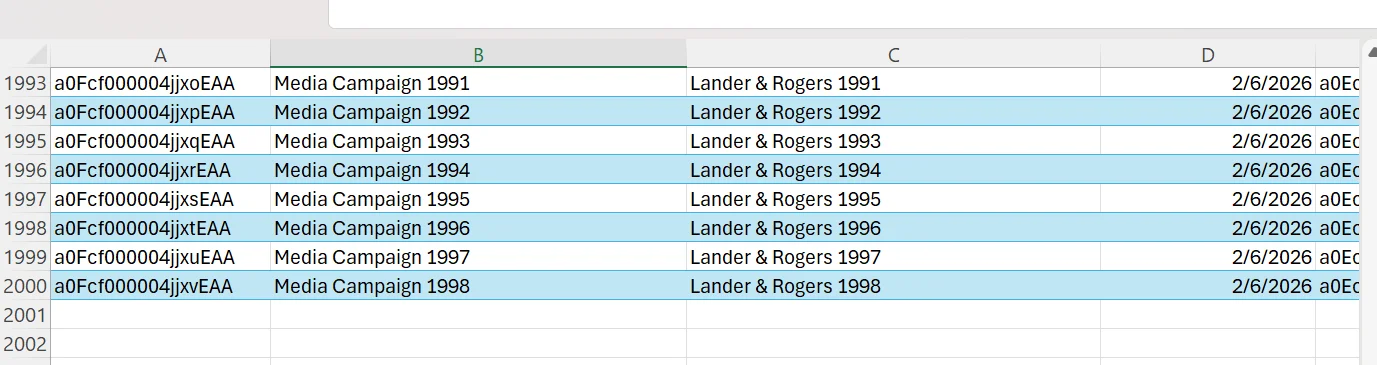
Look for exactly 2,000 rows. If Salesforce has more records but the spreadsheet shows exactly 2,000, the data is truncated.

-
4
Do not rely on a successful refresh. It can complete without error even when the returned data is incomplete.
-
5
Check downstream data. Pivot tables, dashboards, charts, forecasts, and other calculations built from the spreadsheet also reflect the missing records.
The Analytics API can affect field values and sorting. Long Text Area and Rich Text Area fields may be truncated to 255 characters in some report exports, including Details Only XLSX exports. If your connector uses a specific report API workflow, check its documentation for other export differences before treating them as general Salesforce behavior.

Tip
If a spreadsheet stops at exactly 2,000 rows while the Salesforce report contains more, treat it as truncation until you confirm otherwise.
Why disconnecting and reconnecting does not fix it
Disconnecting and reconnecting creates a new session but does not change the report export route the tool uses. If that route requires interactive verification, reconnecting will not fix the problem. The session is not expired. The previous report export route now triggers an interactive verification step that a background process cannot complete.
If the report export route requires interactive verification, stop reconnecting. Change the authentication route or integration method so the background process can use a supported authentication flow.
A few workarounds to the 2,000 row report limit
The right method depends on three things: whether you control the tool that pulls the data, whether you or someone on your team can write code, and whether you need the data once or on a schedule. If you do not write code and need the data once, splitting the report is usually the most accessible option.
Split the report and append the results
For: Salesforce admins who do not write code and need to use their existing reporting or spreadsheet tool.
Create multiple reports and filter each one so it returns fewer than 2,000 rows. Date ranges work well for this. For example, create separate reports for each month, export them, and append the results into one spreadsheet table.
It requires maintenance. If the date range or another filter changes, you must update the reports. You also need to check the row count for every segment.
The bigger risk is silent data loss. If one report exceeds 2,000 rows, the extra rows can be dropped without a clear warning. You can then combine the exports and get a table that appears complete but is missing records.
Tip
Use specific filters to split a large report into smaller datasets. Filter by fields like owner, status, record type, or another relevant field so each report returns fewer than 2,000 rows. This makes it easier to export each segment and combine the results without losing records.

Note
Use “My” or “My Team’s” filters when appropriate.
If users only need records they own or records owned by their team, use My or My Team’s filters. These filters can reduce the number of records returned and may help keep each report segment below the 2,000-row limit.
Paginate the report with a filter
For: Use this method only if your reporting tool can automate the pagination loop. Manual pagination works for a one-time export with a few runs. A large scheduled report can require hundreds of runs, so a tool that cannot automate the loop will stop at 2,000 rows.
Add a unique, sortable column such as the record ID or a date. Sort it in ascending order. Run the report and note the value in the last row. Add a greaterThan filter for that value, then run the report again. Repeat until the report returns no more rows. This pagination method has been used in Salesforce community guidance for years to work around the 2,000-row Analytics API limit.
The trade-off is execution volume. Salesforce allows 1,200 asynchronous report executions per org in a rolling 60-minute period. A 200,000-row report requires 100 executions if each run returns 2,000 rows. You replace a row limit with an execution limit.
Tip
The 1,200-execution limit applies to the entire Salesforce org, not to each user. One large scheduled refresh can use enough executions to cause errors for other reports running in the same 60-minute window.
For more on the 1,200-execution limit, see our guide to report export limits after step-up verification.
For examples of this pagination method, see the Salesforce Stack Exchange discussion.
Note
Use a unique field for reliable pagination.
Choose a field that provides a reliable sort order, such as the record ID or another unique value. Sort the report in ascending order, record the last value returned, and use that value to filter the next run. This prevents overlapping pages and reduces the risk of skipping records.
Download Formatted Excel Reports Using the Reports REST API
The Salesforce Reports REST API lets you retrieve report results as JSON or Excel. To request an Excel file, set the Accept header to application/vnd.openxmlformats-officedocument.spreadsheetml.sheet and keep Content-Type as application/json.
You can download the report in the same POST request used to run it, or execute the report first and download the result with a separate GET request.
For full request examples, see Salesforce’s official Download Formatted Excel Reports Using the Reports REST API documentation. The formatted report export is subject to Salesforce’s report and API limits, and Salesforce recommends running no more than one large formatted report export at a time. For the complete list of Analytics API requirements and limitations, see Requirements and Limitations.
Query the data with SOQL instead of running a report
SOQL queries Salesforce records directly, so the 2,000-row report limit does not apply. The report execution limit does not apply either. If your tool supports SOQL, you can retrieve the records through the Salesforce API instead of exporting the report.
A SOQL query sent through an OAuth API connection is not a report action, so it does not trigger step-up authentication for report access. This exemption applies to API access. If an integration signs in through the Salesforce UI and runs the report there, it is a different case.
The trade-off is that SOQL returns flat rows. You do not get the report’s groupings, subtotals, or formulas. You must recreate those in Excel or Google Sheets.
For anyone who already exports reports to a spreadsheet to create pivot tables, this is a minor trade-off. The spreadsheet was going to rebuild the summary anyway.
XL-Connector for Excel and G-Connector for Google Sheets can retrieve Salesforce data with SOQL and generate queries from existing reports.
Convert Salesforce Reports to SOQL
When you need more than 2,000 records from a Salesforce Report, you have the option of converting the report into SOQL so that you can query the actual Salesforce data directly.
Xappex tools feature a free Report-to-SOQL Converter that creates a SOQL query based on an existing Report and includes all of the Report’s columns, filters, and sort order so that you do not need to write the query from scratch. You can review and modify the generated SOQL before importing the data.
Reports and SOQL do not include all the same features. Groupings, summary rows, bucket columns, report formulas, and some cross-filters may not be converted directly. In such cases, you can edit the SOQL that has been generated or use a standard Report import instead.
Learn how to convert a Salesforce Report to SOQL with Xappex connectors.
The usual objection to querying data directly
The main objection is that querying objects turns a report into manual work. Users must pull objects, combine related data, rename fields, reapply filters, and rebuild the report. In a large org, this can move more data than needed. Most spreadsheet users will not do this.
That objection applies to tools that import objects and filter data afterward. Microsoft’s Power Query documentation states Salesforce limits the Reports connector to 2,000 rows and recommends the Salesforce Objects connector as a workaround. The Objects connector avoids that limit but requires users to retrieve and reshape the object data themselves.
SOQL takes a different approach. A query specifies the fields and records to return:
SELECT Id, Name, Industry
FROM Account
WHERE Industry = 'Technology'
This returns only the selected fields from matching Accounts. SOQL also supports relationship queries like Owner.Name and child relationship subqueries, allowing related Salesforce data to be retrieved in the same query.
The remaining barrier is knowing the Salesforce schema and SOQL. You must identify the correct objects and fields and translate report filters into query conditions. A converter removes much of this work by carrying those fields and filters from an existing report into the query.
The 2,000-record misconception
SOQL does not have a 2,000-record total limit. The REST API returns up to 2,000 records per response. For larger result sets, Salesforce provides totalSize, done, and nextRecordsUrl so the client can retrieve remaining records. You continue until done is true.
Apex has separate limits: 50,000 SOQL rows per transaction and 100 synchronous or 200 asynchronous SOQL queries. These limits apply to Apex, not REST API queries.
What direct querying doesn’t solve
Large result sets still consume API requests because each REST API page counts as a request. Query performance can become an issue on large objects, where selective filters and indexed fields reduce the records Salesforce needs to scan.
SOQL also cannot reproduce every Salesforce report. Some reports use features or structures that do not translate directly into SOQL.
Need more than 2,000 records on a schedule?
Some reports use features that do not translate into SOQL. XL-Connector, XL-Connector 365, and G-Connector run scheduled report exports without rebuilding your reports as queries. Plans start at $10 per month.
Conclusion
The 2,000-row limit applies to report results, not the data stored in Salesforce. The limit did not change in July 2026. The change was how tools access reports. Check your current exports and integrations to see whether they stop at 2,000 rows without warning.
For a one-time export, download the report manually as an XLSX file. For scheduled or recurring pulls, query Salesforce data directly with SOQL. This avoids the report-specific limit and provides a more reliable way to retrieve larger datasets.
If you do not know SOQL, Xappex’s free Report-to-SOQL Converter can turn an existing Report into a SOQL query. You can then use the generated query to retrieve the data without writing the query from scratch.
FAQ
Why am I only getting 2,000 rows from a Salesforce report?
Salesforce’s Analytics API returns a maximum of 2,000 rows per report execution. If your spreadsheet tool previously returned the full report but now stops at exactly 2,000 rows, it is likely using the Analytics API instead of the older export method. You cannot increase this limit, but you can retrieve the underlying records through other methods.
Why did my scheduled report refresh stop working?
A scheduled Salesforce report refresh may still run but return incomplete data. Salesforce requires identity verification before a report is exported, and a scheduled refresh has no user present to complete it, so the tool falls back to the Analytics API, which returns up to 2,000 rows per report execution. If the refresh now stops at exactly 2,000 rows, check the row count before troubleshooting the connection or the schedule.
Does the 2,000 row limit apply when retrieving a report through an API?
Yes. Salesforce’s Analytics API returns up to 2,000 rows per report execution. This is a The limit did not change in July 2026. The change was how some tools access reports per-execution limit, not a limit on the total records in the report. A tool can retrieve more records by running the report again with filters based on the last record returned, using a unique field to paginate through the results.
Is the 2,000 row limit on records or only on reports?
The 2,000-row limit applies to a single report run, not to Salesforce records. Salesforce objects can store millions of records, and custom objects are not limited to 2,000 records.
The limit controls how many rows a report returns. It does not affect stored data. To retrieve more than 2,000 records, query the data directly with SOQL or use another supported extraction method.
Can the Salesforce 2,000 row report limit be increased?
No. Salesforce does not provide a setting, permission, or licence to increase the 2,000-row report limit. Salesforce Ideas includes requests to raise the limit, but Salesforce has indicated that this change is not on its roadmap. If you need more than 2,000 rows, change the way you retrieve the data (Use SOQL or another supported extraction method).
Why does reconnecting my tool not fix the 2,000-row limit?
Reconnecting creates a new session, but the session is not the cause of the limit. If the tool uses an endpoint that requires interactive verification, a background process cannot complete it. Reauthorizing the connection does not change the endpoint or remove the requirement.
Does SOQL have a 2,000-row limit?
No. A SOQL query through the REST API can return up to 2,000 records per response. Additional records are available through the nextRecordsUrl value. The 2,000-record limit applies to each response page, not the entire query.
What is the difference between the Reports API and SOQL?
The Reports API runs a saved report with its filters, groupings, subtotals, and formulas. A report run returns up to 2,000 rows. SOQL queries Salesforce records directly and does not have the 2,000-row report limit. It returns flat data, so you must handle report formatting, grouping, and calculations separately.
Can I still export a Salesforce report to CSV?
Yes. You can manually export a Salesforce report to CSV, and a Details Only export can return more than 2,000 rows. The limitation affects automated retrieval through the endpoint used by some tools, not manual exports. A manual download can therefore return all report data while an automated refresh stops at 2,000 rows.

Rajeshwari Jain
Content Manager
Rajeshwari Jain is a Technical Support Specialist and Content Writer at Xappex. She applies her practical experience to assist customers and create articles on how Xappex tools work with Salesforce to improve data management and increase efficiency.
She began her IT career in 2022 as a Quality Assurance professional before transitioning into Salesforce administration and technical writing in 2023. With Salesforce Certified Administrator and Associate certifications, Rajeshwari writes blogs on Salesforce flows, admin tools, and updates to expand her skills outside of work.
In her free time, she enjoys reading tech blogs and experimenting with new tools.
Feel free to reach out to Rajeshwari for collaborations or to check out her Salesforce-focused content.