Get Started Free



SOQL does not support IS NULL or IS NOT NULL. To find records where a field is null, use WHERE Field = null. To find records where a field is not null, use WHERE Field != null.
Null filtering also has special considerations for checkbox fields and parent relationship fields.
Does SOQL support IS NOT NULL?
No. IS NULL and IS NOT NULL are not supported SOQL operators. To test for null values, use = null and != null. Salesforce documents SOQL comparison operators including =, !=, <, <=, >, >=, LIKE, IN, NOT IN, INCLUDES, and EXCLUDES.
What happens if you use IS NOT NULL?
This query is not valid SOQL:
SELECT Id, FirstName
FROM Contact
WHERE FirstName IS NOT NULL
Because IS NOT NULL is not a supported SOQL operator, the query fails with a syntax error.

Use != null instead:
SELECT Id, FirstName
FROM Contact
WHERE FirstName != null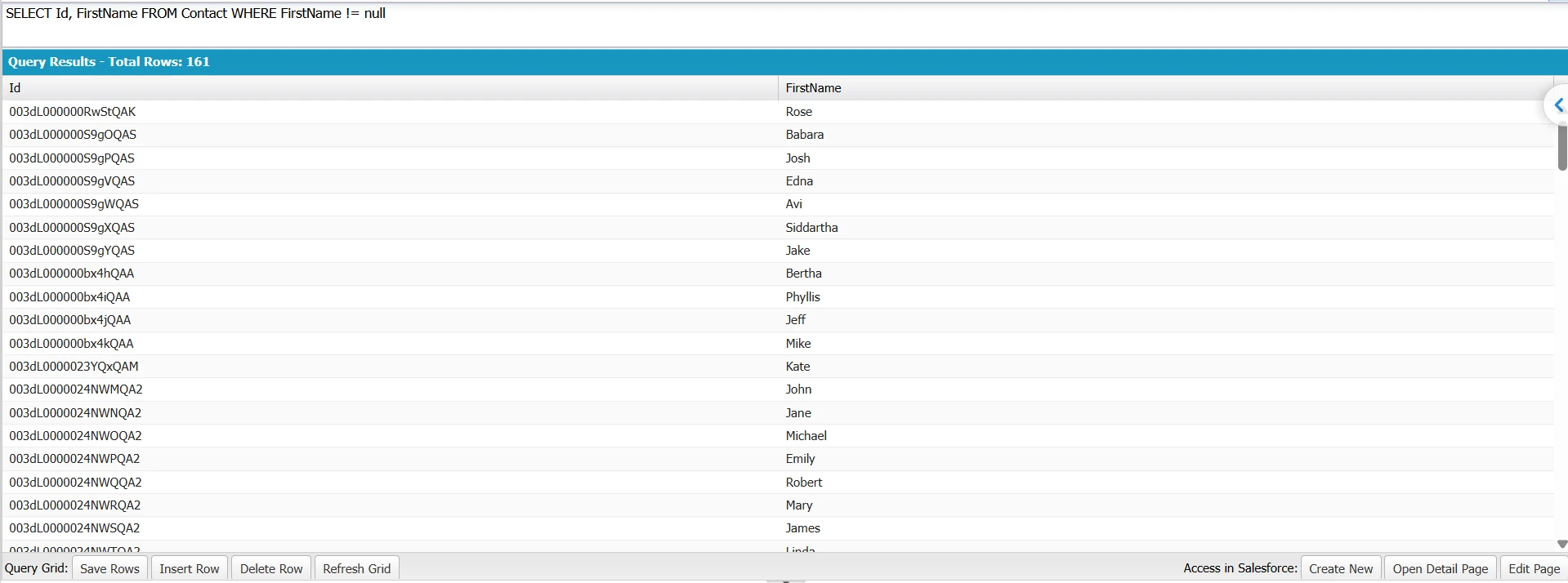
How to write a SOQL query where a field is not null
Use != null to return records where a field is not null.
SELECT Id, FirstName, Email
FROM Contact
WHERE Email != null
LIMIT 200
This returns Contacts whose Email is populated.
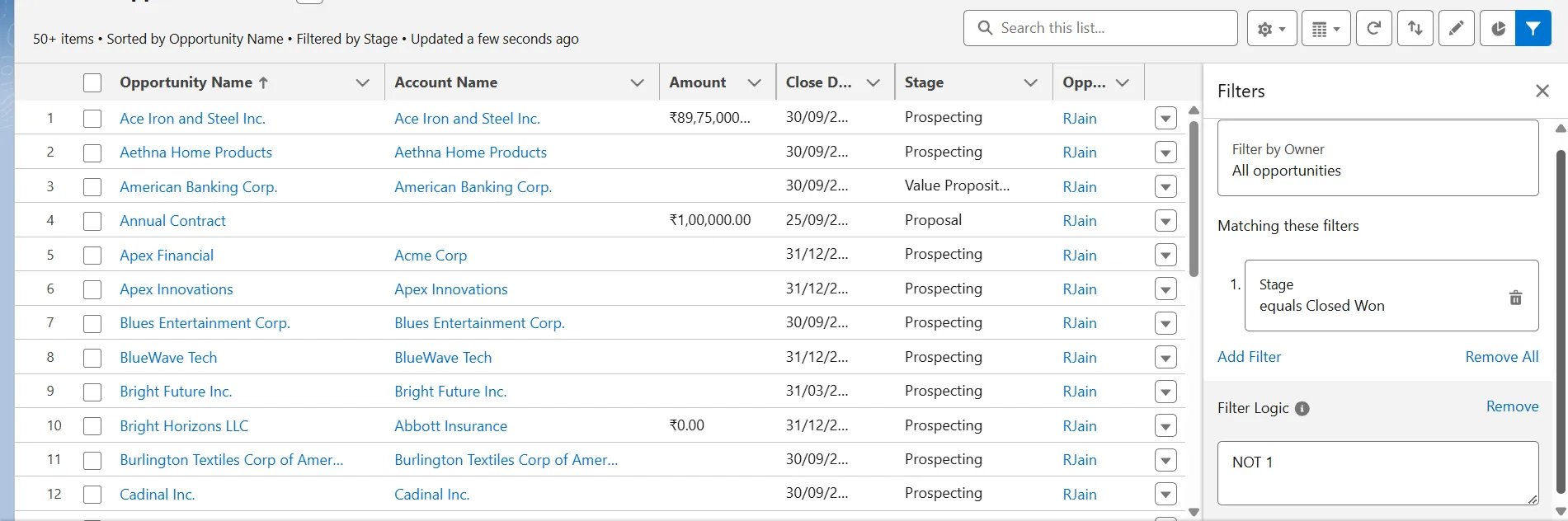
How to write a SOQL query where a field is null
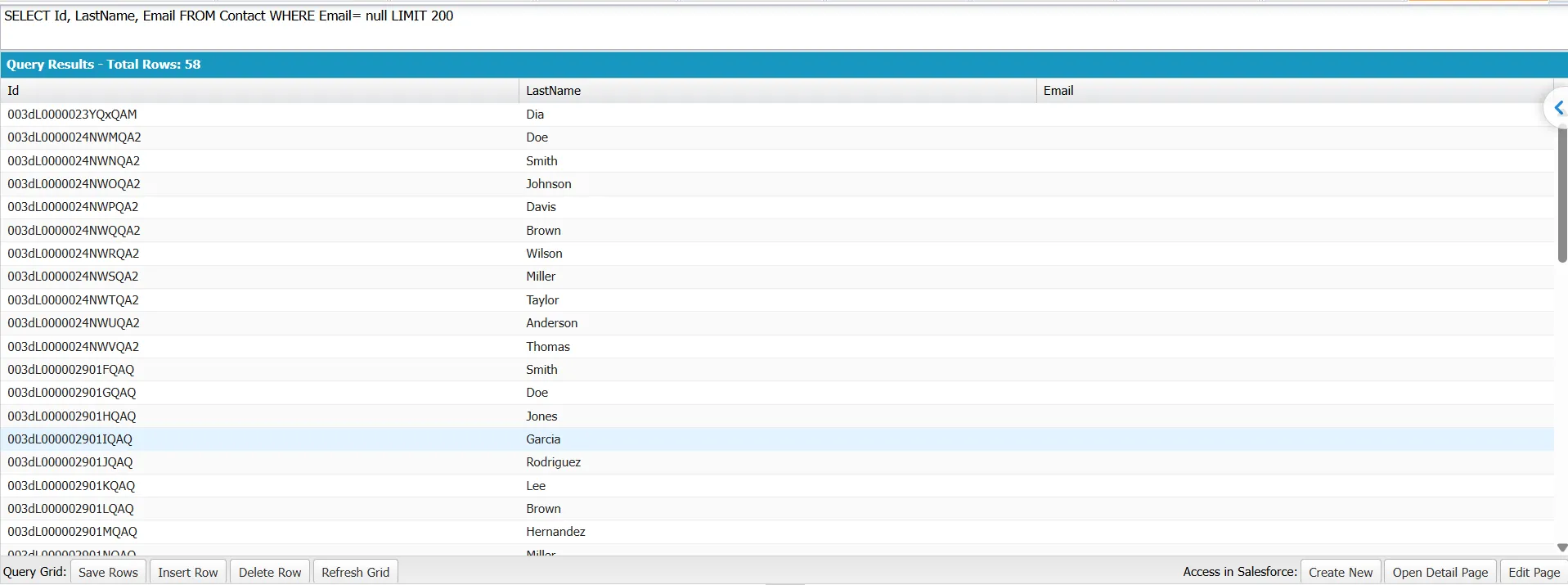
Use = null to return records where a field is null.
SELECT Id, LastName, Email
FROM Contact
WHERE Email = null
LIMIT 200
This returns Contacts whose Email is null.
| SOQL condition | Returns |
|---|---|
| WHERE Email != null | Contacts where Email is not null |
| WHERE Email = null | Contacts where Email is null |
Be careful with null and 'null'
null and 'null' are different.
SELECT Id, Name
FROM Account
WHERE Industry = null
This checks whether Industry is null. By contrast:
SELECT Id, Name
FROM Account
WHERE Industry = 'null'
Here, ‘null’ is a string literal. For a text field such as Industry, this matches records where the field contains the literal text null; it does not match records where the field is null.
The same distinction applies to the negated form:
SELECT Id, Name
FROM Account
WHERE Industry != null
This returns accounts where Industry is not null. By contrast:
SELECT Id, Name
FROM Account
WHERE Industry != 'null'
This returns accounts where Industry is non-null and does not contain the literal text null. It does not include records where Industry itself is null.

Note
Null conditions can affect query selectivity, especially on large objects. For large-volume queries, use Salesforce query-planning tools to evaluate selectivity and combine the null condition with other selective filters where appropriate.
SELECT Id, FirstName
FROM Contact
WHERE FirstName = null
AND CreatedDate = LAST_N_DAYS:30
Query performance depends on the object, data distribution, available indexes, and query plan.
Sorting records that contain nulls
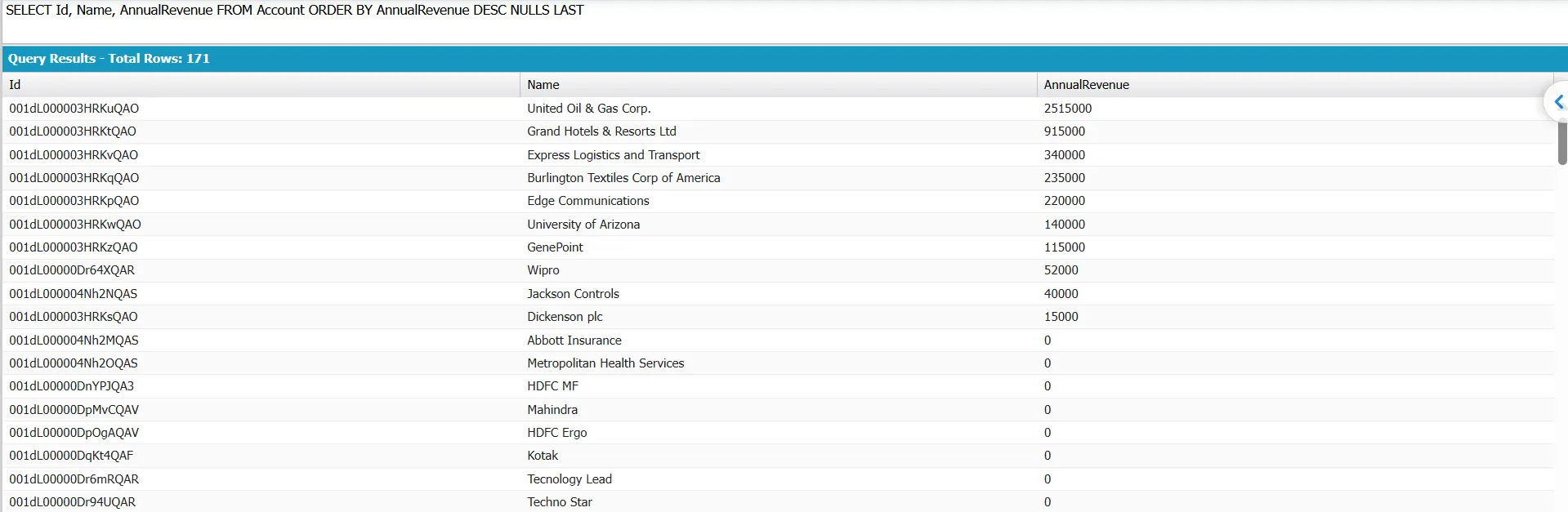
SOQL supports NULLS FIRST and NULLS LAST with ORDER BY.
SELECT Id, Name, AnnualRevenue
FROM Account
ORDER BY AnnualRevenue DESC NULLS LAST
This places Accounts with null AnnualRevenue values after Accounts with a revenue value.
Making sure several fields are not null
SOQL does not provide a shortcut for checking several fields at once. You must add a condition for each field and connect them with AND or OR, depending on what you need to find.
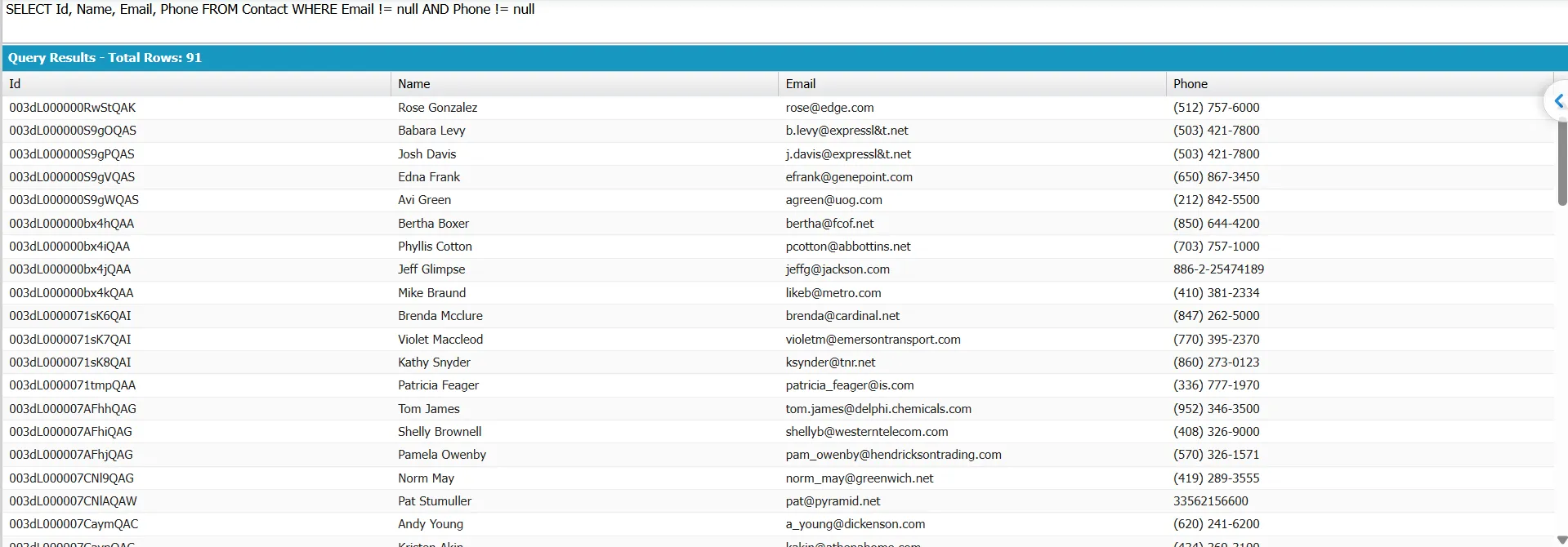
To return records where both Email and Phone are populated, use:
SELECT Id, Name, Email, Phone
FROM Contact
WHERE Email != null
AND Phone != null
This returns only contacts that have both an email address and a phone number.
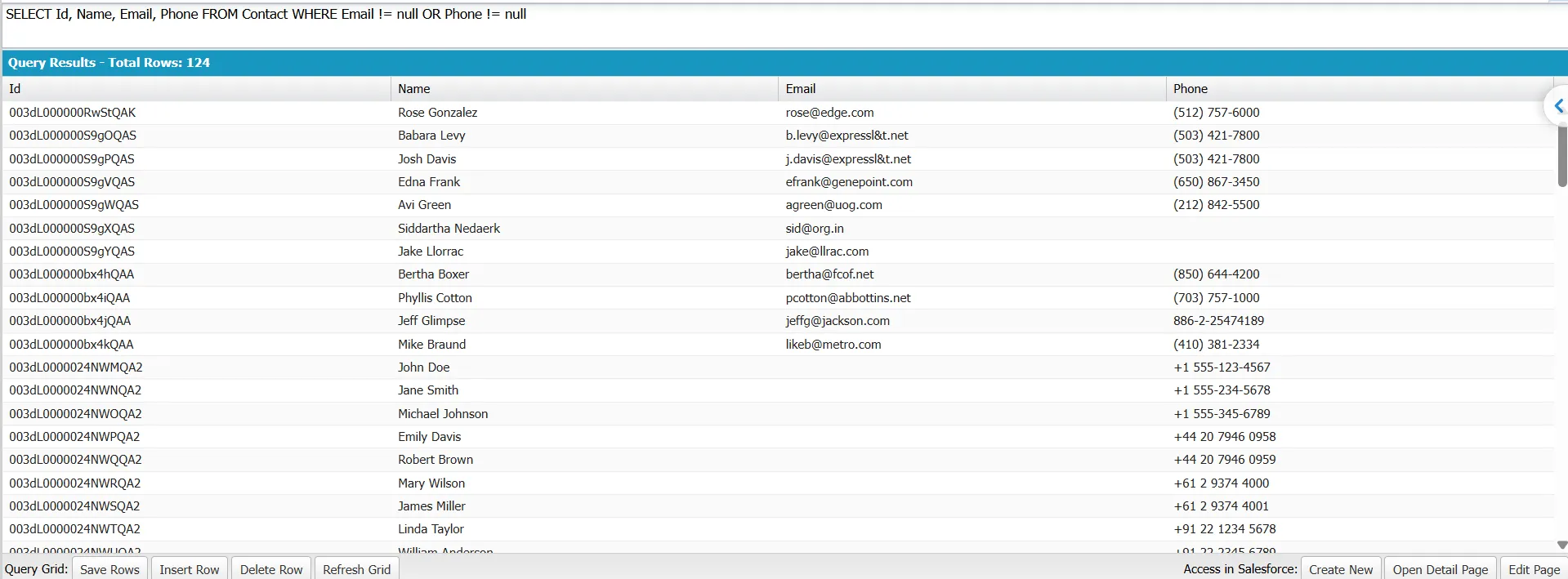
If you want records where at least one of the two fields is populated, use:
SELECT Id, Name, Email, Phone
FROM Contact
WHERE Email != null
OR Phone != null
This includes a contact with an email but no phone, or a contact with a phone but no email.
The business meaning is different:
- AND means all specified fields must be populated.
- OR means at least one specified field must be populated.
Watch the AND/OR precedence
Be careful when you combine AND and OR in the same WHERE clause. AND is evaluated before OR. Without parentheses, SOQL may return records that do not match the condition you intended.
For example:
SELECT Id, Name, Email, Phone, MobilePhone
FROM Contact
WHERE Email != null
AND Phone != null
OR MobilePhone != null
SOQL evaluates this as:
(Email != null AND Phone != null)
OR MobilePhone != null
So a contact with only MobilePhone populated can still appear in the results. If the requirement is that Email must be populated and either Phone or MobilePhone must be populated, group the OR conditions:
SELECT Id, Name, Email, Phone, MobilePhone
FROM Contact
WHERE Email != null
AND (Phone != null OR MobilePhone != null)
This returns only contacts with an email address and at least one phone number.
Tip
If you run this query every week to find records with missing required data, the issue is with the data-entry process, not the query. Use a required field or validation rule when the business requires the field to be populated. This prevents incomplete records instead of finding them after they are created.
Blank strings, empty strings, and spaces
A text field which contains a space is not considered to be blank, so it is possible for the condition Field__c != null to return that record. The addition of AND Field__c != ‘ ‘ eliminates the case of a single space, but it does not deal with multiple spaces or other whitespace characters. Since standard SOQL does not include ISEMPTY() or TRIM(), it is not possible to identify all values that contain only whitespace in the query.
For objects on the Salesforce platform, empty text values are considered null for querying purposes. As a result, Field__c = null and Field__c = ” return the same records when used as SOQL filters. Salesforce documents this behavior in its SOQL SET options documentation.
The formula field workaround
A checkbox formula field is capable of indicating text fields that are blank or contain only spaces or tabs. To do this, use:
LEN(TRIM(Field__c)) = 0The TRIM function removes the spaces and tabs at both the start and end of text and the LEN function then checks whether any text remains; since Salesforce does not regard a field containing only spaces as blank, the ISBLANK function will not detect such cases.
You can then filter on the formula field:
SELECT Id
FROM Account
WHERE Blank_Field__c = true
The trade-off is query performance. Formula fields are calculated when accessed and do not have an underlying index by default, so filtering on one can require Salesforce to evaluate the formula across many records. This can become a problem on large objects.
For large data volumes, Salesforce can create custom indexes on eligible deterministic formula fields. The formula must meet Salesforce’s indexing requirements, including referencing fields on the same object and avoiding relationship fields, non-deterministic functions, and TEXT() on picklists. Salesforce Support determines whether a specific formula qualifies for an index.
Why != null returns true for checkbox fields
Checkbox fields have two usable states: true and false. In SOQL, Salesforce treats null as false when you filter a Boolean field, so Field__c = null is equivalent to Field__c = false, while Field__c != null is equivalent to Field__c = true.
Use the Boolean value directly when filtering checkbox fields:
SELECT Id, Name
FROM Account
WHERE Is_Active__c = true
To find records where the checkbox is unchecked:
SELECT Id, Name
FROM Account
WHERE Is_Active__c = false
Do not use null checks to determine whether a checkbox is checked or unchecked. Use true or false instead.
How nulls interact with NOT IN
NOT IN excludes only the values you specify. It does not automatically exclude records where the field is blank.
For example, this query:
SELECT Id, Name, Rating
FROM Account
WHERE Rating NOT IN ('Hot', 'Cold')
returns Accounts whose Rating is neither Hot nor Cold. It also returns Accounts where Rating is blank (null).
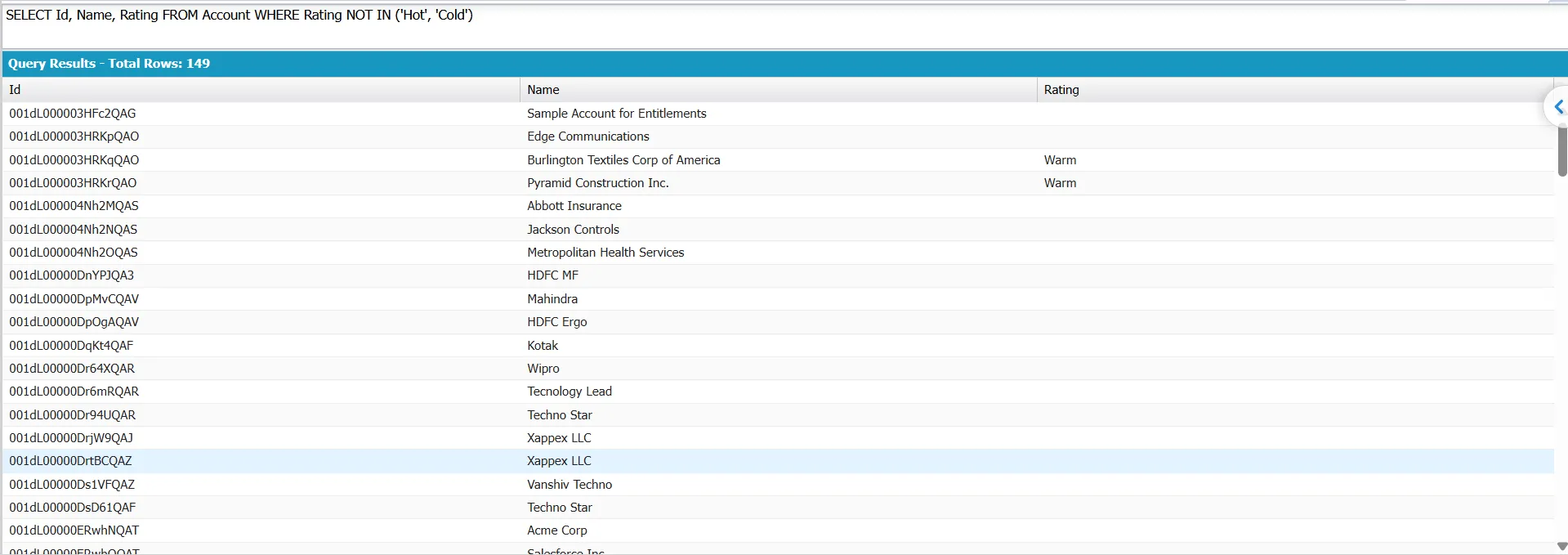
The reason is that NOT IN only excludes the values listed in the condition. A blank Rating isn’t equal to Hot or Cold, so it isn’t excluded by the NOT IN condition.
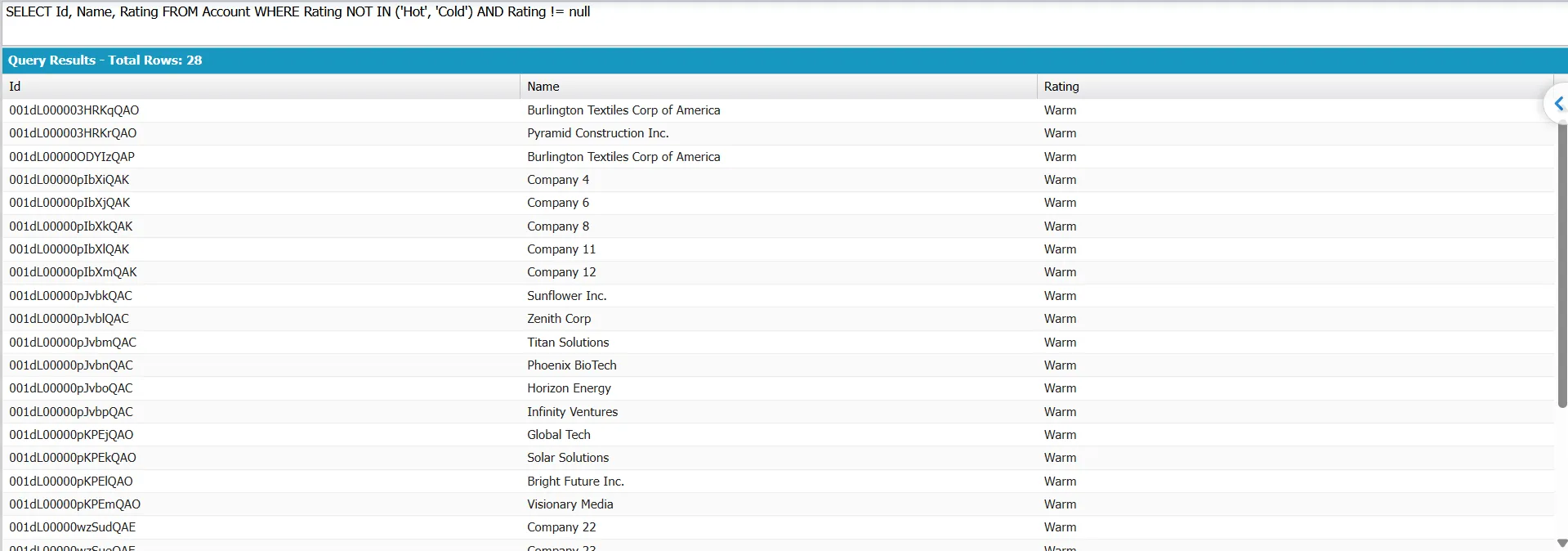
If you want to exclude blank Rating values as well, add an explicit null check:
SELECT Id, Name, Rating
FROM Account
WHERE Rating NOT IN ('Hot', 'Cold')
AND Rating != null
This query returns only Accounts with a non-blank Rating value other than Hot or Cold.
Be careful when values in a SOQL WHERE clause come from Apex variables. Salesforce documents that an unintentionally null bind variable can make a query expensive: an operation that could use an index can become an O(n) table scan and return no results. Check bind variables for null before executing the query.
Parent fields return records that have no parent
A null check when testing a parent field will also identify records that have no parent. For example:
SELECT Id
FROM Case
WHERE Contact.LastName = null
This returns Cases with no Contact. LastName is required on Contact, so a Case with a Contact cannot match because its Contact has a null Last Name. The result can therefore represent a missing relationship rather than a blank parent field.
This behavior is similar to an outer join: the child record can still be returned when the parent relationship is null. Salesforce documents this behavior for relationship queries.
If you want to find Cases without a Contact, check the lookup field directly:
SELECT Id
FROM Case
WHERE ContactId = null
It checks whether the relationship is empty and prevents confusing the absence of a parent with the absence of a value in the parent record.
Does != null slow your query down?
Salesforce guidance on != null can seem contradictory. Large Data Volume guidance recommends avoiding negative filters such as Status__c != null, while the Apex Developer Guide shows Thread__c != null as a way to improve query performance:
WHERE Thread__c = :threadId
AND Thread__c != null
The difference is how the filter is used. In this example, Thread__c = :threadId is the selective filter. The != null condition removes null values from those matching records. It is not driving the query.
A query such as this is different:
SELECT Id
FROM Account
WHERE Status__c != null
Here, != null is the only filter. If most records have a value in Status__c, the query still has to consider most of the object. That makes the filter non-selective and can cause performance problems on large objects.
A non-selective query against a large object can result in this exception:
System.QueryException: Non-selective query against large object type (more than 200000 rows). Consider an indexed filter or contact salesforce.com about custom indexing.
The key point is that != null should not be the only filter on a large object. Use a selective filter, preferably an indexed one, to narrow the records first. Then add != null if you need to exclude null values.
Salesforce Support can create custom indexes that include null rows for supported fields.
For more information about Apex query limits, see Too many SOQL queries 101.
Tip
Run the query with and without the != null filter and compare the row counts. If the null filter alone returns most of the object, it is not selective enough to drive the query.
Practical null queries for admins
Admins can use null checks to find common data gaps before they affect business processes. For example, find Contacts without an email address:
SELECT Id, Name
FROM Contact
WHERE Email = null
Find Leads without an owner:
SELECT Id, Name
FROM Lead
WHERE OwnerId = null
Find Opportunities without a close date:
SELECT Id, Name
FROM Opportunity
WHERE CloseDate = null
Measure field completeness with COUNT()
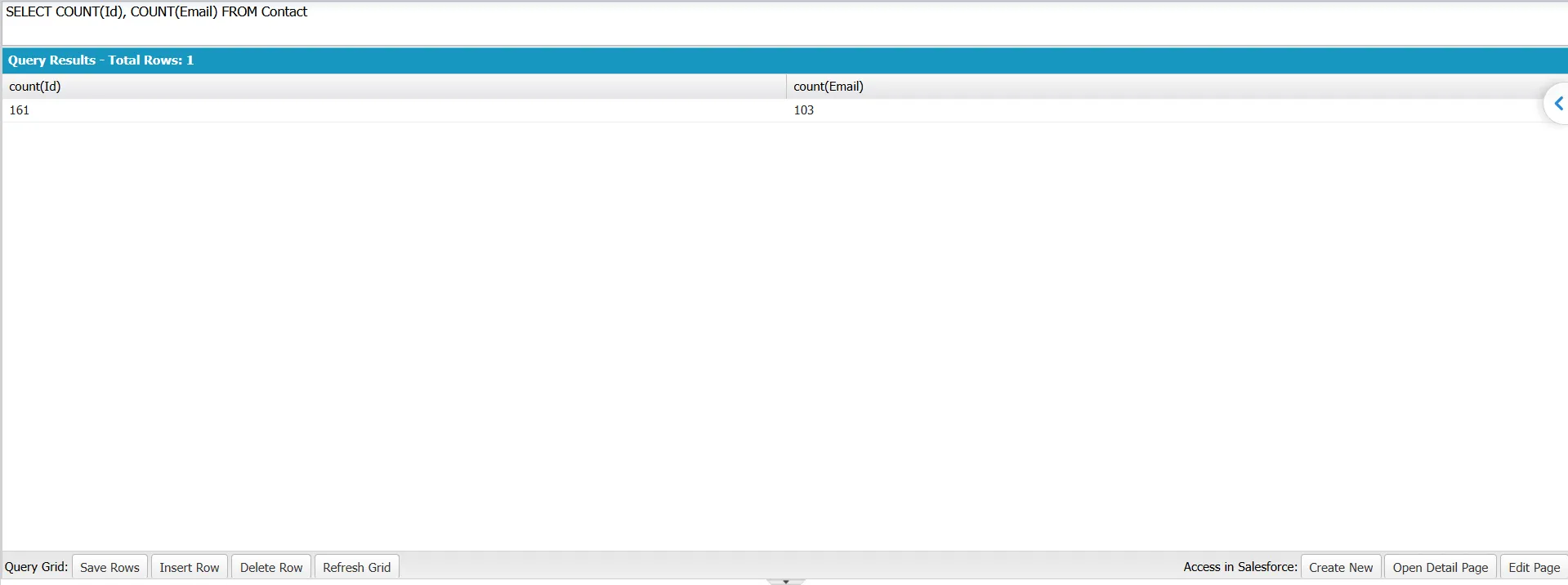
You can compare COUNT() with COUNT(fieldName) to measure how many records have a value in a field:
SELECT COUNT(Id), COUNT(Email)
FROM Contact
COUNT(Id) returns the total number of Contacts, while COUNT(Email) counts Contacts with a non-null Email value. The difference shows how many records are missing an email address. See SOQL COUNT for more examples.
Find Accounts with no Contacts
A null filter cannot find Accounts that have no related Contacts. An aggregate query returns groups for Accounts that have related records; it does not return a group with a count of zero.
Use a relationship query instead.
This doesn’t compile:
SELECT Id, Name
FROM Account
WHERE Contacts = null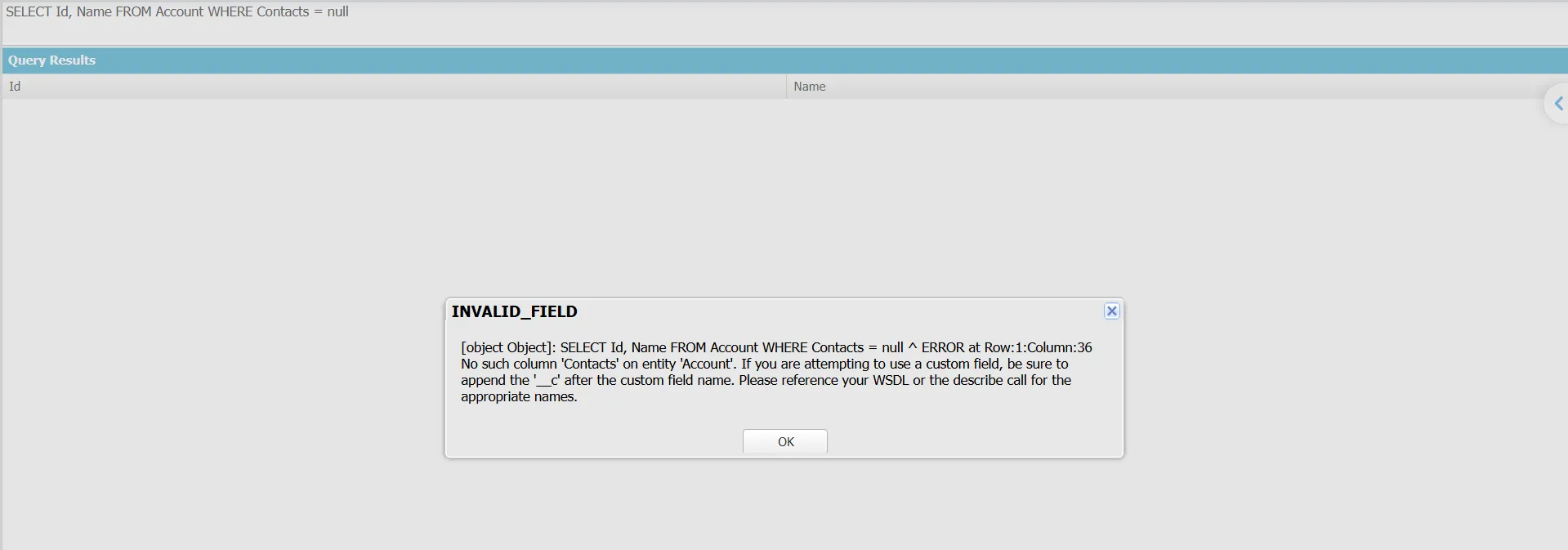
Contacts is a child relationship, not a field on Account that you can compare to null. Parent-to-child relationships are queried through subqueries.
This returns no rows:
SELECT AccountId, COUNT(Id) c
FROM Contact
GROUP BY AccountId
HAVING COUNT(Id) = 0
GROUP BY creates groups from Contact rows that exist. An Account with no Contacts has no Contact rows, so it never becomes a group.
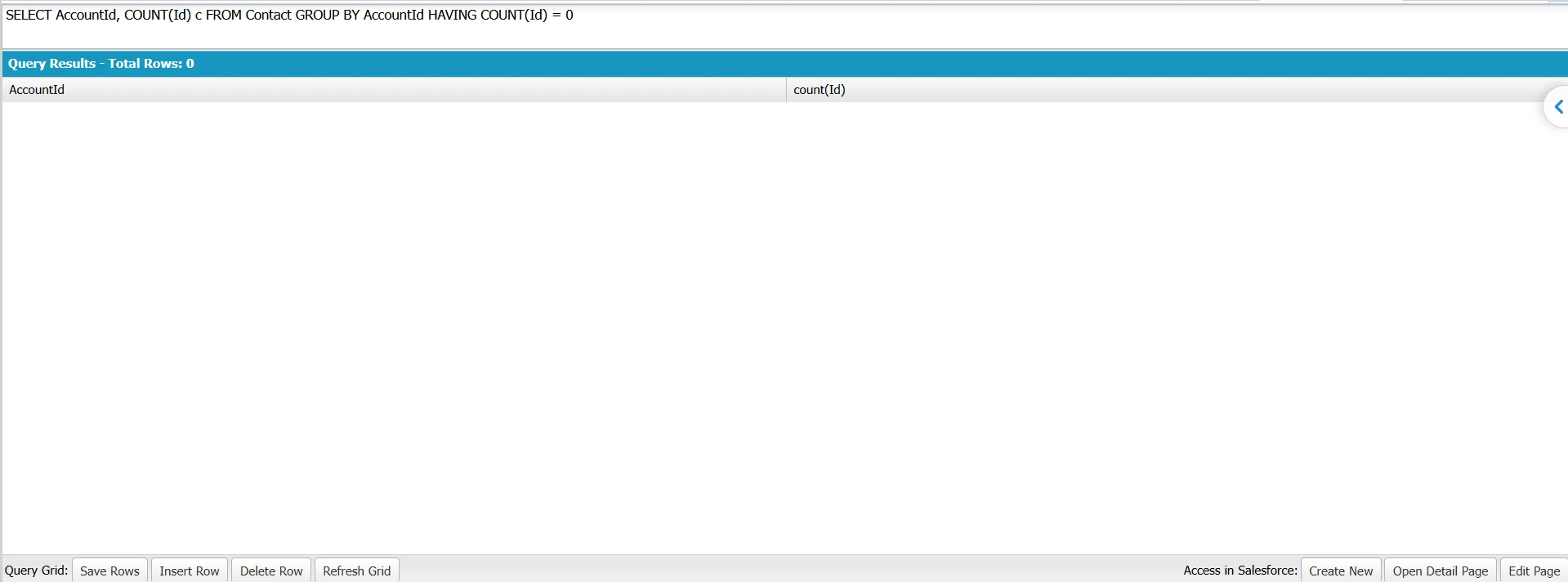
There is therefore no zero-count group for HAVING COUNT(Id) = 0 to match. Without the HAVING clause, the query returns only Account IDs that have at least one Contact.
This works:
SELECT Id, Name
FROM Account
WHERE Id NOT IN (SELECT AccountId FROM Contact)
The subquery returns the Account IDs that appear on Contact records. NOT IN then returns the Account records whose IDs aren’t in that set. This is an anti-join from Account to Contact.
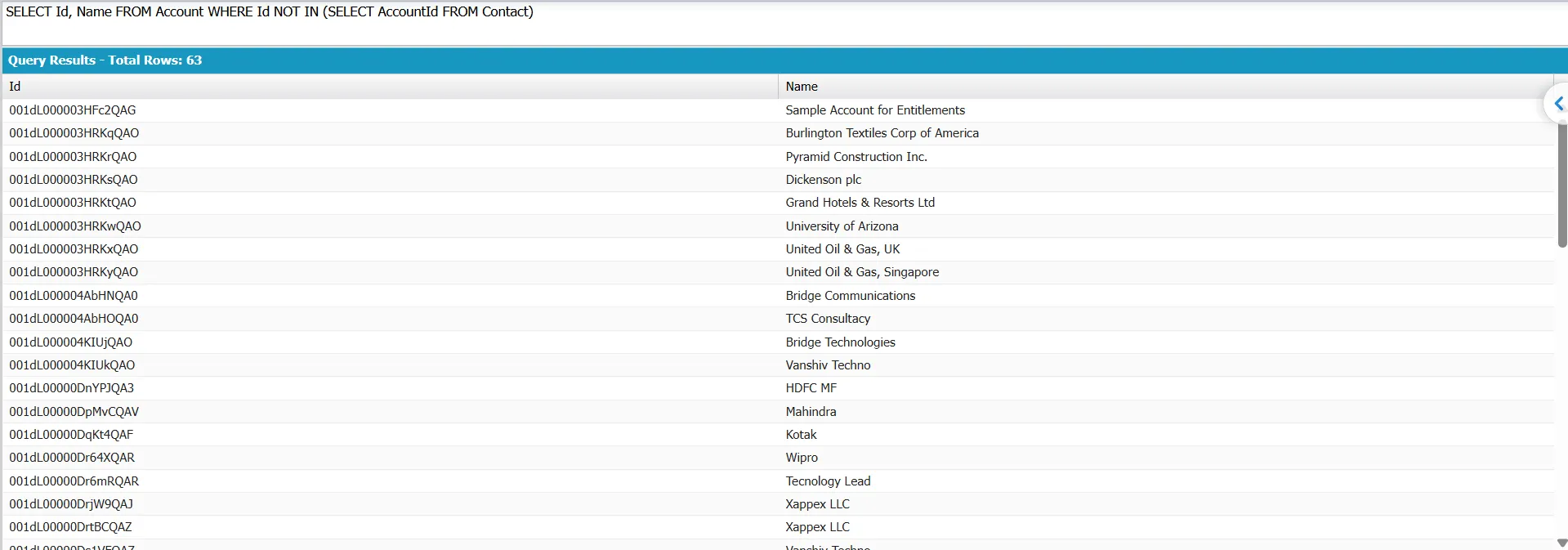
The query works because the outer query starts with Account records, each of which has its own Id, regardless of whether related Contact records exist.
For sorting results, use ORDER BY. See SOQL ORDER BY for the syntax and examples.
These checks only help if the results reach the person responsible for fixing the data. XL-Connector runs the same SOQL from Excel and returns the records to a worksheet, so admins can find and correct missing values in one place. It does not write empty cells back to Salesforce unless you explicitly allow null values. See updating fields with null values for details.
When null fields do not come back as null
Some integrations omit fields with null values from the response instead of returning the field with an empty value. This can break downstream checks that expect the field to exist. The SOQL query can be correct while the integration changes the response structure. A support case describes this behavior when an SOQL query does not return empty fields.
Salesforce does not officially document this as a general integration behavior. Verify the raw REST response before treating it as a Salesforce rule. Check whether the field is missing from the response or present with a null value.
Apex: check a field is not null before a SOQL query
In SOQL, != null filters records where a field has a value. In Apex, != null checks whether a variable or object reference has a value. The syntax is the same, but the checks serve different purposes.
A SOQL query returns a list, and that list is not null even when no records match. Use isEmpty() to check the result:
List<Contact> contacts = [SELECT Id FROM Contact WHERE Email != null];
if (contacts.isEmpty()) {
    // No matching records
}
Use String.isBlank() when null, an empty string, and whitespace should all count as blank:
if (String.isBlank(contact.Email)) {
    // Email is blank
}
Use ?. when a parent relationship may be null:
String accountName = contact.Account?.Name;This prevents a null pointer exception when Account is null.
Conclusion
SOQL uses = null and != null to check for null values. IS NULL and IS NOT NULL are not valid SOQL syntax, and null checks can behave differently depending on the field type or relationship.
Query performance also matters. On large objects, using != null as the only filter can make a query non-selective. Add a selective filter when you need to narrow the records returned.
FAQ
What is the difference between IS NOT NULL and != null in SOQL?
The intent is the same, but the syntax is different. IS NOT NULL is SQL syntax and is not valid in SOQL. Use != null in SOQL to return records where a field has a value. Using the SQL syntax causes a parser error.
How do I check for null values in a SOQL query?
Use null in the WHERE clause without quotes. WHERE Email = null returns records where Email has no value. WHERE Email != null returns records where Email has a value. This syntax works in Apex and tools that execute SOQL.
How do I write a SOQL query where a field value is null?
Use the field name, equals sign, and null in the WHERE clause. For example: SELECT Id, Email FROM Contact WHERE Email = null. Do not put null in quotes. For checkbox fields, = null works like = false because checkbox fields use true or false values.
How does SOQL handle blank strings versus null values?
Salesforce does not store an empty string as a separate value in most text fields. An empty value is treated as null, so = null and = '' can return the same records. A field containing a space is different because the space is a value. != null can therefore return records that appear blank.
How do nulls interact with NOT IN?
NOT IN does not remove records with null values. If you want to exclude both the listed values and nulls, add AND Field__c != null. This explicitly removes records where the field has no value.
Can you write a SOQL query with multiple AND and OR conditions on null fields?
Yes. Use parentheses to control how Salesforce evaluates the conditions. For example, WHERE (Email != null OR Phone != null) returns contacts with an email or phone number. Without parentheses, AND takes precedence over OR, which can change the results.
Why does my != null query return records that look empty?
Check whether the field contains a space, whether it is a checkbox, or whether the filter uses a relationship field. A space counts as a value, so != null matches it. For a checkbox, != null corresponds to true. Relationship fields can also behave differently when no related record exists.
Does != null make my query slower?
!= null can affect query selectivity, especially on objects with large data volumes. Salesforce indexes generally do not include null values, so null-related filters may require more records to be scanned. Combine the condition with a selective filter, such as an indexed field, when needed.

Rajeshwari Jain
Content Manager
Rajeshwari Jain is a Technical Support Specialist and Content Writer at Xappex. She applies her practical experience to assist customers and create articles on how Xappex tools work with Salesforce to improve data management and increase efficiency.
She began her IT career in 2022 as a Quality Assurance professional before transitioning into Salesforce administration and technical writing in 2023. With Salesforce Certified Administrator and Associate certifications, Rajeshwari writes blogs on Salesforce flows, admin tools, and updates to expand her skills outside of work.
In her free time, she enjoys reading tech blogs and experimenting with new tools.
Feel free to reach out to Rajeshwari for collaborations or to check out her Salesforce-focused content.