Get Started Free

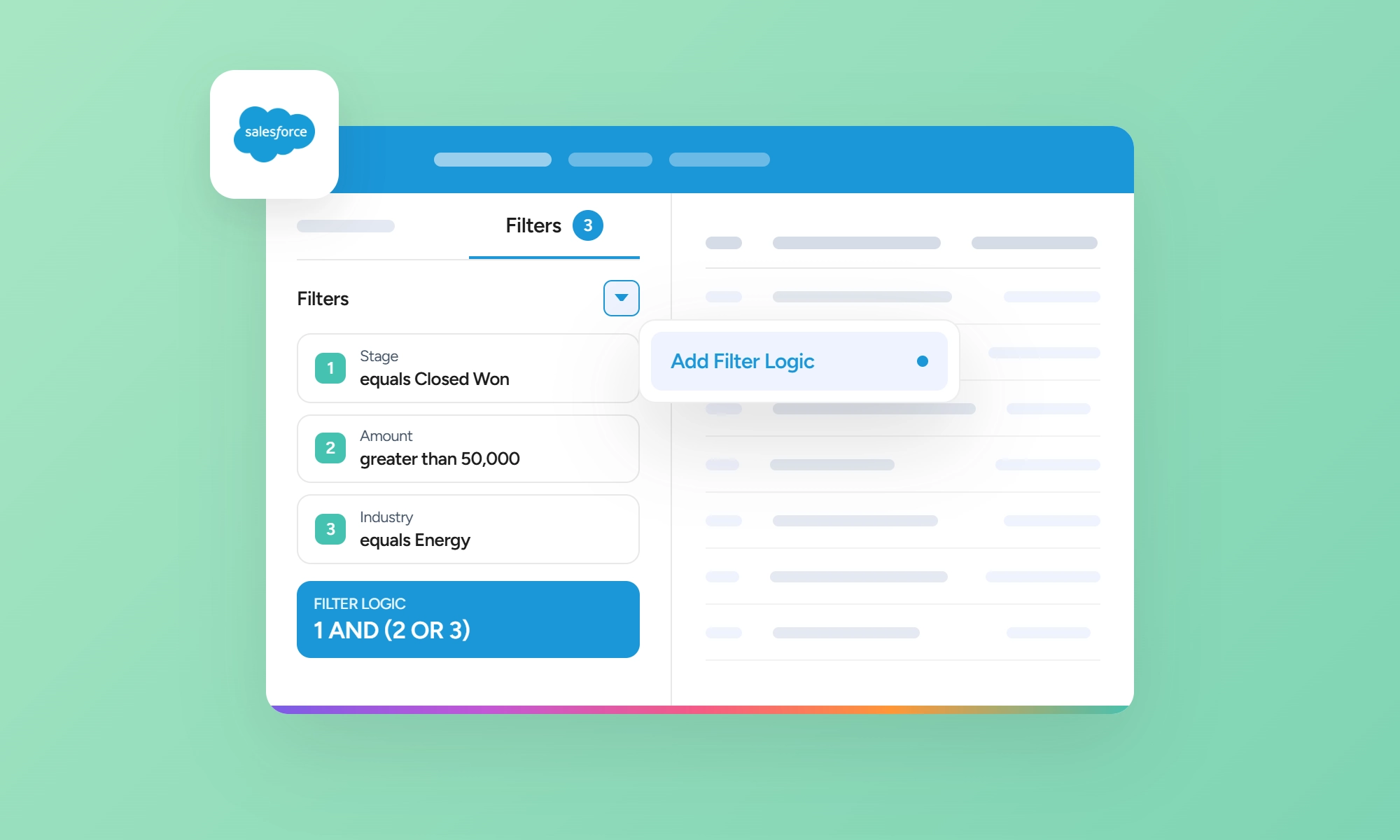
Filter logic in Salesforce controls how multiple report field filters combine. Salesforce numbers each field filter in the order you add it, and you can combine those numbers with AND, OR, NOT, and parentheses. For example, (1 AND 2) OR 3 returns records that meet Filters 1 and 2, or meet Filter 3.
What Is Filter Logic in Salesforce
Salesforce numbers field filters in the order you add them: Filter 1, Filter 2, Filter 3, and so on. By default, Salesforce applies AND between all field filters. Filter logic lets you change how Salesforce combines those filters by using AND, OR, NOT, and parentheses.
Filter logic applies only to field filters. Standard filters, such as Show Me and the standard date range filter, aren’t numbered and can’t be included in filter logic. If you need a field used by a standard filter in your logic, add that field as a separate field filter.
How Filter Logic Works (Examples)
Filter logic controls how Salesforce evaluates multiple field filters.
| Operator | What it does | Example |
|---|---|---|
| AND | Requires both conditions to match | 1 AND 2 |
| OR | Requires either condition to match | 1 OR 2 |
| NOT | Excludes records that match the condition | NOT 1 |
Salesforce also supports parentheses to group conditions, such as (1 OR 2) AND 3.
AND and OR example
Suppose an Opportunity report has these field filters:
-
1
Amount is greater than $100,000
-
2
Probability is greater than 50%
The default 1 AND 2 returns opportunities that meet both conditions.
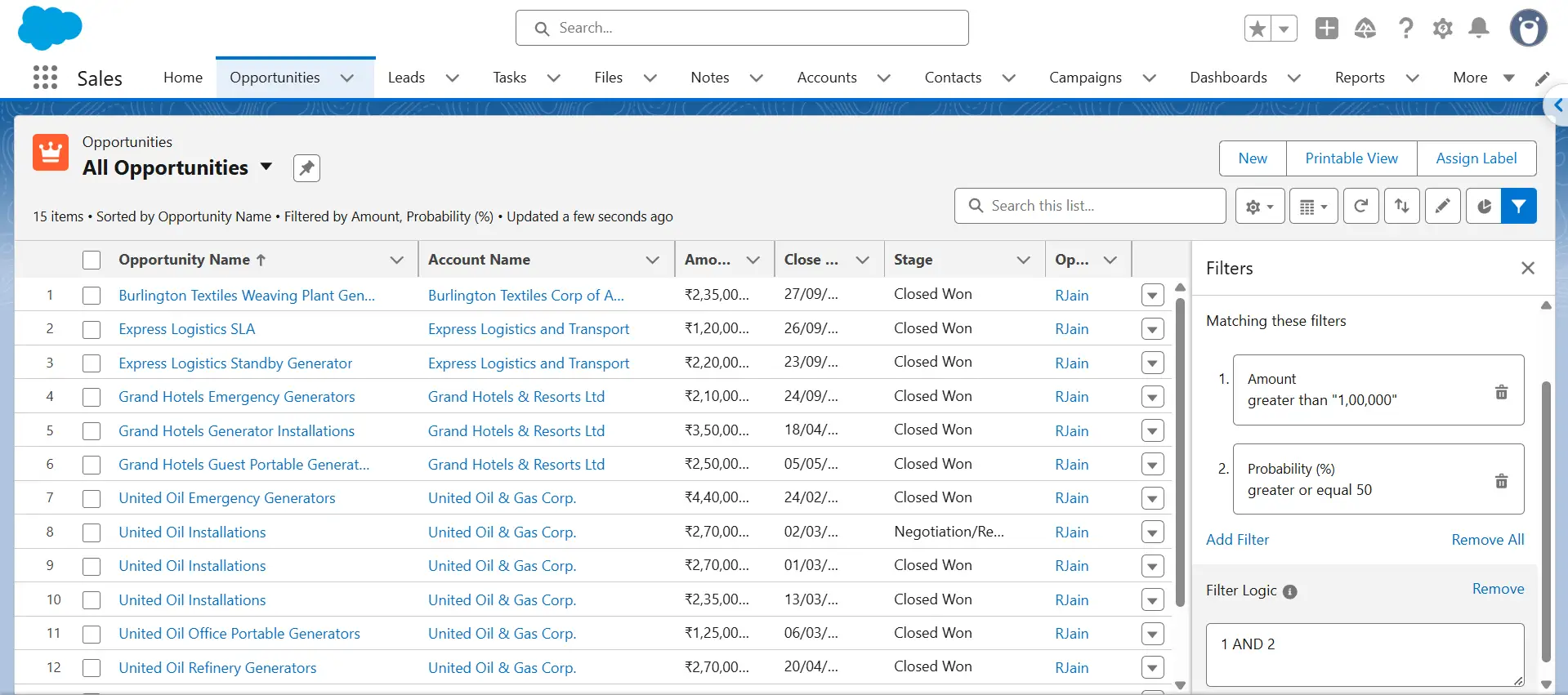
Changing the logic to 1 OR 2 returns opportunities that meet either condition or both.
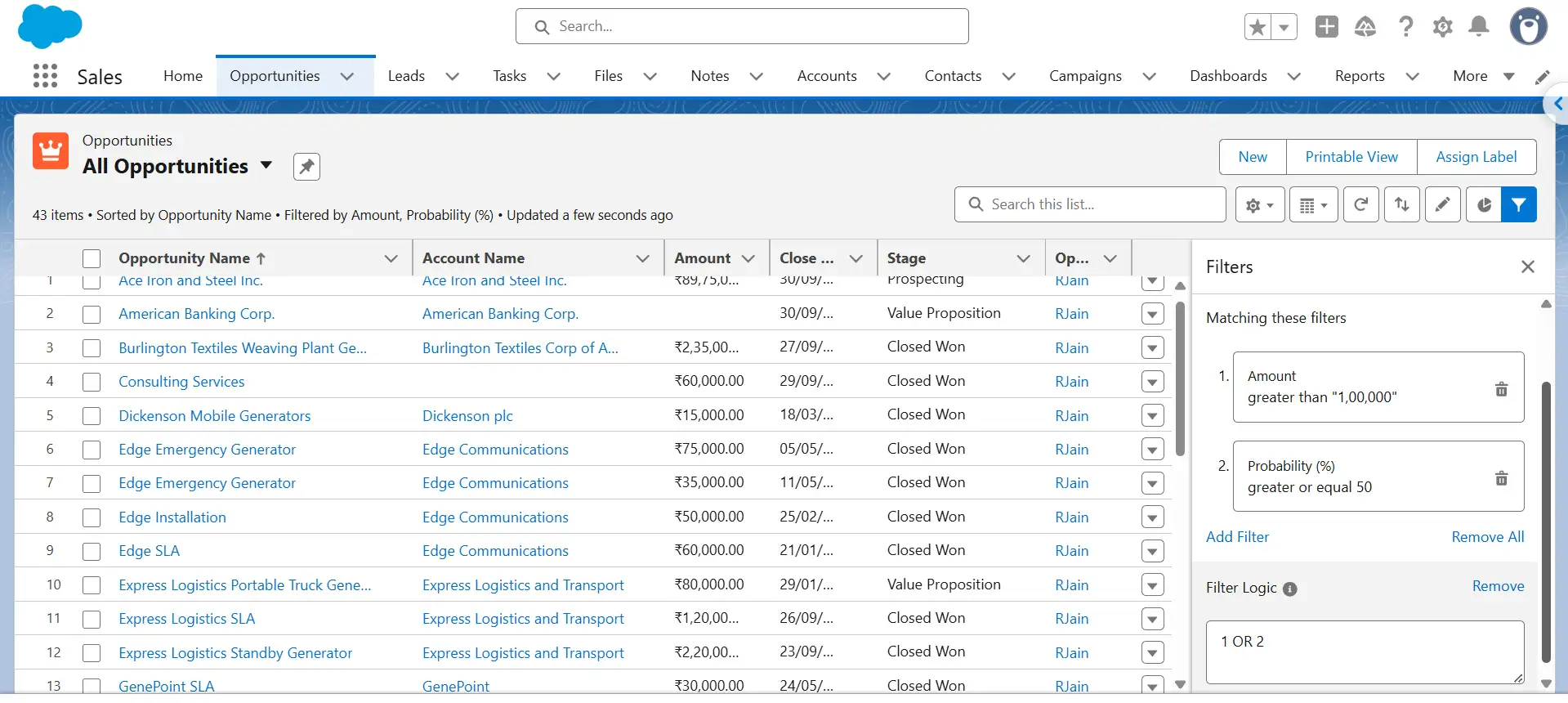
Probability is also available as a standard filter on Opportunity reports. Because standard filters can’t be included in filter logic, add Probability (%) as a field filter so it receives a number and can be used in the logic.
NOT example
Suppose Filter 1 is Stage equals Closed Won. Using NOT 1 excludes records that match that filter, so opportunities with Stage set to Closed Won are excluded from the report results.
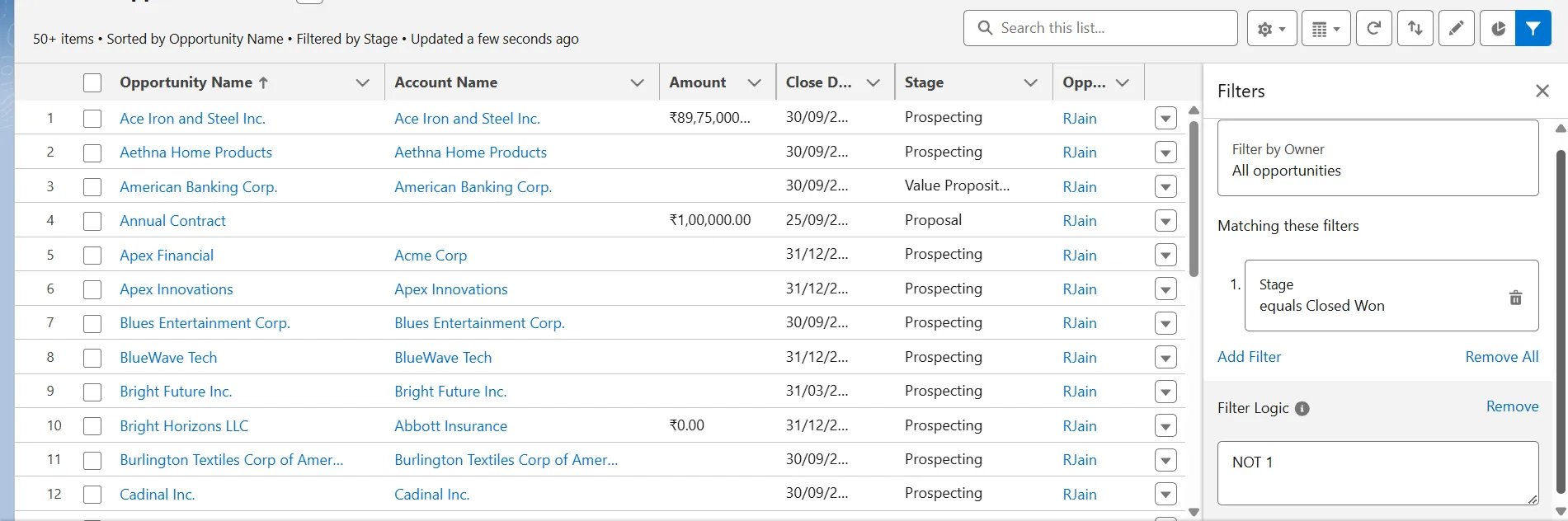
Relative date example
Filter logic also works with relative date values in field filters. For example, 1 AND 2 can combine Created Date equals LAST 30 DAYS with another field filter to return only records that meet both conditions. Some relative date values can behave differently in a field filter than in the report’s standard date range filter. For example, NEXT n DAYS includes today in a standard date filter but starts tomorrow in a field filter.
Commas vs. filter logic
A comma within one filter applies multiple values to the same field. For example, selecting Prospecting, Qualification for the Stage field matches opportunities in either stage.
Filter logic combines separate filters. For example, 1 OR 2 can combine an Amount filter with a Probability filter. The comma handles multiple values within one field filter, while filter logic controls how separate filters work together.
How to Add Filter Logic to a Salesforce Report
Filter logic lets you combine field filters with AND, OR, and NOT conditions in Salesforce reports and list views. This guide covers reports and list views, the two most common uses.
In Lightning Experience
-
1
Open the report and click Edit.
-
2
Open the Filters pane.
-
3
Add the field filters you need. Salesforce assigns each filter a number, such as 1, 2, and 3.
-
4
Click the filter actions icon next to Filters and select Add Filter Logic.
-
5
Enter the logic using the filter numbers and operators such as AND, OR, and NOT. Use parentheses to group conditions when needed.
-
6
Click Apply, then save the report.
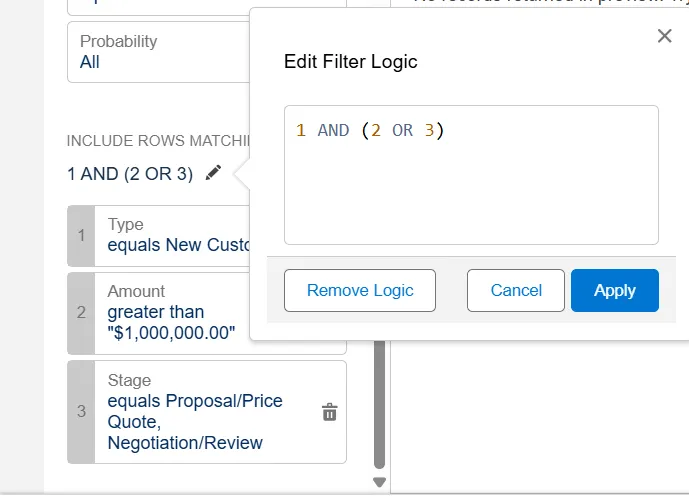
For example, 1 AND (2 OR 3) returns records that meet filter 1 and either filter 2 or filter 3. Filter logic applies to field filters; standard report filters can’t be included in the filter logic.
Here’s an example using the Opportunities standard report type.
Goal: Find open new-business opportunities closing this quarter that are either worth more than $1M or are in a late stage.
Standard filters: These aren’t included in filter logic.
- Show Me: All Opportunities
- Close Date: Current FQ
- Opportunity Status: Open
Field filters: These are numbered.
| Field | Operator | Value |
|---|---|---|
| Type | equals | New Customer |
| Amount | greater than | 1000000 |
| Stage | equals | Proposal/Price Quote, Negotiation/Review |
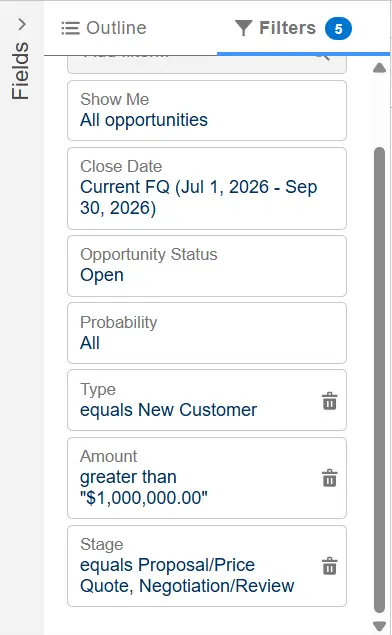
Filter logic: 1 AND (2 OR 3)
This returns new-business opportunities worth more than $1M or in one of the specified stages. Without filter logic, Salesforce combines the field filters with AND, so an opportunity must meet all three conditions.
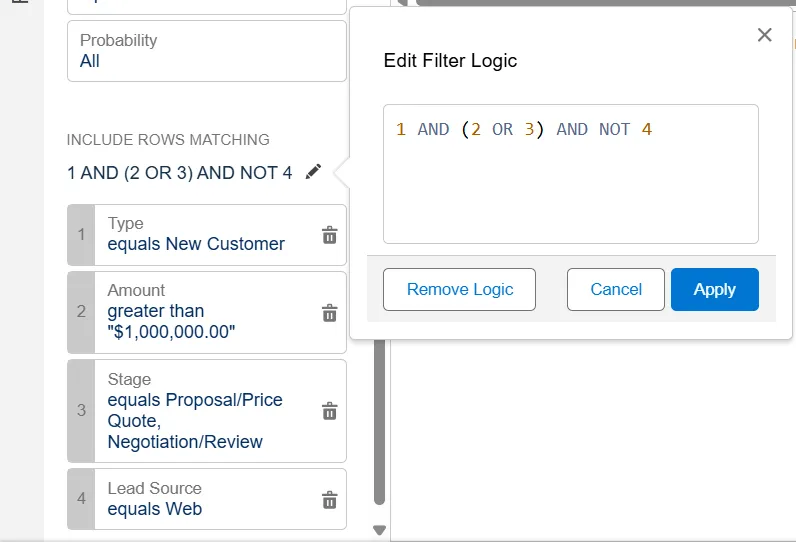
To exclude Web-sourced opportunities, add Filter 4:
Lead Source equals Web
Then use:
1 AND (2 OR 3) AND NOT 4
The fields you use as filters must be available in the report type. For example, the Opportunities report type doesn’t provide product-level fields. Use Opportunities with Products when you need to filter on product information.
Cross filters and row-limit filters are separate from field-filter logic. Salesforce supports up to 20 field filters per report, but not every field filter can be used in filter logic.

Tip
Filter logic applies only to numbered field filters. Standard filters aren’t included. If filter logic isn’t available, check that you have at least one field filter and that none of the filters use unsupported fields, such as roll-up summary fields.
In Salesforce Classic
-
1
Open the report and click Customize.
-
2
Add the field filters you need in the Filters section.

-
3
Click Add, then select Filter Logic.
-
4
Enter the filter numbers with AND, OR, and NOT. Use parentheses when you need to group conditions.
-
5
Click OK, then run or save the report.
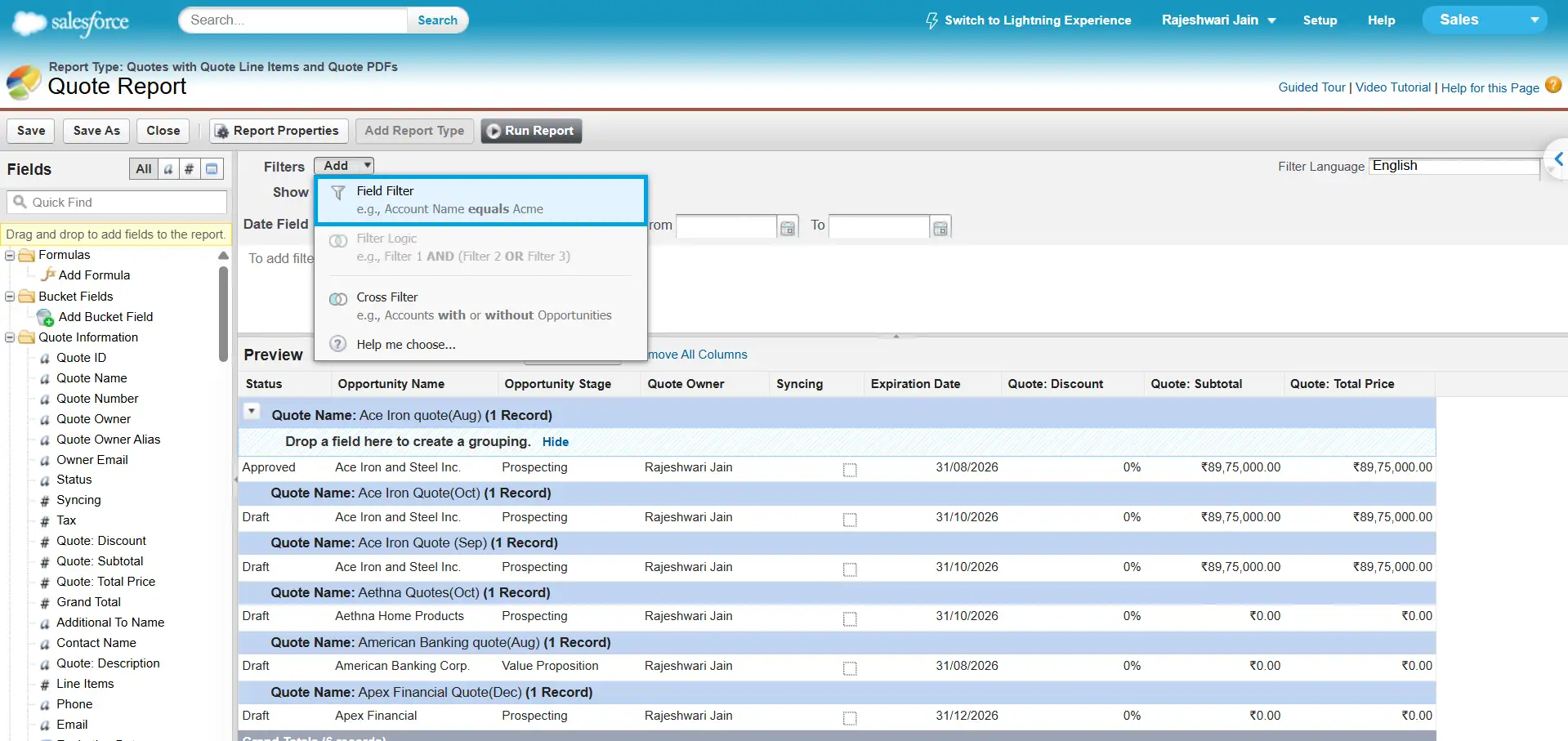
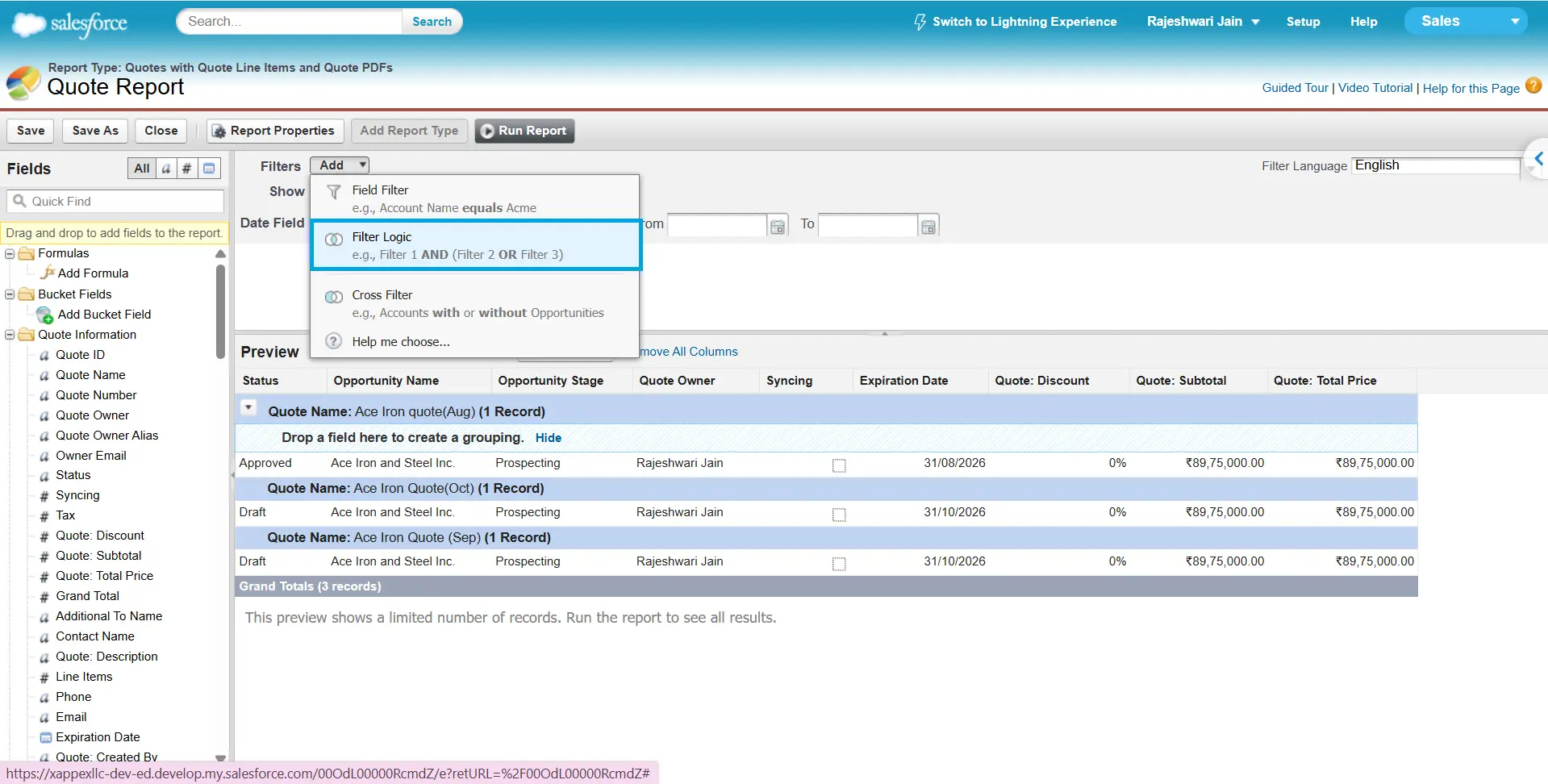
Salesforce assigns a number to each field filter. Use those numbers in the filter logic expression and include every filter that you want Salesforce to evaluate.
Example: Accounts Report
Suppose you want to show accounts that are either customers in California or prospects in New York.
Add these field filters:
-
1
Type | equals | Customer – Direct
-
2
Billing State/Province | equals | CA
-
3
Type | equals | Prospect
-
4
Billing State/Province | equals | NY
Then add this filter logic:
(1 AND 2) OR (3 AND 4)
This returns accounts that are Customer – Direct accounts in California or Prospect accounts in New York.
How to Add Filter Logic to a List View
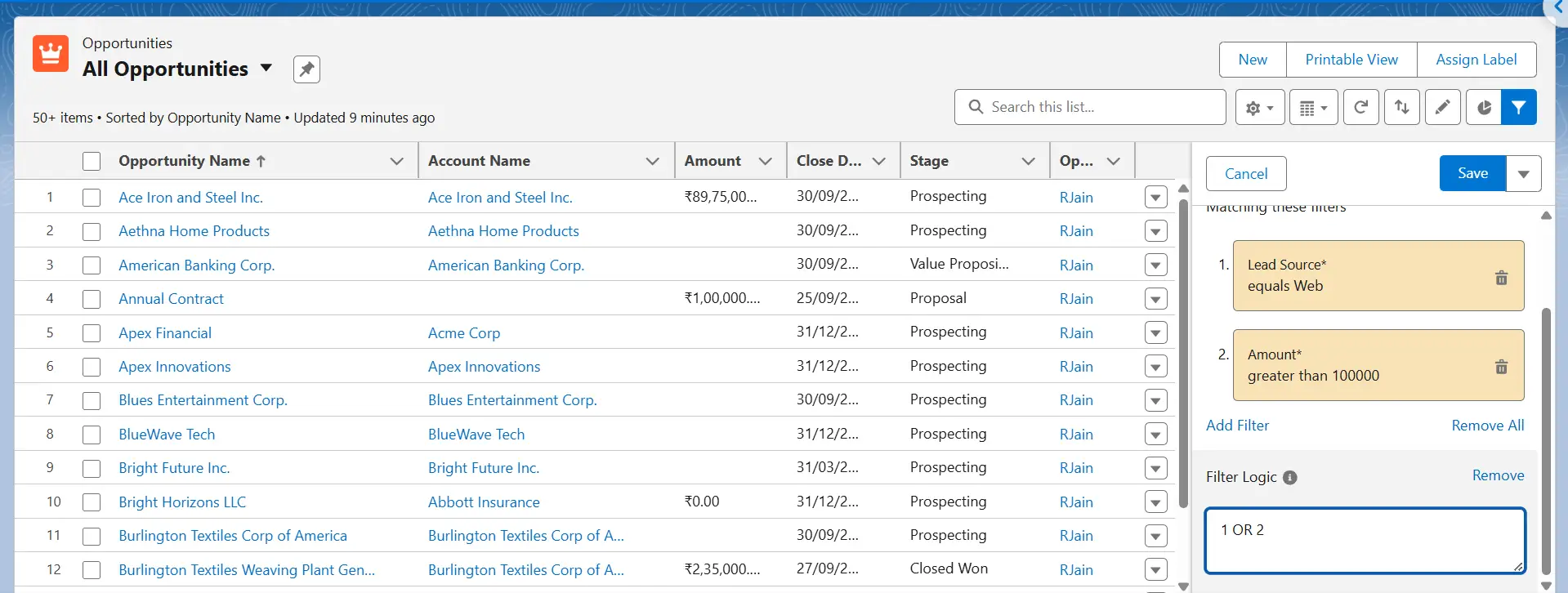
The process is similar in Lightning Experience:
-
1
Open the object tab and select the list view you want to edit.
-
2
Click the Filters icon to open the filter panel.
-
3
Add the field filters you need.
-
4
Click Add Filter Logic. Enter the logic using the filter numbers and AND or OR. Use parentheses to group conditions, and include every filter number in the expression.
-
5
Click Done, then save the list view.
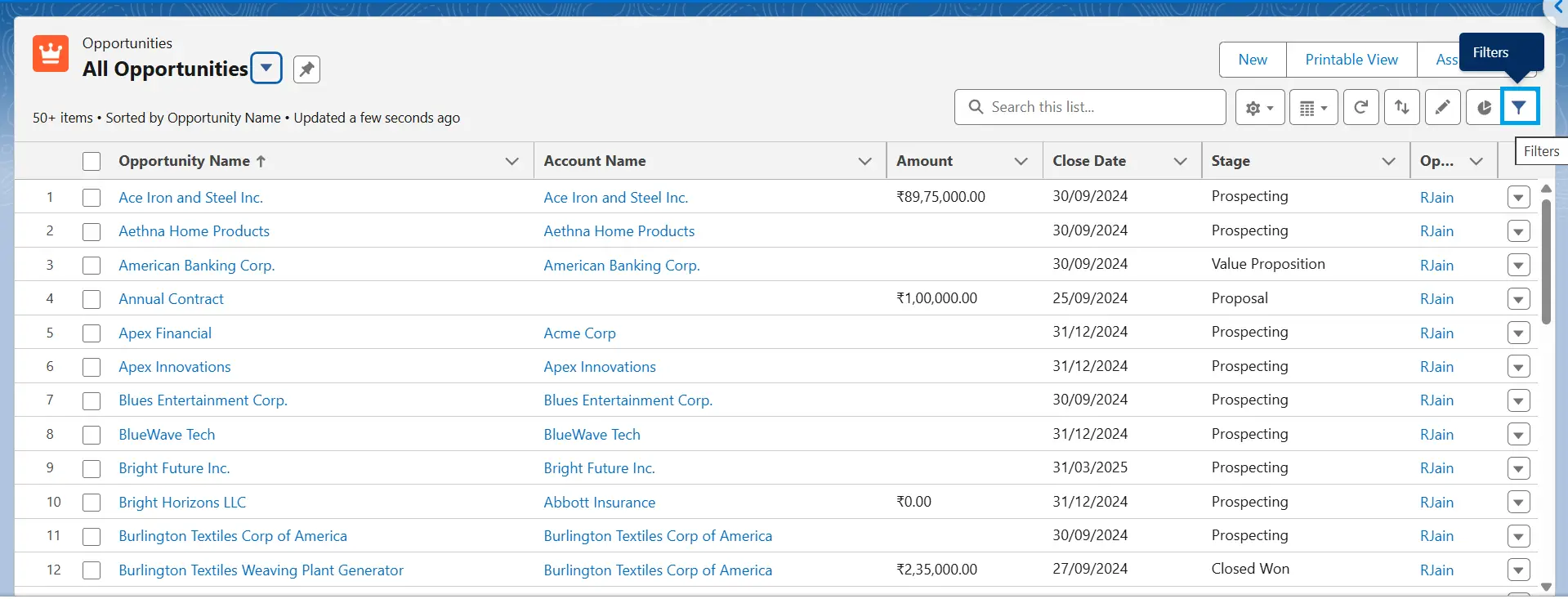
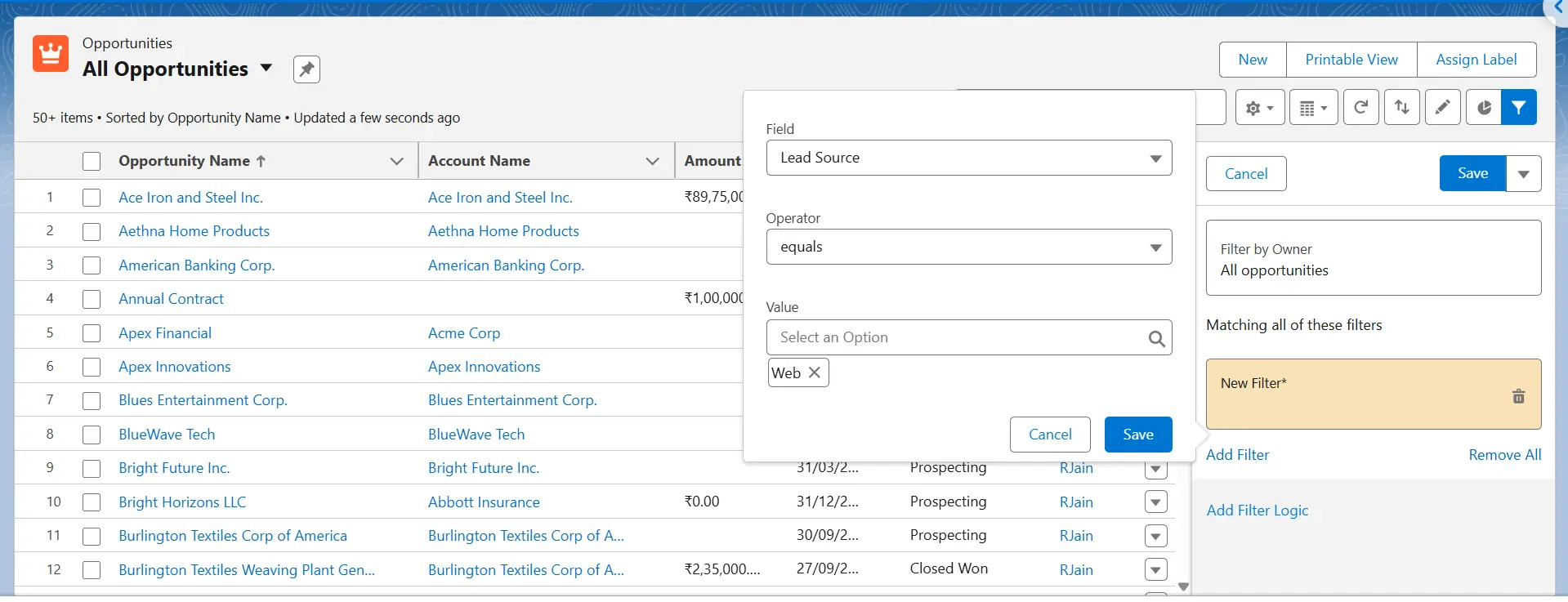
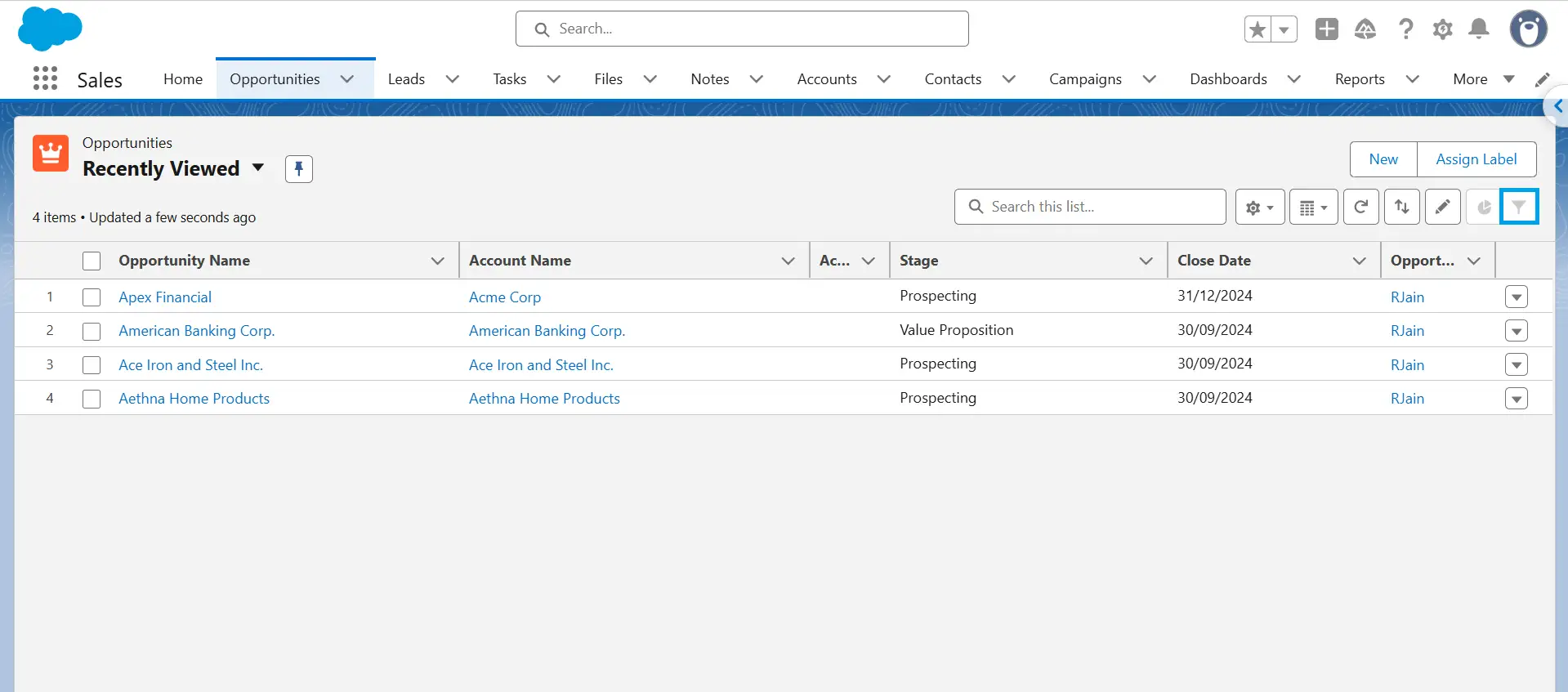
The Recently Viewed list view also doesn’t allow additional filters. For more details, see Salesforce Help: Edit List View Filters in Lightning Experience.
Salesforce also supports NOT in list-view filter logic, but it has a documented limitation with parentheses. For example, 1 AND NOT (2 AND 3) is evaluated as 1 AND (NOT 2 AND 3), which can produce unexpected results. Avoid using NOT with parenthetical expressions in a list view.
How to Combine Multiple Filter Logic Conditions (Nested AND/OR)
When you combine AND and OR in Salesforce filter logic, use parentheses to define each logical group explicitly. Without the required grouping, Salesforce can reject the expression with an invalid filter logic error.
Group your conditions explicitly
Consider 1 AND 2 AND (3 AND 4) OR (5 AND 6). This does not keep filters 1 and 2 tied to both OR branches, and Salesforce can reject this structure with a filter logic error. If filters 1 and 2 must always apply, followed by either the 3-and-4 pair or the 5-and-6 pair, use 1 AND 2 AND ((3 AND 4) OR (5 AND 6)).
Mandatory + optional blocks
Use separate parentheses for mandatory conditions and the group of alternative conditions. For example, (1 AND 2 AND 3) AND (4 OR 5 OR 6 OR 7 OR 8 OR 9) requires filters 1–3 and at least one of filters 4–9.
Tip
Write the logic string on paper first. Resolve the innermost groups, then work outward.
Filter Logic Limitations You Should Know
You can’t apply filter logic to standard report filters.
- A report supports up to 20 custom field filters. Salesforce numbers custom field filters in the order you add them, and filter logic can reference those numbered filters. Standard filters, such as Show Me and date filters, can’t be included in filter logic.
- Filter logic isn’t available for every field. Some field filters can be added to a report but can’t be referenced in filter logic. Salesforce lists roll-up summary fields as one example. Other restricted fields include Topics, certain Address fields, Forecast Category, Campaign Member Type, User Profile Name, Login Status, custom long text area fields, Old Value and New Value fields, and composite fields such as Full Name.
- OR can’t cross objects when the relationship is optional. In report types where object A may or may not have a related object B, you can’t use OR to filter across multiple objects. For example, Account Name starts with M OR Contact First Name starts with M returns an error indicating that the filter criteria are incorrect.
- Cross filters can’t be included in filter logic. Filter logic applies only to field filters. Cross filters work separately and have an AND relationship with the report type and other filtering criteria. A report supports up to 3 cross filters, with up to 5 subfilters per cross filter.
Common Filter Logic Errors and How to Fix Them
Filter Logic option is greyed out
Start with the field filters: filter logic requires at least one field filter. Standard filters such as Show Me and the standard date filter aren’t numbered and can’t be referenced in filter logic. If you need to use a condition from a standard filter in your expression, add the relevant field as a separate field filter when Salesforce supports it.
Cross filters are separate from field filters and aren’t referenced by filter-logic expressions. If your report uses only cross filters and has no field filters, you can’t add filter logic. Add a field filter if the reporting requirement calls for filter logic.
Check the filter count if you can’t add another field filter. A report supports up to 20 field filters. Where several values apply to the same field, use one filter with multiple values instead of creating a separate filter for each value.
If a field isn’t supported by filter logic, don’t assume that a formula or bucket field will always solve the problem. Check the specific limitation first. Bucket fields can be filtered, but they have their own availability requirements, and formula fields aren’t supported in every reporting feature.
Users can't see or use filter logic at all
If users can’t create or edit reports with filter logic, check their report permissions. Salesforce requires Create and Customize Reports and Report Builder to create, edit, and delete reports.
Can't use filter logic with certain field types
Some fields can’t be referenced in filter logic. If your logic includes one of these fields, remove it from the logic or restructure the report so the logic doesn’t depend on it. For the full list of restricted fields, see Filter Logic Limitations You Should Know.
Matching multiple values on the same field
If you want a field to match several values, use a single filter with multiple values rather than separate filters joined with OR. Separate the values with commas — for example, State contains CA,NY,WA.
Can't use OR across two related objects
This happens when your filter logic tries to OR across two optionally-related objects (see Limitations above). Use a different report structure or separate reports to handle the conditions
List view filter logic returns no results or wrong results
Experienced Cloud site users can get no results or unexpected results when they don’t have access to all fields used in the list view’s filter logic. Give the user at least Read field-level security for every field used in the filter logic, or remove inaccessible fields from the filter.
Best Practices for Filter Logic
-
Add all field filters before writing the logic. Salesforce numbers field filters in the order you add them. The first filter is Filter 1, the second is Filter 2, and so on. Because filter logic uses these numbers, review the expression if you add or remove filters.
-
Know what filter logic can’t use. Filter logic works with field filters, not standard report filters such as Show Me and the standard date filter. You can add up to 20 field filters, but not every field filter can be used in filter logic. For example, roll-up summary fields and some other field types can’t be referenced. If you need a value from a standard filter in your logic, add the same field as a field filter when supported.
-
Use filters to reduce the records the report evaluates. Remove unnecessary data with filters. Report performance can depend on filter selectivity, available indexes, and how much the filter reduces the number of records. Keep the logic as simple as possible.
-
Use exact-value operators when appropriate. Use equals instead of contains when you need to match specific values. Negative operators such as does not equal and does not contain can’t use an index to drive the query. On large objects, they can contribute to slow reports or timeouts. When possible, filter for the values you want instead of excluding values.
-
Keep complex OR conditions under control. OR conditions can affect query optimization. For an index to drive a query with an OR condition, the fields involved must be indexed and meet the applicable selectivity requirements. Use OR when the reporting requirement calls for it, but avoid unnecessary complexity.
-
Use separate reports or dashboard filters when team-specific conditions become difficult to maintain. If multiple teams use the same report, consider whether their conditions should stay in one filter expression or be handled separately. This is a maintainability decision, not a Salesforce requirement.
-
Watch for case-sensitive filtering. Report filters are case-sensitive, so the filter matches the exact text and case you enter.
For example, State contains ID matches ID and IDAHO, but not Idaho or Florida. Idaho contains Id, while Florida contains id, so neither matches uppercase ID.
Case-sensitive filtering can also return unexpected matches. Department contains IT matches IT Support, but it also matches CREDIT RISK because CREDIT contains the uppercase IT.
-
Know the long text area search limit. When you filter standard long text area fields such as Description, Salesforce searches only the first 1,000 characters for matches.
Don't Have Edit Rights on This Report?
G-Connector’s Fields & Filters dialog shows your Salesforce report filters as read-only. Add your own filters to narrow the data in your sheet without changing the report in Salesforce. G-Connector saves these filters and reapplies them when you refresh.
This feature is now available in G-Connector, XL-Connector 365, and XL-Connector.
Conclusion
Filter logic is simple when you use a few conditions, but parentheses become important when you combine AND and OR. If the results aren’t what you expect, check the filter logic, supported filters, and the user’s report permissions and access. For Experience Cloud users, also check field-level security for every field used in the list view filters.
FAQ
Why can't I enable filter logic on my report?
Filter logic works with numbered field filters, so your report needs at least one field filter. Standard filters, such as Show Me and date filters, aren't numbered and can't be used in filter logic.
Why can't my users apply filter logic on reports?
Users need Create and Customize Reports and Report Builder to edit reports and change their filter logic. With Enhanced Folder Sharing, Edit My Reports lets users save and edit reports they created even when they have only Viewer access to the folder. Users who need to edit reports created by others can use Editor or Manager folder access, or Manage Reports in Public Folders for public folders.
Can I combine two separate filter logic conditions?
Yes. Use one filter logic expression with parentheses to group conditions, connected by AND, OR, or NOT. For example, if filters 1–3 must all match and at least one of filters 4–9 must match, use 1 AND 2 AND 3 AND (4 OR 5 OR 6 OR 7 OR 8 OR 9). You can also nest parentheses, such as 1 AND (2 OR (3 AND 4)). Filter logic applies only to numbered field filters, not standard filters such as Show Me or the date range.
Why doesn't filter logic work correctly in a list view?
For Experience Cloud site users, a list view that uses filter logic can return no results or unexpected results if the user can't access one or more fields used in the filters. The user needs at least Read Only field-level security access to every field used in the filter logic. Grant the required access through the user's profile or permission set, or remove the inaccessible fields from the filters.



Rajeshwari Jain
Content Manager
Rajeshwari Jain is a Technical Support Specialist and Content Writer at Xappex. She applies her practical experience to assist customers and create articles on how Xappex tools work with Salesforce to improve data management and increase efficiency.
She began her IT career in 2022 as a Quality Assurance professional before transitioning into Salesforce administration and technical writing in 2023. With Salesforce Certified Administrator and Associate certifications, Rajeshwari writes blogs on Salesforce flows, admin tools, and updates to expand her skills outside of work.
In her free time, she enjoys reading tech blogs and experimenting with new tools.
Feel free to reach out to Rajeshwari for collaborations or to check out her Salesforce-focused content.