Get Started Free

To assign a page layout to a record type in Salesforce, open Object Manager, select the object, and go to Page Layouts. Click Page Layout Assignment, select the profile and record type, choose the page layout, and save. Use the same screen to change an existing page layout assignment.
What Page Layout Assignment Actually Controls
A record type defines the business process, available picklist values, and page layout options for an object. A page layout controls which fields, sections, buttons, and other elements users see on a record.
Page Layout Assignment connects a page layout to a specific profile and record type. Each profile can have one page layout for a record type, while different profiles can use different layouts for the same record type.
This setting is separate from making a record type available to a profile. That setting determines whether the profile can use the record type at all. See our guide to when you first create the record type for more details.

Tip
If you need a new page layout, clone an existing one instead of starting from scratch. Go to Object manager >Select Object >Page Layouts > New, select a layout to clone, enter a name, and click Save.
Steps to Assign the Layout
You can assign a page layout from the object’s Record Types or Page Layouts section in Setup. Both options open the same Page Layout Assignment screen.
Option 1: From the Record Type Page
-
1
In Setup, go to Object Manager and open the object.
-
2
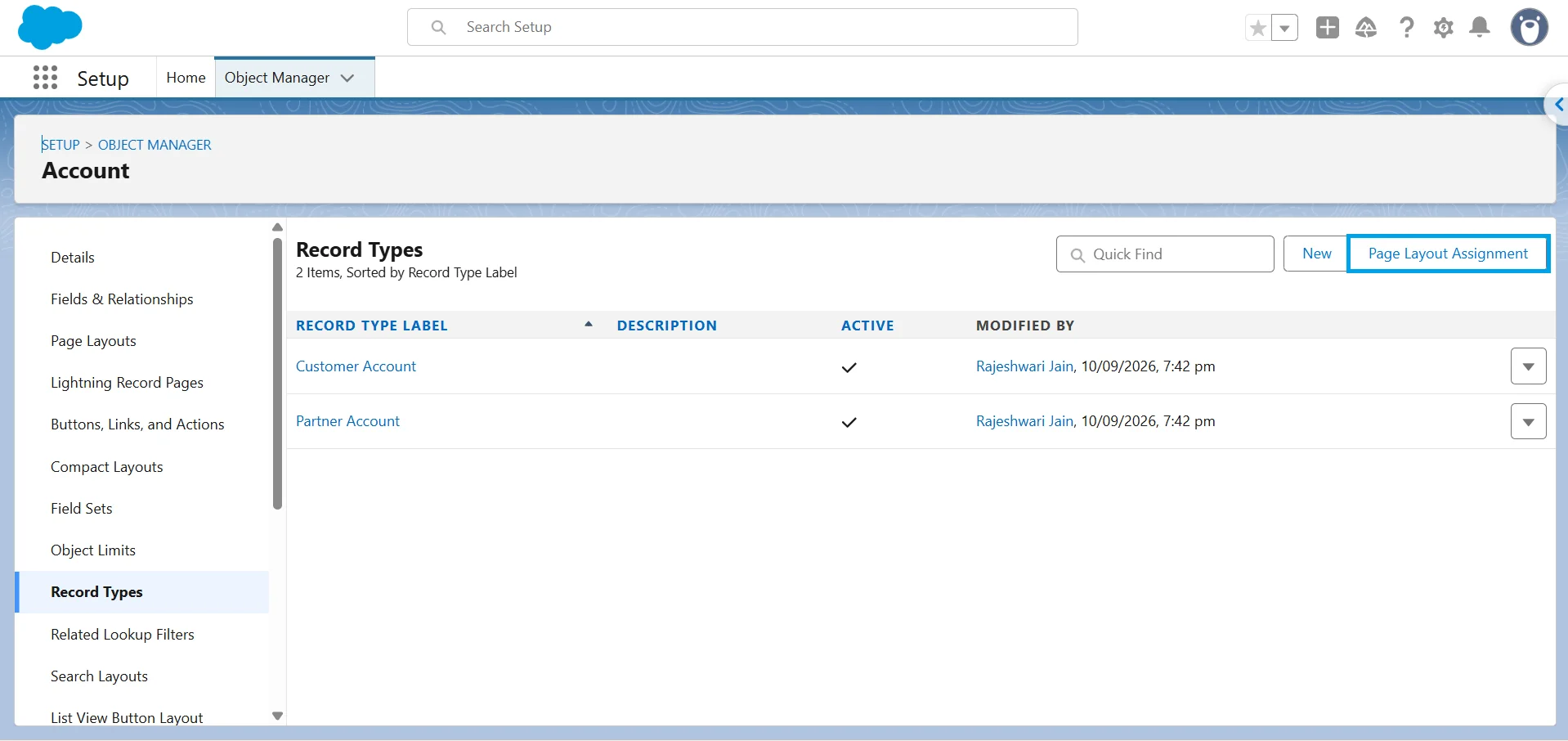
Click Record Types, then click Page Layout Assignment.

-
3
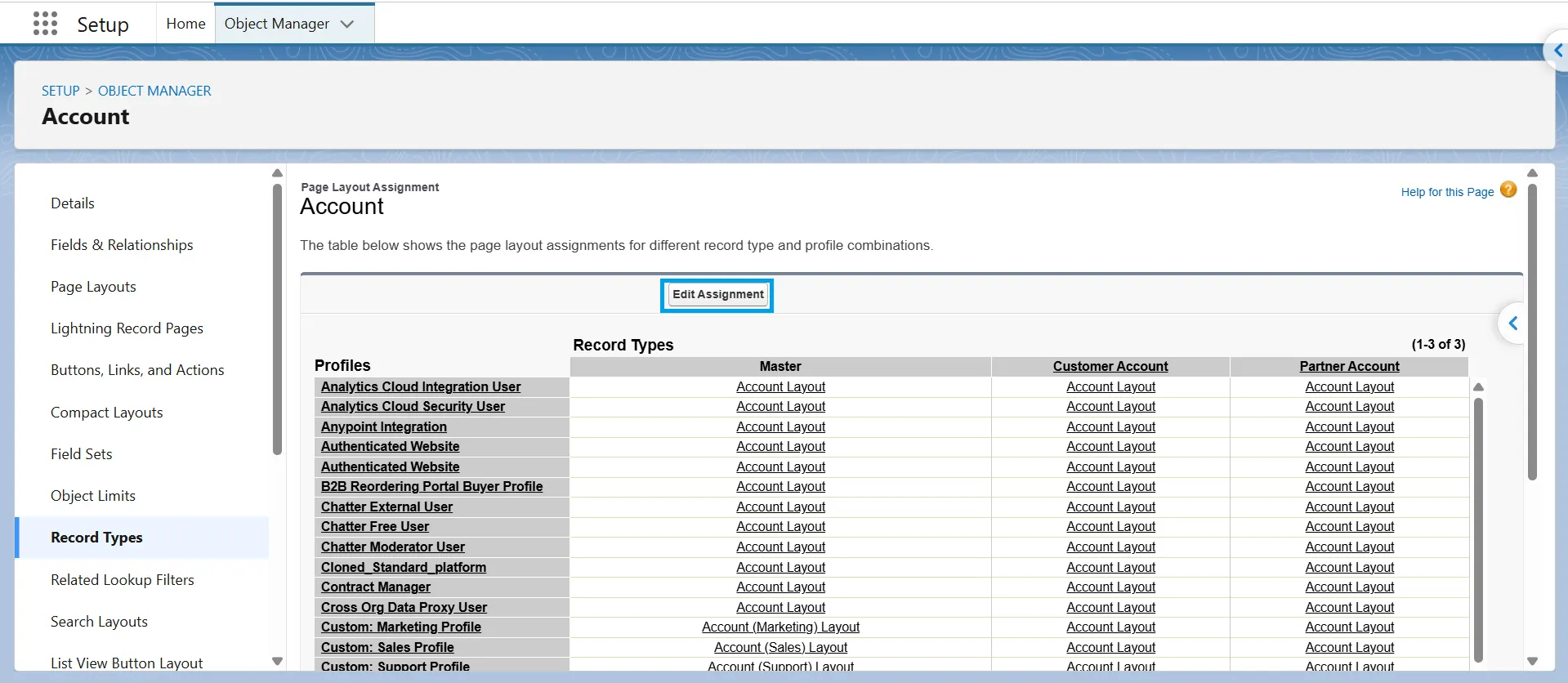
Click Edit Assignment.
-
4
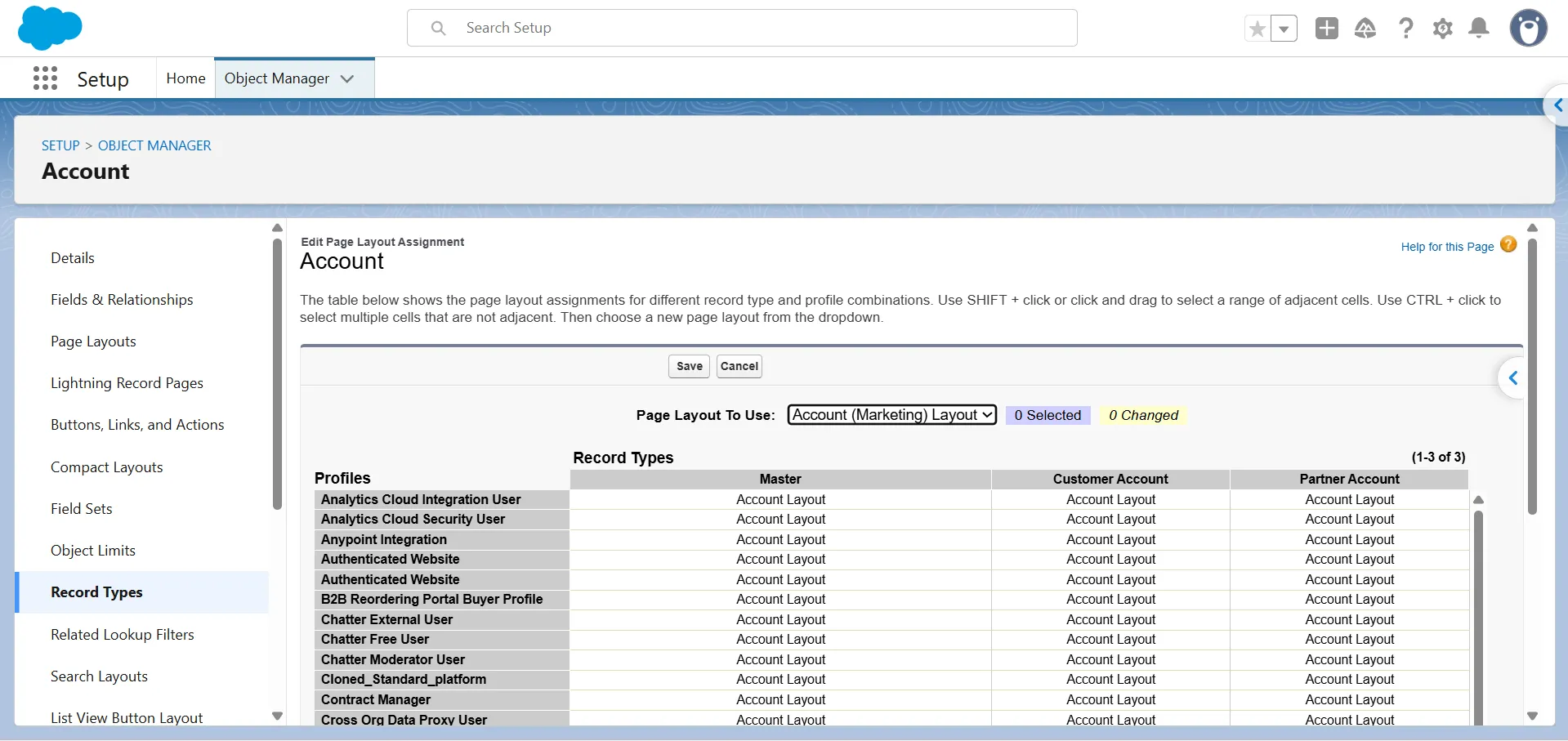
In the matrix, select the cells for the profiles and record types you want to update.
-
5
From Page Layout To Use, select the page layout.
-
6
Click Save.
Tip
You can select multiple cells in the matrix and assign the same page layout to all of them at once. This can include multiple profiles or multiple profile and record type combinations.
The assignment is based on the profile and record type combination, not the record type alone.
| Profile | Sales Account (Record Type) | Service Account (Record Type) |
|---|---|---|
| System Administrator | Sales Layout | Service Layout |
| Sales User | Sales Layout | Account Layout (default) |
| Support User | Account Layout (default) | Service Layout |
Option 2: From the Page Layouts List
-
1
From Setup, go to Object Manager and open the object.
-
2
Click Page Layouts.
-
3
Click Page Layout Assignment at the top of the list.
-
4
Click Edit Assignment and follow the same steps as Option 1.
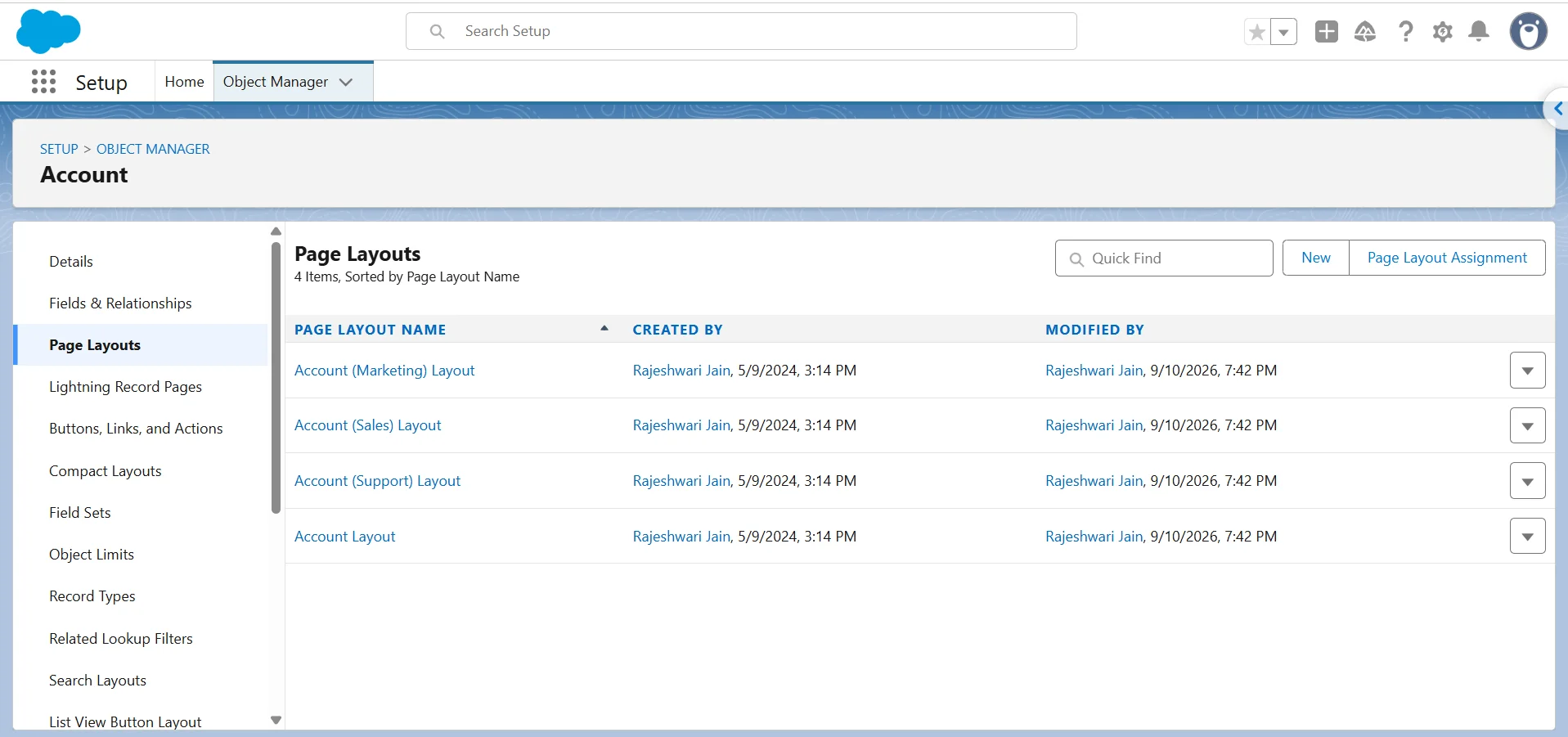
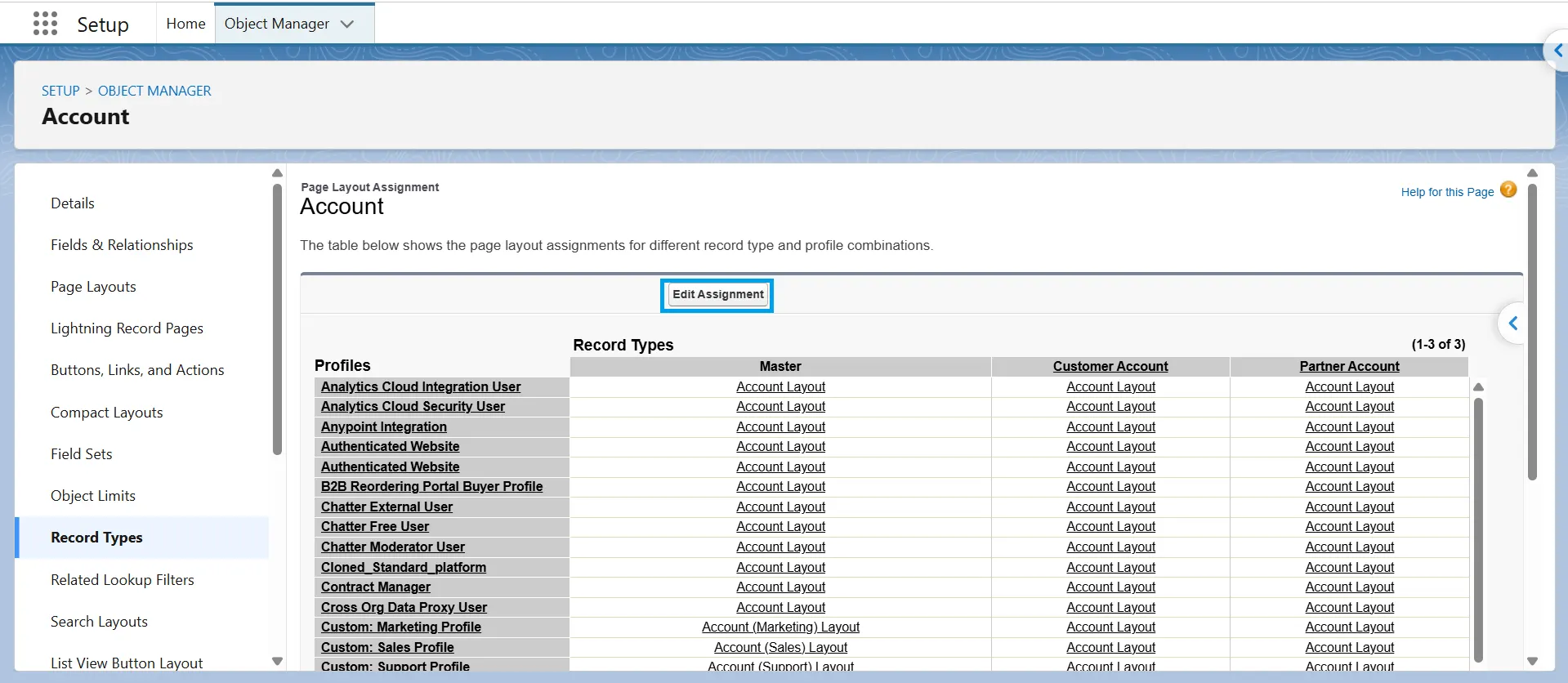
Both options open the same Page Layout Assignment screen. Use either option based on where you are in Setup.
How to Change an Existing Page Layout Assignment
To change an existing assignment, use the same Edit Assignment screen. Select the profile and record type cell with the current layout, choose a new layout from the dropdown, and click Save. Salesforce replaces the existing assignment immediately; there is no separate process for changing it.
Giving a page layout the same name as a record type does not link them automatically. You must assign the page layout to the record type through Edit Assignment.
How to Verify the Assignment Worked
Test the assignment by creating a new record with the relevant record type. This confirms that Salesforce is using the page layout you assigned.
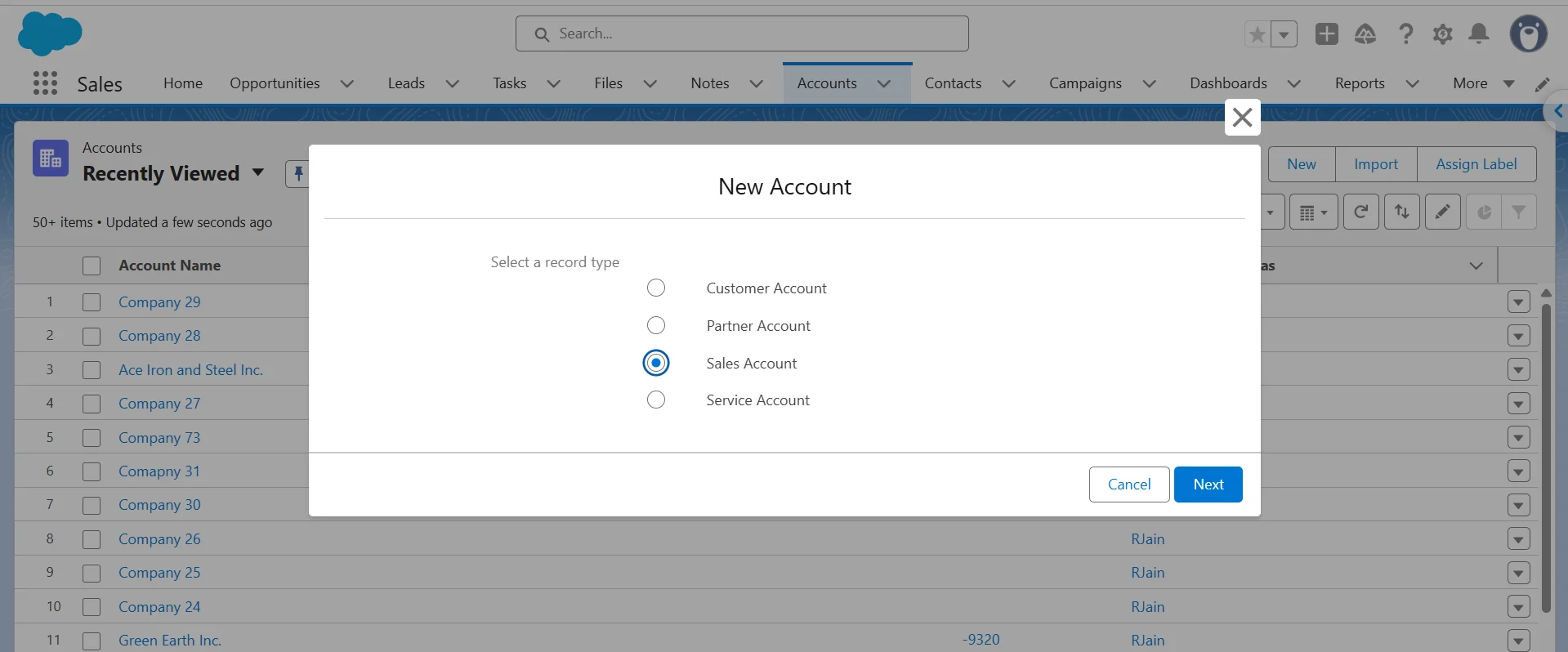
For example, suppose the Account object has four record types:Customer Account, Partner Account, Sales Account, and Service Account. The Sales Account layout includes an SLA-related field that the Service Account layout does not. Use these steps to confirm each record type shows its assigned layout.
-
1
Go to the Accounts tab and click New.
-
2
If Salesforce shows a record type selection dialog, select Sales Account and click Next. If only one record type is available, Salesforce may skip this step.
-
3
Check the fields on the new record. The SLA-related field should appear, since it’s included on the assigned Sales Account layout.
-
4
Repeat the test with Service Account. Confirm its assigned fields appear instead, and that the SLA-related field does not show up.
Why the Page Layout Isn't Showing (Troubleshooting)
Most page layout issues come from a few configuration settings. Check the assignment first, then move through the Lightning page, field security, and browser settings.
1. The assignment step was skipped
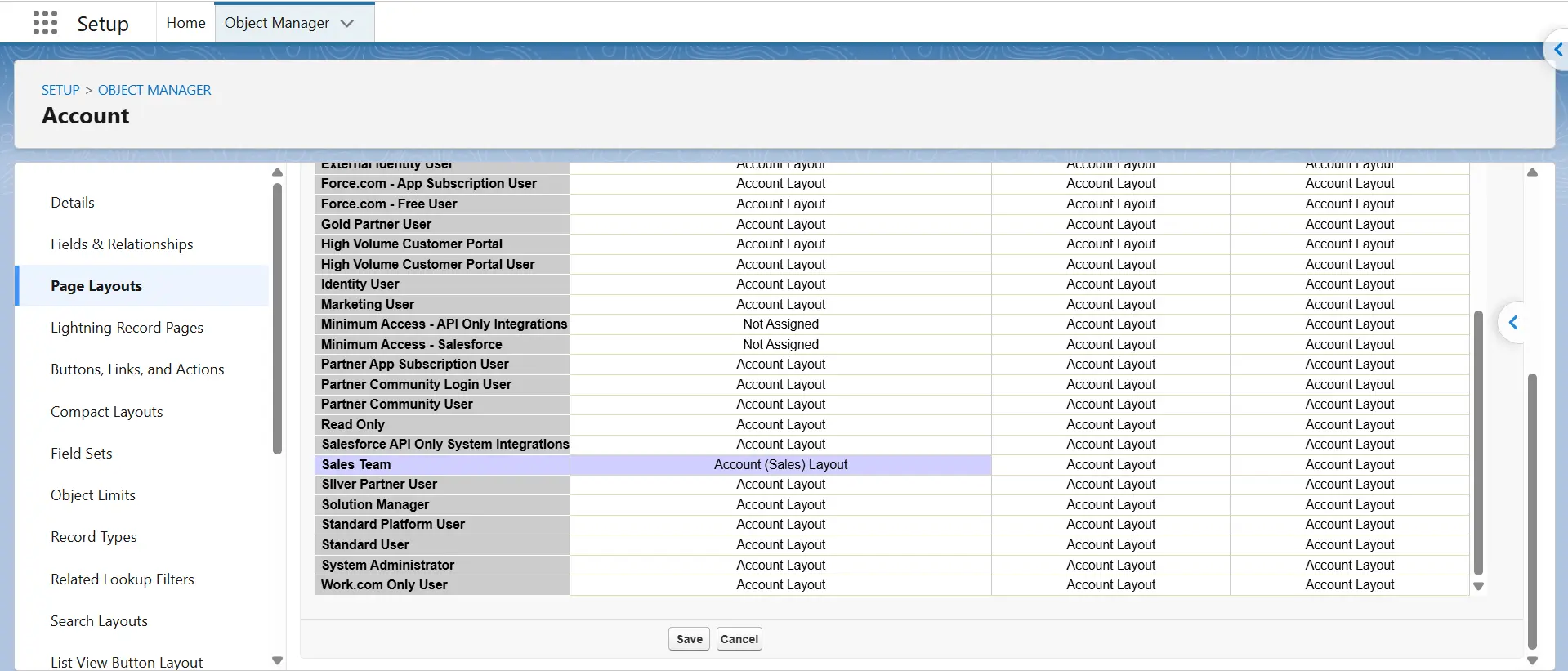
Creating a record type and page layout does not assign them to each other automatically. Go to Setup → Object Manager → [Object] → Page Layouts → Page Layout Assignment → Edit Assignment and check that the correct layout is assigned to the required profile and record type.
2. Dynamic Forms is controlling the fields
Dynamic Forms lets you place individual fields and field sections on a Lightning record page and control their visibility. When Dynamic Forms is enabled, those settings control the fields displayed on that record page instead of the page layout’s field section.
Dynamic Forms can also affect the fields shown when users create, edit, or clone records on supported objects. If the fields do not match the page layout, open the Lightning Record Page in Lightning App Builder and check its Dynamic Forms configuration.
3. A different Lightning Record Page is assigned
Lightning Record Page assignments are separate from page layout assignments. A different Lightning Record Page can be assigned to an app, profile, or record type.
Open the relevant Lightning Record Page in Lightning App Builder and check its activation settings. This is especially important if the issue occurs only in a particular Lightning app.
4. Field-Level Security is hiding the field
A field can be on the page layout but still be hidden from a user because of Field-Level Security. Check the field’s accessibility for the user’s profile and permission sets.
Removing a field from a page layout does not hide it from reports, list views, or the API.
Wondering how many fields on your object never make it onto a single layout?
XL-Connector’s Analyze Layouts feature pulls every field and every layout for an object into Excel, then sorts fields into two tabs: used and unused. Field metadata, help text, and picklist values come along with it, so cleanup decisions take minutes instead of guesswork.
Conclusion
A page layout assignment connects one profile and one record type to a specific page layout. Whether you create or change an assignment, Salesforce uses the same Edit Assignment screen. If the layout does not appear as expected, check the assignment first, then look for a Dynamic Forms configuration that may be overriding the layout.
FAQ
Can I assign a page layout without using record types?
Yes. You can assign a page layout directly to a profile when you don't need different layouts based on record type. When record types are in use, Salesforce lets you assign layouts based on the combination of profile and record type.
What happens when I change a page layout assignment?
Changing a page layout assignment changes the layout Salesforce displays for users who match that profile and record type combination. It does not change the underlying records or record type configuration.
Can I assign different page layouts to different profiles?
Yes. You can assign different page layouts to different profiles for the same object. If record types are also enabled, Salesforce lets you specify the page layout for each profile and record type combination.
Can multiple record types use the same page layout?
Yes. You can assign the same page layout to multiple record types. This is useful when the record types have different picklist values or business processes but do not need different page layouts.



Rajeshwari Jain
Content Manager
Rajeshwari Jain is a Technical Support Specialist and Content Writer at Xappex. She applies her practical experience to assist customers and create articles on how Xappex tools work with Salesforce to improve data management and increase efficiency.
She began her IT career in 2022 as a Quality Assurance professional before transitioning into Salesforce administration and technical writing in 2023. With Salesforce Certified Administrator and Associate certifications, Rajeshwari writes blogs on Salesforce flows, admin tools, and updates to expand her skills outside of work.
In her free time, she enjoys reading tech blogs and experimenting with new tools.
Feel free to reach out to Rajeshwari for collaborations or to check out her Salesforce-focused content.