Get Started Free

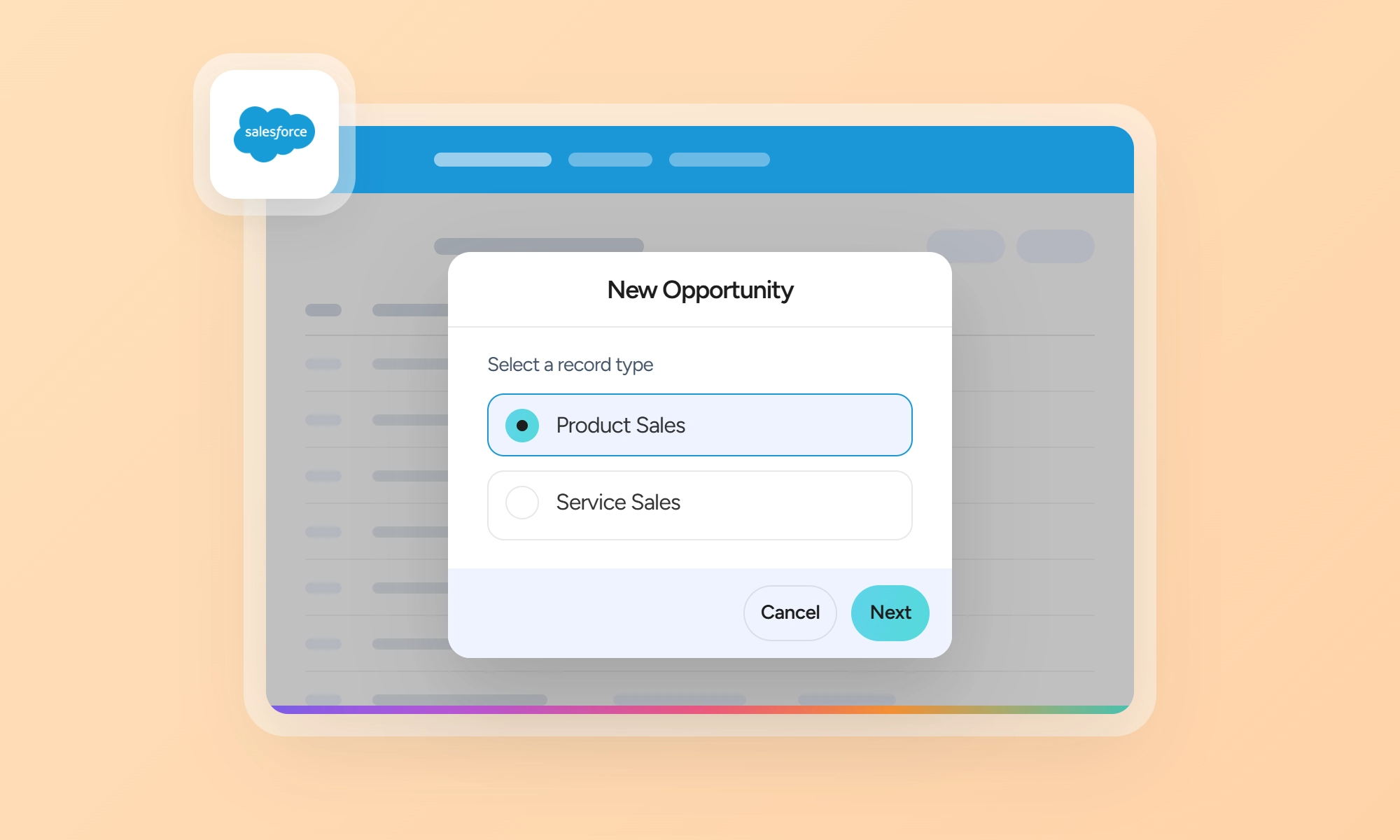
A record type controls the business process, picklist values, and page layout options available for a specific type of record. It lets you support different ways of working with the same Salesforce object.
To create a record type in Salesforce, go to Setup → Object Manager, select the object, open Record Types, and click New. Choose Master or clone an existing record type, enter a label and description, make it available to the required profiles, and assign a page layout. Opportunities, Cases, Leads, and Solutions also require a corresponding business process.
The steps are simple, but a few settings affect how the record type works. Check profile access, page layouts, picklist values, and business processes before you create it.
Before You Create a Record Type
Check these prerequisites before creating a record type:
-
Permission: You need the Customize Application permission to create or change record types.
-
Edition: Record types are available in Enterprise, Performance, Unlimited, and Developer Editions. Professional Edition requires the Record Types add-on license and supports up to three record types per object.
-
Picklists: Add all the values that your record types will need to the master picklist first. You can then select the relevant values for each record type. See our guide to Salesforce picklist values for more details.
-
Business process: For Opportunity, Case, Lead, or Solution record types, create the corresponding business process first. When you create the record type, Salesforce requires you to associate it with a business process. For example, an Opportunity record type uses a Sales Process, while a Case record type uses a Support Process. Lead and Solution record types similarly use a Lead Process and Solution Process, respectively.
Creating a Record Type: Step by Step
For this example, assume a company uses a custom Project object to manage client projects. It needs two record types: Implementation Project and Advisory Project. Each record type can have different picklist values, while other fields and page layouts can remain the same.
Step 1: Open Record Types
Go to Setup → Object Manager, select the Project object, and open Record Types. Click New.
You create record types at the object level because they determine which business processes, page layouts, and picklist values users can access for that object.

Tip
Add all required values to the master picklist before creating the record types. You can then select the appropriate values for each record type.
Step 2: Choose an Existing Record Type
Salesforce asks you to select a starting point:
- Master: Starts with the picklist values available in the master picklist, including values from standard and custom picklist fields.
- An existing record type: Copies the picklist values from the selected record type.
For example, you can select Master when creating the Implementation Project record type. For the Advisory Project record type, you can clone the Implementation Project.
After creating a record type, you can remove picklist values and change their default values as needed.
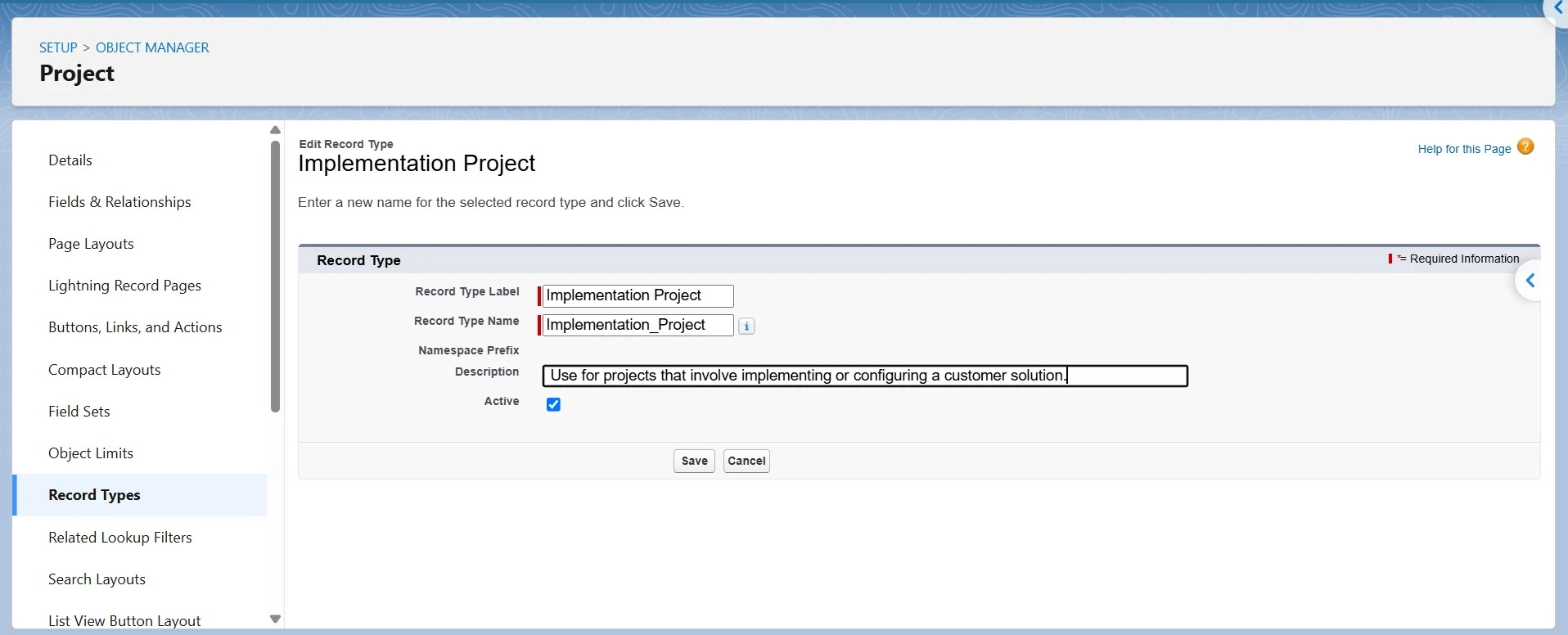
Step 3: Enter the Label, Name, and Description
Enter the following:
- Record Type Label: Implementation Project
- Record Type Name: Implementation_Project
- Description: Use for projects that involve implementing or configuring a customer solution.
The Label is the name users see in Salesforce. The Name is the API name, or DeveloperName, used when Salesforce configurations, flows, integrations, or managed packages reference the record type.
Salesforce generates the Name from the Label by default. For example, Implementation Project becomes Implementation_Project. Change it only if you need a specific API name. Once other configurations reference this name, changing it can require additional updates.

Note
Do not use Master as the record type name because Salesforce reserves that name.
Add a description that explains when users and administrators should select the record type. For Opportunity, Case, Lead, and Solution, Salesforce also lets you select the relevant business process when you create the record type.
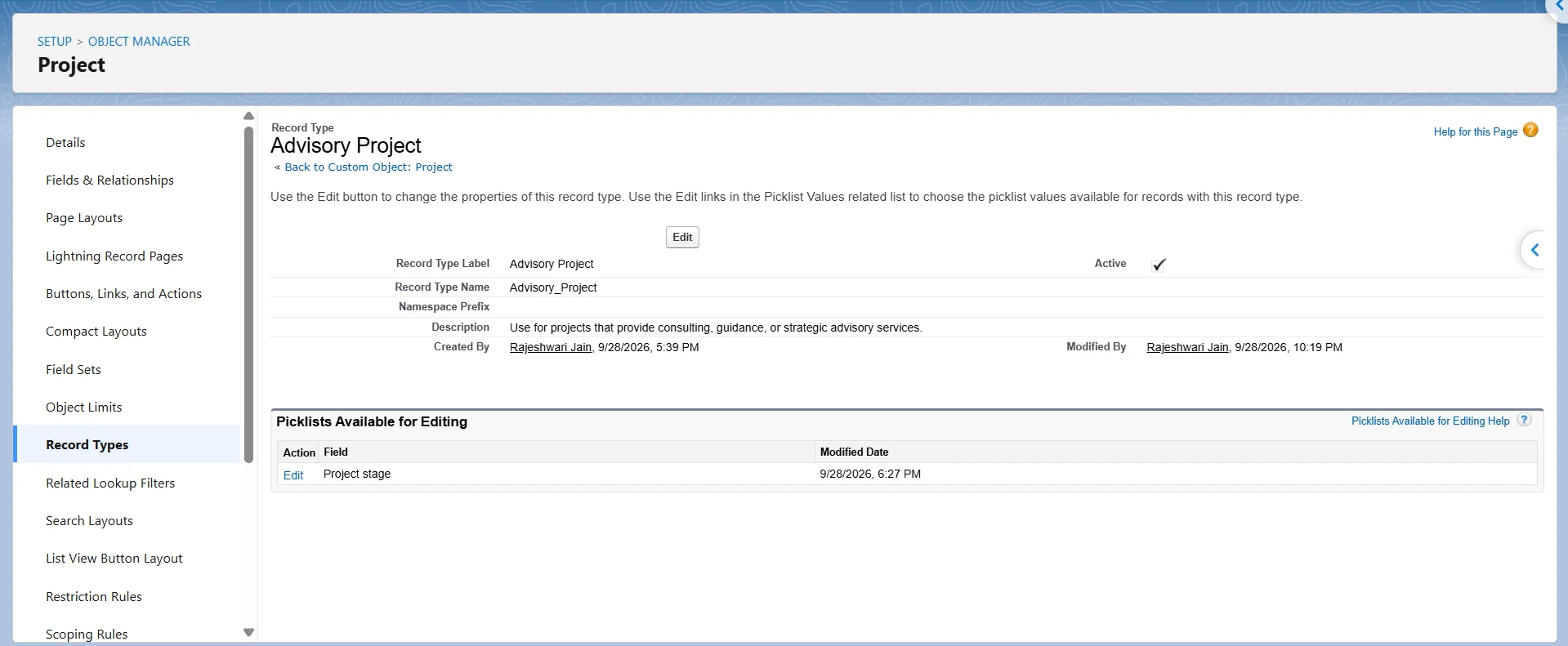
For the Advisory Project record type, enter:
- Record Type Label: Advisory Project
- Record Type Name: Advisory_Project
- Description: Use for projects that provide consulting, guidance, or strategic advisory services.
If you cloned the Implementation Project, review the copied settings and adjust the picklist values, defaults, and other options to match the Advisory Project process.
Step 4. Make Available and Make Default per Profile
Use Make Available to let a profile use the record type. Use Make Default to make it the preselected record type when users create a record.
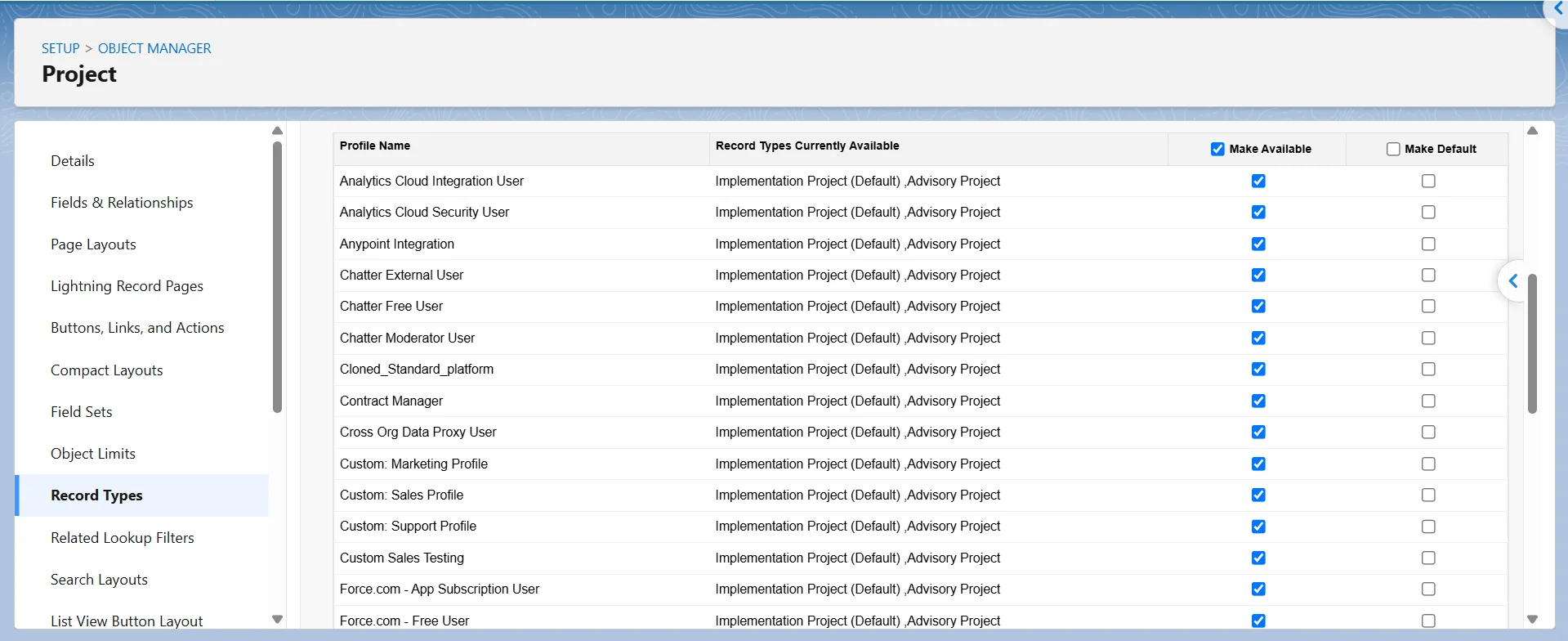
If a profile has access to only one record type, Salesforce takes users directly to the record creation page without showing the selection screen.
Note
The first record type created for an object may be set as the default for enabled profiles. Verify the Make Default settings in your org rather than relying on this behavior.
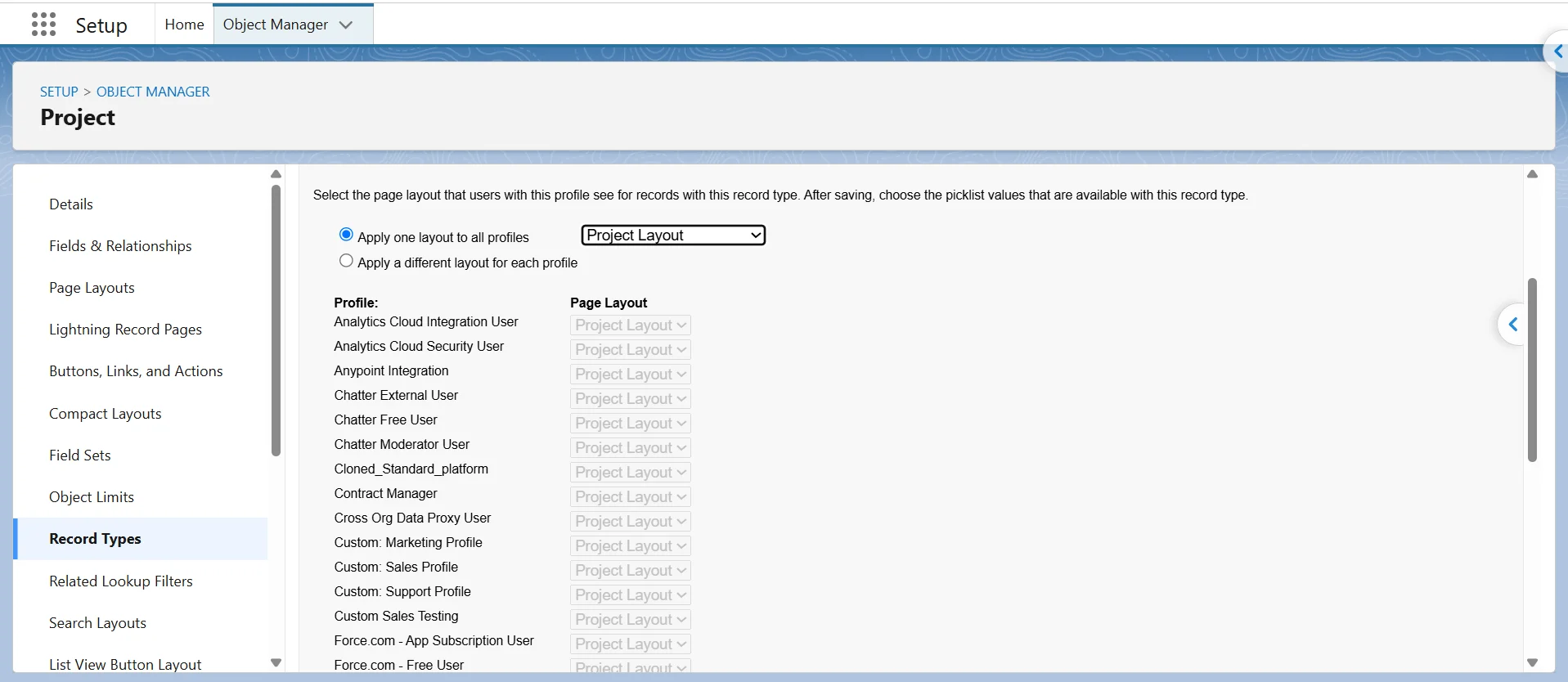
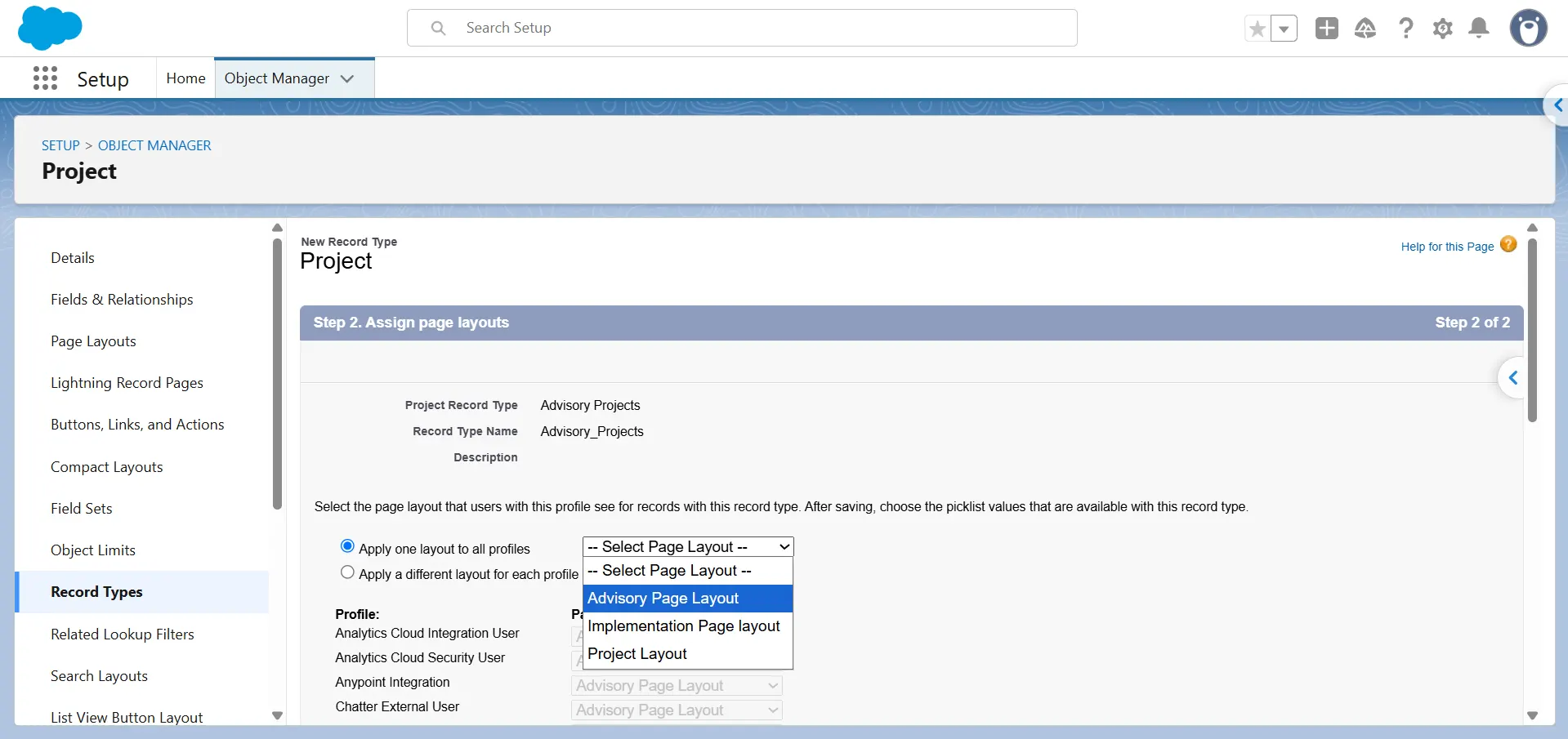
Step 5. Assign a Page Layout
Salesforce provides two options for page layout assignment:
- Same layout for all profiles: Assign the same page layout to every profile.
- Different layouts by profile: Assign a different page layout to each profile.
Note
If two record types use the same fields and related lists, assign them the same layout. Create a separate layout only when the record types need different fields or page elements. Duplicate layouts without actual differences add unnecessary configuration.
If the Implementation Project and Advisory Project use the same fields and related lists, assign them the same layout.
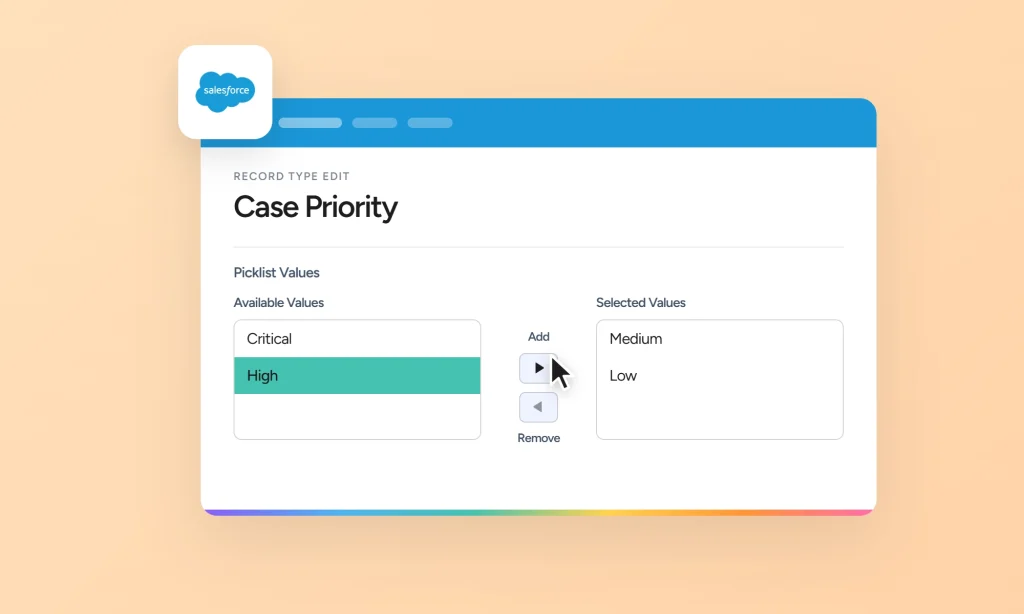
Step 6: Customize Picklist Values
Click Save. Salesforce then displays the picklists you can configure for the record type.
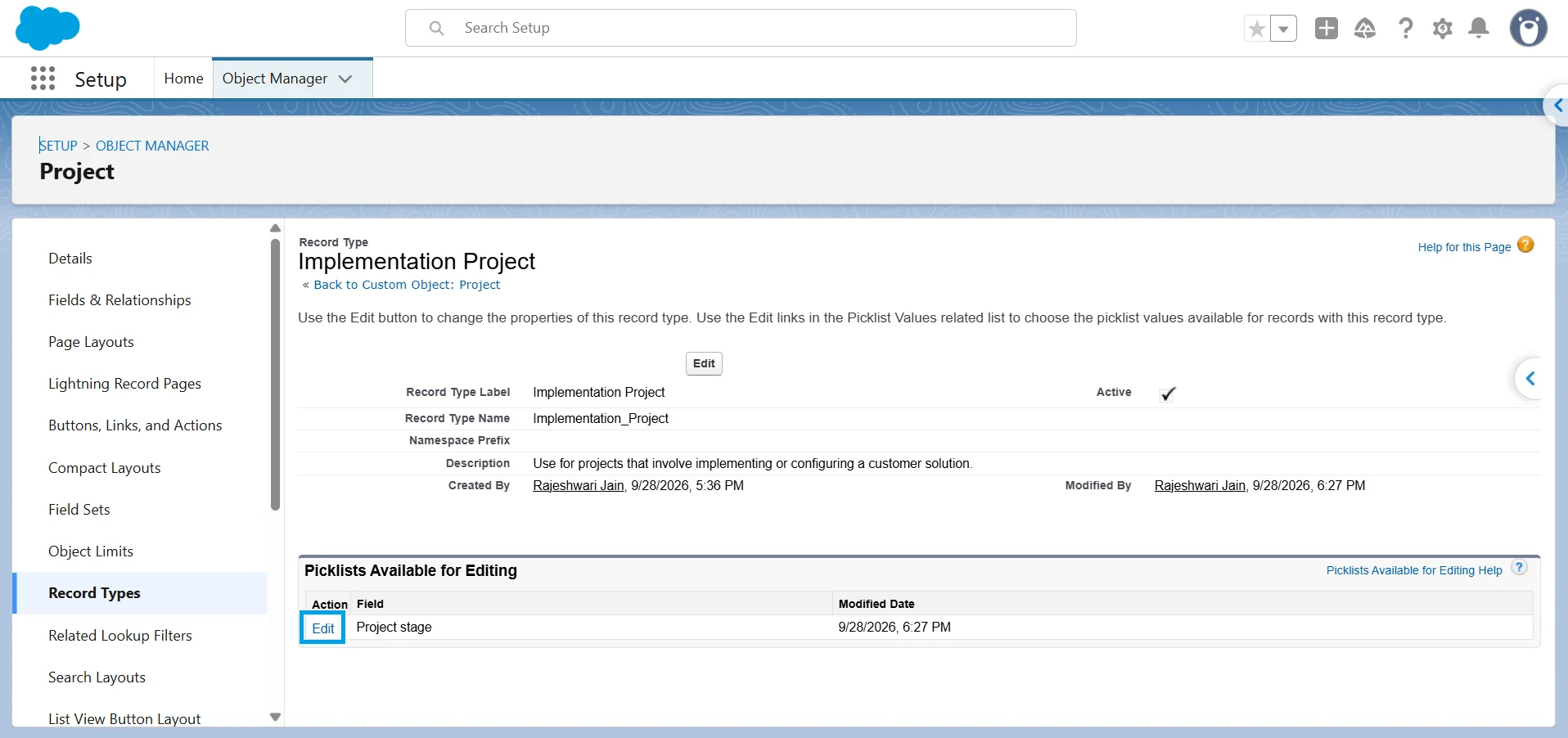
For each picklist, select the values users should be able to choose and set the default value.
For example, an Implementation Project might use Planning, Configuration, and Deployment, while Advisory Project could use a different set of project stages.
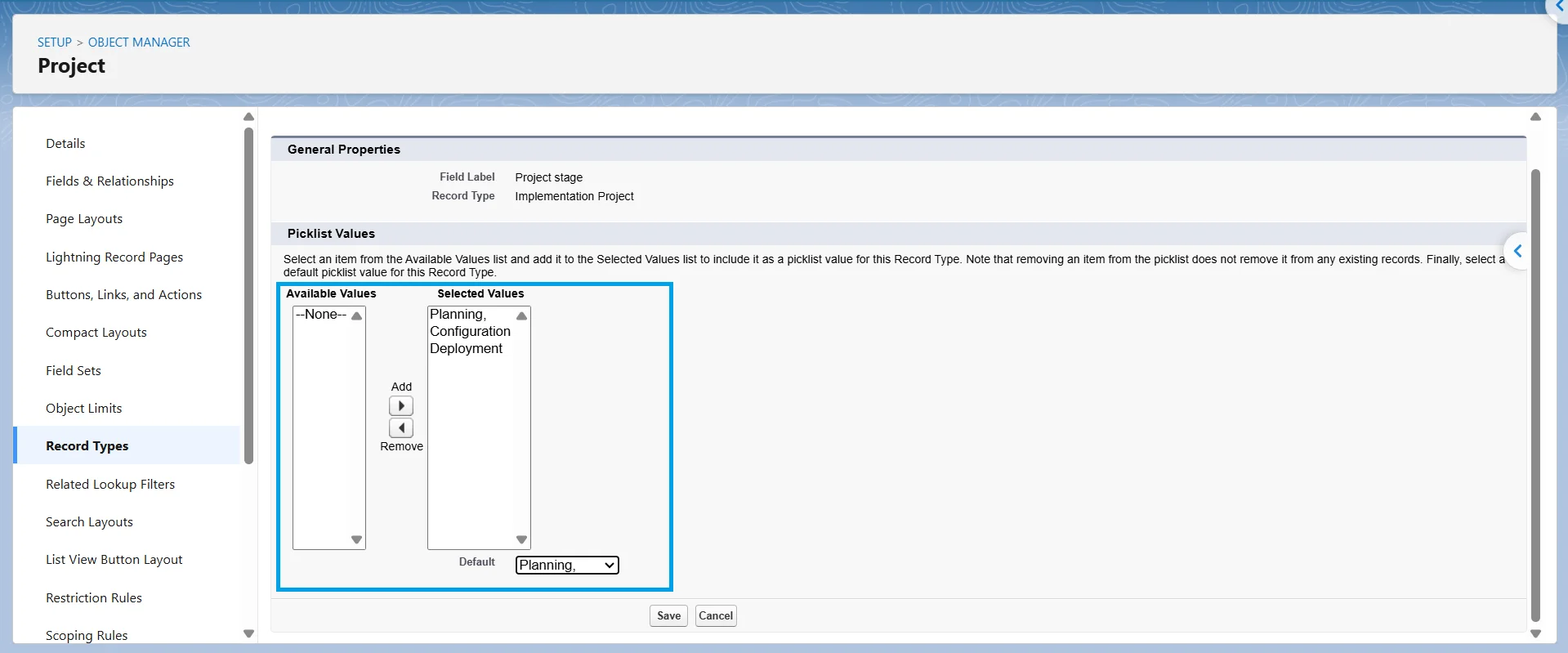
Record types let you restrict the picklist values available to users without changing the master picklist.
If you are creating several record types, create them first with Save & New, then configure their picklist values. This keeps the creation and picklist configuration tasks separate.
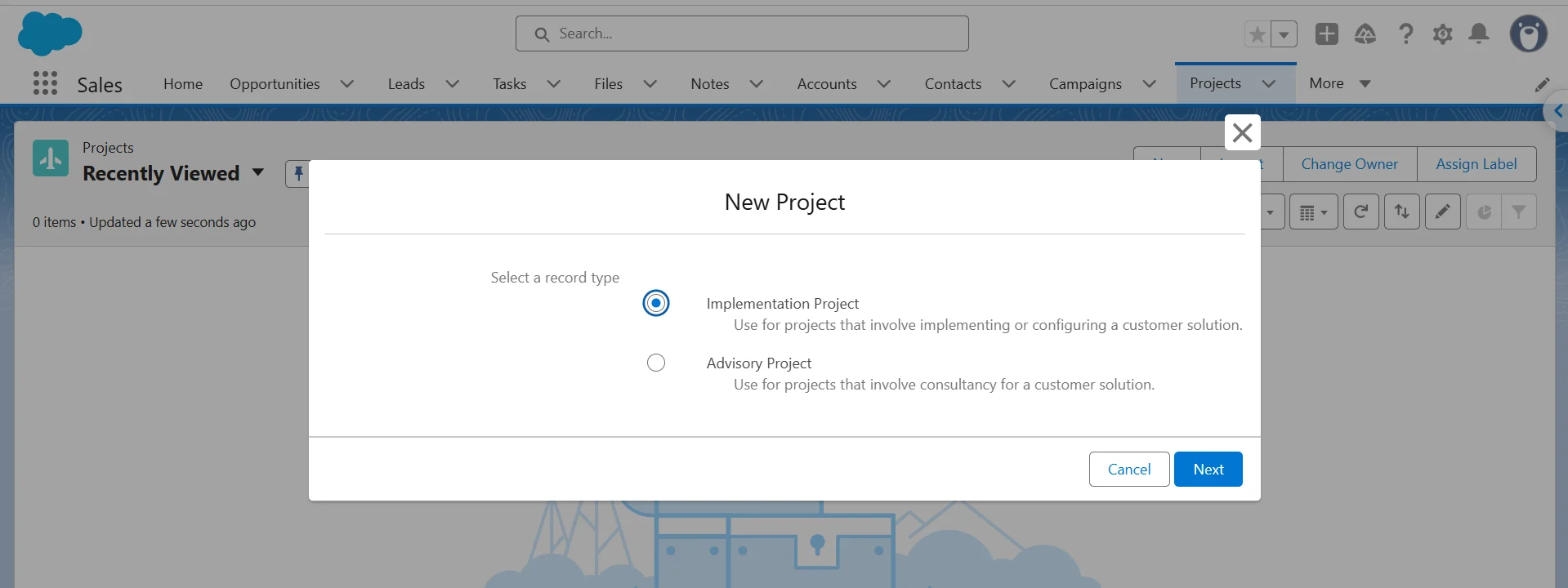
Step 7: Verify the Record Type as an End User
Create a test Project record using a profile that has the new record type available.
Check that:
-
1
The correct record types appear in the selection dialog.
-
2
The selected record type uses the expected page layout.
-
3
Its picklists contain only the values configured for that record type.
Testing the record type from the user’s perspective helps catch incorrect profile, layout, or picklist assignments before you roll it out.
Creating a record type does not change existing records. Records created before the new record type remain on their current record type, including Master, until you reassign them.
See our guide on changing the record type of existing records for single and bulk methods.
Record Types Don't Control Who Sees Records
Record types are not an access control mechanism. Assigning a record type to a profile controls who can create or edit records with that type, not who can view them. A user whose profile does not have access to a record type can still see records that use it if they have access to the object and records.
Do not put sensitive information in a record type’s name, label, or description. Use Salesforce sharing and security settings to control record access.
Troubleshooting
-
1
The New button is missing / Record Types isn’t in Object Manager
Check your Salesforce edition first. Professional Edition requires the Record Types add-on license. You also need the Customize Application permission to create or manage record types.
-
2
I created a record type but it doesn’t show up in the New dialog
First, refresh the page or sign out and back in. Then check that the record type is Active and available to the user’s profile. If it still does not appear, check the profile’s record type assignments and default record type.
-
3
My new record type doesn’t work for Person Accounts
Person Account record types are a type of Account record type. When you enable Person Accounts, Salesforce creates a default Person Account record type. You can modify it or create additional Person Account record types.
To create another Person Account record type, go to Object Manager > Person Account > Record Types. Salesforce treats Person Accounts as Account records with a special Person Account record type.
If you created a business Account record type instead of a Person Account record type, create the correct record type from the Person Account section.
You also can’t switch an existing account between a Business Account and a Person Account by changing the record type in Lightning. Salesforce requires the API for this conversion. You can use a data tool such as Data Loader to update the account’s RecordTypeId.
-
4
Record types appear in the wrong order in the New dialog
Salesforce sorts record types alphabetically in the New dialog, and you can’t set a custom order. If you need a specific sequence, add prefixes to the labels, such as 1 New Business and 2 Renewal.
Keep in mind that these prefixes become part of the record type labels and can appear wherever Salesforce displays those labels.
-
5
I can’t save a record type for Opportunities, Cases, or Leads
Opportunity, Case, and Lead record types require an associated business process. Create the required business process, then select it when you create the record type.
- Opportunity: Sales Process
- Case: Support Process
- Lead: Lead Process
See the Before You Create section for the prerequisite.
What You Can’t Do
- Campaign Member Status, Salutation, and Lead Source don’t support record-type-specific values.
- A record type can’t be edited or deleted when Apex references its object.
- A record type used by an Email-to-Case or On-Demand Email-to-Case routing address can’t be deactivated.
- Opportunity Stage, Case Status, Solution Status, and Lead Status are controlled by business processes rather than directly by record types. Assign a different process to each record type when you need different values.
- Campaign member record types are assigned through the Campaign Member Type field on campaigns. Users need the Marketing User permission to change this field.
- Salesforce recommends keeping the number of record types at 200 or fewer to keep the org manageable.
When You Don't Need a New Record Type
Use record types when users need different fields, picklist values, page layouts, or business processes for the same object. If nothing changes for the user, another record type only adds configuration to maintain.
Before creating one, ask: What will actually be different for the user? If the answer is nothing, you do not need a new record type.
Conclusion
Prepare the picklists and business process before creating the record type. Add a clear label and description, assign the required profiles and page layout, and set the correct picklist values. Finally, test the record type as an end user to make sure the setup works as expected.
FAQ
What's the difference between Record Type Label and Record Type Name?
The Record Type Label is the name users see in Salesforce. The Record Type Name is the API name used to identify the record type in metadata, integrations, and other programmatic references.
Can I change a record type on existing records?
Yes. You can change the record type from an existing record, or update records in bulk by changing the RecordTypeId with Data Loader.
How do I find the Record Type ID?
Open the record type from Setup > Object Manager > [Object] > Record Types. The Record Type ID appears in the page URL.
You can also query it with SOQL:
SELECT Id, DeveloperName
FROM RecordType
WHERE SobjectType = 'Account'
Replace Account with the API name of your object.
How many record types can I create per object?
Salesforce recommends creating no more than 200 record types per object. This is a recommendation, not a hard limit that prevents you from creating more.
Do I need a separate page layout for each record type?
No. You can assign the same page layout to multiple record types. Create separate layouts only when different record types need different fields, buttons, related lists, or other layout settings.



Rajeshwari Jain
Content Manager
Rajeshwari Jain is a Technical Support Specialist and Content Writer at Xappex. She applies her practical experience to assist customers and create articles on how Xappex tools work with Salesforce to improve data management and increase efficiency.
She began her IT career in 2022 as a Quality Assurance professional before transitioning into Salesforce administration and technical writing in 2023. With Salesforce Certified Administrator and Associate certifications, Rajeshwari writes blogs on Salesforce flows, admin tools, and updates to expand her skills outside of work.
In her free time, she enjoys reading tech blogs and experimenting with new tools.
Feel free to reach out to Rajeshwari for collaborations or to check out her Salesforce-focused content.