Get Started Free



UNABLE_TO_LOCK_ROW signals that two or more concurrent operations try to write to the same record simultaneously, including cases where a parent record is locked indirectly by child record updates, and one transaction fails to acquire a lock within 10 seconds. The locked record is often the parent (Account, Campaign, or Opportunity), because Salesforce silently locks parent records during roll-up summary recalculations, master-detail child updates, and sharing rule processing. The fix depends on which of six common causes applies to you.
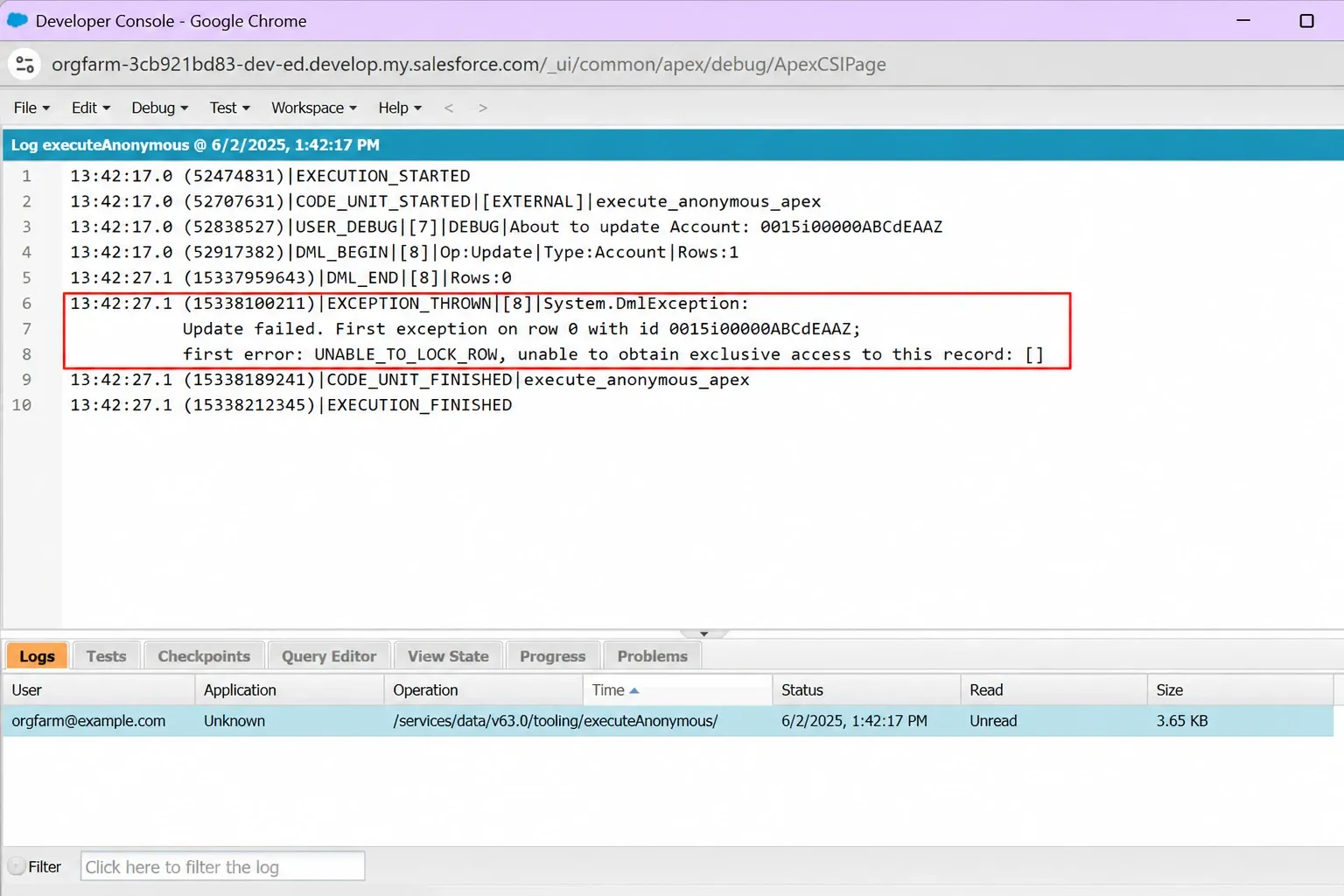
If this appears in your debug log, keep reading.
How Salesforce Locking Actually Works
Salesforce uses pessimistic locking. When a transaction writes to a record, the platform locks it. This stops two updates from corrupting the same record at the same time.
Locks typically clear within seconds. Issues arise when a lock persists for too long. Any transaction waiting for a locked record has 10 seconds before Salesforce returns UNABLE_TO_LOCK_ROW. This limit is hardcoded and cannot be changed.
Reads don’t wait for locks. A SOQL query returns the last saved version of the record without waiting. Only write operations and FOR UPDATE queries take or wait for locks.
Before-triggers and validation rules run before the record is written to the database. The lock is only placed at the point of the actual database write, which happens after before-triggers are done. Before-triggers do not lock other records unless they update them.
The operations that do lock other records are: after-triggers, before-triggers that update other records, flows, Process Builder actions, workflow field updates, roll-up summary recalculation, and sharing recalculation ; when any of these write to the database.
Bulk API v1 supports Serial Mode through concurrencyMode: Serial, while Bulk API v2 does not. A feature request is available on the IdeaExchange; check its current status at ideas.salesforce.com. Until this feature is released, use Bulk API v1 for jobs that encounter lock errors.

Tip
The lock is often on the parent record, not the record you are updating.
Updating a child record in a master-detail relationship, or any record that triggers a roll-up summary, locks the parent (Account, Opportunity, Campaign).
This is why the error often displays a record ID you did not update. Always check parent records when diagnosing UNABLE_TO_LOCK_ROW.
The Full Error Message and What Each Part Means
Decoding UNABLE_TO_LOCK_ROW, unable to obtain exclusive access to this record
The error string has three parts, each explaining something different.
-
1
UNABLE_TO_LOCK_ROW is the API error code. In a REST API response, it shows up as errorCode: “UNABLE_TO_LOCK_ROW” in the JSON body. In SOAP API responses, it appears as the statusCode field. ExceptionCode values like this one are documented in the Salesforce SOAP API Developer Guide.
-
2
Unable to obtain exclusive access to this record is the human-readable explanation. Your transaction tried to lock a record that was already locked, and the wait timed out.
-
3
or 1 records: <ID>: [] lists the specific record IDs that couldn’t be locked. In roll-up and master-detail scenarios, that ID is often the parent of what you were updating. Always copy that ID and look it up before assuming you know which record caused the contention.
The 6 Real Causes (and How to Spot Which One Is Yours)
In production orgs, the error often comes from at least six distinct root causes. The right fix depends on which one is yours. Here’s how to tell them apart.
1. Master-Detail Child Updates Locking the Parent
When you update child records in a Master-Detail relationship, Salesforce automatically locks the parent record, even if your code never touches it. This is why the error shows a parent record ID that your batch never modified.
How to verify it: Query the locked record ID from the error against the ParentId field of your batch records. If it matches, enable debug logs for the affected user to identify the trigger, flow, or validation rule initiating the lock.
Quick fix: Process all children of the same parent in a single batch. If background jobs are running on the same object, pause them and retry. Reduce the batch size to limit the number of parent records locked per execution.
2. Roll-Up Summary Recalculation
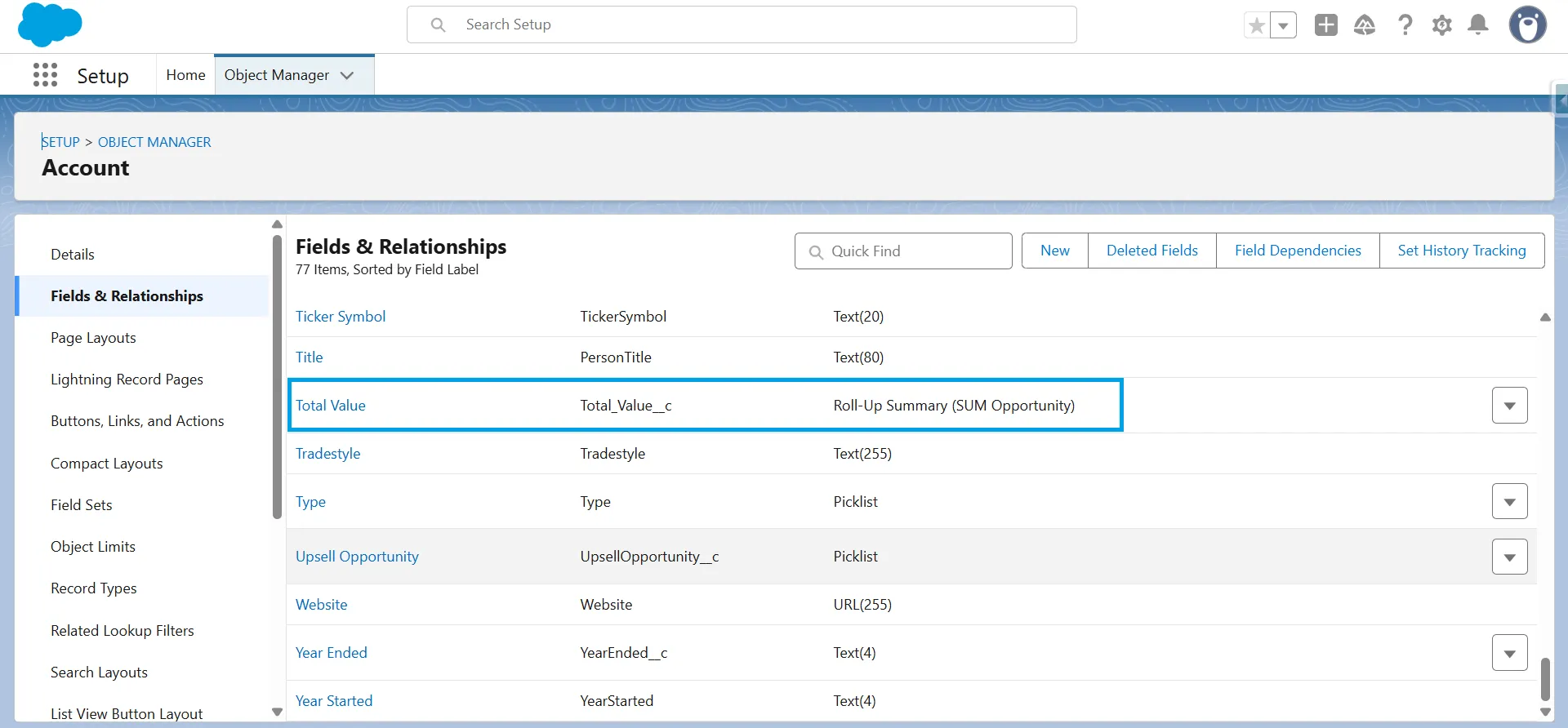
When a scheduled flow or batch job updates child records, Salesforce automatically recalculates the Roll-Up Summary (RUS) fields on the parent record. RUS fields only work on Master-Detail relationships, not Lookup relationships.
When many records update at the same time, Salesforce locks the parent record during recalculation; other jobs trying to update that same record will fail or time out.
How to Verify:
-
Go to Setup → Object Manager → Parent Object → Fields & Relationships and check if a Roll-Up Summary field points to the child object your flow is updating.

-
Open the debug logs or flow error emails and look for UNABLE_TO_LOCK_ROW or System.Exception: Unable to obtain exclusive access to this record.
-
If the failures happen around the same time your scheduled job runs, RUS recalculation is likely the cause.
Quick Fix: Move roll-ups to async.
-
Rewrite the roll-up using Batch Apex or Queueable Apex so the recalculation runs separately from the main transaction.
-
If you use DLRS, change the rollup mode from Realtime to Scheduled.
Add retry logic with a counter:
-
On the fault path, add a RetryCount variable that goes up by 1 each time the flow fails and retries up to 3 times.
-
Add a short wait between retries so the record lock has time to clear before the next attempt.
3. Bulk API Parallel Batches Hitting the Same Parent
By default, Salesforce Bulk API splits your upload into multiple batches and runs them in parallel. When two batches try to update records that share the same parent. Let’s say, multiple Opportunities under the same Account, they compete for the same database lock. One wins, the other fails.
Symptom: Large Data Loader imports fail inconsistently. One batch goes through, another errors out even though nothing is wrong with the data. If the same file succeeds on a retry, parallel batch locking is your culprit.
How to Verify: Go to Data Loader Settings and check whether “Use Bulk API” is selected. If it is, your batches are running in parallel at a default batch size of 2,000 records.
Quick Fix:
-
Stay on Bulk API, but enable serial mode: In Data Loader Settings, turn on “Enable Serial Mode for Bulk API”. Batches will process one at a time, which eliminates lock conflicts.
-
Switch to SOAP API: Uncheck “Use Bulk API”. Data Loader falls back to SOAP API, which caps at max 200 records per batch and runs serially by default; a significant reduction from Bulk API’s 2,000 record default.
If errors continue, reduce your batch size further — 50 to 100 records per batch is a reasonable starting point.
Efficiency Alternative: If you’re running Data Loader weekly to update large datasets, toggling Bulk API settings and re-uploading CSVs after each failure adds up fast. XL-Connector lets you set batch size and run parallel batches simultaneously — no need to reconfigure between runs.
4. Concurrent Triggers, Flows, or User Edits on the Same Object
Symptom: Occurs when a user saves a record while a background job updates it simultaneously, or when two automated processes write to the same record at once.
Salesforce locks a record when a write starts and releases it on completion. Any process attempting to write to that locked record times out and throws UNABLE_TO_LOCK_ROW.
How to verify: Enable debug logs for the failing user or process and note the time of the error. Cross-reference Event Log Files (EventType = ApexExecution or ApexUnexpectedException) for another process writing to the same record at that time. A debug log only captures its own transaction — the competing process will not appear in it.
Quick fix:
-
Batch jobs during work hours: Move them to off-peak hours to avoid overlapping with active user sessions.
-
Bulk API contention: Set concurrencyMode: Serial on Bulk API v1 jobs to process batches one at a time. Bulk API v2 lacks this option, so switch to v1 if this control is needed.
-
Apex contention: Wrap DML in a try/catch, catch UNABLE_TO_LOCK_ROW, and retry after a short pause.
-
Long-term fix: Merge processes writing to the same object into one, or chain them to run sequentially.
Tip
Add FOR UPDATE to a SOQL query to lock records while your transaction processes them. No other user or process can edit those records until your transaction completes.
Contact[] contacts = [SELECT Id FROM Contact LIMIT 5 FOR UPDATE];Use this when your logic reads a record, runs calculations, and writes back to make sure no one changes the record in between.
Two things to note:
- ORDER BY cannot be used in the same query as FOR UPDATE.
- Do not use this to fix contention between two concurrent processes — it extends the lock and makes the problem worse.
Data Skew and Ownership Skew
Symptom: “Everything was working last month, and suddenly errors started appearing.”
Data skew and ownership skew build up quietly over time. By the time errors appear, the cause is nearly impossible to trace without knowing what to look for.
Understanding the Problem
Data skew occurs when too many child records are associated with a single parent. Every DML operation on a child record locks the parent. When thousands of child records share one parent, concurrent transactions queue for that lock, and errors follow.
Ownership skew works differently. When a single user owns too many records, any change to the role hierarchy or sharing rules triggers a recalculation across all those records, causing widespread lock contention.
How to Verify: Run an aggregate SOQL query to count child records per parent:
SELECT ParentId, COUNT(Id) childCount FROM ChildObject__c GROUP BY ParentId ORDER BY COUNT(Id) DESC LIMIT 10Salesforce architect guidance is clear: more than 10,000 child records on a single parent is a data skew red flag.
Check Setup → Setup Audit Trail for recent sharing rule changes, role hierarchy edits, or public group updates. If those changes align with when the errors started, you have your root cause.
Quick Fix:
-
Redistribute child records across multiple parent records to eliminate lock concentration
-
Move the skewed owner into a top-level role with no child roles to limit the scope of sharing recalculations
Note
Sharing and role changes cause locks long after the change is made.
Adding a sharing rule, changing group membership, or modifying the role hierarchy triggers a Group Membership Operation that runs asynchronously. In large orgs with private OWD, this recalculation runs for hours. During that window, DML on affected records runs slower and UNABLE_TO_LOCK_ROW errors surface with no obvious cause.
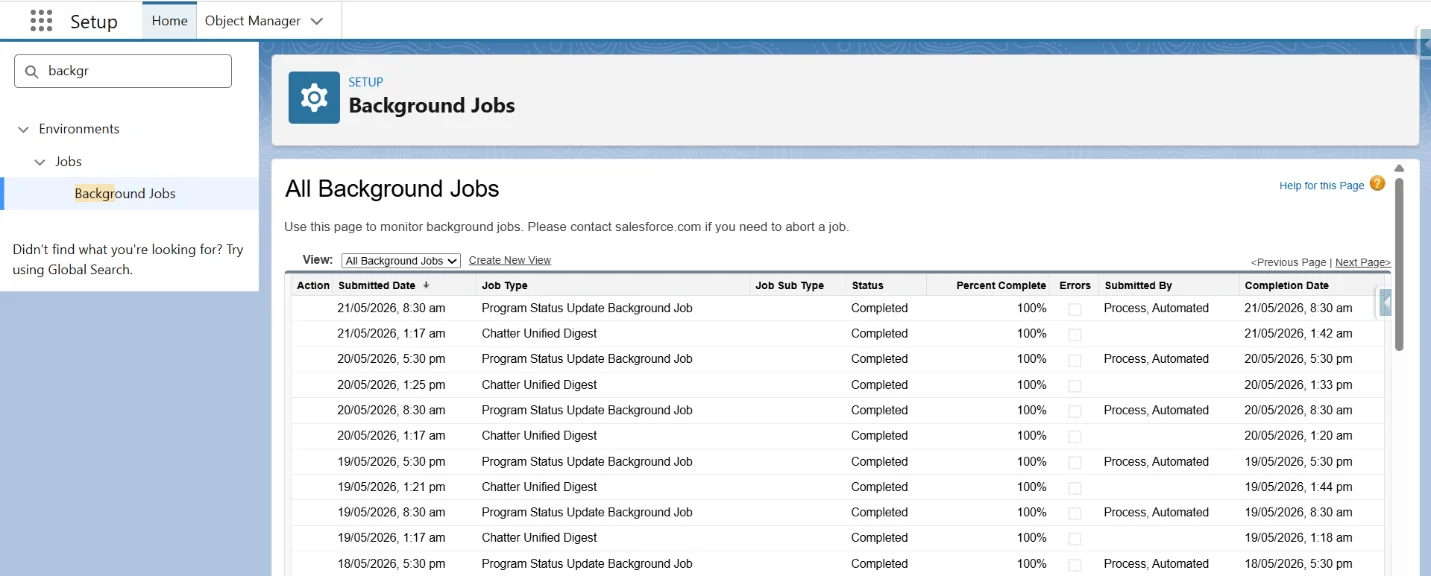
Check Setup Audit Trail for sharing or hierarchy changes in the past 24–48 hours. Then search “Background Jobs” in the Setup Quick Find box to confirm whether a recalculation is still running. Avoid batch jobs or large data loads until it completes.
6. DLRS (Declarative Lookup Rollup Summaries) Managed Package
DLRS is a popular open-source tool in the Salesforce ecosystem. Built by Andy Fawcett and maintained by the Salesforce community, it creates rollup summaries on lookup relationships — something native Salesforce supports only on master-detail relationships. In high-volume orgs, DLRS can cause row lock errors.
Symptom: The error stack shows a trigger name starting with dlrs_.
For example:
dlrs_soco_AgreementTrigger: execution of AfterInsert
You may also see dlrs_AccountTrigger or dlrs_OpportunityTrigger, depending on which objects your DLRS rules run on.
How to Verify: Check the Apex class name in the error. If it starts with dlrs_, DLRS is causing the contention. On the managed package version, you cannot edit this trigger directly; the fix is in the configuration. Orgs on the unmanaged version have direct Apex access and more options.
Quick Fix: DLRS has Custom Settings that control how it handles rollup calculations. Lowering the batch size reduces the number of records per chunk, shortening the lock duration and stopping conflicts with other automations running at the same time.
Go to Setup → Custom Settings → Declarative Lookup Rollup Summaries Settings → Manage.
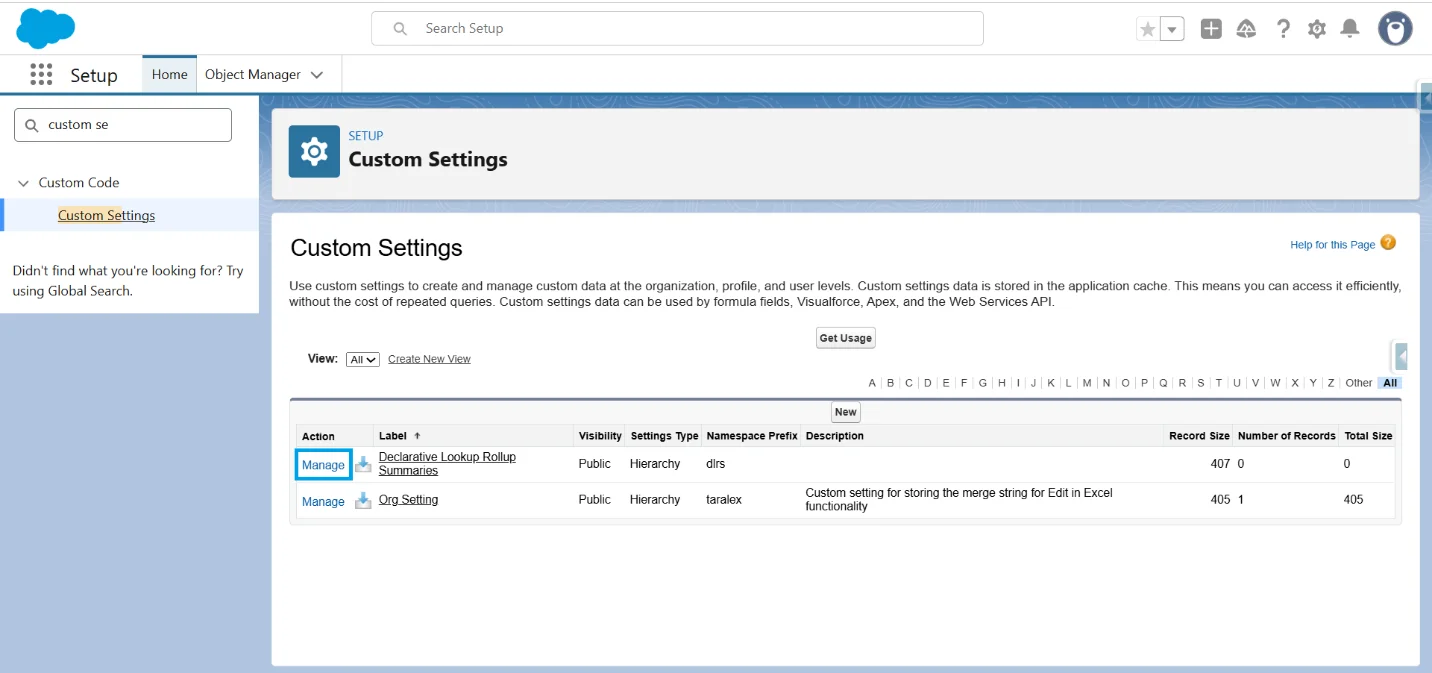
Click Manage next to Declarative Lookup Rollup Summaries to open the settings page.
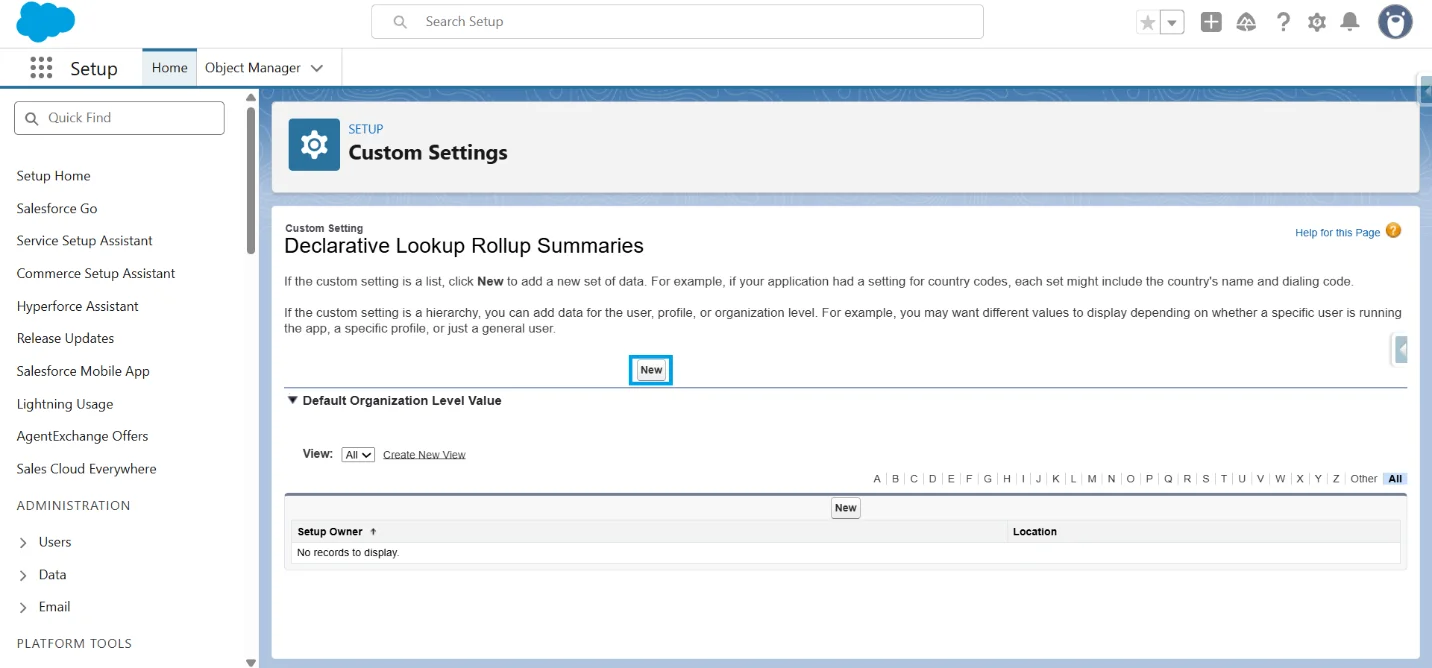
Look for these fields:
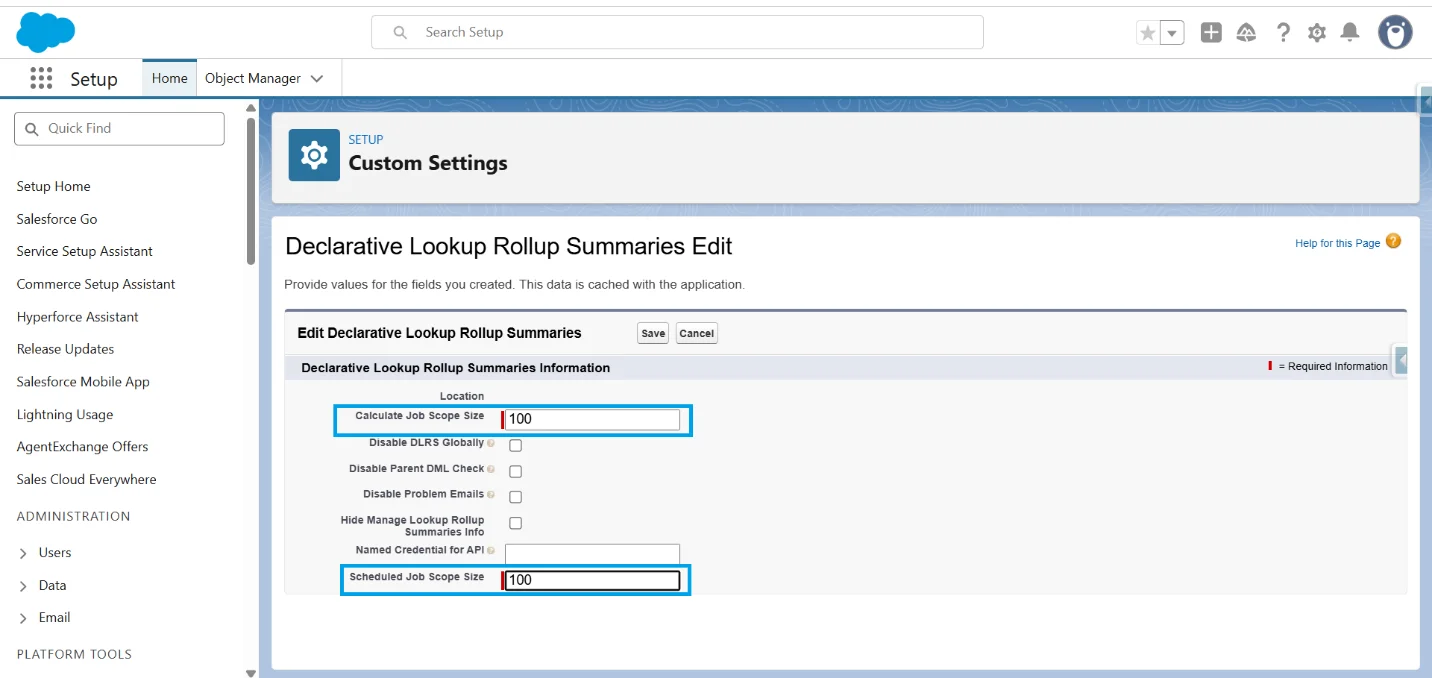
Both fields control how many parent records DLRS processes per batch.
Lower values mean smaller chunks and shorter lock duration.
Recommended settings:
| Setting | Default | Recommended |
|---|---|---|
| Scheduled Job Scope Size | Verify in your org | 25 – 50 records |
| Calculate Job Scope Size | Verify in your org | 25 – 50 records |
Reduce the Scheduled Job scope size and Calculate Job Scope Size in your org.
Lower values mean smaller chunks, locks release faster,, and other processes have room to run. Processing time increases slightly, but it is worth it to stop failed transactions.
After the change, check Setup → Apex Jobs to confirm DLRS jobs finish without errors. If lock errors continue, check whether DLRS scheduled jobs run during peak data load hours and move them to off-peak times.
How to Fix It in Your Tool of Choice
Fixing UNABLE_TO_LOCK_ROW in Salesforce Flow
For Flow, the fix is built around three patterns: a retry path, a counter, and parent-sorted collections.
-
Add a retry pattern. On the Update Records element that’s failing, add a Fault path. Connect it to a Wait element (try 60 seconds).
Note: this works only in autolaunched flows and in the asynchronous path of a record-triggered flow. It does not work in synchronous record-triggered flows. Then loop the Wait element back to the original Update Records. -
Use a counter to cap retries. Create a temporary number variable inside the flow, not a custom field on the object. Increment it on every retry. Stop retrying after 3 attempts and log the failure to a custom object or send a notification email.
-
Sort collections by parent. When you use a Loop with bulk operations, add a Get Records and Sort step before the Update Records element. Sort by the parent ID field. This ensures that records sharing the same parent are processed together rather than scattered.
One important note about scheduled flows: the batch size is fixed at 200 records and cannot be changed. If you need a smaller batch, move the logic to Apex, where batch classes expose a configurable batch size.

Tip
Never retry without a counter. If your update is failing because of a validation rule or a permission issue, the retry will never succeed and your flow will keep retrying until it hits a governor limit error. Always cap retries at 3, and only retry on lock-type errors.
Efficiency Alternative: For recurring scheduled flows that bulk-update related records, some teams move the operation outside the flow entirely by running the update on a schedule from Excel or Google Sheets with parent-sorted pushes. See how to replace heavy scheduled flows with spreadsheet-based bulk updates.
Fixing UNABLE_TO_LOCK_ROW in Apex
Salesforce throws UNABLE_TO_LOCK_ROW when two processes attempt to update the same record simultaneously. Here are three apex fixes.
Use the FOR UPDATE Keyword
FOR UPDATE locks the record the moment your query runs, so no other transaction can modify it before your update finishes.
List<Contact> Contacts = [SELECT Id FROM Contact WHERE Id IN :ids FOR UPDATE];Use Database.QueryLocator with ORDER BY in Batch Apex
Batch Apex splits records into chunks. When child records sharing the same parent are split across different chunks, both try to update that parent at the same time. Sorting by parent ID keeps related records in a single chunk, preventing conflicts.
return Database.getQueryLocator('SELECT Id, AccountId FROM Opportunity ORDER BY AccountId);Build a Queueable Retry Pattern
Lock errors are usually temporary. Two approaches handle retries; pick one based on how critical your job is.
Option 1: try/catch
Simple and quick to set up. The catch block spots the lock error and re-runs the job. Use this for background jobs where missing a failure is not a big deal.
Option 2: Transaction Finalizers
A Transaction Finalizer is a guaranteed post-execution step that Salesforce runs after your Queueable job finishes, whether it passes or fails. This makes it a better place to handle retries than a try/catch block. Use this for jobs where every failure must be tracked.
Three rules to follow with this pattern:
-
Attach before DML. If an exception occurs before System.attachFinalizer(this), the Finalizer never runs.
-
Always cap retries. Salesforce stops the chain after five consecutive failures. The retryCount guard prevents hitting that wall.
-
Keep the Finalizer lean. It runs under synchronous limits: 10 seconds of CPU time, not 60. Use it only to log errors or re-queue jobs.
Tip
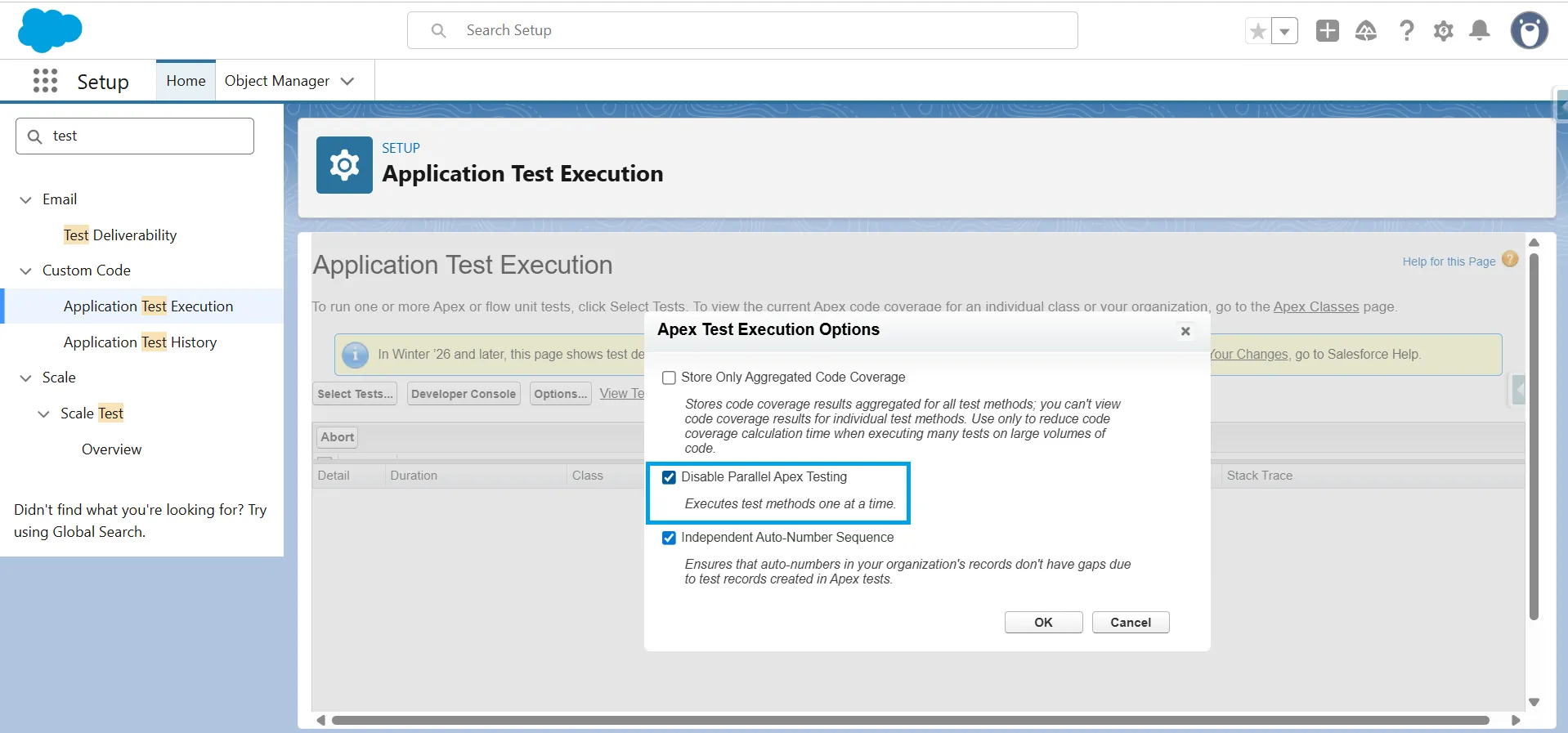
Disable Parallel Apex Testing before deployments.
CI/CD tools run Apex tests in parallel by default, which causes UNABLE_TO_LOCK_ROW errors unrelated to your code. Go to Setup → Custom Code -> Application Test Execution -> Options and check Disable Parallel Apex Testing before running deployment validations.
Fixing UNABLE_TO_LOCK_ROW in Data Loader and Dataloader.io
Data Loader uses the SOAP API by default and processes records in batches of 200. This rarely causes row-locking issues.
The problem starts when you enable “Use Bulk API” in settings. The Bulk API processes multiple batches simultaneously with a default batch size of 2,000 records. When many records share the same parent, they compete for the same lock at once, triggering the UNABLE_TO_LOCK_ROW error.
Fixes for Data Loader:
- Enable Serial Mode: In the same settings panel, check “Enable Serial Mode for Bulk API.” This forces batches to run one at a time, preventing lock conflicts.
- Switch back to SOAP API: Uncheck “Use Bulk API.” This reverts the batch size to a maximum of 200 and removes parallel processing.
- Reduce the batch size: If staying on Bulk API, lower it from the default of 2,000. Smaller batches reduce the number of records competing for the same parent lock.
- Sort your CSV by parent ID: In Excel, sort by the parent ID column before importing so the related records are processed in the same batch.
Fixes for Dataloader.io:
Dataloader.io runs on the Bulk API by default and has no Serial Mode option, so your options are limited.
- Reduce the batch size: Lower the batch size in your task settings to limit the number of records competing for the same parent lock per batch.
- Sort your CSV by parent ID: Without Serial Mode, pre-sorting is the most reliable fix. Group records by parent ID in Excel before uploading.
Both tools require manual CSV sorting every time you run an import.
Efficiency Alternative: If you run mass updates regularly, the CSV → sort → re-upload cycle gets tedious. Tools like XL-Connector and G-Connector eliminate the CSV step — sort by parent, set your batch size, and push records directly from Excel or Google Sheets into Salesforce in one step. [See how to mass update Salesforce records without lock errors]
Preventing It Long-Term (Architectural Fixes)
First, fix the immediate error. To keep it from happening again, review how your organization is set up and how your processes work.
Run Quarterly Data Skew Audits
If a parent record has more than 10,000 child records, Salesforce locks the parent record during each bulk operation involving its child records. More child records mean longer and more frequent locks.
Each quarter, identify parent records above this limit and distribute their child records among several parents.
Move Heavy Roll-Ups to Async
Native Roll-Up Summary fields run in real time and keep the parent locked until the calculation is done. DLRS in scheduled mode and Apex async run after the transaction closes, so the lock is released sooner. For parent objects with many child records, switching to async noticeably reduces lock time.
Use Defer Sharing Calculations for Bulk Sharing Changes
Search “Defer Sharing Calculations” in the Setup search bar to find this built-in setting.
This setting holds all sharing rules and role changes, then runs a single combined recalculation during off-hours. It is especially helpful during migrations, role changes, or territory updates when repeated recalculations can overload the system.
Note: Defer Sharing Calculations is not enabled by default. Contact Salesforce Customer Support to activate it for your org
Right-Size Batches for Relationship Depth
An object that is three levels deep in a parent-child chain affects more parent records per batch than a flat object. Using smaller batches for high-skew, deeply related objects means fewer operations compete for the same parent record. Set batch sizes for each object instead of using a global setting.
Tip
Audit before you scale. Before running any bulk import or migration in production, use this query to find parent records that could cause issues:
SELECT AccountId, COUNT(Id)
FROM Opportunity
GROUP BY AccountId
ORDER BY COUNT(Id) DESC
LIMIT 10
Any parent with more than 10,000 children is a high risk at full migration speed. Spread those records out or switch to serial processing before you begin.
When to Fix It Yourself vs. Open a Salesforce Support Case
A lock error that clears on retry does not need escalation — transient lock contention is normal in any multi-tenant system. If the same error repeats within a single job, the cause table in this article will point you to a fix.
Open a Salesforce Support case when lock errors repeat system-wide with no pattern you can trace. Support has access to internal platform logs that surface implicit locks your debug logs will never capture.
Quick Reference Table
| Symptom in the error log | Primary cause | Fix in 5 minutes |
|---|---|---|
| Error on parent ID during child DML | Master-detail / roll-up | Add ORDER BY ParentId to your query and use a smaller batch size |
| Error in Scheduled Flow | Roll-up + multiple child records of the same parent | Add a retry step with a short wait and a counter to track attempts |
| Error in Data Loader on large datasets | Bulk API parallel batches | Switch on Serial Mode in Bulk API, or uncheck Use Bulk API to run records in SOAP API mode |
| Error from dlrs_*Trigger | DLRS rollup contention | Go to Custom Settings and lower the Job size DLRS processes at once |
| Error appeared "out of nowhere." | Sharing / hierarchy recalculation in the background | Check the Audit Trail from Setup |
| Error in Apex tests during deployment | Parallel test execution | Go to Apex Test Execution settings and turn off Parallel Apex Testing |
FAQs
How to avoid unable_to_lock_row error in Salesforce?
Five things help in most cases. First, sort by parent ID before any bulk operation so that same-parent children are processed together. Second, reduce batch size for high-skew data: smaller batches mean fewer chances of two batches contending for the same lock.
Third, in concurrent Apex jobs, use FOR UPDATE to claim the lock explicitly. Fourth, move heavy roll-ups to async processing. Fifth, add retry logic with a counter so transient failures don't break your job. For diagnosis, see the six-cause table above.
How to avoid unable_to_lock_row error in Salesforce Flow?
Flow needs a slightly different toolkit. Use Fault paths with a Wait element and a retry loop. Sort collections by parent ID before the Update Records element. Cap retries at 3 with a counter variable inside the flow.
For logic that's heavy or frequently fails, move it to an async path or to Apex. One thing to remember: schedule-triggered flow batch size is fixed at 200 and cannot be changed. See the "Fixing it in Salesforce Flow" section above for the full pattern.
How to resolve UNABLE_TO_LOCK_ROW in Salesforce?
Three steps. First, enable debug logs for the failing user or process to capture the error context. Second, identify the locked record ID; is it a parent (Account, Opportunity, Campaign) of the records you were updating, or is it the records themselves? Third, match the symptom to one of the six causes in this article and apply the corresponding fix. The Quick Reference Table below is the fastest way to do step three.
Why does UNABLE_TO_LOCK_ROW happen even when no one else is using Salesforce?
Because Salesforce processes are running silently in the background even when no users are logged in. Roll-up summary recalculation, sharing rule background jobs, scheduled flows, batch Apex, and DLRS jobs all hold locks. The "no one else is using it" assumption is what trips up most admins. If you're seeing this error after hours, check the Background Jobs page and the Apex Jobs page in Setup.
Is UNABLE_TO_LOCK_ROW the same as CANNOT_INSERT_UPDATE_ACTIVATE_ENTITY?
No. CANNOT_INSERT_UPDATE_ACTIVATE_ENTITY refers to an unhandled exception in a trigger or DML operation. UNABLE_TO_LOCK_ROW is a specific error that often appears within the broader exception. Review the inner error details to identify the record involved.
Can I just retry the operation when I get UNABLE_TO_LOCK_ROW?
Yes, but with important considerations. Lock contention is usually temporary, so retrying once after a brief delay often resolves the issue. Limit retries to three attempts, and only retry if the error message includes 'UNABLE_TO_LOCK_ROW'. Do not retry on validation or permission errors, as this can cause infinite loops in production.
Conclusion
UNABLE_TO_LOCK_ROW means Salesforce prevents multiple users from changing the same data at once. This is intentional. To fix it, first identify which of the six possible causes applies to your situation. Avoid using generic solutions, such as reducing batch size, before you know the cause. In most cases, you can solve the problem by sorting records by parent, adjusting batch size, or moving roll-ups to run asynchronously.
More complex fixes, such as changing data distribution or reorganizing the role hierarchy, are needed only if your org has serious data skew. Save the Quick Reference Table to find it easily if this error appears in your debug log again.

Rajeshwari Jain
Content Manager
Rajeshwari Jain is a Technical Support Specialist and Content Writer at Xappex. She applies her practical experience to assist customers and create articles on how Xappex tools work with Salesforce to improve data management and increase efficiency.
She began her IT career in 2022 as a Quality Assurance professional before transitioning into Salesforce administration and technical writing in 2023. With Salesforce Certified Administrator and Associate certifications, Rajeshwari writes blogs on Salesforce flows, admin tools, and updates to expand her skills outside of work.
In her free time, she enjoys reading tech blogs and experimenting with new tools.
Feel free to reach out to Rajeshwari for collaborations or to check out her Salesforce-focused content.