Get Started Free



You can export Campaign Members in Salesforce using Reports, Data Loader, or Workbench, but standard exports may show blank fields. The first thing to check is object-level Read access on CampaignMember: without it, the object won’t appear in Reports or return data via the API. Lead and Contact fields, such as Email and Phone, also require a custom report type or a SOQL query using dot notation for API-based exports
Before You Start: CampaignMember Architecture
A handful of architectural facts about CampaignMember explain almost every export problem you’ll hit. Knowing them upfront saves hours of debugging.
CampaignMember is a junction object. Each record connects a Campaign to either a Lead or a Contact, never both at once. If the Allow Accounts as Campaign Members setting is turned on in Setup, the record can also connect to a Person Account. This does not apply to regular business accounts, only Person Accounts. If you add a record with both a ContactId and a LeadId, the API keeps only the ContactId. It drops the LeadId and doesn’t show any error or warning.
The LeadOrContactId field is polymorphic. With Accounts as Campaign Members enabled, it points across three different objects (Lead, Contact, Account). Reports and queries built before that setting was switched on may quietly miss Account-based members. The LeadOrContactOwnerId field works the same way. It points to either a User or a Group (queue), depending on who owns the record.
Here’s the part that breaks most exports: standard fields like Email, Phone, MobilePhone, Title, FirstName, and LastName are not stored on the Campaign Member record itself. The UI pulls them from the parent Lead or Contact at view time. The API and Reports treat them as fields on a different object so they don’t appear in a flat export.

Note
HasResponded is read-only. You can’t set it directly. It updates automatically based on the Status picklist value, and the mapping is defined per campaign in CampaignMemberStatus object.
That UI-vs-storage gap is the single biggest source of broken exports. Before walking through the methods, here are the five reasons fields don’t make it into your CSV.
Why Standard Fields Don't Export
You see Phone, Email, and Title on the CampaignMember record in the UI. You add them to your report, and they appear, yet the exported CSV shows blank columns or missing data.
This isn’t a bug. It’s a direct result of how the CampaignMember junction object stores data. Here are five specific reasons why this occurs.
1. Missing object-level permissions on CampaignMember
This is the most common blocker. The main gating mechanism is the profile-level object permission. If a user lacks Read access to CampaignMember in their profile, they can’t access it in Data Loader, Workbench, or the API.
The Marketing User checkbox is for users who manage campaigns. However, it doesn’t control export access on its own.
Go to Setup → Users → [your user] and confirm that the Marketing User checkbox is selected. Then, verify that the user’s profile has Read or Edit access to both Campaign and CampaignMember.
2. Fields live on the parent Lead or Contact
The Salesforce UI joins parent fields to the Campaign Member view at render time. Reports and the API don’t do that. They treat Lead.Phone and Contact.Phone as fields on different objects. CampaignMember.Phone does not exist.
Check: Use the Campaigns with Campaign Members report type or query the parent fields with dot notation in SOQL. Both methods are covered below.
3. Field-Level Security on the parent object
Even when a field is queryable, Field-Level Security can hide it for your profile. If Lead.FLS hides phone, the export returns blank(no error, just empty cells).
Check: Setup → Object Manager → Lead (or Contact) → Fields → [field] → Set Field-Level Security. Verify the field is visible for the profile you’re using to export.
4. The "Accounts as Campaign Members" setting changes the schema
When this setting is on, LeadOrContactId becomes polymorphic across three objects. Reports made before this feature started may not include Account-based members. This is because the report type didn’t consider the third parent.
Check: Setup → Marketing → confirm whether Accounts as Campaign Members are enabled. If it is, audit your existing report types.
5. Experience Cloud users
Per official Salesforce documentation, Experience Cloud users have varying access to CampaignMember depending on their license type — Customer Community, Partner Community, or Customer Community Plus. Verify access per license type before assuming the issue is permission-related.
Tip
Two-minute diagnostic. Before you spend an hour debugging, paste this into the Developer Console:
SELECT Id, Lead.Phone, Contact.Phone

FROM CampaignMember

WHERE CampaignId = 'YOUR_CAMPAIGN_ID'

LIMIT 5
If the parent fields come back populated here but show as blank in your report or Data Loader export, the gap is permission or FLS, not the export method itself.
Method 1: Standard Reports
This is the path most admins start with. It works well for everyday exports, as long as you know the format-specific limits.
Building the Report
-
1
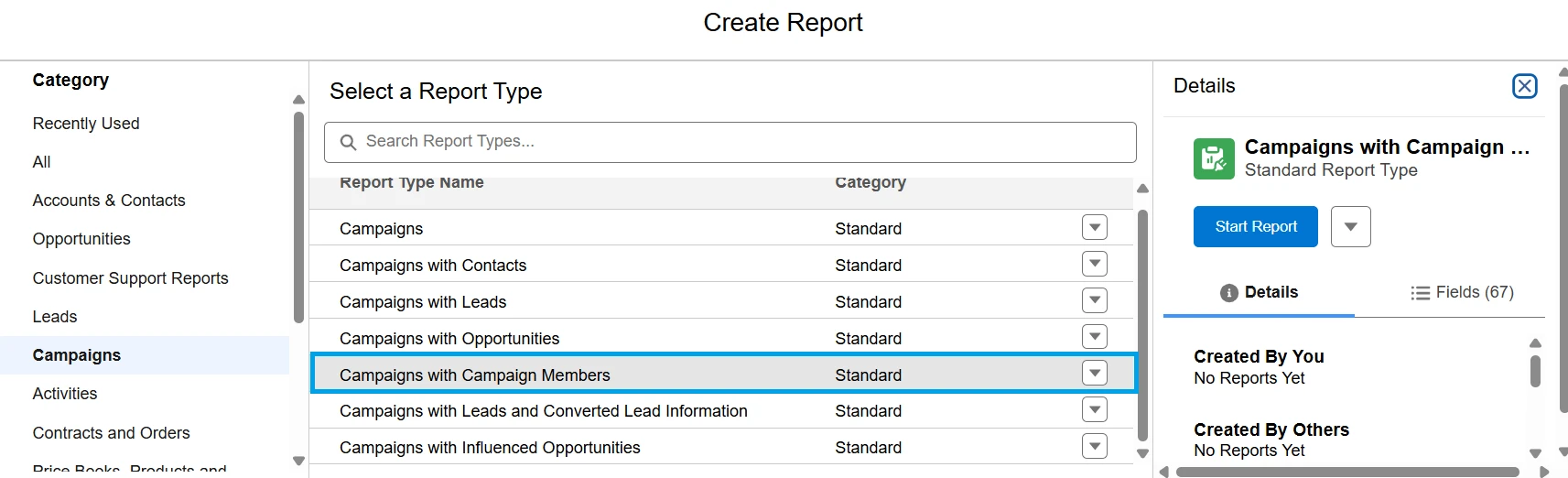
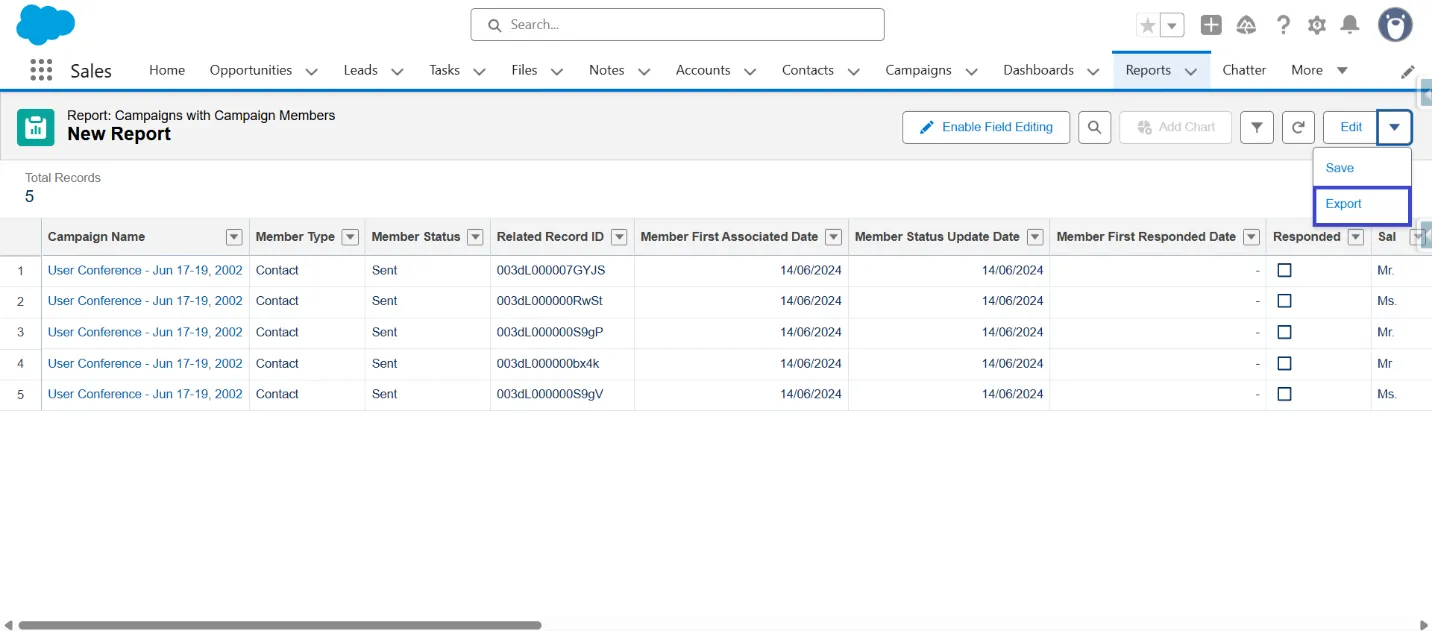
Reports tab → New Report → search for Campaigns with Campaign Members→ Start Report. Use this exact report type. Campaigns with Contacts and Campaigns with Leads are separate report types, which means you have to run two reports and stitch them together.

-
2
Add columns. The useful ones are: Name, Type (the Lead/Contact/Account discriminator), RelatedRecordId, Status, Email, Phone, and Company/Account.
-
3
If needed, add a filter: Campaign Name equals [your campaign].
-
4
Run the report, then click Export from the drop-down menu next to the Edit button, as shown in the screenshot below.
-
5
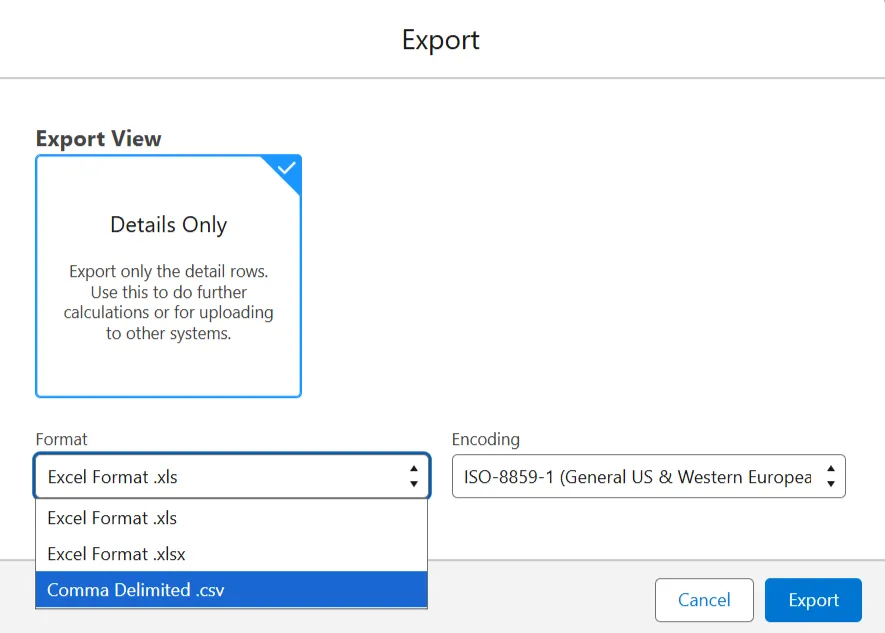
You can select the export view as Details Only and choose the format as Comma Delimited (.csv) or Excel Format (.xls or .xlsx).
Limits and Restrictions
Here’s the accurate table from Salesforce documentation:
| Export format | Row limit |
|---|---|
| Details Only — CSV or XLS | No row limit (officially "unlimited") |
| Details Only — XLSX | 100,000 rows, 100 columns |
| Formatted Report (XLSX only) | 2,000 rows, 100 columns |
| Joined Reports | 2,000 rows max — Formatted only |
A few constraints matter more than row limits in real-world exports:
-
Report runtime: Large reports can time out server-side. Salesforce documents that XLSX exports of large reports can fail or stall before producing a file.
-
Long Text and Rich Text fields are truncated in any report export.
-
Five reports max can be exported at the same time.
-
Sharing rules can hide records from the running user even when the campaign owner can see them.
-
Historical trending reports cannot be exported at all.
Tip
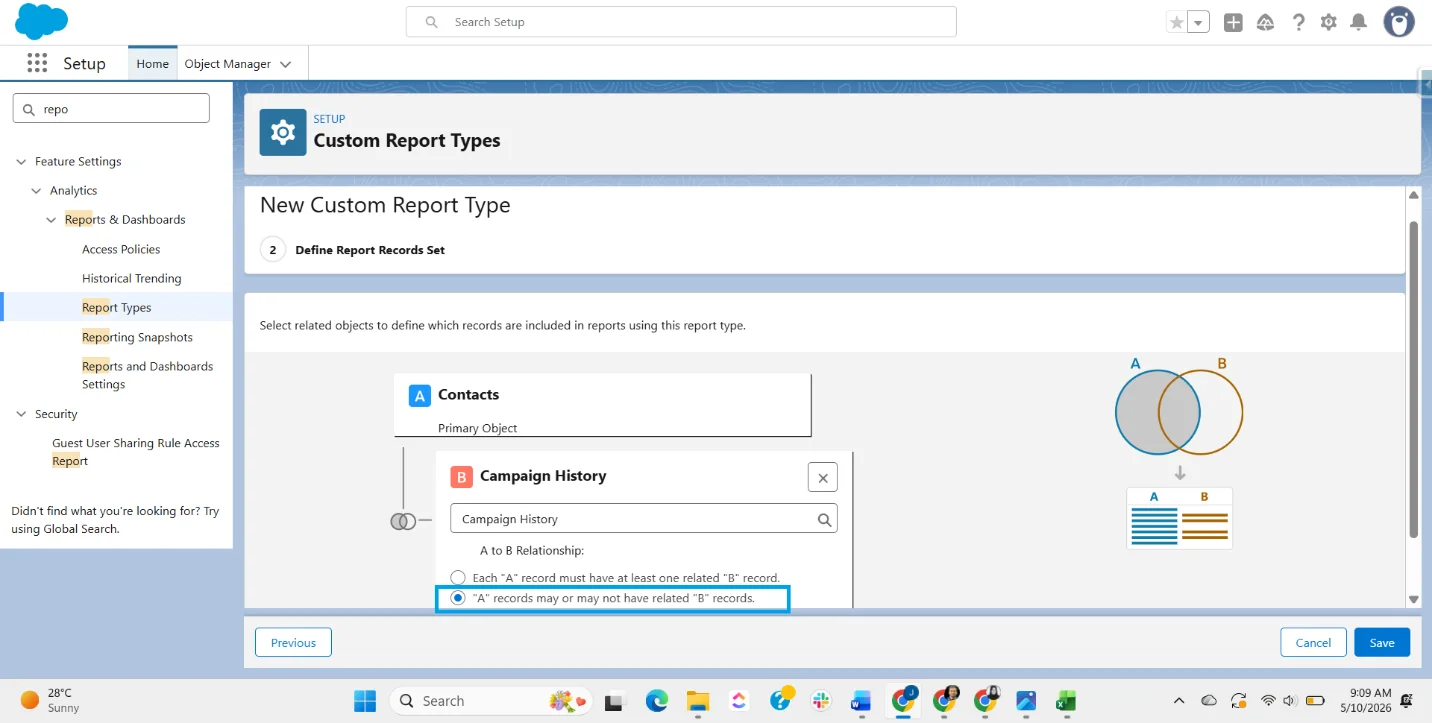
Сapturing non-members. Need contacts who are not in any campaign, or who haven’t responded? The standard report type uses an inner join and won’t return them.
Build a Custom Report Type with Contacts as the primary object and Campaign History as the secondary. During setup, choose “A records may or may not have related B records”. This is the “with or without” option. It unlocks a cross-filter that returns both populations in a single export.
When Reports aren't enough
Reports are the right starting point, but you’ll outgrow them when:
-
You hit the 100,000-row XLSX ceiling (Details Only)on a large campaign export.
-
Your report times out or stalls before producing the file.
-
You need fields not exposed in any report type: RecordTypeId, audit fields, polymorphic owner details.
-
Scheduled CSV delivery is not natively supported. Salesforce allows users to schedule report runs and receive email notifications, but these deliver an HTML summary or a report link, not a downloadable CSV file.
-
You’re round-tripping data: export, edit in Excel, re-import.
For these cases, switch to Data Loader (production-scale, scriptable, schedulable) or Workbench (one-off, no install). Both are covered next.
Method 2: Data Loader
Data Loader is the right tool for production-scale exports and round-trip workflows. Install it once from Setup → Data Loader, sign in, and you’re ready.
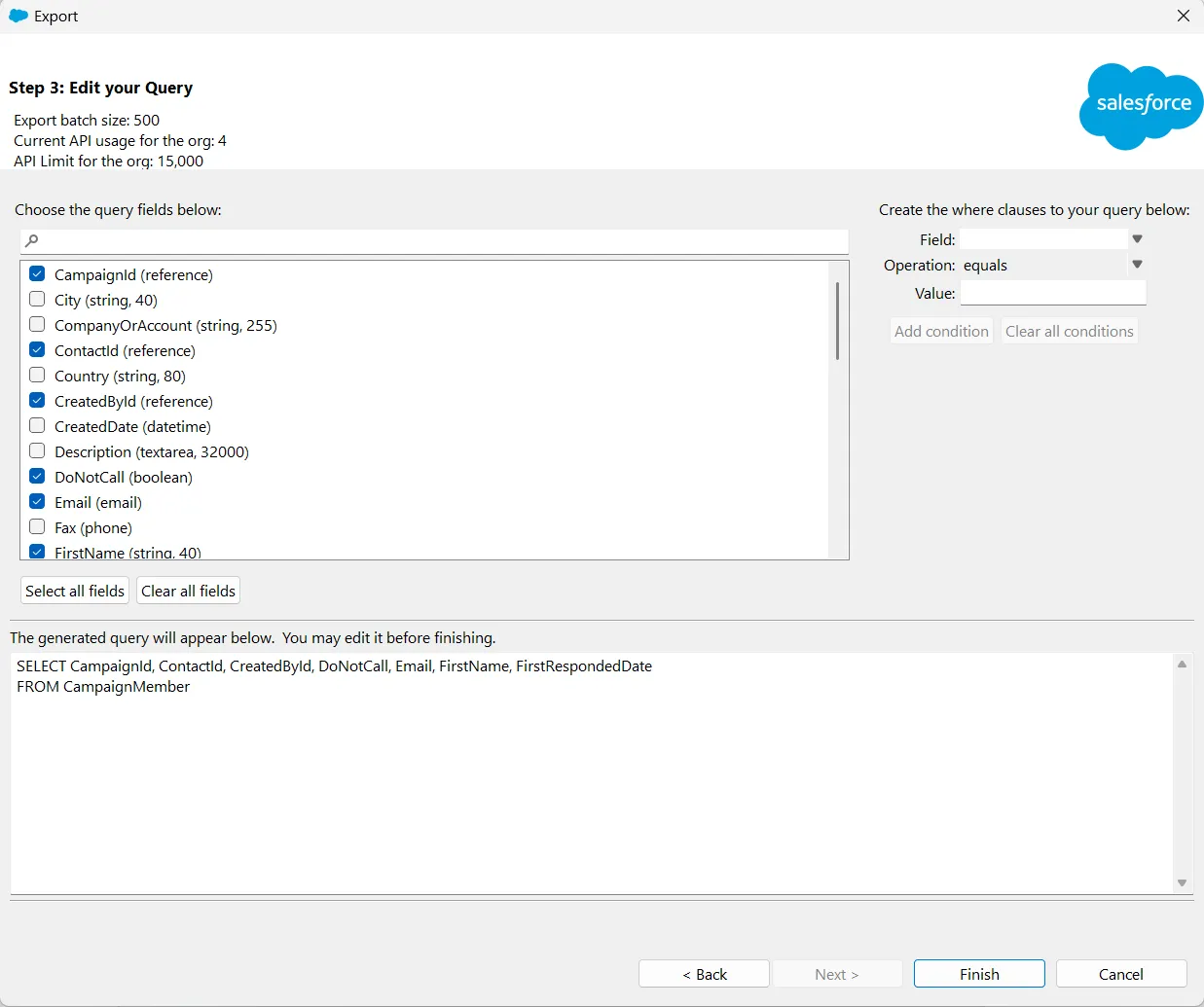
Choose Campaign Member as the object.
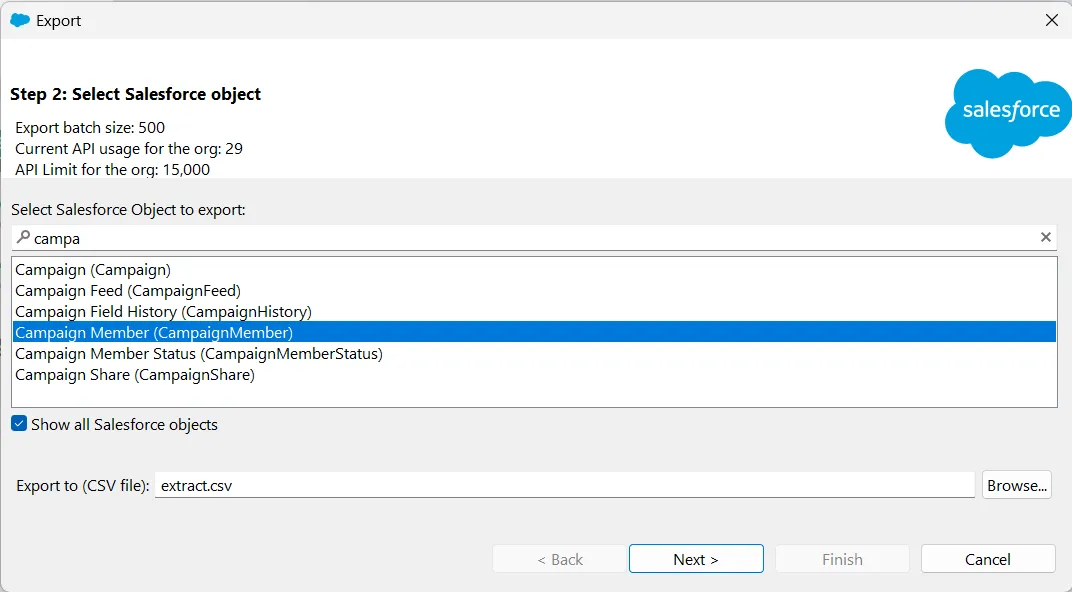
Select required fields and add a filter that creates an SOQL query to get records of the required Campaign Id(s). Specify the destination CSV file, then click on finish.
SOQL to Recover Lead and Contact Fields
If you run SELECT Id, Phone FROM CampaignMember and the Phone column comes back blank, that’s expected. The CampaignMember object doesn’t store phone numbers directly. The Lead or Contact linked to the campaign member stores them.
To get phone numbers, query the parent record with dot notation. It’s like following a path from the campaign member to the lead or contact.
SELECT Id, CampaignId, Status, HasResponded,
       Lead.Phone, Lead.MobilePhone,
       Contact.Phone, Contact.Email
FROM CampaignMember
WHERE CampaignId = '701dL000003HcXXXX'
One thing to keep in mind: every campaign member is linked to either a Lead or a Contact, never both. So if a row belongs to a Lead, the Contact fields will be blank, and vice versa.
See the CampaignMember Object Reference and SOQL Relationship Queries guide on developer.salesforce.com for more details.
Bulk API for Production-Scale Exports
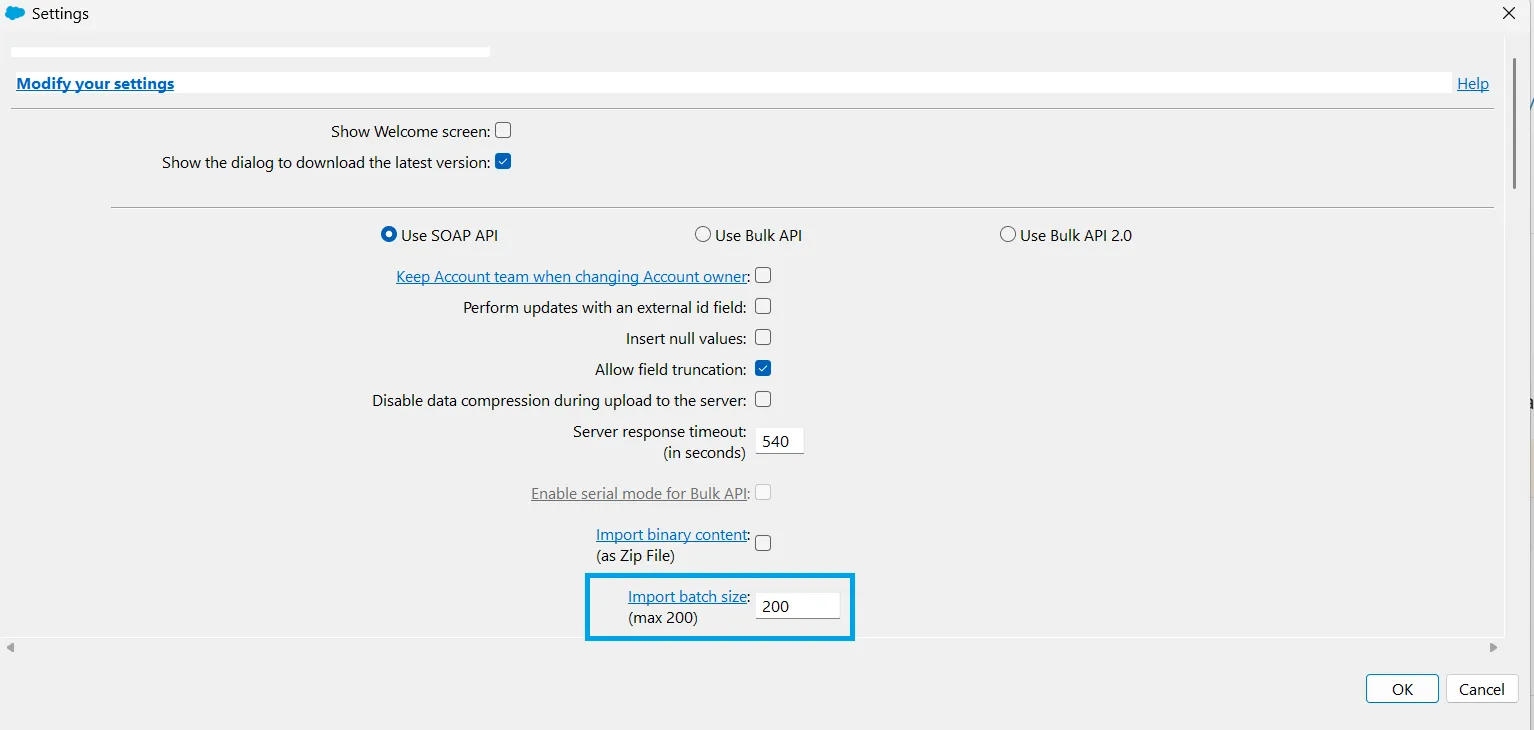
In Data Loader, go to Settings and enable Use Bulk API or Use Bulk API 2.0 for operations with batch size above 200 records. Bulk API runs asynchronously, parallelizes batches, and skips the synchronous SOAP path.
Bulk API 1.0 supports up to 15,000 batches per rolling 24-hour window at 10,000 records per batch.
Bulk API 2.0 handles batching internally and scales to ~150 million records per 24 hours. Use 2.0 for new implementations.
Enterprise Edition REST API allocation is 100,000 requests per 24 hours plus 1,000 per user license; Bulk API draws from a separate pool.
For exact figures: API Request Limits and Allocations.
Method 3: Workbench
Workbench answers a question most competitor articles never address: how do you export Campaign Members without installing anything?
When Workbench wins
Use Workbench when Data Loader is not installed and you need a one-off export. It is also the right choice when you want to test a SOQL query against CampaignMember before running it at scale, when your workstation restricts desktop application installs, or when you need a quick visual check of what a complex polymorphic query returns.
How to use it
Go to workbench.developerforce.com. It runs entirely in the browser, and authenticates via OAuth(no installation required).
Select Production or Sandbox, choose the appropriate API version, and accept the OAuth consent screen to log in.
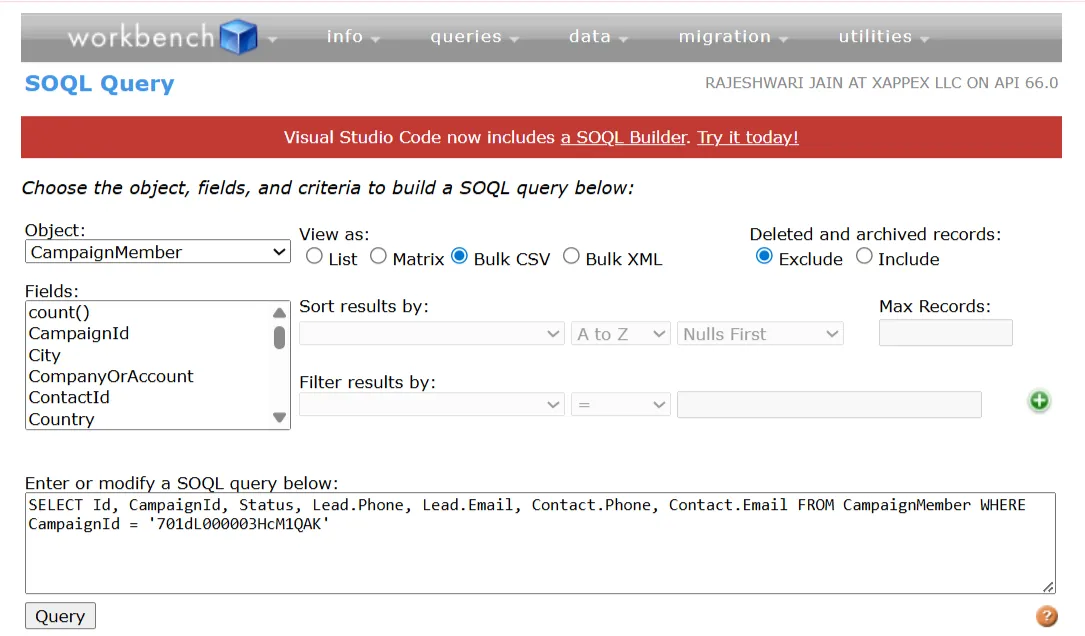
Jump to SOQL Query and select the object as Campaign member. Use relationship dot-notation to access Lead and Contact fields from the polymorphic relationship on CampaignMember:
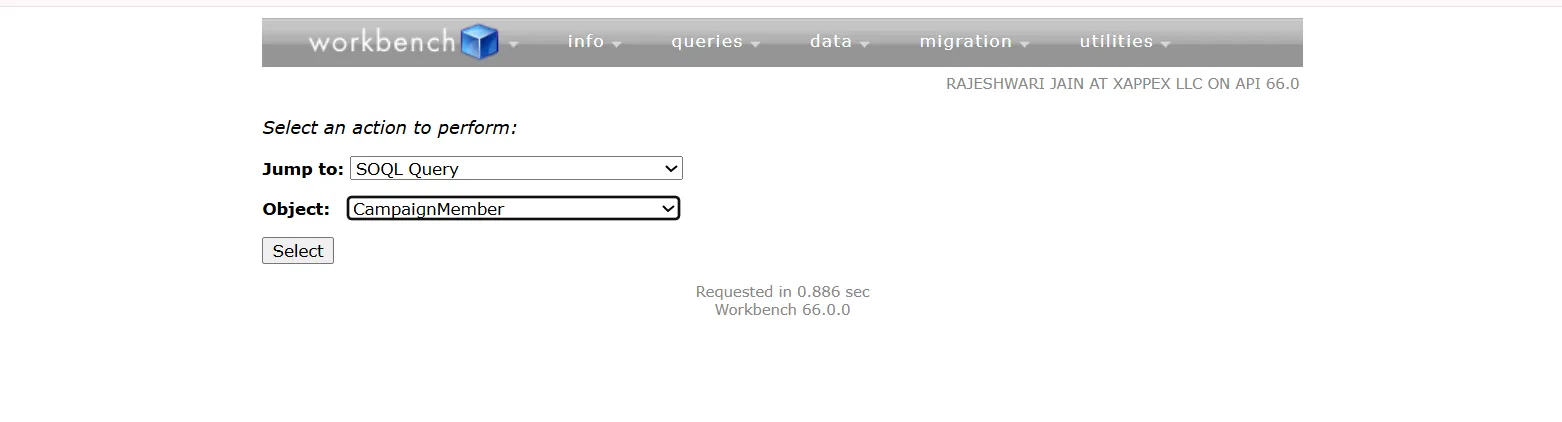
SELECT Id, CampaignId, Status, Lead.Phone, Lead.Email, Contact.Phone, Contact.Email FROM CampaignMember WHERE CampaignId = '701dL000003HcM1QAK'Set the result format to Bulk CSV and run the query. Download the CSV file directly from your browser.
Tip
Go to Setup → Object Manager → CampaignMember →Fields and Relationship. This view lists every field on the object, including hidden audit fields and polymorphic relationship details. It is the fastest way to confirm which fields your profile can access before you debug a missing column in Data Loader.
Common errors
| Error Code | Cause | Fix |
|---|---|---|
| INSUFFICIENT_ACCESS_OR_READONLY | Marketing User checkbox unchecked, or profile missing Read on CampaignMember | Enable Marketing User on the User record; grant Read/Edit on Campaign and CampaignMember in the profile |
| INVALID_FIELD (on SOQL) | Phone or Email don't exist as a direct field on CampaignMember | Use a relationship query with dot notation: SELECT Id, Lead.Phone, Contact.Phone FROM CampaignMember |
| MALFORMED_QUERY | Mismatched parentheses or an invalid relationship name | Check relationship API names against the object reference or run a DESCRIBE call |
| REPORT_TIMEOUT | Large hierarchy, cross-filters, or complex logic hitting the execution time limit | Filter to a single Campaign or split by date range |
| REQUEST_LIMIT_EXCEEDED | Daily API limit hit. Total Calls for Enterprise = 100,000 + (number of licenses x calls per license type) + purchased API Call Add-Ons | Switch to Bulk API; check current usage at Setup → System Overview |
| DUPLICATE_VALUE on insert | A CampaignMember already exists for that Lead/Contact + Campaign pair | Use upsert with Id as the match key instead of insert |
Tip
Validate Campaign Member Status values before every bulk import.
Campaign Member Status values are campaign-specific. A status available in one campaign does not automatically exist in another. If your file includes multiple campaigns, validate statuses for each CampaignId separately.
Status mismatches behave differently based on the import method:
- Data Loader and API imports reject records with invalid Status values and log them in the error file while the job continues.
- If the Status field is blank, Salesforce may assign the campaign’s default status, depending on the import method.
- Third-party integrations may reject the record or use the campaign’s default status based on their configuration.
These issues can cause failed imports or incorrect campaign reporting.
Run this query before importing:
SELECT Label, IsDefault, HasResponded
FROM CampaignMemberStatus
WHERE CampaignId = '701XXXXXXXXXXXXXXX'
Match every Status value in your CSV against the Label values returned by the query.
Conclusion
For standard fields and most export volumes, the Campaigns with Campaign Members report exported in Details Only format as a CSV is the right way. For production-scale, scheduled, or round-trip workflows, Data Loader with Bulk API and SOQL queries handles what Reports can’t.
For one-off pulls without installing anything, Workbench gets the job done in a browser. And before you debug missing fields in any export, verify Marketing User permission and Field-Level Security on the parent Lead or Contact.
FAQ
Can I export both Leads and Contacts from a single campaign in one CSV?
Yes. Use the Campaigns with Campaign Members report type. It joins both Lead and Contact records in a single result set.
To distinguish record types, add the Member First Name, Member Last Name, and object-specific fields (such as Lead: Company or Contact: Account Name) to your report columns.
Why can't I find an Export option on the Campaign Members related list?
Salesforce doesn't provide a direct CSV export button on the Campaign Members related list. This isn't a misconfiguration on your end, it's a platform gap that affects both Lightning and Classic. Your options are Reports (using the Campaigns with Campaign Members report type) or Data Loader. The Salesforce community has been voting on an IdeaExchange request to add this feature for years, but it hasn't shipped.
What is the row limit for exporting Campaign Members from a report?
It depends on the format. Details Only as CSV or XLS has no documented row limit. Details Only as XLSX caps at 100,000 rows. Formatted Reports (XLSX only) cap at 2,000 rows. Joined reports cap at 2,000 rows.
How do I export Phone or Email from a Campaign Member?
Use the Campaigns with Campaign Members report type in Reports, or query the Lead and Contact fields directly in SOQL. Phone and Email aren't stored on CampaignMember itself, they live on the parent Lead or Contact records.
In Reports, add Lead or Contact field columns to your report. In SOQL, traverse the relationship with dot notation:
SELECT Id, Lead.Phone, Lead.Email, Contact.Phone, Contact.Email
FROM CampaignMember
WHERE CampaignId = '701XXXXXXXXXXXX'
Fields from the non-matching type come back null. Contact.Phone is null for a Lead member, and vice versa.
Why doesn’t CampaignMember appear in the Data Loader?
Either “Show all objects” is not enabled in Data Loader, or the running user does not have the required profile permissions, or the Marketing User checkbox is not enabled.
Can I export Campaign Members without installing Data Loader?
Yes. Use Workbench at workbench.developerforce.com. It's web-based, signs in via OAuth, and exports CSV straight from a SOQL query result

Rajeshwari Jain
Content Manager
Rajeshwari Jain is a Technical Support Specialist and Content Writer at Xappex. She applies her practical experience to assist customers and create articles on how Xappex tools work with Salesforce to improve data management and increase efficiency.
She began her IT career in 2022 as a Quality Assurance professional before transitioning into Salesforce administration and technical writing in 2023. With Salesforce Certified Administrator and Associate certifications, Rajeshwari writes blogs on Salesforce flows, admin tools, and updates to expand her skills outside of work.
In her free time, she enjoys reading tech blogs and experimenting with new tools.
Feel free to reach out to Rajeshwari for collaborations or to check out her Salesforce-focused content.