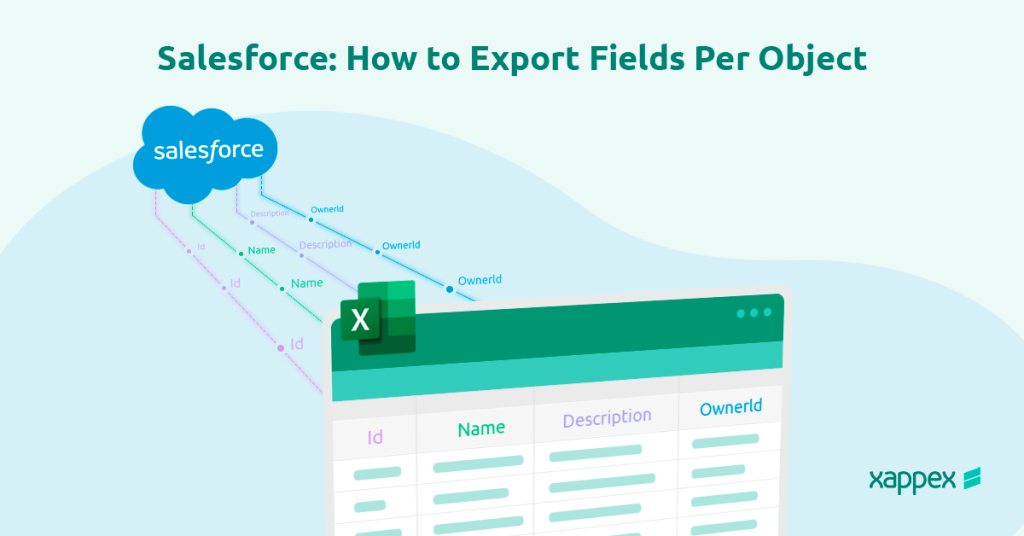
Bulk exporting data from Salesforce means extracting large volumes of records for analysis, migration, or integration, and it’s usually not as simple as clicking a button. Salesforce offers a couple of native tools for this, but each one of them only covers part of the problem. Pick the wrong one, and you risk ending up with incomplete, poorly structured data that will be difficult to use.
Bulk Export vs Regular Export
Bulk export refers to extracting large volumes of structured data using different tools or API’s, from Salesforce objects (Accounts, Contacts, Opportunities, custom objects, etc.), creating a large, unpolished dataset to use outside of Salesforce; be it for analysis, migration, or integration. This is different from a Regular Export, which creates a comprehensible, filtered, and formatted data table that aims for readability and day-to-day business analysis.
Native Salesforce Export Methods
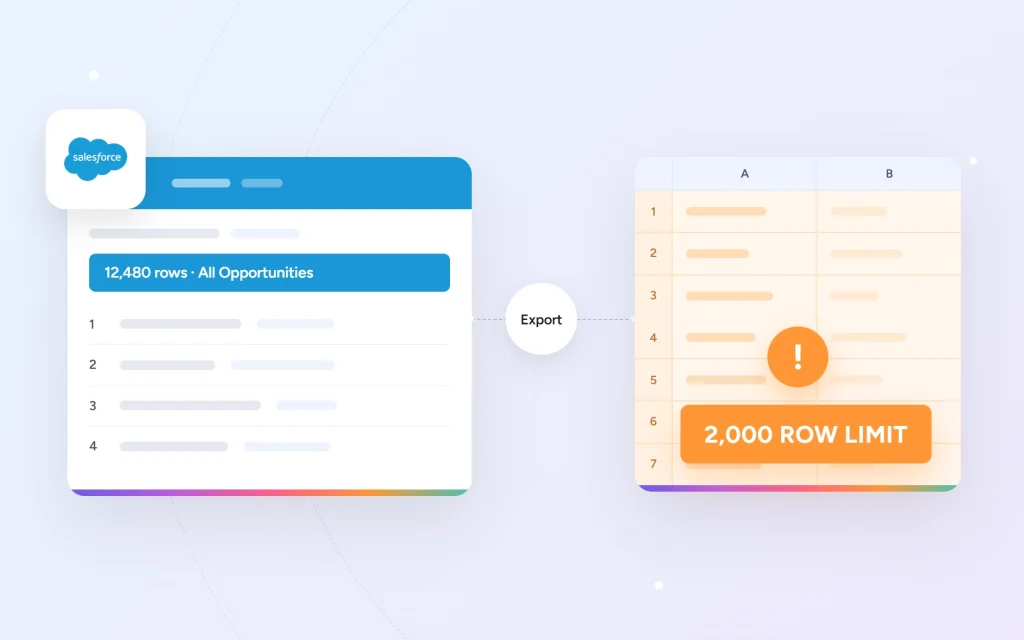
Reports are easy to understand, business-oriented data tables. They provide an organized, filtered, and formatted way of presenting and manipulating data on a daily or weekly basis. They have a limit of around 2000 records per export and are not suitable for automation, managing large datasets, or migrating databases.
At the end of the day, it’s a Reporting tool designed for human use, not an export tool.
Contrary to what the name indicates, the
Data Export Service is Salesforce’s built-in backup mechanism, not a solution for bulk export, even though the final output is a CSV file.
This tool works in two ways: A manual “Export Now” option and a scheduled weekly or monthly export, depending on your Org tier. It will create a ZIP file for each object that you can download directly from the UI within 48 business hours, not including weekends. After that, the download link will expire.
It is worth noting that you will only be able to download one file at a time, and there will be a 60-second wait between each download. Jobs are also run in a shared queue, so the delivery may be delayed by hours or days. This may need to be taken into consideration for large exports, as it will add a significant amount of time.
When using the Data Export Service, you will only export the data. Formula fields and rollup fields will not be included in the file, as Salesforce calculates their values dynamically, so there is no stored value to export.
It is also not available in sandbox environments; you can set it up and schedule it, but it will not be processed. This is not a bug, but intended by design.
Data Loader is the closest thing that Salesforce provides to a bulk export tool, albeit with some constraints.
For exports, it runs a SOQL query you create, so you can filter, select specific fields, and handle relationships exactly as needed; it writes the results to a local CSV file, and it comes with a command-line interface that makes it scriptable as well. You can also decide between Export, which pulls only active records, and Export All, which provides the additional capability of retrieving soft-deleted records directly from the Recycle Bin.
This tool, however, comes with some limitations:
- Your SOQL queries will only support some parent object queries, but not nested queries, child object queries, or polymorphic relationships.
- Compound fields like full addresses and full names will need to be exported as individual components.
- Your exports will only contain file metadata, and not the actual file content.
- You may reach your Org API Limit, as each export consumes API calls, and this may affect other integrations running in parallel.
- Manual setup is required, as there are no built-in scheduling features. You’d need to use the command-line interface if you want to schedule recurring reports.

Tip
Before doing a big export with Data Loader, make sure the user running it has permission to access the right objects and fields. Just because the export finishes doesn’t mean it captured everything. You will find more details in the section below.
If what you’re looking for is to export data from multiple related objects or automate recurring exports without writing scripts, a tool like
XL-Connector will help you streamline this process and work directly from within Excel.
Bulk API 2.0 is the right tool for large-scale extraction – but it is not a plug-and-play solution.
It is Salesforce’s REST-based API designed for processing large volumes of data asynchronously; this means that you submit a job, wait for it to process, and then retrieve the results. For large datasets, this translates to managing multiple jobs and manually combining the results. It’s the right choice when you’re dealing with 50,000+ records in a single operation, but it’s not as straightforward if you don’t have the necessary engineering knowledge to set it up.
With this tool, you can only export one object at a time, and with some SOQL limitations, as it does not support aggregation functions or grouping within the queries. The data will be exported as a CSV, and you will need to clear and shape it outside of Salesforce after the job is done, before the data is usable.
Why Your Export May Be Incomplete
Files and Attachments: What Gets Left Behind
Files and records do not share the same data structure and are fundamentally different.
Large exports can produce dozens of different ZIP files without a specific structure, and while files are linked to records via ContentDocumentLink, these relationships are not preserved in a usable format after they’re exported, which will require manually reconstructing relationships and additional processing post export.
How Permissions Limit Your Export
The user running the export would require the necessary permissions for the records or be able to Query All Files. Otherwise, records and files not owned by or shared with that user will be excluded from the export without any alerts or error messages.
This is the main cause of what is known as silent data loss, which happens when the export is completed without any error message, but the data exported is incomplete.
Always audit user permissions before running a large export to avoid this.
Data Relationships Are Not Preserved
When doing any type of bulk export, Salesforce uses the record IDs to track relationships between objects. In order to use those IDs, you will need to match them and reconstruct the relationships manually.
If you are planning on doing a migration or need the data for analysis, this will be the most important part of the process.
How to Choose a Bulk Export Approach
Each tool can be useful depending on the volume of data you’re exporting, as well as your use case, and any technical resources or restrictions that you may have.
|
Method |
Volume |
Use Case |
Target User |
Scope |
Frequency |
Output |
Limitations |
|
Report Export |
Up to 2,000 rows |
Ad-hoc snapshots, stakeholder sharing, cross-object joined views |
Business analyst, manager |
Report-defined fields and filters only |
On demand, manual |
XLSX or CSV - formatted, human-readable, with labels |
2,000 row hard cap No automation. No API field names |
|
Data Export Service |
Entire org - millions of records |
Org-wide backup, compliance archive, disaster recovery baseline |
Salesforce admin |
All standard and custom objects + file attachments |
Weekly or monthly - Salesforce-controlled schedule |
ZIP of CSVs (one per object) + separate attachment ZIP |
7–29 day cadence only Download link expires in 48h. No on-demand outside schedule |
|
Data Loader |
Millions of records - no hard cap |
Large one-off exports, migrations, scripted recurring jobs without custom code |
Admin, developer |
One object per job - SOQL-defined fields and filters |
Manual or via OS task scheduler (cron / Windows Task Scheduler) |
Flat CSV with API field names |
No built-in scheduler Java + local install required. No transformation. No file/blob export via Bulk API |
|
Bulk API 2.0 |
Unlimited - designed for tens of millions of records |
ETL pipelines, data warehouse sync, migrations, compliance exports, file manifest extraction |
Engineer, data team |
Any object and field combination - full SOQL control, multi-job parallelism |
Fully programmatic - any cadence, real-time or scheduled |
Paginated raw CSV with API field names |
Engineering effort required No blob/file body export natively. Requires job polling, error handling, retry logic |
|
XL-Connector |
Only limited by Excel capabilities |
Self-service refreshable reports, analyst-driven exports, lightweight bi-directional updates |
Business analyst, power user |
SOQL query-defined - one or more objects per sheet |
On demand or built-in scheduler - no IT dependency |
Directly into Excel - pivot-ready |
Large attachment downloads are subject to Salesforce API governor limits and per-file size constraints |
Method
Report Export
Volume
Up to 2,000 rows
Use Case
Ad-hoc snapshots, stakeholder sharing, cross-object joined views
Target User
Business analyst, manager
Scope
Report-defined fields and filters only
Frequency
On demand, manual
Output
XLSX or CSV - formatted, human-readable, with labels
Limitations
2,000 row hard cap No automation. No API field names
Method
Data Export Service
Volume
Entire org - millions of records
Use Case
Org-wide backup, compliance archive, disaster recovery baseline
Target User
Salesforce admin
Scope
All standard and custom objects + file attachments
Frequency
Weekly or monthly - Salesforce-controlled schedule
Output
ZIP of CSVs (one per object) + separate attachment ZIP
Limitations
7–29 day cadence only Download link expires in 48h. No on-demand outside schedule
Method
Data Loader
Volume
Millions of records - no hard cap
Use Case
Large one-off exports, migrations, scripted recurring jobs without custom code
Target User
Admin, developer
Scope
One object per job - SOQL-defined fields and filters
Frequency
Manual or via OS task scheduler (cron / Windows Task Scheduler)
Output
Flat CSV with API field names
Limitations
No built-in scheduler Java + local install required. No transformation. No file/blob export via Bulk API
Method
Bulk API 2.0
Volume
Unlimited - designed for tens of millions of records
Use Case
ETL pipelines, data warehouse sync, migrations, compliance exports, file manifest extraction
Target User
Engineer, data team
Scope
Any object and field combination - full SOQL control, multi-job parallelism
Frequency
Fully programmatic - any cadence, real-time or scheduled
Output
Paginated raw CSV with API field names
Limitations
Engineering effort required No blob/file body export natively. Requires job polling, error handling, retry logic
Method
XL-Connector
Volume
Only limited by Excel capabilities
Use Case
Self-service refreshable reports, analyst-driven exports, lightweight bi-directional updates
Target User
Business analyst, power user
Scope
SOQL query-defined - one or more objects per sheet
Frequency
On demand or built-in scheduler - no IT dependency
Output
Directly into Excel - pivot-ready
Limitations
Large attachment downloads are subject to Salesforce API governor limits and per-file size constraints
What is the fastest way to bulk export data from Salesforce?
For a one-off export, under 500k rows, Data Loader with SOQL will be optimal. If you’re planning on exporting millions of records and have sufficient programming skills, use Bulk API 2.0. When a good all-around tool is needed for non-technical users who use related objects or create recurring exports, XL-Connector is the best.
Can I export Salesforce files and attachments in bulk?
Yes, but depending on the file type, bulk export becomes increasingly more complex. Files and attachments are a fundamentally different data structure from records, and every tool handles them differently.
What is the difference between Data Export Service and Data Loader?
Data Export Service is a backup tool that can be set up to run weekly or monthly, depending on your organization, and cannot control the format of the data. Data Loader is a Salesforce tool to export data via SOQL, with some control over the exported data, but with a manual setup required. None of these tools offers a complete solution to all bulk export scenarios.
Does Salesforce bulk export preserve relationships between objects?
There are no native tools that handle relationships directly in a ready-to-use format. All exported ID’s must be manually matched to reconstruct relationships.
When your data starts to grow, exporting it reliably becomes a real challenge, and no single built-in tool does everything you need. Whether you’re working with related records, file attachments, or need exports to run automatically on a schedule, most standard options only get you part of the way there. For Salesforce Admins and RevOps teams who need a complete, repeatable solution without relying on a developer, XL-Connector is the right tool for the job.
Agustín Carranza
Customer Support & Quality Assurance Specialist
About the Author
Agustín Carranza is a Customer Support and Quality Assurance Specialist at Xappex. With over 4 years of experience across customer service, technical support, backoffice operations, team leadership, and QA, he brings a well-rounded perspective to helping users solve real problems efficiently.
His background in Systems Engineering, combined with hands-on knowledge of programming, data analysis, MySQL, and Python, allows him to understand both the technical and human sides of support. He holds a Cambridge English certification, reflecting his commitment to clear and professional communication.
Agustín is dedicated to improving customer satisfaction and ensuring service excellence — values that guide both his support work and the content he creates for the Xappex blog.

 Get Started Free