Get Started Free



Salesforce Summer ’26 reaches production orgs on June 5, June 12, and June 13, 2026. One of the most important changes for admins is Step-Up Authentication for reports. This update adds an extra MFA verification step when users access report data, making it essential to review security settings and user readiness before enforcement starts.
When Summer '26 Hits Your Org
Salesforce is rolling out Summer ’26 to production environments on June 5, June 12, and June 13, 2026. The exact date depends on your Salesforce instance.
| Milestone | Sandbox Date | Production Date |
|---|---|---|
| Pre-release orgs available | April 16, 2026 | — |
| Release notes available | April 22, 2026 | — |
| Sandbox preview cutoff | May 7, 2026 | — |
| Sandbox preview begins | May 8, 2026 | — |
| Trailhead release badge available | May 8, 2026 | — |
| Release overview deck and feature matrix | May 8, 2026 | — |
| Summer ’26 production rollout | — | June 5, 12, and 13, 2026 |
To find your release date, enter your instance name in Salesforce Trust. The site lists scheduled maintenance and upgrade windows for every instance.
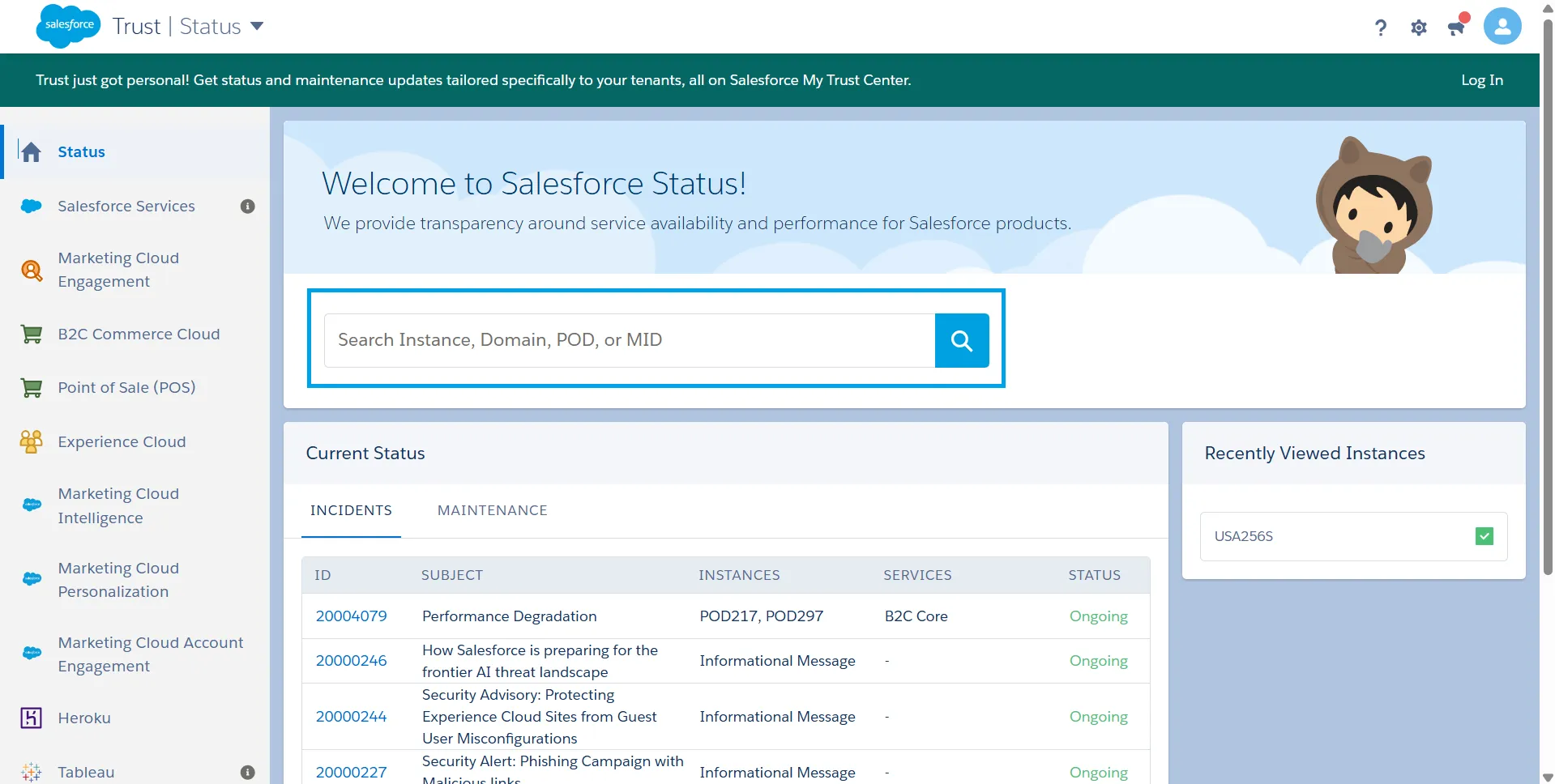
If Summer ’26 has not reached your environment yet, Salesforce Trust will indicate whether your instance is scheduled for the June 12 or June 13 release.
What’s Actually Changing — Five Security Updates
Summer ’26 includes many new features, but five security updates require admin attention. This section provides a brief overview. The next section covers step-up authentication for reports in detail.
-
1
Step-Up Authentication for Reports
Salesforce will require an additional verification step before users can access or export sensitive reports.
This change affects organizations that store sensitive business or customer data in reports. Admins should review report access policies and prepare users for the new requirement.
-
2
Phishing-Resistant MFA for Admin-Level Users
Salesforce will require phishing-resistant MFA for users with elevated permissions.
This update applies only to users with the System Administrator profile or permissions such as Modify All Data, View All Data, Customize Application, or Author Apex. Most Salesforce users are not affected and do not need to take any action.
-
3
ML-Based Anomaly Detection on Report Activity
Salesforce is expanding machine learning-based monitoring of report access and export activity. The system can identify unusual behavior that may indicate unauthorized access or data exfiltration.
This feature affects admins and security teams responsible for monitoring data access. Review alert and investigation processes before rollout
-
4
Email Domain Verification (DKIM)
Salesforce now requires email-sending domains to be verified. Emails sent from unverified domains will fail delivery, even if the sender address is verified.
Organizations can meet this requirement by activating DKIM or verifying the domain in the Authorized Email Domains list. Only one verification method is required for each domain or subdomain. This update affects organizations that send email from custom domains through Salesforce.
-
5
IP Allowlist Enforcement Changes
Salesforce is updating how trusted IP ranges are enforced across the platform.
This change affects organizations that use IP restrictions for users, integrations, or connected applications. Review the Release Notes for implementation requirements and enforcement timelines.
Of these five updates, step-up authentication for reports will affect the most users. The next section explains the change in detail.
Step-Up Authentication on Reports — What It Actually Does
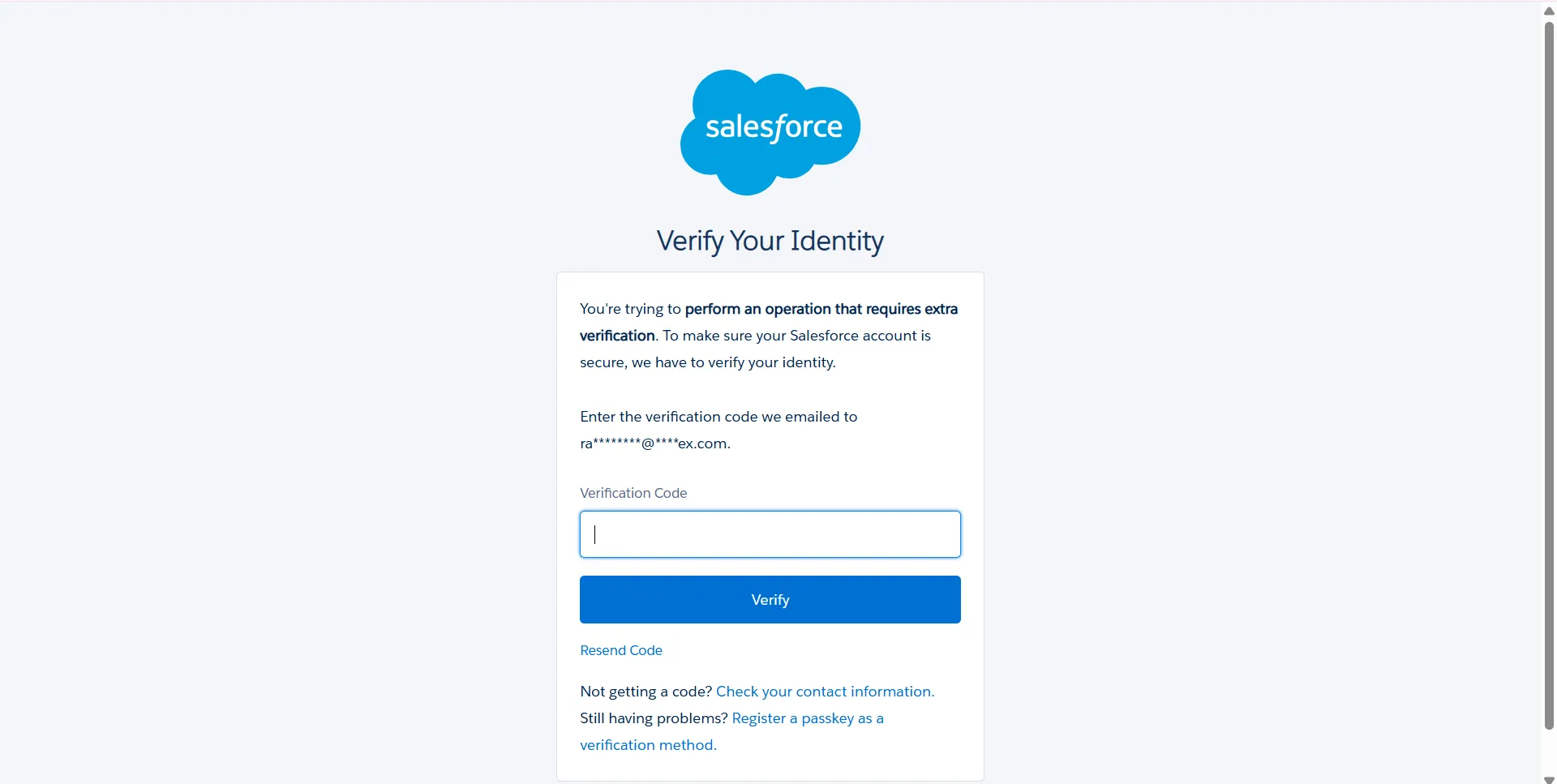
Salesforce uses a time-based step-up authentication framework for report exports. If the Step-Up Authentication Period expires, users must verify their identity before exporting or printing a report, even if they signed in with MFA.
The step-up challenge triggers only when a user exports or prints a report. Opening, running, or viewing reports and dashboards does not trigger it.
The policy is enabled by default when enforcement begins and applies to all users, including Federated Single Sign-On (SSO) users. If an SSO user isn’t registered for Salesforce MFA, Salesforce prompts them to verify their identity with a one-time passcode sent by email or SMS.
Step-up authentication for report exports is not required if the user’s profile has Login IP Restrictions configured and either the user’s IP address has not changed since login or Enforce login IP ranges on every request is enabled in Session Settings.

Note
This IP-based exemption is released separately from the main step-up authentication rollout and may not be available when the core framework is first enforced.
Understanding the Step-Up Authentication Period
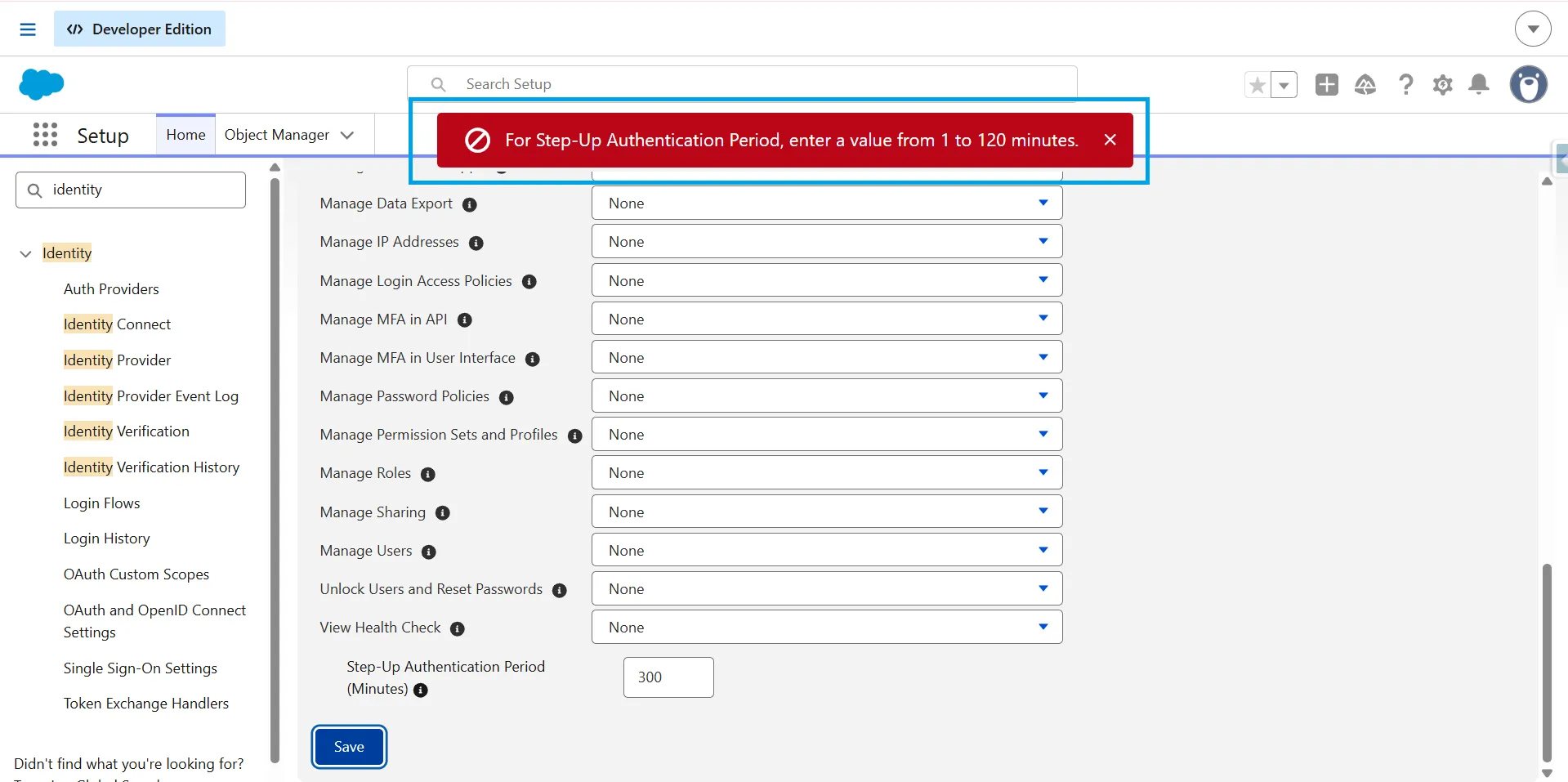
Salesforce uses the Step-Up Authentication Period (Minutes) setting to determine how long a completed verification remains valid.
Admins can set the value between 1 and 120 minutes. The default value is 120 minutes.
With the default setting:
-
1
A user completes a step-up authentication challenge.
-
2
The user can access reports and dashboards for the next two hours without another challenge.
-
3
After 120 minutes, Salesforce requires a new challenge before granting access.
MFA at login does not reset this timer. Salesforce treats report and dashboard access as a separate verification event.
Supported Verification Methods
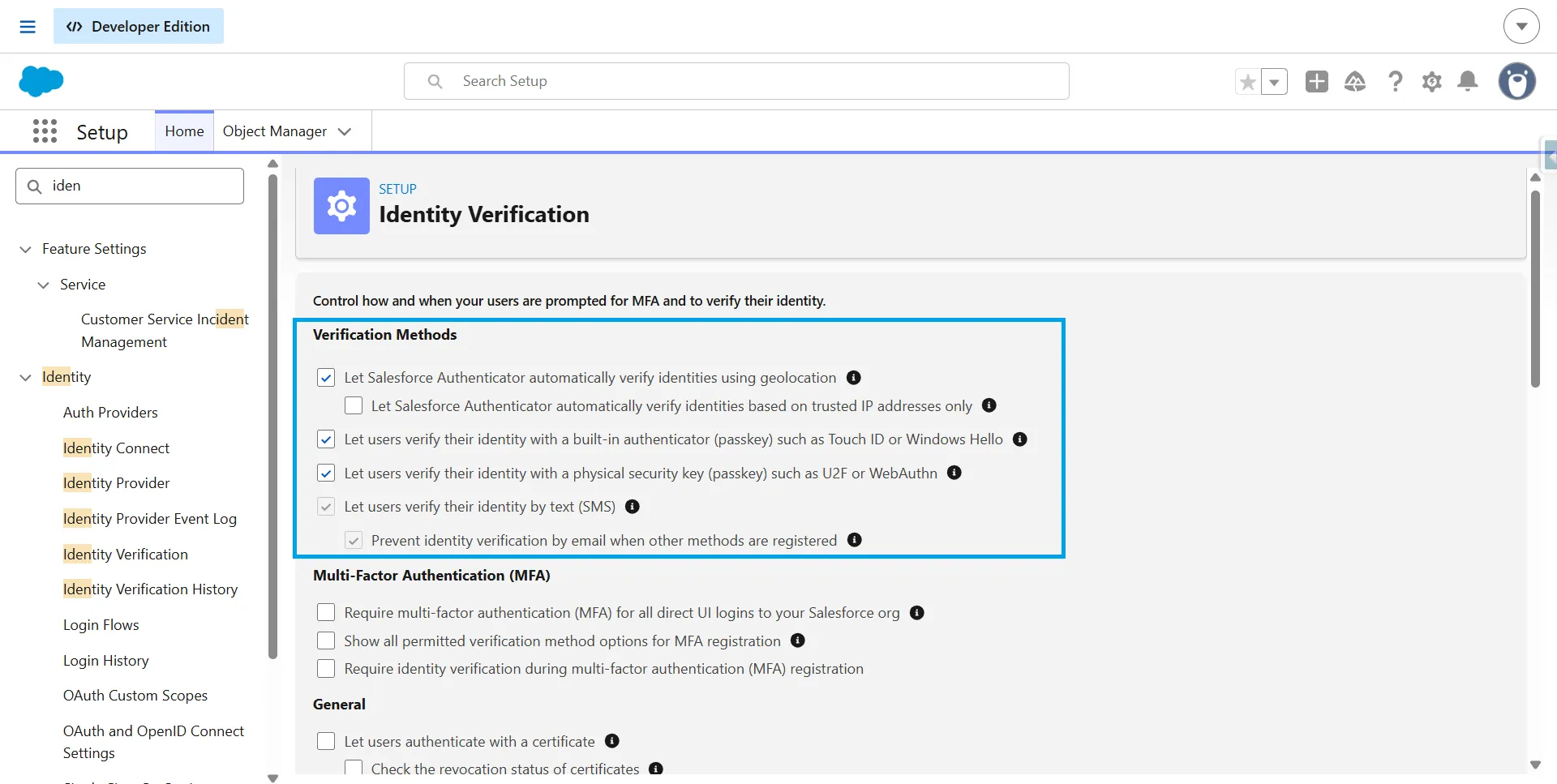
Users can verify their identity using:
-
A supported Salesforce MFA method, such as Passkeys, Security Keys, Salesforce Authenticator, or a Time-Based One-Time Password (TOTP) app.
-
A one-time passcode (OTP) is sent to their registered email address.
-
A one-time passcode (OTP) is sent to their registered mobile phone by SMS.
To avoid verification issues, users should register a Salesforce MFA method or keep their email address or mobile phone number up to date.
Applies to All Users
Step-up authentication applies to all Salesforce users, including users who authenticate through Single Sign-On (SSO).
If an SSO user has not registered with Salesforce MFA, Salesforce sends a one-time passcode (OTP) by email or SMS.
Users won’t be prompted for step-up authentication when exporting reports if their profile has Login IP restrictions and their IP address hasn’t changed since login. They also won’t be prompted if “Enforce login IP ranges on every request” is enabled in Session Settings.
The framework is enabled by default.
Note
Step-up authentication is enforced only in paid Production and Sandbox orgs. It doesn’t apply to Developer Edition, trial, scratch, or other non-paid orgs.
How to Configure the Authentication Period
The cool-down period controls how long users can access Reports and Dashboards after completing step-up authentication.
Go to:
Setup → Identity Verification →Reports and Dashboards ->Select “Require periodic step-up authentication when exporting or printing” from drop down:
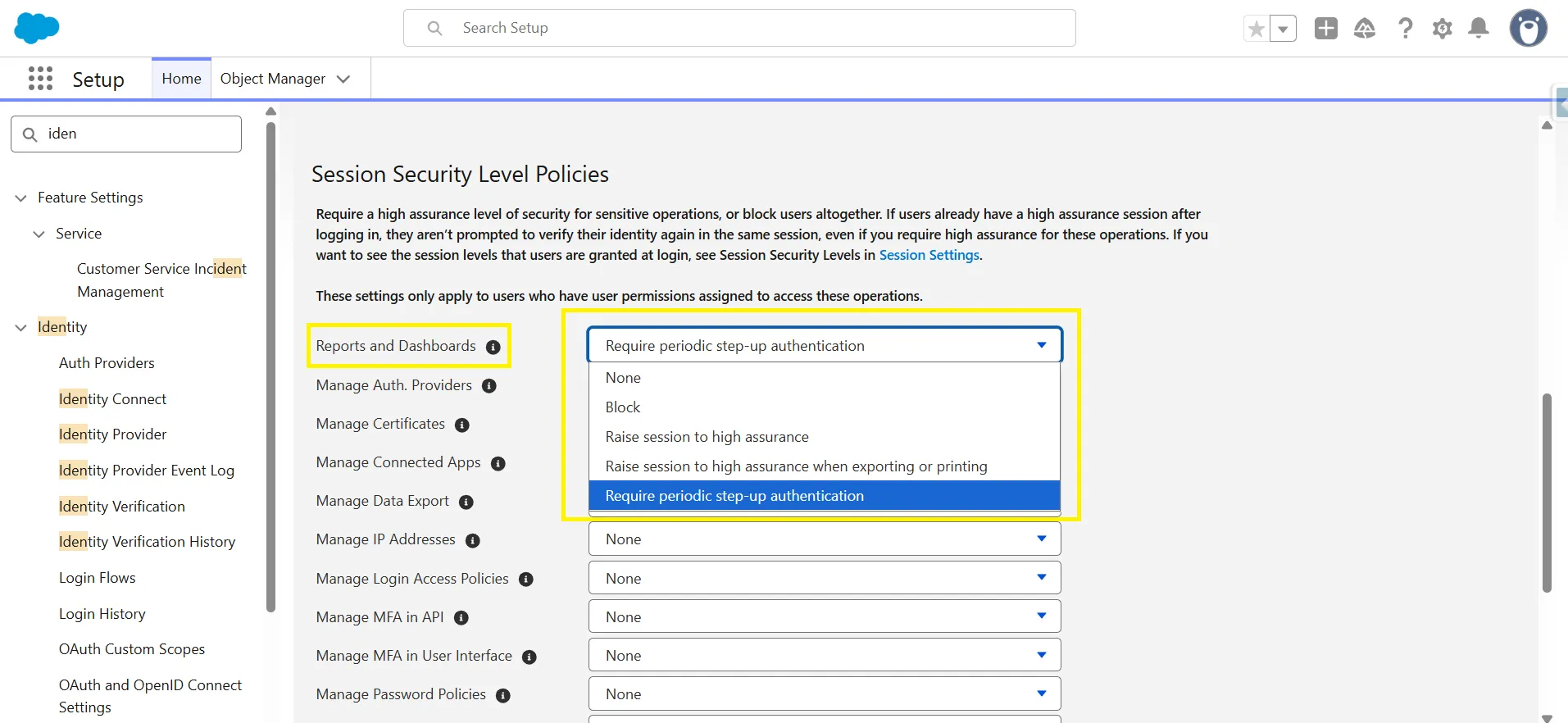
Set the setup authentication period to a value between 1 to 120 minutes based on how your teams use reports -> Save
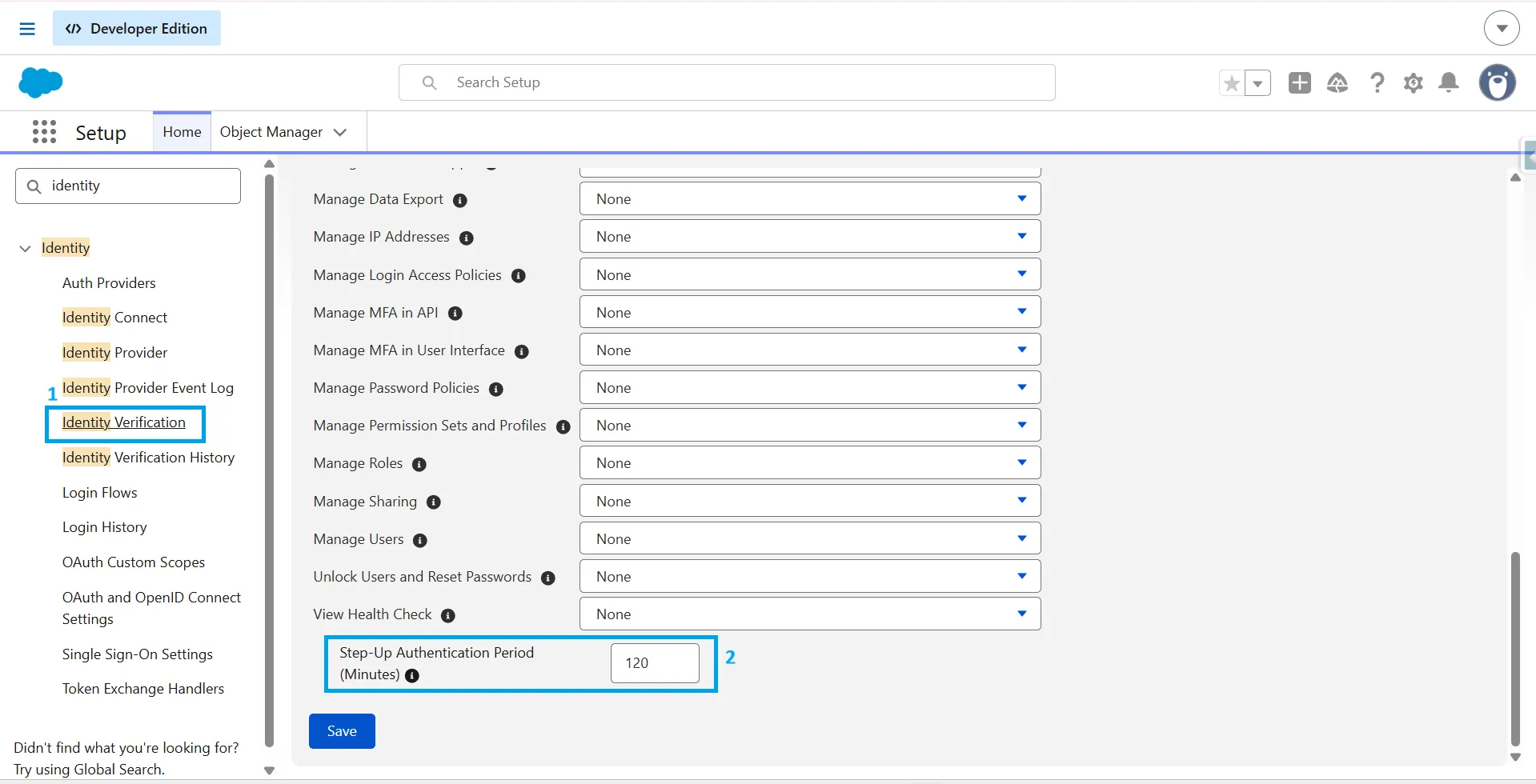
Choosing the Right Authentication Period
Sales Teams: Sales users often open reports and dashboards multiple times throughout the day. The default 120-minute setting reduces repeated MFA prompts and keeps reporting workflows uninterrupted.
Finance Teams: Finance teams typically access reports during scheduled review periods. A shorter period usually works well because report access is less frequent and often involves sensitive financial data.
Operations and BI Teams: Operations and BI teams may run large exports or multiple reports during a single session. Schedule these activities within one MFA window to avoid repeated authentication requests.
One thing to keep in mind: set the window too low, and you’ll annoy report-heavy teams with constant re-authentication. Set it too high, and the control stops doing its job. Tie the value to how often your team actually runs reports, not to either extreme.
How This Affects Data Extraction Workflows
Salesforce’s new step-up authentication requirement impacts UI-based and API-based data extraction differently.
UI-based extraction involves accessing data through the Salesforce interface, such as running or exporting reports. API-based extraction uses Salesforce APIs, including REST, SOAP, Bulk, and Analytics APIs.
This distinction is important because step-up authentication applies only to report and dashboard activity in the Salesforce UI. According to Salesforce, this change helps prevent “data theft via UI-based screen scraping or browser-based data capture.”
What this means:
-
Reports run in the Salesforce UI: Affected. Users may need to complete a step-up MFA challenge to view, run, or export a report.
-
Dashboards viewed in Salesforce: Affected. Opening a dashboard may also trigger a step-up MFA challenge.
-
Scheduled report subscriptions via email: Not affected. Scheduled reports will continue to run and send as usual. However, opening a report in Salesforce from a subscription email may prompt a step-up MFA challenge.
-
API-based extraction using OAuth: Not affected by step-up authentication for reports and dashboards.
Teams that extract Salesforce data through APIs can continue using their current workflows. This includes integrations using SOQL queries, the Analytics API with OAuth, connected apps, and other API-based methods.
For admins seeking alternatives to report exports, SOQL queries are the standard method for API-based data extraction. SOQL enables direct retrieval of Salesforce data through authenticated API connections. Tools such as XL-Connector and G-Connector allow admins to run SOQL queries from Excel or Google Sheets.
External tools that pull report data through the UI export endpoint will be affected by step-up authentication. Tools that use the Analytics API or SOQL queries with OAuth will continue to work without additional authentication prompts.
Preparation Checklist Before June 10
Use this checklist to prepare your Salesforce org for upcoming security and authentication changes.
Audit users who need phishing-resistant MFA
Review users with the System Administrator profile or permissions such as Modify All Data, View All Data, Customize Application, and Author Apex. Ensure they enroll in a phishing-resistant MFA method, such as a passkey, Windows Hello, Touch ID, or a security key.
Confirm MFA readiness for all users
Verify that all users have an approved MFA method enrolled. Address enrollment gaps before enforcement begins.
Test step-up authentication in a sandbox
Test report access and export workflows after May 27. Sandboxes receive the feature before production, giving you time to identify issues before the June 10 rollout.
Configure the Identity Verification
Go to Setup → Identity Verification and set an authentication period based on how often users run or export reports. This helps reduce unnecessary verification prompts.
Tell users about upcoming authentication prompts
Notify users about the new report authentication requirements, especially those who run reports regularly. Early communication helps reduce confusion and support requests.
Review integrations that use SOAP login()
Identify integrations that still rely on the SOAP login() API. Plan a move to OAuth 2.0 or Named Credentials to maintain compatibility with future Salesforce releases.
Review connected apps that use the OAuth username-password flow
Identify connected apps that use the OAuth 2.0 username-password flow. Salesforce plans to retire this flow in Winter ’27, so start evaluating alternative authentication methods.
Update internal documentation
Update documentation for MFA enrollment, passkey setup, identity verification, and report access procedures. Clear guidance helps users complete setup with fewer issues.
What to Watch Out For
Before Summer ’26 reaches your org, take a few minutes to review how users and integrations access Salesforce.
What if users access Salesforce from multiple devices?
Built-in authenticators, including Windows Hello, Touch ID, and Face ID, are specific to each device. If you access Salesforce from multiple devices, you must register the authenticator on each device or use an alternative multi-factor authentication (MFA) method, such as Salesforce Authenticator, a time-based one-time password (TOTP) application, or a hardware security key.
For detailed instructions on replacing or switching devices, refer to Salesforce’s Manage Built-in Authenticators When Switching Devices article.
Register at least two MFA methods for each user to minimize the risk of account lockout if a device is lost, replaced, or unavailable.
For administrator accounts, maintain a separate emergency administrator account with a distinct MFA method stored independently. This ensures access during account recovery or other emergency situations.
We use SSO — do we still need to do anything?
Maybe. Salesforce checks information from your identity provider to determine whether an SSO login meets its MFA requirements. If it doesn’t, users may be prompted for MFA in Salesforce after signing in.
If you use SSO, review Salesforce’s Prepare for MFA Enforcement for All Employee Users and then confirm that your identity provider is configured correctly.
Will our integration users break?
-
Integration users authenticating via OAuth with refresh tokens are not affected by step-up authentication on reports, because API-only access is exempt from these UI-targeted controls.
-
However: if you have an integration user that logs in via the UI rather than API (which is against Salesforce best practices), that workflow will be affected. Audit integration users and confirm all are configured for API-only access.
Conclusion
Salesforce Summer ’26 brings a few new features, but the biggest change for admins is stronger security. The key date is June 10, 2026, when Salesforce enforces Step-Up Authentication for reports in production.
Your job is to make the change smooth for users. The report authentication period is the main setting to adjust to reduce unnecessary MFA prompts while keeping report data secure.
Test the new authentication flow in a preview sandbox. Let users know what to expect. Review integration accounts to confirm they are API-only. A little preparation now can prevent access issues later.
FAQs
When is the Salesforce Summer '26 release date?
The Salesforce Summer ’26 release will be deployed to production environments over three weekends: May 15, June 5, and June 12-13, 2026. Your specific rollout date depends on your Salesforce instance. Please check the Salesforce status page to confirm your schedule.
What is Step-Up Authentication in Salesforce?
Step-Up Authentication is an added security measure that requires users to complete MFA verification before accessing or running reports. Administrators can set the re-authentication interval; the default is 120 minutes.
When does Step-Up Authentication on reports start?
Salesforce will enforce Step-Up Authentication in sandbox environments starting June 3, 2026. Production organizations must comply beginning June 10, 2026.
Does Step-Up Authentication affect API access?
No, Step-Up Authentication applies only to report access through the Salesforce user interface. API connections and OAuth integrations are not affected by this requirement.
Who needs a phishing-resistant MFA?
Only Salesforce admins and users with permissions such as Modify All Data, View All Data, Customize Application, or Author Apex need phishing-resistant MFA. Other users can continue using standard MFA methods.
What counts as a phishing-resistant MFA?
Phishing-resistant MFA includes passkeys, built-in device authenticators like Windows Hello or Touch ID, and hardware security keys such as YubiKey or Google Titan. Standard authenticator apps, including Salesforce Authenticator, do not meet this requirement.
How do I check when my Salesforce instance gets upgraded?
Find your instance name in Setup → Company Information. Then visit the Salesforce Status page, search for your instance, and check the Maintenance section for scheduled upgrade dates.
Do MFA enrollments transfer when I refresh a sandbox?
No. MFA registrations are not copied during a sandbox refresh. Users must set up MFA again in the refreshed sandbox before they can access most features.

Rajeshwari Jain
Content Manager
Rajeshwari Jain is a Technical Support Specialist and Content Writer at Xappex. She applies her practical experience to assist customers and create articles on how Xappex tools work with Salesforce to improve data management and increase efficiency.
She began her IT career in 2022 as a Quality Assurance professional before transitioning into Salesforce administration and technical writing in 2023. With Salesforce Certified Administrator and Associate certifications, Rajeshwari writes blogs on Salesforce flows, admin tools, and updates to expand her skills outside of work.
In her free time, she enjoys reading tech blogs and experimenting with new tools.
Feel free to reach out to Rajeshwari for collaborations or to check out her Salesforce-focused content.