Get Started Free




To bulk update Salesforce quotes, use list view inline editing for up to 200 records or Data Loader for larger volumes. If your organization uses a supported custom quote object, you may use the Data Import Wizard. The wizard does not support standard Quote or Quote Line Item objects.
Select a method based on the number of records, whether Quote Line Items need updating, and if the quote is synced with an opportunity.
Overview of Update Methods
Inline Editing
List view inline editing allows you to update multiple records at once. Filter the list, select up to 200 records, click the pencil icon next to an editable field, enter the new value, and apply it to all selected records.
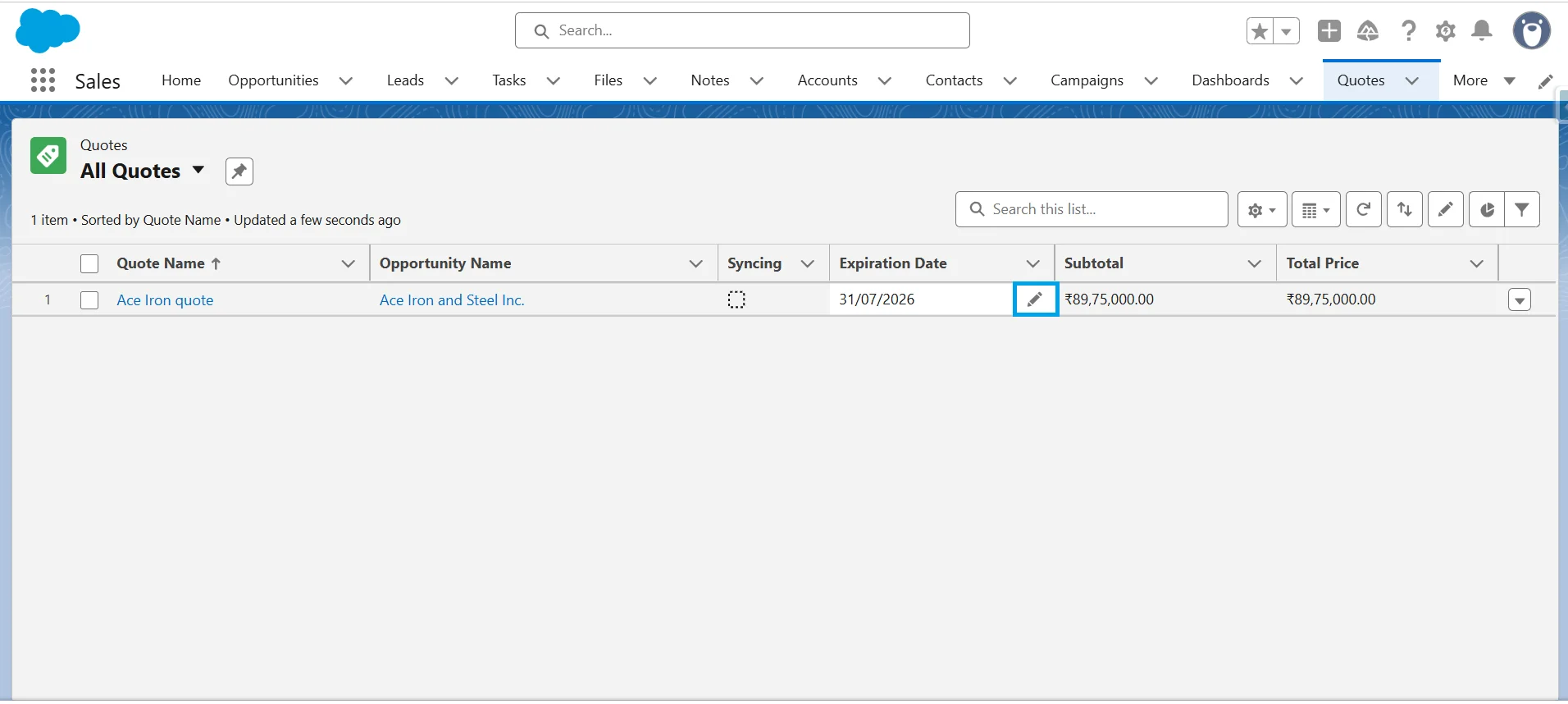
In Lightning Experience, inline editing is available only when the object, field type, page layout, and user permissions support it. Users must have Edit permission on the object and access to the field.
List view inline editing is not available for Long Text Area fields, controlling or dependent picklists, or when selected records have different record types.
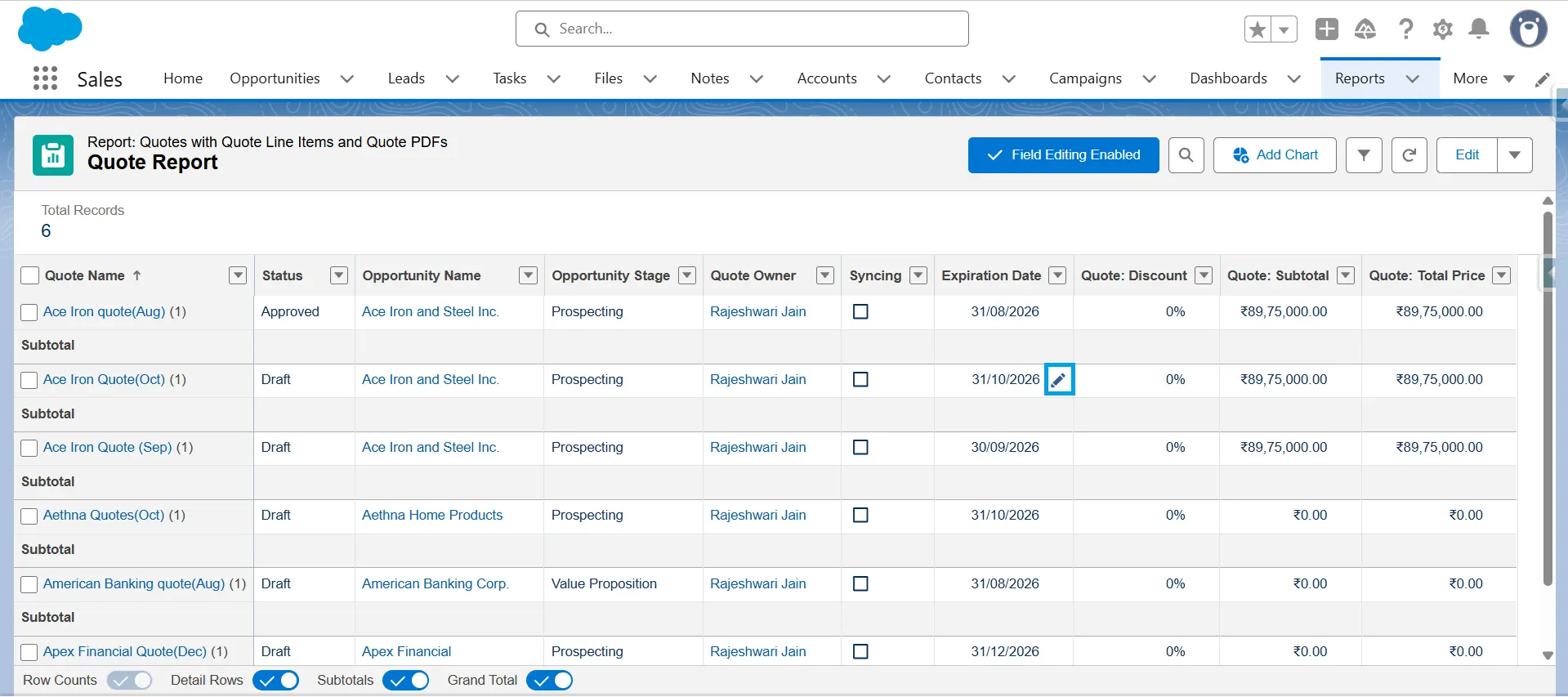
If list view inline editing is not supported, use report inline editing to update supported fields directly from a report.
Automate Recurring Quote Updates
Use a schedule-triggered Flow to automate recurring quote updates when you identify target records with filter conditions. A schedule-triggered Flow can query up to 50,000 records and process them in batches of up to 200 (configurable from 1 to 200). Salesforce limits schedule-triggered Flow interviews to 250,000 per 24 hours or 200 times the number of eligible user licenses, whichever is greater. Each record retrieved by the flow creates one interview.
For recurring updates that exceed these limits or require complex processing, use Batch Apex, Data Loader, or another scalable integration solution.
Bulk Update Quotes with Data Loader (Large Volumes)

Warning
Bulk updates in Salesforce cannot be undone. Export a backup of your quotes before making changes, and test the update on a small sample first.
Use Data Loader to update more quotes than list-view editing allows or when you require a repeatable, file-based process.
Follow these steps:
-
1
Export the quotes you want to update, including the Record ID.
-
2
Edit the required values in the CSV file.
-
3
Open Data Loader, select Update, choose the Quote object, and upload the CSV file.

-
4
Map the CSV fields to the corresponding Salesforce fields. Ensure the ID field is mapped correctly, then run the update.
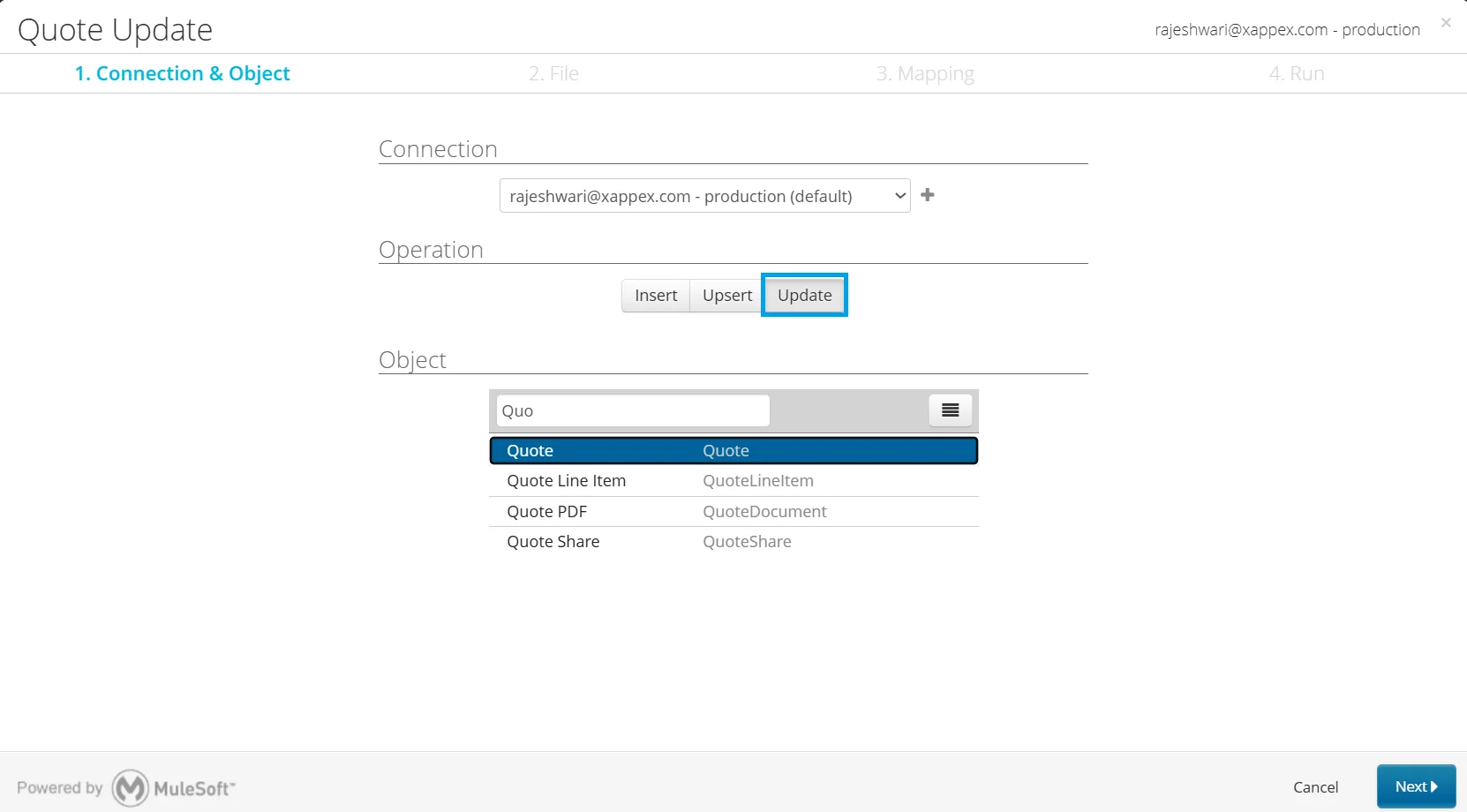
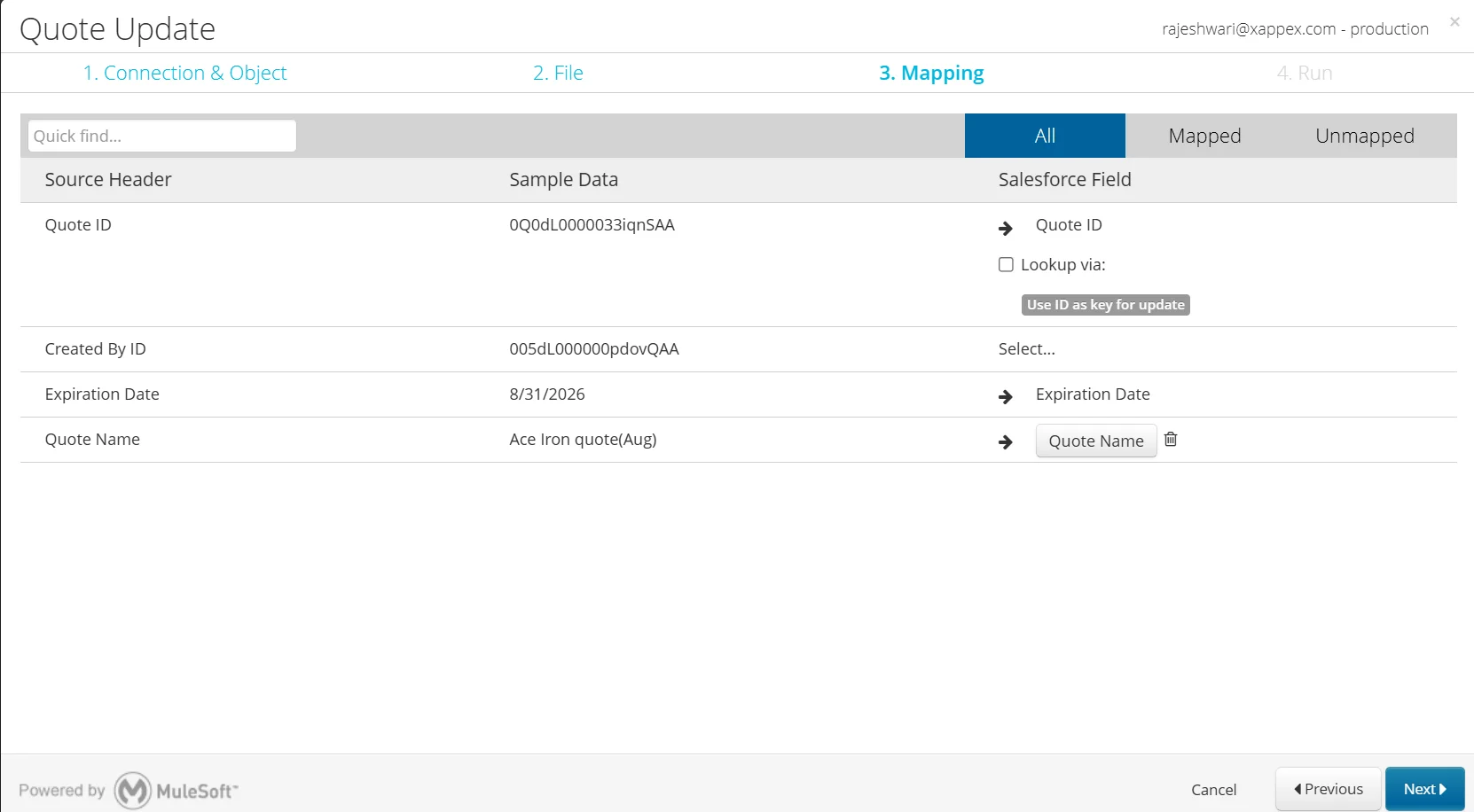
The Record ID identifies which quote Data Loader updates. Unlike an import, Data Loader matches each CSV row to an existing Salesforce record using the Record ID. If the Record ID is missing or invalid, Data Loader cannot update the record. If your CSV contains the Record ID of a different record, Data Loader updates that record instead.
Some quote fields are calculated automatically and cannot be updated directly. To change these values, update the underlying records or fields Salesforce uses for calculation.
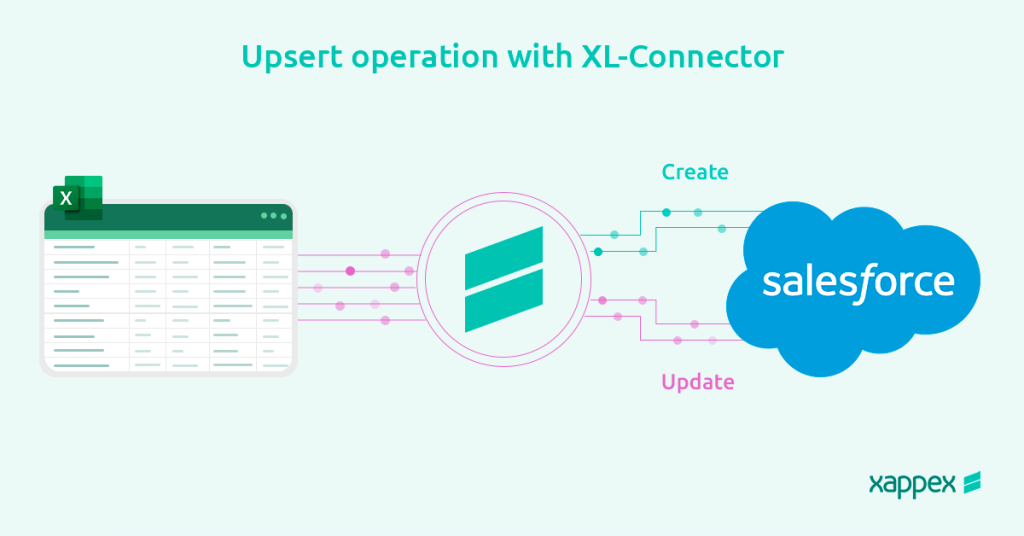
If your source system uses a unique identifier, create an External ID field and use the Upsert operation. Upsert matches records by External ID instead of the Salesforce Record ID. You can designate Text, Number, Email, or Auto Number fields as External IDs. Mark the field as Unique to prevent duplicate matches.

Note
Upsert creates a new record if no matching External ID is found. Validate External ID values before running the operation to avoid duplicate records.
Key Considerations for Bulk Updates
-
1
Calculated totals cannot be edited directly. Subtotal and Total Price are derived from Quote Line Items; update these line items to recalculate the totals. Grand Total includes Tax and Shipping and Handling, which are editable on the quote.
-
2
Review synced quotes before updating. When a quote is synced, changes to Quote Products update the related Opportunity Products. The Quote object’s IsSyncing field is read-only, and sync is managed by the Opportunity’s SyncedQuoteId field. Identify synced quotes before performing a bulk update to prevent unintended changes to opportunity products.
Note for Salesforce CPQ users:
- Salesforce CPQ stores quotes in SBQQ__Quote__c and quote lines in SBQQ__QuoteLine__c. Updates with Data Loader don’t run the Quote Line Editor, so price rules, discounts, and quote totals may not recalculate. Recalculate affected quotes after the update.
- The SBQQ__Quote__c object is custom, so you can use the Data Import Wizard if it meets the requirements. For large data loads, Salesforce recommends Data Loader.
- The Calculating Fields field set controls which field changes trigger recalculation. If you update a field outside this set, Salesforce CPQ doesn’t recalculate pricing or quote totals. Update a field in the set or add the required field if recalculation is needed.
- Test bulk updates in a sandbox before updating production. For large CPQ updates, use smaller batches because recalculating many quotes at once can increase processing time and may hit Apex governor limits or timeouts depending on your CPQ configuration.
Select the Appropriate Update Method
| Method | Best for | Key limitations |
|---|---|---|
| List view inline edit | Updating one or more editable fields across multiple quotes | Select up to 200 records at a time. Some fields, including Long Text Area, Rich Text Area, formula, and multi-select picklist fields, can't be inline edited. All selected records must have the same record type. Dependent picklists aren't supported for inline editing. |
| Report inline edit | Updating records identified through report filters, including cases where list view restrictions prevent inline editing. | It allows users to update records directly from report results, including those identified by filters that are hard to target in a list view. You can edit up to 100 cells per save and up to 12 fields per row. Each cell must be edited individually; Salesforce does not support applying a single value to multiple records at once. To enable this feature, turn on Inline Editing in Reports in the Reports and Dashboards Settings, then click Enable Field Editing on the report run page. This feature is available only in Lightning Experience. |
| Data Loader | Large updates, Quote Line Item updates, and high-volume processing. | Supports updates through the Bulk API or Bulk API 2.0. Update operations require Salesforce record IDs. Upsert operations match records using a Salesforce record ID or an External ID field. Requires API access, a CSV file, and the Data Loader desktop application. |
| Data Import Wizard | Importing records into supported standard and custom objects | Supports up to 50,000 records per import. Doesn't support the standard Quote or Quote Line Item objects. Can import records into supported custom objects if your organization stores quote data there. |
Note
Mass quick actions are available only for objects that support a List View Button Layout in Lightning Experience. The standard Quote object doesn’t support a List View Button Layout, so it doesn’t support mass quick actions. In CRM Analytics you can apply a mass quick action to up to 100 records at a time.
The Quote Line Item Problem
Most articles about bulk updating Salesforce quotes focus on the Quote record. Sales teams often need to update Quote Line Items like quantities, discounts, unit prices, service dates, or other fields across multiple products on the same quote.
Salesforce supports inline editing in list views and reports, but Quote Line Item (QuoteLineItem) records lack a native list view with spreadsheet-style editing. Quote line items appear as a related list on the Quote record, so Salesforce does not provide a native grid to review and edit multiple quote line items at once.
Salesforce offers several ways to update QuoteLineItem records in bulk, including Data Loader, Flow, and the API. However, these tools are designed for administrative tasks, not quick updates by sales reps during quoting.
Edit Salesforce quotes and quote line items in bulk from Excel or Google Sheets with XL-Connector. Skip CSV exports, record ID matching, and Data Loader imports. Update records in a spreadsheet while Salesforce permissions, validation rules, flows, and Apex run.
The Data Loader can update QuoteLineItem records, but the process involves multiple steps. Users must export records, retain record IDs, prepare a CSV file, map fields, and import updates back into Salesforce. Salesforce recommends backing up data and testing updates in a sandbox before updating production.
Conclusion
Choose the update method based on the number of records. Use list view inline editing for small updates and Data Loader for larger or recurring changes. Before bulk updating, export a backup and use record IDs to match the correct records.
Quote Line Items need a different approach. Use Data Loader to update standard QuoteLineItem records. If you use Salesforce CPQ, recalculate affected quotes after updating SBQQ__QuoteLine__c records to keep prices, discounts, and totals accurate.
FAQ
Can I mass update quotes in Salesforce without Data Loader?
Yes. You can update multiple Quote records from a list view if the fields support inline editing. Salesforce lets you select up to 200 records at a time in a list view. For larger updates or fields that don't support inline editing, use Data Loader.
How do I bulk update quote line items in Salesforce?
Use Data Loader to update QuoteLineItem records in bulk. If you use Salesforce CPQ, update SBQQ__QuoteLine__c records instead. Test the update in a sandbox first, and recalculate the affected quotes after the update if your pricing depends on CPQ calculations.
Why aren't my quote prices updating after a bulk edit?
If you use Salesforce CPQ, updating quote or quote line records outside the Quote Line Editor can leave pricing, discounts, or totals out of sync. After the update, run a supported quote recalculation process to refresh the quote and apply CPQ pricing logic.
How many quotes can I update at once?
List view inline editing lets you select up to 200 records at a time. For larger updates, use Data Loader, which processes records in batches. The number of records you can update in one job depends on batch size, automation, and Salesforce governor limits.

Rajeshwari Jain
Content Manager
Rajeshwari Jain is a Technical Support Specialist and Content Writer at Xappex. She applies her practical experience to assist customers and create articles on how Xappex tools work with Salesforce to improve data management and increase efficiency.
She began her IT career in 2022 as a Quality Assurance professional before transitioning into Salesforce administration and technical writing in 2023. With Salesforce Certified Administrator and Associate certifications, Rajeshwari writes blogs on Salesforce flows, admin tools, and updates to expand her skills outside of work.
In her free time, she enjoys reading tech blogs and experimenting with new tools.
Feel free to reach out to Rajeshwari for collaborations or to check out her Salesforce-focused content.