Get Started Free



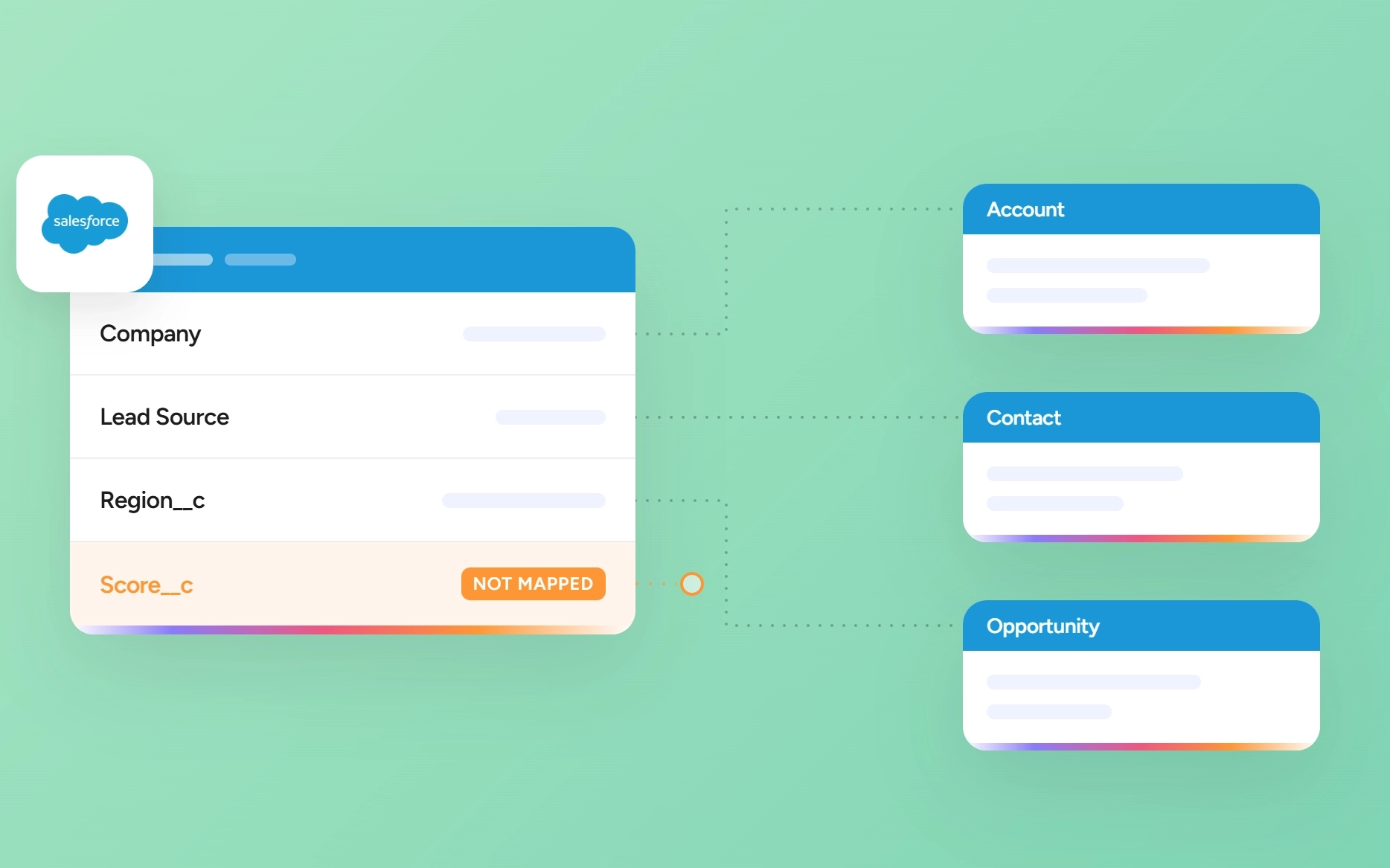
Lead conversion mapping controls where Lead values go when Salesforce creates or updates Accounts, Contacts, and Opportunities. Standard fields map automatically, while custom fields need manual mapping. Values can be missing because a field is unmapped, the source and target fields are incompatible, or conversion rules and automation affect the data.
This guide explains how to map custom fields, check field compatibility, troubleshoot missing values, and test mappings before production.
What Lead Conversion Mapping Actually Is
When you convert a Lead, Salesforce creates or links an Account and Contact, and optionally an Opportunity. Lead conversion mapping determines where Lead field values are stored in those records.
Standard Lead fields use predefined mappings. Custom Lead fields must be mapped manually to supported custom fields.
How Standard and Custom Fields Map
Standard Lead Fields
Salesforce provides predefined mappings for standard Lead fields. You can’t change these mappings on the Map Lead Fields page. For example:
- Company maps to Account Name and, when an Opportunity is created, to Opportunity Name and Account Name.
- Lead Source maps to Account Source, Contact Lead Source, and Opportunity Lead Source.
- Address maps to Account Billing Address and Contact Mailing Address.
- Annual Revenue maps to Account Annual Revenue.
See Salesforce’s Lead Conversion Field Mapping table for the complete list of standard mappings.
If your org uses Person Accounts, some mappings differ. For example, Lead Address maps to both the Person Account Mailing Address and Billing Address. Person Accounts also support mappings for fields like Salutation, Middle Name, and Suffix. Use the Person Account column in Salesforce’s mapping table instead of assuming the business-account mappings apply.
Custom Lead Fields
Custom Lead fields must be mapped manually. In Lightning Experience, you can map one custom Lead field to custom fields on the Account, Contact, and Opportunity objects.
Salesforce requires the target custom fields to meet its field compatibility rules.
A custom Lead field can’t be mapped directly to a standard Account, Contact, or Opportunity field, even if the field types match. For example, you can’t map a custom Lead currency field directly to the standard Opportunity Amount field.
Instead, map the Lead field to a custom field on the target object. Then use automation like a record-triggered Flow to copy the value to the standard field.
How to Map Custom Fields During Lead Conversion in Salesforce
Salesforce automatically maps standard Lead fields to the corresponding standard fields on Account, Contact, and Opportunity records created during conversion. You must manually map custom Lead fields.
If you don’t map a custom Lead field, Salesforce doesn’t copy its value to a custom field on the Account, Contact, or Opportunity during conversion.
Before You Start
Your org uses Apex Lead Convert. Custom Lead field mapping is available in orgs that use Apex Lead Convert in Lightning Experience and Salesforce Classic. It isn’t available with the older PLSQL (Procedural Language for SQL) Lead Convert.
You have the Customize Application permission.
The target custom field already exists. Create the destination custom field on the Account, Contact, or Opportunity before you create the mapping. Only eligible custom fields appear on the mapping page.
Step-by-Step: Map Custom Lead Fields
-
1
Go to Setup and open Object Manager.
-
2
Select Lead.
-
3
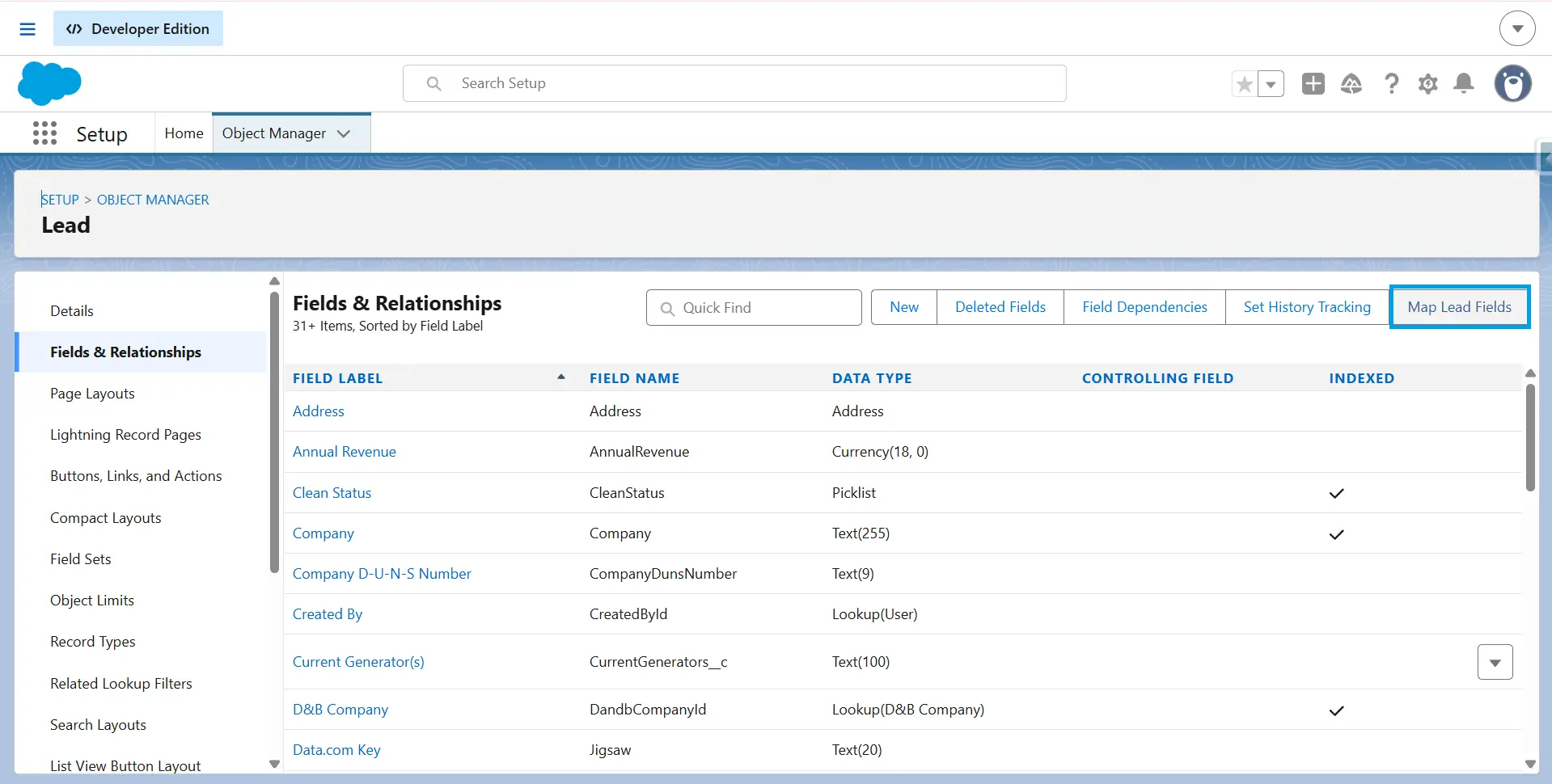
Select Fields & Relationships and click on Map Lead Fields.

-
4
Select the Account, Contact, or Opportunity tab. Select the custom target field for each Lead field you want to map.
-
5
Repeat the process for the other target objects.
-
6
Click Save.
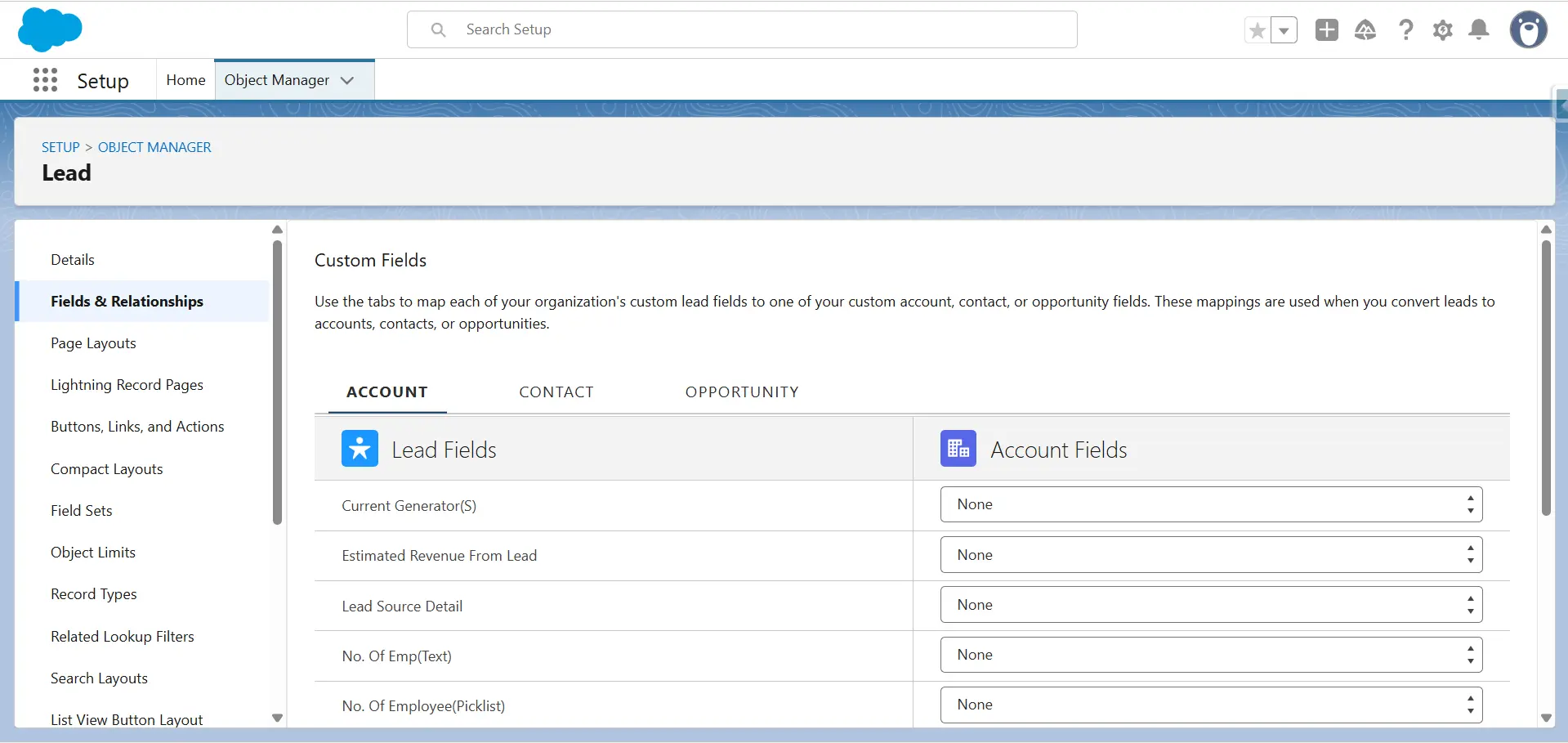
In Lightning Experience, a custom Lead field can map to custom Account, Contact, and Opportunity fields at the same time.
Salesforce Classic: Setup → Customize → Leads → Fields → Map Lead Fields.
Field Type Rules
Salesforce allows only certain combinations of source and target field types.
Same Data Type
These Lead field types must map to the same data type:
- Checkbox
- Currency
- Date
- Date/Time
- Geolocation
- Encrypted (Classic)
- Number
- Percent
- Phone
- Multi-Select Picklist
- Long Text
- Rich Text
- URL.
Text, Picklist, and Auto-Number
- Auto-Number → Text or Text Area
- Text or Text Area → Text, Text Area, Long Text, or unrestricted Picklist
- Custom Picklist → Text, Text Area, or unrestricted Picklist, but not Long Text
- Mappings between picklist and text fields truncate the value when the source value is longer than the target field allows.
Lookup and Formula Fields
- A custom Lead lookup can map only to a lookup field that points to the same object.
- Don’t map custom formula fields to formula fields or other field types.
Length and Precision
- The target field must have the same or greater length than the source.
- Number, Currency, and Percent fields must have the same length and number of decimal places.
One Source per Target
Each target field can have only one Lead field mapped to it.
Dependent Picklists
A Lead dependent picklist can’t have a default value because its value depends on the controlling picklist. Salesforce validates these mappings during conversion and allows only the controlling picklist’s current value to be assigned to the dependent picklist.
Remove the Mapping Before Deleting or Changing a Field
You can’t delete a Lead, Account, Contact, or Opportunity field while it is included in a Lead Custom Field Mapping. Remove the mapping first.
The same rule applies when changing the field type. Remove the mapping, change the field type, and create the mapping again.
If you uninstall a package that contains a mapped field, Salesforce automatically removes the related mapping.
Large Orgs Can Have Mapping Page Issues
If your org has more than 2,000 Lead, Account, Contact, and Opportunity fields combined, the Map Lead Fields page can become unresponsive.
Salesforce recommends deleting unused fields. You can also manage mappings through the Metadata API, Salesforce CLI, or VS Code Extensions.
Example: Identify Opportunities Created from Leads
You can map a checkbox from Lead to Opportunity to identify Opportunities created during lead conversion.
-
1
Create a custom checkbox on Lead and set its default value to selected.
-
2
Create a custom checkbox on Opportunity named Created from Lead.
-
3
Optionally make both fields read-only.
-
4
Map the Lead checkbox to the Opportunity checkbox.
After conversion, the Created from Lead checkbox is selected on the Opportunity. You can use this field in a Flow to set values such as Stage Name, Description, or Next Steps.
Why Data Goes Missing During Conversion
The value does not arrive, and Salesforce does not always show an error.
| Cause | What to check | Fix |
|---|---|---|
| Unmapped custom fields | Check whether the Lead custom field has a mapped destination. | Map it to the appropriate custom field on the Account, Contact, or Opportunity. |
| Custom field mapped to a standard field | Check whether a custom Lead field needs to populate a standard target field. | Map the Lead field to a compatible custom field. Use Flow or other automation after conversion to copy the value into a standard field. |
| Field visibility | Check whether the user can see the target field through field-level security, the page layout, or Dynamic Forms. | Make the field visible to the user. Lack of visibility does not mean the value was not stored. Apex Lead Convert can populate mapped fields even when field-level security restricts access. |
| Formula fields | Check whether the mapping uses a custom formula field. | Salesforce advises against mapping custom formula fields. Use a regular custom field and populate it before conversion. If the value changes after conversion, check Flows, Apex triggers, and other automation. |
| Field length or data type | Compare the source and target field types, lengths, and decimal places. | Use compatible field types. The target must be the same length or longer where length applies. Number, Currency, and Percent fields must have matching length and decimal places. |
| Picklist value mismatch | Check the target picklist type and available values. | Use compatible picklist mappings and make sure required values exist on the target. Any mapping into a picklist requires an unrestricted target picklist, including mappings from text and text area fields. |
| Validation rules and automation | Check validation rules, Flows, and Apex triggers on the Account, Contact, and Opportunity. | Triggers fire during Lead conversion, and universally required custom fields and validation rules are enforced. Make the converted record satisfy the rule, or adjust the rule and automation for the conversion scenario. |
| Existing records | Check whether the conversion creates a new Account or Contact or uses an existing record. | Salesforce does not overwrite populated fields on existing Accounts or Contacts. It can populate empty fields with Lead values. Use custom automation or code to overwrite existing values. |
| No Opportunity created | Check whether the conversion creates an opportunity. | Opportunity mappings apply only when Salesforce creates an Opportunity during conversion. |
| Opportunity creation is blocked during Lead conversion | Check whether the Opportunity Contact Role object has required custom fields. | Required custom fields on Opportunity Contact Roles block Opportunity creation during conversion, since they can't be populated by mapping. Make the field optional to allow conversion. |
| Legacy Lead Convert engine | In an older or inherited org, go to Setup → Object Manager → Lead → Fields & Relationships and check whether Map Lead Fields appears and whether mappings save. | Custom Lead field mapping requires Apex Lead Convert. If the page is missing or mappings do not persist, contact Salesforce Support to confirm whether Apex Lead Convert is enabled or needs activation. |
| Converted Lead appears missing | Check the user's access to converted Leads and review the resulting Account, Contact, and Opportunity. | Converted Leads become read-only. View and Edit Converted Leads is required to view them directly. In Salesforce Classic, converted Leads are no longer searchable. In Lightning Experience, they appear in search results but cannot be opened from there. Converted Leads still appear in Lead reports. |
Missing Data Can Be a Visibility Problem
Before changing a mapping, confirm that the value is missing.
A user may not see a populated target field because of field-level security, page layout settings, or Dynamic Forms. With Apex Lead Convert, Salesforce can populate mapped Account, Contact, and Opportunity fields even when field-level security restricts the user’s access.
Check the field through a report, SOQL, or another method that provides access to the stored value. If the value exists, fix the visibility settings instead of changing the Lead conversion mapping.
Formula Fields Don't Make Good Mapping Sources
Salesforce advises against mapping custom formula fields. A custom formula field should not be mapped to another formula field or another field type.
Use a regular custom field and populate it before conversion. If the value is correct after conversion but changes later, check Flows, Apex triggers, and other automation on the target object.
Existing Records Don't Get Their Values Overwritten
When you convert a Lead into an existing Account or Contact, Salesforce does not overwrite fields that already contain values. It can use the Lead value to populate an empty field.
For example, if the Lead has Enterprise and the existing Account has SMB in the mapped field, the Account keeps SMB. If the Account field is empty, Salesforce can populate it with Enterprise.
There is one documented exception. When converting through the API, setting overwriteLeadSource to true overwrites the Lead Source field on the target Contact. No other field is overwritten.
Salesforce also handles compound address fields component by component. If some address components already contain values, conversion can populate the empty components without replacing existing values.
State and Country picklists have an additional rule. When converting to an existing Contact, Salesforce transfers the Lead’s State/Province and Country values only when both corresponding fields on the Contact are blank.
If the conversion must overwrite existing values, use custom automation or code.
Test Before Production
Test Lead conversion in a sandbox before running it in production. Use Leads with blank fields, long values, different picklist values, different record types, existing Accounts and Contacts, and formula-driven values.
Compare each Lead with the resulting Account, Contact, and Opportunity field by field. This identifies mapping, permission, validation, and automation issues before production.
If many converted records contain missing or incorrect values, manual updates do not scale. Export the affected Account, Contact, or Opportunity records to a spreadsheet, correct the values, and mass-update them with Excel and XL-Connector or Google Sheets and G-Connector. For larger conversion jobs, see our guide to convert leads in bulk.
Deploying the Mapping to Another Org
Salesforce stores lead conversion mappings as the LeadConvertSettings metadata type, which covers both the custom field mappings and the opportunity-creation options. You can deploy this metadata from a sandbox to production instead of recreating the mappings manually.
Salesforce does not list LeadConvertSettings among the components available in change sets, so deploy it with the Metadata API instead. Salesforce CLI, the Salesforce Extensions for VS Code, and third-party Metadata API tools all work. LeadConvertSettings is available in API version 39.0 and later.
Before deploying the mapping, make sure every custom field it references already exists in the target org. If the fields are new, deploy them together with the mapping. Otherwise the deployment can fail because the mapped fields are missing from the target org.
To remove a mapping, deploy an updated LeadConvertSettings with that field set to no destination. Deleting the field itself is a separate step, and it fails while the mapping is still in place.
Pre-Conversion Checklist
Check these settings before converting Leads.
Access
Conversion permissions: Confirm the user has Convert Leads plus Create and Edit access on Leads, Accounts, Contacts, and Opportunities.
Field-level security: In orgs using Apex Lead Convert, review FLS on mapped Account, Contact, and Opportunity fields. Salesforce populates these fields from mapped Lead fields during conversion.
Lead field mapping availability: Custom Lead field mapping is available with Apex Lead Convert, not PLSQL Lead Convert.
Field Mapping
Data types: Checkbox, Currency, Date, Date/Time, Email, Geolocation, Encrypted (Classic), Number, Percent, Phone, Multi-Select Picklist, Long Text, Rich Text, and URL Lead custom fields map only to custom fields of the same data type. Each target field can have one source field mapped to it. Don’t map custom formula fields to formula fields or other field types. Auto-number fields can map to Text or Text Area. Custom lookup fields can map to lookup fields that reference the same object.
Field lengths: The target Account, Contact, or Opportunity field must have equal or greater length than the Lead source field. For Number, Currency, and Percent fields, the target must have the same length and number of decimal places.
Picklist configuration: If the mapping target is a picklist, the picklist must be unrestricted. Text and Text Area fields can map to Text, Text Area, Long Text, or unrestricted Picklist fields. Custom Picklists can map to Text, Text Area, or unrestricted Picklist fields, but not Long Text.
When mapping between picklist and text fields, Salesforce can truncate the value if it exceeds the target field’s length. For controlling and dependent picklists, Salesforce validates the dependency during conversion, and the mapped dependent value must be valid for the controlling value.
Mapping maintenance: Mapped fields can’t be deleted or have their field type changed until the mapping is removed. With more than 2,000 fields across Lead, Account, Contact, and Opportunity, the mapping page can become unresponsive. Use Metadata API, Salesforce CLI, or supported VS Code extensions to manage mappings.
Rules and Automation
Validation rules: Require Validation for Converted Leads in Lead Settings controls whether validation rules on Leads, Accounts, Contacts, and Opportunities are enforced during conversion.
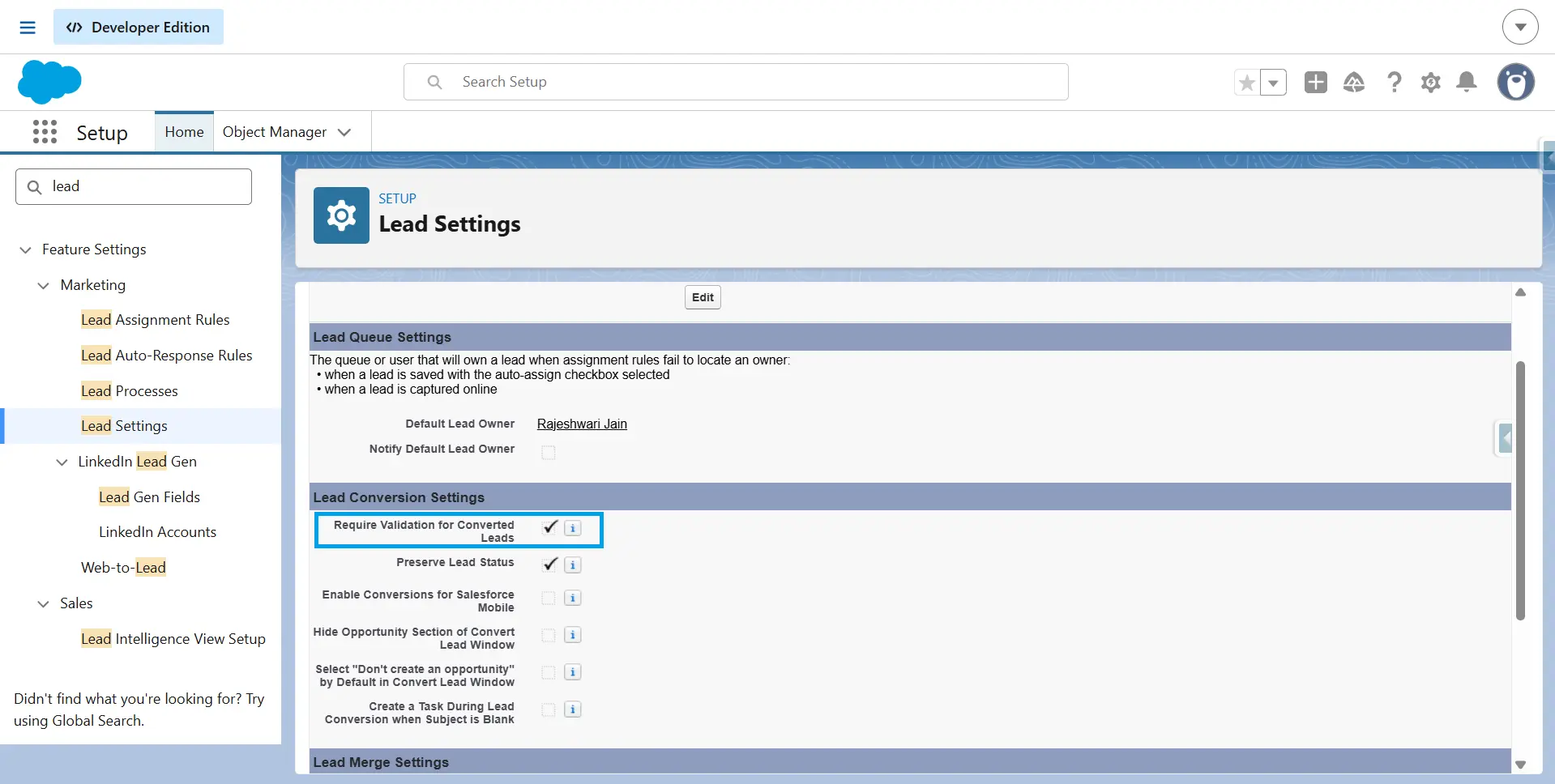
Duplicate rules: Review Account and Contact duplicate rules. Behavior depends on the Lead Conversion configuration and whether Apex Lead Convert is enabled.
Automation: When Apex Lead Convert is enabled, validation rules, workflow rules, and Apex triggers can run during Lead conversion. Target-record automation can cause conversion errors or governor-limit failures during bulk conversion.
Target Record Requirements
Required fields: Confirm that every required field on records created during conversion can be populated. When an Opportunity is created, Salesforce automatically sets the Close Date based on the org’s fiscal-year settings.
Record types: Salesforce assigns the default record type of the converting user to records created during Lead conversion. Check that the assigned record types provide the required picklist values and support the fields used during conversion.
Converted Lead Status: At least one Lead Status value must be marked Converted and available on the Lead’s record type.
Testing
Sandbox testing: Test with incomplete values, long values, varied picklist combinations, duplicates, validation rules, and automation. Developer and Developer Pro sandboxes don’t contain production data, so seed records before testing. Compare sandbox and production configuration if the sandbox hasn’t been refreshed recently.
Conclusion
Correct Lead conversion mapping helps Salesforce send the right data to Accounts, Contacts, and Opportunities. Before converting Leads, check field mappings, field types, required fields, validation rules, permissions, and automation.
Test the conversion in a sandbox before using it in production. When moving mappings between orgs, deploy LeadConvertSettings through the Metadata API and make sure the required fields exist in the target org.
FAQ
Can you map a custom Lead field to a standard field?
No. Salesforce lets you map custom Lead fields only to custom fields on Accounts, Contacts, and Opportunities. To copy a custom Lead value to a standard field, use Flow after conversion.
Why is data missing after Lead conversion?
Check for unmapped custom fields, formula fields, field-level security, and incompatible field types or picklist values. These factors can prevent a value from appearing on the converted record.
What Close Date does the new Opportunity get?
Salesforce sets the Close Date automatically based on the org’s fiscal-year settings. For a standard fiscal year, it uses the last day of the current fiscal quarter. For a custom fiscal year, it uses the last day of the current fiscal period.
Who owns the new records after conversion?
The converted Account, Contact, and Opportunity use the Lead Owner by default. You can assign a different owner during conversion or use Flow to change ownership automatically.
Can a Lead conversion be reversed?
No. Salesforce does not provide an undo option for Lead conversion. The converted Lead becomes read-only by default.

Rajeshwari Jain
Content Manager
Rajeshwari Jain is a Technical Support Specialist and Content Writer at Xappex. She applies her practical experience to assist customers and create articles on how Xappex tools work with Salesforce to improve data management and increase efficiency.
She began her IT career in 2022 as a Quality Assurance professional before transitioning into Salesforce administration and technical writing in 2023. With Salesforce Certified Administrator and Associate certifications, Rajeshwari writes blogs on Salesforce flows, admin tools, and updates to expand her skills outside of work.
In her free time, she enjoys reading tech blogs and experimenting with new tools.
Feel free to reach out to Rajeshwari for collaborations or to check out her Salesforce-focused content.