Get Started Free




Salesforce technical debt is the work an org needs because its current setup no longer fits how you would build it today. It can come from shortcuts in configuration or code, but it can also build up as Salesforce changes the platform. Since Salesforce relies on both clicks and code, technical debt can come from either.
What Technical Debt Means in Salesforce
Technical debt happens when you pick a quick fix instead of a long-term solution, or when a solution no longer fits the business need it was made for. Salesforce says technical debt is the future cost of maintaining or changing solutions that were not built to last.
In Salesforce, technical debt can come from both configuration and code. Every custom field, Flow, validation rule, permission set, or automation adds something the team has to manage. When business needs change, old configuration turns into debt if the team keeps it without checking if it is still useful.
Admins can create technical debt too, not just developers. For example, an admin might add fields for a short-term need, build duplicate automation, or change permissions without checking existing dependencies. Teams can also inherit debt when they take over an org with old, undocumented, or confusing configuration.
Technical debt is not always a problem. Sometimes a quick solution makes sense for an urgent business need. The real issue is the cost of keeping it. If old automation needs constant fixes, outdated fields make reporting harder, or existing setup blocks new changes, then the debt is causing trouble for the org.

Note
Complexity is different from technical debt. If a process is documented, managed, and still meets a real business need, it is just complex, not debt. Many people choose Salesforce because it can handle complex needs well.
Where Salesforce Technical Debt Comes From
The technical debt in Salesforce arises from two sources: the decisions your team has taken and the changes that Salesforce has introduced over time. The way you respond will depend on the type of debt in question. It can be distinguished as hindsight debt, where a different choice appears better in retrospect, and emergent debt, which arises when changes in the platform or other circumstances make an originally reasonable solution harder to maintain.
Debt You Created
Building before the requirement was clear. When you build before confirming the requirement, the resulting workaround can become part of the org. Check whether the current solution still matches the actual business process and remove workarounds that no longer serve a purpose.
It was unnecessary to use custom development when standard functionality was sufficient; the use of custom Apex, components, and automation increases maintenance and testing costs. Before adding any more code, it should be checked whether the older customizations are still required in light of the current Salesforce functionality.
Hardcoded Salesforce record IDs can break when you move changes between environments or when the referenced record changes. Look for literal IDs in code and automation, and use configuration or metadata where appropriate.
You can have multiple automations carrying out overlapping tasks on the same object, which makes it difficult to keep track of the order in which they are executed and of their dependencies. You should check all the automations associated with the object, eliminate any redundant logic, and combine them where possible.
The goal of writing tests should not be limited to achieving code coverage. Code coverage shows which lines the tests execute, but not whether they verify the correct results. Tests should include meaningful assertions and cover successful cases, expected failures, and boundary conditions.
Poorly chosen names and missing descriptions make existing functionality difficult to understand and maintain. Use consistent naming and descriptions for fields, flows, permission sets, and other metadata, and document ownership where your governance process supports it.
How Each Salesforce Release Adds Debt
Three times each year Salesforce puts out new functionality; new features are capable of superseding older methods, which means that a solution that was suitable when it was originally developed can later turn into maintenance work.
Workflow Rules and Process Builder provide a clear example of this. Salesforce has stopped supporting the development of new automations for both tools and now recommends using Flow Builder for new automations.Workflow Rules and Process Builder reached end of support on December 31, 2025. Existing automations continue to run, but Salesforce no longer provides customer support or bug fixes for them, so any defect that surfaces from now on is yours to work around.
API versions also result in similar debt. Salesforce gradually withdraws older API versions. An integration may continue to function without any changes for years before needing to be updated when its API version is retired.
Salesforce is also aiming towards access control based on permission sets. Although profiles still include permissions, Salesforce recommends the use of permission sets and permission set groups when it comes to managing user access; a design that relies heavily on profiles may therefore require a migration process even if it was valid at the time of implementation.
The profiles story also shows how this can go the other way. Salesforce set an end-of-life for permissions on profiles in Spring ’26, then cancelled it in June 2026 after customer pushback and unresolved feature gaps. Profiles keep their permissions, with no deadline. Permission sets are still the recommendation, just not a requirement. Teams that migrated early ended up with a cleaner security model. Teams that waited paid nothing. Betting on a change that never arrives costs something too.
The debt isn’t always due to administrative failure.Some comes from the team’s own decisions, including shortcuts and design choices made along the way, while some accumulates simply because the Salesforce platform keeps evolving.
How to Find Technical Debt in Your Org
Before you decide which issues to address, inventory what’s actually in your org. Although Salesforce offers a number of tools which can assist in identifying technical debt, none of these tools provides a full answer; therefore, use their results to spot those items that should be examined and then check each one before carrying out any changes.
Salesforce Optimizer (Retired)
You may still see Salesforce Optimizer mentioned in older articles and blog posts. Salesforce retired the app as most customers had moved to Lightning Experience and the company shifted its focus to other tools, including Lightning Experience Insights.
Lightning Experience Insights is not a replacement for Optimizer. It focuses on Lightning Experience performance, including page load times, slow pages, components, and actions. It does not provide the broader configuration checks Optimizer offered for areas such as fields, automation, storage, and hard-coded URLs.
Lightning Experience Insights is available through Scale Center, but it should not be used as a general technical-debt or configuration audit tool. For broader org analysis, Org Check is a practical alternative.
Retirement timeline: Salesforce retired Optimizer for Hyperforce organizations with Winter ’26. Non-Hyperforce organizations lost all Optimizer features except Hard Coded URL detection, which Salesforce retained to support migration. The app became inaccessible to non-Hyperforce organisations with Summer ’26. Organizations created after August 4, 2025 never had access to Optimizer.
What it showed: Before retirement, Optimizer analyzed areas of an org’s configuration and highlighted potential issues, including fields, automation, storage, and hard-coded URLs. The checks changed over time, so older reports may differ by Salesforce release.
What it did not show: An Optimizer finding did not prove that a component was safe to remove. For example, a field that appeared unused could still support a seasonal process or external integration. Treat Optimizer findings as a starting point for investigation, not as automatic deletion recommendations.
Health Check
To find it: select Setup, then Security, then Health Check.
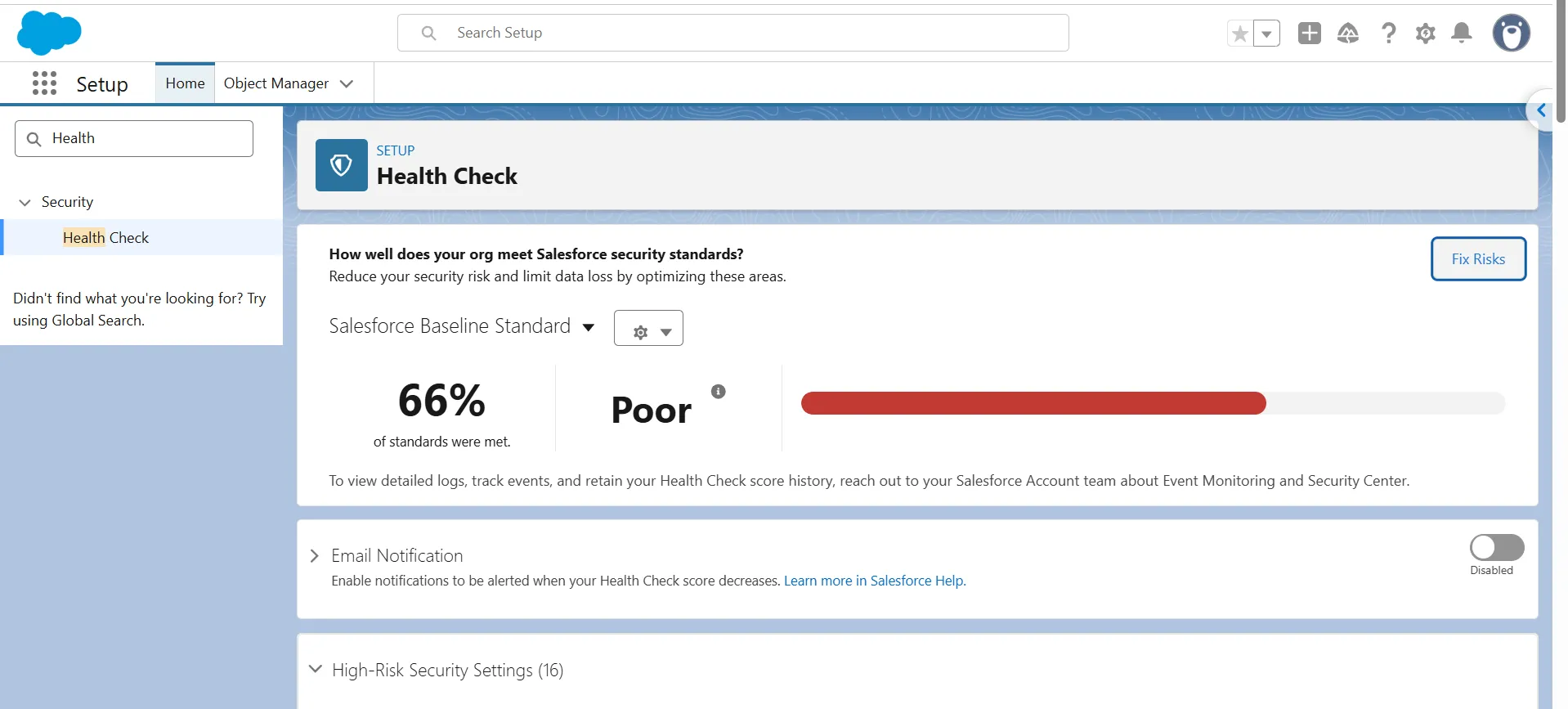
What it shows: Health Check compares the security settings of your organization with a Salesforce standard or a custom standard; it examines areas such as password policies, session settings, network access, and other security controls.
Fix Risks: Health Check lets you change supported settings to the selected baseline’s recommended values without leaving the page. You can also change settings individually. Some settings aren’t available through Fix Risks and must be changed manually.
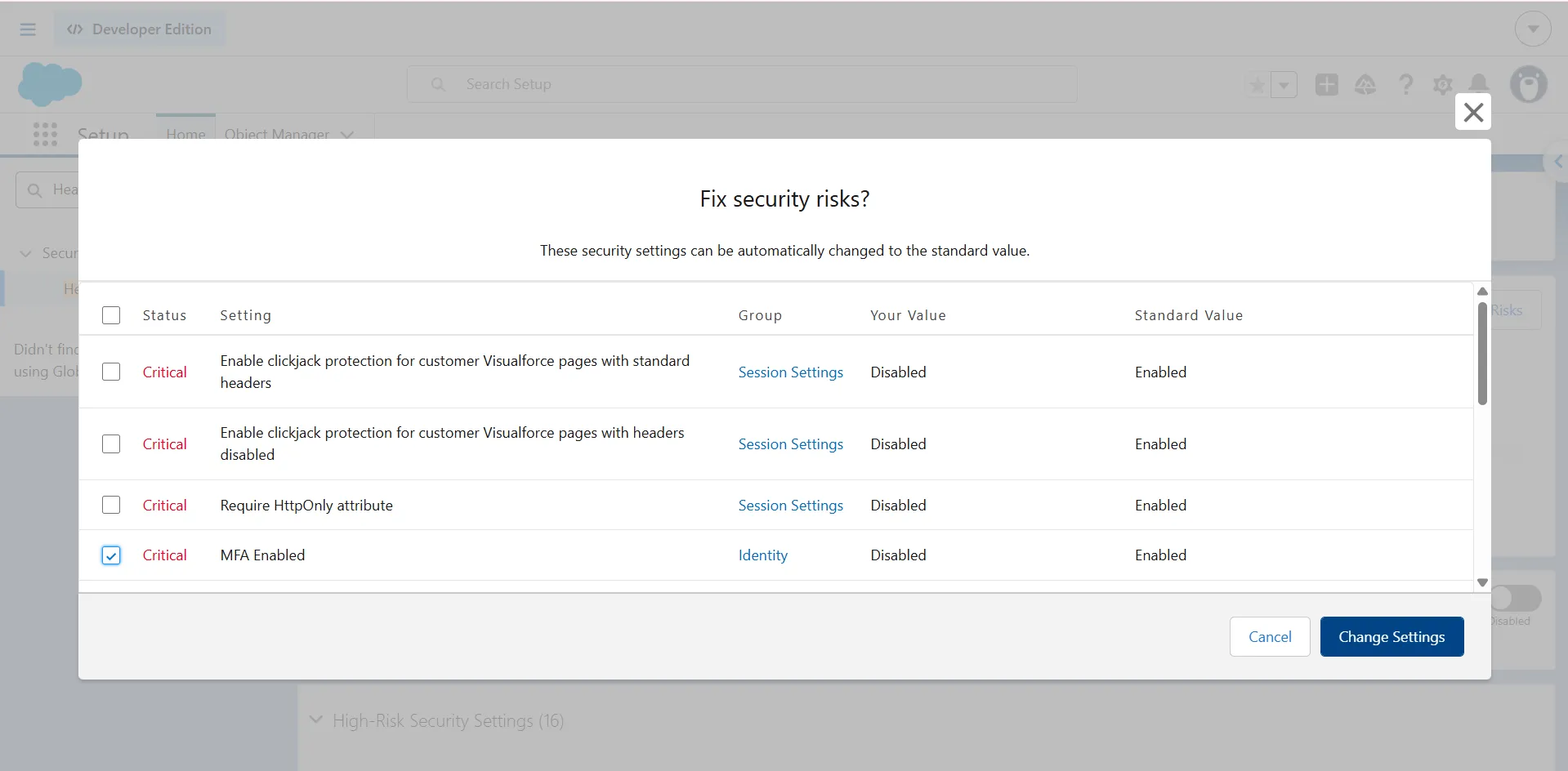
Be careful when changing several settings at once. Stricter settings can affect users, integrations, or access. Test changes in a sandbox first and apply them in small batches instead of accepting every recommendation at once.
If your security standards differ from Salesforce’s, export the Salesforce Baseline Standard, edit the XML file, and import it as a custom baseline. Salesforce allows up to five custom baselines. This is useful for regulated organizations that need to align Health Check with standards such as FINRA. You can also move a setting to the Informational category to exclude it from the Health Check score.
What it does not show: Health Check does not analyze your org for technical debt. It will not identify unused fields, overlapping automation, stale metadata, or unnecessary Apex. A strong Health Check score means your security settings align well with the selected baseline; it does not mean the org is free of technical debt.
Org Check
You can get it by installing Org Check from the AppExchange; it is a free application from Salesforce Labs and is still available as of August 2026. The most recent release listed on the AppExchange is dated 27 August 2026 and the Salesforce Labs GitHub repository is still active.
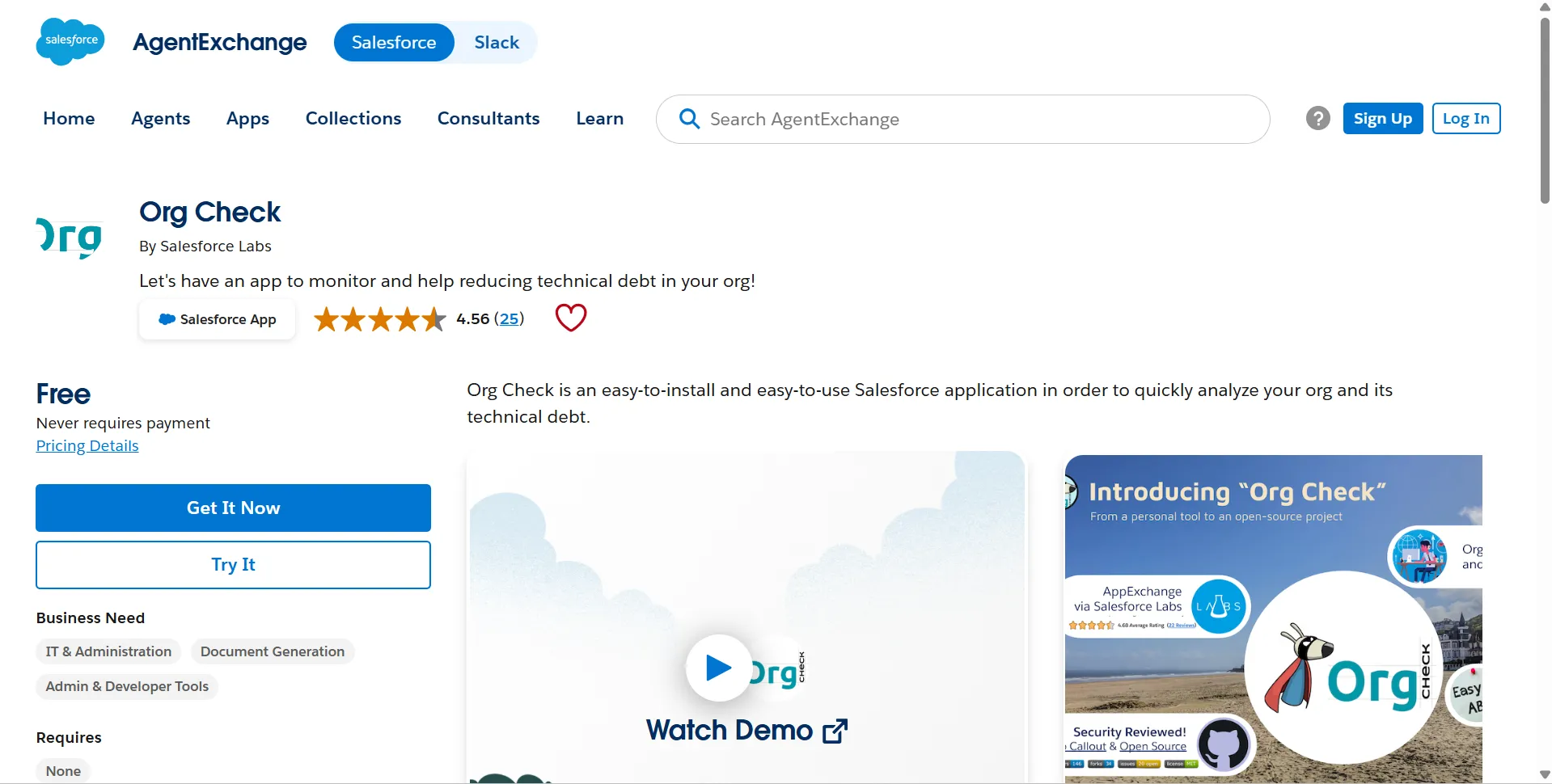
What is shown is that Org Check examines an organization’s technical debt in various areas, including objects, custom fields, users, profiles, permission sets, roles, automation, Apex, and dependencies. The dependency view indicates where components are referenced, and the profile comparator is used to detect the differences between profiles.
What it does not show: Org Check cannot determine whether a component is still needed by the business. A dependency may exist but no longer support an active process. Likewise, a component with no detected dependency is not automatically safe to delete. Review the findings with the people who own the business process before removing anything.
Can You Measure Salesforce Technical Debt?
Some technical debt can be measured directly in your org: these are concrete indicators you can count. The rest cannot be measured at all and comes down to judgment. Salesforce has no single tool that produces a technical-debt score for an org.
Apex Code Coverage and API Versions
Apex code coverage indicates the portion of your Apex code that is actually executed by the tests. In Setup → Apex Classes you can view the coverage percentage for each class, and you can also look at the coverage using the Salesforce development tools.
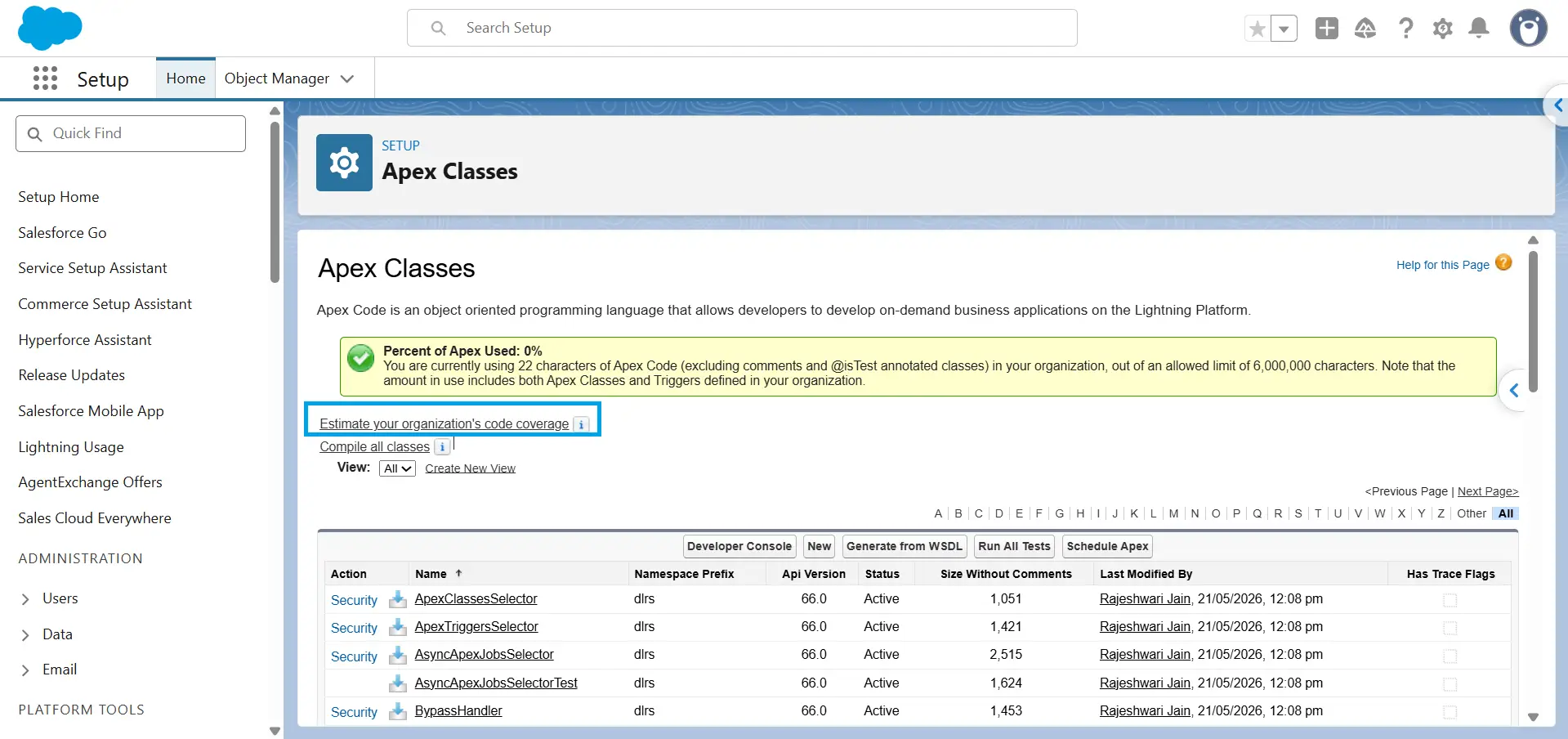
Coverage measures execution, not test quality. A class can have 95% coverage and still have poor tests if those tests do not contain useful assertions. Treat coverage as an indicator of untested code, not as proof that your tests are effective.
As you carry out your technical-debt review, make sure to check the API versions; each Apex class has an API version that is displayed in Setup → Apex Classes, and Apex classes that already exist will not automatically be upgraded to a newer API version when Salesforce releases a new version.
For integrations, check the API version used in the integration’s requests or endpoint; don’t assume the connected app configuration tells you which API version the integration uses. For example, REST API requests include the version in the endpoint, such as /services/data/vXX.X/.
The checklist helps you identify components that may need attention when Salesforce retires the older API versions.
Two Quick Checks That Cost Nothing
Look at the Setup Audit Trail. You can do this by selecting Setup then View Setup Audit Trail. It keeps a record of configuration changes including the date, the user, and the action that was taken. Salesforce keeps Setup Audit Trail records for 180 days.
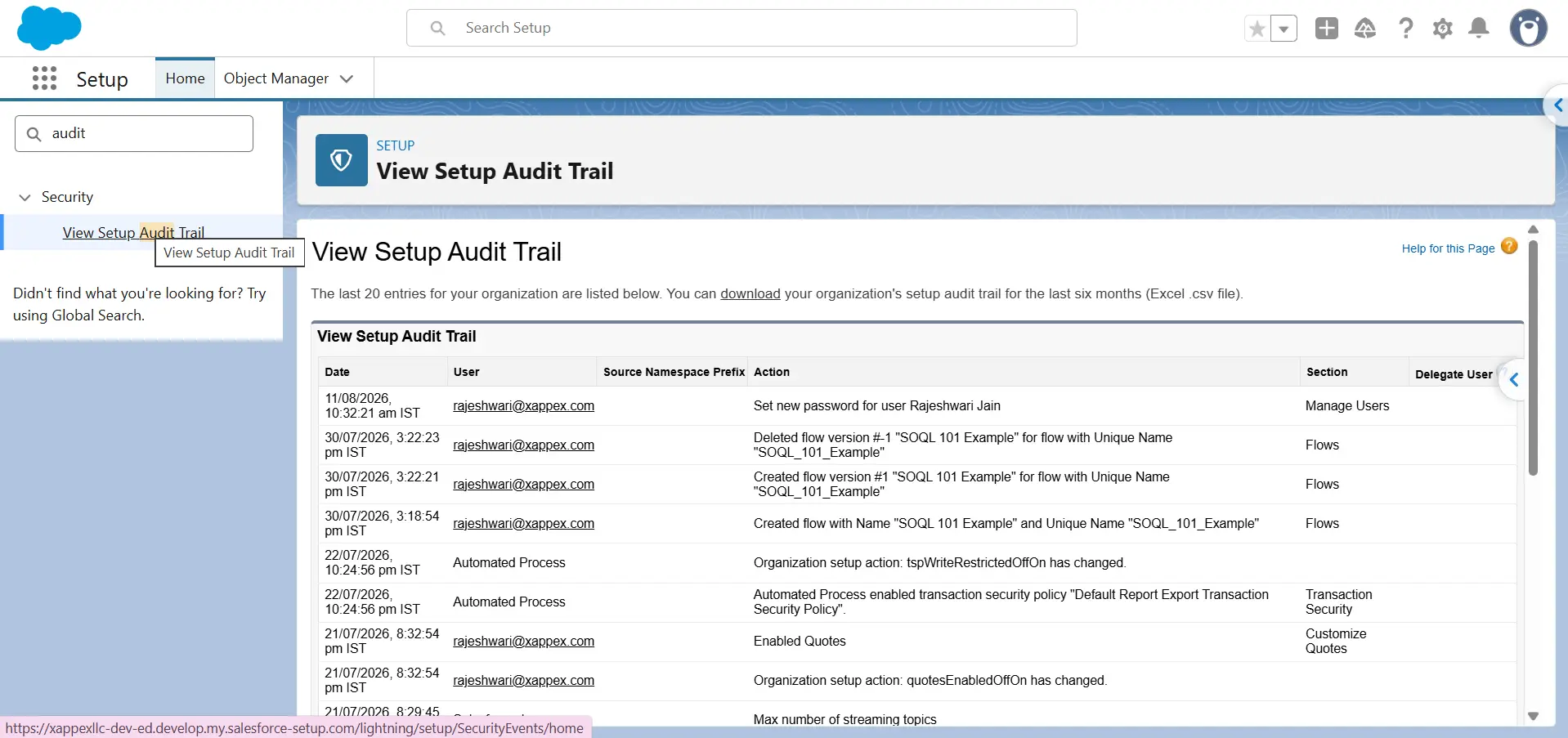
It can answer a simple question: Who is altering the org, and how often? Repeated changes by multiple administrators may point to inadequate change management or a lack of ownership. Although the audit trail does not prove technical debt, it can indicate areas that should be investigated.
Check your sandboxes and go to Setup → Sandboxes to delete any environments no longer used for development, testing, training, or deployment.
Old sandboxes can create additional environments your team has to manage, secure, and monitor; they may also contain out-of-date metadata or configuration. By retaining only the sandboxes you actually need, you can reduce the maintenance required.
This won’t give you a single figure for technical debt; instead, it will give you measurable evidence. For example, low test coverage may indicate untested code; old API versions can highlight components that need review; frequent setup changes can reveal weak governance; and unused sandboxes can show unnecessary maintenance overhead.
The value comes from treating these signals as a group and determining which present the greatest risk or make future changes more costly.
What You Can Count and What You Have to Judge
For each object you can count custom fields, calculate field fill rate using SOQL or reports, check the inventory active automations, identify profiles and permission sets that have no users assigned to them, identify inactive automation, check Apex test coverage, review the API versions used by the Salesforce-connected integrations, and count the page layouts for each object.
These figures show the org’s current state. They don’t tell you what should stay.
You have to determine whether an object is necessary, whether a process is more complicated than is essential, or whether a field with a low fill rate still has an important function; a field that is populated on 2 percent of records might be obsolete, or it might support a critical process used by a small team.
Although a tool can prepare the inventory, a person will still have to interpret it.
Do not set arbitrary limits to determine what constitutes technical debt. Salesforce does not specify a fill-rate percentage below which a field can be removed; instead, the field’s value depends on how it is used, such as its role in business processes, automation, reports, integrations, and other dependencies.
Start With Your Data
Data debt is a practical place to start because you can measure much of it. Look for duplicate Accounts and Contacts, orphaned records, fields populated on very few records, inconsistent picklist values, and records left over from earlier migrations.
Start with Lead, Account, Contact, and Opportunity. Export the field inventory, retrieve the records, and calculate the fill rate for each field. Salesforce does not provide a standard fill-rate report, so you can calculate it with SOQL, a report filtered for populated values, or a tool that performs the analysis. Then compare the results with the page layouts where each field appears.
Context matters. A field on three page layouts that is populated on only 2% of records might support a specific process or user group. A field that appears on no layouts and has no data is a stronger removal candidate. Even then, check integrations and automation before deleting it. A field can be in use without appearing on a page layout.
Metadata quality matters too. Metadata gives AI agents information about how your Salesforce org is configured. Clear names and useful descriptions make that information easier to interpret. While reviewing fields, flag vague names, missing descriptions, and labels that do not match their API names. Fix these issues whether or not you remove the fields.
Need field fill rates without building a report for each field?
XL-Connector’s Fields Utilization tool calculates fill rates for the fields you select, right in Excel. It also pulls Salesforce data and metadata into spreadsheets for broader cleanup work.
How to Remove Fields Safely
You shouldn’t delete a field simply on the basis of its fill rate; you need to verify whether Apex, formulas, flows, validation rules, reports, integrations, or any other metadata still refer to it.
Use this sequence:
-
1
Conceal the field by using field-level security.
-
2
Keep it concealed for a length of time sufficient for anything that still relies on it to appear.
-
3
Keep an eye out for errors, user reports, and integration failures.
-
4
Once you confirm the field is no longer needed, delete it.
Deleted custom fields on Salesforce can be restored for a limited time, with the field and its data being kept for up to 15 days before being permanently deleted, provided that the Salesforce deletion rules are followed.
It takes only a few seconds to restore field-level security. However, restoring a deleted field is subject to Salesforce’s recovery window and restrictions.
Tip
Make sure to export the current field inventory, automation list, and permission assignments before you make any changes, and keep a record of the org’s state prior to the cleanup.
What to Put on a Dashboard
Track:
-
Active automations per object
-
Fields with zero population
-
Profiles with no assigned users
-
Inactive rules still referenced
-
Integrations using older API versions
A single audit will show the present state of the organization, while a dashboard will indicate whether the situation is improving or deteriorating.
Quick Audit Checklist
-
Run Org Check
-
Export the field inventory for Lead, Account, Contact, and Opportunity
-
List active automations per object
-
Check Apex code coverage
-
Search for hardcoded IDs
-
Review profiles and permission sets with no assigned users
-
List integrations and their API versions
-
Check for duplicate records
-
Delete unused sandboxes
How to Prevent Technical Debt in Salesforce
Document the Why Before You Build
Before selecting a Salesforce solution, it is necessary to define the business requirement and should record the purpose in the description field prior to deployment, using consistent naming conventions so that different fields or automations do not end up fulfilling the same purpose.
It is a common practice to assign each automation a named owner in its description and to review or archive it within a specified period if that individual leaves. Automations without an owner are considered to be technical debt.
Question the Request
It isn’t necessary in every case to create a new field. You should first verify whether one of the existing fields, automation, or another Salesforce feature could be used to deal with the issue with less complexity. Likewise, turning down a request that is not really needed is also something that contributes to good Salesforce administration.
Build for the Environment, Not for Today’s IDs
Record type IDs should not be hardcoded since they vary from one Salesforce org to another; instead, refer to record types by a stable attribute such as DeveloperName so that the same code or configuration will work in all environments.
Reserve Time for Maintenance
Schedule maintenance instead of waiting for technical debt to become a cleanup project. Some Salesforce teams dedicate a few days each quarter to one object or process area, while commenters in the Salesforce community report reserving 10% to 20% of sprint capacity for technical debt; these are practices, not Salesforce requirements. Review Salesforce release notes before each release and record changes that affect your org. Use Salesforce’s available health and analysis tools on a regular schedule rather than treating them as one-time checks. Where a DevSecOps pipeline exists, run quality and security checks as part of deployment.
Review AI-Generated Changes Like Any Other Change
Review AI-generated Apex, Flow, formulas, and configuration changes using the same standards as manually created work. Do not deploy generated changes that you cannot explain, test, secure, or maintain.
Conclusion
Salesforce technical debt comes from two sources: shortcuts teams take and platform changes over time. Only the first is avoidable.
You can’t prioritize debt that hasn’t been inventoried; start by using Org Check to spot potential problems. Although these tools identify issues, your team decides which ones to address. Data is generally the best place to start because you can measure issues like duplicates, missing values, and outdated records, then correct them directly.
FAQ
Is Salesforce technical debt inevitable?
To some extent so. Debt that results from taking shortcuts can be avoided, but debt resulting from changes and the evolution of the Salesforce platform cannot.
Can a Health Check help reduce my Salesforce technical debt?
Health Check is used for assessing security settings, not for evaluating org complexity or metadata sprawl; to identify other areas of technical debt you should use Org Check.
Can you measure technical debt in Salesforce?
Partly. You can measure factors such as unused metadata, duplicate automation, and outdated components directly in your org. But judgment is needed when assessing the impact of that debt, since not all technical problems have the same effect on the business.
What counts as good technical debt?
Good technical debt involves a deliberate compromise made in order to satisfy a need earlier, with an awareness of the cost and a plan for dealing with it; the trouble arises when teams assume responsibility for such debt without understanding or managing the cost.
How frequently should I carry out an audit of my organization?
Review your org as part of each Salesforce release cycle, then conduct a broader technical-debt review quarterly. This keeps changes from accumulating between audits and gives you a regular opportunity to address growing complexity.
At what stage does it make sense to begin with a new org?
Consider a new org when technical debt makes the existing org difficult to understand, maintain, or change. Warning signs include deployments routinely taking weeks, no one being able to explain a large part of the configuration, and an org that is more than a decade old with little or no documentation. These are signals, not fixed thresholds; rebuilding should depend on the org's condition and the cost of migration.

Rajeshwari Jain
Content Manager
Rajeshwari Jain is a Technical Support Specialist and Content Writer at Xappex. She applies her practical experience to assist customers and create articles on how Xappex tools work with Salesforce to improve data management and increase efficiency.
She began her IT career in 2022 as a Quality Assurance professional before transitioning into Salesforce administration and technical writing in 2023. With Salesforce Certified Administrator and Associate certifications, Rajeshwari writes blogs on Salesforce flows, admin tools, and updates to expand her skills outside of work.
In her free time, she enjoys reading tech blogs and experimenting with new tools.
Feel free to reach out to Rajeshwari for collaborations or to check out her Salesforce-focused content.