Get Started Free




Why You Can’t Merge Opportunities
When Not to Merge Opportunities
- A renewal Opportunity after a contract ends;
- An upsell being tracked as a separate deal;
- Separate deals with different products or price books;
- Two Opportunities with different processes handled by different teams.
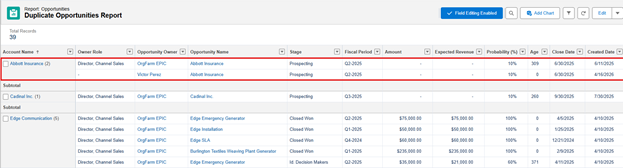
How To Find Duplicate Opportunities
-
Same Account
-
Similar Opportunity Name
-
Overlapping Close Date
-
Similar Amount
-
Same Owner
- Bulk data imports;
- After integrating the external system;
- Multiple users creating records in parallel.

Tip
Before You Merge
-
Closed Won Opportunities: Merging Closed Won Opportunities can break historical data, commissions, and forecasting, making it unreliable data.
-
Custom Child Objects: Some custom objects related to the Opportunities can block the process or fail to reassign correctly.
-
Permission and ownership: If users don’t own the records they are trying to merge, the process might fail.
-
Pricebooks: You cannot easily combine products from Opportunities with different pricebooks; this will have to be done manually.
-
Products: If both Opportunities have products, Salesforce won’t know which ones to keep. You have to decide which quantities and prices are correct before you proceed.
Tip
What Happens to Your Data
- Activities, Tasks, and Events: In most custom workflows, these records are reassigned to the master Opportunity by updating the lookup field. But this requires manual configuration; it’s not a built-in Salesforce rule.
- Opportunity Products: An Opportunity can only handle one Pricebook at a time. If your two records use different ones, you’ll have to choose a single Pricebook for the master record, which means you might have to manually re-add line items from the duplicate.
- Contact Roles: There’s no automatic way to transfer these. Whatever process you use to consolidate the records, contact roles need to be handled separately. Review both Opportunities, then manually add the relevant contacts to the record you’re keeping. If you don’t, that context is gone.
- Files and Attachments: These are linked through an object called ContentDocumentLink. During a custom merge, those links are typically updated to point to the master record so your documents stay attached to the right deal.
- Custom child objects: Some custom objects can be automatically assigned if you update the parent lookup, but others might block the process, and others need to be manually handled to be successfully merged. Behavior depends on the Custom Object configuration.
How to Merge Opportunities in Salesforce
Manual method
-
Decide which Opportunity will be the master;
-
Copy the relevant field values from the duplicate to the master if they are missing;
-
Review products on both records and manually consolidate them on the master record;
-
Reassign related records if needed (Contact Roles, Activities, Tasks, and Events);
-
Create a backup in case something goes wrong before deleting the duplicate records.
Salesforce Flow
-
Identifying the master and the duplicate Opportunities;
-
Loop through related records like activities and products;
-
Collections and variables to store and reassign data;
-
Duplicate deletion once everything is transferred.
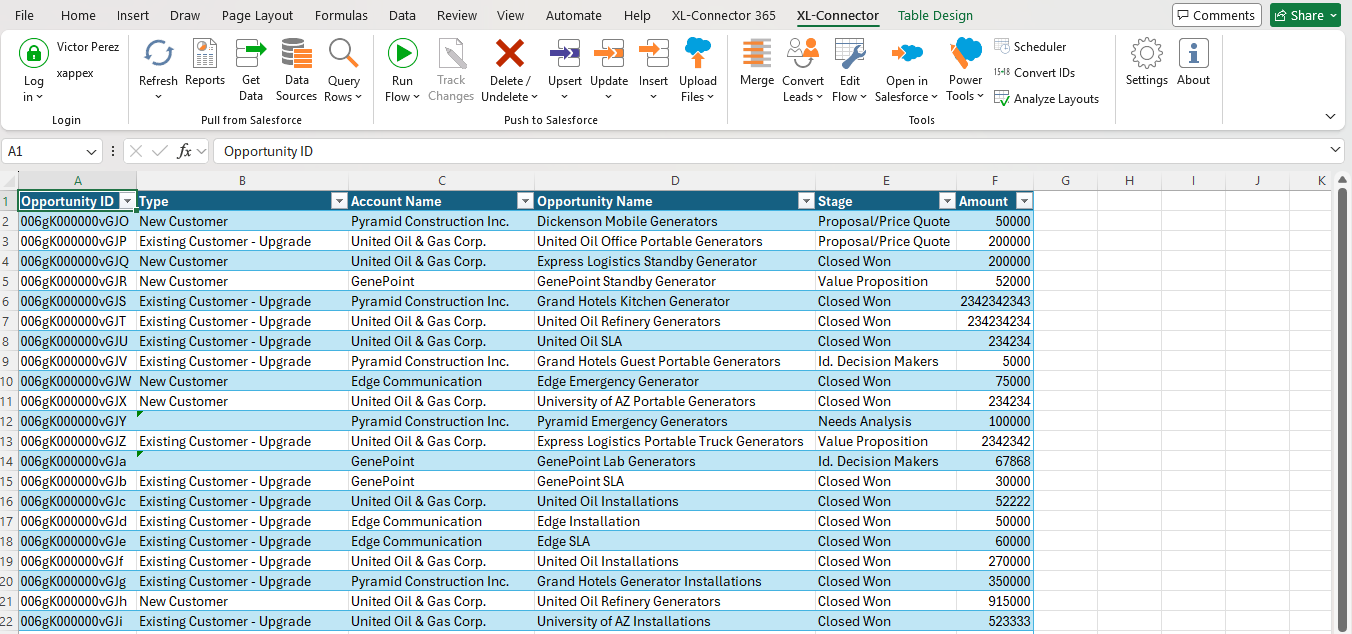
Using Excel or Google Sheets
-
Export Opportunity data into Excel or Google Sheets;
-
Review records side by side;
-
Decide which values to keep and which record becomes the master;
-
Update Salesforce with clean consolidated data.
Conclusion
- A few records: Manual consolidation is usually enough;
- Recurring duplicates: Build a Flow so the process is consistent and repeatable;
- Bulk cleanup or complex data: Work in a spreadsheet first so you have full visibility before touching anything in Salesforce.
FAQ
Can you merge opportunities in Salesforce?
No. Salesforce doesn't include a built-in merge option for Opportunities. To consolidate duplicates, you'll need to use a manual process, build automation with Salesforce Flow, or work with your data in a spreadsheet first.
How do you merge two opportunities under one account?
There's no direct merge option. Pick one Opportunity as the master, manually transfer any relevant field values and products from the duplicate, and then decide whether to delete the duplicate or remove it from your active pipeline.
Can you merge more than two opportunities at once?
No. Salesforce doesn't have a native merge feature for Opportunities, so bulk merging isn't available out of the box. Teams handling large volumes of duplicates typically rely on a custom Flow or third-party tools to manage the process at scale.
How to merge Opportunities in Salesforce Lightning?
There's no native merge option for Opportunities in Lightning. The same approaches covered in this article apply: manual consolidation, a custom Flow, or a spreadsheet-based workflow.
How to merge Opportunities in Salesforce Classic?
Classic does not have a native merge option for Opportunities. The same approaches apply regardless of which interface you're using: manual consolidation, a custom Flow, or a spreadsheet-based workflow.
What happens to related records when you merge opportunities?
It depends on how you handle the consolidation and which records are involved. Some will need to be reassigned, others recreated, and a few may require manual review before you close out the duplicate.

Perez Victor
Content Manager
Victor Perez is a Salesforce Administrator and Technical Support Specialist at Xappex with experience in administration and consultancy. Driven by a passion for enhancing operational efficiency and business effectiveness, Victor leverages his deep understanding of Salesforce and Xappex tools to develop solutions and resources that empower users across various industries.
Initially starting his career in law, Victor transitioned into the Salesforce ecosystem and quickly advanced to become the Lead Administrator for a prominent B2B company in Mexico, where he significantly improved workflow efficiency and data management. His unique blend of analytical thinking and technical experience allows him to identify and address business challenges effectively.
In his personal time, Victor enjoys golfing and exploring insights from diverse industries, continually seeking innovative approaches to problem-solving and adding value both professionally and personally.