Get Started Free



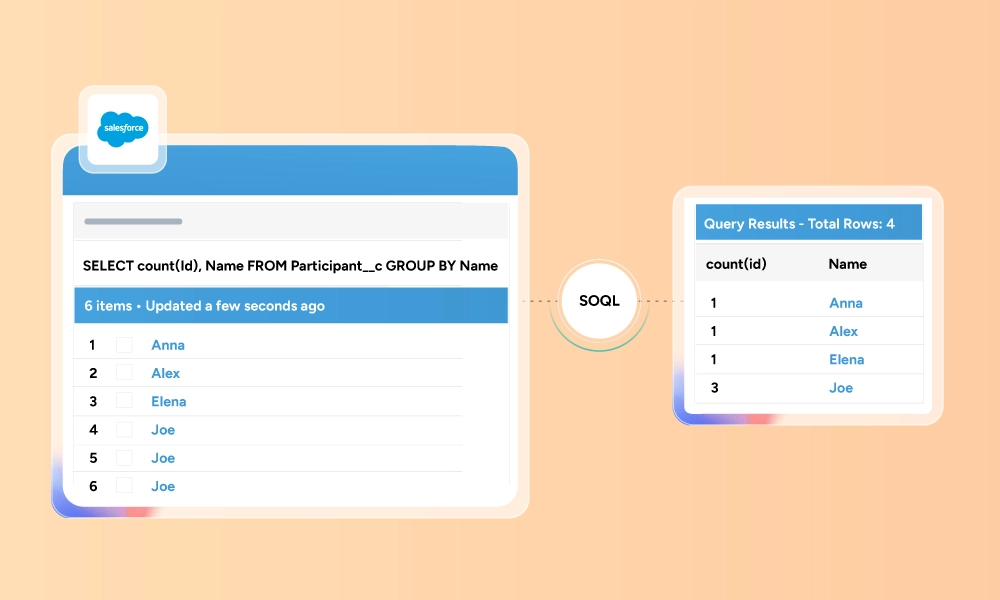
Unlike SQL, SOQL doesn’t support the SELECT DISTINCT keyword. Attempting to use it results in a syntax error. To retrieve unique values from a Salesforce field, use GROUP BY instead, which returns each distinct value once. This guide explains why SELECT DISTINCT isn’t available in SOQL, how to use GROUP BY correctly, and how to retrieve unique values from Salesforce data.
Why SELECT DISTINCT Doesn't Work in SOQL
Standard SQL databases support the SELECT DISTINCT clause to remove duplicate values from a query result.
For example:
SELECT DISTINCT Industry FROM AccountHowever, SOQL doesn’t support the DISTINCT keyword. Running the same query in Salesforce results in a syntax error because DISTINCT isn’t part of the SOQL language.

To retrieve unique values in SOQL, use the GROUP BY clause on the field you want to deduplicate.
SELECT Industry
FROM Account
GROUP BY Industry
The GROUP BY query returns each industry once, regardless of how many Account records share the same value. For example, if your org contains 1,000 accounts across 28 industries, the query returns 28 rows. Records where the grouped field is null are returned as a separate group. If some Account records don’t have an Industry value, the query returns one additional row representing the null group.
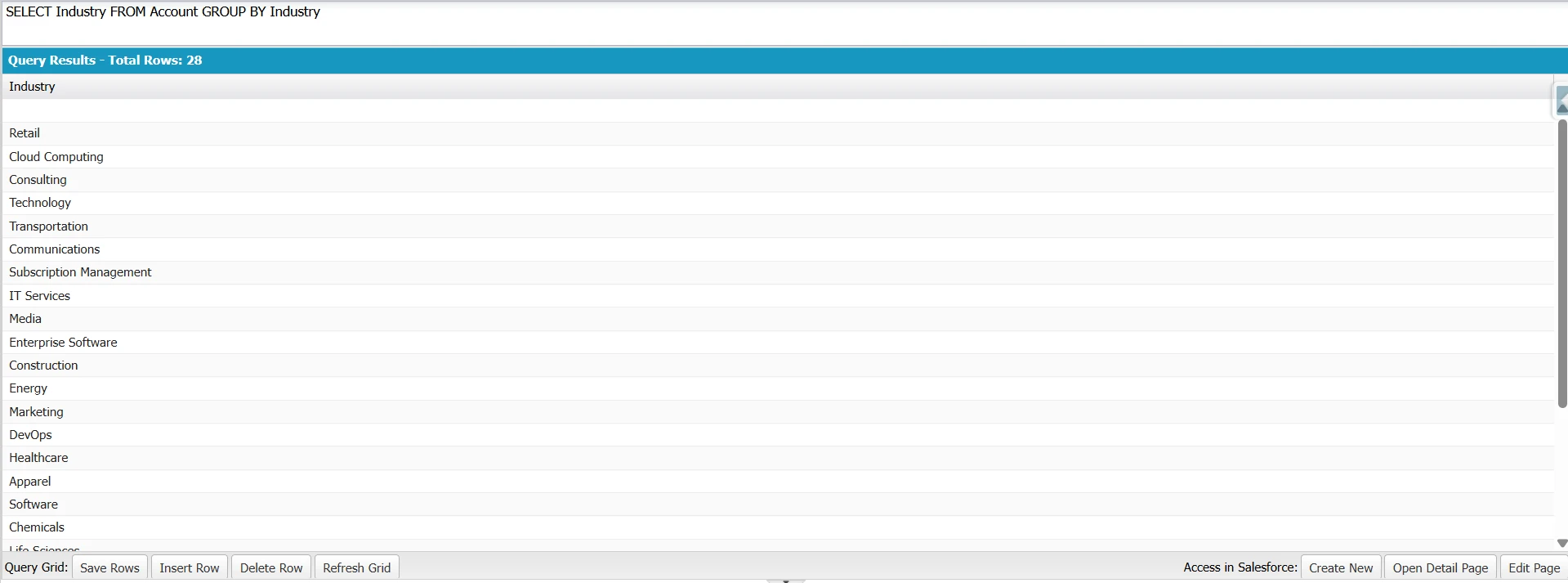
This is one of the most common SQL-to-SOQL differences. While SQL uses DISTINCT to eliminate duplicate values, SOQL uses aggregate queries with GROUP BY to achieve a comparable result.
Getting Distinct Values from a Single Field
The most common use case is retrieving the unique values stored in a single field, such as industries, opportunity stages, account types, or regions. Salesforce administrators and developers often use this technique to audit data, validate field values, or prepare for reporting and data migrations.
Unlike standard SOQL queries, a query that uses GROUP BY returns a list of AggregateResult objects in Apex rather than a list of sObjects.
SELECT Industry
FROM Account
GROUP BY Industry
This query returns one row for each unique Industry value found on the Account records visible to the running user.
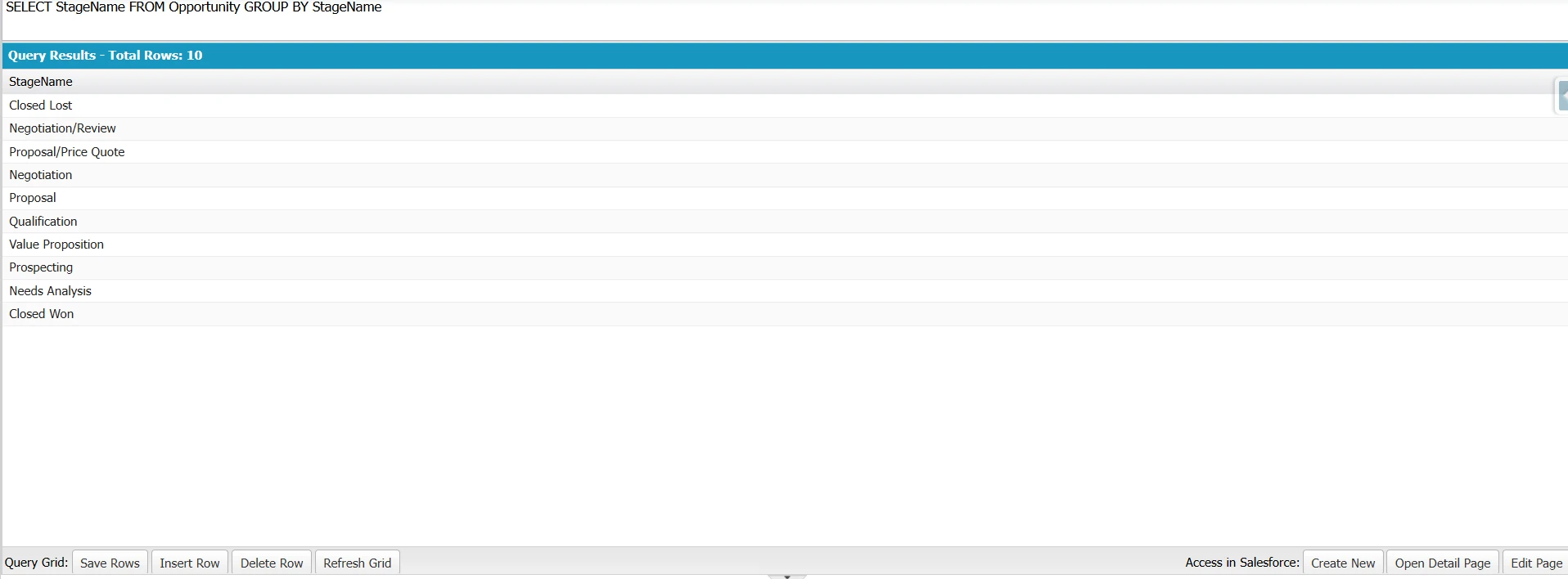
Distinct opportunity stages
SELECT StageName
FROM Opportunity
GROUP BY StageName
This query returns each unique Opportunity stage once. It’s useful for quickly identifying the stage values currently in use in your org.
Filter before deduplicating
SELECT Industry
FROM Account
WHERE BillingCountry = 'USA'
GROUP BY Industry
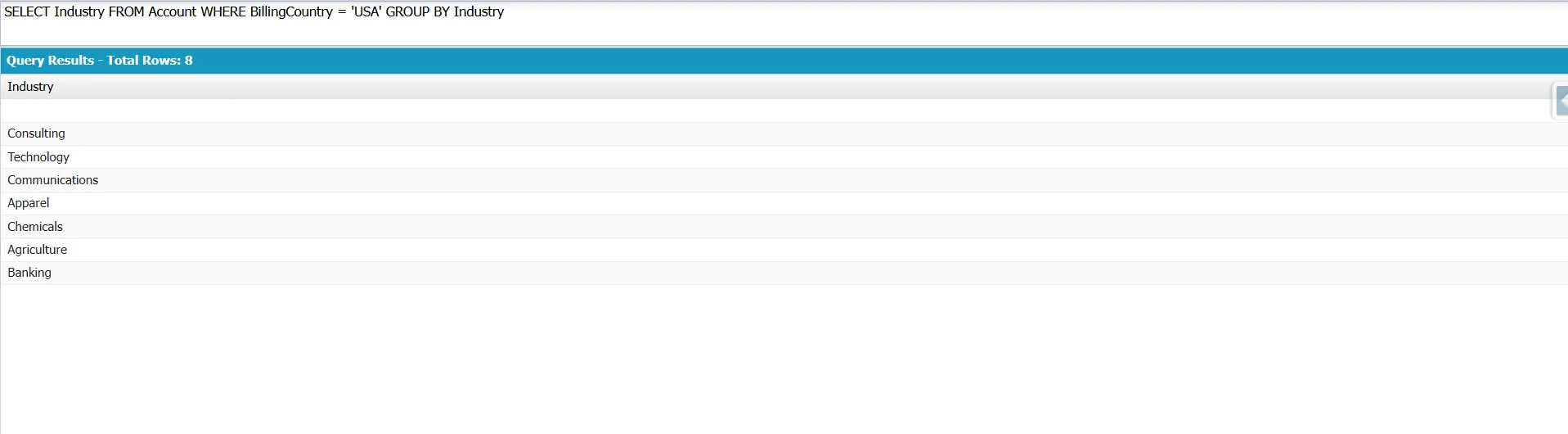
This query returns unique Industry values only for accounts whose BillingCountry is USA. Salesforce applies the WHERE clause first and then groups the filtered records to produce distinct values.
Getting Distinct Values from Multiple Fields
GROUP BY can include multiple fields. Separate the field names with commas to return each unique combination of values.
This is useful when you need combinations such as:
- Industry and Billing Country
- Region and Status
- Lead Source and Owner
Example:
SELECT Origin, Priority
FROM Case
WHERE IsClosed = false
GROUP BY Origin, Priority
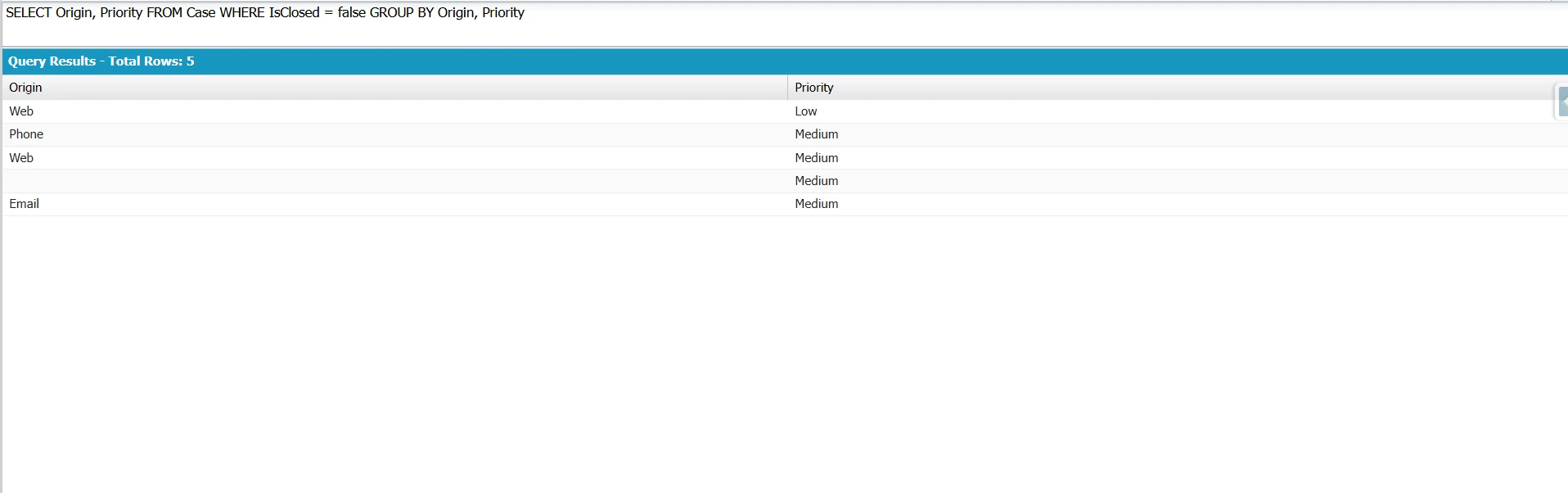
This returns one row for each unique Origin and Priority combination. If 250 open cases came in by Email with High priority, they collapse into a single row for that pair.
Adding a count makes the grouping visible:
SELECT Origin, Priority, COUNT(Id) caseCount
FROM Case
WHERE IsClosed = false
GROUP BY Origin, Priority
ORDER BY COUNT(Id) DESC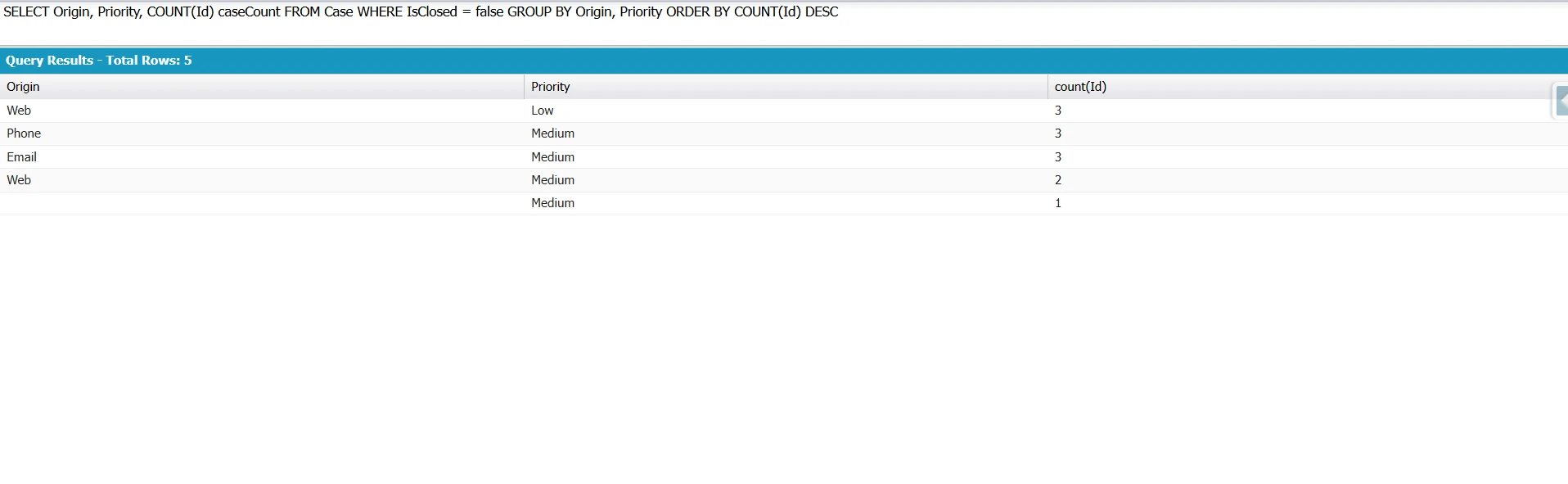
Note
-
Every field in the SELECT clause must either appear in the GROUP BY clause or be used in an aggregate function such as COUNT(fieldName), COUNT_DISTINCT(), SUM(), MIN(), MAX(), or AVG(). Parameterless COUNT() can’t be combined with GROUP BY; use COUNT(Id) instead.
-
Not every field can be grouped. Long Text Area, Rich Text Area, encrypted fields, and some formula fields aren’t groupable. Check DescribeFieldResult.isGroupable() before building a dynamic query.
-
Records with a blank value form their own group, where the grouped field is returned as null. Use WHERE Industry != NULL to exclude them.

Tip
GROUP BY ROLLUP and GROUP BY CUBE add subtotal and grand total rows to grouped results.
Sorting Distinct Values
You can use ORDER BY with a GROUP BY query to sort grouped results.
The following query returns distinct industries in ascending order:
SELECT Industry
FROM Account
GROUP BY Industry
ORDER BY Industry ASC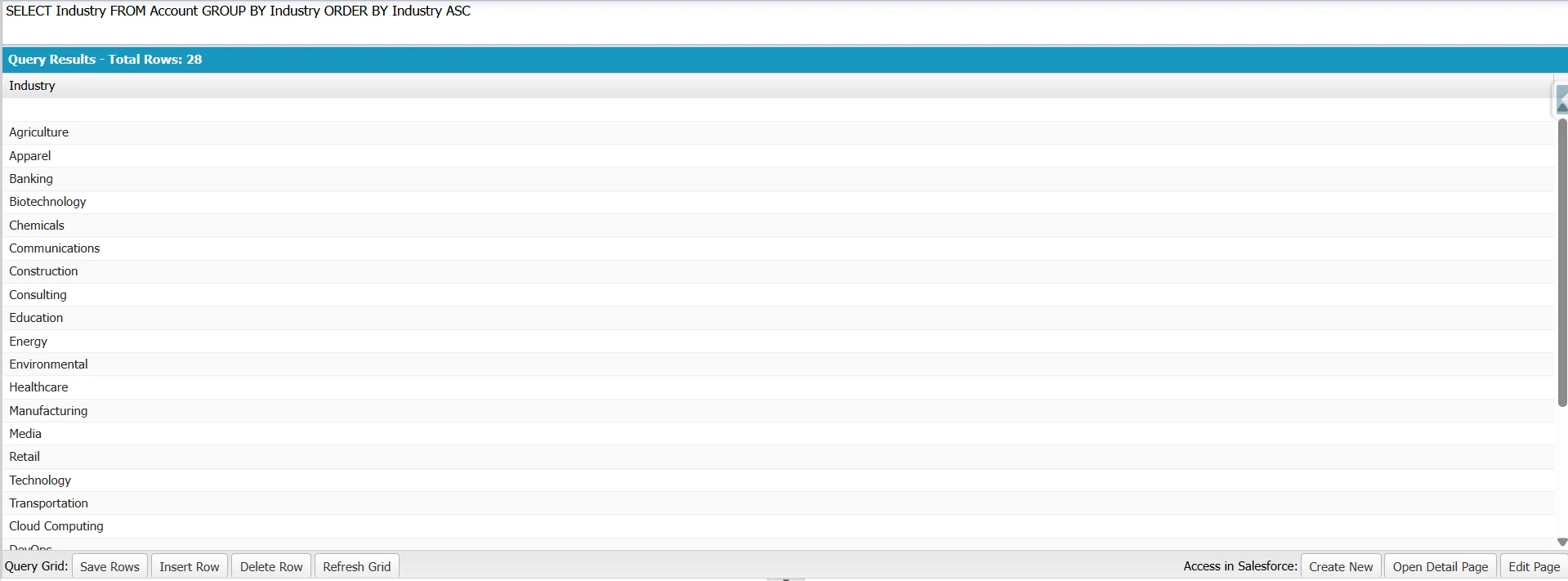
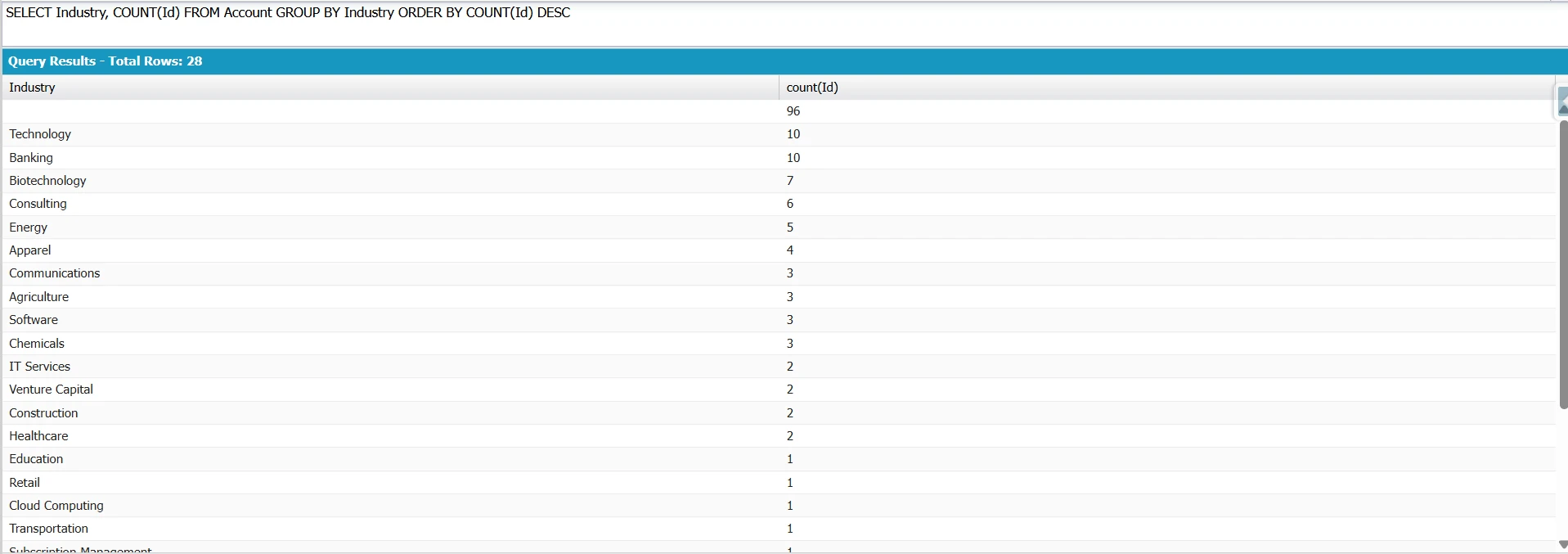
You can also sort by an aggregate value:
SELECT Industry, COUNT(Id)
FROM Account
GROUP BY Industry
ORDER BY COUNT(Id) DESC
This query sorts industries by the number of Account records in each group, from highest to lowest.
Tip
Use NULLS FIRST or NULLS LAST to control where null values appear.
Distinct Values in Apex
You can retrieve distinct values in Apex by:
- Using a SOQL query with GROUP BY.
- Querying records and removing duplicates with an Apex Set.
Use GROUP BY when you only need distinct values.
Option 1: Use GROUP BY (Recommended)
AggregateResult[] results = [
    SELECT Industry
    FROM Account
    WHERE Industry != NULL
    GROUP BY Industry
];

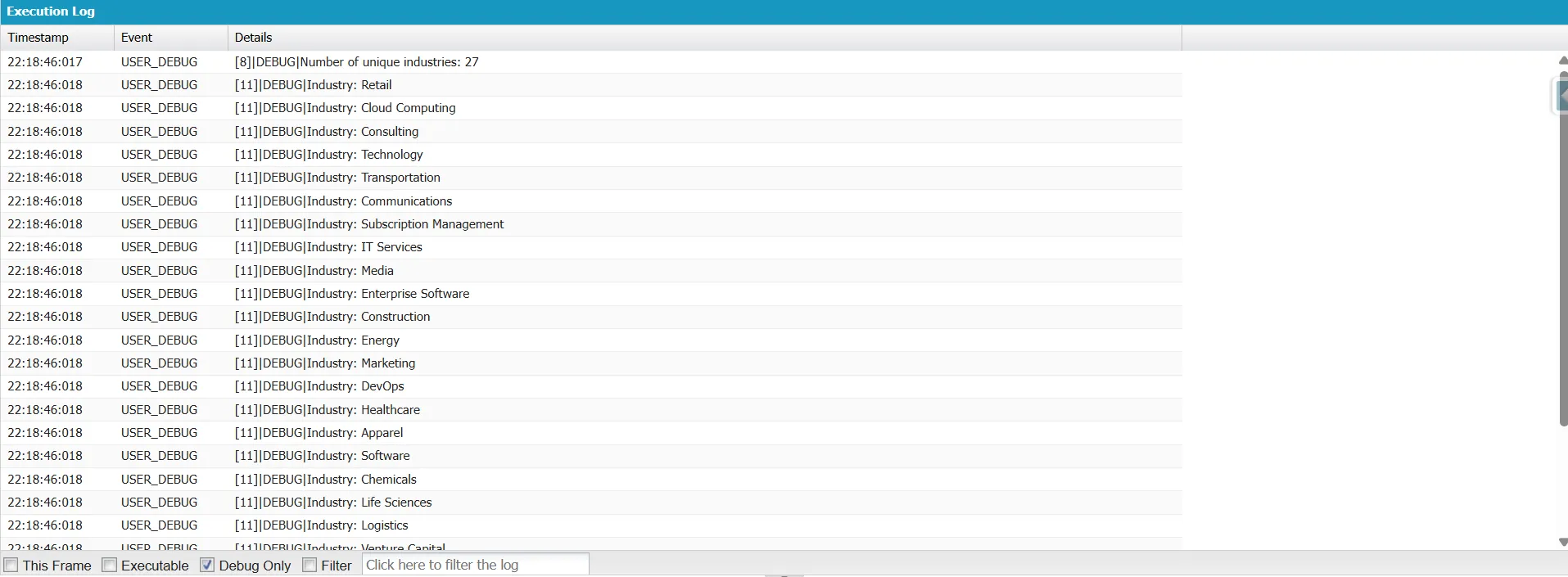
System.debug('Number of unique industries: ' + results.size());

for (AggregateResult ar : results) {
    System.debug('Industry: ' + ar.get('Industry'));
}
This query returns one AggregateResult for each unique Industry.

Note
- Aggregate queries return a maximum of 2,000 rows and don’t support queryMore(). If a query can produce more grouped results, narrow the data with a WHERE filter or group on fewer fields.
- Each AggregateResult counts as one row toward the 50,000 query rows governor limit.
Tip
- Assign aliases to aggregate expressions for easier access. For example, COUNT(Id) accountCount can be retrieved with ar.get(‘accountCount’). Without an alias, Salesforce uses generated names such as expr0.
- ar.get() returns an Object. Cast it to the appropriate type before using it. For example, COUNT() returns an Integer, while SUM() and AVG() return a Decimal.
Option 2: Use an Apex Set
Set<String> uniqueIndustries = new Set<String>();
for (Account a : [
    SELECT Industry
    FROM Account
    WHERE Industry != NULL
    LIMIT 50000
]) {
    uniqueIndustries.add(a.Industry);
}
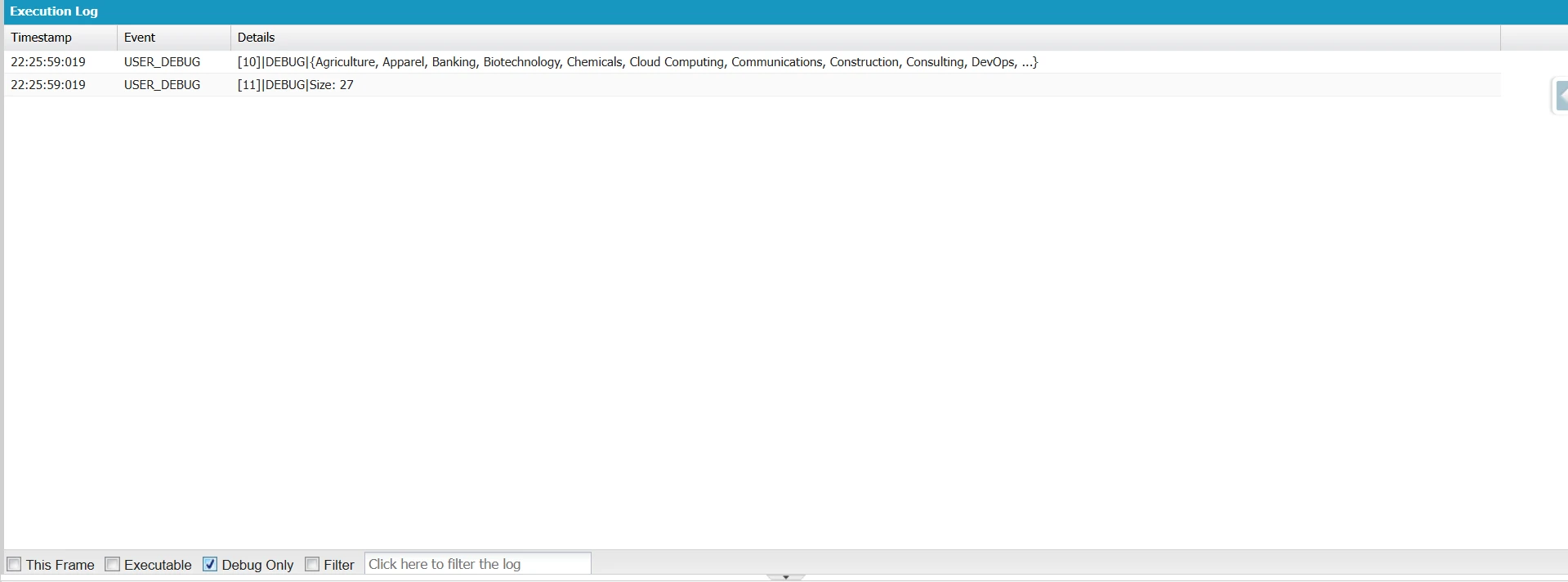
System.debug(uniqueIndustries);
System.debug('Size: ' + uniqueIndustries.size());
A Set stores only unique values, so duplicate Industry values are automatically discarded as records are added.
Tip
A SOQL for loop processes records in batches, which helps reduce heap usage compared with loading all records into a List.
Use GROUP BY when you only need distinct values. Use an Apex Set when you need to process individual records before removing duplicates.
To retrieve distinct values and record counts in a single query, use:
SELECT Industry, COUNT(Id)
FROM Account
GROUP BY Industry
Counting Unique Values
If you need to count how many unique values exist in a field instead of listing each one, use the COUNT_DISTINCT() aggregate function.
SELECT COUNT_DISTINCT(Industry)
FROM Account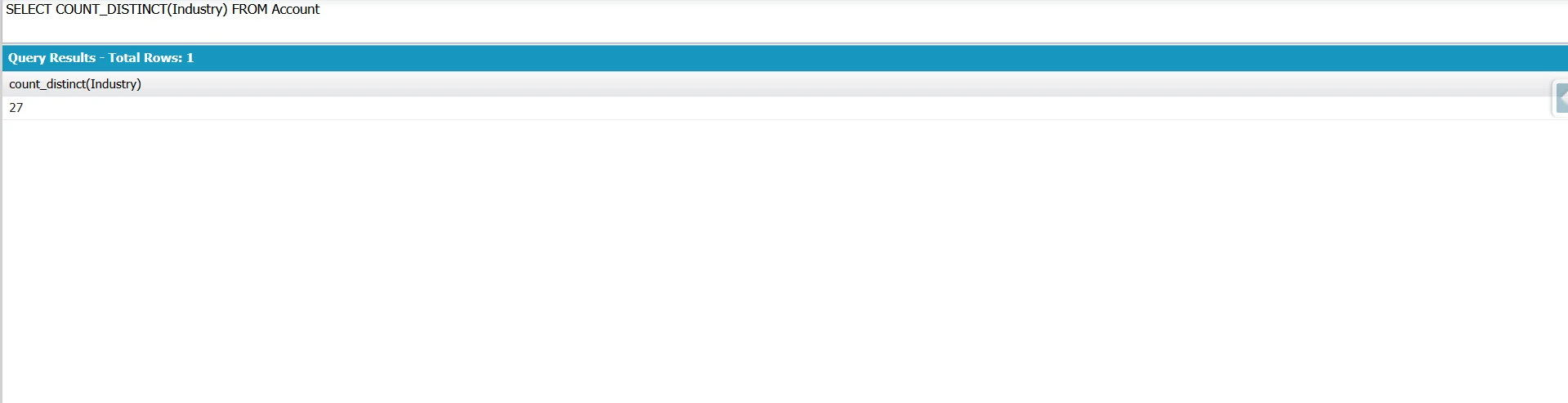
This returns a single integer – the number of unique Industry values across all accounts. For a full explanation of COUNT_DISTINCT(), including aliases, use with GROUP BY, and supported field types, see our SOQL COUNT guide.
Common Limitations
NULL Values Appear as a Separate Group
When you use GROUP BY, Salesforce treats NULL as a separate group. This allows you to retrieve every distinct field value, including records where the field has no value.
SELECT Industry
FROM Account
GROUP BY Industry
If some Account records don’t have an Industry value, the query returns an additional row representing the NULL group.
To exclude records with NULL values, filter them in the WHERE clause before grouping.
SELECT Industry
FROM Account
WHERE Industry != null
GROUP BY Industry
Unlike SQL, SOQL doesn’t support the IS NULL or IS NOT NULL operators. Instead, use = null or != null.
If you need to filter grouped results based on an aggregate value, use the HAVING clause.
SELECT Industry, COUNT(Id)
FROM Account
WHERE Industry != null
GROUP BY Industry
HAVING COUNT(Id) > 5
In this example, the WHERE clause excludes records with NULL values before grouping, while the HAVING clause returns only industries that have more than five matching accounts.
GROUP BY Doesn't Support All Field Types
Not every Salesforce field can be used in a GROUP BY clause. Common examples of unsupported field types include:
- Long Text Area
- Rich Text Area
- Multi-Select Picklist
- Encrypted fields
If you’re unsure whether a field supports grouping, check its isGroupable() property by using the Schema Describe API.
System.debug(
    Schema.SObjectType.Account.fields.Industry
        .getDescribe()
        .isGroupable()
);
If the method returns true, the field can be used in a GROUP BY clause. If it returns false, Salesforce doesn’t allow grouping on that field.
Getting Full Records of Distinct Values Isn't Directly Possible
A GROUP BY query returns one row for each unique group, along with any aggregate values that you specify. Aggregate queries return AggregateResult objects rather than sObjects, so they can’t return the complete records that belong to each group.
If you need the full record details, use one of these approaches:
-
Run a GROUP BY query to identify the distinct values, then execute a second SOQL query to retrieve the matching records.
-
Query the records directly and derive the distinct values in Apex or another application layer.
Aggregate Result Limit
A SOQL query that uses GROUP BY can return a maximum of 2,000 grouped results. Aggregate queries don’t support queryMore(). If the query produces more than 2,000 groups, you must reduce the number of results returned.
To work within this limit:
-
Add WHERE filters to reduce the number of groups.
-
Split the query into multiple smaller queries by using a selective field, such as owner, record type, or date range.
-
Process the results from those smaller queries in Apex or an external application if you need to analyze a larger data set.
Running Distinct Queries in Excel and Google Sheets
If you work in Excel or Google Sheets, you can run SOQL queries without opening the Developer Console or writing Apex. XL-Connector (for Excel and Excel Online) and G-Connector (for Google Sheets) let you paste a SOQL query directly into a spreadsheet and return the results. To get unique values, use the same GROUP BY query you would use in Salesforce.
It is useful for extracting distinct values from picklist or text fields to review data quality, identify inconsistent values, or build dropdown lists. Learn more about working with SOQL queries in spreadsheets.
Conclusion
Although SOQL doesn’t support the SELECT DISTINCT keyword, you can still retrieve unique values by using the GROUP BY clause. If you need to count unique values, use COUNT_DISTINCT(). If you need to work with individual records before removing duplicates, use an Apex Set. Knowing when to use each approach, along with their limits and supported field types, helps you write better SOQL queries for reporting, data validation, integrations, and Apex development.
FAQ
Does SOQL support SELECT DISTINCT?
No. SOQL does not support the DISTINCT keyword. To retrieve unique values, use the GROUP BY clause on the field you want to return.
What's the easiest way to get unique values in SOQL?
Use GROUP BY on the field whose unique values you need. For example, SELECT Industry FROM Account GROUP BY Industry returns each distinct industry value once.
How do I get distinct values from multiple fields?
Include all required fields in both the SELECT and GROUP BY clauses. For example, SELECT Industry, BillingCountry FROM Account GROUP BY Industry, BillingCountry returns each unique combination of Industry and BillingCountry.
How do I count distinct values in SOQL?
Use the COUNT_DISTINCT() aggregate function. For example, SELECT COUNT_DISTINCT(Industry) FROM Account returns the number of distinct non-null Industry values. For more information, see our SOQL COUNT guide.
How do I get distinct values from a related (parent) field?
Use relationship dot notation in both the SELECT and GROUP BY clauses. For example, SELECT Account.Industry FROM Contact GROUP BY Account.Industry returns each distinct parent account industry referenced by contacts.
Can I use SELECT DISTINCT in Apex SOQL?
No. Apex uses the same SOQL syntax as Salesforce, so the DISTINCT keyword is not supported. Use GROUP BY in the SOQL query to return unique values, or retrieve the records and remove duplicates by storing the values in an Apex Set.

Rajeshwari Jain
Content Manager
Rajeshwari Jain is a Technical Support Specialist and Content Writer at Xappex. She applies her practical experience to assist customers and create articles on how Xappex tools work with Salesforce to improve data management and increase efficiency.
She began her IT career in 2022 as a Quality Assurance professional before transitioning into Salesforce administration and technical writing in 2023. With Salesforce Certified Administrator and Associate certifications, Rajeshwari writes blogs on Salesforce flows, admin tools, and updates to expand her skills outside of work.
In her free time, she enjoys reading tech blogs and experimenting with new tools.
Feel free to reach out to Rajeshwari for collaborations or to check out her Salesforce-focused content.