Get Started Free



Salesforce Translation Workbench lets admins translate supported metadata labels and user interface text into Salesforce-supported languages. This guide explains what Translation Workbench supports, what it does not, and which Salesforce feature to use for each use case.
What It Translates and Where
Table 1: Handled by Translation Workbench
| Content type | Notes |
|---|---|
| Custom field labels, related list labels, and help text | Choose the aspect (Label / Related List Label / Help Text) per field |
| Picklist values | Edited individually; no mass-edit of existing values |
| Web Tabs (Visualforce, Lightning component, URL tabs) | Component is “Web Tab” |
| Supported Flow metadata (screen labels, choice labels, Custom error message) | Translated per flow version |
| Managed package labels | Use the Override menu; only where the package permits it(Setup → Quick Find box → type "Override" → click Override) |
| Custom Report Type labels and descriptions | The report type, not the reports/dashboards built on it |
| Button and Link Label | — |
| Global Value Set | Formerly “Global Picklist” |
| Data Category and Data Category Group | — |
| Validation rule error messages | Component is “Validation Error Message” |
| Managed Content node type and Managed Content type | — |
| Standard Field help | — |
| Quick Action labels | Predefined field values on the action are not translatable |
Other supported components: Custom App, Layout Section, Related List Label, Record Type (and description), Lookup Filter, Field Set, Apex Sharing Reason, Workflow Task, Navigation Menu Item.

Note
Although Flow screen labels and choice labels are translatable, Rich Text, Text Template, and merge field content isn’t supported for translation import. These strings can appear in exported STF files but fail during import. Exclude them from translation files because they can’t be imported through Translation Workbench.
Table 2: Handled by other methods (or not translatable)
| Content type | Where to translate it | Notes |
|---|---|---|
| Standard object labels, standard field labels, and custom object tab labels | Rename Tabs and Labels (Setup) | Language-aware; select the language at the top |
| Email template subject and body | Create localized email templates | Not handled by Translation Workbench |
| Product and catalog content in quoting | Your quoting solution’s localization (e.g., Revenue Cloud) | — |
| Predefined field values in Quick Actions | Not translatable | Quick Action labels are - see the Translation Workbench table |
| Dashboards and reports | Not translatable | Use per-language versions/folders; only the report type label is translatable |
Note
Translation Workbench is used to translate metadata such as labels, field names, and picklist values. Data Translation is a separate feature for translating record-level content in B2B Commerce and is configured independently. If you don’t use B2B Commerce, Translation Workbench is typically all you need.
Enable Translation Workbench in Salesforce
Enable Translation Workbench before translating labels, objects, fields, and other supported Salesforce components. Once enabled, you can add languages, assign translators, and manage translations.
Enabling or disabling Translation Workbench requires the Customize Application permission. Users who translate metadata need the Manage Translation user permission, granted through a profile or permission set.
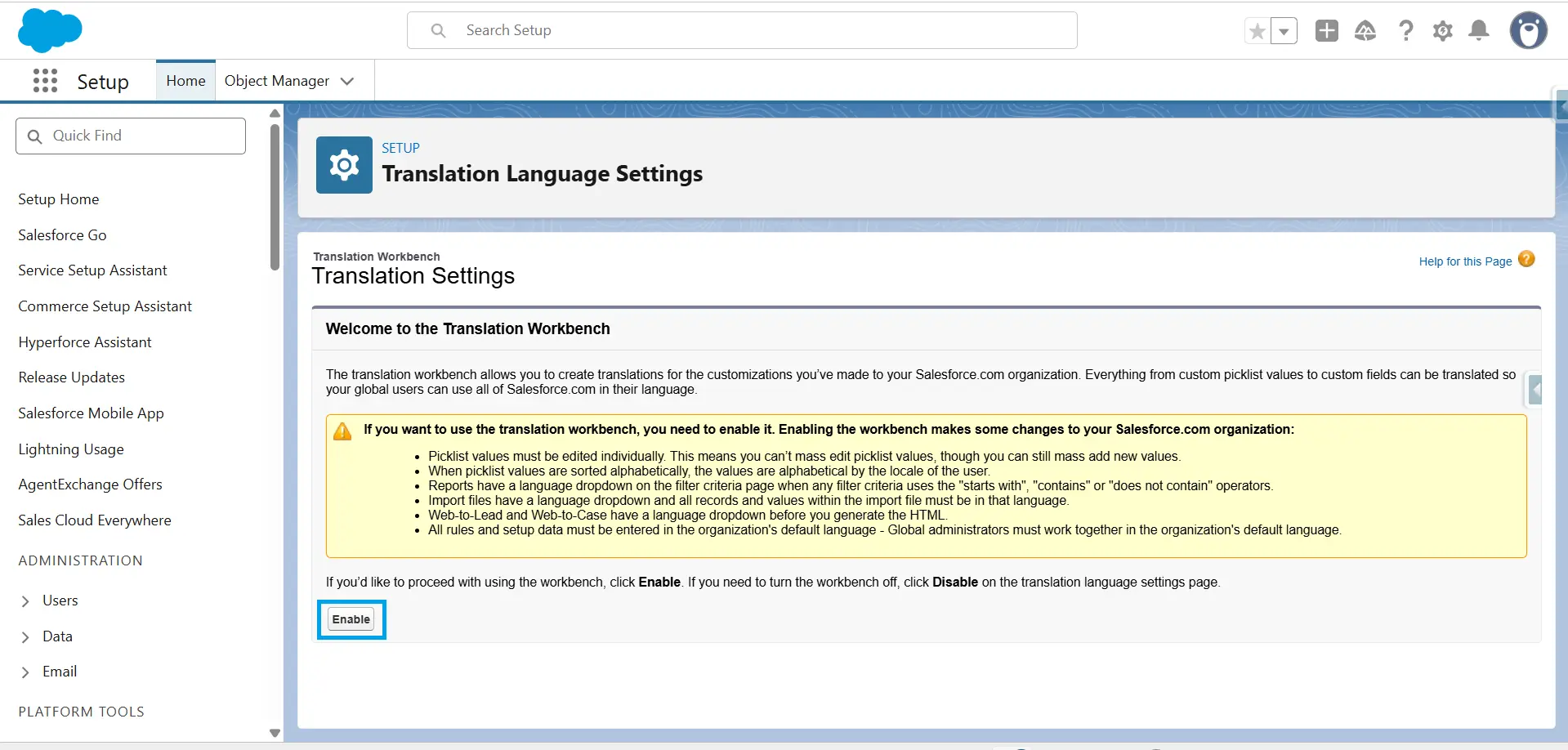
To enable Translation Workbench:
-
1
Go to Setup.
-
2
Search for Translation Language Settings in the Quick Find box.
-
3
Open Translation Language Settings and click Enable.

Note
In a Developer Edition org that contains a managed package with translations, you can’t disable Translation Workbench once it’s enabled.
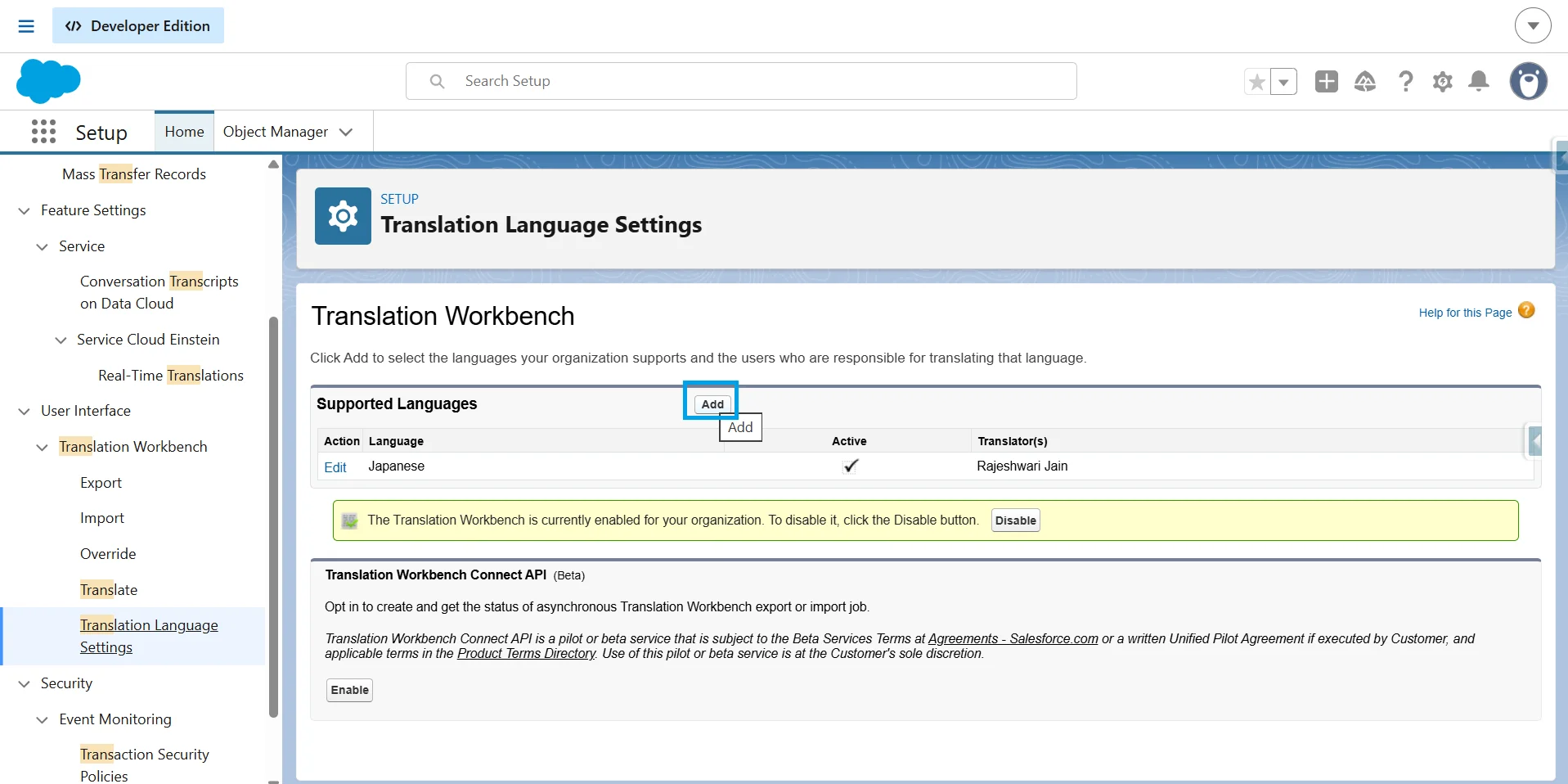
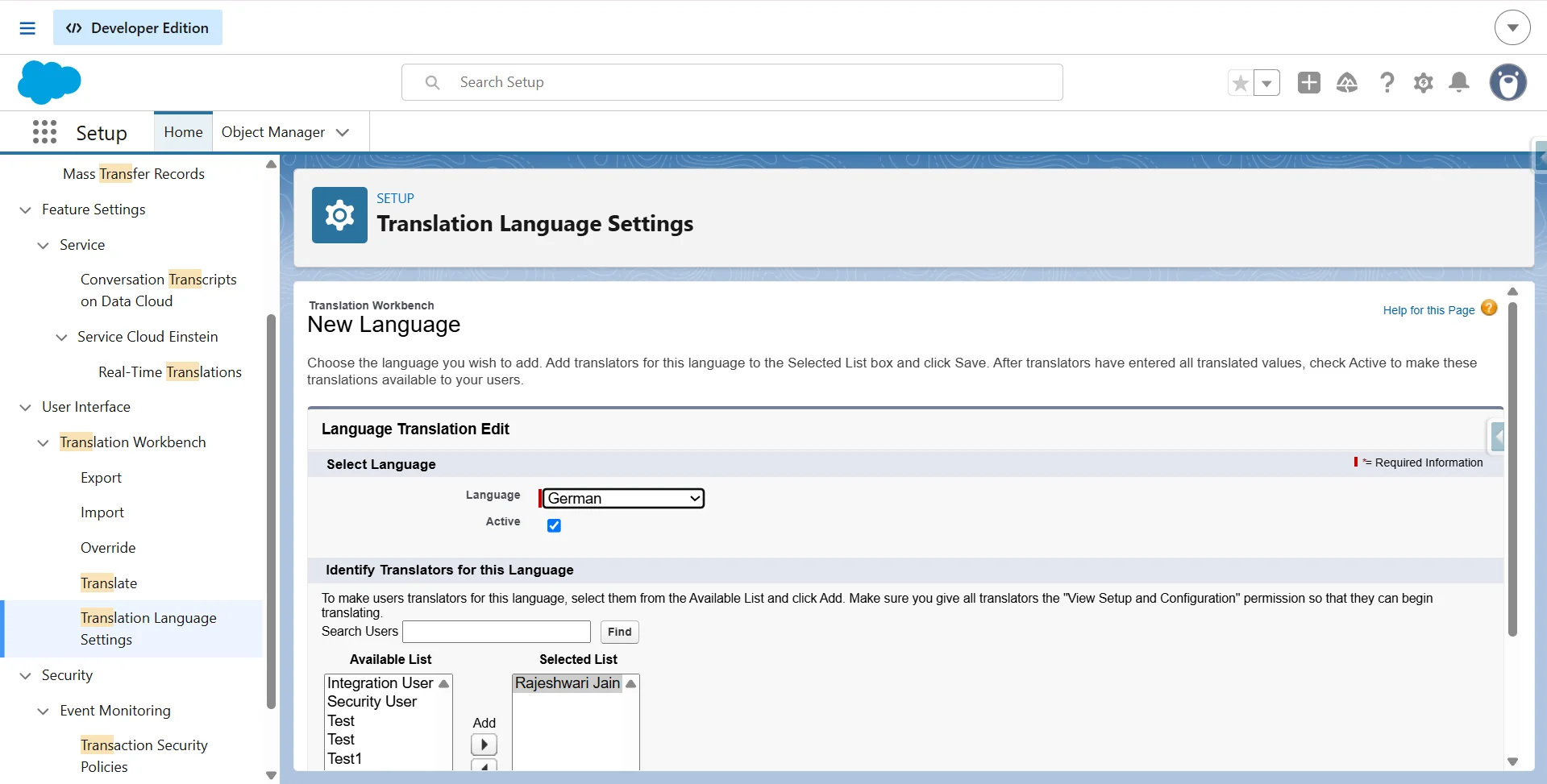
To add Languages and assign Translators:
-
1
Go to Setup and search for Translation Language Settings. Click Add.
-
2
Choose a language and mark it Active to make it available to users. Assign one or more translators.
-
3
Click Save.
Note
Translators need the View Setup and Configuration permission and access to the metadata they translate. They can translate only their assigned languages.
Translating Components
After you enable Translation Workbench, you can add translations directly in Salesforce or export translation files for bulk updates. Inline editing is best for small changes, while export and import work better for larger translation projects.
Inline Editing
Use Setup → Translate to translate supported metadata. Select the language, choose the component you want to translate, such as a Custom Field, Picklist Value, Custom Label, or supported Flow metadata, and then select the related object if required. Salesforce displays the available values so you can enter translations and save your changes.
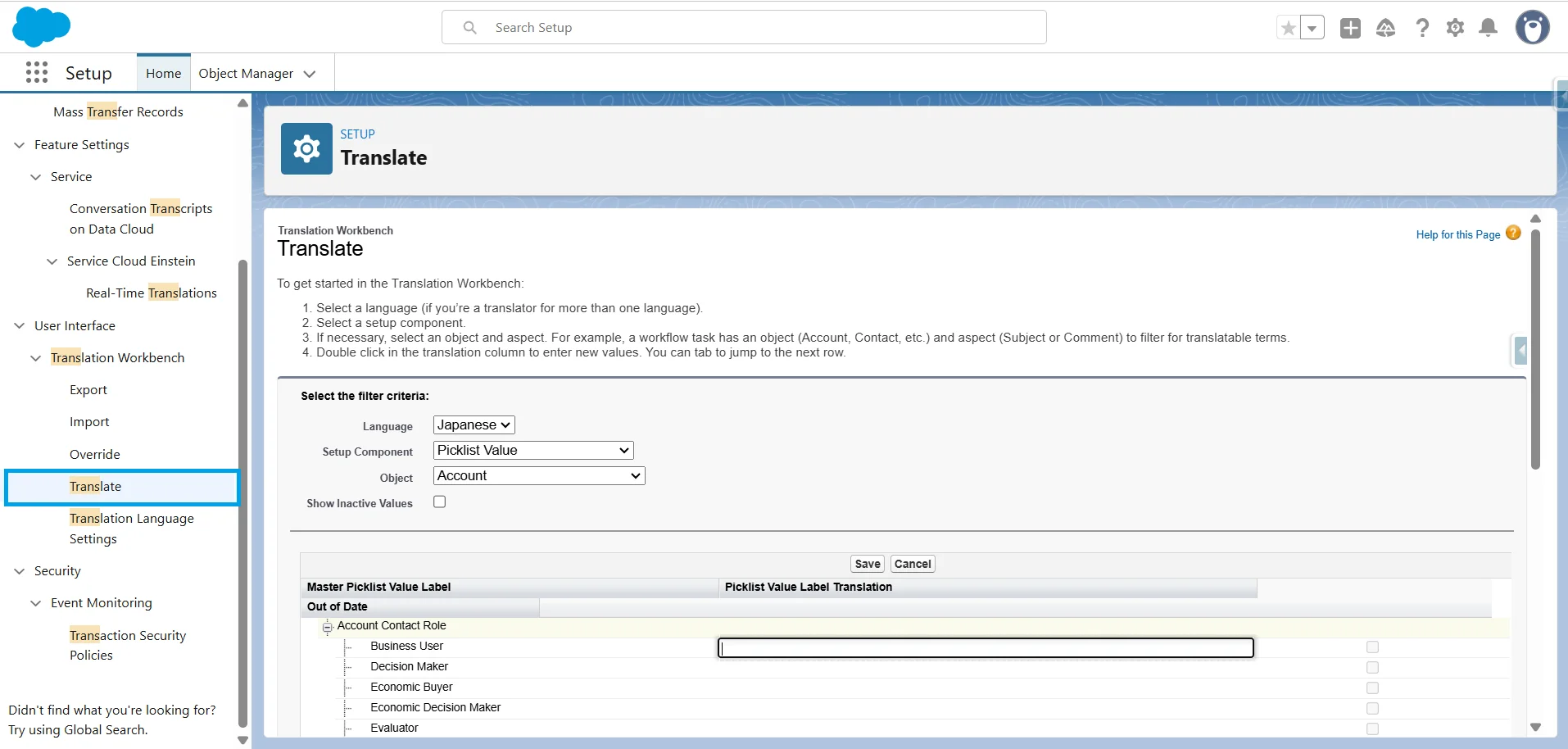
It is useful for translating a few new picklist values, updating a field label, or correcting a translation.
One interface detail is easy to overlook. If a picklist has many values, Salesforce may show only the first group. Click the small expand arrow to display the remaining values. Many admins have spent time searching for missing values before realizing the list wasn’t fully expanded.
Note
You must edit existing picklist values one at a time. Salesforce supports bulk adding new picklist values but not bulk editing.
Bulk Export and Import
For larger translation projects, export translation files instead of updating each value manually. Go to Setup → Translation Workbench → Export, generate the files, update them offline, and import them back into Salesforce. Salesforce’s Export Metadata Translation Files guide explains the available export options and the overall process.
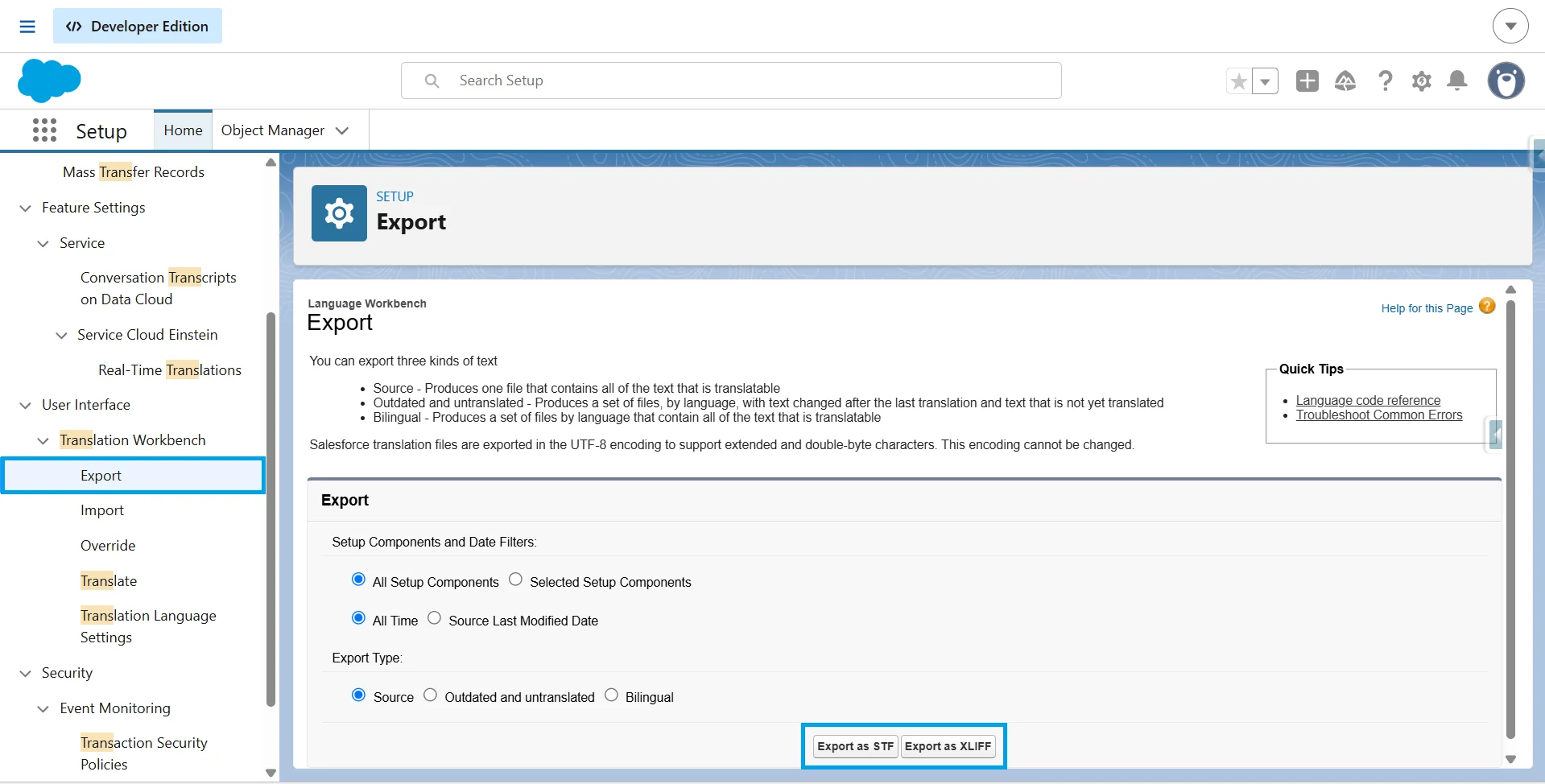
Salesforce supports two export file formats:
- STF (Salesforce Translation Format): A Salesforce-specific, tab-separated format.
- XLIFF (XML Localization Interchange File Format): An industry-standard format supported by many localization tools.
Choose STF if you manage translations within Salesforce. Choose XLIFF if your translation team uses localization software that supports the format. Salesforce’s Work with Translation Files documentation compares both formats and explains how to work with them.
Translation Workbench doesn’t support CSV exports. Although STF files open in spreadsheet applications, the exported file format remains STF.
When exporting, choose one of these options:
- Source: Exports all translatable text in your organization’s default language.
- Outdated and Untranslated: Exports only content that is untranslated or out of date.
- Bilingual: Exports translated and untranslated content together.
When the export is complete, Salesforce emails a link to download a ZIP file containing the translation files.
Note
When importing translation files, select the correct language. All records and values in the file must use that language.
Developers who need programmatic access can also retrieve translated Custom Labels by querying the ExternalStringLocalization Tooling API object. For example:
SELECT Id, ExternalStringId, ExternalString.Name, Language, Value
FROM ExternalStringLocalization
WHERE Language = 'fr'
It complements Translation Workbench when translations need to be retrieved programmatically.
Note
Deactivating a language hides its translations from users but keeps them available for imports, exports, and future updates.
Deploying Translations Between Orgs
Once translations work in a sandbox or developer org, the next step is deploying them to production. Salesforce supports several deployment methods, each with specific requirements for moving translation metadata.
Using Change Sets or Salesforce CLI:
You can deploy Translation Workbench translations using Change Sets or the Salesforce CLI. Include both the translation metadata and the component being translated. If you deploy only one, the deployment may succeed, but the translated labels might not appear in the target org.
For example, when deploying a translated custom object, include both the Custom Object and Custom Object Translation components. Translated custom field labels are also stored in the Custom Object Translation metadata, so include it when deploying custom objects with translated field labels.
With the Salesforce CLI (sf), translations are deployed through the Metadata API. The Translations metadata type stores translations for many metadata types, including custom labels, custom applications, custom tabs, flows, and report types. It doesn’t include object and field translations (CustomObjectTranslation) or standard picklist value translations (StandardValueSetTranslation). Include every required translation metadata type in your deployment.
Retrieve translation metadata with:
sf project retrieve start -m Translations -m CustomObjectTranslationAdd -m StandardValueSetTranslation if you’re retrieving standard picklist value translations.
Deploy the metadata with:
sf project deploy start -m Translations -m CustomObjectTranslationAdd -m StandardValueSetTranslation when deploying standard picklist value translations.
If you use package.xml, include every required translation metadata type, such as Translations, CustomObjectTranslation, and StandardValueSetTranslation. Otherwise, the deployment can complete without transferring all translations.
After deployment, verify that the language is Active in the target org. If the language is inactive, translations remain available in Translation Workbench but don’t appear in the Salesforce user interface.
Using Workbench:
You can also use Workbench, a community-built tool for retrieving and deploying Salesforce metadata. It differs from Salesforce Translation Workbench, the Setup feature for creating and managing translations. Workbench lets you retrieve and deploy metadata using a custom package.xml.
For example, to deploy translated Field Service Flows with Workbench, retrieve and deploy the Flow and Translations metadata.
-
1
Make sure the translation language is Active.
-
2
Retrieve the Flow and Translations metadata by including the metadata types in the package.xml.
-
3
Deploy the metadata to the target org. Deploying to the same org creates a new Flow version.
-
4
Verify the translated Flow in Setup → Translate.
For the complete procedure and sample package.xml, see the Salesforce Knowledge article Salesforce Field Service Mobile Flow – Flow Translations Should Get Deployed in Target Org by Using Workbench.
Some deployment issues are worth knowing. Salesforce users report that Flow version mismatches can affect translation deployments when source and target orgs use different Flow versions. Although Salesforce does not document this as a platform limitation, the community has shared workarounds like replacing user-facing text with Custom Labels or updating Flow version references in the exported XLIFF file before deployment.
Developers report a Metadata API limitation when retrieving GlobalValueSetTranslation metadata. Untranslated values may be returned with the <translation> element commented out, requiring manual updates before redeployment. Some teams work around this by editing the .globalValueSetTranslation-meta.xml file directly rather than relying solely on metadata generated by Translation Workbench.
To manage translation languages programmatically, use the Translation sObject, available in API version 47.0 and later. It represents the languages enabled for translation in your org, while the translated content itself is stored in translation metadata.
The official API reference lists its supported fields and operations.
When the Native UI Isn’t Enough
Translation Workbench works well for small updates like editing labels or picklist values. As the number of languages, translated fields, and deployments grows, managing the process becomes harder. A translation export creates a separate STF file for each language. Each file must be imported individually. Some validation issues appear only during import.
Sandbox-to-production deployments add another step. Because of these workflow limitations, many organizations manage translations in Excel. There, they can make bulk updates and validate issues like the 40-character limit for translated custom field labels before importing them into Salesforce.
For teams that manage translations in Excel, XL-Connector’s Translation Workbench lets them pull translations into Excel and sync them back to Salesforce without using STF files.
Read more about Translation Workbench in XL-Connector.
Common Translation Workbench Import and Export Errors
Translation file imports can fail because of invalid keys, incorrect file headers, duplicate entries, or formatting issues. The table below lists common errors and how to resolve them.
| Error | Cause | Solution |
|---|---|---|
| Duplicate key exists in import file | The translation file contains the same key more than once. | Remove duplicate keys or export a new translation file before importing. |
| Invalid Key | Translation keys were modified after the file was exported. Salesforce can no longer match them to the original metadata. | Export a new translation file and use the generated keys without editing them. |
| No language code specified in file header | The file header is missing a valid language code or the code is in the wrong location. | Add a valid language code and ensure the file header remains in the organization’s default language. |
| No valid file type specified in file header | The file header doesn’t specify a valid import or export type. | Update the header with a supported file type, such as Source, Outdated and untranslated, or Bilingual. |
| Not a valid file to import | The file format isn’t supported. | Import only .stf, .xlf, or .zip files that contain translation files. |
| No data to import | The file doesn’t contain any new or updated translations. | Verify that the file contains translated values that differ from the master labels or existing translations. |
| Maximum character limit exceeded | A translated value exceeds the maximum length allowed for that field. | Shorten the translated value and import the file again. |
| Data translation isn’t enabled for this org | Data Translation is disabled in the org. | Enable Data Translation before importing data translation files. |
| Your import request failed | Salesforce encountered an unexpected error during import. | Retry the import. If the error persists, contact Salesforce Support. |
For a complete list of Translation Workbench import and export errors, see Salesforce’s official Common Errors with Exporting and Importing Translation Files documentation. Also confirm that the target language is Active in Setup → Translation Language Settings. Salesforce displays translations only for active languages, even if translations already exist for an inactive language.
Note
Salesforce has a known issue where Translation Workbench imports can fail with the error “Your import request failed. Please retry or contact support.” This issue can occur if the import file contains more than 50 untranslated components or components with missing translation values. Salesforce’s current workaround is to remove the untranslated components from the import file before running the import.
Conclusion
Translation Workbench covers most multilingual needs in Salesforce, but successful translation management requires knowing what it supports, how deployments work, and where alternative approaches are needed. Following the right process helps keep translations accurate and consistent across orgs.
FAQ
Can Translation Workbench translate email templates?
No. Translation Workbench doesn’t translate email template content. To support multiple languages, create a separate email template for each language. It only translates supported metadata, such as labels and field names.
Does Translation Workbench take a while to take effect?
No. Translations are available as soon as you save or import them successfully. If users still see the default language, check that their personal Language setting matches the translated language.
How does Translation Workbench work in Salesforce?
Translation Workbench stores translations for supported metadata, such as custom fields, picklist values, and custom labels. Salesforce displays the translated value based on the user’s language. If no translation is available, it shows the default value.
Can I export Translation Workbench data to CSV?
No. Translation Workbench supports only STF (Salesforce Translation Format) and XLIFF for exporting and importing translations. CSV isn’t a supported format.
How do I deploy translations between Salesforce orgs?
Deploy translations with Change Sets, Salesforce CLI (Metadata API), or Workbench. Include the correct metadata type for what you're deploying, such as Translations, CustomObjectTranslation, StandardValueSetTranslation, or GlobalValueSetTranslation.
The related metadata must exist in the target org, and Translation Workbench must be enabled with the target language marked Active.

Rajeshwari Jain
Content Manager
Rajeshwari Jain is a Technical Support Specialist and Content Writer at Xappex. She applies her practical experience to assist customers and create articles on how Xappex tools work with Salesforce to improve data management and increase efficiency.
She began her IT career in 2022 as a Quality Assurance professional before transitioning into Salesforce administration and technical writing in 2023. With Salesforce Certified Administrator and Associate certifications, Rajeshwari writes blogs on Salesforce flows, admin tools, and updates to expand her skills outside of work.
In her free time, she enjoys reading tech blogs and experimenting with new tools.
Feel free to reach out to Rajeshwari for collaborations or to check out her Salesforce-focused content.