Get Started Free



SOQL does not support the SQL-style NOT LIKE operator. To exclude records matching a pattern, use (NOT FieldName LIKE ‘pattern’). The NOT keyword must come before the field name, and the condition must be enclosed in parentheses. Using FieldName NOT LIKE ‘pattern’ causes a syntax error. This article explains the correct syntax, examples, and common errors to avoid.
The Correct SOQL NOT LIKE Syntax
SOQL does not support the SQL-style field NOT LIKE ‘pattern’ syntax. To exclude records that match a pattern, place NOT before the LIKE expression and wrap the condition in parentheses.
Correct syntax:
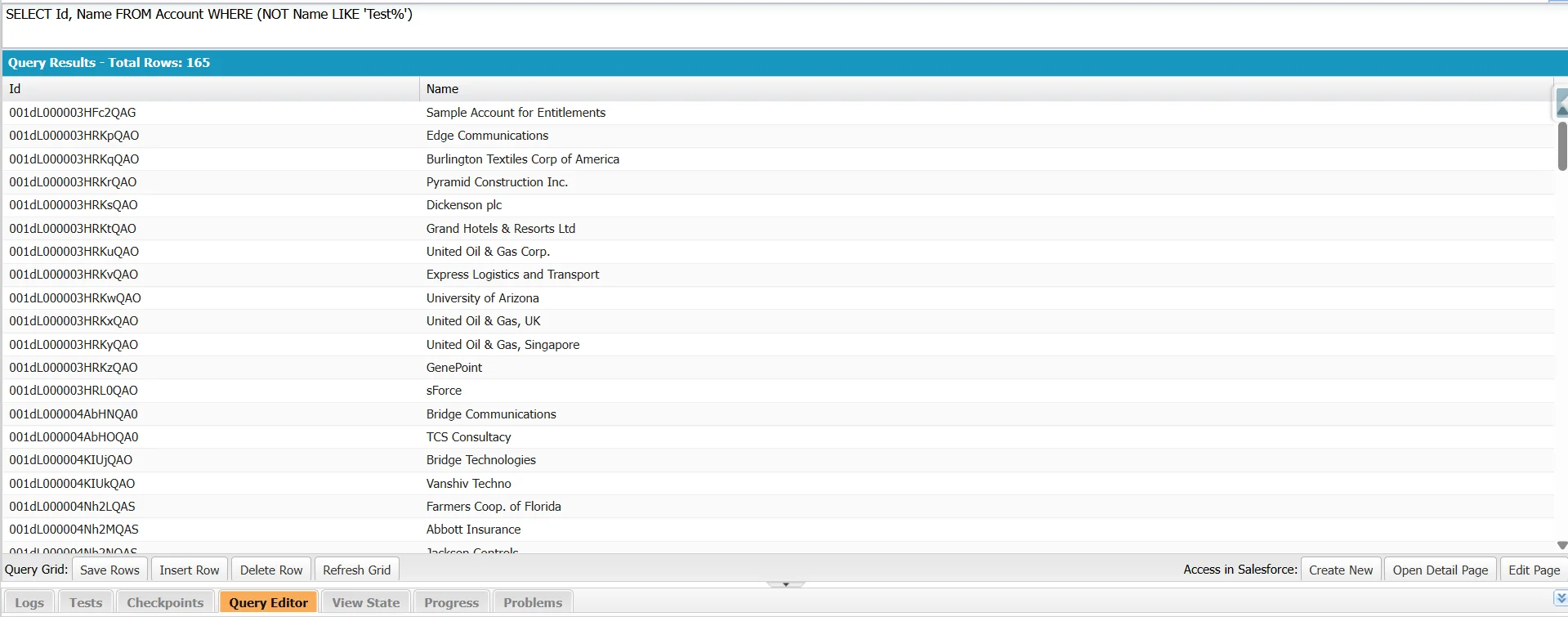
SELECT Id, Name
FROM Account
WHERE (NOT Name LIKE 'Test%')
This query returns Account records whose names do not start with “Test”.
Incorrect syntax:
-- This query fails
SELECT Id, Name
FROM Account
WHERE Name NOT LIKE 'Test%'
This query fails because SOQL does not support the field NOT LIKE ‘pattern’ format. Use (NOT field LIKE ‘pattern’) instead. Administrators and developers familiar with SQL often encounter this syntax difference when writing SOQL queries.

Using Wildcards with NOT LIKE
SOQL supports two wildcard characters that can be used with both LIKE and NOT LIKE conditions:
- % matches zero or more characters.
- _ matches exactly one character.

Note
In SOQL, % and _ are wildcard characters in LIKE patterns. To match them as literal characters, escape them with a backslash (\). If you’re using the query in Apex, escape the backslash in the string literal (for example, ‘%\\_%’).
For example, to exclude records whose Name contains a literal underscore:
WHERE NOT Name LIKE '%\_%'Use a backslash (\) to escape the % and _ wildcard characters when you want to match them as literal characters.
When used with NOT LIKE, these wildcards behave the same way as they do with LIKE. The difference is that NOT LIKE returns records that do not match the specified pattern.
Note
LIKE and NOT LIKE work only on string (text) fields. Applying them to number, date, or other non-text fields isn’t supported.
Exclude Records Where a Field Starts with a Specific Value
Use % after a string to exclude records whose values begin with that string.
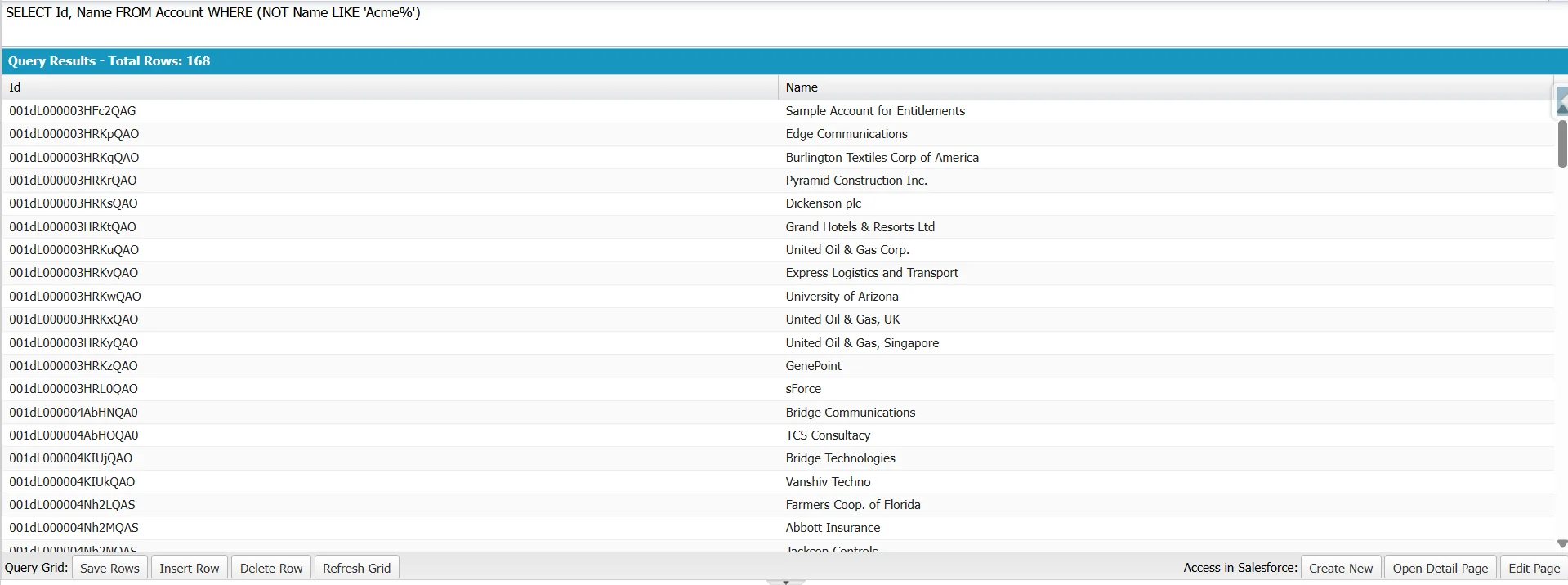
SELECT Id, Name
FROM Account
WHERE (NOT Name LIKE 'Acme%')
This query returns all accounts whose names do not start with “Acme”.
Exclude Records Where a Field Ends with a Specific Value
Place % before a value to match any preceding characters. Combined with NOT LIKE, it excludes records that end with the specified value.
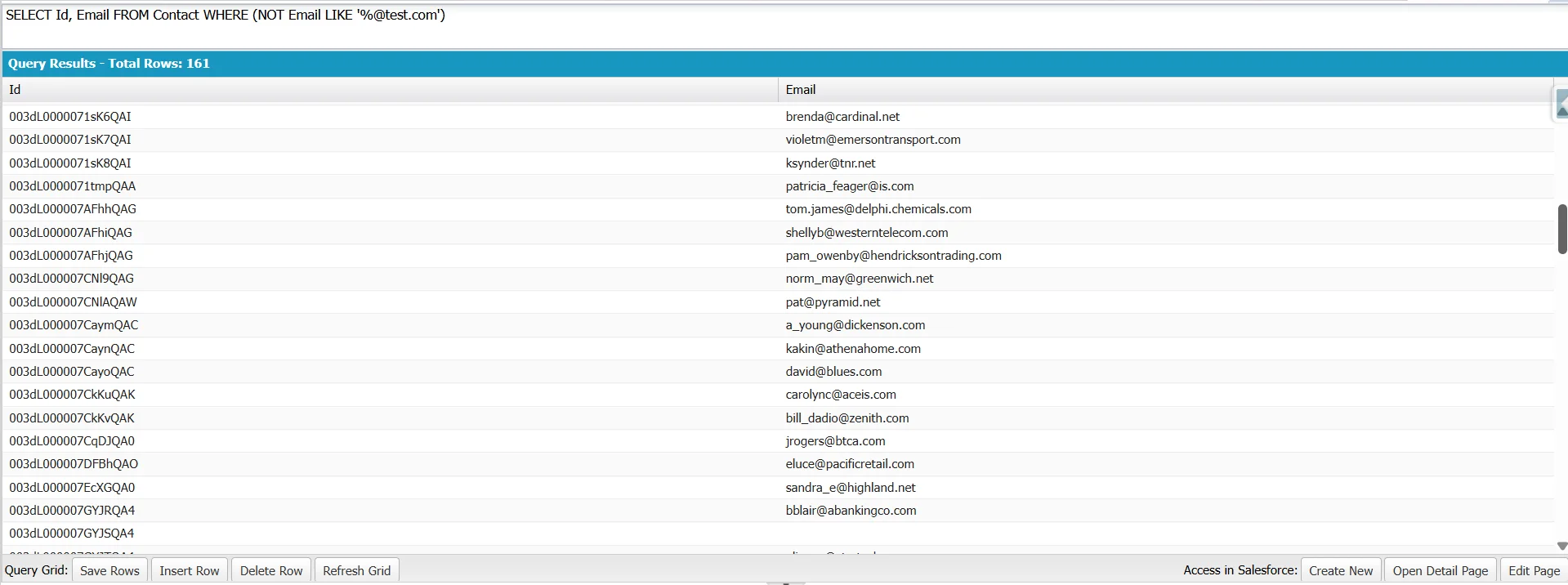
SELECT Id, Email
FROM Contact
WHERE (NOT Email LIKE '%@test.com')
This query returns contacts whose email addresses do not end with @test.com. Administrators often use this pattern to exclude test or temporary email records.
Exclude Records Matching a Single-Character Pattern
Use _ when a pattern requires exactly one character in a specific position.
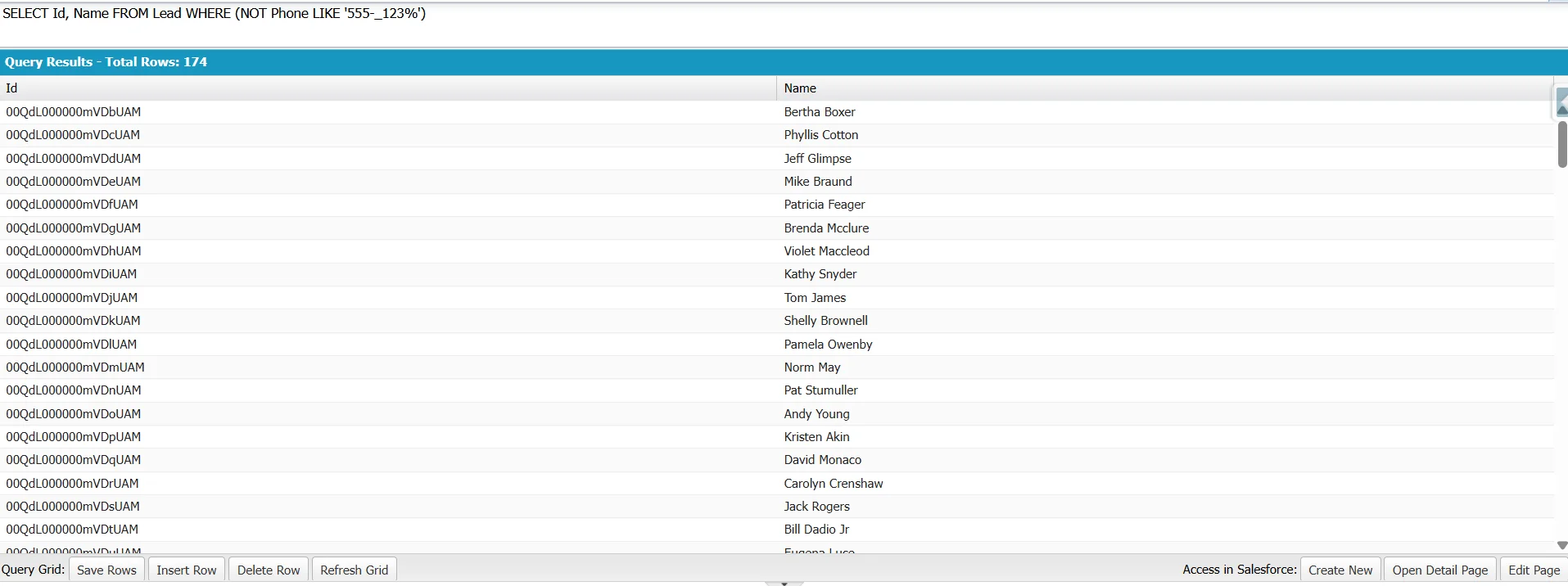
SELECT Id, Name
FROM Lead
WHERE (NOT Phone LIKE '555-_123%')
In this pattern, _ represents exactly one character. The query excludes leads whose phone numbers match the pattern 555-X123…, where X can be any single character, and returns all other records.
Combining Wildcards in NOT LIKE Conditions
You can combine % and _ in a single NOT LIKE condition to exclude records that match more complex patterns.
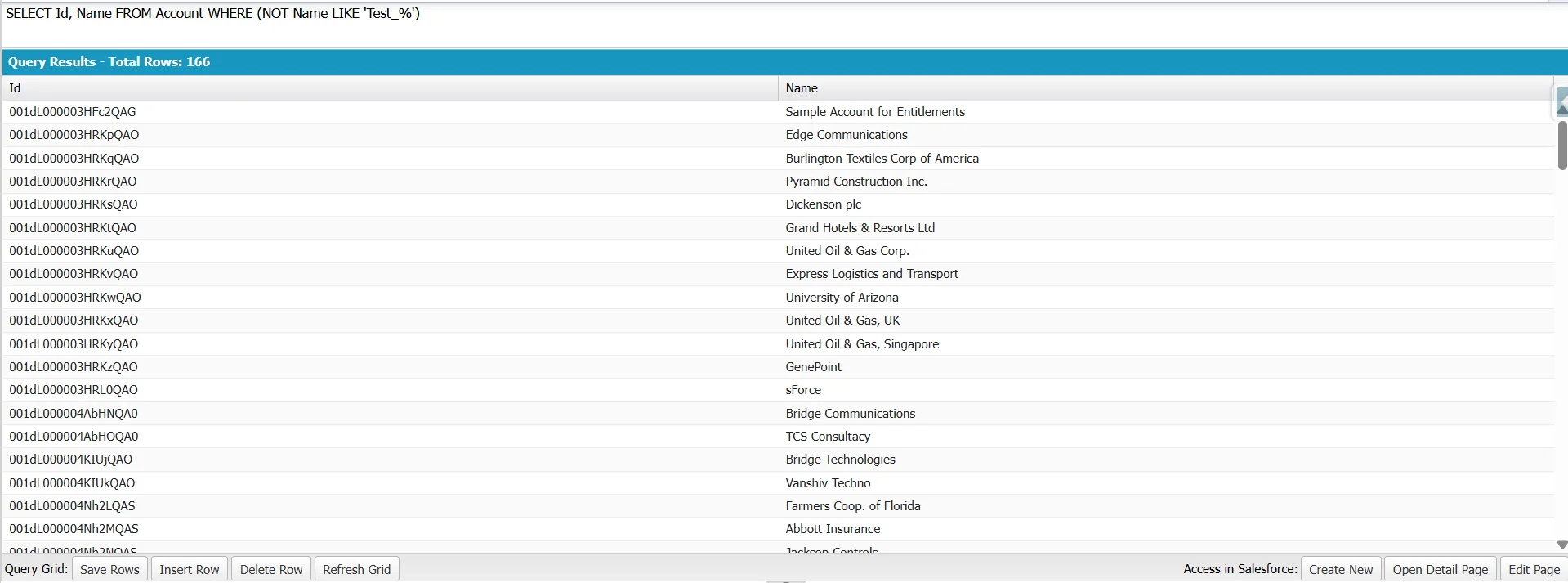
SELECT Id, Name
FROM Account
WHERE (NOT Name LIKE 'Test_%')
This query excludes accounts whose names begin with “Test” followed by exactly one character and any additional characters. Combining wildcards is useful when filtering records based on naming conventions, email formats, or identifier structures.
Excluding Multiple Patterns
SOQL does not support the SQL-style field NOT LIKE ‘pattern’ syntax. Instead, use the NOT operator with a LIKE expression enclosed in parentheses. To exclude multiple patterns, combine separate NOT … LIKE conditions with AND.
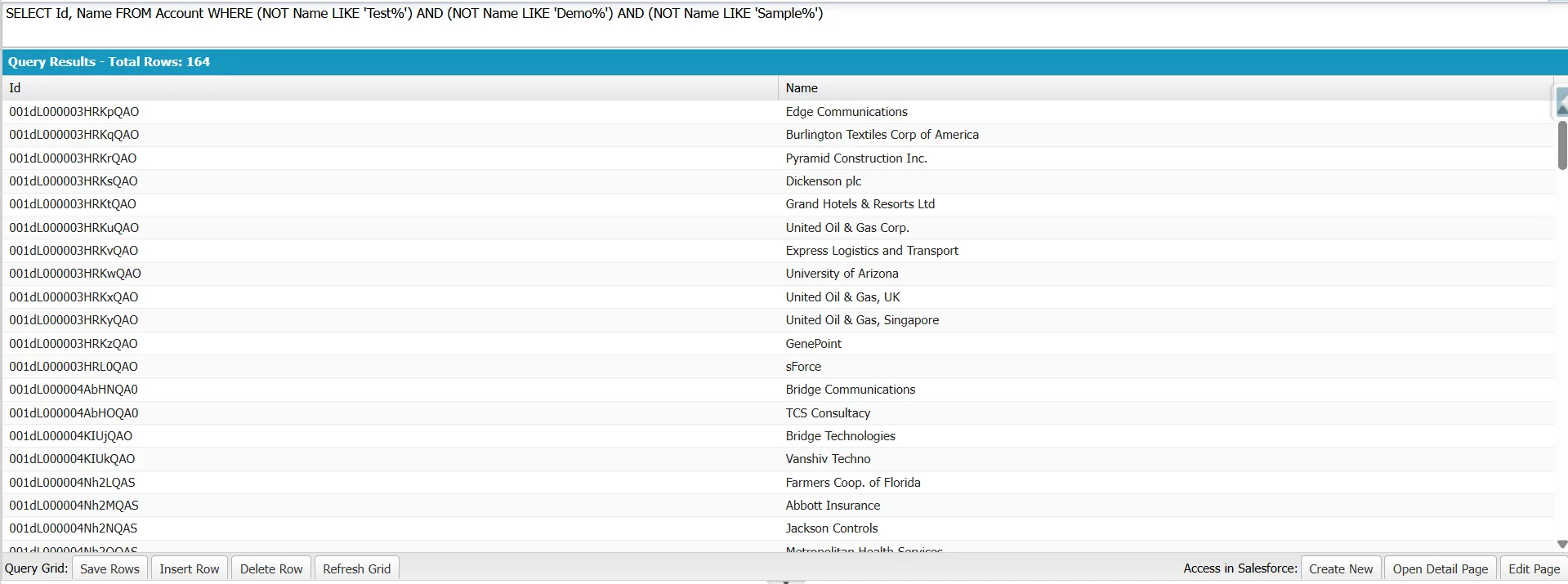
This query excludes accounts whose names start with Test, Demo, or Sample:
SELECT Id, Name
FROM Account
WHERE (NOT Name LIKE 'Test%')
  AND (NOT Name LIKE 'Demo%')
  AND (NOT Name LIKE 'Sample%')
Each pattern requires its own NOT … LIKE condition. Using AND ensures that a record is returned only if it does not match any of the excluded patterns.
Note
For SQL users: SOQL does not support the Name NOT LIKE ‘Test%’ syntax. Use (NOT Name LIKE ‘Test%’) instead.
Combining NOT LIKE with Other Filters
You can combine NOT … LIKE with other conditions in the same WHERE clause.
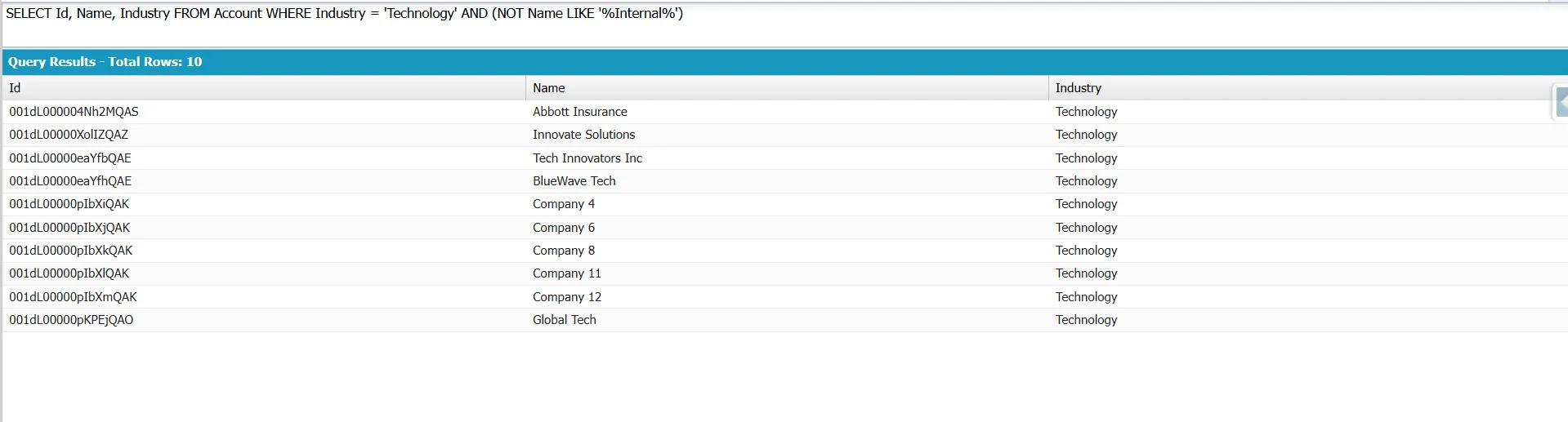
SELECT Id, Name, Industry
FROM Account
WHERE Industry = 'Technology'
  AND (NOT Name LIKE '%Internal%')
This query returns accounts in the Technology industry whose names do not contain the word Internal.
Note
NOT … LIKE is intended for pattern matching with the % and _ wildcards. If you need to exclude a fixed set of exact values, use NOT IN instead.
NOT in NOT Name LIKE ‘Test%’ is a logical operator that negates the LIKE comparison. NOT IN is a separate operator used to exclude records whose field value matches any value in a list. Both use the NOT keyword but serve different purposes and have different syntax.
The two approaches serve different purposes:
-- Names starting with Test, Demo, or Sample (pattern match)
WHERE (NOT Name LIKE 'Test%')
  AND (NOT Name LIKE 'Demo%')
  AND (NOT Name LIKE 'Sample%')

-- Names exactly equal to Test, Demo, or Sample (exact match)
WHERE Name NOT IN ('Test', 'Demo', 'Sample')
Use NOT IN when excluding known values. Use NOT … LIKE when excluding records based on prefixes, suffixes, or substrings.
Note
A negated LIKE also returns records where the field is NULL. For example, (NOT Name LIKE ‘Test%’) returns records whose Name doesn’t match the pattern and records where Name is empty. (Account.Name is required, so the examples above aren’t affected.) If you want to exclude NULL records too, add AND Name != null.

Tip
SOQL does not support the SQL syntax field NOT LIKE ‘pattern’. Place NOT before the field reference instead. This also works with parent fields referenced through relationships.
SELECT Id, Name
FROM Card__c
WHERE NOT Account__r.Name LIKE 'Test%'
Use Account.Name for standard relationships and Account__r.Name for custom relationships. NOT LIKE does not match NULL values, so records with Account__r.Name = NULL are excluded. To include them, add OR Account__r.Name = NULL to the WHERE clause.
NOT LIKE in Apex
You can use a negated LIKE condition in Apex SOQL just as you would in the Query Editor. The query is enclosed in square brackets and returns records that do not match the specified pattern.
Inline SOQL example:
List<Account> accounts = [
   SELECT Id, Name
   FROM Account
   WHERE (NOT Name LIKE 'Test%')
];
system.debug(accounts);
If the pattern is determined at runtime, use a bind variable. The query remains inline SOQL; the bind variable simply supplies the value.
Note
A bind variable (:variableName) uses a SOQL operator (such as = or LIKE) followed by : and an Apex variable. There is no =: operator.
WHERE Name = :accountName
WHERE Name LIKE :namePattern
Inline SOQL supports Apex variables and expressions, such as :System.today().addDays(-5). Dynamic SOQL with Database.query() supports only variables. If you need a computed value, assign it to a variable first, then bind the variable.
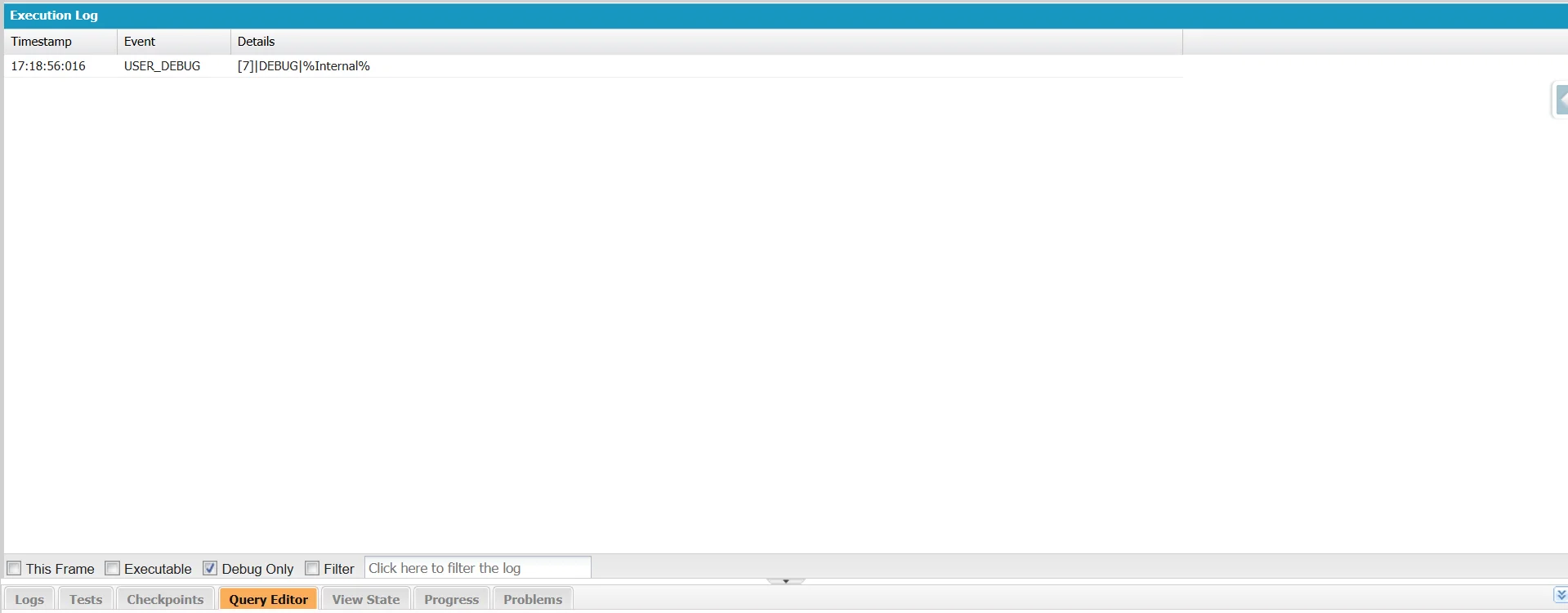
String searchPattern = '%Internal%';
List<Account> accounts = [
   SELECT Id, Name
   FROM Account
   WHERE (NOT Name LIKE :searchPattern)
];
system.debug(searchPattern);
The wildcard characters are included in the variable value, allowing the same query to work with different patterns.
If the query itself must be constructed at runtime, use dynamic SOQL with Database.query().
String searchPattern = '%Internal%';
String q =
   'SELECT Id, Name ' +
   'FROM Account ' +
   'WHERE (NOT Name LIKE :searchPattern)';
List<Account> accounts = Database.query(q);
When using dynamic SOQL, prefer bind variables over string concatenation. Bind variables help prevent SOQL injection and make queries easier to maintain. Injection risks arise when untrusted values are concatenated directly into the query string.
Performance Considerations
-
Patterns that begin with a wildcard, such as ‘%text’, are generally less selective and may require Salesforce to examine more records.
-
Leading wildcard patterns can significantly increase query cost on large datasets.
-
For positive LIKE filters, patterns that start with literal characters, such as ‘Test%’, are typically more selective and may allow Salesforce to use an index when one is available.
-
This advantage generally does not apply to the negated form. Conditions such as (NOT Name LIKE ‘Test%’) are negative filters and are often less selective.
-
NOT LIKE conditions usually require Salesforce to evaluate a larger set of records than equivalent positive LIKE conditions.
-
If you need to search text across multiple fields, SOSL is often a better choice than combining numerous LIKE conditions. However, SOSL is intended for search scenarios and is not a direct replacement for exclusion filters.
Common Mistakes and Troubleshooting
"Unexpected token" SOQL Exception
This error usually indicates incorrect NOT LIKE syntax. SOQL does not support SQL-style syntax such as:
Name NOT LIKE 'Test%'Use the NOT operator instead:
(NOT Name LIKE 'Test%')Missing parentheses can also cause this error. Check the syntax and parentheses first when troubleshooting.
Case Sensitivity
In most cases, LIKE and NOT LIKE comparisons are case-insensitive in SOQL. For example, WHERE NOT Name LIKE ‘test%’ and WHERE NOT Name LIKE ‘Test%’ return the same results. The exception is custom text fields configured as Unique and case-sensitive (using the Treat “ABC” and “abc” as different values option), where comparisons respect letter case.
The following conditions return the same results:
(NOT Name LIKE 'test%')(NOT Name LIKE 'Test%')Running NOT LIKE Queries in Excel and Google Sheets
If you need to run SOQL queries without opening the Developer Console or writing Apex code, you can use XL-Connector for Excel and Excel Online or G-Connector for Google Sheets. These tools let you run SOQL queries directly from a spreadsheet and return the results in rows and columns.
The syntax does not change. Queries that use conditions such as (NOT Name LIKE ‘Test%’) work the same way and return only records that do not match the specified pattern.
A common use case is excluding test or sample records before exporting data or sharing reports with stakeholders. For more details on running queries from spreadsheets, see our guide on working with SOQL queries in spreadsheets.
FAQ
Does SOQL support NOT LIKE?
Yes. SOQL supports negated pattern matching by using the NOT operator with LIKE. Use the following syntax:
WHERE (NOT FieldName LIKE 'pattern')
Place NOT before the field name and wrap the entire condition in parentheses. The SQL-style syntax FieldName NOT LIKE 'pattern' is not valid in SOQL.
How do I exclude multiple values with NOT LIKE in SOQL?
Combine multiple (NOT field LIKE 'pattern') conditions with AND. Each negated LIKE condition should be enclosed in parentheses.
SELECT Id, Name
FROM Account
WHERE (NOT Name LIKE 'Test%')
AND (NOT Name LIKE 'Demo%')
AND (NOT Name LIKE 'Sample%')
If you need to exclude specific values rather than patterns, use NOT IN instead:
SELECT Id, Name
FROM Account
WHERE Name NOT IN ('Test', 'Demo', 'Sample')
This approach is efficient when you are excluding exact values rather than wildcard patterns.
Is NOT LIKE in SOQL case-sensitive?
No. SOQL LIKE comparisons are case-insensitive, and the same behavior applies when you negate the expression with NOT. For example, the pattern 'test%' matches values that begin with Test, TEST, test, or any other variation of letter casing.
How does NOT LIKE handle NULL values in SOQL?
Records with NULL values in the filtered field are returned by a NOT ... LIKE condition. For example, (NOT Name LIKE 'Test%') returns records whose Name does not match the pattern as well as records where Name is NULL.
Note: In SOQL, blank values in text fields are treated as NULL, not as empty strings (''). As a result, filtering with Field != NULL excludes both blank and NULL text values, so you do not need a separate empty-string check.
Can I use NOT LIKE on related (parent) fields?
Yes. Use relationship dot notation and apply the same syntax rules.
For example:
WHERE (NOT Account.Name LIKE 'Test%')
The expression must still be wrapped in parentheses, and NOT must appear before the field reference.

Rajeshwari Jain
Content Manager
Rajeshwari Jain is a Technical Support Specialist and Content Writer at Xappex. She applies her practical experience to assist customers and create articles on how Xappex tools work with Salesforce to improve data management and increase efficiency.
She began her IT career in 2022 as a Quality Assurance professional before transitioning into Salesforce administration and technical writing in 2023. With Salesforce Certified Administrator and Associate certifications, Rajeshwari writes blogs on Salesforce flows, admin tools, and updates to expand her skills outside of work.
In her free time, she enjoys reading tech blogs and experimenting with new tools.
Feel free to reach out to Rajeshwari for collaborations or to check out her Salesforce-focused content.