Get Started Free



Salesforce phishing-resistant MFA is required for administrators and other privileged users. It supports only passkeys, security keys, and built-in authenticators that comply with the WebAuthn and FIDO standards.
What is Salesforce phishing-resistant MFA?
Salesforce phishing-resistant MFA protects privileged accounts from phishing attacks. It binds authentication to the legitimate login domain, preventing attackers from reusing credentials captured through fake login pages.
It uses WebAuthn and FIDO standards. Salesforce refers to supported WebAuthn-based methods as passkeys. Users can authenticate with a security key or a built-in authenticator, such as Windows Hello, Touch ID, or Face ID. This requirement is separate from the standard MFA requirement for employee users.
What changed?
Salesforce has required MFA for employee users since 2022. Previously, admins could disable the org-wide MFA setting. Salesforce now enforces it without an opt-out.
Privileged users must now use phishing-resistant authentication. Existing registrations with Salesforce Authenticator or other TOTP apps do not meet the requirement. These users must register a passkey, security key, or built-in authenticator.
When enforcement starts?
Salesforce enforces two authentication requirements:
- Standard MFA for employee users.
- Phishing-resistant MFA for administrators and other privileged users.
As of July 10, 2026, enforcement begins with Preview Sandbox orgs. Production rollout starts on July 20 and continues by release group through September 3, depending on your Salesforce instance.
To find your enforcement date, identify your Salesforce instance, check its Release Group in Salesforce Help, and review the Release Group Enforcement Schedule. You can also check the in-app notifications in your org.
Who Must Comply
Salesforce phishing-resistant MFA applies to users with administrative access who sign in via the Salesforce login page or SSO in paid Production and Sandbox orgs.
This includes users with the System Administrator profile or any of these permissions:
- Modify All Data
- View All Data
- Customize Application
- Author Apex
These permissions can come from a Profile, Permission Set, or Permission Set Group. Because many organizations assign them through permission sets or groups, more users may be affected than expected.
It also covers internal users with standard Salesforce licenses who access Employee Community or other Experience Cloud sites. Chatter Plus users are treated as internal users and must comply if they have any listed permissions.
Users without these permissions aren’t affected. Most external Experience Cloud users, Chatter External users, Chatter Free users, and users in Developer Edition, trial, and scratch orgs are excluded. Salesforce enforces phishing-resistant MFA only in paid Production and Sandbox orgs.
If you convert a trial org to a paid org, the standard 30-day grace period doesn’t apply.
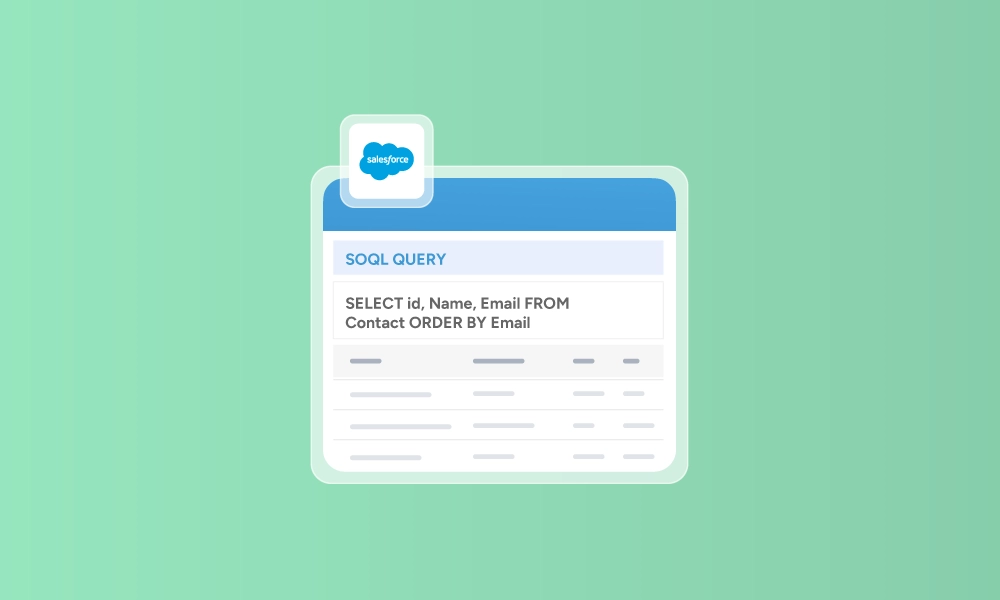
Find Your Privileged Users with SOQL
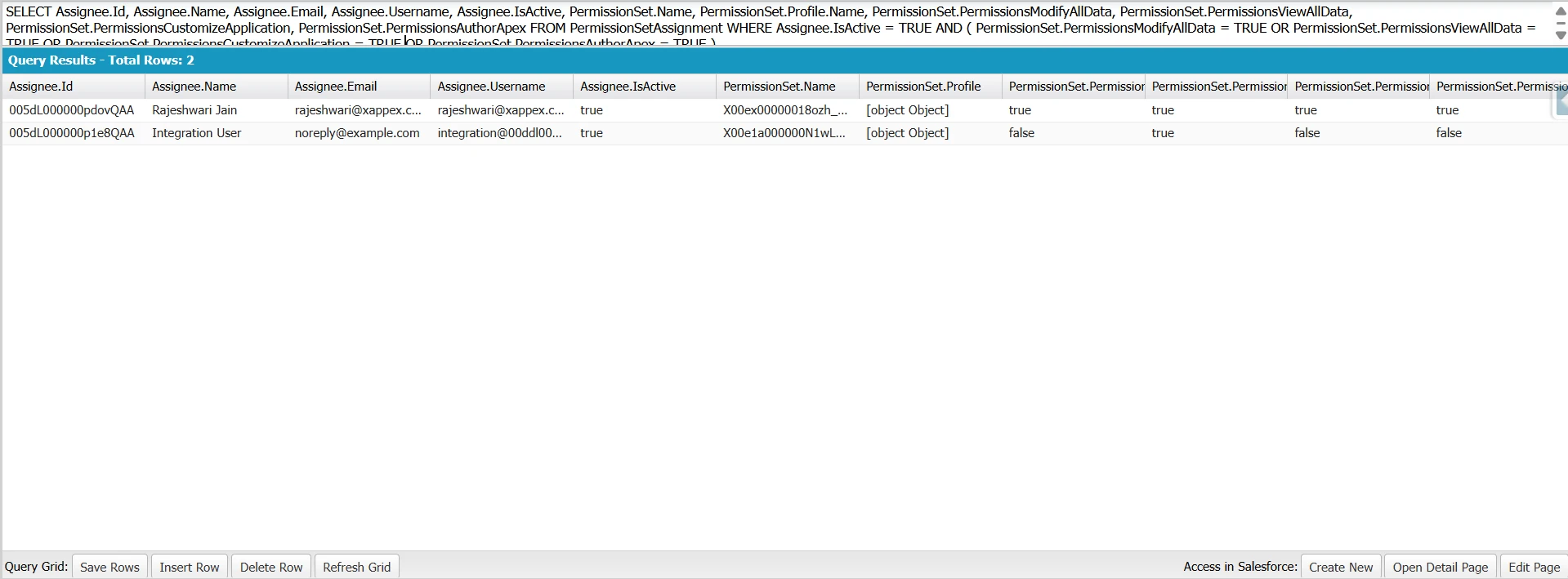
Salesforce stores profiles as permission sets. Querying the PermissionSetAssignment object helps you identify users who receive these permissions through either a profile or a permission set.
List all privileged users:
Use the following query to return active users, the profile or permission set that grants the access, and the privileged permissions assigned to them.
SELECT Assignee.Id,
      Assignee.Name,
      Assignee.Email,
      Assignee.Username,
      Assignee.IsActive,
      PermissionSet.Name,
      PermissionSet.Profile.Name,
      PermissionSet.PermissionsModifyAllData,
      PermissionSet.PermissionsViewAllData,
      PermissionSet.PermissionsCustomizeApplication,
      PermissionSet.PermissionsAuthorApex
FROM PermissionSetAssignment
WHERE Assignee.IsActive = TRUE
AND (
   PermissionSet.PermissionsModifyAllData = TRUE
   OR PermissionSet.PermissionsViewAllData = TRUE
   OR PermissionSet.PermissionsCustomizeApplication = TRUE
   OR PermissionSet.PermissionsAuthorApex = TRUE
)
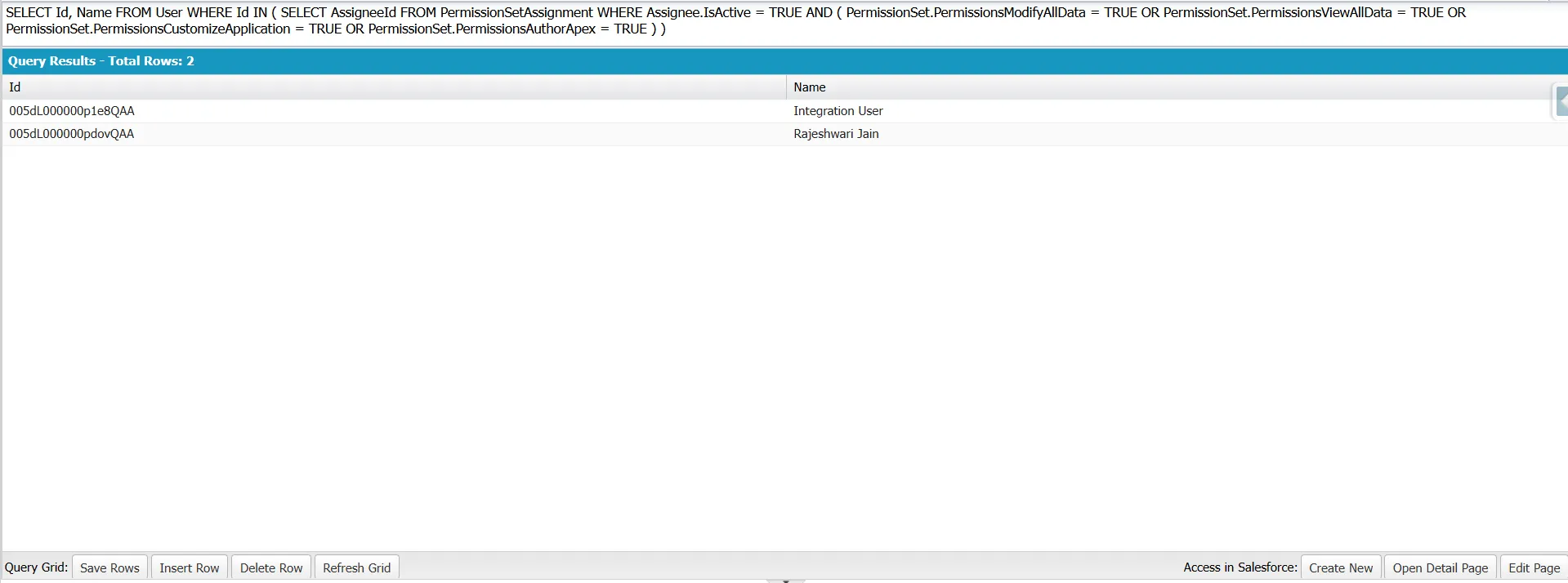
Return one record per user:
If a user receives privileged access through multiple permission sets, the previous query returns multiple records. Use the following query to return each user only once.
SELECT Id, Name
FROM User
WHERE Id IN (
   SELECT AssigneeId
   FROM PermissionSetAssignment
   WHERE Assignee.IsActive = TRUE
   AND (
       PermissionSet.PermissionsModifyAllData = TRUE
       OR PermissionSet.PermissionsViewAllData = TRUE
       OR PermissionSet.PermissionsCustomizeApplication = TRUE
       OR PermissionSet.PermissionsAuthorApex = TRUE
   )
)
To identify users with the System Administrator profile:
SELECT Id, Name, Email, Profile.Name, IsActive
FROM User
WHERE Profile.Name = 'System Administrator'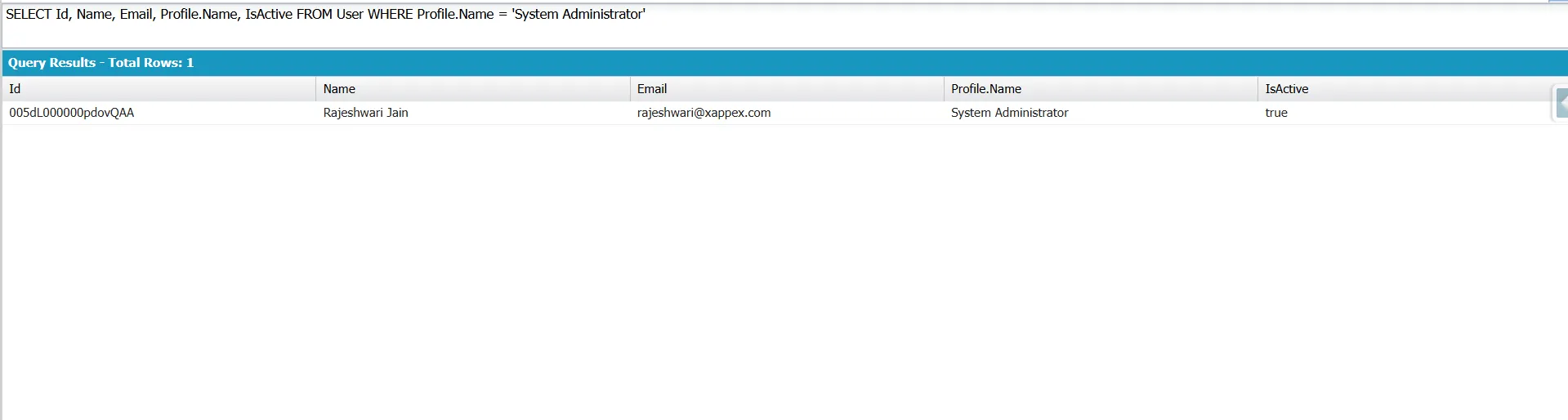
If you prefer not to use SOQL, you can identify affected users with Salesforce Reports, User List Views, or the User Access and Permissions Assistant. Also, review users with the Waive Multi-Factor Authentication for Exempt Users permission because they are exempt from MFA enforcement.
Which Sign-In Methods Count
Salesforce requires privileged users to use phishing-resistant authentication. Supported methods include FIDO2/WebAuthn authenticators and Certificate-Based Authentication (CBA). If your organization uses single sign-on (SSO), the requirement is met when the identity provider authenticates the user with a phishing-resistant method and passes the appropriate AMR/ACR signal to Salesforce.
SMS codes, email codes, TOTP apps, and push notifications no longer qualify for privileged users. These methods are vulnerable to real-time phishing attacks and MFA fatigue, where attackers trick users into approving repeated sign-in requests.
Salesforce recommends passkeys because they provide a fast passwordless sign-in experience while meeting the phishing-resistant requirement.
| Method | Counts for privileged users? |
|---|---|
| Built-in authenticator (Touch ID, Face ID, Windows Hello for Business, Android device authenticators) | Yes |
| Security key (YubiKey and other FIDO2/WebAuthn security keys) | Yes |
| Passkey (device-bound or cloud-synced*) | Yes |
| Certificate-Based Authentication (CBA) | Yes |
| SMS, email, or phone code | No |
| TOTP app (Google Authenticator or Microsoft Authenticator) | No |
| Salesforce Authenticator push | No |
Cloud-synced passkeys qualify only when stored in a FIDO2/WebAuthn-compliant password manager or keychain, such as 1Password, Bitwarden, or iCloud Keychain.
SSO and Phishing-Resistant MFA
If your organization uses SSO, Salesforce does not verify how users authenticate. It relies on the authentication signal your identity provider (IdP) sends. If the signal does not indicate a phishing-resistant method, Salesforce treats the login as non-compliant.
How does Salesforce evaluate authentication strength?
Salesforce evaluates every login and classifies it into three tiers: phishing-resistant MFA, standard MFA, or weak or no MFA. Classification depends on whether the user logs in directly or through SSO.
For SSO logins, Salesforce evaluates the AMR (Authentication Methods Reference) and ACR (Authentication Context Class Reference) values that the identity provider sends in the SAML response or OIDC ID token.
To meet an authentication requirement, the IdP must send at least one value matching an entry in the appropriate AMR or ACR column for the required tier. Any value in the phishing-resistant tier also satisfies the standard MFA requirement.
Scope: The blocked login results below apply to privileged users: anyone assigned the System Administrator profile or the Modify All Data, View All Data, Customize Application, or Author Apex permissions, including those granted through permission sets. Users outside this scope can continue using standard MFA methods like TOTP authenticator apps.
| Tier | Direct Salesforce login | AMR values | ACR values | Result |
|---|---|---|---|---|
| Phishing-resistant MFA | Security keys (WebAuthn), built-in authenticators (Touch ID, Windows Hello), admin-generated temporary verification codes | cert, face, fido, fido2, fpt, hwk, iris, passkey, phr, pki, pop, pwlesspasskey, retina, sc, smartcard, smartcardpki, softwarepki, swk, tlsclient, x509 | fido, fido2, fpt, hwk, passkey, phr, pki, pwlesspasskey, retina, smartcard, smartcardpki, softwarepki, swk, tlsclient, x509 | Successful login |
| Standard MFA | Salesforce Authenticator, TOTP apps (Google Authenticator, Microsoft Authenticator) | mfa, mobiletwofactorcontract, okta_verify, pin, pgp, publickey, rsa, timesynctoken, user, vbm | mfa, mobiletwofactorcontract, okta_verify, pgp, publickey, rsa, timesynctoken, vbm | Login blocked until the user enrolls in and uses a phishing-resistant MFA verifier |
| Weak or no MFA | No MFA | pwd, sms, tel, email | pwd, sms, tel, email | Login blocked until the user enrolls in and uses a phishing-resistant MFA verifier |
The AMR and ACR lists differ. For example, cert, face, iris, pop, and sc appear only in the phishing-resistant AMR list, while pin and user appear only in the standard MFA AMR list. Configure your IdP with the accepted values for your signal type.
These values can change. Check the latest list before configuring your IdP.
Verify your IdP configuration
Salesforce evaluates AMR and ACR signals differently based on protocol and signal type. Incorrect formatting can block Salesforce from recognizing valid authentication signals.
SAML AMR: Salesforce evaluates any IdP attribute whose name contains amr or authnmethodsreferences. Separate multiple values with semicolons (hwk;face;mfa). Salesforce does not evaluate comma-separated values. For URN or URL values, Salesforce splits the string on : or / so urn:custom:auth:hwk, and https://example.com/auth/hwk both resolve to hwk.
OIDC AMR: Send AMR values as an array, such as [hwk, mfa]. Salesforce uses exact value matching.
ACR (SAML and OIDC): Salesforce converts the value to lowercase and uses a contains() match. For example, mfa matches urn:oasis:names:tc:SAML:2.0:ac:classes:mfa.
Check OIDC AMR signals in Login History. Salesforce does not yet record SAML ACR values in Login History. Use a third-party SAML tracing tool to inspect the SAML response. The Salesforce SAML Validator evaluates AMR and ACR claims but reports only strong or weak authentication.
SSO compliance paths
There are two ways to meet the phishing-resistant MFA requirement for SSO logins:
- Configure your identity provider (IdP) to require phishing-resistant MFA and send supported phishing-resistant AMR or ACR signals.
- Enable Salesforce MFA for SSO logins so users complete phishing-resistant verification in the Salesforce UI.

Note
SSO alone does not satisfy the phishing-resistant MFA requirement. Salesforce evaluates the AMR and ACR signals your IdP sends. Confirm that your IdP sends supported phishing-resistant signals before your org’s enforcement date.
How to Set Up a Phishing-Resistant MFA?
Setting up phishing-resistant MFA in Salesforce involves two steps. First, an administrator enables Security Keys and Built-in Authenticators for the org. Then, each privileged user registers a phishing-resistant authentication method like a passkey or hardware security key.
Step 1: Enable Authentication Methods (Administrator, One-Time Setup)
Before users register phishing-resistant authentication methods, an administrator must enable Security Keys and Built-in Authenticators.
-
1
Go to Setup.
-
2
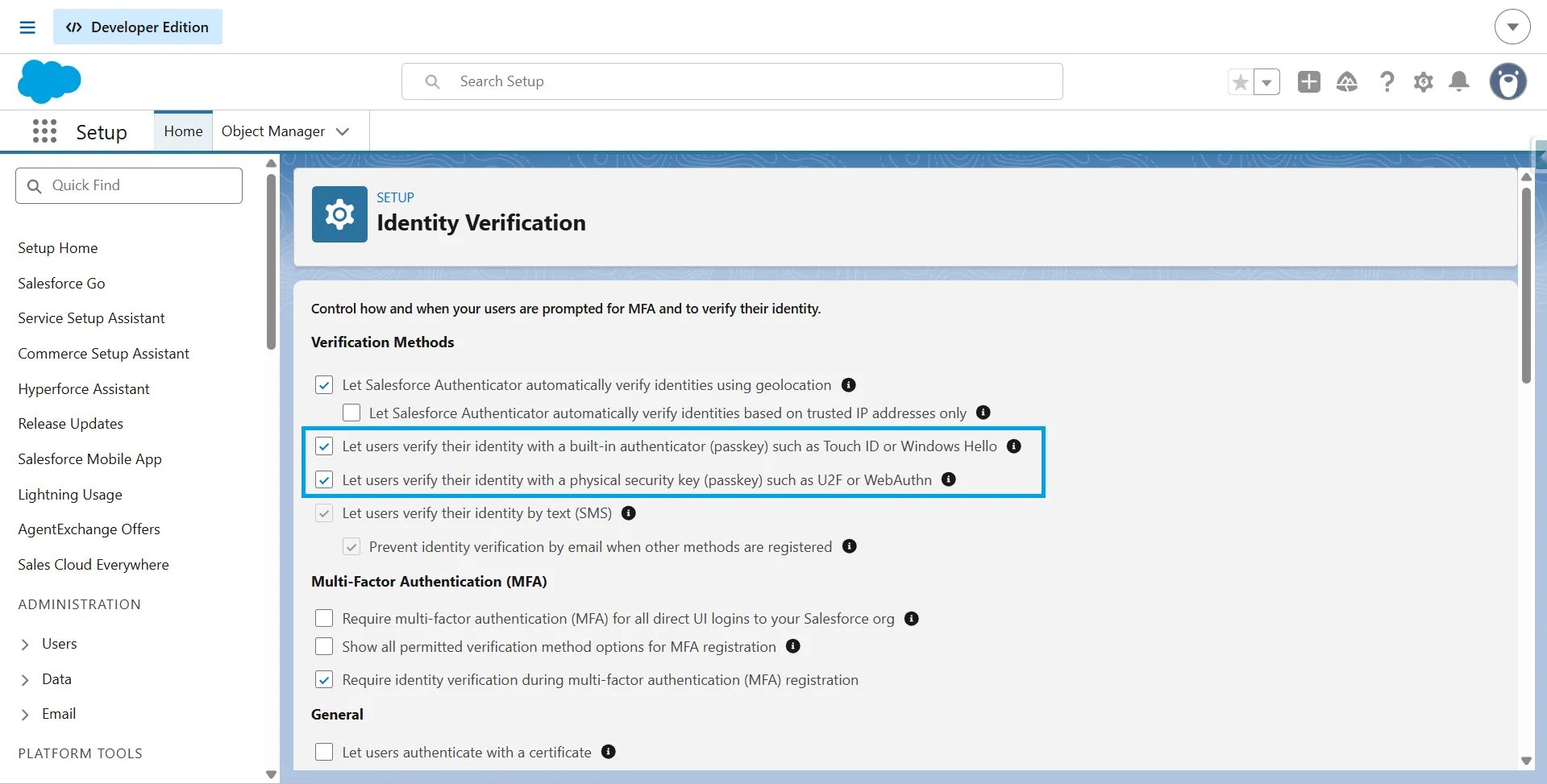
In the Quick Find box, enter Identity Verification, then select Identity Verification.
-
3
Enable these settings:
-
- Let users verify their identity with a built-in authenticator such as Touch ID or Windows Hello.
- Let users verify their identity with a security key (U2F or WebAuthn).

-
-
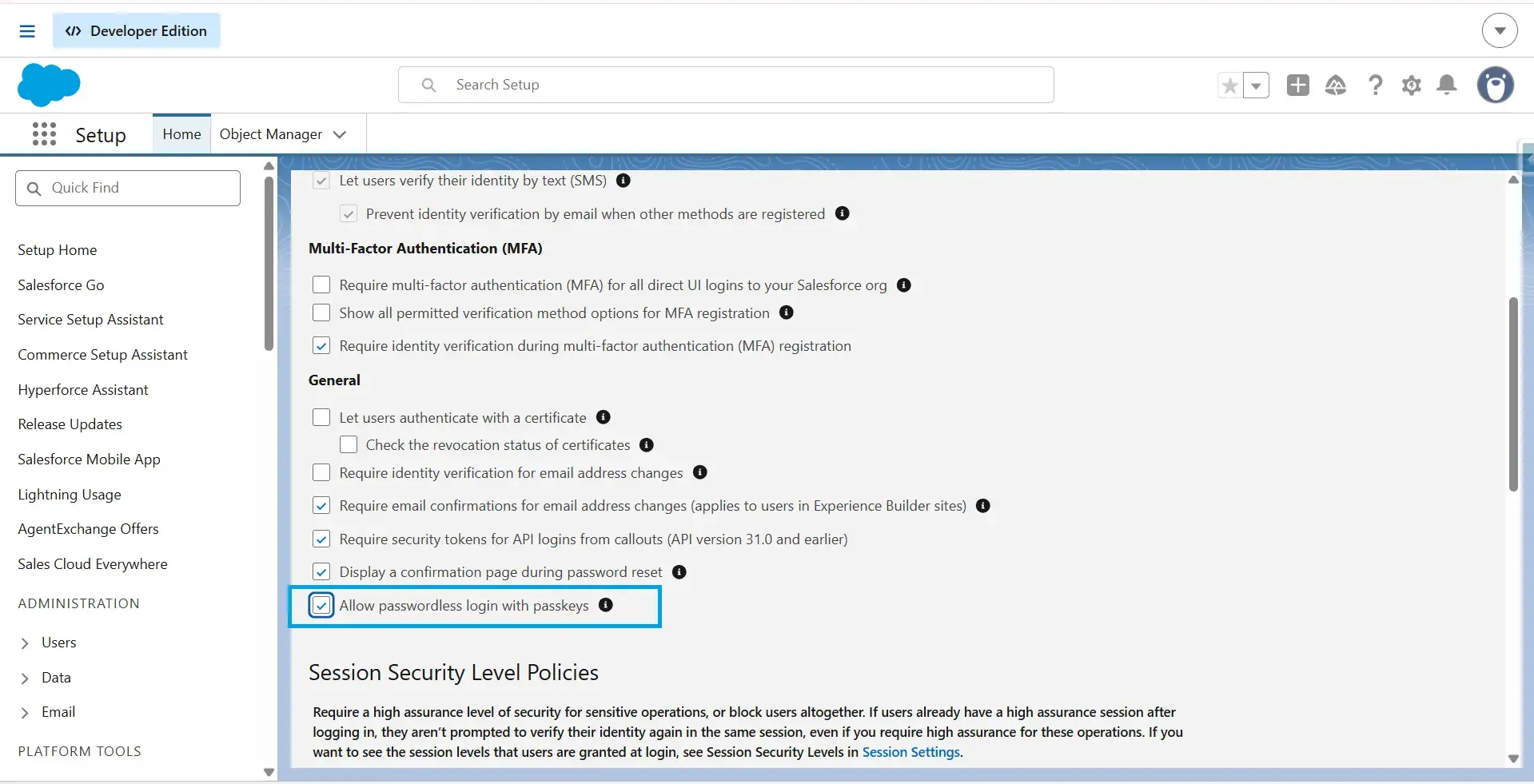
4
Enable Allow passwordless login with passkeys (optional). Passwordless passkey login meets Salesforce’s phishing-resistant MFA requirement.
-
5
Click Save.
Note
These settings apply to the entire org. After you enable them, any user can register the available authentication methods. You can’t restrict them to administrators or other privileged users. In orgs created in Summer ’25’ or later, Built-in Authenticators are enabled by default, so you may only need to enable Security Keys.
Step 2: Register a Phishing-Resistant Authentication Method (Each Privileged User)
After phishing-resistant MFA enforcement, privileged users without a registered phishing-resistant authentication method see a Create Passkey prompt when signing in. They must register a passkey before accessing Salesforce unless the org has a temporary extension.
Salesforce may ask users to verify their identity before registration depending on your org’s configuration.
Register a Passkey (Built-in Authenticator)
-
1
Open Settings from your profile.
-
2
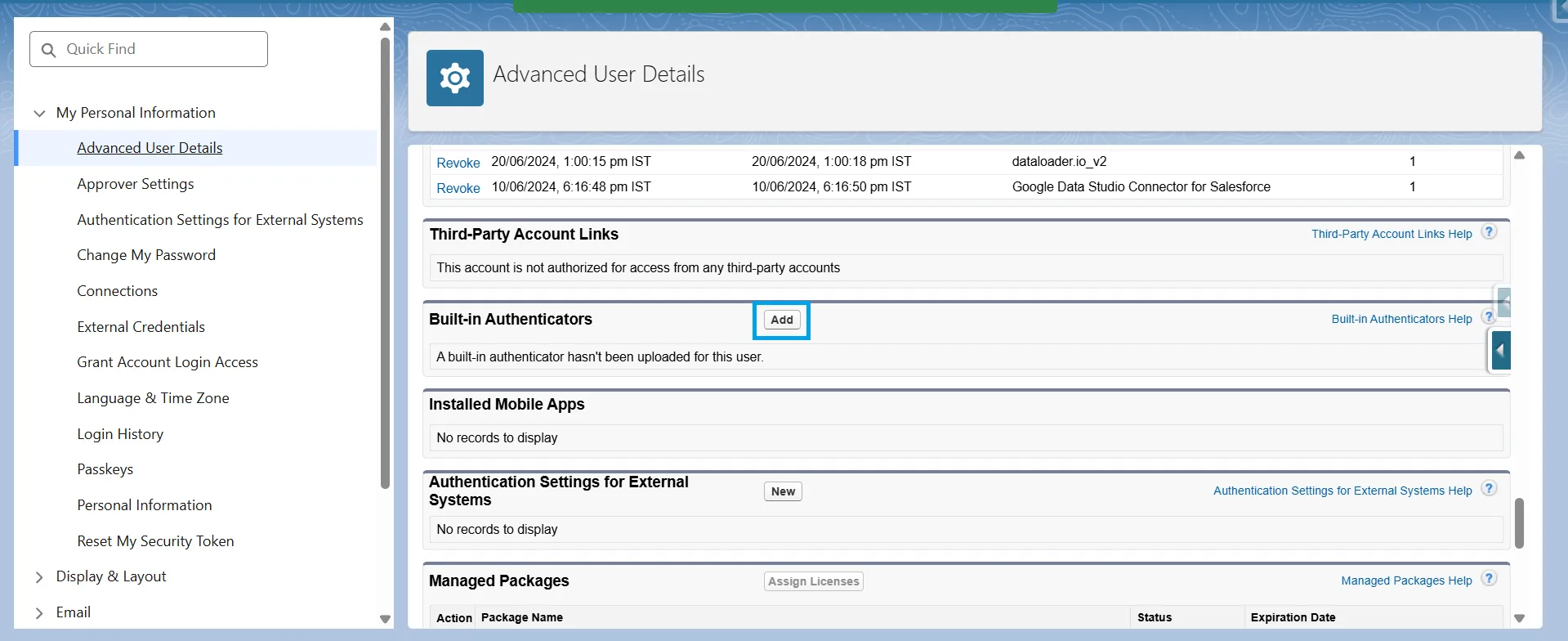
Go to Advanced User Details.
-
3
Under Built-in Authenticators, click Add.
-
4
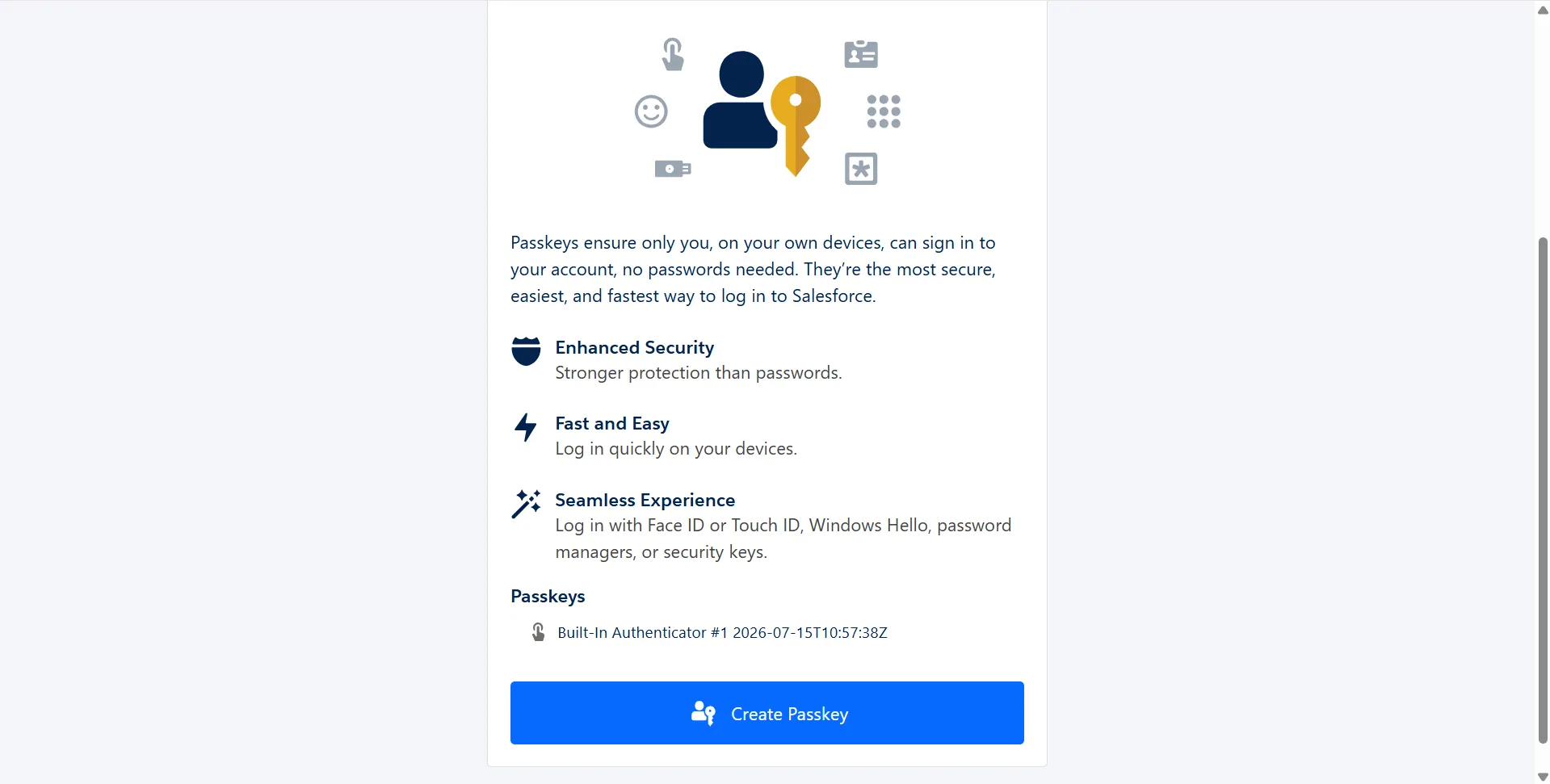
Click Create Passkey.
-
5
Complete the registration using your device’s built-in authenticator, such as Touch ID, Face ID, or Windows Hello.
-
6
Enter a name for the passkey and save it.
Register a Hardware Security Key
-
1
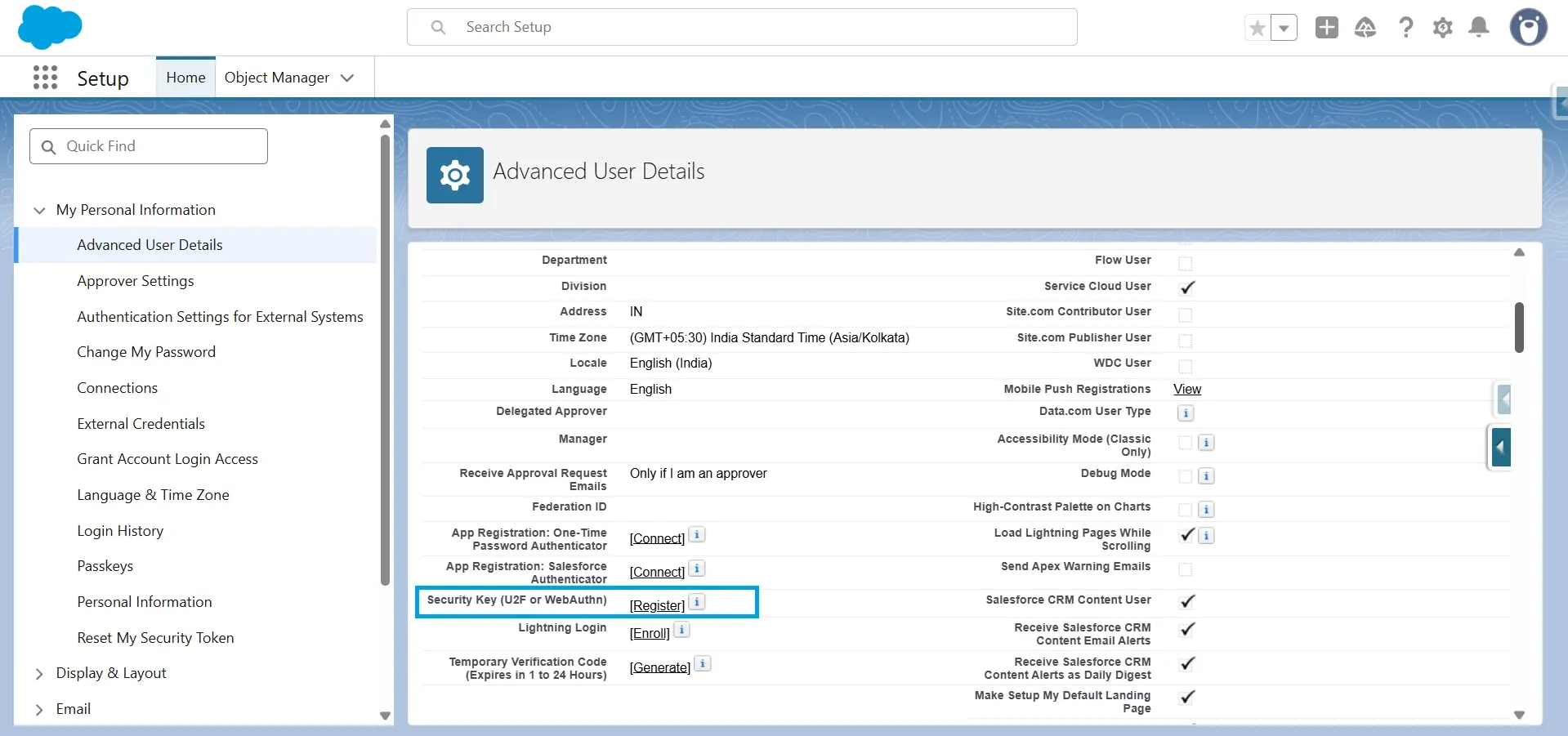
In Advanced User Details, locate Security Key (U2F or WebAuthn).
-
2
Click Register.
-
3
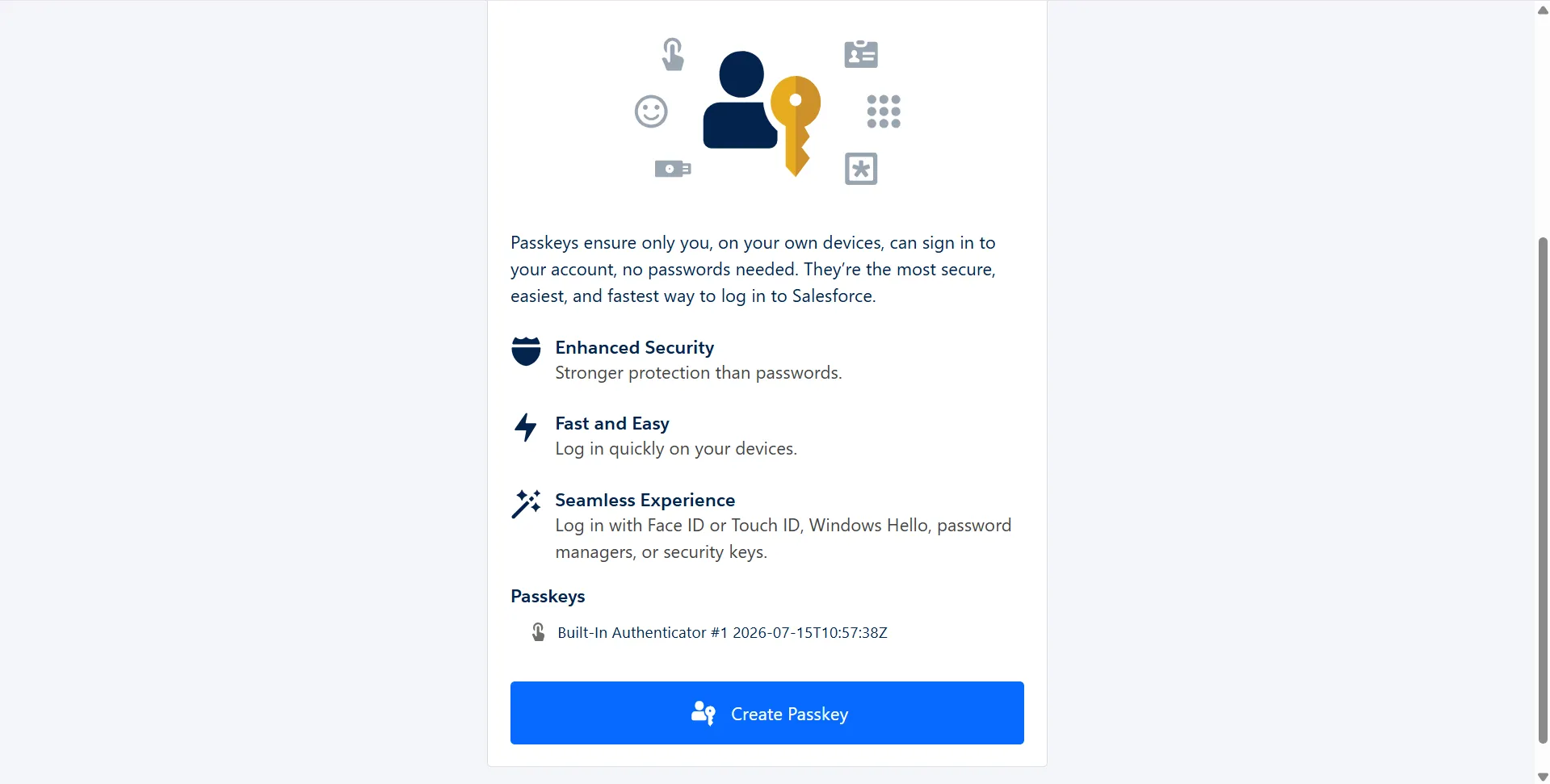
Insert your security key when prompted.
-
4
Tap the security key to complete registration.
Tip
Register at least two phishing-resistant authentication methods for each privileged account. For example, use your laptop’s built-in authenticator and a hardware security key. If you use multiple devices, register a passkey on each device or keep a hardware security key as a backup. Give each authentication method a clear name for easy identification.
If a user loses their only registered authentication method, another administrator can generate a temporary identity verification code, remove the old authentication method, and help the user register a new one. If no other administrator is available, contact Salesforce Support.
Phishing-resistant MFA affects integrations that require an interactive user login.
OAuth Web Server and Hybrid Token flows require users to sign in, so privileged users must authenticate with a supported phishing-resistant method. JWT Bearer and Client Credentials flows are headless and aren’t affected because they don’t require a UI login.
If your organization uses the Waive Multi-Factor Authentication for Exempt Users permission, review those accounts before enforcement. After enforcement, this permission no longer automatically exempts users from MFA. Users must enroll in and use an MFA verifier at login. For approved exceptions, such as automated testing tools, contact Salesforce Support to restore the exemption.
Shared administrator accounts are difficult to use with phishing-resistant MFA. Hardware security keys and built-in authenticators are registered to an individual user, and synced passkeys remain tied to a single user identity. These credentials aren’t intended to be shared. Use individual accounts for administrators and dedicated service accounts for API-only integrations.
Exporting Reports After Step-Up Authentication
Step-up authentication for report exports is separate from login MFA. After the configured cool-down period (120 minutes by default), Salesforce prompts users to verify their identity again using a registered identity verification method.
When enabled, report export step-up applies to users who export reports, regardless of whether they’re subject to phishing-resistant MFA enforcement. Depending on your org’s configuration and the user’s registered verification methods, Salesforce may prompt for a phishing-resistant method or another supported identity verification method, such as a one-time code sent by email or SMS.
Because most report export tools authenticate through OAuth, verify how each tool signs in before enforcement.
If you use XL-Connector, see how to export reports after Salesforce enforces step-up authentication.
If you use XL-Connector 365, see how to pull reports after Salesforce enforces step-up authentication.
If you use G-Connector, see how to pull reports after Salesforce enforces step-up authentication.
Resolve MFA Access Issues for Your Users
Users can lose access to Salesforce if they forget their verification method, replace their device, or their registered authenticator stops working. Salesforce allows admins to restore access without disabling MFA.
To manage these issues, you need the Manage Multi-Factor Authentication in User Interface permission in addition to your Salesforce admin permissions. This permission lets you generate temporary verification codes, disconnect verification methods, and review identity verification activity.
Note
If you are the only admin in the org and are locked out due to MFA, contact Salesforce Support.
User Forgot Their Verification Method
If a user forgets their security key or the device with their authenticator app, generate a temporary verification code. The user can sign in with the code until they regain access to their verification method. Expire the code after the user signs in with their registered method.
Temporary verification codes work only for MFA sign-ins. They can’t be used for device activation or identity verification when a user signs in from an unrecognized browser or app.
User Lost Their Verification Method
If a user’s verification method is lost or stolen, end their active sessions and require them to sign in again. Disconnect the registered verification method and generate a temporary verification code.
Review the user’s recent login and identity verification activity for unusual behavior. After the user receives a replacement device, help them register a new verification method. Expire the temporary verification code after registration.
User Replaced a Device, or the Verification Method Stopped Working
If a user replaces their phone, computer, or security key, or the verification method stops working, disconnect the existing verification method. Users can’t register another verification method of the same type until the current one is removed.
Generate a temporary verification code, disconnect the existing verification method, and help the user register the replacement. Expire the temporary verification code after the new method is registered.
User cannot enroll and is blocked at the verification prompt
If users cannot enroll and are blocked at the verification prompt, check Setup > Identity Verification. Enable Security Keys and/or Built-In Authenticators, then ask the user to register again.
SSO user is still prompted after MFA
If an SSO user is still prompted after signing in, verify that the identity provider sends a recognized phishing-resistant AMR or ACR claim. Otherwise, Salesforce prompts the user to enroll in a phishing-resistant authentication method.
Users see the Create a Passkey prompt
The Create a Passkey prompt during enforcement is expected behavior. If users cannot log in after enforcement, check Salesforce’s current Known Issues or release updates before troubleshooting further.
Tip
Register a backup phishing-resistant authentication method. A second passkey or security key helps prevent lockouts if the primary device is unavailable

Note
If an administrator is locked out, another administrator can generate a temporary identity verification code, disconnect the old verification methods, and help the user register a new one. If no other administrator is available, contact Salesforce Support.
Conclusion
Phishing-resistant MFA is now required for Salesforce administrators and other privileged users. Identify affected users, enable supported authentication methods, update your SSO configuration if needed, and register passkeys or security keys before enforcement begins. Completing these steps early helps avoid login disruptions and keeps privileged accounts secure.
FAQ
Is phishing-resistant MFA required for all users or just admins?
No. It applies only to privileged users in paid production and sandbox orgs. This includes users with the System Administrator profile or the Modify All Data, View All Data, Customize Application, or Author Apex permissions.
What counts as phishing-resistant MFA in Salesforce?
Salesforce accepts FIDO2/WebAuthn authentication methods, including built-in authenticators such as Windows Hello, Touch ID, Face ID, Android passkeys,, hardware security keys, cloud-synced passkeys, and Certificate-Based Authentication (CBA). SMS, email codes, push notifications, Salesforce Authenticator, and other TOTP apps don’t qualify.
Does using SSO make my org compliant automatically?
No. SSO alone isn’t enough. Your identity provider must require phishing-resistant MFA and send the correct AMR or ACR signals to Salesforce. Otherwise, Salesforce prompts privileged users to register a compliant authentication method.
Do developer, trial, or scratch orgs have to comply?
No. The requirement applies only to paid production and sandbox orgs. Developer Edition, trial, scratch, and other non-paid orgs are exempt.
Do API and integration logins need phishing-resistant MFA?
Only if the login requires the Salesforce UI. OAuth Web Server and Hybrid Token flows are affected since they require an interactive login. JWT Bearer and Client Credentials flows aren’t affected.
Has Salesforce delayed enforcement?
As of July 14, 2026, Salesforce resumed the rollout after a temporary pause. Enforcement begins on July 10, 2026, for Preview Sandboxes and July 20, 2026, for production orgs, with dates varying by release group. Check the Release Group Enforcement Schedule (https://help.salesforce.com/s/articleView?id=005321563&type=1) in to find your org’s timeline.

Rajeshwari Jain
Content Manager
Rajeshwari Jain is a Technical Support Specialist and Content Writer at Xappex. She applies her practical experience to assist customers and create articles on how Xappex tools work with Salesforce to improve data management and increase efficiency.
She began her IT career in 2022 as a Quality Assurance professional before transitioning into Salesforce administration and technical writing in 2023. With Salesforce Certified Administrator and Associate certifications, Rajeshwari writes blogs on Salesforce flows, admin tools, and updates to expand her skills outside of work.
In her free time, she enjoys reading tech blogs and experimenting with new tools.
Feel free to reach out to Rajeshwari for collaborations or to check out her Salesforce-focused content.