Get Started Free

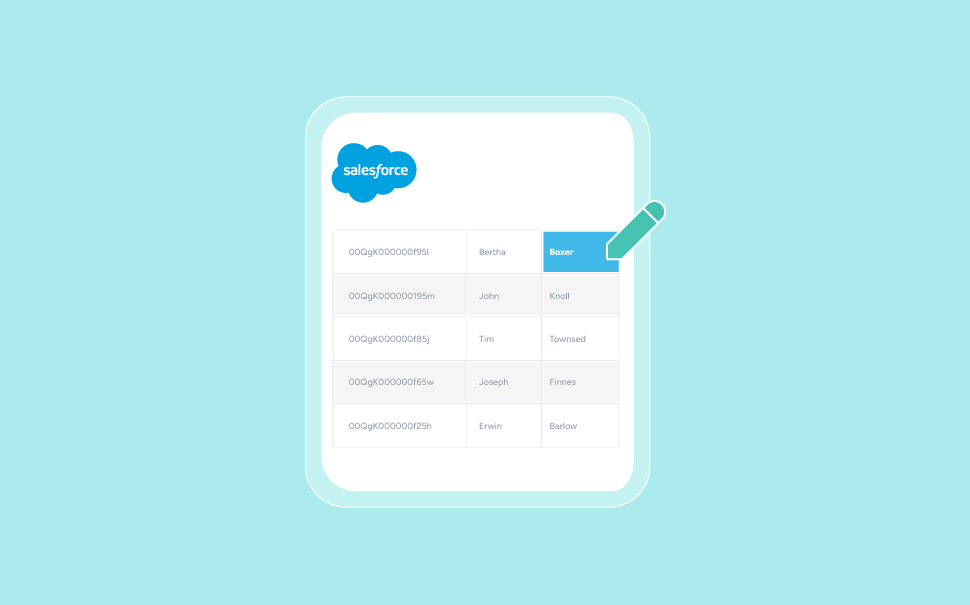
What Does “Field Editing” (Inline Editing) Mean in Salesforce Reports
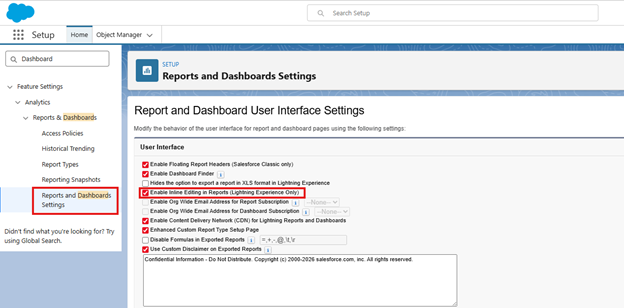
How to Enable in Setup
Step 1 – Enable in setup
Step 2- Enable Field Editing in the Report
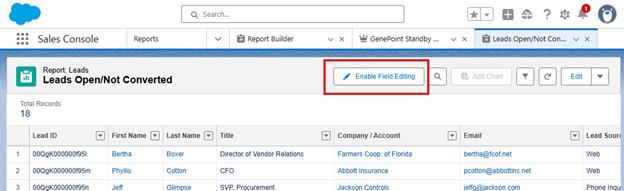

Note
Step 3 – Edit and Save
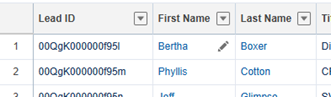
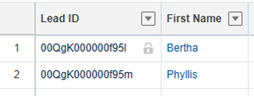
Why Your Fields Are Locked
No Edit Permission on the Object: Users must have Edit access to the object through their profile or a permission set. Without it, every field for that object will remain locked.
No Record-Level Edit Access: Even if the user has the right profile permissions, they still need edit access to the specific record. Check:
- Organization-Wide Defaults
- Sharing rules
- Role hierarchy
Field-Level Security (FLS): The field must be editable in your profile’s FLS. This is most likely the cause of the unresponsive UI mentioned above. Make sure you check the Object Manager to ensure it’s not set to Read-Only if you see the field but can’t modify it.
Read-Only on Page Layout: A field that is read-only on the assigned page layout will not be editable in reports.

Tip
Unsupported Field Types: Inline editing works only for certain field types. The following cannot be edited:
- Formula fields
- Roll-Up Summary fields
- Record Type fields
- Long Text or Rich Text fields
Opportunity Amount: The Opportunity Amount field has special calculations and pipeline implications. In some org setups, this field cannot be edited inline even with permissions because it is a calculated field that automatically rolls up values from Opportunity Products, Schedules, and Forecasts.
Converted Currency Field: Converted currency values are often locked because they are calculated. Original currency fields may still be editable. If a currency column is locked, check whether the report is showing converted currency instead of the original field.
Unsupported Report Types and Object Structures
-
Task or Event (Activity) Reports: Salesforce does not support inline editing for Activity objects. If your report is based on Tasks or Events, all fields will remain locked.
-
Junction Objects: Fields from junction objects, such as Opportunity Products, Campaign Members, or custom many-to-many relationships, cannot be edited directly in the report grid.
-
Grouped Columns: If a field is used to group rows or columns in your report, it becomes a structural element and cannot be edited until the grouping is removed.
-
Multiple Record Types: When a report contains records from multiple record types, Salesforce often disables inline editing to prevent conflicts with different page layouts and picklist values.
Tip
-
Lookup Column is Completely Blank: If all records have a blank lookup value, Salesforce may not activate inline editing for that column. Adding at least one populated value usually resolves this.
-
Custom Report Type Structure: Some custom report types include fields in a way that prevents editing. If the relationship path is complex, editability may be limited.
-
Missing Name Fields (child object): When editing child object fields, adding the name (or primary identifier) column to the report can enable inline editing for other fields.
-
Duplicate or Matching Rules: Duplicate rules set to Allow with Alert may block saving changes during inline editing. Adjusting the rule or the data usually fixes this.
-
Field Dependency Conflicts: Picklist dependencies or formula recalculations can prevent Salesforce from saving inline changes.
-
Overridden Edit Button: If the object’s standard Edit button is overridden with Visualforce or another component, inline editing may be disabled. Check under: Object Manager → Buttons, Links, and Actions → Edit → Overridden.
What Fields are Supported?
-
Text;
-
Text Area (up to 255 chars);
-
Checkbox;
-
Number;
-
Percent;
-
Currency;
-
Date;
-
Picklist;
-
Multi-select Picklist;
-
Phone, Email, URL.
Limits:
-
Up to 100 changes per Save;
-
Up to 12 fields per record.
When Inline Editing is Not Enough
Inline editing helps with small adjustments but falls short in situations like:
-
Updating many records on a regular basis;
-
Editing Opportunity Products, Campaign Members, or other junction objects;
-
Working with Activity reports;
-
Managing mixed or complex record-type datasets;
-
Handling strict duplicate rules or dependencies.
When inline editing becomes too slow for high-volume data management, teams often switch to specialized tools designed for structured bulk updates.
Tools like XL-Connector allow users to pull Salesforce data into Excel, update it in a familiar spreadsheet grid, and safely push changes back into Salesforce. This makes bulk updates fast and controlled, and just like native inline editing, XL-Connector fully respects your Salesforce field-level security and object permissions to ensure data remains secure.
Conclusion
FAQ
Can you update multiple records using inline editing in Salesforce Reports?
Inline editing lets you update multiple records directly from a report, but it has its limits. You can update up to 100 records per save, and performance depends on the number of modifications. For larger updates, inline editing becomes slow and error-prone. It is not designed for bulk operations.
Why is inline editing not working in my Salesforce Report?
The availability of inline editing is determined by your specific report structure and the types of fields included. Inline editing does not work when:
- Reports are Grouped;
- Multiple record types are used;
- Fields are calculated (formulas and roll-ups);
- Objects like Activities or junction objects are involved.
When inline editing is blocked due to any of the reasons above, the message “inline editing isn’t supported for this cell” might appear.
How to enable inline editing in Salesforce list view?
Inline editing in list views is available by default in Lightning, but only if:
- The user has edit permissions;
- The field is editable;
- The object supports inline editing.
If it is not working, the issue is usually permissions, field restrictions, or record access.
Why is inline editing disabled in my report?
If inline editing is disabled, it's generally because of one of these reasons:
- Missing user permissions;
- Field-level security restrictions;
- Read-only page layouts;
- Conflicts with validation or duplicate rules.
In most cases, this is due to a permission issue, not a missing setting.
How do I enable inline editing for a specific user?
To give a user access to inline editing, you must ensure:
- The user has Edit permission on the object;
- The record is accessible;
- Field-level security is not read-only.
Inline editing cannot override these permissions.
How to disable inline editing in Salesforce?
Inline editing can be disabled by:
- Turning off the setting in Reports and Dashboards Settings;
- Removing edit permissions from users;
- Making fields read-only via field-level security.
Availability is controlled globally or managed through individual user permissions and field security.



Perez Victor
Content Manager
Victor Perez is a Salesforce Administrator and Technical Support Specialist at Xappex with experience in administration and consultancy. Driven by a passion for enhancing operational efficiency and business effectiveness, Victor leverages his deep understanding of Salesforce and Xappex tools to develop solutions and resources that empower users across various industries.
Initially starting his career in law, Victor transitioned into the Salesforce ecosystem and quickly advanced to become the Lead Administrator for a prominent B2B company in Mexico, where he significantly improved workflow efficiency and data management. His unique blend of analytical thinking and technical experience allows him to identify and address business challenges effectively.
In his personal time, Victor enjoys golfing and exploring insights from diverse industries, continually seeking innovative approaches to problem-solving and adding value both professionally and personally.