Get Started Free



The Salesforce Data Export tool lets you back up your data manually or on a schedule. To use it effectively, you need to understand the limits on export frequency, file handling, and availability.
This article explains these limits, outlines the possible workarounds, and highlights the changes introduced in the Winter ’26 release.
Core Salesforce Data Export Limits and File Rules
These limits apply to all orgs that use the standard Data Export tool in Setup.
Export frequency
Salesforce restricts how frequently full data exports can run:
- Weekly exports: Available once every 7 days in Enterprise, Performance, and Unlimited Editions.
- Monthly exports: Available once every 29 days in all other supported editions (excluding Database.com)
File availability – 48-hour limit
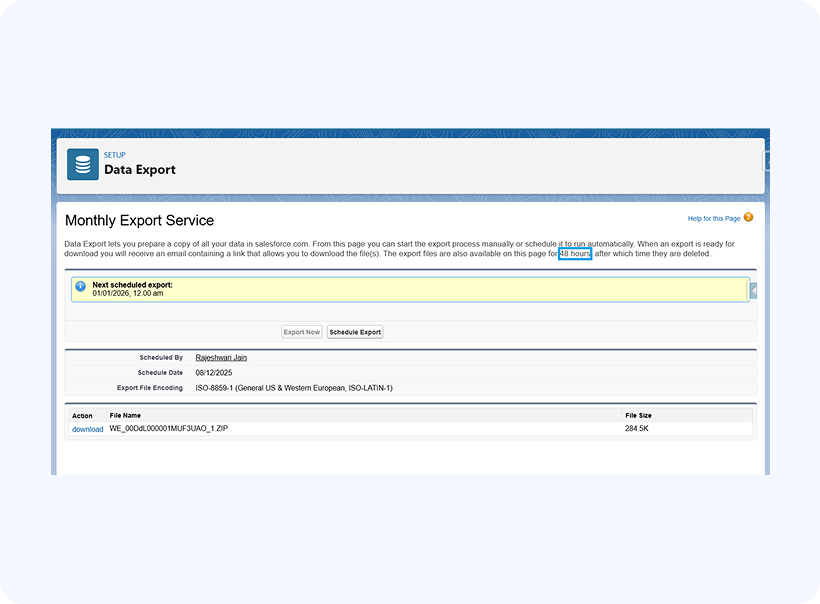
After Salesforce generates the export files, they stay available for 48 hours. Once this window ends, the files are automatically deleted.
Older documents used the phrase “48 business hours.” Salesforce’s current guidance (2025) now states “48 hours,” and this is the correct behavior across orgs.
Previous export deletion
If you start a new export—manual or scheduled—Salesforce immediately deletes all files from the previous export.
This happens even if the earlier export is still within the 48-hour availability period.
This is expected system behavior and not a bug. Salesforce can retain only one export set at a time.
File recovery and download timing
Once export files are deleted—either because 48 hours passed or because a new export was initiated—they cannot be restored. Admins should monitor completion emails and download files soon after they become available.
File and data rules
Salesforce applies the following rules when preparing export files:
- ZIP file creation: Exported data is packaged into ZIP files of roughly 512 MB each. Large exports automatically split into multiple ZIPs.
- Export format: Each object exports as a CSV file.
- Formula and roll-up summary fields: These fields do not export because Salesforce calculates their values dynamically.
- Recycle Bin: Records in the Recycle Bin are not included in exports.
Scheduling and Operational Limitations
Salesforce enforces several process-level limits on Data Export jobs. These limits affect how exports are scheduled and executed.
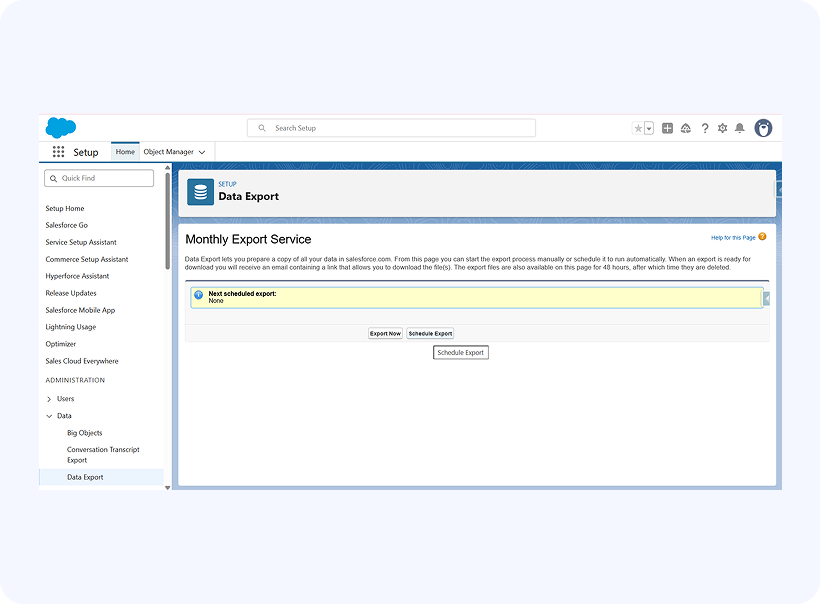
One Active Schedule per Org
You can maintain only one active Data Export schedule per org—weekly or monthly.
Salesforce does not allow editing the schedule type or running user. To change either, you must delete the existing schedule and create a new one.
No SLA
Salesforce does not provide an SLA for the completion of Data Export. Export jobs may take several days or longer if system queues are busy. This is expected behavior.
Sandbox and Read-Only Mode
Data Export does not run in sandbox orgs or in orgs that are in read-only mode. Salesforce disables this functionality by design.
Notifications
Only the running user receives email notifications for completed exports.
You cannot change the notification address on an active schedule. To use a different email, recreate the schedule with a different running user.
New Winter ’26 Rate Limit on Data Export Downloads
Salesforce has added a new restriction in the Winter ’26 release that affects how administrators download exported ZIP files from Data Export. This update introduces a delay between downloads.
Rate Limiting Rule
Salesforce now enforces a sequential download policy for export files:
- Users can download only one export file at a time.
- A 60-second wait is required before downloading the next file.
- Starting a second download too soon triggers an HTTP 429 “Too Many Requests” error.
This controls repeated manual downloads and reduces load on the export service. However, for customers who export dozens of files each week, it introduces extra manual work and can disrupt automations that previously ran smoothly.
Scope of the Limit
- The restriction applies only to manual downloads performed through Setup → Data Export.
- It does not affect API-based tools, Data Loader, XL-Connector, command-line scripts, or any automated integrations.
- This is a UI-only safeguard, not a platform-wide limit.
How to Bypass Export Limits Using XL-Connector
Teams that rely on exporting data or attachments can avoid this new delay by using XL-Connector. The tool connects to Salesforce through APIs and sends the exported data directly into Excel. Since the Winter ’26 download timing rule affects only the Setup interface, XL-Connector is not impacted by it.
XL-Connector helps users by providing:
- Direct export Salesforce records and files into Excel, without ZIP downloads.
- API-based extraction, which is not limited by the new Winter ’26 timing rule.
- No dependency on the 48-hour expiration that applies to Setup export files.
- Options for bulk exports, filters, and scheduled operations.
Best Practices for Admins
- Download export files as soon as they are ready. Delays can lead to lost access, especially if a new export runs.
- Always complete your current downloads before starting another export to avoid conflicts.
- Exclude attachments or large files when they are not needed. Smaller exports finish faster and are easier to store. Export only the required objects to keep the process efficient.
- For consistent backups, use XL-Connector or API automation. These options help you schedule exports and reduce manual steps.
Plan your download window: Salesforce deletes export files after 48 hours or when a new export starts.
Conclusion
Salesforce’s export limits influence how admins plan backups, and the Winter ’26 update adds a timing rule for downloading files. Understanding these limits helps maintain reliable backups.
For more flexibility, API-based tools like XL-Connector offer a practical alternative to the UI restrictions.

Rajeshwari Jain
Content Manager
Rajeshwari Jain is a Technical Support Specialist and Content Writer at Xappex. She applies her practical experience to assist customers and create articles on how Xappex tools work with Salesforce to improve data management and increase efficiency.
She began her IT career in 2022 as a Quality Assurance professional before transitioning into Salesforce administration and technical writing in 2023. With Salesforce Certified Administrator and Associate certifications, Rajeshwari writes blogs on Salesforce flows, admin tools, and updates to expand her skills outside of work.
In her free time, she enjoys reading tech blogs and experimenting with new tools.
Feel free to reach out to Rajeshwari for collaborations or to check out her Salesforce-focused content.