Get Started Free



You will need to configure each object that you want your users to be able to download Excel templates from.
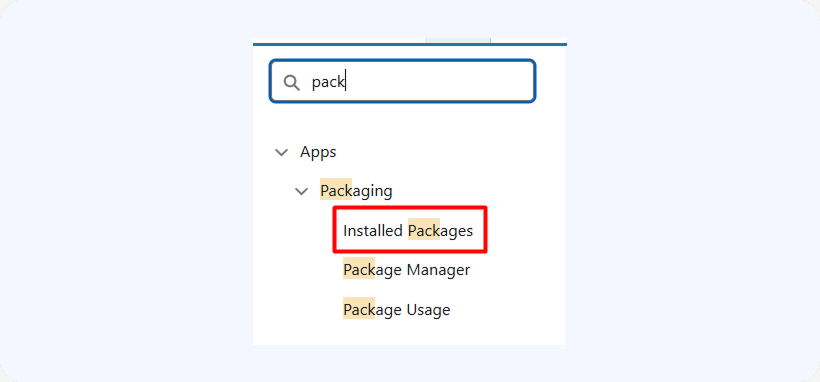
To do that, go to your Setup section and type in ‘package’ in the quick search bar. Then click on ‘Installed packages’:
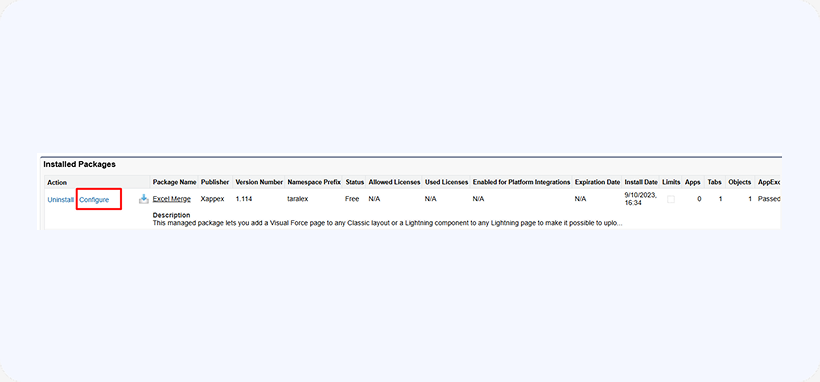
In the list of installed packages, locate the ‘XL-Connector Mail Merge’ package and click on Configure next to it:
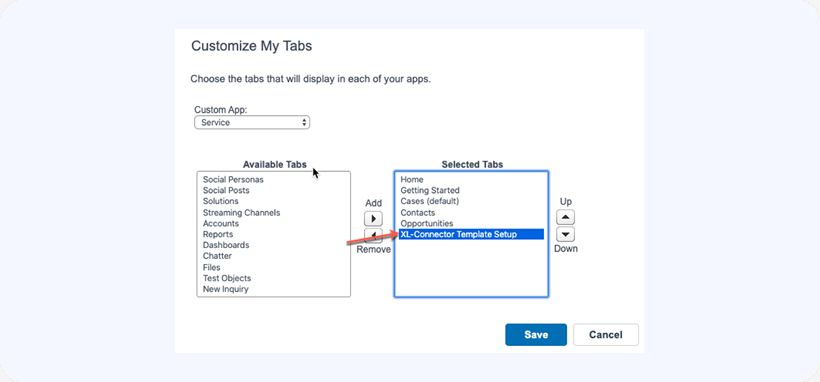
Alternatively, you can add the package configuration tab to your tabs in Salesforce classic:
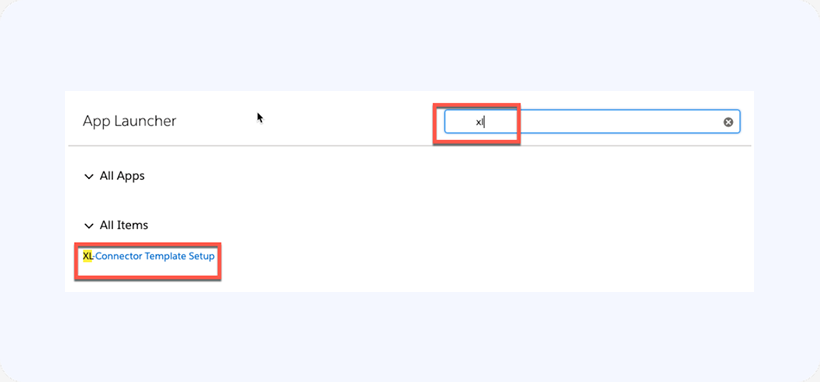
In Lightning Experience UI, you can find that page in the App Launcher:
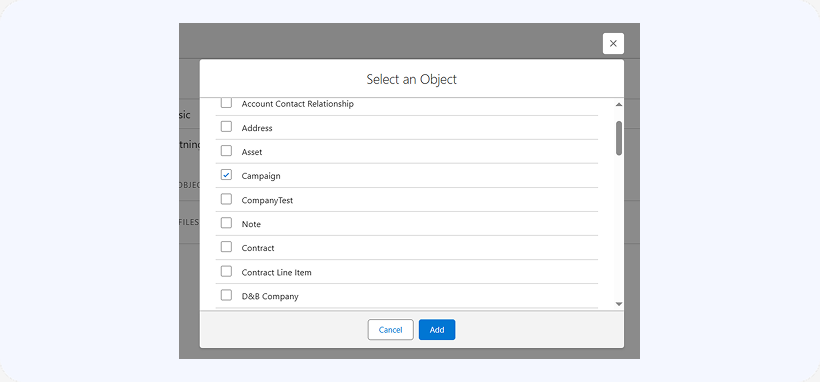
In the configuration page, you’ll be able to enable any custom or standard object to be able to have Excel templates attached to the records by clicking on the Add Object button and adding the object(s) that you’d like to enable the Excel Mail Merge for:
Once Excel Mail Merge is enabled for a specific object, you can associate Excel templates (.xlsx files) with that object.
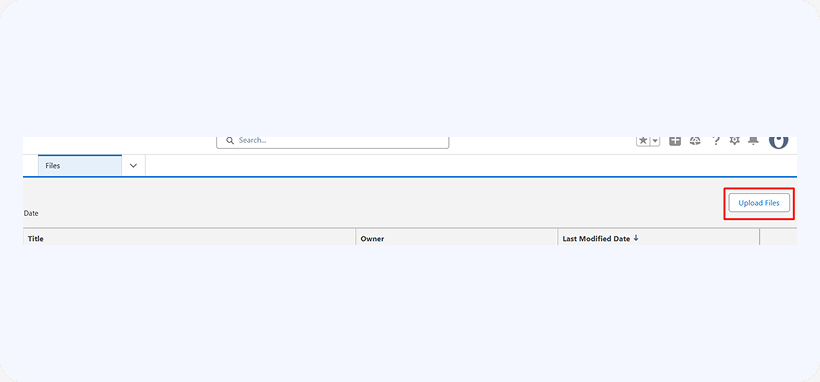
IMPORTANT: You’ll need to upload your Excel templates as Files to Salesforce:
In the XL-Connector Mail Merge configuration page, you have the option to associate any XLSX file existing in Salesforce with any object configured in the previous step.
You have two options in terms of the user interface on the object record page:
-
1
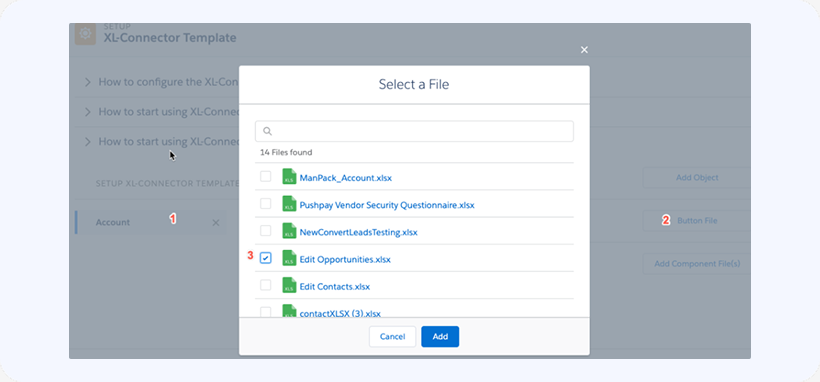
Have a button (Classic) or action (Lightning) on the record page that will download a single Excel spreadsheet and replace all merge fields in it.
To associate a single Excel spreadsheet with your object, you’ll need to select the object, then click on the Button File button and choose your file:
-
2
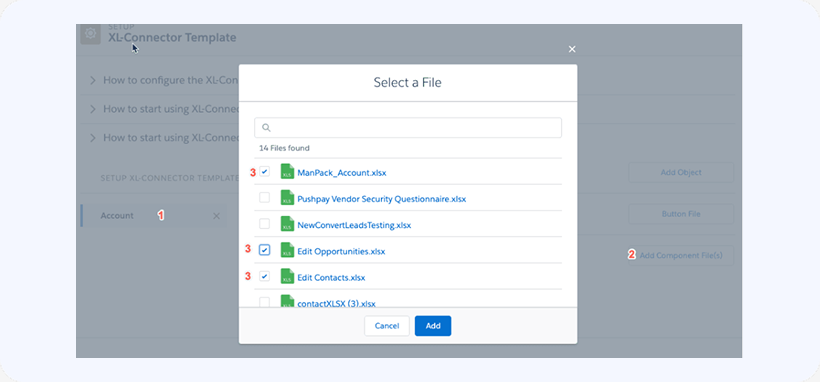
Have a VisualForce control (Classic) or Lightning Component (Lightning) listing several files on a record page, making it possible for the user to choose which Excel spreadsheet they want to download. To assiciate several files with an object, you’ll need to select the object, then click on Add Component File(s) button: