
 Get Started Free



When to Use XL-Connector Instead of Inline Editing in Salesforce Reports
Field editing in Salesforce reports can help with small data adjustments but falls short when performing structured changes or bulk updates.
XL-Connector can become a great solution when:
-
You need to update many records at once.
-
Fields are locked in Salesforce reports.
-
Inline editing is too slow or restricted.
Step-by-Step: Edit Report Data with XL-Connector
Step 1 – Pull Report Data into Excel
-
1
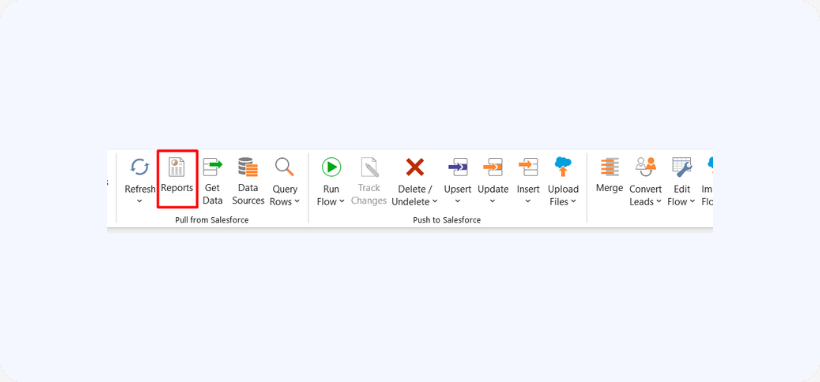
Open Excel with XL-Connector installed.
-
2
Go to Reports.

-
3
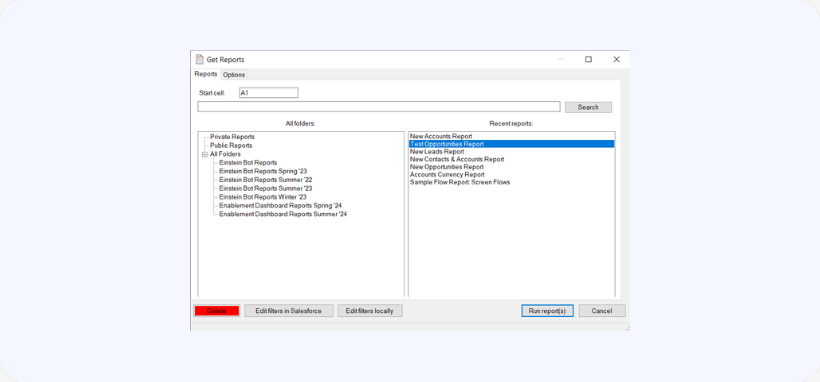
Select your Salesforce report.
-
4
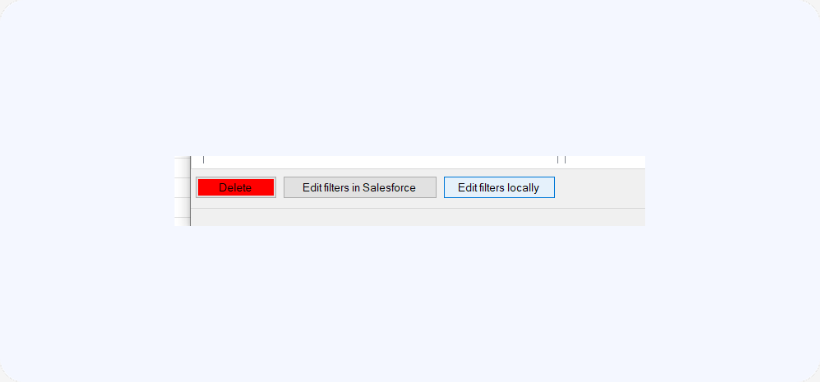
Apply filters if needed.
-
5
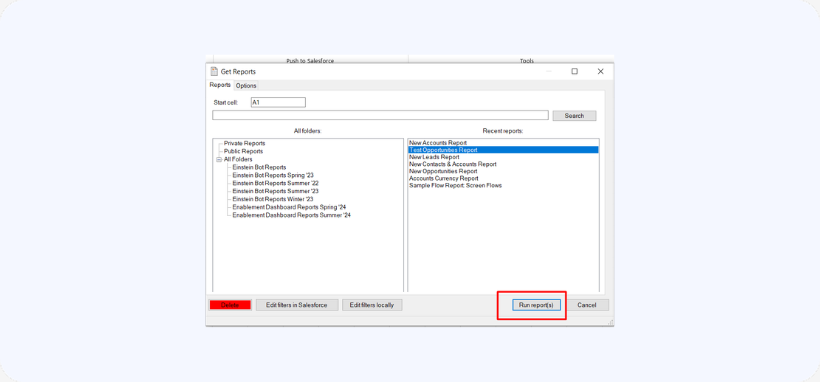
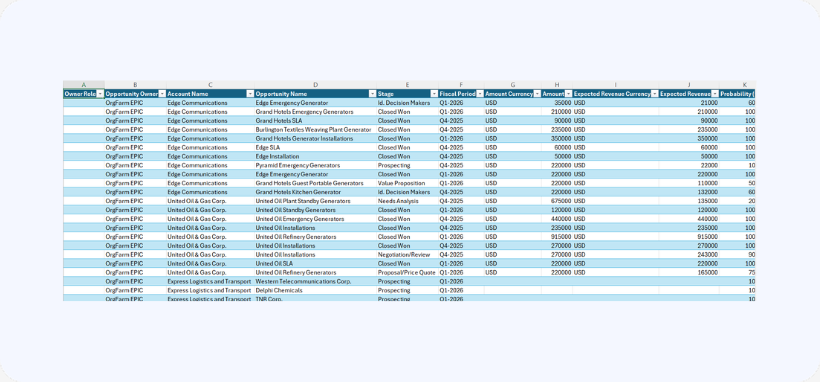
Run the report to download the data into Excel
Step 2 – Prepare Your Data
-
Ensure each column corresponds to a Salesforce field.
-
Do not change the structure of the sheet (headers/columns).
Step 3 – Edit Data in Excel
-
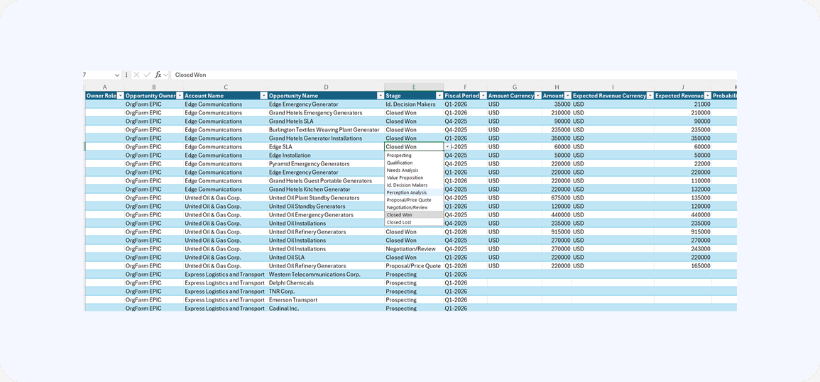
Update values directly in the spreadsheet.
-
You can edit multiple rows and fields at once.
-
No need to open individual records.
-
Select the rows you want to update.
Step 4 – Configure the Flow
-
1
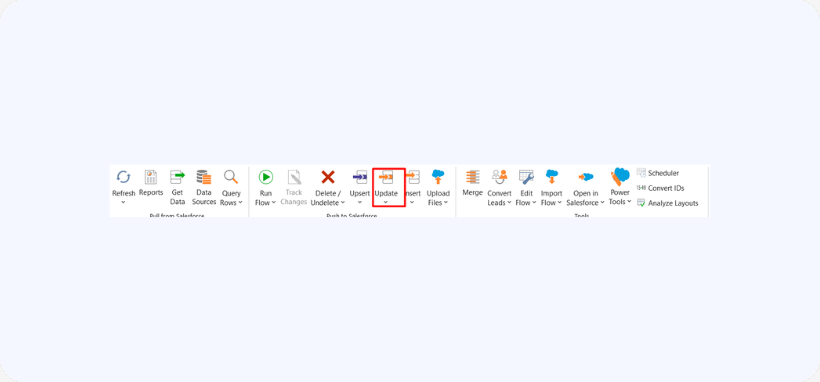
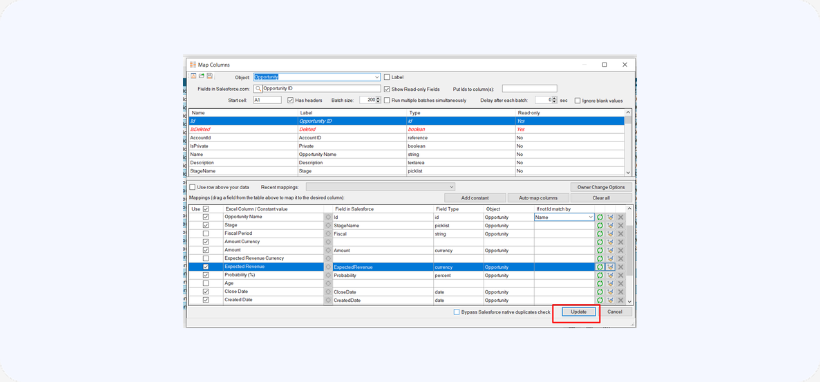
Click Update in the XL-Connector ribbon.
-
2
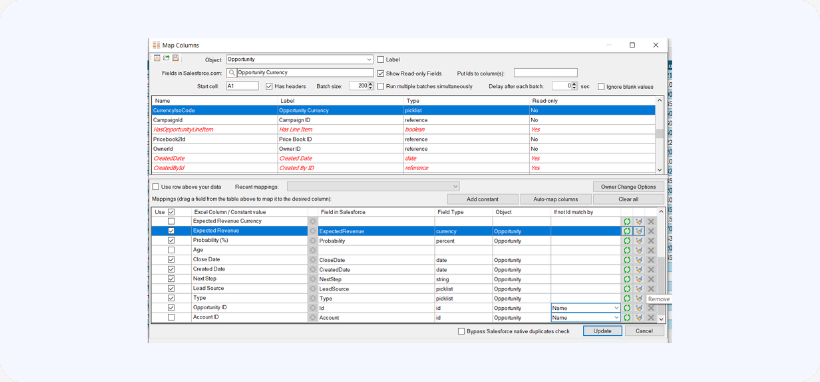
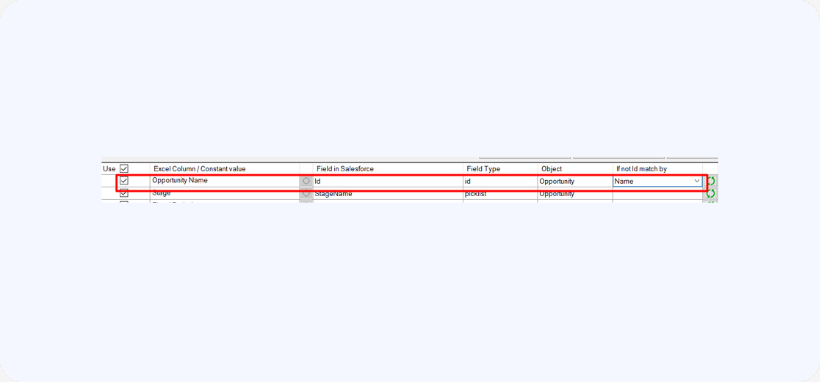
Map Excel columns to Salesforce fields.
-
3
If there’s no ID column, you can map any unique field to the record ID.
Step 5 – Push Changes to Salesforce
-
1
Click Update in the dialog box.
-
2
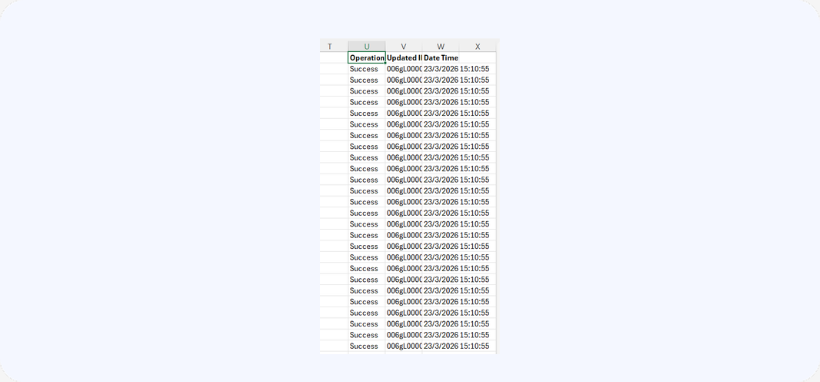
Changes will be sent to Salesforce.
-
3
You will see operation results to the right of your data table.
Important Notes
XL-Connector respects Salesforce permissions, including:
-
Field-Level Security (FLS).
-
Object permissions.
-
Record access.
Key Benefits vs Inline Editing
| Feature | Salesforce Inline Editing | XL-Connector |
|---|---|---|
| Bulk updtaes | Limited | Yes |
| Edit multiple records easily | Limited | Yes |
| Works with complex data | Limited | Yes |
| Spreadsheet interface | No | Yes |

