Get Started Free



If you’ve noticed percent values uploading to Salesforce off by a factor of 100 (for example, 0.7 landing as 0.7% instead of 70%), here’s what’s happening and how to fix it.
XL-Connector now decides how to upload a percent value based on the cell’s formatting in Excel:
-
Cell formatted as Percent → multiplied by 100 on upload (0.7 displays as 70% and uploads as 70).
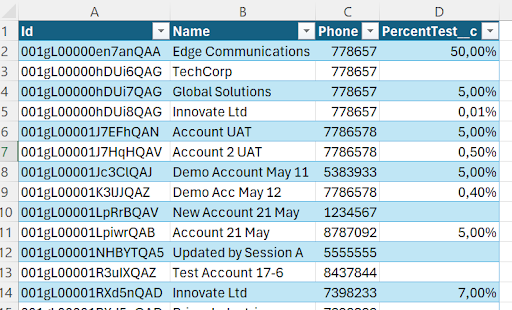
-
Cell NOT formatted as Percent → uploaded as-is (0.7 uploads as 0.7%).

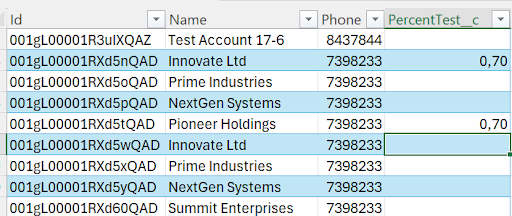
Previously, the connector automatically multiplied any value below 1 by 100, which is why 0.7 used to become 70%. We changed this because it made values under 1% impossible to upload: 0.5% would always turn into 50%. The connector now follows the cell format instead of guessing.
To fix it, either option works:
1. Format the source cells as Percent in Excel. Once 0.7 is formatted as a percentage, it will upload as 70 as expected. (Columns pulled from Salesforce get this formatting automatically. This mainly affects cells fed by formulas or entered as plain decimals.)
2. Or adjust your formula so it outputs the actual percentage number (70) rather than the decimal (0.7).