
 Get Started Free



G-Connector enables users to seamlessly download and upload Salesforce attachments and files directly from Google Sheets This functionality eliminates the need to switch between Salesforce and Google Drive, making it easier to manage contracts, proposals, invoices, and other record-related documents in one centralized workflow.
By leveraging this feature, teams can improve collaboration, streamline document management, and securely share files outside of Salesforce when needed.
Because files are saved to a selected Google Drive folder, anyone with access to that folder can view the downloaded files — even if they do not have access to Salesforce or G-Connector.
Step 1: Configure the Destination Folder in Google Drive
Before downloading files, you must define where they will be stored:
-
1
Open G-Connector Settings in Google Sheets.
-
2
Locate the option to set your Google Drive download folder.

-
3
Select or create a folder in your Google Drive.
-
4
Save your settings.
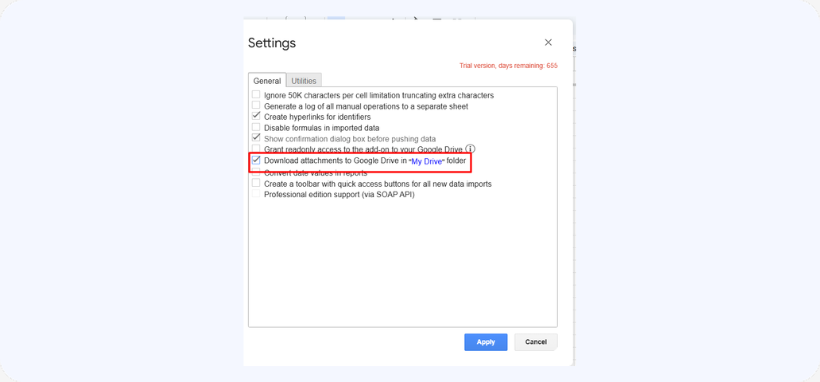
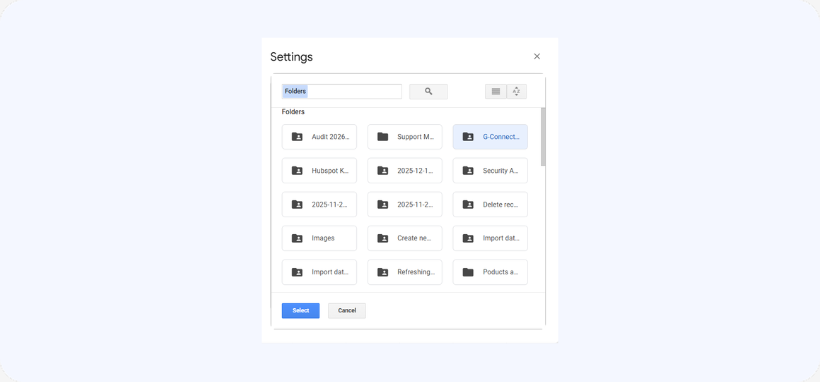
You can then share this folder with colleagues, partners, or customers using standard Google Drive sharing options.
Step 2: Download Attachments from Salesforce
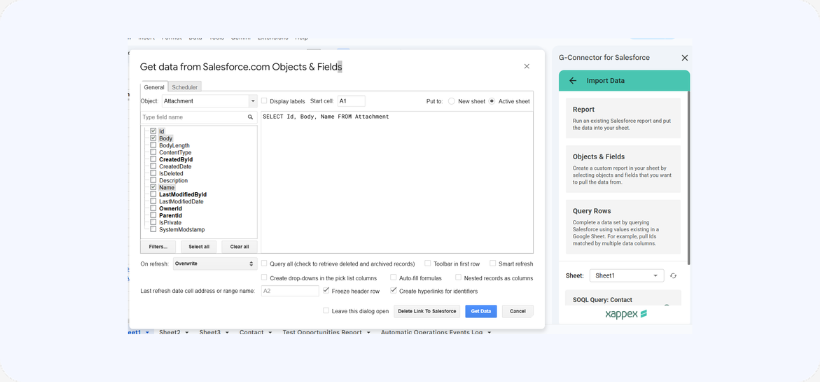
To download files, you must run a query that includes a base64 field. G-Connector automatically converts this base64 data into a file and saves it to the selected Google Drive folder.
Recommended Fields
It is strongly recommended to include:
-
Id – Ensures each file is uniquely identifiable
-
Name (or Title, depending on object) – Used as the file name
When both fields are included, G-Connector names the file using the following format:
<RecordId>-<FileName>
Example Query for Attachments
SELECT Id, Name, Body FROM Attachment
-
Body is the base64 field containing the file data.
-
The file will be converted and saved automatically.
Downloading Files from ContentVersion
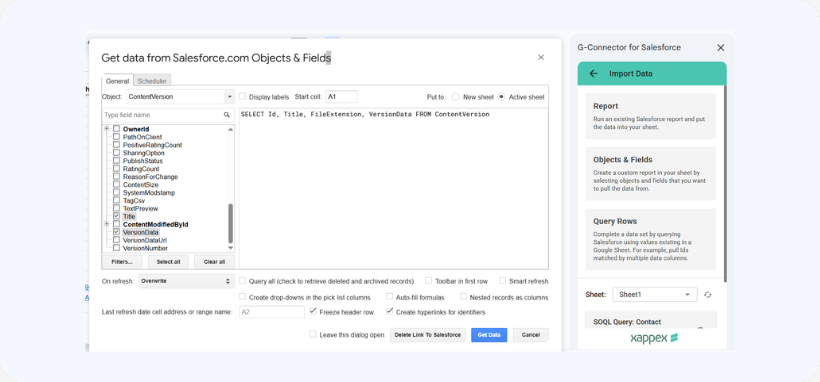
If you are working with Salesforce Files (ContentVersion), be sure to include the appropriate fields:
SELECT Id, Title, Extension, VersionData FROM ContentVersion
Required Fields Explained:
-
Id – Unique identifier of the file record
-
Title – File name (without extension)
-
Extension – File type (e.g., pdf, docx, png)
-
VersionData – Base64 file data
G-Connector uses these fields to properly reconstruct and save the file in Google Drive
Uploading Files to Salesforce
In addition to downloading files, G-Connector also allows you to upload documents from Google Drive to Salesforce. This makes it easy to attach files to records such as:
-
Opportunities
-
Accounts
-
Contacts
-
Custom objects
Uploads can be managed directly from your spreadsheet workflow, simplifying document management and keeping Salesforce records up to date.
Best Practices
-
Always include the Id and file name field in your query for proper file naming.
-
Verify that the correct Google Drive folder is selected before running large downloads.
-
Use Google Drive folder permissions carefully when sharing sensitive documents.
-
When working with Salesforce Files, ensure you are querying ContentVersion, not Attachment (if your org uses Files).

