
 Get Started Free



The Manage Picklists feature in XL-Connector allows you to manage Global, Standard, and Custom picklists from Excel, making it easy to bulk update values, activate/deactivate entries, and maintain consistency without manually editing each field in Salesforce.
Types of Picklists
Global Picklists
-
You can:
-
- Add new values (add rows → Update)
- Activate/deactivate values using isActive
-
-
You cannot:
-
- Delete values (only deactivate)
-
Standard Picklists
-
You can:
-
- Modify values
- Add new values
-
-
You cannot:
-
- Delete or deactivate values.
-
Custom Picklists
-
You can:
-
- Modify values
- Add values
- Delete entire picklists (by removing all values)
-
-
You cannot:
-
- Create new picklists
- Delete individual values
-
How to Manage Picklists
Step 1 – Download Picklists
-
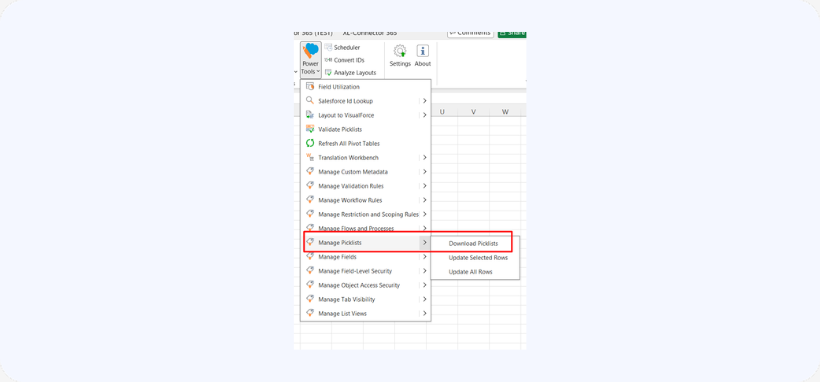
Go to Power Tools → Manage Picklists → Download.

-
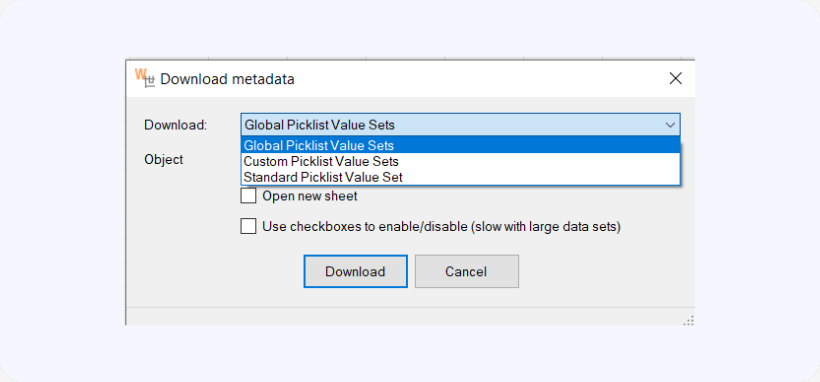
Select the type of picklist and object, if applies, and click Download.
Step 2 – Edit Data
-
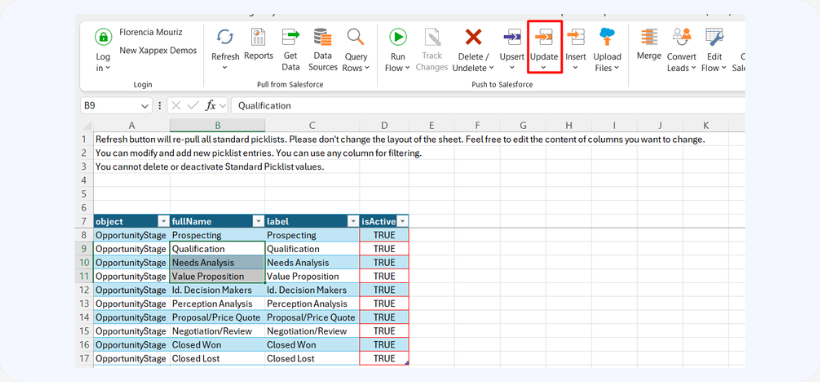
Use columns to modify values.
-
Use object column to filter custom picklists.
Step 3 – Apply Changes
-
Select rows.
-
Click Update / Update Selected.

Notes
- Do not change layout.
- Deleting all values in a custom picklist deletes the field.

