Get Started Free



This feature allows you to manage Salesforce Flows and Processes directly from Excel.
Managing flows includes:
-
Updating labels and descriptions.
-
Activating or deactivating flows and processes.
-
Deleting inactive flows.
This gives you a centralized, spreadsheet-based way to control your automation setup without navigating multiple pages in Salesforce.
Step 1 – Download Flows & Processes
-
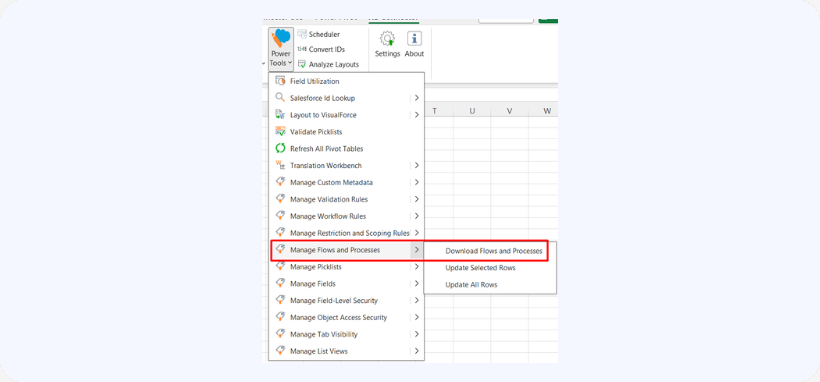
Go to Power Tools → Manage Flows and Processes → Download

Step 2 – Edit Records
-
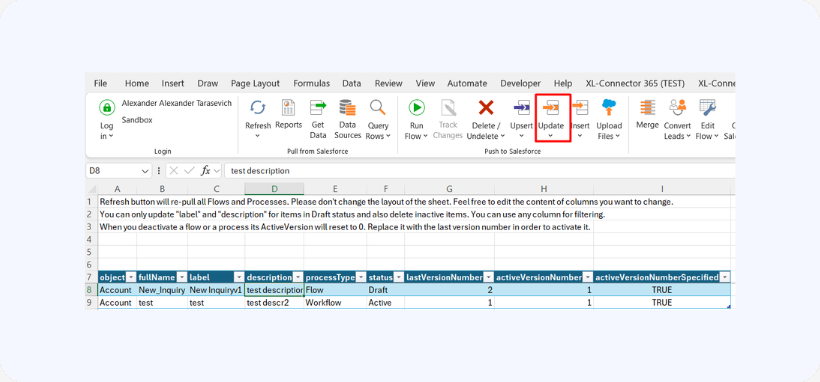
Do not change sheet layout.
-
You can filter using any column.
-
You can only update:
-
- Label
- Description
-
-
Only items in Draft status can be updated.
-
Select the rows.
-
Click Update in the ribbon.
Step 3 – Activate / Deactivate
-
When you deactivate a flow/process, ActiveVersion resets to 0.
-
To reactivate:
-
- Replace ActiveVersion with the latest version number
- Click Update
-
Step 4 – Delete Items
-
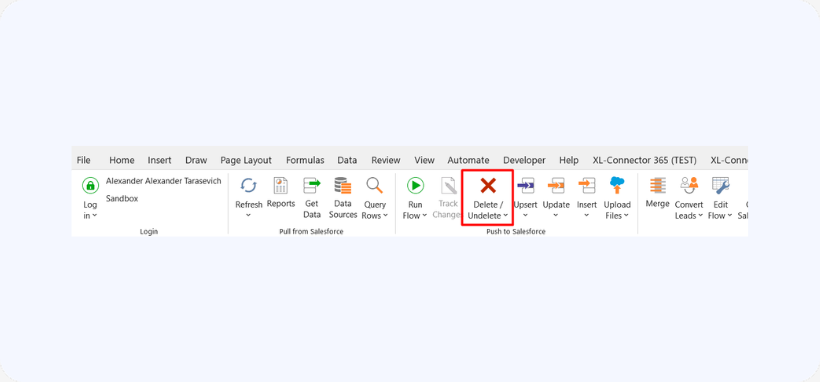
Only inactive items can be deleted.
-
Select rows → click Delete.
Step 5 – Refresh
-
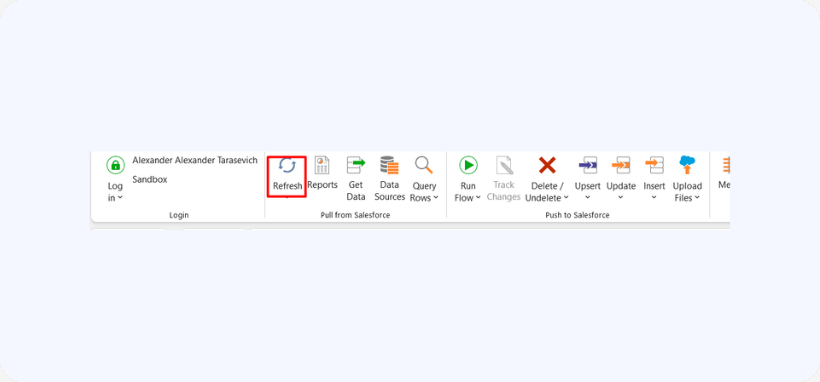
Use Refresh to reload all Flows and Processes.