Get Started Free



Maintaining clean and accurate data in HubSpot is essential for effective business management. At times, this requires removing outdated or unnecessary records. With XL-Connector 365, you can delete HubSpot records in bulk directly from Excel in just a few clicks.
You’ll need an Excel file containing the Record IDs of the items you want to delete (for example, Contacts, Companies, or Deals).
Step 1: Open XL-Connector 365
Launch Excel, open the XL-Connector 365 add-in, and sign in to your HubSpot account if you haven’t already.
Step 2: Select Records to Delete
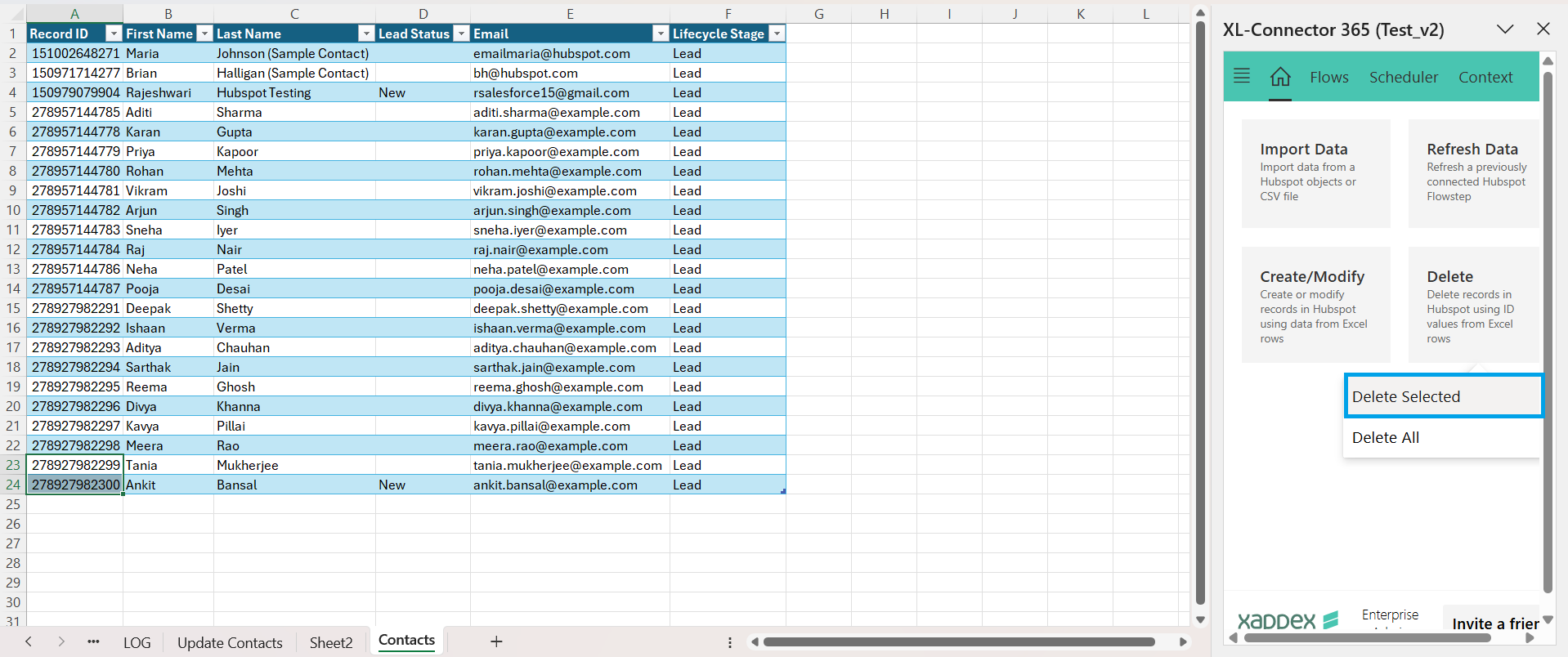
From your Excel sheet, select the records you want to remove. You can choose either Delete Selected or Delete All, depending on your requirements.
Step 3: Choose the HubSpot Object
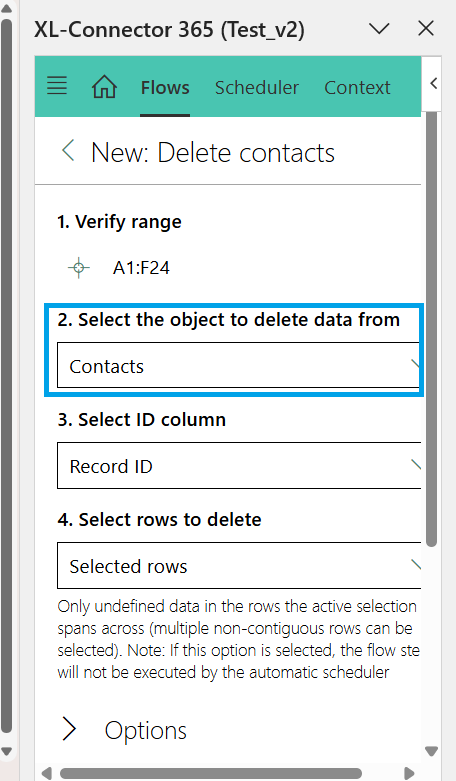
Select the type of record you want to delete — such as Contacts, Companies, or Deals. XL-Connector will automatically match the Record IDs column for you.
In the Options section, you can:
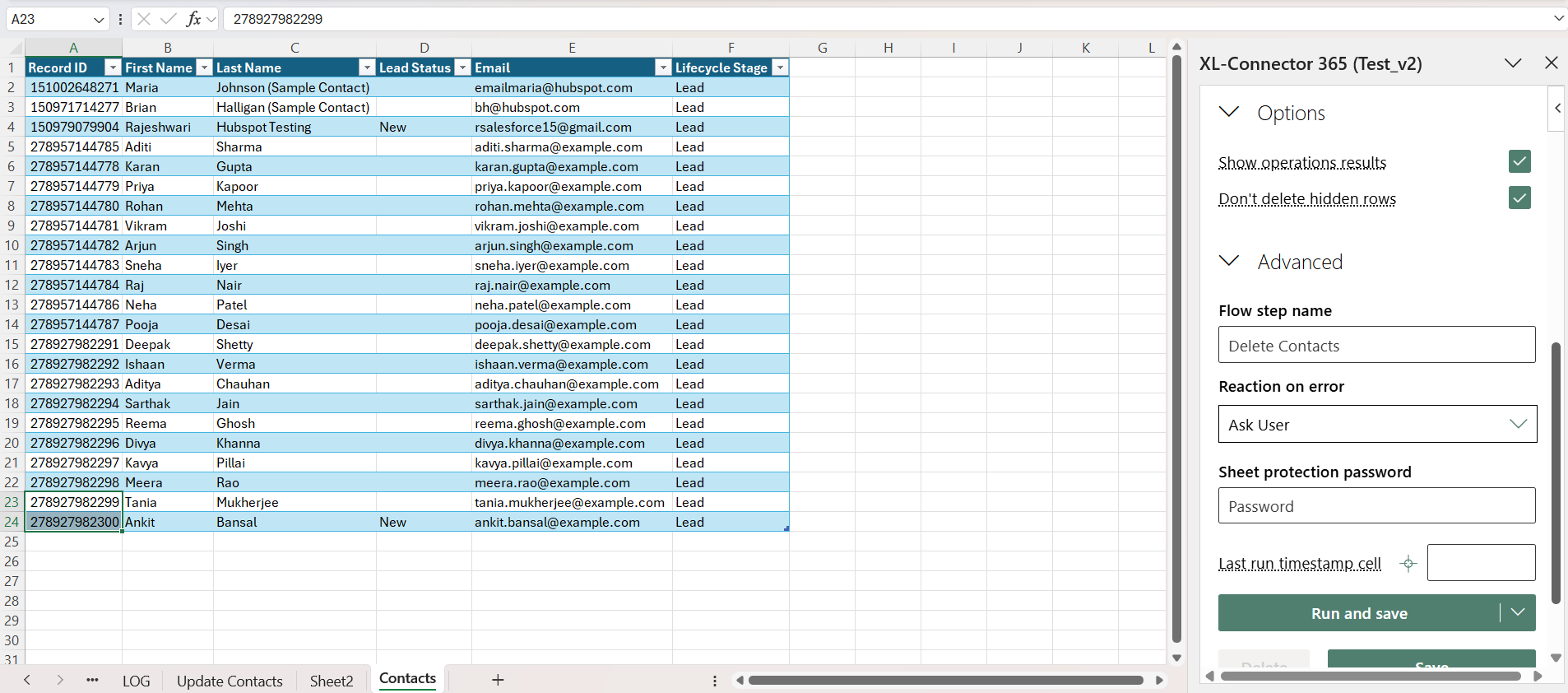
- Display operation results – Shows a summary indicating which records were successfully created.
- Exclude hidden rows – Ignores any hidden rows so that only the visible data is sent to HubSpot.
Under Reaction on Error, you can define how XL-Connector should respond if an error occurs:
- Ask User – Prompts you to choose what action to take.
- Continue – Proceeds with the remaining records.
- Stop – Ends the operation immediately.
Step 4: Run or Save the Delete Operation
You can decide how you want to execute the delete process:
- Run and Save – Runs the delete operation and saves the setup as a reusable Flow Step that you can run again anytime.
- Run – Runs the delete process right away without saving the setup.
- Save – Saves your configuration so you can run it later when needed.
Once the process is completed, a confirmation message will appear showing that the records were successfully deleted.
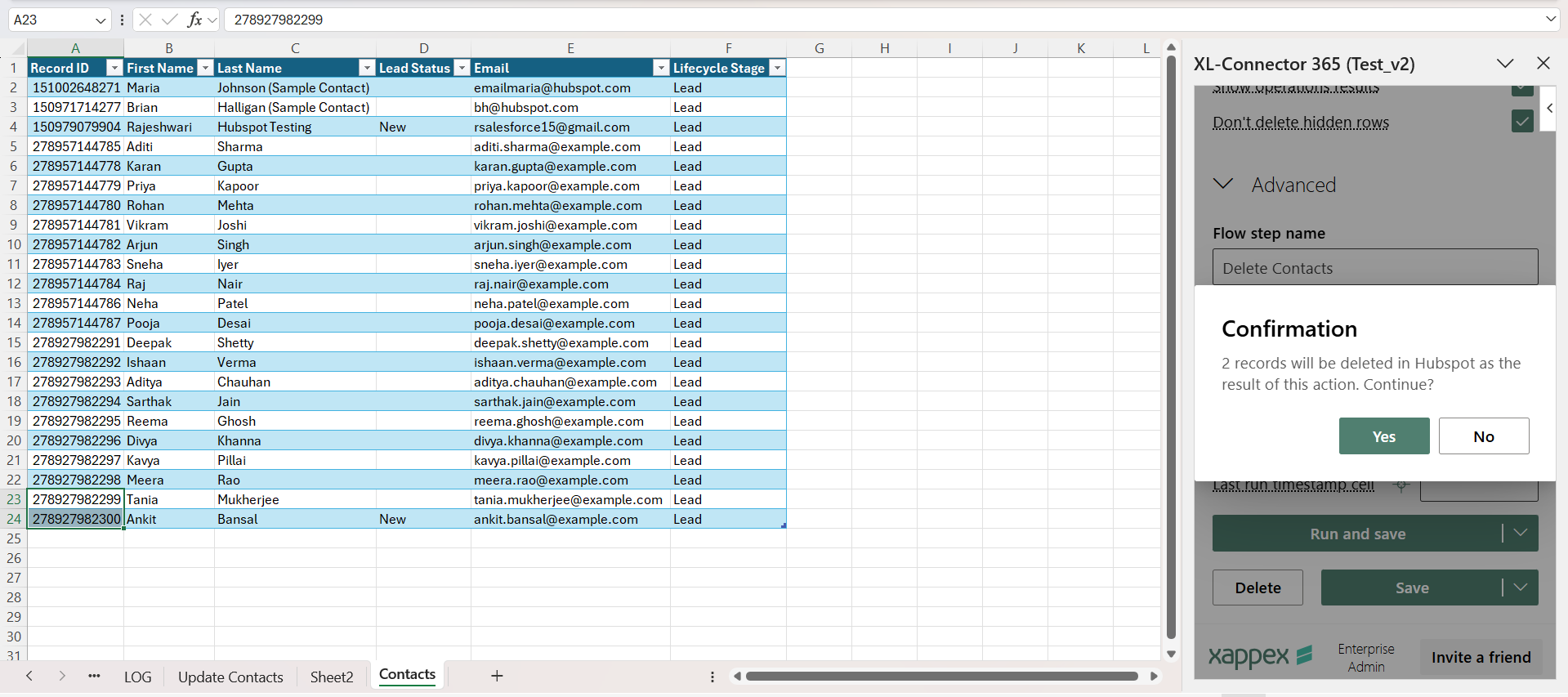
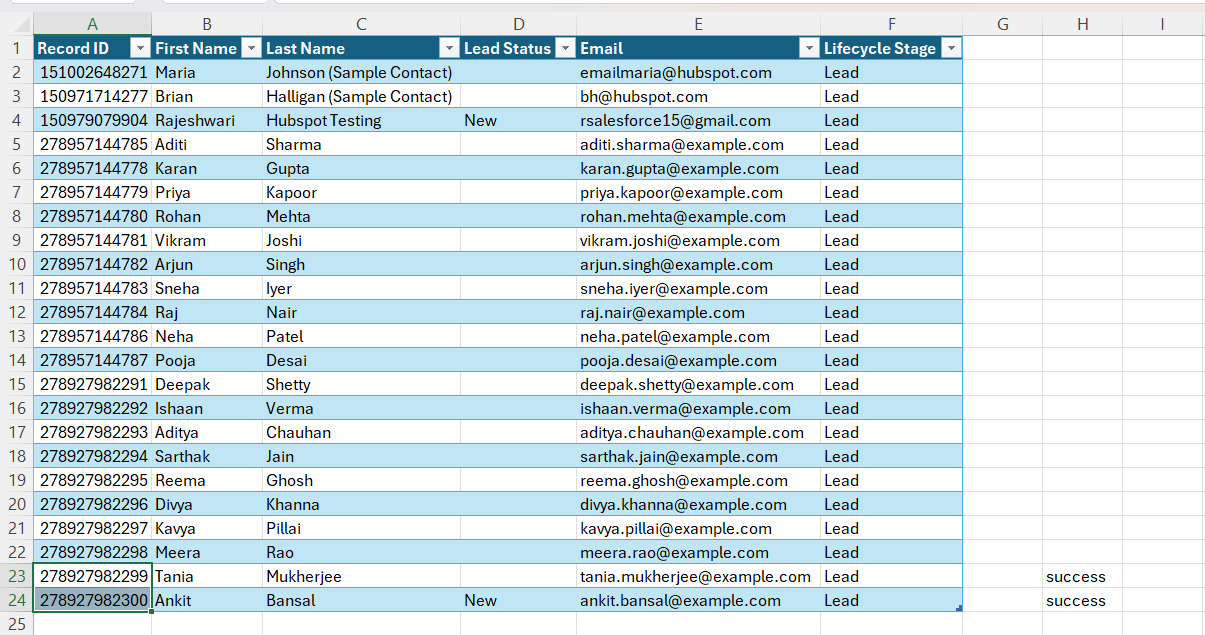
With “Show operation results” checked in the Options section, you will see the results displayed in the sheet once the operation is complete.