Get Started Free



Assign Access Rights to your Fields Quicker
Announcing another great addition to our Windows version of XL-Connector (COM add-in): a new tool to mass update and manage Field-Level Security for your Salesforce fields directly from your Excel spreadsheet.
If you are a Salesforce admin and want to see which fields are visible and/or editable for specific Profiles – XL-Connector will save your day.
Now you can quickly download all Field-Level Security for any combination of Profile(s)/Permission Set(s) and Object(s), adjust their security settings (visible and read-only), and update back to Salesforce all at once.
-
Step 1: To start, click on the Power Tools -> Manage Field-Level Security menu item in XL-Connector:
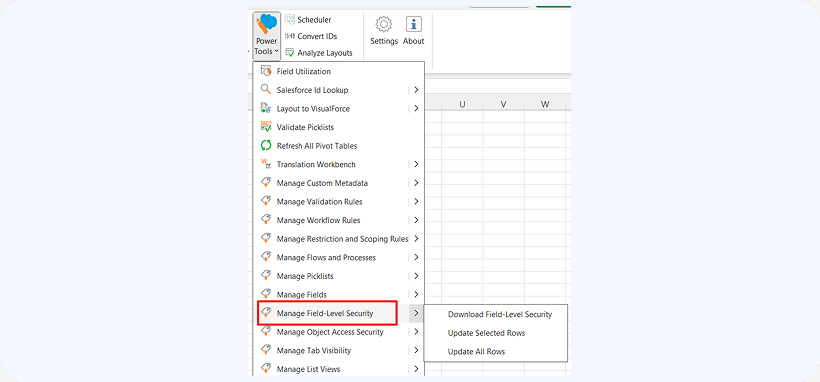
-
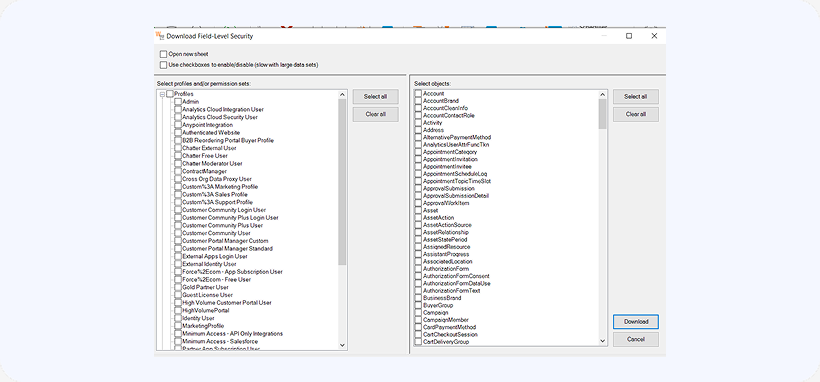
Step 2: dialog box will be displayed to download field-level security settings for any object-profile/permission set combination in your org:

-
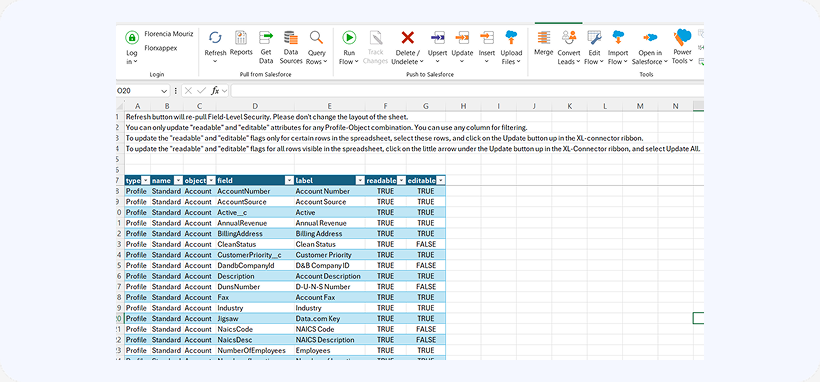
Step 3: Once downloaded, all selected profiles and objects will appear in your Excel spreadsheet making it possible to edit field-level security directly in the spreadsheet:
-
Step 4: Click on the Refresh button up in the XL-Connector ribbon to re-pull all field-level-security settings from Salesforce.
-
Step 5: Update selected rows or all rows: To update field-level security for selected rows, make your changes, select the corresponding rows, and click on Update or Update Selected button up in the XL-Connector ribbon. To update field-level security for all visible rows, click on Update All button that you’ll find under the Update button in the XL-Connector ribbon.