
 Get Started Free

-
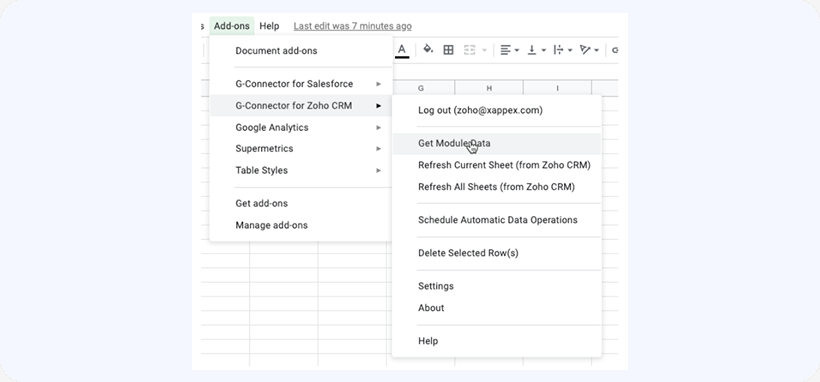
To retrieve data from a Zoho CRM Module and put it into your Google Sheet, open a Google Sheet, click on Add-ons -> G-Connector for Zoho CRM -> Get Module Data:
-
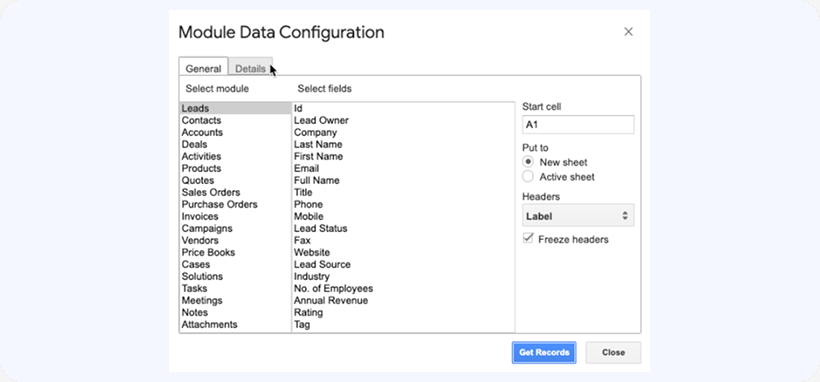
The following dialog box will be displayed:

-
In this dialog, you can select the module you’d like to retrieve the data from, and then select the fields that you want to pull.
Hold the Ctrl (Cmd on Macs) button while selecting multiple fields.
Start cell – you can define where your data will start on the sheet. This will be the top left corner of the data table (first header).
Put to – specifies whether to put the data to a new sheet or the currently active one.
Header – you can choose whether to use the field Ids, API names, or Labels as column headers
Freeze headers – will freeze the header row on the spreadsheet.
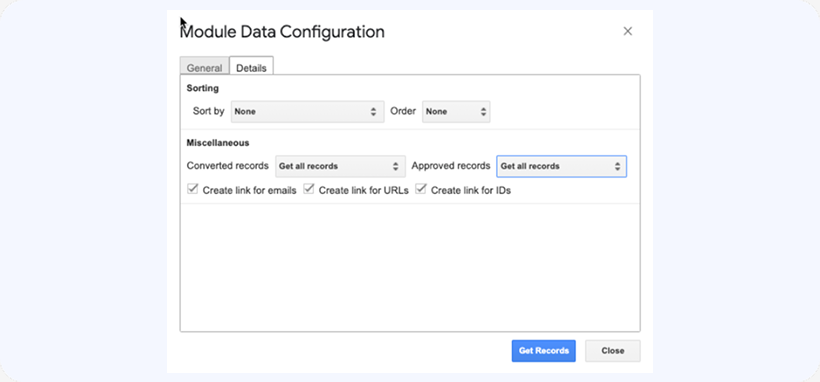
You can specify some additional options for your pull by clicking on the Details tab:
-
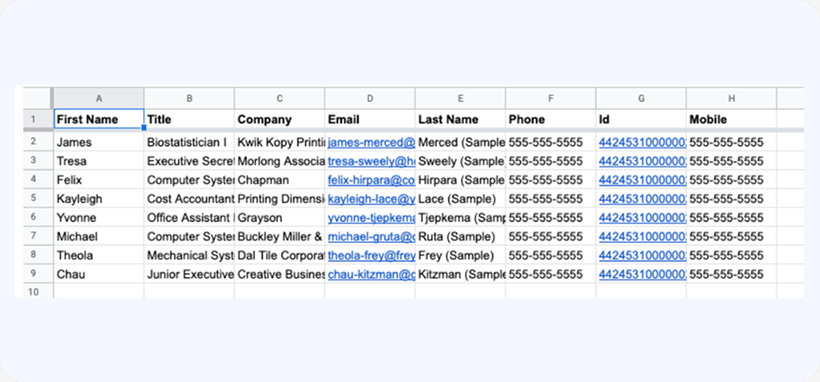
Click on Get Records to retrieve the data from Zoho CRM. It will be downloaded and placed into your spreadsheet as follows:
Xappex Newsletter
Subscribe for more content
Retrieving Module Data from Zoho CRM
Published: September 22, 2023


 Need Help?
We’re Here for You!
Try our powerful Salesforce data tools for free or upgrade for full access. Simplify data management and boost efficiency today!
By pressing 'Submit Form' you agree to our Privacy Policy
