Get Started Free



The settings and mappings that you define for each Insert or Update operation in G-Connector can be saved as a reusable templates and then later run either manually with a click on the Push to Zoho CRM Based on Template(s) or by scheduling a Push automatic data operation under Schedule Automatic Data Operations.
You can access the default template for a specific tab in your Google Sheet Update / Insert Selected Rows.
You can access and manage all templates saved for a specific tab in your Google Sheet by clicking on Manage Templates.
The following is what is saved inside of each Push Template:
-
1
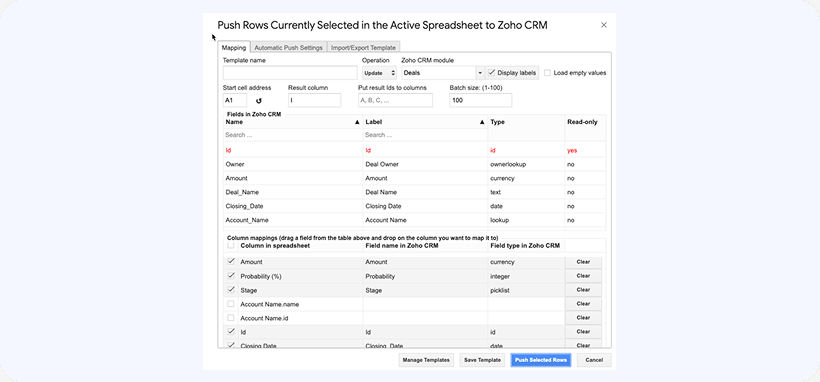
Module selection, mappings, batch size, etc.
-
2
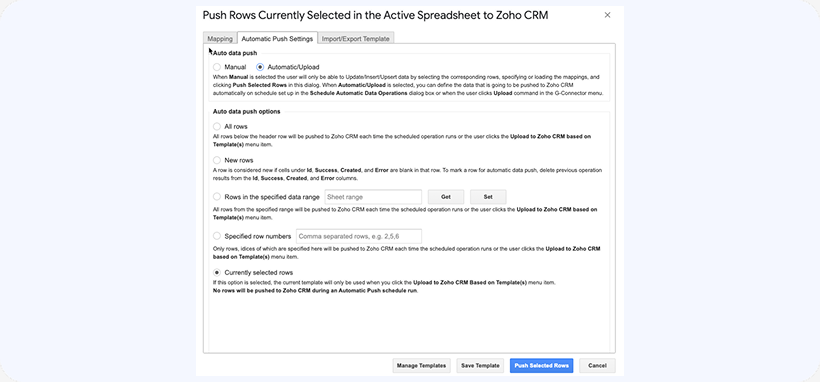
Automatic Push Settings. Here you can define if and how the template can be run as a part of a Push automatic job.
To enable a template to be run by clicking on Push to Zoho CRM Based on Template(s) or on a schedule defined under Schedule Automatic Data Operations, you would need to set the following to Automatic/Upload. Please refer to the plug-in UI for the description of each option.