Get Started Free



To be able to put XL-Connector managed package button on a page layout of any specific object, you will first need to create these components for that object.
Once created, the “Get XL-File” button, which is a part of the managed package, will become available for adding to any layout of that specific object:
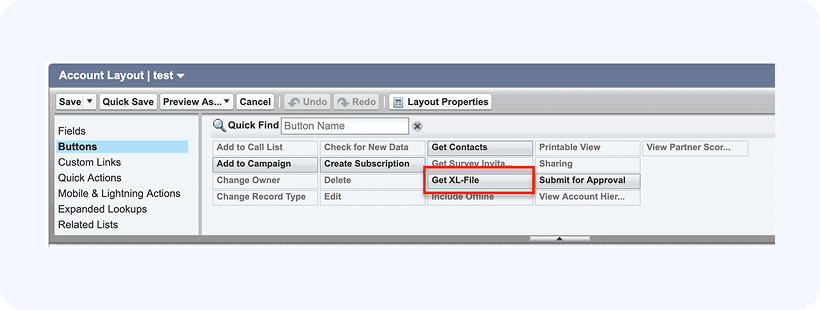
Simply drag the “Get XL-File” button from the Buttons section of the layout editor and drop it to the custom buttons section on the layout.
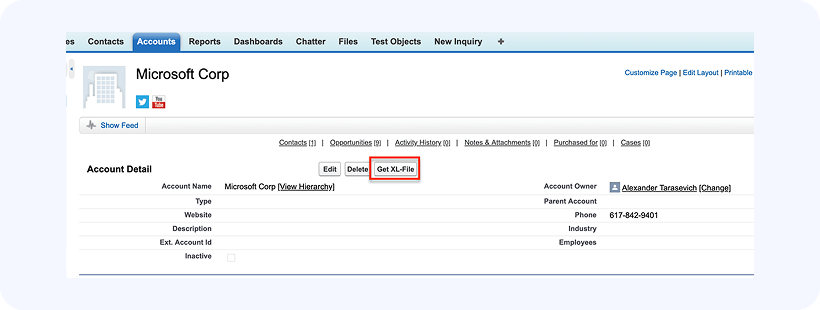
Then save the layout. You’ll need to configure the specific file Id to be linked to the object type first. Once configured, pressing on the “Get XL-File” button on any record page will dynamically populate the record Id in the template and download the linked Excel template to your PC.