
 Get Started Free



XL-Connector 365 lets you send notifications after successfully importing or exporting data between Excel and Salesforce. These notifications inform about a successful or unsuccessful data pull and push job and can be sent via Email or Slack, helping you keep your team informed about important data updates. You can also automate these alerts using the Scheduler, making the process hands-free and consistent.
To use the Scheduler, you first need to create flows.
A Flow is a folder containing one or more data steps—such as Pulls or Pushes—which can run in sequence.
Once a flow is scheduled, you can set up notifications to alert your team via Email or Slack after the flow has been successfully executed or has any failure.
For details, refer to: Automating Salesforce Data Operations with Flows.
Scheduling Flows
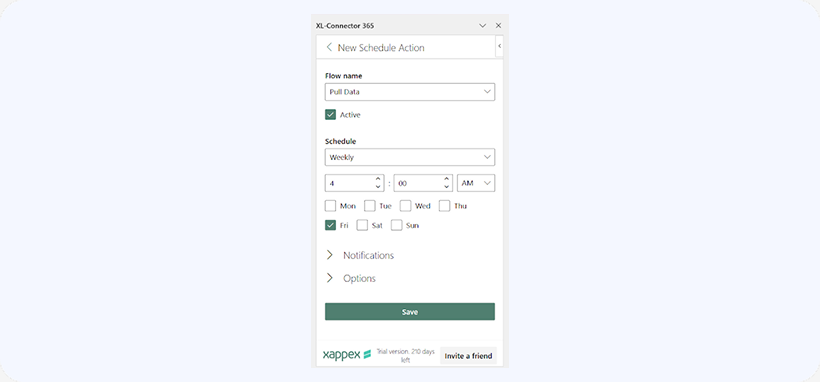
Flows can be scheduled in two ways: through the Scheduler tab or within each flow’s settings. Go to the Scheduler tab and log in to SharePoint. Click New Action, select the flow, and set its frequency and execution time.
Alternatively, open the flow’s settings and enable scheduling directly.
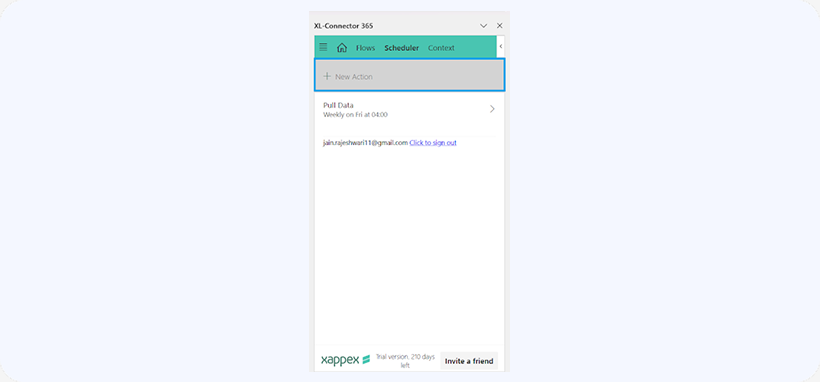
To receive updates on flow execution, configure email or Slack notifications.
Configuring Email and Slack Notifications
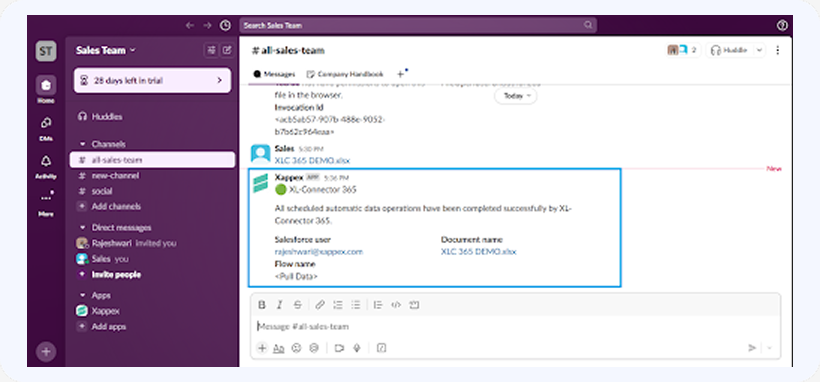
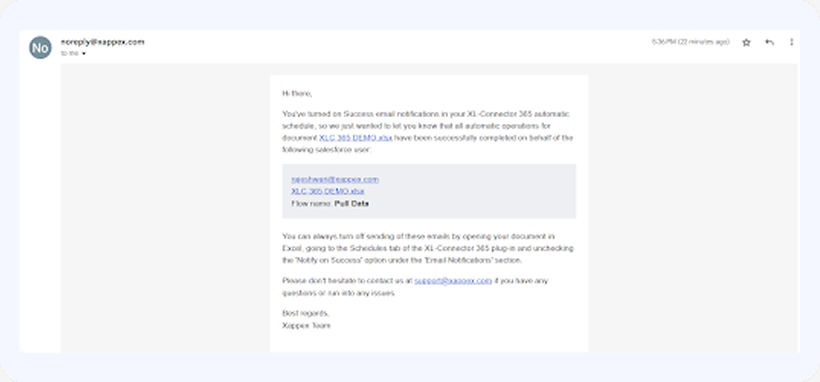
For Slack notifications, connect your account, select the desired channel, and define when notifications should trigger(failure/success). Email alerts can be enabled similarly.
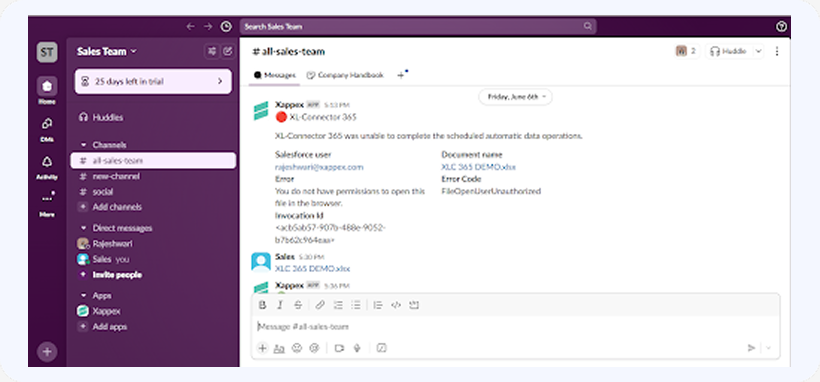
Here’s how you will receive Slack/Email notifications based on schedules along with Document name.
In case of any error, you will receive notification along with error details.In case of any error, you will receive notification along with error details.
You can also activate the event log to track automation history and troubleshoot issues.

