Get Started Free




Refreshing your Salesforce sandbox regularly keeps your testing and development environments in sync with production. Here’s how to manage it smoothly:
What Happens During a Refresh?
A sandbox refresh clones your live Salesforce environment, copying everything from objects and fields to Apex code, validation rules, and flows. If you use a data template, only selected records transfer over.
But watch out for these key changes:
- The sandbox gets a new Org ID, breaking existing integrations or tools tied to the old ID until you update credentials.
- The sandbox stays inactive until an admin manually activates it.
- Field history data doesn’t carry over, and scheduled jobs (like workflows or flows) are turned off—you’ll need to reset them post-refresh.
Salesforce Sandbox Refresh Schedules and Storage Details
Salesforce sandboxes come in different types, each with its own refresh schedule and storage capacity. These parameters are fixed and remain consistent even after a refresh operation.
Developer Sandbox
This type allows for daily refreshes and provides 200 MB of storage for both data and files. It’s designed for development and testing purposes that require only metadata.
Developer Pro Sandbox
Also eligible for daily refreshes, this sandbox offers 1 GB of storage for data and files. It’s suitable for more extensive development tasks that require additional storage capacity.
Partial Copy Sandbox
This sandbox can be refreshed every five days and includes all metadata along with a subset of production data, as defined by a sandbox template. It provides up to 5 GB of storage for data and files.
Full Sandbox
Eligible for refreshes every 29 days, this sandbox replicates your production organization’s metadata and data, offering the same storage capacity as your production org. Larger volumes of data may extend the refresh duration.
It’s important to note that storage quotas are fixed and do not change during the refresh process. The refresh interval begins when the refresh operation is initiated, not when the “Refresh” button is clicked.
Refresh Limits
Salesforce applies specific constraints on sandbox refreshes that your team must address to avoid unexpected downtime. You cannot bypass these rules, so factor them into your schedules and processes.
No Undo Button
When you initiate a sandbox refresh, Salesforce replaces the existing copy immediately and does not allow cancellation or rollback.
New Sandbox ID
We get a new Org ID for each sandbox refresh. Any integrations or single sign-on configurations that reference the previous ID will fail, so update your API credentials and integration settings promptly.
Instance Migration Risk
During a refresh, Salesforce may relocate your sandbox to a different infrastructure instance (for example, from CS40 to CS50), which can briefly impact performance or require updating instance-specific URLs in your integrations.
Processing Queue
If many teams submit requests simultaneously, your sandbox may remain in the queue for hours. Schedule refreshes during off-peak periods, such as evenings or weekends, to minimize wait times.
Disabled Scheduled Jobs
Salesforce automatically deactivates all scheduled Apex jobs, flows, and workflows when you refresh a sandbox. After the process is completed, manually reactivate and test each automation before resuming normal operations.
Permission Required
Only users with the Manage Sandbox permission can view the Refresh link and initiate the process. If you cannot access the option, ask your Salesforce administrator to assign the appropriate permission set.
Pre-Refresh Checklist
Ensure you (and any executor) hold the Manage Sandboxes permission (or Manage Dev Sandboxes for Developer Pro) to initiate a sandbox refresh.
Backup metadata & critical data
Refreshing a sandbox replaces its metadata with the current state of your production org. Any changes made directly in a sandbox (not deployed to production) exist only in that sandbox.
Example: If you’ve built new fields, flows, or Apex classes in a sandbox but haven’t backed them up, they’ll be permanently lost after a refresh.
Identify critical data
Use sandbox templates to include or exclude Chatter data and field history based on test requirements. Explicitly list key records (Accounts, Opportunities, Contacts) and any custom settings or CPQ data your UAT cycles require.
Review API integrations & external connections.
Document all Named Credentials, connected apps, and middleware endpoints before refreshing. After the sandbox copy, plan to manually reconfigure authentication tokens or endpoint URLs.
Verify active test sessions & UAT
Check for ongoing UAT, QA, or regression testing and either complete or reschedule sessions to avoid mid-refresh disruptions.
Notify relevant teams
Communicate the refresh date, expected window, and potential service interruptions to development, QA, operations, and business users. Confirm acknowledgment and readiness to resume testing post-refresh.
Plan refresh timing
Align your refresh schedule with Salesforce’s intervals—daily for Developer/Developer Pro, every five days for Partial Copy, and every 29 days for Full Copy—to fit your release and maintenance plans.
How to Refresh a Salesforce Sandbox?
Refreshing a sandbox replaces its metadata—and, for Partial Copy and Full sandboxes, the selected data—with a fresh snapshot of your production org.
Prerequisites and Key Considerations
- Available Licenses: Make sure your org has enough sandbox licenses, and you haven’t exceeded your allocated sandboxes.
- Data Impact: A refresh erases all customizations, test data, and scheduled jobs in that sandbox that are not deployed to production. Back up anything you need before you begin.
- Monitor Notification: Watch your email for the message confirming that Salesforce has completed the sandbox refresh.
Refresh Steps
Navigate to Sandboxes
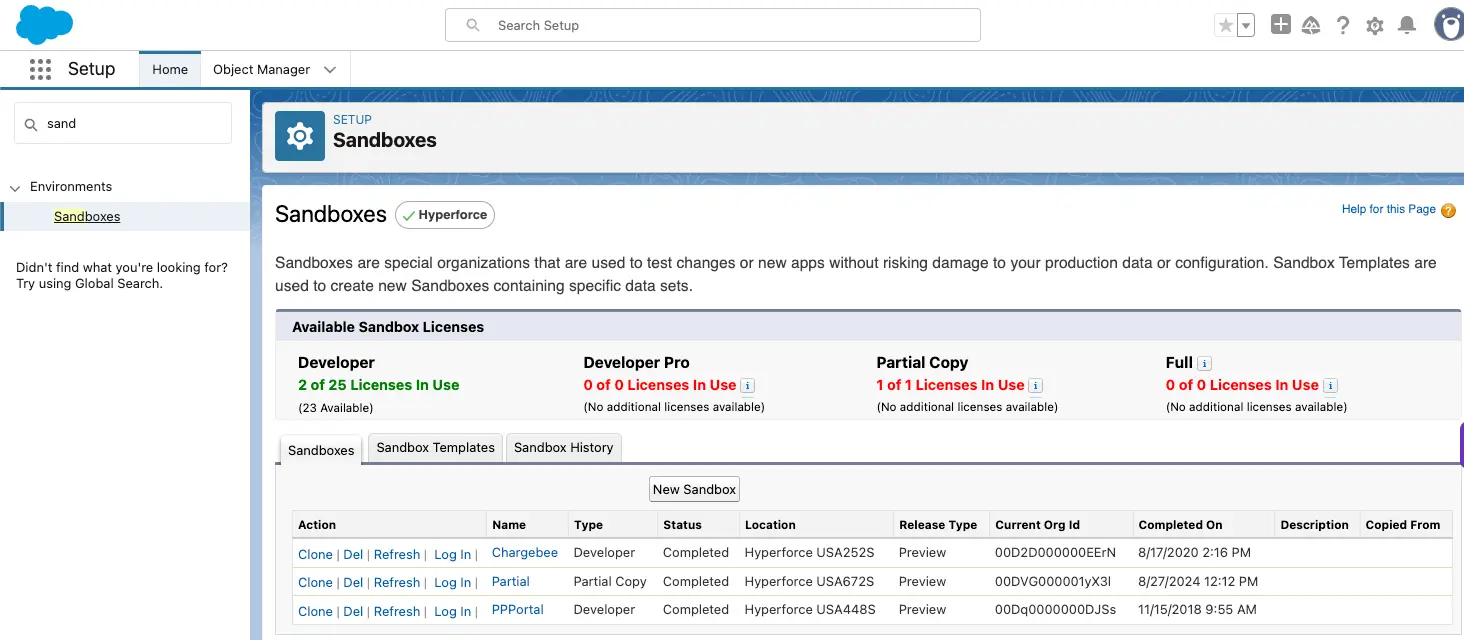
Log in to your production org, click the Setup icon, enter “Sandboxes” in Quick Find, and select the Sandboxes link.
Select Refresh
In the list, find the sandbox you want to update and click Refresh in its Actions column.
Choose Sandbox Type
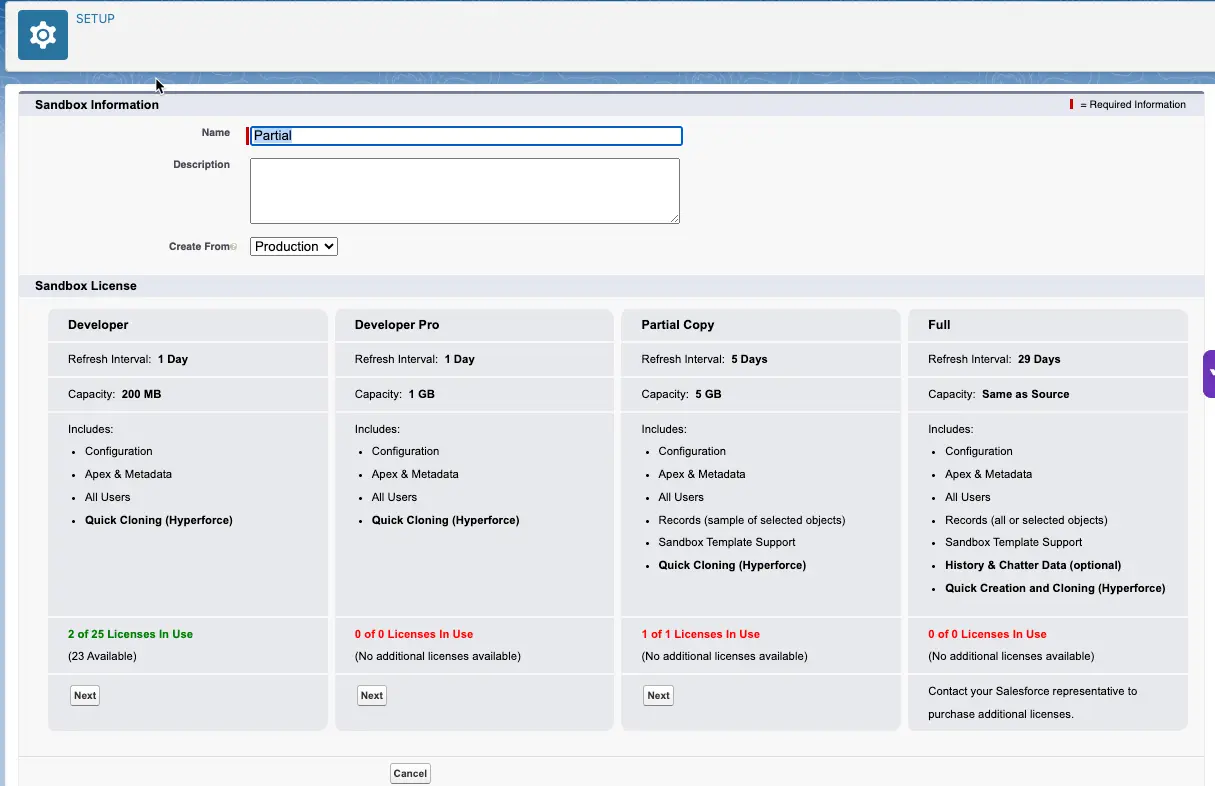
On the refresh page, pick Developer, Developer Pro, Partial Copy, or Full Copy.
Set Data and Metadata Options
- Developer/Developer Pro: Copies only metadata.
- Partial Copy: Pick an existing template or create a new one to decide which objects and records to include.
- Full copy: Choose whether to include data sets defined by a template.
Start the Refresh
Click Create to queue the job; the status will change to “Copying.” Await the confirmation email before taking further action.
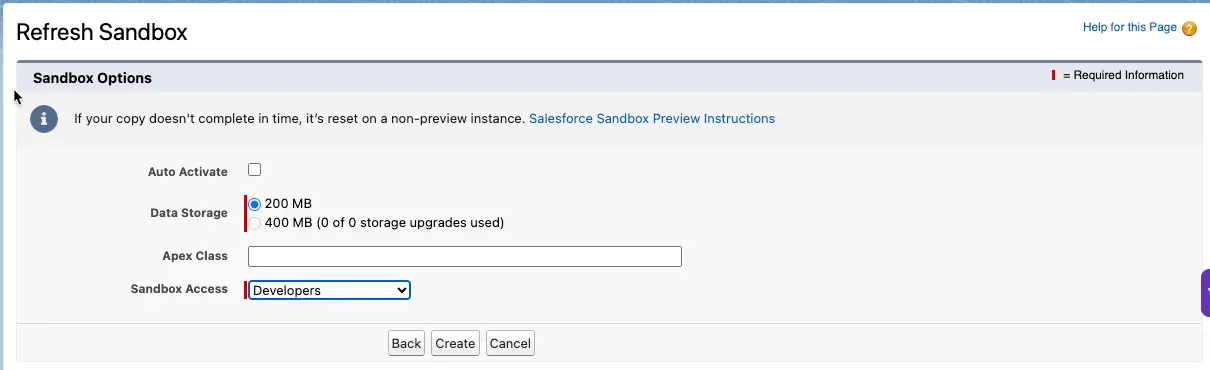
Activate the Sandbox
If Auto-Activate wasn’t selected, return to Setup > Sandboxes and click Activate beside the refreshed sandbox.
Post-Refresh Checklist
After a sandbox refresh, many settings revert to production defaults, interrupting testing and development. Using XL-Connector, you can get the test data from Excel back into Salesforce sandbox, ensuring your tests run smoothly.
Adjust or extend these items to fit your organization’s needs.
Restore User Access & Permissions
A sandbox refresh appends “.invalid” to user emails and deactivates their accounts. Remove the “.invalid” suffix, reset passwords if needed, and reassign roles. If you use Public Groups or other selective-access settings in production, recreate those groups and reapply for membership so users regain the correct permissions.
Reconfigure Integrations & API Connections
Sandbox refreshes reset OAuth tokens, named credentials, and endpoint URLs. Update each integration by entering the correct authentication details and endpoints.
Reactivate Scheduled Jobs & Automation
Although your scheduled definitions (CronTrigger records) copy over, pending jobs (AsyncApexJob records) do not. Open Setup to review all scheduled Apex classes, Flows, and workflow rule actions, then manually reschedule or enable each so your automation runs as expected.
Mask Sensitive Data
Before granting sandbox access to non-admins, apply data-masking policies to protect PII and other regulated information. Use Salesforce Data Mask or a similar tool to obfuscate fields subject to GDPR, HIPAA, or CCPA requirements, ensuring compliance and safeguarding your data.
Verify Test Data Integrity
Compare sandbox records against production to confirm consistency. If you find discrepancies, use XL-Connector in Excel to identify and correct mismatches quickly. Keeping your test data aligned with production helps you catch issues early and trust your QA results.
Common Issues & Troubleshooting
Sandbox Refresh Stuck in Queue
Cause: Upon initiating a sandbox refresh, Salesforce places the request in a global queue. A “Pending” status signifies that the request is awaiting processing behind earlier submissions. Depending on the system load and other queued requests, the duration in this queue can vary from minutes to several days. Salesforce does not provide a guaranteed timeframe for completion.
Solution
- When configuring a Partial Copy sandbox, adjust the sandbox template to incorporate only the necessary objects and data. It reduces the amount of data to copy, potentially shortening the refresh time.
- Schedule refreshes outside of Salesforce’s maintenance windows or known high-demand periods to minimize delays.
- Wait 24–48 hours—queues often clear on their own.
- Contact Salesforce Support with your sandbox name and Org ID if the delay impacts critical work. Avoid starting multiple refreshes, as this worsens delays.
Org ID Changes After Refresh
Cause: Each sandbox refresh creates a new organization with a unique Org ID. This change can disrupt processes that rely on hard-coded Org IDs, such as workflow rules or integration configurations.
Solution
- Use a SandboxPostCopy Apex script to update configurations and references that depend on the Org ID after each refresh.
- Instead of embedding Org IDs directly in code or configurations, use Custom Settings or Custom Metadata Types to store environment-specific values.
Integration Failures
Cause: A sandbox refresh creates a new Org ID and new user records. Existing OAuth tokens and Named Credentials no longer match, so API calls and connected-app logins fail with authentication errors.
Solution
- Sign in to the refreshed sandbox using the integration user, and re-authenticate any external systems to issue fresh OAuth tokens.
- Salesforce deletes sandbox copies of Connected Apps during a refresh. Navigate to Setup > App Manager, delete the previous sandbox version, and then recreate or redeploy the Connected App to obtain a new Consumer Key and Consumer Secret. Share these credentials with any external systems that consume them.
- Keep sandbox-specific endpoints and credentials in middleware (such as MuleSoft environment properties) or Salesforce Custom Settings/Metadata. That way, you only update configuration values.
- Write an Apex class that implements SandboxPostCopy. In its runApexClass method, reset Named Credentials, refresh OAuth tokens programmatically, and update any Custom Settings. This runs right after each refresh and removes manual steps.
Missing or Corrupted Data
Cause
- If an object or field is not included in the sandbox template, its data will not be copied.
- Refreshing a sandbox onto a different instance does not transfer OmniStudio components such as OmniScripts or DataRaptors.
Solution
- In Setup → Sandbox Templates, please verify that all required standard and custom objects and their fields are selected before initiating the refresh.
- When you need every record, attachment, and metadata element, choose a Full sandbox; it replicates 100% of your production data and can be refreshed every 29 days.
- Export key records from production and sandbox into Excel, compare record counts and field values side-by-side, then bulk upsert any missing or mismatched data using XL-Connector.
Scheduled Jobs & Automation Disabled
Cause: When a sandbox is refreshed, Salesforce copies the CronTrigger records (which define schedules) but does not copy the AsyncApexJob entries that execute those jobs.
Declarative automation, such as Flows, Process Builders, and Workflow Rules, defaults to Inactive in sandboxes to prevent unintended data changes.
Solution
- After the sandbox becomes active, go to Setup > Apex Classes > Schedule Apex and manually re-create each job.
- You can also include a Post-Copy Apex script that programmatically reinserts the missing CronTrigger and AsyncApexJob records immediately after refresh.
- Use Salesforce CLI or another Metadata API tool in a post-refresh deployment to switch on only the Flows, Process Builders, and Workflow Rules you need.
Best Practices for a Smooth Sandbox Refresh
A well-managed sandbox refresh keeps your development process organized, reduces disruptions, and aligns with your team’s goals. Here’s how to handle it effectively.
Plan Refreshes Carefully – Avoid Busy Development Periods
Refresh sandboxes when your team isn’t in the middle of heavy development or testing. For example, schedule refreshes after a major release or between project sprints.
Refreshing during active work can erase recent changes, create conflicts, or delay deadlines. Talk to your team to pick a time that works for everyone.
Track Changes with Version Control
Version control records every alteration to your Salesforce code and metadata, noting who made the change and when. You can revisit, compare, or restore past versions at any time.
In Salesforce projects, Git serves as the standard system. Developers create separate branches for features or fixes, avoiding cross-team clashes in a shared sandbox environment.
The central branch—often named main—holds your org’s vetted, production-ready snapshot. Teams merge completed work back into the main only after peer reviews, maintaining high quality and consistency.
Document refresh-related configurations
Write down the steps needed after a refresh, such as:
- Turning integrations or workflows back on.
- Updating sandbox-specific settings (e.g., API endpoints).
- Resetting test user passwords.
Automate Repetitive Tasks with Apex
Use the Apex SandboxPostCopy interface to handle tasks like:
- Hiding sensitive data (e.g., replacing real email addresses with fake ones).
- Restore custom settings or activate batch jobs.
Automation saves time and makes sure nothing gets missed.
Check Salesforce Release Schedules
Salesforce updates its platform on specific dates. Refreshing a sandbox during a release window might cause mismatches between your sandbox and production versions.
Protect Sensitive Data
Sandboxes copy real production data, which can include personal or regulated information. After a refresh:
- Use tools like Data Mask to anonymize names, emails, or IDs.
- Review user permissions to limit access to sensitive data.
Clone Sandboxes to Save Time
The Sandbox Clone feature duplicates an existing sandbox without synchronizing it with the production environment. Use cloning when:
- Your QA team needs identical testing environments.
- You want to reuse configurations (e.g., custom code or layouts).
Cloning skips the refresh wait time and keeps your setup intact.
Clean Up Unused Sandboxes
Old sandboxes take up space, clutter your org, and might contain outdated data. Delete them regularly to:
- Simplify managing active environments.
- Lower security risks from stale data.
Store Settings in Custom Metadata
Instead of hard-coding values in Apex, use Custom Metadata Types for settings that change between environments. For example:
- Save sandbox-specific email addresses or URLs in metadata.
- Update these values after a refresh without rewriting the code.
How can XL-Connector help?
XL-Connector lets you add, update, or delete thousands of records in one go and flags any problems in your sheet. You can relate records by typing names, external IDs, or emails instead of Salesforce IDs, and you can pull metadata—like fields, validation rules, workflows, and object/field level security—into your workbook for quick batch edits.
Conclusion
A regular sandbox refresh—whether Full, Partial Copy, or Developer Pro—keeps your environments aligned with production so developers, admins, and testers work with the same metadata and realistic data.
Automate updates using Salesforce DX (e.g., force:mdapi:deploy) in your CI/CD pipeline, and follow clear version control practices—feature branches, small commits, pull-request reviews, and automated checks—for easy tracking and rollbacks.
Use consistent naming (like DEV_<username> or QA_Sprint<#>), schedule refreshes per sandbox limits, and apply data-masking templates or permission-based access to protect sensitive information.
Xappex tools like XL-Connector can automate metadata/data backup and restoration so your team can focus on building features.
FAQ
Why can’t I refresh the sandbox in Salesforce?
Salesforce limits refresh by sandbox type: Partial sandboxes once every five days and full sandboxes once every 29 days. If you try sooner, the Refresh button is disabled. You also need an available sandbox license—delete or convert an existing sandbox if you’ve reached your allotment.
How do I enable a sandbox after a refresh?
After the copy completes and the status shows Copy Complete, go to Setup > Sandboxes, find the refreshed sandbox, and click Activate. Salesforce updates user logins (appending “.invalid” to unchanged emails), so you may need to reset passwords and update records before users can log in.
How long does it take to refresh a Full sandbox in Salesforce?
Refresh duration depends on data volume and customizations. Smaller orgs often finish in a few hours; large, complex orgs can take a day or more.
Can I refresh a sandbox from another sandbox?
You can’t refresh one sandbox directly from another—refreshes always pull from production. However, you can clone an existing sandbox to copy its data and set up into a new sandbox.

Rajeshwari Jain
Content Manager
Rajeshwari Jain is a Technical Support Specialist and Content Writer at Xappex. She applies her practical experience to assist customers and create articles on how Xappex tools work with Salesforce to improve data management and increase efficiency.
She began her IT career in 2022 as a Quality Assurance professional before transitioning into Salesforce administration and technical writing in 2023. With Salesforce Certified Administrator and Associate certifications, Rajeshwari writes blogs on Salesforce flows, admin tools, and updates to expand her skills outside of work.
In her free time, she enjoys reading tech blogs and experimenting with new tools.
Feel free to reach out to Rajeshwari for collaborations or to check out her Salesforce-focused content.