
 Get Started Free



The Lookup Salesforce ID feature in XL-Connector allows users to retrieve Salesforce record IDs to Excel based on any field (e.g., Name, External ID, or other unique fields). This is especially useful when preparing data for updates, inserts, or relationships that require Salesforce IDs.
XL-Connector uses a defined flow configuration to map your data and perform the lookup against Salesforce.
Step-by-Step Instructions
-
1
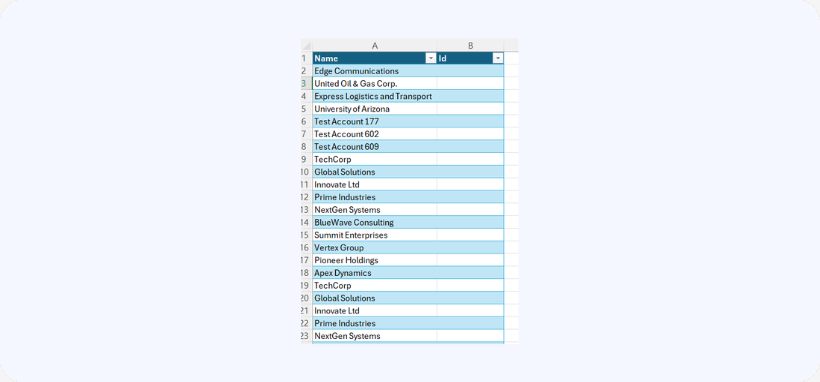
Prepare Your Excel Sheet
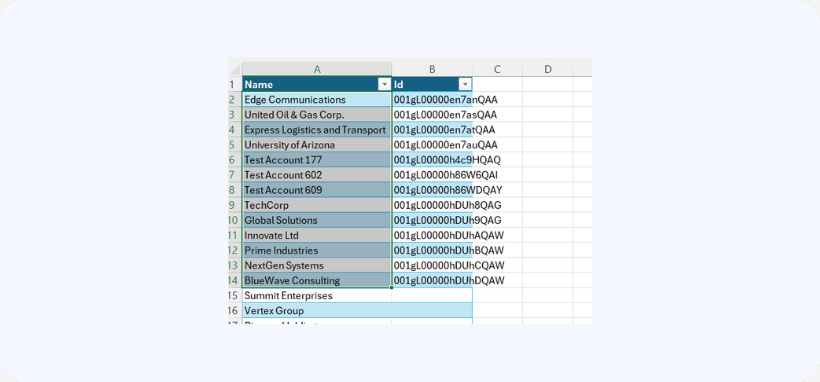
- Add a column next to your data where the Salesforce ID will be populated.

- Add a column next to your data where the Salesforce ID will be populated.
-
2
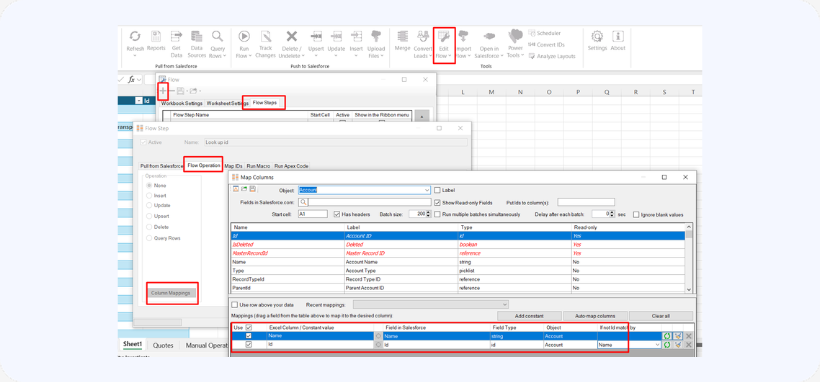
Configure the Flow
- Click on Edit Flow in the XL-Connector ribbon.
- In the Flow Steps tab, click ‘add new flow.’
- Create a name for the flow.
- Click the Flow Operation tab.
Map the newly created column to the ID field.
-
3
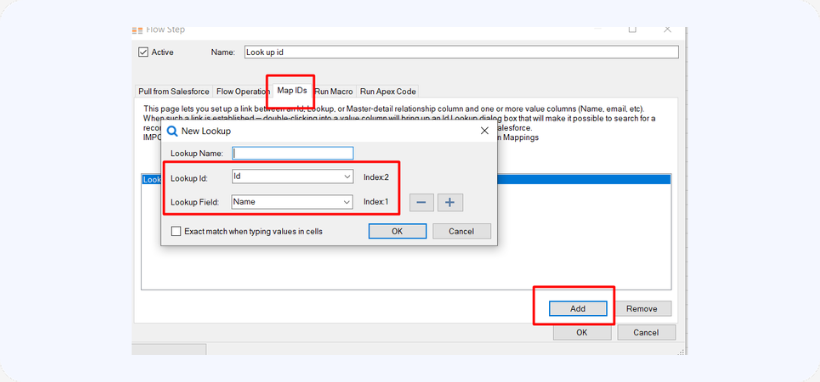
Configure ID Lookup
- Go to the Map IDs tab.
- Click Add.
- Define:
- Lookup Field: The field in Salesforce you want to match against (e.g., Name, External ID).
- Lookup ID Column: The column where the resulting Salesforce ID will be stored.
- Click OK, then OK again to save the flow.
-
4
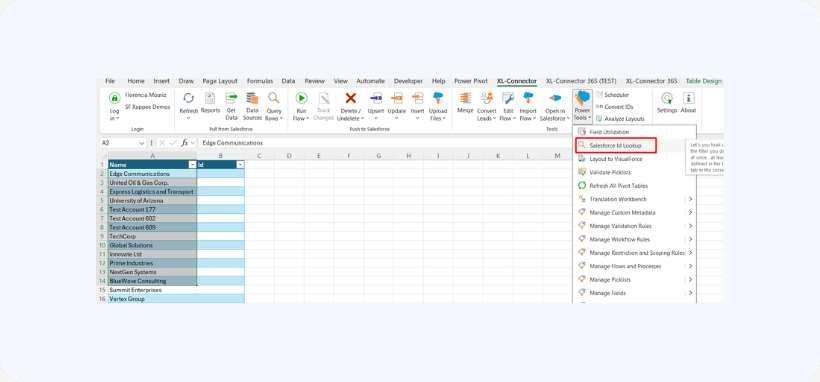
Run the Lookup
- Select the rows you want to retrieve IDs for.
- Navigate to:
Power Tools → Salesforce Lookup ID - XL-Connector will populate the ID column with matching Salesforce record IDs.

TIP
After setting this up, you can also retrieve the ID by double clicking on the cell with the look up field.

